Sunday, 30 May 2010

How to remove Security Master AV (Uninstall Instructions)

Security Master AV is a fake anti-virus program that uses misleading methods to make you think that your computer is infected with malicious software. First, it displays fake security warnings and claims that malicious software has been detected on your computer. Then, it runs a fake system scan and displays a list of infected files. Of course, the scan results are false. Security Master AV flags harmless files as malware. It may also list Windows system files in its scan report, so don't manually delete any of those files. Finally, the rogue program will prompt you to pay for a full version of the program to remove the infections. It goes without saying that you shouldn't purchase it. Instead, please remove Security Master AV from your computer as soon as possible using the removal instructions below.


You may ask, where did it come from? Usually, such bogus programs come from fake online scanners and fake video websites sites or you may simply click an infected advertisement. Security Master AV can come bundled with other malware, but this is less common situation. By the way, the rogue program has to be manually installed, but the problem is that it pretends to be a legitimate program, that's why some users don't understand that it's actually a Trojan or other malware. Once installed, Security Master AV will display fake security alerts. Some of those alerts or pop-ups read:

"System alert
Potentially harmful programs have been detected in your
system and need to be dealt with immediately. Click here to
remove them using Security Master AV."


"System alert
Suspicious software which may be malicious has been detected on your PC. Click here to remove this threat immediately using Security Master AV."


Furthermore, this fake program hijacks Internet Explorer and changes default search engine to findgala.com. It blocks security related websites, modifies Windows Hosts file and blocks legitimate anti-malware programs. Thankfully, we've got remove instructions to help you. It's possible to remove Security Master AV manually, but we strongly recommend you to scan your PC with reputable and legitimate anti-malware software. Please follow the removal instructions below. And by the way, if you have already purchased SecurityMasterAV, then you should contact your credit card company and dispute the charges. Also, if you have any questions or additional information about this virus, please leave a comment. Good luck and be safe!


Security Master AV removal instructions using HijackThis (in Normal mode):

1. Download iexplore.exe (NOTE: iexplore.exe file is renamed HijackThis tool from TrendMicro).
Launch the iexplore.exe and click "Do a system scan only" button.
If you can't open iexplore.exe file then download explorer.scr and run it.

2. Search for similar entries in the scan results:
O4 - HKCU\..\Run: [Security Master AV] "C:\Documents and Settings\All Users\Application Data\345d567\SM345d.exe" /s /d
Select all similar entries and click once on the "Fix checked" button. Close HijackThis tool.

3. Download at least one anti-malware program from the list below and run a full system scan.
NOTE: before saving the selected program onto your computer, please rename the installer to winlogon.exe or iexplore.exe. Launch the program and follow the prompts. Don't forget to update the installed program before scanning.


Security Master AV removal instructions (in Safe Mode with Networking):

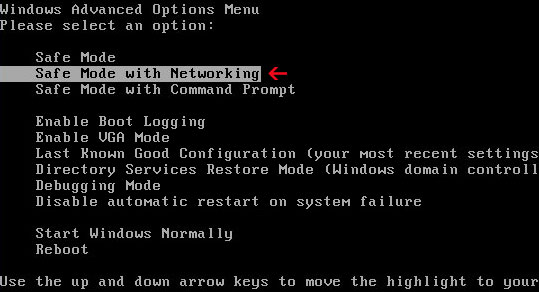
1. Reboot your computer is "Safe Mode with Networking". As the computer is booting tap the "F8 key" continuously which should bring up the "Windows Advanced Options Menu" as shown below. Use your arrow keys to move to "Safe Mode with Networking" and press Enter key. Read more detailed instructions here: http://www.computerhope.com/issues/chsafe.htm

NOTE: Login as the same user you were previously logged in with in the normal Windows mode.

3. Download at least one anti-malware program from the list below and run a full system scan.
NOTE: before saving the selected program onto your computer, please rename the installer to winlogon.exe or iexplore.exe. Launch the program and follow the prompts. Don't forget to update the installed program before scanning.
4. New threats appear every day. In order to protect your PC from such (new) infections we strongly recommend you to use ESET Smart Security.


Security Master AV associated files and registry values:

Files:
  • C:\Documents and Settings\All Users\Application Data\345d567\
  • C:\Documents and Settings\All Users\Application Data\345d567\16.mof
  • C:\Documents and Settings\All Users\Application Data\345d567\mozcrt19.dll
  • C:\Documents and Settings\All Users\Application Data\345d567\SM345d.exe
  • C:\Documents and Settings\All Users\Application Data\345d567\SMAV.ico
  • C:\Documents and Settings\All Users\Application Data\345d567\sqlite3.dll
  • C:\Documents and Settings\All Users\Application Data\345d567\Quarantine Items\
  • C:\Documents and Settings\All Users\Application Data\345d567\SMAVSys\
  • C:\Documents and Settings\All Users\Application Data\345d567\SMAVSys\vd952342.bd
  • C:\Documents and Settings\All Users\Application Data\SMNPCTCAV\
  • %UserProfile%\Start Menu\Security Master AV.lnk
  • %UserProfile%\Start Menu\Programs\Security Master AV.lnk
Registry values:
  • HKEY_CURRENT_USER\Software\3
  • HKEY_CLASSES_ROOT\CLSID\{3F2BBC05-40DF-11D2-9455-00104BC936FF}
  • HKEY_CLASSES_ROOT\SM345d.DocHostUIHandler
  • HKEY_USERS\.DEFAULT\Software\Microsoft\Internet Explorer\SearchScopes "URL" = "http://findgala.com/?&uid=7&q={searchTerms}"
  • HKEY_CURRENT_USER\Software\Classes\Software\Microsoft\Internet Explorer\SearchScopes "URL" = "http://findgala.com/?&uid=7&q={searchTerms}"
  • HKEY_CURRENT_USER\Software\Microsoft\Internet Explorer\Download "RunInvalidSignatures" = "1"
  • HKEY_CURRENT_USER\Software\Microsoft\Windows\CurrentVersion\Run "Security Master AV"
  • HKEY_CLASSES_ROOT\Software\Microsoft\Internet Explorer\SearchScopes "URL" = "http://findgala.com/?&uid=7&q={searchTerms}"
  • HKEY_CURRENT_USER\Software\Microsoft\Internet Explorer\Download "CheckExeSignatures" = "no"
Share this information with other people: 

Tuesday, 25 May 2010

How to remove XJR Antivirus (Uninstall Instructions)

XJR Antivirus is a fake anti-virus program from the same family as AKM Antivirus 2010 Pro. Once installed, it will give false or exaggerated reports of threats on your computer and then will prompt you to pay for a full version of the program to remove the infections and to protect your PC from other malware. The rogue program is promoted through the use of Trojan Horses and other malicious software. Very often, Internet users download such bogus programs from fake online anti-malware scanners and misleading video websites. If you are reading this article, then your computer is probably infected with this fake and very annoying antivirus program. The good news is that it can be completely removed from your computer using legit anti-malware software. Please follow the removal instructions below to remove XJR Antivirus and any related malware for free.


While running, XJRAntivirus will display fake security warnings claiming that somebody is trying to attack your PC or that malicious software may steal your passwords and other sensitive information. Moreover, this scareware will block legit anti-virus and anti-malware programs. It will state that your antivirus program is infected and should be uninstalled or cleaned. Besides, the rogue program blocks other tools and programs as well, such as notepad, task manager, MS Word and etc.


It also displays fake svchost.exe error screen and impersonates Windows Security Center.


Some of the fake security alerts read:

"Security Warning
Malicious programs that may steal your private information and prevent your system from working properly are detected on your computer.
Clear here to clean your PC immediately."


"svchost.exe
svchost.exe has encountered a problem and needs to
close. We are sorry for inconvenience."


"Warning!
Running of application is impossible.
The file C:\Windows\System32\notepad.exe is infected.
Please activate your antivirus program."


As you can see, XJR Antivirus is absolutely needless software that should be removed from your computer as soon as possible. It's nothing more but a scam, so obviously you shouldn't buy it. If you have already bought this fake program, then contact your credit card company and dispute the charges. If you have any questions or additional information about this virus please leave a comment. Good luck and be safe!


XJR Antivirus removal instructions:

Method #1
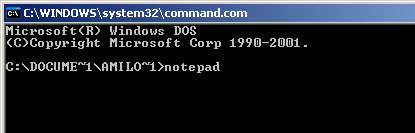
1. Go to Start->Run or press WinKey+R. Type in "command" and press Enter key.


2. In the command prompt window type "notepad". Notepad will come up.


3. Copy all the text in blue color below and paste into Notepad.

Windows Registry Editor Version 5.00
[HKEY_CLASSES_ROOT\exefile\shell\open\command]
@="\"%1\" %*"

4. Save file as regfix.reg to your Desktop. NOTE: (Save as type: All files)


5. Double-click on regfix.reg file to run it. Click "Yes" for Registry Editor prompt window. Then click OK.
6. Download one of the following anti-malware applications:
7. Install the selected application, update it an run a system scan.
8. New threats appear every day. In order to protect your PC from such (new) infections we strongly recommend you to use ESET Smart Security.

Method #2
1. Use another computer and download one of the anti-malware applications listed above (Method #1, step 6),
2. Create fix.reg file as said in Method #1 (steps 1-4). Copy an anti-malware application and fix.reg file to USB flash drive or any other removable device and transfer those files to the infected computer.
3. First of all run the fix.reg file. Then install the anti-malware application, update it and run a full system scan.
4. New threats appear every day. In order to protect your PC from such (new) infections we strongly recommend you to use ESET Smart Security.


Manual removal:

Associated XJR Antivirus files:
  • C:\Program Files\XJR Antivirus
  • C:\Program Files\XJR Antivirus\XJR Antivirus.exe
  • C:\Program Files\adc_w32.dll
  • C:\Program Files\alggui.exe
  • C:\Program Files\nuar.old
  • C:\Program Files\skynet.dat
  • C:\Program Files\svchost.exe
  • C:\Program Files\wp3.dat
  • C:\Program Files\wp4.dat
  • C:\Program Files\wpp.exe
  • %UserProfile%\Local Settings\Temp\win1.tmp
  • %UserProfile%\Local Settings\Temp\win2.tmp
Associated XJR Antivirus registry values:
  • HKEY_CURRENT_USER\Software\XJR Antivirus
  • HKEY_CLASSES_ROOT\CLSID\{149256D5-E103-4523-BB43-2CFB066839D6}
  • HKEY_LOCAL_MACHINE\SOFTWARE\Microsoft\Windows\CurrentVersion\Explorer\Browser Helper Objects\{149256D5-E103-4523-BB43-2CFB066839D6}
  • HKEY_LOCAL_MACHINE\SYSTEM\CurrentControlSet\Services\AdbUpd
Share this information with other people: 

Saturday, 22 May 2010

How to remove Windows activation ransomware (Uninstall guide)

Today we want to draw you attention to a new piece of Windows activation ransomware that locks up your system and prompts you to enter your billing details and credit card information to re-activate your copy of Windows. Basically, it's a Trojan virus that displays a fake pop-up (which looks quite legitimately by the way) and claims that you are running a pirated version of Windows. Of course that's not true. If you choose to activate Windows later, your computer reboots. Thankfully, we've got removal instructions to help you. This Windows activation ransomware can be removed from your computer for free using legit anti-malware programs. Please follow the removal instructions below.


The text of the fake Windows activation pop-up:
"Microsoft Windows Activation
Microsoft Piracy Control


Your copy of Windows was activated by another user. To help reduce software piracy, please re-activate your copy of Windows now. We will ask for your billing details, but your credit card will NOT be charged. You must activate Windows before you can continue to use it. Microsoft is committed to your privacy. For more information, www.microsoft.com/privacy.


Do you want to activate Windows now?"

And it should be obvious that you shouldn't submit your credit card information because it can be used for identity theft or your credit card can be charged for an unknown amount of money. Either way, that sounds bad, right? In order to remove the Fake Windows Activation or Microsoft Piracy Control screen you need to reboot your computer is Safe Mode with Networking and either remove the ransomware manually or download and scan your PC with reputable and legit anti-malware software. Most importantly, don't submit your credit card information! If you have any questions or additional information about this ransomware, please leave a comment. Good luck and be safe!


Windows activation ransomware removal instructions:

1. Reboot your computer is "Safe Mode with Networking". As the computer is booting tap the "F8 key" continuously which should bring up the "Windows Advanced Options Menu" as shown below. Use your arrow keys to move to "Safe Mode with Networking" and press Enter key. Read more detailed instructions here: http://www.computerhope.com/issues/chsafe.htm


NOTE: Login as the same user you were previously logged in with in the normal Windows mode.

2. Download and scan your computer with at least one anti-malware program listed below:
NOTE: before saving the selected program onto your computer, please rename the installer to winlogon.exe or iexplore.exe. Launch the program and follow the prompts. Don't forget to update the installed program before scanning. Then reboot your computer in "Normal Mode" and run  a system scan again. That's it!


Windows activation ransomware associated files and registry values:

Files:
  • C:\WINDOWS\system32\.exe
  • %UserProfile%\Application Data\mtl.dll
Registry:

  • HKEY_CURRENT_USER\Software\AntiPiracy
  • HKEY_CURRENT_USER\Software\
  • HKEY_CURRENT_USER\Software\Microsoft\Windows\CurrentVersion\Policies\System "DisableTaskMgr" = "1"
  • HKEY_CURRENT_USER\Software\Microsoft\Windows\CurrentVersion\Run "[random]"
Please share this information with other people:

Avoid Livesecsuite.com, live-sec-suite.com(Free removal)

Yesterday we posted a quick note about livesecuritysuite.com scam. Today we came with even more misleading websites that promote the rogue anti-spyware program called Live Security Suite. here they are:
  • livesecsuite.com (62.122.73.76)
  • live-sec-suite.com (62.122.74.249)
  • live-security-suite.com (193.169.235.61)
Please add the websites (IPs) listed above the the list of potentially harmful and risky websites. All those websites use the same web template and provide false information with fake awards. Livesecsuite.com, live-sec-suite.com and live-security-suite.com may host malicious software. If you find that your computer is infected with Live Security Suite, please follow Live Security Suite removal instructions. If you are being constantly redirected to one of those websites, then you should scan your computer with reputable and legit anti-malware programs. If you have any questions or additional information about this infection, please leave a comment. Good luck and be safe!


Share this information with other people:

Sunday, 16 May 2010

Remove Livesecuritysuite.com (Free removal)

Livesecuritysuite.com is a misleading website that provides false information and displays fake awards related to Live Security Suite scareware. It hosts the rogue program as well, but the download link isn't active if you visit livesecuritysuite.com directly. Anyway, it's a risky website and it should be added to the list of potentially harmful sites. As you can see in the image below, the scammers use well known Microsoft Windows logo, colors and overall design of Microsoft websites to make it look more reputable.

Most importantly, don't install anything from livesecuritysuite.com. Just don't trust it. However, if you find that your computer is already infected with livesecuritysuite.com hijacker or Live Security Suite malware, then you should scan your computer with reputable anti-malware program as soon as possible. For more information please read Live Security Suite removal instructions. You will find out how to remove livesecuritysuite.com and Live Security Suite from your computer for free using legitimate anti-malware programs. If you have any questions or additional information about this malware, please don't hesitate and leave a comment. Good luck and be safe!

Screenshot of Livesecuritysuite.com


Share this information with other people:

Saturday, 15 May 2010

How to remove Live Security Suite (Removal instructions)

Live Security Suite is a fake anti-malware program that gives false or exaggerated reports of threats on your computer and displays fake warnings to make you think that your computer is infected with malicious software, Trojans, adware, spyware and other viruses. Just like all the other fake programs, it's promoted through the use of Trojans, fake online scanners and misleading video websites that prompt to update or install flash player to view certain videos. Once, Live Security Suite is installed, it will state that it has detected numerous malware infections on your computer and then will prompt you to pay for a full version of the program to remove the infections and make your computer protected against future security threats. Sounds great, but the problem is that LiveSecuritySuite is actually a scam, don't trust it.


If you are reading this article, then your computer is probably infected with Live Security Suite virus. The good news is that this fake anti-malware program can be removed for free using legit malware removal tools. Please follow the removal instructions below to remove Live Security Suite from your computer.

As you may already know, this rogue program is very annoying. It displays fake security warnings and pop-ups like every five minutes stating that your computer is infected or under attack. Some of the fake alerts read:

"Spyware activity alert!
Spyware.BrowserDeath activity detected. This kind of spyware is attempts to steal passwords from Internet Explorer, Mozilla Firefox, Opera and other programs, including logins and passwords from online banking sessions, eBay, PayPal, etc."


"Privacy Violation alert!
Live Security Suite detected a Privacy Violation. A program is secretly sending your private data to an untrusted internet host. Click here to block this activity by removing the threat (Recommended)."


"Live Security Suite has detected harmful software in your system. We strongly recommended you to register Live Security Suite to remove these threats immediately."

Moreover, Live Security Suite will hijack Internet Explorer, block safe websites and display a fake warning stating that the website you are about to visit is risky or infected with malware. This is actually a very clever way to make the whole scam look even more realistic. The text of the fake Internet Explorer warning are:

"Internet Explorer has closed this webpage to help protect your computer.
A malfunctioning or malicious add-on has caused Internet Explorer to close this webpage."


Another very important thing to remember when removing Live Security Suite virus is that it may actually come bundled with TDSS rootkit. That's why we strongly recommend you to scan your computer with TDSSKiller utility (see TDSS, Alureon, Tidserv, TDL3 removal instructions using TDSSKiller utility). Also note, that you should scan your PC with at least two anti-malware programs to really make sure that every single infected file related to Live Security Suite was removed from your computer. If you have already bought this virus, then you should contact your credit card company immediately and dispute the charges. If you have any questions or additional information about this malware, please leave a comment. Good luck and be safe!


Live Security Suite removal instructions (method #1):

Download one of the following legitimate anti-malware applications and run a quick system scan. Don't forget to update it first. All programs a free.
NOTE1: if you can't run any of the above programs you must rename the installer of selected program before saving it on your PC. For example: if you choose MalwareBytes then you have to rename mbam-setup.exe to iexplore.exe, explorer.exe or any random name like test123.exe before saving it.

NOTE2: if you still can't run the renamed file then you need to change file extension too not only the name.
1. Go to "My Computer".
2. Select "Tools" from menu and click "Folder Options".
3. Select "View" tab and uncheck the checkbox labeled "Hide file extensions for known file types". Click OK.
4. Rename mbam-setup.exe to either test123.com or test123.pif
5. Double-click to run renamed file.


Removing Live Security Suite in Safe Mode with Networking (method #2):

1. Reboot your computer is "Safe Mode with Networking". As the computer is booting tap the "F8 key" continuously which should bring up the "Windows Advanced Options Menu" as shown below. Use your arrow keys to move to "Safe Mode with Networking" and press Enter key. Read more detailed instructions here: http://www.computerhope.com/issues/chsafe.htm


NOTE: Login as the same user you were previously logged in with in the normal Windows mode.

2.Download one of the following legitimate anti-malware applications and run a quick system scan. Don’t forget to update it first. All programs a free.

Live Security Suite files and registry values:

Folders and files:
  • C:\Documents and Settings\All Users\Start Menu\Programs\Live Security Suite
  • C:\Program Files\Live Security Suite
  • C:\Program Files\Live Security Suite\activate.ico
  • C:\Program Files\Live Security Suite\Explorer.ico
  • C:\Program Files\Live Security Suite\LiveSS.exe
  • C:\Program Files\Live Security Suite\unins000.dat
  • C:\Program Files\Live Security Suite\uninstall.ico
  • C:\Program Files\Live Security Suite\working.log
  • C:\Program Files\Live Security Suite\db
  • C:\Program Files\Live Security Suite\Languages
  • %UserProfile%\Application Data\Live Security Suite
  • %UserProfile%\Application Data\Live Security Suite\settings.ini
  • %UserProfile%\Application Data\Live Security Suite\uill.ini
  • %UserProfile%\Application Data\Live Security Suite\unins000.exe
  • %UserProfile%\Application Data\Live Security Suite\Uninstall Live Security Suite.lnk
  • %UserProfile%\Application Data\Live Security Suite\db
  • %UserProfile%\Application Data\Live Security Suite\db\config.cfg
  • %UserProfile%\Application Data\Live Security Suite\db\Timeout.inf
  • %UserProfile%\Application Data\Live Security Suite\db\Urls.inf
  • %UserProfile%\Desktop\LiveSS.exe.txt
  • %UserProfile%\Local Settings\Application Data\Microsoft\Windows\pguard.ini
  • %UserProfile%\Local Settings\Application Data\Microsoft\Windows\services.exe
Registry values:
  • HKEY_CURRENT_USER\Software\Live Security Suite
  • HKEY_LOCAL_MACHINE\SOFTWARE\Live Security Suite
  • HKEY_LOCAL_MACHINE\SOFTWARE\Microsoft\Windows\CurrentVersion\Uninstall\Live Security Suite_is1
  • HKEY_LOCAL_MACHINE\SOFTWARE\Microsoft\Windows NT\CurrentVersion\Image File Execution Options\taskmgr.exe
  • HKEY_CURRENT_USER\Software\Microsoft\FTP "SearchDir" = "C:\Program Files\Live Security Suite\"
  • HKEY_CURRENT_USER\Software\Microsoft\Internet Explorer "PrS" = "http://gen-avpay.com/choose/?productid=GENAV3&uid=0&machineid=c3f92274b4b15694ae2311bd2316c727"
  • HKEY_CURRENT_USER\Software\Microsoft\Internet Explorer "uniname" = "Live Security Suite_is1"
  • HKEY_CURRENT_USER\Software\Microsoft\Windows\CurrentVersion\Run "Live Security Suite"
  • HKEY_LOCAL_MACHINE\SOFTWARE\Microsoft\Security Center "AVPath" = "\\.\root\SecurityCenter:AntiVirusProduct.instanceGuid="{653E64F8-62B6-4F96-B22D-4FFC6E44130E}""
  • HKEY_LOCAL_MACHINE\SOFTWARE\Microsoft\Windows\CurrentVersion\Internet Settings\5.0\User Agent "URLSS[2.0.3.0]"
  • HKEY_LOCAL_MACHINE\SOFTWARE\Microsoft\Security Center "FirewallDisableNotify" = "0"
  • HKEY_LOCAL_MACHINE\SOFTWARE\Microsoft\Security Center "FirstRunDisabled" = "0"
  • HKEY_LOCAL_MACHINE\SOFTWARE\Microsoft\Security Center "UpdatesDisableNotify" = "0"
Share this information with other people:

Remove Av-special.com (Free removal)

Av-special.com is one of many risky websites that should be added to the list of potentially harmful websites. Don't know why? The answer is simple, because it promotes rogue anti-spyware program and hosts harmful files. Av-special.com promotes Antispyware Soft which is a rogue anti-spyware program that reports non-existent infections and displays fake warnings to make you think that your computer is infected with malicious software. Finally, it prompts to pay for a full version of the program to remove the infections which don't actually exist. Don't buy it! If you have already bought it then you should call your credit card company and dispute the charges.

If you find that your computer is infected with Antispyware Soft or other malware that redirects you to Av-special.com then you should scan your computer with reputable anti-malware or anti-virus software. Please read how to remove Antispyware Soft. If you have any questions or additional information about Av-special.com or Antispyware Soft, please don't hesitate and leave a comment.

Av-special.com screenshot:


Share this information with other people: