You should be aware of antivirzet.com which is related to Security Suite malware. Just quick note about this misleading website because there is really nothing much to say about it. It promotes rogue software and uses the same web template like all the other rogue websites related to Security Suite virus: antivirone.com, antivirstrong.com and antivirman.com. Security Suite scareware uses misleading methods to make you think that your computer is infected with spyware, adware, Trojans and other viruses. And, of course, it prompts to pay for a full version of the program to remove those non-existent infections. If your computer is infected with Security Suite malware or Trojans that redirect you to antivirzet.com then please follow Security Suite removal instructions. We also recommend you to scan your computer with at least two anti-malware applications to make sure that there are no malware remains on your computer. Last, but not least, if you have any questions about antivirzet.com and Security Suite please leave a comment. Good luck and be safe!
Antivirman.com is a pay page of Security Suite malware. It's yet another rogue website that promotes fake anti-virus software. Security Suite is being very actively distributed in these past few days and we believe that we're going to be hearing about this one for a long time. This means that there will be more such misleading websites as antivirman.com in the future. Users usually don't end up with such rogue websites knowingly. Most if the time, users are being redirected to antivirman.com or similar websites when their computers are already infected with Security Suite malware or Trojans Horses that promote it. One way or another, you should close such websites immediately. Now, if you find that your computer is infected with SecuritySuite virus, please read how to remove Security Suite from your computer with legitimate anti-malware applications for free. You should also tell your friends and colleagues about such security threats. Finally, if you have any questions or additional information about Antivirman.com or Security Suite, please don't hesitate and leave a comment. Good luck and be safe!
Antivirone.com is yet another malicious website related to Security Suite malware. In our previous post we said that there will be more such websites as antivirstrong.com and were right. After a couple of hours we ended up with antivirone.com. It does all the usual stupid rogue stuff. We won't go into details this time. Just read our previous post about antivirstrong.com for more details. In short, Antivirone.com promotes rogue security software, specifically — Security Suite. If you find that your computer is infected with this rogue program the please follow Security Suite removal instructions. If you have any questions, please leave a comment. Good luck and be safe!
Antivirstrong.com is a misleading website that promotes rogue anti-spyware software called Security Suite. We have seen many such fake websites and vast majority of them lead users to purchase pages of rogue security products. Antivirstrong.com does basically the same thing. It's like a pay page of Security Suite. It's full of false information, fake testimonials and awards. By the way, their top software reviewers are always the same people: Garry Lyuis from London, Adelita G. from New York, Nicholas from Salzburg and Elena K. from Paris. There are three versions of the rogue program: Security Suite Basic, Security Suite Pro and Security Suite Platinum. It goes without saying that you shouldn't purchase this bogus software.
Without a doubt, there will be many more such malicious websites as Antivirstrong.com and I bet they will all look the same. If your computer is infected with Security Suite or you are being constantly redirected to Antivirstrong.com then please read instructions on how to remove Security Suite and additional malware from your computer for free using legitimate anti-malware programs. Also, if you have any questions or additional information about Antivirstrong.com or Security Suite malware, please leave a comment. Good luck and be safe!
Security Suite is a fake anti-spyware program that gives exaggerated or false reports of threats on the computer. Most of the time, this peace of malware has to be manually installed. Malware authors and distributors use misleading social engineering schemes, fake online scanners, spam emails and other methods to spread their malicious code and infect as many computers as possible. Security Suite is a typical rogue anti-spyware scanner. Once installed, it will scan your computer and display a list of fake infections. You are not allowed to remove those infections, unless you pay for a full version of the program. And that's the whole point; it attempts to get you to pay for fake anti-virus software. Please don't buy this bogus program. If you have already purchased it then contact your credit card company's fraud department immediately. It goes without saying, that you should remove Security Suite from your computer as soon as possible. Thankfully we've got the instructions to help you remove this virus.
(Thanks to rogueamp for this video)
When Security Suite is active, it will display many fake security warnings and state that your computer is seriously infected with spyware, adware and other malware. You can safely ignore those fake security alerts. The biggest problem is that SecuritySuite blocks legitimate anti-spyware and antivirus programs. When you attempt to run a program, Security Suite closes it and then display the following error message:
Security warning Application cannot be executed. The file [file_name].exe is infected. Do you want to activate your antivirus software now?
Furthermore, Security Suite will configure Windows to use a proxy server. It will intercept the request and display fake security warnings.
Last, but not least, this fake program can be installed with TDSS rootkit. You should scan your computer with TDSSKiller utility after you remove the rogue program. For more information please read TDSS, Alureon, Tidserv, TDL3 removal instructions using TDSSKiller utility. What is more, you should also purge all old system restore points and create a new one. If you don't know how to delete system restore points then please follow the steps in the Microsoft knowledgebase article http://support.microsoft.com/kb/310405.
As you can see, Security Suite is nothing more but a scam. It wants to make you think that your computer is infected, but the only real infection is the rogue program itself. Without a doubt, you should uninstall Security Suite from the system upon detection. You can remove it manually, but we strongly recommend you to use anti-virus or anti-spyware program. Please follow the removal instructions below. If you have any questions or additional information about Security Suite, please leave a comment. Good luck and be safe!
Security Suite removal instructions (in Safe Mode with Networking):
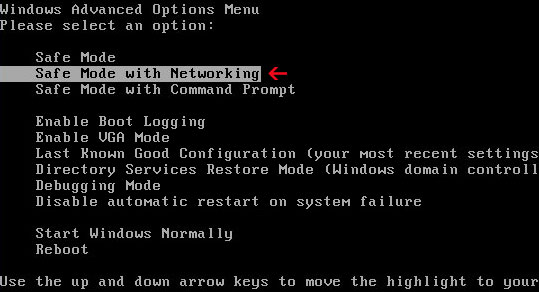
1. Reboot your computer is "Safe Mode with Networking". As the computer is booting tap the "F8 key" continuously which should bring up the "Windows Advanced Options Menu" as shown below. Use your arrow keys to move to "Safe Mode with Networking" and press Enter key. Read more detailed instructions here: http://www.computerhope.com/issues/chsafe.htm
NOTE:Login as the same user you were previously logged in with in the normal Windows mode.
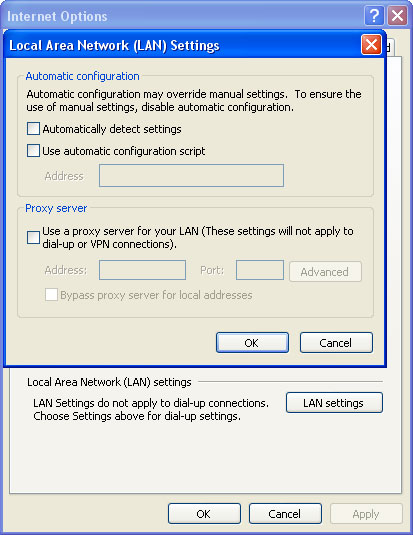
2. Launch Internet Explorer. In Internet Explorer go to: Tools->Internet Options->Connections tab. Click Lan Settings button and uncheck the checkbox labeled Use a proxy server for your LAN. Click OK.
3. Download at least one anti-malware program from the list below and run a full system scan.
NOTE: before saving the selected program onto your computer, please rename the installer to winlogon.exe or iexplore.exe. With all of these tools, if running Windows 7 or Vista they MUST be run as administrator. Launch the program and follow the prompts. Don't forget to update the installed program before scanning.
4. New threats appear every day. In order to protect your PC from such (new) infections we strongly recommend you to use ESET Smart Security.
Alternative Security Suite removal instructions using HijackThis (in Normal mode):
1. Download iexplore.exe (NOTE: iexplore.exe file is renamed HijackThis tool from TrendMicro). Launch the iexplore.exe and click "Do a system scan only" button. If you can't open iexplore.exe file then download explorer.scr and run it.
2. Search for similar entries in the scan results: R1 – HKCU\Software\Microsoft\Windows\CurrentVersion\Internet Settings,ProxyServer = http=127.0.0.1 O4 – HKLM\..\Run: [mreqslst] C:\Documents and Settings\[User]\Local settings\Application data\rhfrlps\ncfdskshdw.exe O4 – HKCU\..\Run: [mreqslst] C:\Documents and Settings\[User]\Local settings\Application data\rhfrlps\ncfdskshdw.exe
The process name will be different in your case [SET OF RANDOM CHARACTERS]shdw.exe, located in C:\Documents and Settings\[UserName]\Local settings\Application data\ Select all similar entries and click once on the "Fix checked" button. Close HijackThis tool.
3. Delete the follow file C:\WINDOWS\Prefetch\[RANDOM]SHDW.EXE-[RANDOM].pf if exists. 4. Download at least one anti-malware program from the list below and run a full system scan.
NOTE: before saving the selected program onto your computer, please rename the installer to winlogon.exe or iexplore.exe. With all of these tools, if running Windows 7 or Vista they MUST be run as administrator. Launch the program and follow the prompts. Don't forget to update the installed program before scanning. 5. New threats appear every day. In order to protect your PC from such (new) infections we strongly recommend you to use ESET Smart Security.
Security Suite associated files and registry values:
Files:
%UserProfile%\Local Settings\Application Data\SET OF RANDOM CHARACTERS]\
%UserProfile%\Local Settings\Application Data\SET OF RANDOM CHARACTERS]\SET OF RANDOM CHARACTERS]shdw.exe
C:\Users\User\AppData\Local\[SET OF RANDOM CHARACTERS] (Windows Vista & Windows 7)
A new piece of malware has been infecting computers recently and it's called Microsoft Windows Malicious Software Removal Tool. It's another fake malware removal tool that is fraudulently using well known software name. It looks just like the legitimate malware removal tool from Microsoft, but in reality it has nothing to do with this company. It's a typical rogue program which attempts to get you to pay for fake antivirus software. It reports false system security threats and displays fake security warnings.
Here's a short list of false system security threats displayed by this fake malware removal tool:
Email-Worm.Win32.NetSky.q
Virus.Win32.Gpcode.ak
Trojan-Downloader.Win32.Mufanom.hjo
Trojan-BNK.Win32.Keylogger.gen
Trojan-Banker.Win32.Banz.cri
Virus.Win32.Virut.ce
Trojan.Win32.Delf.abx
P2P-Worm.Win32.Palevo.fuc
Trojan.Win32.Agent2.cqzi
Trojan.Keylogger.abs
You may also get a fake pop-up window with the following message:
Windows Security Center Malicious software was detected You need to install antivirus software to remove malicious. Click “Enable protection” to purchase and install recommended antivirus software. Without antivirus software your system are very vulnerable to computer spywares, trojans, viruses that attack over internet.
Just like all the other malware, it is promoted through the use of misleading websites or software vulnerabilities. Malware creators also use social engineering in order to distribute their bogus software. If you find that your computer is infected with this malicious program, please download anti-spyware program from the list below and run a full system scan. Don’t forget to update the program before scanning your PC.
If you would like to know more about the legitimate Microsoft Windows Malicious Software Removal Tool then please visit this website.
You can download the latest version of Microsoft Windows Malicious Software Removal Tool from this page.
If you have any questions or additional information about this malware, please don’t hesitate and leave a comment. Good luck and be safe!
Fake Microsoft Windows Malicious Software Removal Tool removal instructions
Download anti-spyware program from the list below and run a full system scan.
NOTE: before saving the selected program onto your computer, please rename the installer to iexplore.exe or winlogon.exe. With all of these tools, if running Windows 7 or Vista they MUST be run as administrator. Launch the program and follow the prompts. Don't forget to update the installed program before scanning.
Wireshark Antivirus is a fake anti-virus program. It reports false system security threats on the computer. The main goal of this rogue program is to make you think that your computer is infected with all sorts of malware. Wireshark Antivirus then prompts to pay for a full version of the program to remove the threats. Don't purchase it! If you have already bought this rogue program then please contact your credit card company as soon as possible and dispute the charges. WiresharkAntivirus flags Windows OS (or other harmless) files as malware. It's obvious that legitimate anti-virus or anti-spyware programs don't do that. Do not delete those files because otherwise Windows OS may not operate properly. Instead, please remove Wireshark Antivirus from your computer as soon as possible. This can be done either manually or with anti-malware programs. Of course, we recommend using anti-malware programs because the rogue program may come bunlded with other viruses that you may not be able to remove manually. Please follow the removal instructions below.
Wireshark Antivirus is from the same family as XJR Antivirus, AKM Antivirus 2010 Pro and Your PC Protector. Please note that this rogue program has nothing to do with Wireshark which is a very helpful packet analyzer made by CACE Technologies Inc. They made a public announcement about this issue. It's not the first time when rogue programs abuses reputable software names.
Once Wireshark Antivirus is installed, it will pretend to scan your computer and display a list of infected files that can be cleaned or removed only with a full version of the program. This is nothing more but a scam. The worst thing is that this fake program blocks legitimate anti-malware software and security related websites. It may even display adult icons on your Desktop and redirect you to various misleading websites. It will block Task Manager, registry editor and other useful tools too. Furthermore, it will constantly display fake security alerts and pop ups about non-existent infections or system security threats. If you attempt to run a program (let's say Notepad) Wireshark Antivirus blocks it and display the following warning:
Warning! Running of application is impossible. The file C:\Windows\System32\notepad.exe is infected. Please activate your antivirus program.
Some of the other fake alerts you may see on your computer screen:
Wireshark Antivirus is one of those very annoying rogue security products. It uses various misleading methods to trick you into purchasing the program. Besides, it's promoted through the use of Trojans and other malware. It's a virus itself. If your computer got infected with this rogue program please follow the removal instructions below to remove Wireshark Antivirus for free using legitimate anti-malware programs. You should also purge all system restore points and make a new one after you successfully remove this virus from your PC. Last, but not least, if you have any additional information or questions about this malware please leave a comment. Good luck and be safe!
UPDATE: you may use this key: significantother to activate the rogue program and make the removal procces a bit easier. Many thanks to S!Ri.URZ.
Wireshark Antivirus removal instructions:
1. Go to Start->Run or press WinKey+R. Type in "command" and press Enter key.
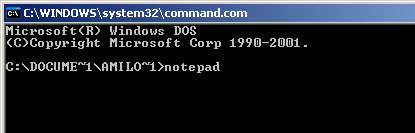
2. In the command prompt window type "notepad". Notepad will come up.
3. Copy all the text in blue color below and paste into Notepad.
Windows Registry Editor Version 5.00 [HKEY_CLASSES_ROOT\exefile\shell\open\command] @="\"%1\" %*"
4. Save file as regfix.reg to your Desktop. NOTE: (Save as type: All files)
5. Double-click on regfix.reg file to run it. Click "Yes" for Registry Editor prompt window. Then click OK. 6. Download one of the following anti-malware applications:
NOTE: before saving the selected program onto your computer, please rename the installer to iexplore.exe or winlogon.exe. With all of these tools, if running Windows 7 or Vista they MUST be run as administrator. Launch the program and follow the prompts. Don't forget to update the installed program before scanning. 7. New threats appear every day. In order to protect your PC from such (new) infections we strongly recommend you to use ESET Smart Security.
Wireshark Antivirus associated files and registry values: