"Media Access threat has been detected" is a fake security warning pop-up from the rogue anti-malware program called Malware Destructor 2011. The text of this alert is:
Warning! Threat module detected on your PC! Media Access threat has been detected. This threat module advertises websites with explicit content. Be advised of such content being possibly illegal. Please click button below to locate and remove this threat now. Threat name: Media Access Infected files: C:\WINDOWS\system32\NOTEPAD.EXE Alert level: High Suggestion: It is highly recommended to remove this threat from your PC
As you can see, Malware Destructor 2011 claims to found a threat which may compromise your computer. This threat is false. If you choose to remove this fake threat, the rogue program will take you to its payment page to purchase a full version of Malware Destructor 2011. It claims that only registered version can remove this threat. Obviously, that's not true. First of all, there is no security threat and secondly it won't remove any threat anyway because Malware Destructor 2011 is a scam. If you find that your computer is infected with this rogue program or you somehow ended up with the fake Media Access threat warning then please follow our instructions on how to remove Malware Destructor 2011 from the computer. If you have any questions about this malware please don't hesitate and leave a comment using the form below. Good luck and be safe online!
Avscanner.net is a browser hijacker that promotes the rogue anti-malware program called Malware Destructor 2011. Of course, it may promote any other rogue program as well but currently it prompts to download Malware Destructor 2011. Well, you probably won't end up with this knowingly. Usually, users are redirected to avscanner.net from infected websites or by other means. Avscanner.net will state that Windows Security has found critical process activity on your system and will perform fast scan of system files.
In reality, thought, there will be no system scan. It's an imitation of the real scan. After the fake scan avscanner.net will claim to find Trojans:
W32.Mypics.Worm.36352
Trojan Horse IRC/Backdoor.sdBot4.FRV
Adware.Win32.Winad
Backdoor.Win32.Haxdoor.gu
Trojan Horse Generic11.OQJ
Ad this point, you should leave the misleading website immediately. If you choose to download their malware removal tool you will end up with Malware Destructor 2011 scareware on your computer. I'm sure you don't want that. However, if your computer is already infected with the rogue program then please follow Malware Destructor 2011 removal instructions to remove this malware from your computer for free using legitimate anti-malware software. If you have any questions please leave a comment. Good luck and be safe online!
Malware Destructor 2011 is a rogue anti-malware program that masquerades as a legitimate security product. It attempts to deceive users into buying the full version of the program to remove infected files supposedly found during a false system scan. This fake program uses the same graphical user interface as Antimalware Doctor. The rogue program is promoted mostly through the use of fake online anti-malware scanners but it may come bundled with other malware too. Most of the time, Malware Destructor 2011 has to be manually installed and it pretends to be a system security pack upgrade (see images below), in our case it was System Security Pack 2010.78.932 (Malware Destructor Upgrade; KB987222). After the installation the fake Malware Destructor 2011 scanner will pop-up on your computer screen. The main process of this rogue program is randomly generated (structure: KB[RANDOM NUMBERS].exe). In our case it was KB7154702.exe. Once installed, this fake program will pretend to scan your computer for malware and claim to find potentially unwanted programs, dialers, adware, hijackers, Trojans and other malicious software on your computer. Then it will prompt you to pay for a full version of the program to remove the infected files which actually don't even exist on your computer. It goes without saying that you shouldn't pay for this rogue program. Please follow the removal instructions below to remove Malware Destructor 2011 and any related malware from your computer for free using legitimate anti-malware programs.
(Thanks to rogueamp)
Malware Destructor drops a text file on your computer called "enemies-names.txt". This file contains a list of fake infections that the rogue program uses in its false scan results. Some of the false threats are: AllInOneTelcom.HotA, InterFun, Autodialer, Axis, BD Internet Billing, SmileyWorld, TNS-Search, Wow Access, R-Bot, FakeWGA, Zlob.DVBX11_Bat, eUniverse.PowerSearch, Win32.Small.v, Fake.xpRecovery, HappyToFind.Toolbar, Cydoor, Win32.BHO.kv, IRCBot.svchost, Vegas.Red.Casino.PT. I bet you will find some of these infections in the false scan report.
As a typical rogue security product, Malware Destructor 2011 will display fake security warning and pop-ups like every two or five minutes. Some of the fake alerts you may see:
Warning! Your system is infected! 35 dangerous objects have been found during last system scan. It is strongly recommended to remove them immediately.
Network intrusion detected! Warning! Network attack detected! Your computer is being attacked from a remote PC. Process is trying to steal your passwords listed below. It is highly recommended to block this threat now.
Protection Center Alert To help protect your computer, Malware Destructor has blocked some features of this program Name: VacPro Alert Level: High Description: This program is a trojan that tracks the user's surfing habits. There are several variants that create a registry under the specific and copy files to the System32 folder.
Malware Destructor - Hacker attack detected Your computer is subjected to hacker attack. Malware Destructor has detected that somebody is trying to transfer Your private data via internet. We strongly recommend you to block attack immediately.
Warning! Removed attack detected! Malware Destructor has detected that somebody is trying to stole Your private data via Trojan.Win32.Generic!BT. Transfer for Your private data will start in: 4 We strongly recommend you to block attack immediately.
As you can see, Malware Destructor 2011 is nothing more but a scam. It forces to register the rogue program to remove the threats and protect your computer against virus and hackers. It gives false sense of security. That's why you should remove Malware Destructor 2011 from your computer as soon as possible. Please note that this rogue program may block genuine security software and system tools. It may also block certain websites. If you can't run any programs in normal mode then reboot your computer is safe mode with networking, download anti-malware software from the list below, update it and run a full system scan. If you have already purchased it then contact your credit card company immediately and dispute the charges. The pay page of Malware Destructor 2011 looks like this:
If you are reading this article then your computer is probably infected with this malware. Please follow Malware Destructor 2011 removal instructions below. You can remove this scareware either manually or with legitimate anti-malware programs. Furthermore, after the successful removal of this rogue program we recommend you to purge all system restore points and create a new clean one. Last, but not least, if you have any questions about this malware please don't hesitate and leave a comment. Good luck and be safe online!
Malware Destructor 2011 removal instructions (in Safe Mode with Networking):
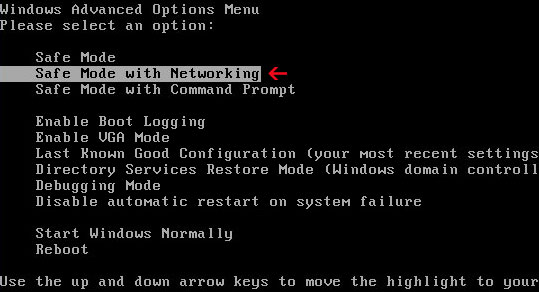
1. Reboot your computer is "Safe Mode with Networking". As the computer is booting tap the "F8 key" continuously which should bring up the "Windows Advanced Options Menu" as shown below. Use your arrow keys to move to "Safe Mode with Networking" and press Enter key. Read more detailed instructions here: http://www.computerhope.com/issues/chsafe.htm
NOTE:Login as the same user you were previously logged in with in the normal Windows mode.
2. Download at least one anti-malware program from the list below and run a full system scan.
NOTE: before saving the selected program onto your computer, please rename the installer to iexplore.exe or winlogon.exe. With all of these tools, if running Windows 7 or Vista they MUST be run as administrator. Launch the program and follow the prompts. Don't forget to update the installed program before scanning.
3. New threats appear every day. In order to protect your PC from such (new) infections we strongly recommend you to use ESET Smart Security.
Alternative Malware Destructor 2011 removal instructions using HijackThis (in Normal mode):
1. Download iexplore.exe (NOTE: iexplore.exe file is renamed HijackThis tool from TrendMicro). Launch the iexplore.exe and click "Do a system scan only" button. If you can't open iexplore.exe file then download explorer.scr and run it.
2. Search for similar entries in the scan results: O4 – HKCU\..\Run: [KB7154702] C:\Documents and Settings\[User Name]\Application data\C4E2C1107E3AFA0D3D9EAA35A7E3A3BA\KB7154702.exe O4 – Startup: Malware Destructor.lnk = C:\Documents and Settings\[User Name]\Application data\C4E2C1107E3AFA0D3D9EAA35A7E3A3BA\KB7154702.exe
The process name will be different in your case KB[RANDOM NUMBERS].exe, located in C:\Documents and Settings\[User Name]\Application data\[RANDOM CHARACTERS]\KB[RANDOM NUMBERS].exe Select all similar entries and click once on the "Fix checked" button. Close HijackThis tool.
3. Go to Start -> Run (or WinKey+R). Type in: msconfig and press OK. Select Startup tab and disable the following startup items: KB7154702 and Malware Destructor. Click OK.
4. Download at least one anti-malware program from the list below and run a full system scan.
NOTE: before saving the selected program onto your computer, please rename the installer to iexplore.exe or winlogon.exe. With all of these tools, if running Windows 7 or Vista they MUST be run as administrator. Launch the program and follow the prompts. Don't forget to update the installed program before scanning. 5. New threats appear every day. In order to protect your PC from such (new) infections we strongly recommend you to use ESET Smart Security.
Malware Destructor 2011 associated files and registry values:
Files: In Windows XP:
C:\Documents and Settings\[User Name]\Application Data\C4E2C1107E3AFA0D3D9EAA35A7E3A3BA\KB7154702.exe
C:\Documents and Settings\[User Name]\Application Data\C4E2C1107E3AFA0D3D9EAA35A7E3A3BA\enemies-names.txt
C:\Documents and Settings\[User Name]\Application Data\C4E2C1107E3AFA0D3D9EAA35A7E3A3BA\local.ini
SP Center is a rogue security product that misinforms users about the security of their computers and claims to be a simple one-click solution to protect your PC. The rogue program pretends to scan your computer for malicious software, tracking cookies and registry errors and claims to find infected files or critical registry errors. It claims to have three protection modules: cookie guarder, surf protector and registry doctor. By the way, SP Center from the same family as Control Center. SPCenter reports false scan results, mainly false registry errors, tracking cookies, spyware signatures, system slowdows and Windows start-up failures. Then it prompts to pay for a full version of the program to fix these problems and to protect your computer against malware. In reality, though, SP Center is nothing more but a scam. And, of course, it won't fix any problem or remove any infected file simply because they don't exist. Besides, it will give you a false sense of security. Without a doubt, don't buy this rogue program. If you have already bought it then please contact your credit card company and dispute the charges. After that, please follow the removal instructions below to remove SP Center from your computer for free using legitimate anti-malware software.
(Thanks to rogueamp)
If you choose to fix supposedly found problems you will get Antivirus software error message. It will claim that you have requested the function that requires installed antivirus software.
If you click on the "Install antivirus" button you will get another window with a form that you supposedly have to fill-in in order to get your activation code.
While running, SP Center will also display fake security warnings. The text of this warning is:
Warning! SP Center did not find any antivirus software on this computer! Traces of discreditable (for example, the history of visiting adults sites) and security exposure have been found. Click this notification to eliminate vulnerability immediately!
Furthermore, this fake program may block legitimate anti-malware software and hijack Internet Explorer. It may also hide your Desktop icons and Windows task bar. In such case, please click Ctrl+Shift+Esc. Windows Task Manager will open. Click File -> New Task (Run...). Type in: explorer.exe and hit OK. All your icons should be in their places again. Then download MalwareBytes' Anti-malware, SUPERAntispyware or Spyware Doctor and run a full system scan. Don't forger to update anti-malware software before scanning your computer. If you can't download any program in normal mode hen please reboot your computer is safe mode with networking. For more details please follow the SP Center removal instructions below. If you have any questions or additional information about this malware please leave a comment. Good luck and be safe online!
SP Center removal instructions (in Safe Mode with Networking):
1. Reboot your computer is "Safe Mode with Networking". As the computer is booting tap the "F8 key" continuously which should bring up the "Windows Advanced Options Menu" as shown below. Use your arrow keys to move to "Safe Mode with Networking" and press Enter key. Read more detailed instructions here: http://www.computerhope.com/issues/chsafe.htm
NOTE:Login as the same user you were previously logged in with in the normal Windows mode.
2. Download anti-malware software from the list below and run a full system scan.
NOTE: before saving the selected program onto your computer, please rename the installer to iexplore.exe orwinlogon.exe. With all of these tools, if running Windows 7 or Vista they MUST be run as administrator. Launch the program and follow the prompts. Don't forget to update the installed program before scanning.
3. New threats appear every day. In order to protect your PC from such (new) infections we strongly recommend you to use ESET Smart Security.
SP Center removal instructions in Normal mode:
1. Download Process Explorer iexplore.exe. Double click to open it. Look for SP Center in the process list and terminate its process(es): ap.exe and sp.exe. 2. Download anti-malware software from the list below. Update it and run a full system scan.
NOTE: before saving the selected program onto your computer, please rename the installer to iexplore.exe orwinlogon.exe. With all of these tools, if running Windows 7 or Vista they MUST be run as administrator. Launch the program and follow the prompts. Don't forget to update the installed program before scanning. 3. New threats appear every day. In order to protect your PC from such (new) infections we strongly recommend you to use ESET Smart Security.
SP Center associated files and registry values:
Files:
C:\Documents and Settings\[User Name]\Application Data\CCenter\ap.exe
C:\Documents and Settings\[User Name]\Application Data\CCenter\sp.exe
Defence-center.com and Windows-defence.com are potentially harmful websites that promote rogue anti-spyware programs called Defence Center and Windows Defence. Basically, it's one rogue application with two different names. Graphical user interface is the same. Defence-center.com and Windows-defence.com also shares the same web template and information which is obviously false. There are no visible download links on any of these websites but purchase the rogue program without any problems. The bad guys use plimus payment system. Both sites claim that they will provide extended customers support and that you will save your money if you choose to buy their products. That's a scam. Both sites, defence-center.com and windows-defence.com gives a false sense of security so they should be avoided.
Most importantly, if your computer got infected with Defence Center or Windows Defence malware then please don't purchase it and remove the rogue program from the system as soon as possible. We've got the removal instructions to help you to remove these rogue programs. Please read how to remove Defence Center and how to remove Windows Defence. If you have any questions please leave a comment. Additional information about defence-center.com and windows-defence.com is welcome too. Good luck and be safe online!
Defence Center is a rogue anti-spyware program that mimics legitimate secuity products and claims that your computer system is infected with mailicious software. It's a clone of Windows Defence which is also a ripoff rogue program. Once installed, Defence Center will pretend to scan your computer for malware and claim to find infected files or system security threats. Surprisingly, it will claim that you need to pay a registration fee in order to updagre the rogue program because the current version can't remove found malware and infected files from your computer. Don't fall victim to this scam and don't buy the rogue program. If you choose to pay for DefenceCenter then it will give you a false sense of security and what is more, it won't remove any infected files from your computer simply because they don't even exist. If you are reading this article then your computer is probably infected with this malware. Thankfully, we've got the instructions to help you to remove Defence Center from your computer for free. Please follow the removal instructions below.
(Thanks to rogueamp)
First of all, can this rogue program delete your files? In theory, it may come bundled or download other malware onto your computer that could delete your files but personaly I haven't heard of any such case. Defence Center reports false system security threats, displays fake warnings, hijacks web browsers and disbles certain system utilities and legitimate anti-virus programs. So, your files should be safe. You may wonder, where did it came from? Well, usually it has to be manually installed so you've probably clicked on infected ads or links. If you think you didn't then it could be that your computer was already infected with Trojans that downloaded the rogue program onto your computer without your permission or knowledge. On way or another this Defence Center malware should be removed upon detection. Once installed, it will display fake security warnings claiming that your computer is under attack from a remote computer or badly infected with malware. It will also display fake alerts while srfing the Internet. The main web page of this rogue program is defence-center.com.
A screen shot of rogue's main web page:
Without a doubt, Defence Center is nothing more but a scam. Don't buy it. If you have already purhcased this rogue security product then contact tour credit card compnay and dispute the charges. Then please follow Defence Center removal instructions below. If you have any questions or additional information about this malware please leave a comment. Good luck and be safe!
Defence Center removal instructions (in Safe Mode with Networking):
1. Reboot your computer is "Safe Mode with Networking". As the computer is booting tap the "F8 key" continuously which should bring up the "Windows Advanced Options Menu" as shown below. Use your arrow keys to move to "Safe Mode with Networking" and press Enter key. Read more detailed instructions here: http://www.computerhope.com/issues/chsafe.htm
NOTE:Login as the same user you were previously logged in with in the normal Windows mode.
2. Download anti-malware software from the list below and run a full system scan.
NOTE: before saving the selected program onto your computer, please rename the installer to iexplore.exe orwinlogon.exe. With all of these tools, if running Windows 7 or Vista they MUST be run as administrator. Launch the program and follow the prompts. Don't forget to update the installed program before scanning.
3. New threats appear every day. In order to protect your PC from such (new) infections we strongly recommend you to use ESET Smart Security.
Defence Center removal instructions in Normal mode:
1. Download Process Explorer iexplore.exe. Double click to open it. Look for Defence Center in the process list and terminate its process(es). Should be smmservice.exe and DefenceCenter.exe. 2. Download anti-malware software from the list below. Update it and run a full system scan.
NOTE: before saving the selected program onto your computer, please rename the installer to iexplore.exe orwinlogon.exe. With all of these tools, if running Windows 7 or Vista they MUST be run as administrator. Launch the program and follow the prompts. Don't forget to update the installed program before scanning. 3. New threats appear every day. In order to protect your PC from such (new) infections we strongly recommend you to use ESET Smart Security.
Defence Center associated files and registry values:
Files:
C:\Documents and Settings\All Users\Application Data\Microsoft\Network\Downloader\smmservice.exe
C:\Documents and Settings\All Users\Application Data\mswd\
C:\Documents and Settings\All Users\Application Data\mswd\Base.dat
C:\Documents and Settings\All Users\Application Data\mswd\db.avdb
C:\Documents and Settings\All Users\Application Data\mswd\DefenceCenter.exe
C:\Documents and Settings\All Users\Start Menu\Programs\Defence Center\
C:\Documents and Settings\All Users\Start Menu\Programs\Defence Center\Defence Center.lnk
C:\Documents and Settings\All Users\Start Menu\Programs\Defence Center\Uninstall\
C:\Documents and Settings\All Users\Start Menu\Programs\Defence Center\Uninstall\Uninstall.lnk
Windows Defence is a rogue anti-spyware program that attempts to deceive users into buying the full version of the program to remove malicious software supposedly found during a false system scan. This fake program is promoted through the use of Trojans, fake online scanners and infected web pages. The fake scanner has a blue shield icon with lightning on it. Once installed, it will pretend to scan your computer for malware. Then it will claim that your computer is infected with spyware, Trojans, worms, adware and other viruses to make you think that your computer is really infected when in fact it's free of virus and the only security threat is Windows Defence itself. What is more, the rogue program will open up randomly and display fake security warnings like every one or two minutes. It goes without saying that you should remove Windows Defence from your computer. Thanfully, you can use free and genuine anti-malware software to remove this malware from your computer. Please follow the removal instructions below.
Image source: symantec.com
While running, Windows Defence will block legitimate anti-virus and anti-spyware programs, system tools and utilities such as task manager and registry editor. There are at least several variants of this bogus program and in some cases Windows Defence may disable system restore and safe mode. It will also hijack your web browser and redirect you to its main web page which is windows-defence.com.
A screen shot of rogue's main web page:
Reboot your computer is safe mode or safe mode with networking if you can and run a system scan with anti-malware software. If you can't do that then you will have to remove it in normal mode. Please follow detailed Windows Defence removal instructions below. Last, but not least, if you have already purchased this rogue product then contact your credit card company and dispute the charges. And, of course, if you have any questions or additional information, don't hesitate and leave a comment. Good luck and be safe online!
Windows Defence removal instructions (in Safe Mode with Networking):
1. Reboot your computer is "Safe Mode with Networking". As the computer is booting tap the "F8 key" continuously which should bring up the "Windows Advanced Options Menu" as shown below. Use your arrow keys to move to "Safe Mode with Networking" and press Enter key. Read more detailed instructions here: http://www.computerhope.com/issues/chsafe.htm
NOTE:Login as the same user you were previously logged in with in the normal Windows mode.
2. Download anti-malware software from the list below and run a full system scan.
NOTE: before saving the selected program onto your computer, please rename the installer to iexplore.exe orwinlogon.exe. With all of these tools, if running Windows 7 or Vista they MUST be run as administrator. Launch the program and follow the prompts. Don't forget to update the installed program before scanning.
3. New threats appear every day. In order to protect your PC from such (new) infections we strongly recommend you to use ESET Smart Security.
Windows Defence removal instructions in Normal mode:
1. Download Process Explorer iexplore.exe. Double click to open it. Look for Windows Defence in the process list and terminate its process(es). 2. Download anti-malware software from the list below. Update it and run a full system scan.
NOTE: before saving the selected program onto your computer, please rename the installer to iexplore.exe orwinlogon.exe. With all of these tools, if running Windows 7 or Vista they MUST be run as administrator. Launch the program and follow the prompts. Don't forget to update the installed program before scanning. 3. New threats appear every day. In order to protect your PC from such (new) infections we strongly recommend you to use ESET Smart Security.
Windows Defence associated files and registry values:
Files:
C:\Documents and Settings\All Users\Application Data\Microsoft\Network\Downloader\smmservice.exe
C:\Documents and Settings\All Users\Application Data\mswd\
C:\Documents and Settings\All Users\Application Data\mswd\Base.dat
C:\Documents and Settings\All Users\Application Data\mswd\db.avdb
C:\Documents and Settings\All Users\Application Data\mswd\WindowsDefence.exe
C:\Documents and Settings\All Users\Start Menu\Programs\Windows Defence\
C:\Documents and Settings\All Users\Start Menu\Programs\Windows Defence\Windows Defence.lnk
C:\Documents and Settings\All Users\Start Menu\Programs\Windows Defence\Uninstall\
C:\Documents and Settings\All Users\Start Menu\Programs\Windows Defence\Uninstall\Uninstall.lnk