Thursday, 20 January 2011

How to Remove Windows Security & Control (Uninstall Guide)

Windows Security & Control is a rogue application that runs its "scan" and then reports false system security threats or tells other lies about your computer. All the viruses and errors it reports are bogus. This rogue program provides no security, generates erroneous alerts and attempts to trick users into buying the product. Windows Security & Control is promoted through the use of Trojans. In this case, Trojan virus impersonates Microsoft Security Essentials software. It displays fake security warning saying that your computer is infected with unknown virus and then it prompts you to install Windows Security & Control to remove the virus. Very often scammers promote such bogus applications on social networks and send huge amount of spam emails. It has been said many times before but it bears repeating: do not click on suspicious links, even if you know the person who is sending them. If you got hit with this rogue program, please follow the removal instructions below to remove Windows Security & Control and related malware from your computer.


Windows Security & Control is a re-branded version of Windows Optimization & Security, Windows System Optimizator and Windows Optimization Center. As you can see, the same rogue program comes in several different names. Its graphical user interface is pretty much unique and doesn't change very often so if you'll end up with something similar please beware that it can be a fake application.

Fake Microsoft Security Essentials Alert:


Then you will see another one, saying that you need to install some sort of software to check your files:


If you click OK, installation process will begin. You will be prompted to restart your computer to finish the installation.


After restart, fake Windows Security & Control scanner will show up. It will hide your icons and task bar. Just click OK to allow it to run its fake scan. After the fake scan, it will report numerous system and registry errors and viruses. Click OK and then click on the X at the top right of the Windows Security & Control to close the program. Once you close the program, your Windows Desktop will load normally.


Windows Security & Control will block other programs on your computer. In order to disable the rogue program you can rename its main executable or download Process Explorer and end its process. Malware resides in Application Data folder. Full path to this folder is outlined in the removal guide below.

Windows Security & Control will also display fake security alerts. Here's an example of the fake notification you may see if you somehow ended up with this scareware:


Attention
Suspicious software activity is detected.
Please start system files scanning for details.
Windows Security & Control purchase page:


If you find that your computer is infected with Windows Security & Control, please do not purchase it. Instead, follow the removal instructions below to remove this rogue program from your computer. Usually, it comes bundled with other malware, that's why we strongly recommend you to scan your computer with anti-malware software. You will find a list of free and safe malware removal tools below. If you have any questions, please leave a comment. Good luck and be safe online!


Windows Security & Control removal instructions:

1. Rename the main executable of Windows Security & Control malware:

In Windows XP:
C:\Documents and Settings\[UserName]\Application Data\[SET OF RANDOM CHARACTERS].exe

In Windows Vista/7:
C:\Users\[UserName]\AppData\Roaming\[SET OF RANDOM CHARACTERS].exe

Here's an example in Windows XP:


In our case, the file was pqespp. Look for similar file and rename it to malware. Then restart your computer. This should disable Windows Security & Control. After reboot, please continue with the rest of the removal process. NOTE: By default, Application Data folder is hidden. If you can find it, please read Show Hidden Files and Folders in Windows.

3. Download shell-fix.reg. Double-click to run it. Click "Yes" when it asks if you want to add the information to the registry. This file will fix the Windows Shell entry.
4. Download free anti-malware software from the list below and run a full system scan.
NOTE: in some cases the rogue program may block anti-malware software. Before saving the selected program onto your computer, you may have to rename the installer to iexplore.exe or winlogon.exe With all of these tools, if running Windows 7 or Vista they MUST be run as administrator. Launch the program and follow the prompts. Don't forget to update the installed program before scanning.

4. New threats appear every day. In order to protect your PC from such (new) infections we strongly recommend you to use ESET NOD32 Antivirus.


Alternate Windows Security & Control removal instructions (in Safe Mode with Networking):

1. Reboot your computer is "Safe Mode with Networking". As the computer is booting tap the "F8 key" continuously which should bring up the "Windows Advanced Options Menu" as shown below. Use your arrow keys to move to "Safe Mode with Networking" and press Enter key. Read more detailed instructions here: http://www.computerhope.com/issues/chsafe.htm
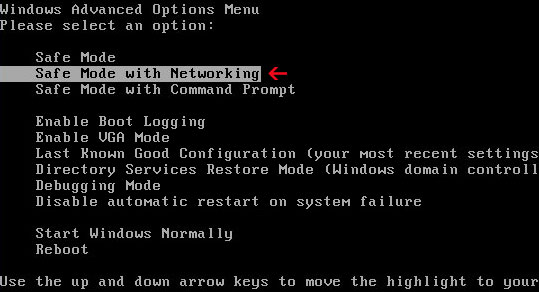

NOTE: Login as the same user you were previously logged in with in the normal Windows mode.

2. Download free anti-malware software from the list below and run a full system scan.
NOTE: in some cases the rogue program may block anti-malware software. Before saving the selected program onto your computer, you may have to rename the installer to iexplore.exe or winlogon.exe With all of these tools, if running Windows 7 or Vista they MUST be run as administrator. Launch the program and follow the prompts. Don't forget to update the installed program before scanning.

3. New threats appear every day. In order to protect your PC from such (new) infections we strongly recommend you to use ESET NOD32 Antivirus.


Windows Security & Control associated files and registry values:

Files:

In Windows XP:
  • C:\Documents and Settings\[UserName]\Application Data\[SET OF RANDOM CHARACTERS].exe
In Windows Vista/7:
  • C:\Users\[UserName]\AppData\Roaming\[SET OF RANDOM CHARACTERS].exe
Registry values:
  • HKEY_CURRENT_USER\Software\Microsoft\Windows NT\CurrentVersion\Winlogon "Shell" = "%UserProfile%\Application Data\[SET OF RANDOM CHARACTERS]"
Share this information with other people:

Tuesday, 18 January 2011

How to Remove Windows Optimization & Security (Uninstall Guide)

Windows Optimization & Security is a rogue application that gives false reports of threats on your computer. It runs a quick fake scan and notifies you about serious system/internet security threats, privacy issues and some Windows registry errors. This scareware states that you can make your computer run faster by removing reported errors and infections. Windows Optimization & Security blocks other programs on your computer. For example, it blocks Task Manager saying that this program is a threat. As a typical rogue application it displays fake security alerts, notifications and annoying pop-ups just to make you think that your computer is infected with malware or has some other serious issues. As you would expect, Windows Optimization & Security will prompt you to pay for a full version of the program to remove the threats and fix system errors. You shouldn't do that. And if you have this fake scanner on your computer, please follow the removal instructions below to remove Windows Optimization & Security for free using trusted and safe anti-malware applications.


Windows Optimization & Security is from the same family as Windows System Optimizator. Scammers change their bogus software names very often but they do not change graphical user interface that often. It is always a good idea to do some research about suspicious program before purchasing it. Many Internet users still fall victim to such rogue scanners. If the program just pops up on your computer screen like from nowhere and you know for sure that you didn't install it then most likely it's a fraud.

Windows Optimization & Security is distributed via Trojan. It impersonates Microsoft Security Essentials and displays a fake security warning saying that your computer is infected with unknown virus.


It will then suggest you to install Windows Optimization & Security to remove the virus which of course doesn't even exist. In order to finish the installation you have to restart your computer.


After reboot, Windows Optimization & Security will hide your desktop icons and task bar. It will pretend to scan your computer for viruses and errors. Click OK to scan your computer. After the fake scan, please click on the X at the top right of the Windows Optimization & Security Window to close the program.


Once you close the program, your Windows Desktop will load normally. Please read removal instructions below for more information. Then you will have two options. You can download Process Explorer, rename it to iexplore.exe and end the main process of this scareware. Or you can go to Application Data folder and rename the main executable of Windows Optimization & Security malware. If you choose the second method then you will have to reboot your computer. The fake scanner won't pop up on your computer and you will be able to download malware removal program.

Fake Windows Optimization & Security warning:


Attention
Considerable System productivity decline is observed.
Total System scanning is recommended to remove all the reasons of productivity decline.
Without a doubt, Windows Optimization & Security is a scam. If you have purchased it, please contact your credit card company and dispute the charges. Then please follow the steps in the removal guide below to remove Windows Optimization & Security and related malware from your computer. Please inform your friends about this threat. Good luck and be safe online!


Windows Optimization & Security removal instructions:

1. Rename the main executable of Windows Optimization & Security malware:

In Windows XP:
C:\Documents and Settings\[UserName]\Application Data\[SET OF RANDOM CHARACTERS].exe

In Windows Vista/7:
C:\Users\[UserName]\AppData\Roaming\[SET OF RANDOM CHARACTERS].exe

Here's an example in Windows XP:


In our case, the file was wvpfmt. Look for similar file and rename it to malware. Then restart your computer. This should disable Windows Optimization & Security. After reboot, please continue with the rest of the removal process. NOTE: By default, Application Data folder is hidden. If you can find it, please read Show Hidden Files and Folders in Windows.

3. Download shell-fix.reg. Double-click to run it. Click "Yes" when it asks if you want to add the information to the registry. This file will fix the Windows Shell entry.
4. Download free anti-malware software from the list below and run a full system scan.
NOTE: in some cases the rogue program may block anti-malware software. Before saving the selected program onto your computer, you may have to rename the installer to iexplore.exe or winlogon.exe With all of these tools, if running Windows 7 or Vista they MUST be run as administrator. Launch the program and follow the prompts. Don't forget to update the installed program before scanning.

4. New threats appear every day. In order to protect your PC from such (new) infections we strongly recommend you to use ESET NOD32 Antivirus.


Alternate Windows Optimization & Security removal instructions (in Safe Mode with Networking):

1. Reboot your computer is "Safe Mode with Networking". As the computer is booting tap the "F8 key" continuously which should bring up the "Windows Advanced Options Menu" as shown below. Use your arrow keys to move to "Safe Mode with Networking" and press Enter key. Read more detailed instructions here: http://www.computerhope.com/issues/chsafe.htm


NOTE: Login as the same user you were previously logged in with in the normal Windows mode.

2. Download free anti-malware software from the list below and run a full system scan.
NOTE: in some cases the rogue program may block anti-malware software. Before saving the selected program onto your computer, you may have to rename the installer to iexplore.exe or winlogon.exe With all of these tools, if running Windows 7 or Vista they MUST be run as administrator. Launch the program and follow the prompts. Don't forget to update the installed program before scanning.

3. New threats appear every day. In order to protect your PC from such (new) infections we strongly recommend you to use ESET NOD32 Antivirus.


Windows Optimization & Security associated files and registry values:

Files:

In Windows XP:
  • C:\Documents and Settings\[UserName]\Application Data\[SET OF RANDOM CHARACTERS].exe
In Windows Vista/7:
  • C:\Users\[UserName]\AppData\Roaming\[SET OF RANDOM CHARACTERS].exe
Registry values:
  • HKEY_CURRENT_USER\Software\Microsoft\Windows NT\CurrentVersion\Winlogon "Shell" = "%UserProfile%\Application Data\[SET OF RANDOM CHARACTERS]"
Share this information with other people:

Sunday, 16 January 2011

How to Remove Disk Helper, Removal Instructions

Disk Helper is a rogue application that usually appears on the computer without your permission, then starts a fake system scan and reports non-existent hard drive and registry errors. It's pretty much useless and at some point even dangerous. Disk Helper will prompt you to pay for a premium version of the program to fix all the reported errors. It will state that the standard version can not fix certain errors and protect your computer against new threats. You should also know that Disk Helper is not spyware or virus. It won't delete your files or steal your sensitive information. It's just another fake scanner from the quickly growing rogue defragmantation tools family. Disk Helper is already 27th. Previous versions: Disk Optimizer, Good Memory, My Disk. I'm pretty sure wee will see even more such bogus disk defragmentation programs this year. Do not give your credit card details to the scammers behind this fraud. Do not fall victim to Disk Helper or any other similar scareware. If you have this rogue program on your computer, please follow the removal instructions below to remove Disk Helper and related malware for free.

Disk Helper affects only one user account. It doesn't affect the entire computer. The rogue program does not show up in the Add/Remove program list. It resides in %AllUsersProfile%, meaning that you will find Disk Helper files in C:\Documents and Settings\All Users\Application Data\ folder if you run Windows XP on your computer. If you have Windows Vista/7 then you will find its files in C:\ProgramData\ folder. Look for randomly named files, e.g. 23hdgrosg9drh.exe. You can't just simply delete Disk Helper files unless you end the main process of this rogue program. It will block Task Manager and other system utilities to protect itself from being removed. That's why instead of deleting malicious files, you should try to rename them. You need to rename the main executable and dll files. Then restart your computer. If this works, you won't see the fake scanner on your computer screen anymore. Besides, it won't block other programs on your computer and won't display those stupid error messages about missing hard drive errors and possible data loss because of critical registry/system errors. Here are some of the fake errors that Disk Helper reports after the fake scan:
  • Data Safety Problem. System integrity is at risk.
  • 32% of HDD space is unreadable
  • Drive C initializing error
  • Hard drive doesn't respond to system commands
  • Registry Error - Critical Error
The fake error message that you will see when you attempt to run a program is:


The text of some of the alerts you may see include:
Critical Error
Hard Drive not found. Missing hard drive.
Critical Error
Windows can't find hard disk space. Hard drive error
Low Disk Space
You are running very low disk space on Local Disk (C:).
As you can see, Disk Helper is a typical rip-off rogue that asks to pay for simulated removal of hard drive errors, registry problems and privacy issues. If you have already paid for this scareware then you should contact your credit card company and dispute the charges. Just tell them that Disk Helper is an infection and that you won't your money back. Then please follow the steps in the Disk Helper removal guide below. If you don't understand some parts of the removal procedure, please leave a comment. Also, please inform your friends about this malware. Good luck and be safe online!


Disk Helper removal instructions:

1. Download Process Explorer. (click the link and wait for few seconds, download will begin automatically)
2. End Disk Helper processes, e.g. 25hdgeJGd9rkd.exe or fHdrGHsldrge.exe.


OR just rename/delete files related to Disk Helper. Files are located in %AllUserProfile% folder. See the list at the end of this page for more details. Disk Optimizer files in Windows XP: (note: by default, Application Data folder is hidden. If you can't see such folder/files, please read Show Hidden Files and Folders in Windows)


3. Download free anti-malware software from the list below and run a full system scan.
NOTE: in some cases the rogue program may block anti-malware software. Before saving the selected program onto your computer, you may have to rename the installer to iexplore.exe or winlogon.exe With all of these tools, if running Windows 7 or Vista they MUST be run as administrator. Launch the program and follow the prompts. Don't forget to update the installed program before scanning.

4. New threats appear every day. In order to protect your PC from such (new) infections we strongly recommend you to use ESET NOD32 Antivirus.


Disk Helper removal instructions (in Safe Mode with Networking):

1. Reboot your computer is "Safe Mode with Networking". As the computer is booting tap the "F8 key" continuously which should bring up the "Windows Advanced Options Menu" as shown below. Use your arrow keys to move to "Safe Mode with Networking" and press Enter key. Read more detailed instructions here: http://www.computerhope.com/issues/chsafe.htm


NOTE: Login as the same user you were previously logged in with in the normal Windows mode.

2. Download free anti-malware software from the list below and run a full system scan.
NOTE: in some cases the rogue program may block anti-malware software. Before saving the selected program onto your computer, you may have to rename the installer to iexplore.exe or winlogon.exe With all of these tools, if running Windows 7 or Vista they MUST be run as administrator. Launch the program and follow the prompts. Don't forget to update the installed program before scanning.

3. New threats appear every day. In order to protect your PC from such (new) infections we strongly recommend you to use ESET NOD32 Antivirus.


Disk Helper associated files and registry values:

Files:

Windows XP:
  • %AllUsersProfile%\Application Data\[SET OF RANDOM CHARACTERS]
  • %AllUsersProfile%\Application Data\~[SET OF RANDOM CHARACTERS]
  • %UsersProfile%\Local Settings\Application Data\[SET OF RANDOM CHARACTERS].lic
  • %AllUsersProfile%\Application Data\[SET OF RANDOM CHARACTERS].dll
  • %AllUsersProfile%\Application Data\[SET OF RANDOM CHARACTERS].exe
  • %UsersProfile%\Desktop\Disk Helper.lnk
  • %UsersProfile%\Start Menu\Programs\Disk Helper\
  • %UsersProfile%\Start Menu\Programs\Disk Helper\Disk Helper.lnk
  • %UsersProfile%\Start Menu\Programs\Disk Helper\Uninstall Disk Helper.lnk
%AllUsersProfile% refers to: C:\Documents and Settings\All Users
%UserProfile% refers to: C:\Documents and Settings\[User Name]

Windows Vista/7:
  • %AllUsersProfile%\[SET OF RANDOM CHARACTERS]
  • %AllUsersProfile%\~[SET OF RANDOM CHARACTERS]
  • %AllUsersProfile%\[SET OF RANDOM CHARACTERS].lic
  • %AllUsersProfile%\[SET OF RANDOM CHARACTERS].dll
  • %AllUsersProfile%\[SET OF RANDOM CHARACTERS].exe
  • %UsersProfile%\Desktop\Disk Helper.lnk
  • %UsersProfile%\AppData\Roaming\Microsoft\Windows\Start Menu\Programs\Disk Helper\
  • %UsersProfile%\AppData\Roaming\Microsoft\Windows\Start Menu\Programs\Disk Helper\Disk Helper.lnk
  • %UsersProfile%\AppData\Roaming\Microsoft\Windows\Start Menu\Programs\Disk Helper\Uninstall Disk Helper.lnk
%AllUsersProfile% refers to: C:\ProgramData
%UserProfile% refers to: C:\Users\[User Name]

Registry values:
  • HKEY_CURRENT_USER\Software\Microsoft\Windows\CurrentVersion\Run "[SET OF RANDOM CHARACTERS]"
  • HKEY_CURRENT_USER\Software\Microsoft\Windows\CurrentVersion\Run "[SET OF RANDOM CHARACTERS].exe"
  • HKEY_CURRENT_USER\Software\Microsoft\Windows\CurrentVersion\Policies\Associations "LowRiskFileTypes"='.zip;.rar;.nfo;.txt;.exe;.bat;.com;.cmd;.reg;.msi;.htm;.html;.gif;.bmp;.jpg;.avi;.mpg;.mpeg;.mov;.mp3;.m3u;.wav;.scr;'
  • HKEY_CURRENT_USER\Software\Microsoft\Internet Explorer\Download "CheckExeSignatures" = "no"
Share this information with other people:

Friday, 14 January 2011

How to Remove Disk Optimizer (Uninstall Guide)

Disk Optimizer is a rogue computer optimization program that pretends to scan your computer for outdated/missing drivers, registry and hard drive errors. After the fake scan, it reports eleven critical system errors, file integrity problems and private data safety issues that can be fixed only with a full version of this program. Disk Optimizer blocks other applications on your computer but if you attempt to run a program enough times it will eventually work. As a typical rogue program, it also displays fake security alerts, system error warnings and notifications from Windows task bar saying Windows can't find hard disk space or that you are running very low disk space on local disk. Just like the fake scan results, these alerts are designed to scare you into purchasing the bogus program; profit is the main motivation for these scammers. If you somehow ended up with Disk Optimizer malware on your computer, please remove it immediately. Thankfully, we've got the removal instructions to help you to remove Disk Optimizer and related malware for free using safe and reliable anti-malware software. Please follow the steps in the removal guide below.


Disk Optimizer is a re-branded version of Good Memory, Disk OK and My Disk scareware. This one is already 26th fake disk defragmenter from the same family. Once installed it will state that your hard drive is in danger, RAM memory also in danger and proactive data protection is disabled. Here are some of the fake errors that Disk Optimizer reports after the fake scan:
  • Data Safety Problem. System integrity is at risk.
  • 32% of HDD space is unreadable
  • Drive C initializing error
  • Hard drive doesn't respond to system commands
  • Registry Error - Critical Error
The fake error message that you will see when you attempt to run a program is:


The text of some of the alerts you may see include:
Critical Error
Hard Drive not found. Missing hard drive.
Critical Error
Windows can't find hard disk space. Hard drive error
Low Disk Space
You are running very low disk space on Local Disk (C:).
At some point, Disk Optimizer may even restart your computer and hide your desktop icons leaving you with the fake scanner window and black background with no task bar.

Disk Optimizer also has a support center. I think that may actually get some help there because scammers provide support just like any other normal company.


If you choose to purchase a full version of the program you will get your activation code and Disk Optimizer won't report any hard drive/registry problems anymore.


It goes without saying that Disk Optimizer is a rip-off rogue that uses misleading methods to scare inexperienced Internet users into purchasing it. Do not fall for this. If you have already purchased Disk Optimizer, please contact your credit card company and tell them that this program is a virus. Then please follow the removal instructions below to remove Disk Optimizer malware. If you have any questions about removal process or the rogue program itself, please leave a comment. Please also inform your friends about this infection. Good luck and be safe online!


Disk Optimizer removal instructions:

1. Download Process Explorer. (click the link and wait for few seconds, download will begin automatically)
2. End Disk Optimizer processes, e.g. bbCoMkxBPxNRNFy.exe or YEdNuKUZVNoX.exe.


OR just rename/delete files related to Disk Optimizer. Files are located in %AllUserProfile% folder. See the list at the end of this page for more details. Disk Optimizer files in Windows XP: (note: by default, Application Data folder is hidden. If you can't see such folder/files, please read Show Hidden Files and Folders in Windows)


3. Download free anti-malware software from the list below and run a full system scan.
NOTE: in some cases the rogue program may block anti-malware software. Before saving the selected program onto your computer, you may have to rename the installer to iexplore.exe or winlogon.exe With all of these tools, if running Windows 7 or Vista they MUST be run as administrator. Launch the program and follow the prompts. Don't forget to update the installed program before scanning.

4. New threats appear every day. In order to protect your PC from such (new) infections we strongly recommend you to use ESET NOD32 Antivirus.


Disk Optimizer removal instructions (in Safe Mode with Networking):

1. Reboot your computer is "Safe Mode with Networking". As the computer is booting tap the "F8 key" continuously which should bring up the "Windows Advanced Options Menu" as shown below. Use your arrow keys to move to "Safe Mode with Networking" and press Enter key. Read more detailed instructions here: http://www.computerhope.com/issues/chsafe.htm


NOTE: Login as the same user you were previously logged in with in the normal Windows mode.

2. Download free anti-malware software from the list below and run a full system scan.
NOTE: in some cases the rogue program may block anti-malware software. Before saving the selected program onto your computer, you may have to rename the installer to iexplore.exe or winlogon.exe With all of these tools, if running Windows 7 or Vista they MUST be run as administrator. Launch the program and follow the prompts. Don't forget to update the installed program before scanning.

3. New threats appear every day. In order to protect your PC from such (new) infections we strongly recommend you to use ESET NOD32 Antivirus.


Disk Optimizer associated files and registry values:

Files:

Windows XP:
  • %AllUsersProfile%\Application Data\[SET OF RANDOM CHARACTERS]
  • %AllUsersProfile%\Application Data\~[SET OF RANDOM CHARACTERS]
  • %UsersProfile%\Local Settings\Application Data\[SET OF RANDOM CHARACTERS].lic
  • %AllUsersProfile%\Application Data\[SET OF RANDOM CHARACTERS].dll
  • %AllUsersProfile%\Application Data\[SET OF RANDOM CHARACTERS].exe
  • %UsersProfile%\Desktop\Disk Optimizer.lnk
  • %UsersProfile%\Start Menu\Programs\Disk Optimizer\
  • %UsersProfile%\Start Menu\Programs\Disk Optimizer\Disk Optimizer.lnk
  • %UsersProfile%\Start Menu\Programs\Disk Optimizer\Uninstall Disk Optimizer.lnk
%AllUsersProfile% refers to: C:\Documents and Settings\All Users
%UserProfile% refers to: C:\Documents and Settings\[User Name]

Windows Vista/7:
  • %AllUsersProfile%\[SET OF RANDOM CHARACTERS]
  • %AllUsersProfile%\~[SET OF RANDOM CHARACTERS]
  • %AllUsersProfile%\[SET OF RANDOM CHARACTERS].lic
  • %AllUsersProfile%\[SET OF RANDOM CHARACTERS].dll
  • %AllUsersProfile%\[SET OF RANDOM CHARACTERS].exe
  • %UsersProfile%\Desktop\Disk Optimizer.lnk
  • %UsersProfile%\Start Menu\Programs\Disk Optimizer\
  • %UsersProfile%\Start Menu\Programs\Disk Optimizer\Disk Optimizer.lnk
  • %UsersProfile%\Start Menu\Programs\Disk Optimizer\Uninstall Disk Optimizer.lnk
%AllUsersProfile% refers to: C:\ProgramData
%UserProfile% refers to: C:\Users\[User Name]

Registry values:
  • HKEY_CURRENT_USER\Software\Microsoft\Windows\CurrentVersion\Run "[SET OF RANDOM CHARACTERS]"
  • HKEY_CURRENT_USER\Software\Microsoft\Windows\CurrentVersion\Run "[SET OF RANDOM CHARACTERS].exe"
  • HKEY_CURRENT_USER\Software\Microsoft\Windows\CurrentVersion\Policies\Associations "LowRiskFileTypes"='.zip;.rar;.nfo;.txt;.exe;.bat;.com;.cmd;.reg;.msi;.htm;.html;.gif;.bmp;.jpg;.avi;.mpg;.mpeg;.mov;.mp3;.m3u;.wav;.scr;'
  • HKEY_CURRENT_USER\Software\Microsoft\Internet Explorer\Download "CheckExeSignatures" = "no"
Share this information with other people:

Thursday, 13 January 2011

How to Remove Windows System Optimizator (Uninstall Guide)

Windows System Optimizator is a piece of malware that gives false threat reports on your computer and then ask you to purchase a registered version to remove those reported threats. It pretends to be computer optimization and security software. The rogue performs a fake system scan and reports non-existent Windows registry errors, viruses, privacy issues and network security problems. It also checks system performance, media tools and etc. After the fake scan it gives total system "efficiency score" which is of course very low, between 30-40%, to scare you into thinking that your computer has some serious problems. Windows System Optimizator performs no useful function other than to enrich the scammers. You shouldn't trust it. If you are reading this article, then your computer is probably infected with this malware. Thankfully, we've got the removal instructions to help you to remove Windows System Optimizator from your computer for free. Please follow the steps in the removal guide below.


Windows System Optimizator is promoted via Trojans that impersonate Microsoft Security Essentials alert. Trojans displays a fake security warning saying that Microsoft Security Essentials has detected a potential threat. It pretends to scan the suspicious file with online scanner. Then it will display another fake window saying that you should install malware removal tool to remove the threat. When you click OK, your computer will restart.


After reboot, you will see Windows System Optimizator installation wizard.


When the installation is finished, Windows System Optimizator fake scanner will show up on your computer screen. By the way, this rogue program changes Windows registry so that Windows System Optimizator scanner runs every time Windows starts. You won't be able to access your desktop so please allow it to perform its fake scan. After the fake scan, close the program by clicking on the X at the top right of the Windows System Optimizator Window. Now your Windows Desktop should be available and can continue with the removal process.

Windows System Optimizator blocks other programs on the infected computer and displays its fake message saying "Application that seems to be a key-logger is detected."
Warning!
Name: taskmgr.exe
Name: C:\WINDOWS\system32
Application that seems to be a key-logger is detected. System information security is at risk. It is recommended to enable the security mode and run total System scanning.


It also displays fake security notifications from Windows task bar.
Critical vulnerability!
System information security is at risk.
Total System scanning is recommended to remove PC works errors.


Windows System Optimizator purchase page:


Windows System Optimizator is from the same family as Windows Optimization Center and Privacy Corrector.
If you choose to purchase this rogue program you will lose at least $50 with a special discount. Besides, scammers will have your credit card details and may steal even more money from you. If you have already purchased this bogus program, please contact your credit card company and dispute the charges stating that Windows System Optimizator is a computer infection. Then please follow then removal instructions below to remove Windows System Optimizator. You can remove it manually but we strongly recommend you to scan your computer with anti-malware software because this rogue can come bundled with other malicious software. Please inform your friends and associate about this threat. If you have any questions, please do not hesitate to contact us. Good luck and be safe online!


Windows System Optimizator removal instructions:

1. Rename the main executable of Windows System Optimizator malware:

In Windows XP:
C:\Documents and Settings\[UserName]\Application Data\[SET OF RANDOM CHARACTERS].exe

In Windows Vista/7:
C:\Users\[UserName]\AppData\Roaming\[SET OF RANDOM CHARACTERS].exe

Here's an example in Windows XP:


In our case, the file was bkjgka. Look for similar file and rename it to malware. Then restart your computer. This should disable Windows System Optimizator. After reboot, please continue with the rest of the removal process. NOTE: By default, Application Data folder is hidden. If you can find it, please read Show Hidden Files and Folders in Windows.

3. Download shell-fix.reg. Double-click to run it. Click "Yes" when it asks if you want to add the information to the registry. This file will fix the Windows Shell entry.
4. Download free anti-malware software from the list below and run a full system scan.
NOTE: in some cases the rogue program may block anti-malware software. Before saving the selected program onto your computer, you may have to rename the installer to iexplore.exe or winlogon.exe With all of these tools, if running Windows 7 or Vista they MUST be run as administrator. Launch the program and follow the prompts. Don't forget to update the installed program before scanning.

4. New threats appear every day. In order to protect your PC from such (new) infections we strongly recommend you to use ESET NOD32 Antivirus.


Alternate Windows System Optimizator removal instructions (in Safe Mode with Networking):

1. Reboot your computer is "Safe Mode with Networking". As the computer is booting tap the "F8 key" continuously which should bring up the "Windows Advanced Options Menu" as shown below. Use your arrow keys to move to "Safe Mode with Networking" and press Enter key. Read more detailed instructions here: http://www.computerhope.com/issues/chsafe.htm


NOTE: Login as the same user you were previously logged in with in the normal Windows mode.

2. Download free anti-malware software from the list below and run a full system scan.
NOTE: in some cases the rogue program may block anti-malware software. Before saving the selected program onto your computer, you may have to rename the installer to iexplore.exe or winlogon.exe With all of these tools, if running Windows 7 or Vista they MUST be run as administrator. Launch the program and follow the prompts. Don't forget to update the installed program before scanning.

3. New threats appear every day. In order to protect your PC from such (new) infections we strongly recommend you to use ESET NOD32 Antivirus.


Windows System Optimizator associated files and registry values:

Files:

In Windows XP:
  • C:\Documents and Settings\[UserName]\Application Data\[SET OF RANDOM CHARACTERS].exe
In Windows Vista/7:
  • C:\Users\[UserName]\AppData\Roaming\[SET OF RANDOM CHARACTERS].exe
Registry values:
  • HKEY_CURRENT_USER\Software\Microsoft\Windows NT\CurrentVersion\Winlogon "Shell" = "%UserProfile%\Application Data\[SET OF RANDOM CHARACTERS]"
Share this information with other people:

Wednesday, 12 January 2011

How to Remove Good Memory (Uninstall Guide)

Good Memory is a rogue disk defragmenter, computer optimization and system protection program that reports false system threats, critical errors and performance issues. It's classified as a rogue application for several reasons. First of all, it detects the same errors and issues (11) on different computers. Some of the fake problems you may see:
  • Read time of hard drive clusters less than 500 ms
  • 32% of HDD space is unreadable
  • Bad sectors on hard drive or damaged file allocation table
  • Drive C initializing error
  • Hard drive doesn't respond to system commands
  • Data Safety Problem. System integrity is at risk.
  • Registry Error - Critical Error
Secondly, Good Memory doesn't scan your computer. It reports premeditated hard drive errors and Windows registry problems. Thirdly, the rogue program gives a false sense of overall system stability, performance and even protection by displaying fake error messages and warnings. This piece of malware states that all these errors are critical. It may even state that your hard drive is missing. It will block other programs on your computer for the same reasons - critical hard drive errors and system stability issues.


Good Memory has to be manually installed most of the time but it can come bundled with other malware. If you got hit with a Trojan virus then there is also a chance that you will end up with this fake application on your computer. Scammers distribute this bogus software via e-mails, malicious or hacked web pages, social networks, peer-to-peer networks, etc. Good Memory won't show up in add/remove programs list. Uninstall option that doesn't work either. You will have to remove Good Memory manually or with anti-malware software. We prefer second option because there can be more malware installed on your computer that are not included in the malware removal guide outlined below. When Good Memory is running, it may hide and desktop icons, task bar and change desktop background image/color. The rogue application may display even more fake security and system alerts saying that you can lose your files or that your computer may crash.
Critical Error
Damaged hard drive clusters detected. Private data is at risk

Low Disk Space
You are running very low disk space on Local Disk (C:).

Critical Error
A critical error has occurred while indexing data stored on hard drive. System restart required.


Good Memory is from the same family as Fast Disk and My Disk scareware.

Without a doubt, Good Memory is a scam. It doesn't do anything and asks money for fake malware/error removal. The problem is that Good Memory looks quite legitimate. Inexperienced Internet users may easily fall victim to this rogue program. If you have already purchased it, please contact your credit card company and dispute the charges. Be advised, that scammers may steal more money from your bank account if you gave them your credit card details. If you somehow ended up this bogus application on your computer, please follow the removal instructions below to remove Good Memory and related malware for free. Please inform your friends and associates about this threat. If you need additional help removing Good Memory, please leave a comment. Good luck and be sage online!


Good Memory removal instructions:

1. Download Process Explorer. (click the link and wait for few seconds, download will begin automatically)
2. End Good Memory processes, e.g. 2Hdgr52HdfrGH.exe or 2MfCCjX5Pv1fkr.exe.


3. Download free anti-malware software from the list below and run a full system scan.
NOTE: in some cases the rogue program may block anti-malware software. Before saving the selected program onto your computer, you may have to rename the installer to iexplore.exe or winlogon.exe With all of these tools, if running Windows 7 or Vista they MUST be run as administrator. Launch the program and follow the prompts. Don't forget to update the installed program before scanning.

4. New threats appear every day. In order to protect your PC from such (new) infections we strongly recommend you to use ESET Smart Security.


Good Memory removal instructions (in Safe Mode with Networking):

1. Reboot your computer is "Safe Mode with Networking". As the computer is booting tap the "F8 key" continuously which should bring up the "Windows Advanced Options Menu" as shown below. Use your arrow keys to move to "Safe Mode with Networking" and press Enter key. Read more detailed instructions here: http://www.computerhope.com/issues/chsafe.htm


NOTE: Login as the same user you were previously logged in with in the normal Windows mode.

2. Download free anti-malware software from the list below and run a full system scan.
NOTE: in some cases the rogue program may block anti-malware software. Before saving the selected program onto your computer, you may have to rename the installer to iexplore.exe or winlogon.exe With all of these tools, if running Windows 7 or Vista they MUST be run as administrator. Launch the program and follow the prompts. Don't forget to update the installed program before scanning.

3. New threats appear every day. In order to protect your PC from such (new) infections we strongly recommend you to use ESET Smart Security.


Good Memory associated files and registry values:

Files:

Windows XP:
  • %AllUsersProfile%\Application Data\[SET OF RANDOM CHARACTERS]
  • %AllUsersProfile%\Application Data\~[SET OF RANDOM CHARACTERS]
  • %UsersProfile%\Local Settings\Application Data\[SET OF RANDOM CHARACTERS].DAT
  • %AllUsersProfile%\Application Data\[SET OF RANDOM CHARACTERS].dll
  • %AllUsersProfile%\Application Data\[SET OF RANDOM CHARACTERS].exe
  • %UsersProfile%\Desktop\Good Memory.lnk
  • %UsersProfile%\Start Menu\Programs\Good Memory\
  • %UsersProfile%\Start Menu\Programs\Good Memory\Good Memory.lnk
  • %UsersProfile%\Start Menu\Programs\Good Memory\Uninstall Good Memory.lnk
%AllUsersProfile% refers to: C:\Documents and Settings\All Users
%UserProfile% refers to: C:\Documents and Settings\[User Name]

Windows Vista/7:
  • %AllUsersProfile%\[SET OF RANDOM CHARACTERS]
  • %AllUsersProfile%\~[SET OF RANDOM CHARACTERS]
  • %AllUsersProfile%\[SET OF RANDOM CHARACTERS].dll
  • %AllUsersProfile%\[SET OF RANDOM CHARACTERS].exe
  • %UsersProfile%\Desktop\Good Memory.lnk
  • %UsersProfile%\Start Menu\Programs\Good Memory\
  • %UsersProfile%\Start Menu\Programs\Good Memory\Good Memory.lnk
  • %UsersProfile%\Start Menu\Programs\Good Memory\Uninstall Good Memory.lnk
%AllUsersProfile% refers to: C:\ProgramData
%UserProfile% refers to: C:\Users\[User Name]

Registry values:
  • HKEY_CURRENT_USER\Software\Microsoft\Windows\CurrentVersion\Run "[SET OF RANDOM CHARACTERS]"
  • HKEY_CURRENT_USER\Software\Microsoft\Windows\CurrentVersion\Run "[SET OF RANDOM CHARACTERS].exe"
  • HKEY_CURRENT_USER\Software\Microsoft\Windows\CurrentVersion\Policies\Associations "LowRiskFileTypes"='.zip;.rar;.nfo;.txt;.exe;.bat;.com;.cmd;.reg;.msi;.htm;.html;.gif;.bmp;.jpg;.avi;.mpg;.mpeg;.mov;.mp3;.m3u;.wav;.scr;'
  • HKEY_CURRENT_USER\Software\Microsoft\Internet Explorer\Download "CheckExeSignatures" = "no"
Share this information with other people:

Tuesday, 11 January 2011

How to Remove Fast Disk (Uninstall Guide)

Fast Disk is a rogue defrag utility that displays convincing hard drive and system error messages to make you think that your computer has some serious stability and performance problems. It reports non-existent performance issues, critical hard drive and Windows registry errors and some other problems. Basically it's just another Trojan that looks legitimate and tries to steal money from inexperienced Internet users. Fast Disk malware is distributed through poisoned search results and fake online scanners as a codec or flash player that is required to view online videos. Fast Disk or a trojan downloader can also masquerade as malware removal tool, e.g. Windows Defender. If you somehow ended up with this scareware, please do not pay for simulated removal of malware or other computer problems. Fast Disk will state that you need to install advanced module to fix certain hard drive and system errors. Do not fall victim to this scam. Instead, please follow the removal instructions below to remove Fast Disk malware from your computer.


Once the rogue program is installed, it will display a fake Fix Disk Windows diagnostic utility which will supposedly check hard drive sectors and registry integrity.


After the fake scan it will prompt you to run Fast Disk malware in order to fix computer errors. Fast Disk will perform another fake system scan and display eleven computer errors. It will pretend to fix six errors. If you want to fix the remaining errors you need to buy the "advanced module". Furthermore, Fast Disk will block other programs on your computer saying that there is a critical hard drive error which prevents the execution of certain applications and system utilities.
Critical Error
Damaged hard drive clusters detected. Private data is at risk.


To make things even worse, Fast Disk will change your desktop background and hide all desktop icons. Here are some of the fake warnings that you may see if you have this rogue program on your computer:
Critical Error
Hard Drive not found. Missing hard drive.
Critical Error
RAM memory usage is critically high. RAM memory failure.
Critical Error
Windows can't find hard disk space. Hard drive error
If the rogue program blocks everything and you can't download anti-malware software then you can use this code to activate Fast Disk: 0973467457475070215340537432225. If it works, the rogue program shouldn't bother you any more.


Fast Disk is from the same family as My Disk, Disk OK and Memory Fixer.

Fast Disk is a piece of malware that uses misleading methods to trick you into paying for a full version of the program. If you thought that this program was real and bought it then you should contact your credit card company and dispute the charges. Scammers may steal even more money from you if you won't inform your credit card company about this fraud. To remove Fast Disk and related malware, please follow the steps in the instructions below. If you have any questions about this malware, please let me know. Just use the comment form below. Please inform your friends and associates about this threat. Good luck and be safe online!


Fast Disk removal instructions:

1. Download Process Explorer. (click the link and wait for few seconds, download will begin automatically)
2. End Fast Disk processes, e.g. hfdGdeghsGDjke.exe or HdfrgdherGFdsaz.exe.


3. Download TDSSKiller (free utility from Kaspersky Lab) and run it. Remove TDSS rootkit if exist.


4. Download free anti-malware software from the list below and run a full system scan.
NOTE: in some cases the rogue program may block anti-malware software. Before saving the selected program onto your computer, you may have to rename the installer to iexplore.exe or winlogon.exe With all of these tools, if running Windows 7 or Vista they MUST be run as administrator. Launch the program and follow the prompts. Don't forget to update the installed program before scanning.

5. New threats appear every day. In order to protect your PC from such (new) infections we strongly recommend you to use ESET Smart Security.


Fast Disk removal instructions (in Safe Mode with Networking):

1. Reboot your computer is "Safe Mode with Networking". As the computer is booting tap the "F8 key" continuously which should bring up the "Windows Advanced Options Menu" as shown below. Use your arrow keys to move to "Safe Mode with Networking" and press Enter key. Read more detailed instructions here: http://www.computerhope.com/issues/chsafe.htm


NOTE: Login as the same user you were previously logged in with in the normal Windows mode.

2. Download free anti-malware software from the list below and run a full system scan.
NOTE: in some cases the rogue program may block anti-malware software. Before saving the selected program onto your computer, you may have to rename the installer to iexplore.exe or winlogon.exe With all of these tools, if running Windows 7 or Vista they MUST be run as administrator. Launch the program and follow the prompts. Don't forget to update the installed program before scanning.

3. New threats appear every day. In order to protect your PC from such (new) infections we strongly recommend you to use ESET Smart Security.


Fast Disk associated files and registry values:

Files:

Windows XP:
  • %AllUsersProfile%\Application Data\[SET OF RANDOM CHARACTERS]
  • %AllUsersProfile%\Application Data\[SET OF RANDOM CHARACTERS].dll
  • %AllUsersProfile%\Application Data\[SET OF RANDOM CHARACTERS].exe
  • %UsersProfile%\Desktop\Fast Disk.lnk
  • %UsersProfile%\Start Menu\Programs\Fast Disk\
  • %UsersProfile%\Start Menu\Programs\Fast Disk\Fast Disk.lnk
  • %UsersProfile%\Start Menu\Programs\Fast Disk\Uninstall Fast Disk.lnk
%AllUsersProfile% refers to: C:\Documents and Settings\All Users

Windows Vista/7:
  • %AllUsersProfile%\[SET OF RANDOM CHARACTERS]
  • %AllUsersProfile%\[SET OF RANDOM CHARACTERS].dll
  • %AllUsersProfile%\[SET OF RANDOM CHARACTERS].exe
  • %UsersProfile%\Desktop\Fast Disk.lnk
  • %UsersProfile%\Start Menu\Programs\Fast Disk\
  • %UsersProfile%\Start Menu\Programs\Fast Disk\Fast Disk.lnk
  • %UsersProfile%\Start Menu\Programs\Fast Disk\Uninstall Fast Disk.lnk
%AllUsersProfile% refers to: C:\ProgramData

Registry values:
  • HKEY_CURRENT_USER\Software\Microsoft\Windows\CurrentVersion\Run "[SET OF RANDOM CHARACTERS]"
  • HKEY_CURRENT_USER\Software\Microsoft\Windows\CurrentVersion\Run "[SET OF RANDOM CHARACTERS].exe"
  • HKEY_CURRENT_USER\Software\Microsoft\Windows\CurrentVersion\Policies\Associations "LowRiskFileTypes"='.zip;.rar;.nfo;.txt;.exe;.bat;.com;.cmd;.reg;.msi;.htm;.html;.gif;.bmp;.jpg;.avi;.mpg;.mpeg;.mov;.mp3;.m3u;.wav;.scr;'
  • HKEY_CURRENT_USER\Software\Microsoft\Internet Explorer\Download "CheckExeSignatures" = "no"
Share this information with other people: