Friday, 11 March 2011

How to Remove System Defender (Uninstall Guide)

System Defender is a rogue anti-spyware application that should not be trusted because it displays false reports of threats on your computer to make you think you are infected with spyware, Trojan horses and other malicious software. It impersonates the legitimate and trusted anti-spyware application called Windows Defender (Microsoft) to gain credibility. This fraudware is designed to scam people out of their money. The main goal of System Defender is to frighten as many users as possible into paying for a full license of the application in order to remove the threats which do not even exist. Do not fall for the SystemDefendere scam, remove this rogue security software from your computer as soon as possible. We've got the removal instructions to help you to remove System Defender and any related malware for free. Please follow the removal instructions below.


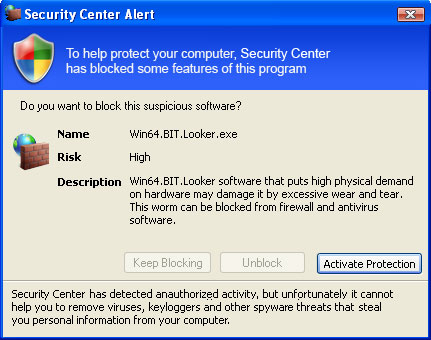
System Defender usually infects a computer with the help of Trojan downloader and misleading or infected websites. Once your computer has been compromised by this fake anti-spyware application you will probably notice that your PC is running sluggish or slower than normal. You will experience non-stop fake system alerts and pop-ups saying that your computer has all sorts of malware on it. System Defender may also hijack your Desktop to display fake security warnings. It also hijacks web browsers and blocks other programs on your computer. Not to mention that it blocks malware removal tools as well. Here are some of the fake security warnings it displays:
System Defender
Spyware.IEMonster process is found. The virus is going to send your passwords from Internet browser (Explorer, Mozilla Firefox, Outlook & others) to the third-parties. Click here for further protection of your data with System Defender.
System Defender Firewall Alert
System Defender has prevented a program from accessing the Internet.
"iexplore.exe" is infected with Trojan. This worm has tried to use "iexplore.exe" to connect to remove host and send your credit card information.

Internet Defender Firewall Alert
Suspicious activity in your registry system space was detected. Rogue malware detected in your system. Data leaks and system damage are possible. Please use a deep scan option.


Do not waste your money on this rogue anti-spyware. It is possible to manually remove System Defender malware, however, to insure no risk of damage to your computer, it is advisable to use anti-malware software. Besides, it could be rather difficult to identify and delete each malicious file retaled to this infection from your computer. Last, but not least, if you have already purchased this corrupt application, you should contact your credit card company and dispute the charges stating that the program is a computer infection. To remove System Defender, and related malware, please use the removal guide below. If you need further assistance in removing this rogue antispyware application, please leave a comment below. Also, if you have any additional information about this malware, please let us know. Good luck and be safe online!


System Defender removal instructions (in Safe Mode with Networking):

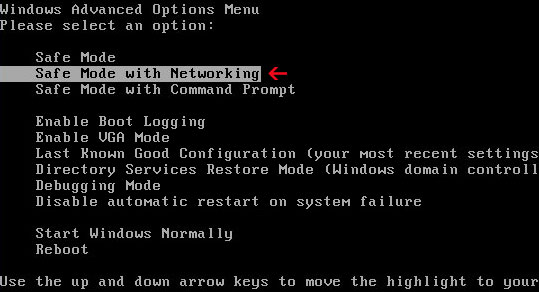
1. Reboot your computer is "Safe Mode with Networking". As the computer is booting tap the "F8 key" continuously which should bring up the "Windows Advanced Options Menu" as shown below. Use your arrow keys to move to "Safe Mode with Networking" and press Enter key. Read more detailed instructions here: http://www.computerhope.com/issues/chsafe.htm

NOTE: Login as the same user you were previously logged in with in the normal Windows mode.

2. Download free anti-malware software from the list below and run a full system scan.
NOTE: in some cases the rogue program may block anti-malware software. Before saving the selected program onto your computer, you may have to rename the installer to iexplore.exe or winlogon.exe With all of these tools, if running Windows 7 or Vista they MUST be run as administrator. Launch the program and follow the prompts. Don't forget to update the installed program before scanning.

3. New threats appear every day. In order to protect your PC from such (new) infections we strongly recommend you to use ESET Smart Security.


Alternate System Defender removal instructions:

1. Download iexplore.exe (NOTE: iexplore.exe file is renamed HijackThis tool from TrendMicro).
Launch the iexplore.exe and click "Do a system scan only" button.
If you can't open iexplore.exe file then download explorer.scr and run it.

2. Search for such entry in the scan results (Windows XP):
O4 - HKLM\..\Run: [SET OF RANDOM CHARACTERS] "C:\WINDOWS\system32\rundll32.exe" "C:\Documents and Settings\All Users\Application Data\[SET OF RANDOM CHARACTERS].avi", DllUnregisterServer
O4 - HKCU\..\Run: [SET OF RANDOM CHARACTERS] "C:\WINDOWS\system32\rundll32.exe" "C:\Documents and Settings\All Users\Application Data\[SET OF RANDOM CHARACTERS].avi", DllUnregisterServer
O4 - Startup: [SET OF RANDOM CHARACTERS].lnk = C:\WINDOWS\system32\rundll32.exe


Select all similar entries and click once on the "Fix checked" button. Close HijackThis tool.
    3. Download free anti-malware software from the list below and run a full system scan.
    NOTE: in some cases the rogue program may block anti-malware software. Before saving the selected program onto your computer, you may have to rename the installer to iexplore.exe or winlogon.exe. With all of these tools, if running Windows 7 or Vista they MUST be run as administrator. Launch the program and follow the prompts. Don't forget to update the installed program before scanning.

    4. New threats appear every day. In order to protect your PC from such (new) infections we strongly recommend you to use ESET Smart Security.


    Associated System Defender files and registry values:

    Files:

    Windows XP
    • C:\Documents and Settings\All Users\Application Data\[SET OF RANDOM CHARACTERS]_.mkv
    • C:\Documents and Settings\All Users\Application Data\[SET OF RANDOM CHARACTERS].avi
    • C:\Documents and Settings\All Users\Application Data\[SET OF RANDOM CHARACTERS].ico
    • C:\Program Files\System Defender
    • C:\Program Files\System Defender\System Defender.dll
    • C:\Documents and Settings\[UserName]\Local Settings\Temp\[SET OF RANDOM CHARACTERS].dll
    Windows Vsita/7
    • C:\ProgramData\[SET OF RANDOM CHARACTERS]_.mkv
    • C:\ProgramData\[SET OF RANDOM CHARACTERS].avi
    • C:\ProgramData\[SET OF RANDOM CHARACTERS].ico
    • C:\Program Files\System Defender
    • C:\Program Files\System Defender\System Defender.dll
    • C:\Users\[UserName]\AppData\Local\Temp\[SET OF RANDOM CHARACTERS].dll
    Registry values:
    • HKEY_CURRENT_USER\Software\Microsoft\Windows\CurrentVersion\Run "[SET OF RANDOM CHARACTERS]"
    • HKEY_LOCAL_MACHINE\SOFTWARE\Microsoft\Windows\CurrentVersion\Run "[SET OF RANDOM CHARACTERS]"
    Share the knowledge:

    Wednesday, 9 March 2011

    Remove Trojan.Ransomware (Uninstall Guide)

    Trojan.Ransomware is a piece of malware that hijacks your computer and demands payment in exchange for the unlock key. If you don't have the key, you can't do anything. Very often, ransomware locks Windows in Safe Mode and Safe Mode with Networking too; otherwise you could easily get rid of it. However, there are a couple of steps that you can generally follow to get rid of the majority of Trojan.Ransomware type infections.

    A few days ago we ended up with a specific Trojan.Ransomware that targets Russian web users. It hijacks the computer and displays a message in Russian saying that you need to send and an SMS on given number to retrieve the activation code.


    We got it from a fake porn website that prompts web users to install pornoplayer.exe in order to watch requested video.


    Of course, that doesn't mean you are protected against such malware just because you live in U.S or Europe. It can hijack your computer as well. So, let's say your PC is locked, you don't understand anything in Russian and you can't use their phone number. What would you do? Please follow the general Trojan.Ransomware removal guide below.


    Trojan.Ransomware removal instructions:

    1. Reboot your computer is "Safe Mode with Command Prompt". As the computer is booting tap the "F8 key" continuously which should bring up the "Windows Advanced Options Menu" as shown below. Use your arrow keys to move to "Safe Mode with Command Prompt" and press Enter key. Login as the same user you were previously logged in with in the normal Windows mode.


    2. When Windows loads, the Windows command prompt will show up as show in the image below. At the command prompt, type explorer, and press Enter. Windows Explorer opens.


    3. Then open the Registry editor using the same Windows command prompt. Type regedit and press Enter. The Registry Editor opens.


    4. Locate the following registry entries:

    HKEY_LOCAL_MACHINE\SOFTWARE\Microsoft\Windows NT\CurrentVersion\Winlogon

    In the righthand pane select the registry key named Shell. Right click on this registry key and choose Modify.


    Default value is Explorer.exe.


    Modified value data points to Trojan.Ransomware executable file.


    If Trojan.Ransomware modified the Shell value data, please copy the location of the executable file it points to into Notepad and then change value data to Explorer.exe. Click OK to save your changes and exit the Registry editor. Proceed to step 5.

    If the default value data (Explorer.exe) wasn't modified, please locate the second registry entry:

    HKEY_CURRENT_USER\Software\Microsoft\Windows\CurrentVersion\Run

    In the righthand pane select the randomly named registry key. In our case it was 22997148.


    Copy the location of the executable file into Notepad and then delete the registry key. Right click on the registry key and choose Delete. Click Yes to confirm and exit the Registry editor. Proceed to step 5.

    5. Delete Trojan.Ransomware files. Use the file location you saved into Notepad or otherwise noted in step 4. In our case, Trojan.Ransomware resided in %UserProfile% directory. There was a randomly named folder 22997148.

    Full path: C:\Documents and Settings\Michael\22997148\22997148.EXE


    NOTE: %UserProfile% refers to:
    C:\Documents and Settings\[UserName] (for Windows 2000/XP)
    C:\Users\[UserName]\ (for Windows Vista & Windows 7)

    6. Go back into "Normal Mode". Download recommended anti-malware software (direct download) and run a full system scan to remove this virus from your computer.


    Associated Trojan.Ransomware files and registry values:

    Files:
    • %UserProfile%\[SET OF RANDOM NUMBERS]\
    • %UserProfile%\[SET OF RANDOM NUMBERS]\[SET OF RANDOM NUMBERS].exe
    %UserProfile% refers to:
    C:\Documents and Settings\[UserName] (for Windows 2000/XP)
    C:\Users\[UserName]\ (for Windows Vista & Windows 7)

    Registry values:
    • HKEY_CURRENT_USER\Software\Microsoft\Windows\CurrentVersion\Run "[SET OF RANDOM NUMBERS]"
    • HKEY_LOCAL_MACHINE\SOFTWARE\Microsoft\Windows NT\CurrentVersion\Winlogon "Shell = [SET OF RANDOM NUMBERS]"
    Share this information with other people:

    Sunday, 6 March 2011

    How to Remove Antivirus Monitor (Uninstall Guide)

    Antivirus Monitor is a rogue anti-virus application that displays false alert messages and misleading pop-ups in order to trick you into paying for the removal of threats that never really existed on your machine. It tries to convince you that these threats are actually real and this fake AV will continue to send these annoying and intrusive alerts until a payment is made. Antivirus Monitor is distributed through malicious websites, spam messages and other usual ways but one of the key ways in which such fake anti-virus applications are distributed is through fake online scanners that are very authentic copy of legitimate screens in Windows operating systems. After the scan finishes, visitors are informed that their computers are infected with viruses and then it push visitors to install Antivirus Monitor to clean up the non-existent threats. As you can see, this rogue anti-virus program relies on pop-ups with false detections, forcing you to buy this bogus software to get rid of infections that aren't there. If you are reading this article then your computer is probably infected with this bogus security software. To remove Antivirus Monitor and related malware, please follow the steps in the guide below.


    Antivirus Monitor is from the same family as AntiMalware GO and AntiVira Av. It pretends to scan your computer for malware and falsely reports finding numerous infections: BankerFox.A, BitTera.C, Sality.AN, DMD.Bancos and other threats. Furthermore, Antivirus Monitor changes LAN settings and configures your computer to use a proxy server that displays a fake security warning instead of requested website. The rogue program will also randomly open web pages containing explicit/adult content.


    Antivirus Monitor displays various imitations of the Windows Security Alerts, tricking users into enabling and buying the rogue anti-virus program:


    What is more, Antivirus Monitor will block other programs on your computer, including Task Manager, Registry editor and some other useful system tools. The rogue program may block other programs in safe mode too.


    In such case, you should restart your computer in debug mode and use system restore. Antivirus Monitor will take you to softwaream.com or any other similar websites to purchase a license of this scareware. There are three versions of this fake AV: Antivirus Monitor Limited, Antivirus Monitor Plus and Antivirus Monitor full. Prices range from $49.95 to $69.95.


    Antivirus Monitor is a complete scam. If you have already purchased it, please contact your credit card company and dispute the charges. Then follow the removal instructions below to remove this piece of malware from your computer. If you have any further questions, please leave a comment. If you have any additional information about Antivirus Monitor, let us know. Good luck and be safe online!


    Antivirus Monitor removal instructions (in Safe Mode with Networking):

    1. Reboot your computer is "Safe Mode with Networking". As the computer is booting tap the "F8 key" continuously which should bring up the "Windows Advanced Options Menu" as shown below. Use your arrow keys to move to "Safe Mode with Networking" and press Enter key. Read more detailed instructions here: http://www.computerhope.com/issues/chsafe.htm


    NOTE: Login as the same user you were previously logged in with in the normal Windows mode.

    2. Launch Internet Explorer. In Internet Explorer go to: Tools->Internet Options->Connections tab. Click Lan Settings button and uncheck the checkbox labeled Use a proxy server for your LAN. Click OK.


    3. Download free anti-malware software from the list below and run a full system scan.
    NOTE: in some cases the rogue program may block anti-malware software. Before saving the selected program onto your computer, you may have to rename the installer to iexplore.exe, explorer.exe or winlogon.exe. With all of these tools, if running Windows 7 or Vista they MUST be run as administrator. Launch the program and follow the prompts. Don't forget to update the installed program before scanning.

    4. New threats appear every day. In order to protect your PC from such (new) infections we strongly recommend you to use ESET Smart Security.


    Alternate Antivirus Monitor removal instructions (in Normal mode):

    1. Download iexplore.exe (NOTE: iexplore.exe file is renamed HijackThis tool from TrendMicro).
    Launch the iexplore.exe and click "Do a system scan only" button.
    If you can't open iexplore.exe file then download explorer.scr and run it.

    2. Search for such entry in the scan results:
    R1 - HKCU\Software\Microsoft\Windows\CurrentVersion\Internet Settings,ProxyServer = http=127.0.0.1:33445
    O4 - HKCU\..\Run: [SET OF RANDOM CHARACTERS] %Temp%\[SET OF RANDOM CHARACTERS]\[SET OF RANDOM CHARACTERS].exe e.g. ewrn29afhp8zy.exe

    Select all similar entries and click once on the "Fix checked" button. Close HijackThis tool.

    OR you can download Process Explorer and end Antivirus Monitor process:
    • [SET OF RANDOM CHARACTERS].exe, e.g. ewrn29afhp8zy.exe
    3. Download free anti-malware software from the list below and run a full system scan.
    NOTE: in some cases the rogue program may block anti-malware software. Before saving the selected program onto your computer, you may have to rename the installer to iexplore.exe, explorer.exe or winlogon.exe. With all of these tools, if running Windows 7 or Vista they MUST be run as administrator. Launch the program and follow the prompts. Don't forget to update the installed program before scanning.

    4. New threats appear every day. In order to protect your PC from such (new) infections we strongly recommend you to use ESET Smart Security.


    Associated Antivirus Monitor files and registry values:

    Files:
    • %Temp%\[SET OF RANDOM CHARACTERS]\
    • %Temp%\[SET OF RANDOM CHARACTERS]\[SET OF RANDOM CHARACTERS].exe
    %Temp% refers to:
    C:\Documents and Settings\[UserName]\Local Settings\Temp (in Windows 2000/XP)
    C:\Users\[UserName]\AppData\Local\Temp (in Windows Vista & Windows 7)

    Registry values:
    • HKEY_CURRENT_USER\Software\[SET OF RANDOM CHARACTERS]
    • HKEY_CURRENT_USER\Software\Microsoft\Internet Explorer\Download "RunInvalidSignatures" = '1'
    • HKEY_CURRENT_USER\Software\Microsoft\Internet Explorer\PhishingFilter "Enabled" = '0'
    • HKEY_CURRENT_USER\Software\Microsoft\Windows\CurrentVersion\Internet Settings "ProxyOverride" = ''
    • HKEY_CURRENT_USER\Software\Microsoft\Windows\CurrentVersion\Internet Settings "ProxyServer" = 'http=127.0.0.1:33445'
    • HKEY_CURRENT_USER\Software\Microsoft\Windows\CurrentVersion\Internet Settings "ProxyEnable" = '1'
    • HKEY_CURRENT_USER\Software\Microsoft\Windows\CurrentVersion\Policies\Associations "LowRiskFileTypes" = '.exe'
    • HKEY_CURRENT_USER\Software\Microsoft\Windows\CurrentVersion\Run "[SET OF RANDOM CHARACTERS]"
    • HKEY_CURRENT_USER\Software\Microsoft\Internet Explorer\Download "CheckExeSignatures" = 'no'
    Share this information with other people:

    Thursday, 3 March 2011

    How to Remove Android Rootcager (Uninstall Guide)

    Android.Rootcager is a Trojan horse that steals information from Android devices. It can take screenshots, gather IMEI and IMSI numbers and send them to remote servers, and install a DownloadProvidersManager Android Package which creates a backdoor to your Android device and downloads additional malware in the background. Cyber-criminals inject their malicious code into popular free apps and republishes in the official marketplace under different application and publisher names. If you think that you may have installed an application in question, check com.android.providers.downloadsmanager (DownloadManageService) in the “Running Services” activity available from the Application system settings of your phone. If you find this service running on your phone, please stop it and uninstall the DownloadProvidersManager Android Package.


    Image source: symantec.com


    Android.Rootcager removal instructions:

    1. Tap on Settings and under Settings, tap on Applications.
    2. Under Applications, tap on Running services.
    3. To stop com.android.providers.downloadsmanager (DownloadManageService) service, just tap it. A dialog will come up. Tap Stop to close the service.
    4. Then, go to Manage Applications. Select the com.android.providers.downloadsmanager (DownloadManageService) and click on the "Uninstall" button.

    Monday, 28 February 2011

    How to Remove AntiVirus AntiSpyware 2011 (Uninstall Guide)

    AntiVirus AntiSpyware 2011 is rogue anti-virus software that displays fake messages saying that your computer is infected by viruses, spyware and other types of malware. It utilizes false scan results, browser hijackings and other misleading methods in order to scare you into purchasing the program. It may report up to 300 infections on your computer during virus scan. Such type of misleading software provides the user with no protection whatsoever. In other words, it pretends to be a legitimate antivirus program but instead of actually protecting your computer against malicious software and Internet threats, AntiVirus AntiSpyware 2011 provides a false sense of security. This application is a complete scam. If you've got a computer infected by this rogue anti-virus program, you should follow the steps in the AntiVirus AntiSpyware 2011 removal guide below.


    AntiVirus AntiSpyware 2011 is from the same family as AntiVirus System 2011.

    AntiVirus AntiSpyware 2011 blocks virtually everything you try and run, including legitimate anti-malware tools. It displays fake and very annoying security alerts saying that your computer is infected with spyware, adware and worms that can steal your sensitive information and delete important files. That's not true. What is more, AntiVirus AntiSpyware 2011 displays a fake Windows Security Center and states that hackers are trying to steal your computer license key. That's complete nonsense too.


    So what happens when you click the "Active" button? You actually get redirected to a fraudulent payment processing site where you can purchase the software. AntiVirus AntiSpyware 2011 related websites:
    • antivirusantispyware2011.com
    • antivirusantispyware2011ltd.com
    • antivirusantispyware2011comp.com
    • antivirusantispyware2011corp.com


    AntiVirus AntiSpyware 2011 hijacks Internet Explorer and redirects you to either a fraudulent payment processing site or completely unrelated and malicious websites. This rogue application cannot be removed through add/remove programs. If you have already purchased this rogue program, please contact your credit card company and state that the program is a scam and that you would like to dispute the charge. To remove AntiVirus AntiSpyware 2011, please follow the steps in the guide below. If you have additional information regarding this computer infection, please leave a comment below. And if you've got any further questions about this malware, please don't hesitate to contact us. Good luck and be safe online!


    AntiVirus AntiSpyware 2011 removal instructions (in Safe Mode with Networking):

    1. Reboot your computer is "Safe Mode with Networking". As the computer is booting tap the "F8 key" continuously which should bring up the "Windows Advanced Options Menu" as shown below. Use your arrow keys to move to "Safe Mode with Networking" and press Enter key. Read more detailed instructions here: http://www.computerhope.com/issues/chsafe.htm


    NOTE: Login as the same user you were previously logged in with in the normal Windows mode.

    2. Download free anti-malware software from the list below and run a full system scan.
    NOTE: in some cases the rogue program may block anti-malware software. Before saving the selected program onto your computer, you may have to rename the installer to iexplore.exe, explorer.exe or winlogon.exe. With all of these tools, if running Windows 7 or Vista they MUST be run as administrator. Launch the program and follow the prompts. Don't forget to update the installed program before scanning.

    3. New threats appear every day. In order to protect your PC from such (new) infections we strongly recommend you to use ESET Smart Security.


    Alternate AntiVirus AntiSpyware 2011 removal instructions using HijackThis or Process Explorer (in Normal mode):

    1. Download iexplore.exe (NOTE: iexplore.exe file is renamed HijackThis tool from TrendMicro).
    Launch the iexplore.exe and click "Do a system scan only" button.
    If you can't open iexplore.exe file then download explorer.scr and run it.

    2. Search for such entry in the scan results:
    O4 - HKCU\..\Run: [Security Manager] C:\Documents and Settings\[User Name]\Application Data\AntiVirus AntiSpyware 2011\securitymanager.exe
    O4 - HKCU\..\Run: [AntiVirus System 2011] "C:\Documents and Settings\[User Name]\Application Data\AntiVirus AntiSpyware 2011\AntiVirus_System_2011.exe" /STARTUP
    O4 - HKCU\..\Run: [2hdpwq51skqnz] C:\Documents and Settings\[User Name]\Desktop\AntiVirus_AntiSpyware_2011\AntiVirus AntiSpyware 2011\securityhelper.exe
    Select all similar entries and click once on the "Fix checked" button. Close HijackThis tool.

    OR you can download Process Explorer and end AntiVirus AntiSpyware 2011 processes:
    • AntiVirus_AntiSpyware_2011.exe
    • securitymanager.exe
    • securityhelper.exe
    3. Download free anti-malware software from the list below and run a full system scan.
    NOTE: in some cases the rogue program may block anti-malware software. Before saving the selected program onto your computer, you may have to rename the installer to iexplore.exe, explorer.exe or winlogon.exe. With all of these tools, if running Windows 7 or Vista they MUST be run as administrator. Launch the program and follow the prompts. Don't forget to update the installed program before scanning.

    4. New threats appear every day. In order to protect your PC from such (new) infections we strongly recommend you to use ESET Smart Security.


    Associated AntiVirus AntiSpyware 2011 files and registry values:

    Files:

    In Windows XP:
    • C:\Documents and Settings\[UserName]\Application Data\AntiVirus AntiSpyware 2011\
    • C:\Documents and Settings\[UserName]\Application Data\AntiVirus AntiSpyware 2011\AntiVirus_AntiSpyware_2011.exe
    • C:\Documents and Settings\[UserName]\Application Data\AntiVirus AntiSpyware 2011\securitymanager.exe
    • C:\Documents and Settings\[UserName]\Application Data\AntiVirus AntiSpyware 2011\securityhelper.exe
    In Windows Vista/7:
    • C:\Users\[UserName]\AppData\Roaming\AntiVirus AntiSpyware 2011\
    • C:\Users\[UserName]\AppData\Roaming\AntiVirus AntiSpyware 2011\AntiVirus_AntiSpyware_2011.exe
    • C:\Users\[UserName]\AppData\Roaming\AntiVirus AntiSpyware 2011\securitymanager.exe
    • C:\Users\[UserName]\AppData\Roaming\AntiVirus AntiSpyware 2011\securityhelper.exe
    Registry values:
    • HKEY_CURRENT_USER\Software\Microsoft\Windows\CurrentVersion\Uninstall\AntiVirus AntiSpyware 2011
    • HKEY_CURRENT_USER\Software\AntiVirus AntiSpyware 2011
    • HKEY_CURRENT_USER\Software\Microsoft\Windows\CurrentVersion\Run "2hdpwq51skqnz"
    • HKEY_CURRENT_USER\Software\Microsoft\Windows\CurrentVersion\Run "Security Manager"
    • HKEY_CURRENT_USER\Software\Microsoft\Windows\CurrentVersion\Run "AntiVirus AntiSpyware 2011"
    Share this information with other people:

    Sunday, 27 February 2011

    How to Remove AntiMalware GO (Uninstall Guide)

    AntiMalware GO is a rogue anti-virus application that hijacks your computer, displays misleading security alerts and reports non-existent infections in an effort to frighten you into purchasing worthless security software. This rogue application offers a false sense of security because it can not protect your computer against any type of malware. AntiMalware GO reported more than 20 false malware related security threats (mostly spyware, trojans and adware) on our test machine. This rogue AV it is installed via annoying pop-up ads, fake online scanners and infected websites. It is possible to get this rogue security software by simply visiting a website, even a reputable one. If AntiMalware Go has infected your computer, you should remove it immediately. Thankfully, we've got the removal instructions to help you to remove AntiMalware GO and associated malware for free. Please follow the steps in the removal guide below.


    AntiMalware GO is from the same family as AntiVira Av and Antivirus .NET. It changes LAN settings and configures your computer to use a proxy server that displays a fake security warning instead of requested website. The rogue program will also randomly open web pages containing explicit/adult content.


    AntiMalware GO displays fake security alerts and blocks other applications on your computer. Below are some images of some of the fake alerts generated by AntiMalware GO.


    The fake AV redirects users to rodyshop.com or any other similar websites to purchase a license of AntiMalware GO. As you can see, there are three versions of this scareware: AntiMalware GO Easy, AntiMalware GO Advantage and AntiMalware GO Mega. Prices range from $49.95 to $69.95.


    AntiMalware GO is a complete scam. If you have already purchased it, please contact your credit card company and dispute the charges. Then follow the removal instructions below to remove this piece of malware from your computer. If you have any further questions or concerns, please leave a comment. If you have any additional information about AntiMalware GO, let us know. Good luck and be safe online!


    AntiMalware GO removal instructions (in Safe Mode with Networking):

    1. Reboot your computer is "Safe Mode with Networking". As the computer is booting tap the "F8 key" continuously which should bring up the "Windows Advanced Options Menu" as shown below. Use your arrow keys to move to "Safe Mode with Networking" and press Enter key. Read more detailed instructions here: http://www.computerhope.com/issues/chsafe.htm


    NOTE: Login as the same user you were previously logged in with in the normal Windows mode.

    2. Launch Internet Explorer. In Internet Explorer go to: Tools->Internet Options->Connections tab. Click Lan Settings button and uncheck the checkbox labeled Use a proxy server for your LAN. Click OK.


    3. Download free anti-malware software from the list below and run a full system scan.
    NOTE: in some cases the rogue program may block anti-malware software. Before saving the selected program onto your computer, you may have to rename the installer to iexplore.exe, explorer.exe or winlogon.exe. With all of these tools, if running Windows 7 or Vista they MUST be run as administrator. Launch the program and follow the prompts. Don't forget to update the installed program before scanning.

    4. New threats appear every day. In order to protect your PC from such (new) infections we strongly recommend you to use ESET Smart Security.


    Alternate AntiMalware GO removal instructions (in Normal mode):

    1. Download iexplore.exe (NOTE: iexplore.exe file is renamed HijackThis tool from TrendMicro).
    Launch the iexplore.exe and click "Do a system scan only" button.
    If you can't open iexplore.exe file then download explorer.scr and run it.

    2. Search for such entry in the scan results:
    R1 - HKCU\Software\Microsoft\Windows\CurrentVersion\Internet Settings,ProxyServer = http=127.0.0.1:33820
    O4 - HKCU\..\Run: [SET OF RANDOM CHARACTERS] %Temp%\[SET OF RANDOM CHARACTERS]\[SET OF RANDOM CHARACTERS].exe e.g. hdrwpsjf38shef.exe

    Select all similar entries and click once on the "Fix checked" button. Close HijackThis tool.

    OR you may download Process Explorer and end AntiMalware GO process:
    • [SET OF RANDOM CHARACTERS].exe, e.g. hdwlcbr28aks5eg.exe
    3. Download free anti-malware software from the list below and run a full system scan.
    NOTE: in some cases the rogue program may block anti-malware software. Before saving the selected program onto your computer, you may have to rename the installer to iexplore.exe, explorer.exe or winlogon.exe. With all of these tools, if running Windows 7 or Vista they MUST be run as administrator. Launch the program and follow the prompts. Don't forget to update the installed program before scanning.

    4. New threats appear every day. In order to protect your PC from such (new) infections we strongly recommend you to use ESET Smart Security.


    Associated AntiMalware GO files and registry values:

    Files:
    • %Temp%\[SET OF RANDOM CHARACTERS]\
    • %Temp%\[SET OF RANDOM CHARACTERS]\[SET OF RANDOM CHARACTERS].exe
    %Temp% refers to:
    C:\Documents and Settings\[UserName]\Local Settings\Temp (in Windows 2000/XP)
    C:\Users\[UserName]\AppData\Local\Temp (in Windows Vista & Windows 7)

    Registry values:
    • HKEY_CURRENT_USER\Software\[SET OF RANDOM CHARACTERS]
    • HKEY_CURRENT_USER\Software\Microsoft\Internet Explorer\Download "RunInvalidSignatures" = '1'
    • HKEY_CURRENT_USER\Software\Microsoft\Internet Explorer\PhishingFilter "Enabled" = '0'
    • HKEY_CURRENT_USER\Software\Microsoft\Windows\CurrentVersion\Internet Settings "ProxyOverride" = ''
    • HKEY_CURRENT_USER\Software\Microsoft\Windows\CurrentVersion\Internet Settings "ProxyServer" = 'http=127.0.0.1:33820'
    • HKEY_CURRENT_USER\Software\Microsoft\Windows\CurrentVersion\Internet Settings "ProxyEnable" = '1'
    • HKEY_CURRENT_USER\Software\Microsoft\Windows\CurrentVersion\Policies\Associations "LowRiskFileTypes" = '.exe'
    • HKEY_CURRENT_USER\Software\Microsoft\Windows\CurrentVersion\Run "[SET OF RANDOM CHARACTERS]"
    • HKEY_CURRENT_USER\Software\Microsoft\Internet Explorer\Download "CheckExeSignatures" = 'no'
    Share this information with other people:

    Thursday, 24 February 2011

    How to Remove Internet Defender (Uninstall Guide)

    Internet Defender is a rogue security application that runs a system scan for viruses and reports false threats to frighten you into thinking your computer is infected with Trojans, viruses, spyware and other type of malware. The rogue program displays fake security warnings and annoying pop ups stating that your computer is being attacked from a remote machine or that additionally installed software can steal your passwords and other sensitive information. Internet Defender is a piece of malware designed to rip people off. The bad guys behind this rogue program hope that you will believe your computer is badly infected and pay for the full version of the software to clean your PC. Internet Defender impersonates the legitimate Microsoft anti-spyware program called Windows Defender. This rogue AV makes its way to the system with the help of fake online scanners and Trojan horses. It is obvious that Internet Defender 2011 is a complete scam. You shouldn’t install or purchase this scareware. And if you somehow ended up with this malware on your computer, please follow the steps in the removal guide below to remove Internet Defender from your computer for free.


    Internet Defender is a clone of Security Defender. We wrote about it two weeks ago. The graphical user interface and self-defense mechanism hasn't changed much. The rogue program uses randomly names files and web browser hijacking to block legitimate security related websites and malware removal tools. Here are some of the fake security warnings it displays:
    Internet Defender
    Spyware.IEMonster process is found. The virus is going to send your passwords from Internet browser (Explorer, Mozilla Firefox, Outlook & others) to the third-parties. Click here for further protection of your data with Internet Defender.

    Internet Defender Firewall Alert
    Suspicious activity in your registry system space was detected. Rogue malware detected in your system. Data leaks and system damage are possible. Please use a deep scan option.
    Although, it is possible to remove Internet Defender manually, we do not recommend doing so. First of all, it drops randomly named files into ApplicationData (Win XP) and ProgramData (Win Vista/7) folders. It could be rather difficult to identify and delete each malicious file from your computer. Secondly, Internet Defender can download additional malware onto your computer. That's why you should definitely scan your computer with anti-malware software. Last, but not least, if you have already purchased this phony security program, you should contact your credit card company and dispute the charges stating that Internet Defender 2011 is malicious software. If Internet Defender is installed on your computer, you should remove it immediately. Please follow the removal instructions below. If you have any questions or comments for us, please let us know. Good luck and be safe online!


    Internet Defender removal instructions (in Safe Mode with Networking):

    1. Reboot your computer is "Safe Mode with Networking". As the computer is booting tap the "F8 key" continuously which should bring up the "Windows Advanced Options Menu" as shown below. Use your arrow keys to move to "Safe Mode with Networking" and press Enter key.


    NOTE: Login as the same user you were previously logged in with in the normal Windows mode.

    2. Download recommended anti-malware software (Spyware Doctor) and run a full system scan to remove this rogue security program from your computer. Don't forget to update anti-malware software before scanning.
      NOTE: in some cases the rogue program may block anti-malware software. Before saving the selected program onto your computer, you may have to rename the installer to iexplore.exe or winlogon.exe With all of these tools, if running Windows 7 or Vista they MUST be run as administrator. Launch the program and follow the prompts. Don't forget to update the installed program before scanning.


      Alternate Internet Defender removal instructions:

      1. Download iexplore.exe (NOTE: iexplore.exe file is renamed HijackThis tool from TrendMicro).
      Launch the iexplore.exe and click "Do a system scan only" button.
      If you can't open iexplore.exe file then download explorer.scr and run it.

      2. Search for such entry in the scan results (Windows XP):
      O4 - HKLM\..\Run: [SET OF RANDOM CHARACTERS] "C:\WINDOWS\system32\rundll32.exe" "C:\Documents and Settings\All Users\Application Data\[SET OF RANDOM CHARACTERS].avi", DllUnregisterServer
      O4 - HKCU\..\Run: [SET OF RANDOM CHARACTERS] "C:\WINDOWS\system32\rundll32.exe" "C:\Documents and Settings\All Users\Application Data\[SET OF RANDOM CHARACTERS].avi", DllUnregisterServer
      O4 - Startup: [SET OF RANDOM CHARACTERS].lnk = C:\WINDOWS\system32\rundll32.exe


      Select all similar entries and click once on the "Fix checked" button. Close HijackThis tool.
        3. Download recommended anti-malware software (Spyware Doctor) and run a full system scan to remove this rogue security program from your computer. Don't forget to update anti-malware software before scanning.
          NOTE: in some cases the rogue program may block anti-malware software. Before saving the selected program onto your computer, you may have to rename the installer to iexplore.exe or winlogon.exe. With all of these tools, if running Windows 7 or Vista they MUST be run as administrator. Launch the program and follow the prompts. Don't forget to update the installed program before scanning.


          Associated Internet Defender files and registry values:

          Files:

          Windows XP
          • C:\Documents and Settings\All Users\Application Data\[SET OF RANDOM CHARACTERS]_.mkv
          • C:\Documents and Settings\All Users\Application Data\[SET OF RANDOM CHARACTERS].avi
          • C:\Documents and Settings\All Users\Application Data\[SET OF RANDOM CHARACTERS].ico
          • C:\Program Files\Internet Defender
          • C:\Program Files\Internet Defender\Internet Defender.dll
          • C:\Documents and Settings\[UserName]\Local Settings\Temp\[SET OF RANDOM CHARACTERS].dll
          Windows Vsita/7
          • C:\ProgramData\[SET OF RANDOM CHARACTERS]_.mkv
          • C:\ProgramData\[SET OF RANDOM CHARACTERS].avi
          • C:\ProgramData\[SET OF RANDOM CHARACTERS].ico
          • C:\Program Files\Internet Defender
          • C:\Program Files\Internet Defender\Internet Defender.dll
          • C:\Users\[UserName]\AppData\Local\Temp\[SET OF RANDOM CHARACTERS].dll
          Registry values:
          • HKEY_CURRENT_USER\Software\Microsoft\Windows\CurrentVersion\Run "[SET OF RANDOM CHARACTERS]"
          • HKEY_LOCAL_MACHINE\SOFTWARE\Microsoft\Windows\CurrentVersion\Run "[SET OF RANDOM CHARACTERS]"
          Share the knowledge: