Thursday, 25 August 2011

Remove "Update your browser" Fake Warning (Uninstall Guide)

A new scareware campaign is circulating that appears to be a Mozilla Firefox (could be any other web browser) update warning. It seems that cyber crooks continue to make improvements to their social engineering lures. Fake online virus scanners when users get standard "My Computer" dialog may not work anymore because they become very well documented recently. Here's a screenshot of what the fake browser update notification looks like:
Update your browser
This page does not support your version of browser
Please update your software
Browser update

Unfortunately, it could be a successful social engineering attack against Internet users who are still using old and out-of-date web browsers. Besides, there are safe websites that use JavaScript to inform users about out-of-date web browser and in some cases, MSN forum for example, you can leave a reply with Internet Explorer only. If you visit their forum with Firefox or Chrome, you'll get a notification that your web browser is not supported. So, it could be rather difficult for some Internet users to distinguish between "Update your browser" scareware attack and legit update notifications. If you have you received this fake "Update your browser" warnings, chances that your computer is infected with a rootkit. Do not click "Browser update" button, otherwise you'll download more malware onto your computer. Also, if you wan't to check for updates, use web browser's options, ignore notifications from websites even if they appear to be from well know and popular sites. To remove the fake Update your browser warning and associated malware, please follow the removal instructions below. If you have any questions, please leave a comment below or email us. Good luck and be safe online!


"Update your browser" removal instructions:

1. Scan your computer with TDSSKiller and ZeroAccess rootkit removal tool.
2. Download free anti-malware software from the list below and run a full system scan.
NOTE: in some cases the rogue program may block anti-malware software. Before saving the selected program onto your computer, you may have to rename the installer to iexplore.exe or winlogon.exe With all of these tools, if running Windows 7 or Vista they MUST be run as administrator. Launch the program and follow the prompts. Don't forget to update the installed program before scanning.

3. Run CCleaner to remove temporarily and unnecessary files from your computer.
4. If the problem persists, please read this web document and follow the steps carefully: http://deletemalware.blogspot.com/2010/02/remove-google-redirect-virus.html

Share this information with other people:

Wednesday, 24 August 2011

Windows Live Re-activate your account Phishing

Phishing attempt against Windows Live users. This phishing email appears to be from Microsoft, however, the return email address clearly indicates that it's not genuine. Phishers claim that your account information is incorrect. You need to re-activate your account by logging into your Windows Live account. Although, the anchor text for an URL link is disguised as a legitimate URL, it actually redirects you to infected Word Press blog where the phishing web page is hosted. I have to admit that the phishers have made very realistic copy of Windows Live login screen. So, if you've received the following phishing email, please delete it from your inbox.

Legitimate website: http://www.hotmail.com/wlive&react/h02/index.php
Phishing website: http://gynecolog.net/wp-content/themes/jio/index.php
Return email address: Hotmail.Inform.2011@windowslive.198.171.144.251.-.co.uk.com

Here's a screenshot of the phishing email:


And here's the Windows Live phishing website:


Share this information with your friends:

Receipt for your payment to Skype Phishing

Phishing attempt against Paypal users. Phishers send a phishing email that appears to be from Paypal and ask to confirm transaction information. You sent a payment of [] to Skype. If you haven't authorized this charge you can visit Paypal help center to get a full refund. However, the anchor text of the given URL is misleading. It looks like a legitimate URL but takes you to a fake spoof website which looks pretty much the same as the legitimate one. Basically, this is a very common attempt to steal personal information and to gain access to your Paypal account.

Legitimate website: https://www.paypal.com/uk/helpscenter/claim_refunds
Phishing website: http://www.qingshan-edu.com/p/info/index.html
Return email address: paypalferdiloun@narvitam.com

Here's a screen shot of the phishing email:


And here's the phishing website:


Share this information with your friends:

Tuesday, 23 August 2011

Remove 404 Not Found nginx (Uninstall Guide)

404 Not Found nginx is an error message generated by Nginx (open-source, high-performance HTTP server) that basically means the web document you were looking for doesn't longer exist on the server. Although, this is a typical web server error, we've received numerous emails from our readers complaining that they can't visit Google, Youtube and some other websites anymore and that they get this 404 Not Found, nginx page instead of requested websites. While others said that they keep getting the same error page whenever they Google something and click on the search results.


After a bit more investigation we found out that 404 Not Found, nginx was caused by Trojans/spyware that were also displaying ads and online surveys on infected computers. We successfully removed malware from the infected computer but we still had the annoying redirect. The problem was modified Windows Hosts file and this particular IP 173.232.149.90 which returned the 404 error. So, to fix the 404 Not Found, nginx problem completely you first have to scan your computer with anti-malware software and delete additional lines from Windows Hosts file manually or overwrite it.


404 Not Found nginx removal instructions:

1. Download recommended anti-malware software (direct download) and run a full system scan to remove this virus from your computer.


NOTE: in some cases the rogue program may block anti-malware software. Before saving the selected program onto your computer, you may have to rename the installer to iexplore.exe or winlogon.exe. Launch the program and follow the prompts. Don't forget to update the installed program before scanning.

2. Check Windows HOSTS file.
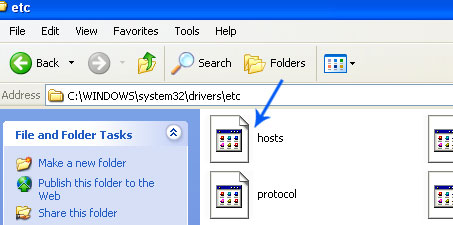
Go to: C:\WINDOWS\system32\drivers\etc.
Double-click "hosts" file to open it. Choose to open with Notepad.


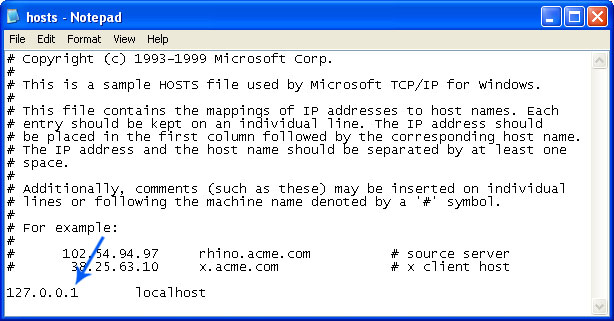
The "hosts" file should look the same as in the image below. There should be only one line: 127.0.0.1 localhost in Windows XP and 127.0.0.1 localhost ::1 in Windows Vista/7. If there are more, then remove them and save changes. Read more about Windows Hosts file here: http://support.microsoft.com/kb/972034


3. If the problem persists, please read this web document and follow the steps carefully: http://deletemalware.blogspot.com/2010/02/remove-google-redirect-virus.html

Share this information with your friends:

Remove Hello4 and Blank Window2 (Uninstall Guide)

If you keep getting random blank windows named Hello4 when you turn off your PC and Blank Window2 when you start your computer, then you're infected with malware. Malware that causes these blank windows to show up may also hijack your web browser and redirect you to spam/malicious websites. What is more, it may download and install additional malware onto your computer, most likely TDL rootkit, Vundo trojan or Zbot spyware. While the blank Hello4 and Blank Window2 pop-ups may look more like software errors they are actually clear signs of malware infection. So, how to do you remove Hello4/Blank Window2 malware? First of all, you should scan your computer with several free anti-rookit utilities to check whether your computer is infected with a rootkit or not. Then you should scan your computer with multiple anti-malware programs. We recommend Malwarebytes Anti-Malware and Hitman Pro, however, you can use any other. Also, we do not recommend removing malware manually because you can accidentally remove safe files, especially when there are several randomly named malicious files associated with this infection. If you can't run malware removal tools properly, reboot your computer in safe mode/safe mode with networking. For more information, please follow the steps in the removal guide below. If you have any questions you can leave a comment below or write us an email. Good luck and be safe online!


Hello4 and Blank Window2 removal instructions:

1. Scan your computer with TDSSKiller and ZeroAccess rootkit removal tool.
2. Download free anti-malware software from the list below and run a full system scan.
NOTE: in some cases the rogue program may block anti-malware software. Before saving the selected program onto your computer, you may have to rename the installer to iexplore.exe or winlogon.exe With all of these tools, if running Windows 7 or Vista they MUST be run as administrator. Launch the program and follow the prompts. Don't forget to update the installed program before scanning.

3. Run CCleaner to remove temporarily and unnecessary files from your computer.
4. If the problem persists, please read this web document and follow the steps carefully: http://deletemalware.blogspot.com/2010/02/remove-google-redirect-virus.html


Associated Hello4 and Blank Window2 files and registry values:

Files:
  • C:\WINDOWS\TEMP\[SET OF RANDOM CHARACTERS].exe
  • C:\WINDOWS\system32\DRIVERS\aha154x.sys
Registry values:
  • HKEY_CURRENT_USER\Software\Microsoft\Search Assistant\ACMru\5603 "000"="hello4"
Share this information with your friends:

Remove Find-fast-answers.com (Uninstall Guide)

Find-fast-answers.com is a search engine/search engine hijacker that may return limited/unrelated search results or redirect you to various sponsored websites full of advertisements. The website itself is not malicious but the methods used to promote this search engine are clearly inappropriate. Whenever you Google something and click on a search result, you may be redirect to Find-fast-answers.com or spam/bogus websites. Some users say it's the Find Fast Answers redirect virus, however, that's not exactly right. It's not a virus but a type of malware, probably a rookit or a Trojan horse that has ad-clicker or redirect module. Cyber crooks have to monetize traffic and this could be one of their methods alongside scareware, ransomware and online surveys. If you have been receiving these annoying redirects, then your computer is infected by malware. It is also worth mentioning that Find-fast-answers.com associated malware may block certain security products and disable Windows security center. First of all, you should use TDSS and ZeroAccess removal tools and then scan your computer with several anti-malware programs. Then remove all unnecessary/temp files, uninstall suspicious ad-ons and browser extensions. To remove Find-fast-answers.com search redirect malware from your computer, please follow the removal instructions below. If you have any questions, please leave a comment below or send us an e-mail. Good luck and be safe online!

Related malware:

Find-fast-answers.com web browser hijacker and associated malware removal instructions:

1. First of all, download and run TDSSKiller by Kaspersky.

2. Then scan your computer with anti-malware software to remove this virus from your computer.

NOTE: in some cases the rogue program may block anti-malware software. Before saving the selected program onto your computer, you may have to rename the installer to iexplore.exe or winlogon.exe With all of these tools, if running Windows 7 or Vista they MUST be run as administrator. Launch the program and follow the prompts. Don't forget to update the installed program before scanning.

3. And finally, use CCleaner to remove temporarily and unnecessary files from your computer.


Associated Find-fast-answers.com files:
  • C:\Documents and Settings\All Users\Application Data\mazuki.dll
  • C:\Documents and Settings\All Users\Application Data\Microsoft\Network\Downloader\qmgr0.dat
  • C:\Documents and Settings\All Users\Application Data\Microsoft\Network\Downloader\qmgr1.dat
  • C:\WINDOWS\system\BCBSMP35.BPL
  • C:\WINDOWS\system32\sstray.exe
Share this information with your friends:

Friday, 19 August 2011

How to Remove Home Safety Essentials (Uninstall Guide)

Home Safety Essentials is a rogue anti-virus program that misleads users into paying for fake removal of malware. This particular fraudware creates numerous harmless files on the computer and detects them as spyware, trojans and other viruses during a fake system scan. Other fake security programs usually have predefined list of supposed infections stored in text/data files or hard coded into the malicious program. Very often cyber-crooks employ social engineering tactics to defeat legitimate antivirus software and to trick users into installing this fraudware. However, this fake AV is also being distributed via infected websites, email attachments and fake online virus scanners. Despite a dramatic drop in the number of users reporting rogueware detections in the last few weeks, Home Safety Essentials and orher fake anti-virus programs are still being distributed, so don't assume you're not at risk. Besides, if you are reading this article, your computer is probably infected with this malware. To remove Home Safety Essentials and associated malware from your computer, please follow the removal instructions below.


After the fake scan, Home Safety Essentials will prompt you to pay for a full version of the program to remove the infections that do not even exist. Don't purchase it! Otherwise you will lose your money and give your credit card details to cyber crooks. It's worth mentioning that cyber criminals may sold gathered information on underground carding forums, so if you though that Home Safety Essentials was a genuine Windows security products and purchased it, you should contact your credit card company and dispute the charges. If you're lucky enough you may get your money back because cyber criminals are forced to return certain percent of money in order to stay in business. While running, Home Safety Essentials will also display numerous fake security alerts and pop-up notifications claiming that your computer is either infected by Trojans or under attack from a remove server. Do not fall for this scam! Another frustrating thing about this infection is that Home Safety Essentials configures Windows to use a proxy server over a LAN connection. You may not be able to visit certain websites or download malaware removal tools. In order to remove Home Safety Essentials you will have to restart your computer in safe mode with networking and disable a proxy server. Last, but not least, it may modify Windows Hosts file. Check if it's OK too. For more information, please follow the steps in the removal guide below. If you have any questions, please leave a comment below. And remember, don't rely only on your antivirus software because anti-virus is still a poor substitute for common sense. Good luck and be safe online!

Related malware:

Home Safety Essentials removal instructions:

1. Reboot your computer is "Safe Mode with Networking". As the computer is booting tap the "F8 key" continuously which should bring up the "Windows Advanced Options Menu" as shown below. Use your arrow keys to move to "Safe Mode with Networking" and press Enter key. Read more detailed instructions here: http://www.computerhope.com/issues/chsafe.htm
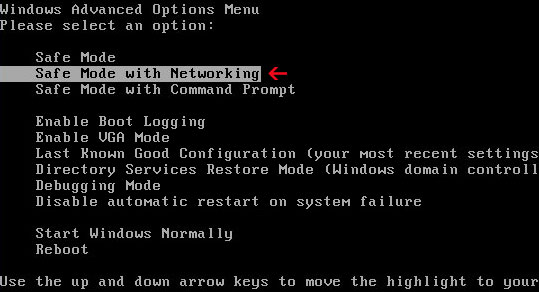

NOTE: Login as the same user you were previously logged in with in the normal Windows mode.

2. Launch Internet Explorer. In Internet Explorer go to: Tools->Internet Options->Connections tab. Click Lan Settings button and uncheck the checkbox labeled Use a proxy server for your LAN. Click OK. You may have to repeat steps 1-2 if you will have problems downloading malware removal programs.
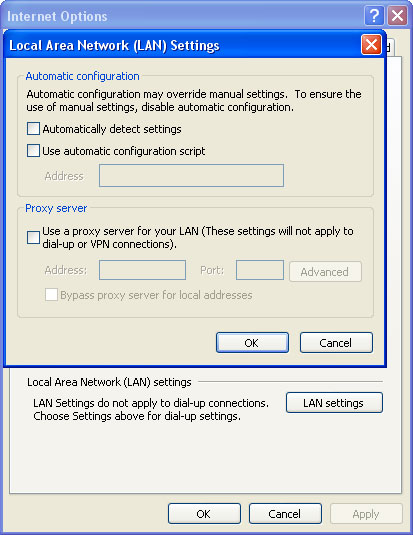


3. Download free anti-malware software from the list below and run a full system scan.
NOTE: in some cases the rogue program may block anti-malware software. Before saving the selected program onto your computer, you may have to rename the installer to iexplore.exe or winlogon.exe With all of these tools, if running Windows 7 or Vista they MUST be run as administrator. Launch the program and follow the prompts. Don't forget to update the installed program before scanning.

4. New threats appear every day. In order to protect your PC from such (new) infections we strongly recommend you to use ESET Smart Security.


Alternate Home Safety Essentials removal instructions using HijackThis or Process Explorer (in Normal mode):

1. Launch Internet Explorer. In Internet Explorer go to: Tools->Internet Options->Connections tab. Click Lan Settings button and uncheck the checkbox labeled Use a proxy server for your LAN. Click OK.


2. Download Process Explorer.
3. Rename procexp.exe to iexplore.exe and run it. Look for similar process in the list and end it:
  • BFq5ac_179.exe
OR download iexplore.exe (NOTE: iexplore.exe file is renamed HijackThis tool from TrendMicro).
Launch the iexplore.exe and click "Do a system scan only" button.
If you can't open iexplore.exe file then download explorer.scr and run it. Search for similar entries in the scan results:

R1 - HKCU\Software\Microsoft\Windows\CurrentVersion\Internet Settings,ProxyServer = http=127.0.0.1:24565
O4 - HKCU\..\Run: [Home Safety Essentials] "C:\Documents and Settings\All Users\Application Data\a4g8q1\BFq5ac_179.exe" /s /d
Select all similar entries and click once on the "Fix checked" button. Close HijackThis tool.

4. Download free anti-malware software from the list below and run a full system scan.
NOTE: in some cases the rogue program may block anti-malware software. Before saving the selected program onto your computer, you may have to rename the installer to iexplore.exe or winlogon.exe With all of these tools, if running Windows 7 or Vista they MUST be run as administrator. Launch the program and follow the prompts. Don't forget to update the installed program before scanning.

5. New threats appear every day. In order to protect your PC from such (new) infections we strongly recommend you to use ESET Smart Security.


Associated Home Safety Essentials files and registry values:

Files:

Windows XP
  • C:\Documents and Settings\All Users\Application Data\a4g8q1\
  • C:\Documents and Settings\All Users\Application Data\a4g8q1\BFq5ac_179.exe
  • C:\Documents and Settings\All Users\Application Data\a4g8q1\HSESys
  • C:\Documents and Settings\All Users\Application Data\a4g8q1\Quarantine Items
  • C:\Documents and Settings\All Users\Application Data\a4g8q1\HSE.ico
  • C:\Documents and Settings\[UserName]\Application Data\Home Safety Essentials\
Windows Vista/7
  • C:\ProgramData\a4g8q1\
  • C:\ProgramData\a4g8q1\HSESys
  • C:\ProgramData\a4g8q1\Quarantine Items
  • C:\ProgramData\a4g8q1\BFq5ac_179.exe
  • C:\ProgramData\a4g8q1\HSE.ico
Registry values:
  • HKEY_CURRENT_USER\Software\Microsoft\Windows\CurrentVersion\Uninstall\Home Safety Essentials
  • HKEY_CURRENT_USER\Software\Microsoft\Windows\CurrentVersion\Run "Home Safety Essentials"
  • HKEY_LOCAL_MACHINE\SOFTWARE\Microsoft\Windows NT\CurrentVersion\Image File Execution Options "Debugger" = "svchost.exe"
  • HKEY_CLASSES_ROOT\Software\Microsoft\Internet Explorer\SearchScopes\URL http://findgala.com/?&uid=247&q={searchTerms}
Share this information with other people: