Tuesday, 20 September 2011

Remove Babylon Toolbar and "Search the web (Babylon)" (Uninstall Guide)

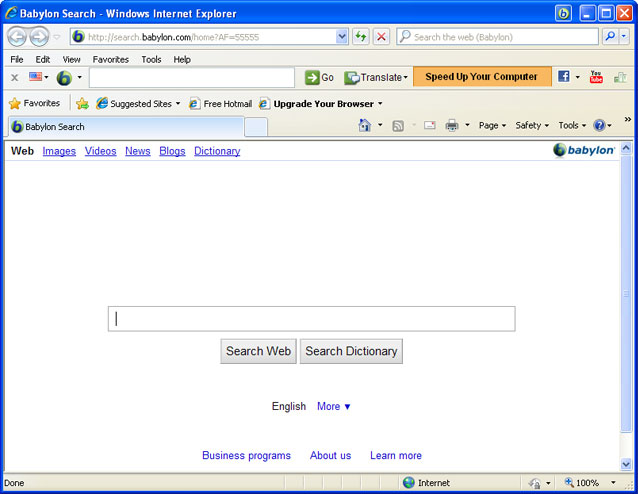
Babylon is an advanced online/offline translation program that comes with a wide variety of language pairs and tremendous dictionary. It includes built-in dictionaries, community-created dictionaries and even a text-to-speech agent to let users hear the proper pronunciation of words. Babylon has very well written manuals and it's already documented elsewhere, so we won't go into details this time. It received Guinness World Records becoming the most downloaded Desktop translation software. That's amazing! It once was identified as Adware:Win32/Babylon by Microsoft because of intrusive behavior, however, Babylon is not categorized as malware anymore. Anyway, it seems that Babylon is still far from perfection because we receive dozens of emails each week asking for advice on how to remove Babylon Toolbar and "Search the web (Babylon)" address bar search provider (returns search results from search.babylon.com).


Well, it should be easy, right? But it isn't. You can remove Babylon software quite easily but Babylon Toolbar and "Search the web (Babylon)" address bar search provider remain in the system even after removing Babylon. It is worth mentioning that Babylon Toolbar comes bundled with other software as well. And the biggest problem that you can't actually remove Babylon Toolbar or Search the web (Babylon) using the Add/Remove Programs (Uninstall) tool. Besides, it affects users' browsing experience. The following instructions have been created to help you to remove Babylon Toolbar and "Search the web (Babylon)" address bar search provider in Internet Explorer, Mozilla Firefox and Google Chrome. If you have any questions, please leave a comment below or just email use. Good luck and be safe online!


Babylon removal instructions:

1. First of all, download recommended anti-malware software and run a full system scan. It will detect and remove this infection from your computer. You may then follow the manual removal instructions below to remove the leftover traces of this browser hijacker. Hopefully you won't have to do that.


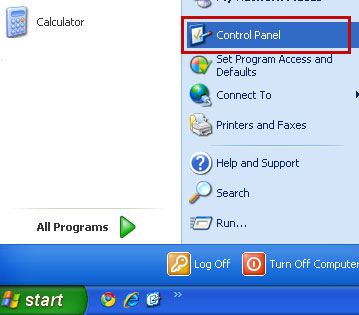
2. Go to the Start Menu. Select Control PanelAdd/Remove Programs.
If you are using Windows Vista or Windows 7, select Control PanelUninstall a Program.


3. Search for Babylon in the list. Select the program and click Remove button.
If you are using Windows Vista/7, click Uninstall up near the top of that window.
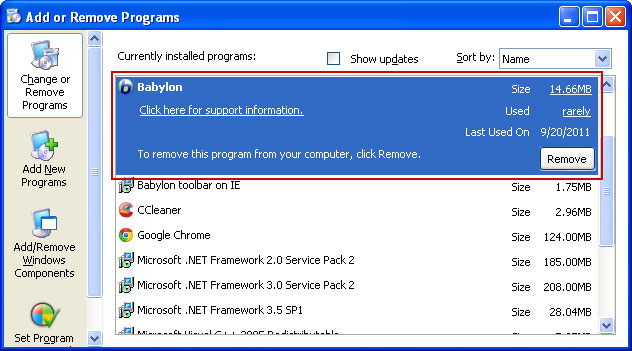


4. Click Uninstall. Then restart your computer. Babylon should be gone.


Alternate removal: run C:\Program Files\Babylon\Babylon-Pro\Utils\uninstbb.exe


Remove Babylon Toolbar and "Search the web (Babylon)" in Internet Explorer:

1. Go to the Start Menu. Select Control PanelAdd/Remove Programs.
If you are using Windows Vista or Windows 7, select Control PanelUninstall a Program.


2. Search for Babylon toolbar on IE in the list. Select the program and click Remove button.
If you are using Windows Vista/7, click Uninstall up near the top of that window.
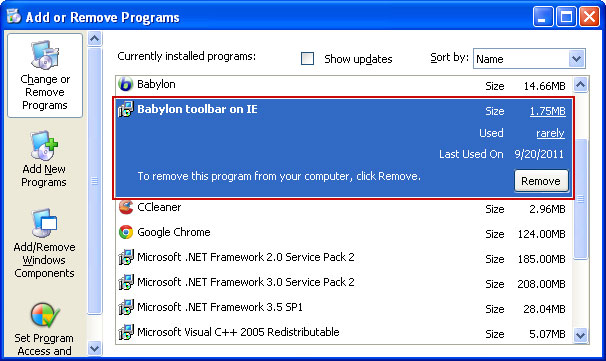


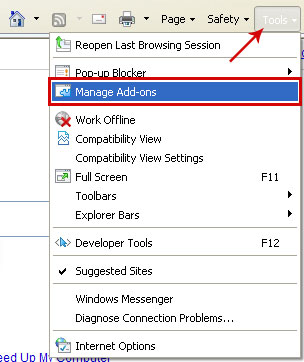
3. Open Internet Explorer. Go to ToolsManage Add-ons.


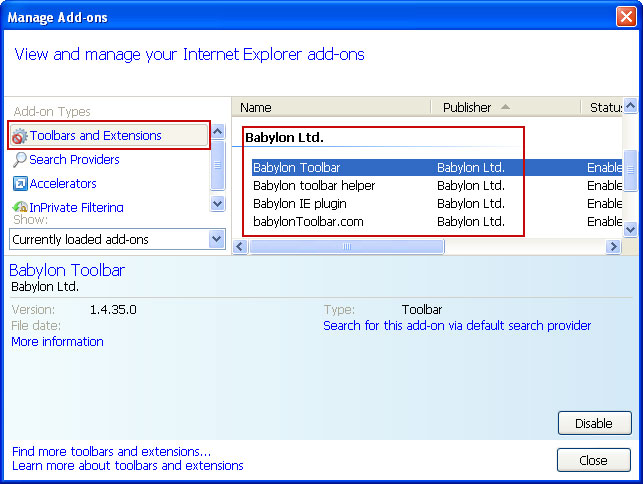
4. Select Toolbars and Extensions. Uninstall everything related to Babylon Ltd. from the list: Babylon toolbar, Babylon toolbar helper, Babylon IE plugin, babylonToolbar.com, etc.


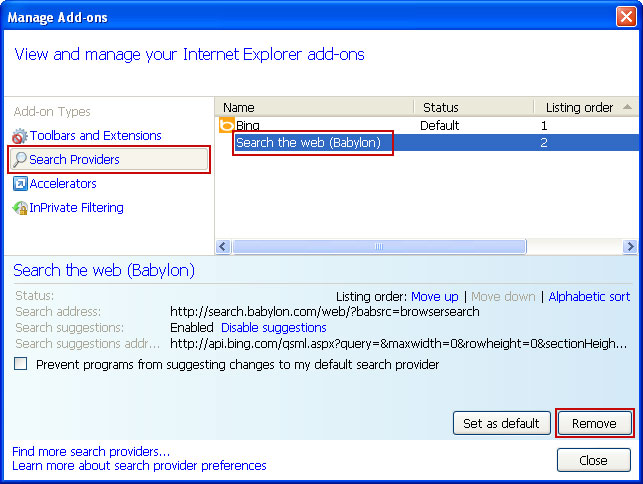
5. Select Search Providers. First of all, choose Bing search engine and make it your default search provider (set as default). Then select Search the web (Babylon) and click Remove button to uninstall it (lower right corner of the window).


6. Go to ToolsInternet Options. Select General tab and click Use default button or enter your own website, e.g. gooog.com instead of search.babylon.com. Click OK to save the changes.

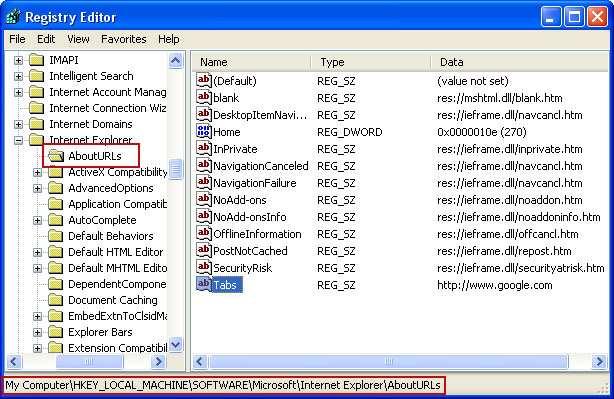
7. Open Registry Editor (regedit). Find the key:

HKEY_LOCAL_MACHINE\SOFTWARE\Microsoft\Internet Explorer\AboutURLs

Change the entry that points to Babylon search, to the one you desire.


Remove Babylon Toolbar and "Search the web (Babylon)" in Mozilla Firefox:

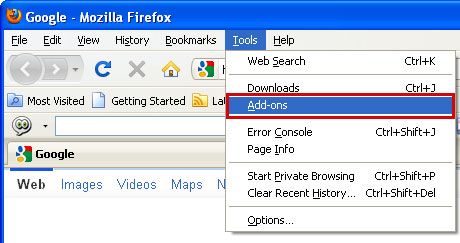
1. Open Mozilla Firefox. Go to ToolsAdd-ons.


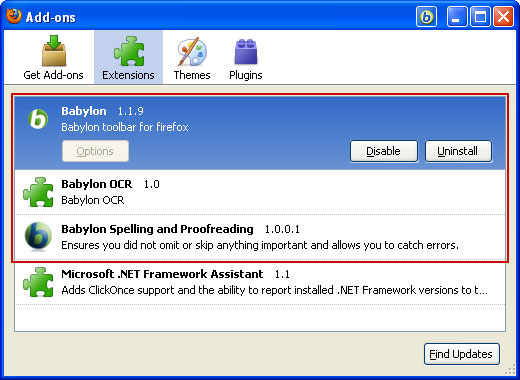
2. Select Extensions. Uninstall the following extensions: Babylon, Babylon OCR, Babylon Spelling and Proofreading.


3. Click the small magnifier icon at the right top corner as shown in the image below. Select Manage Search Engines... from the list.


4. Select Search the web (Babylon) and click Remove button. Click OK to save the changes.


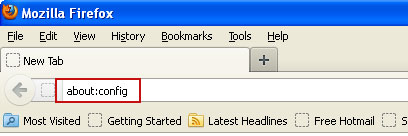
5. In the URL address bar, type about:config and hit Enter.


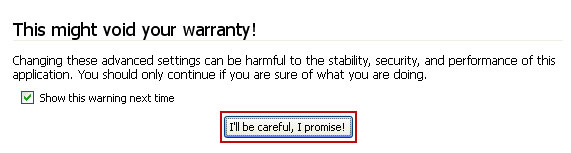
Click I'll be careful, I promise! to continue.


In the filter at the top, type: babylon
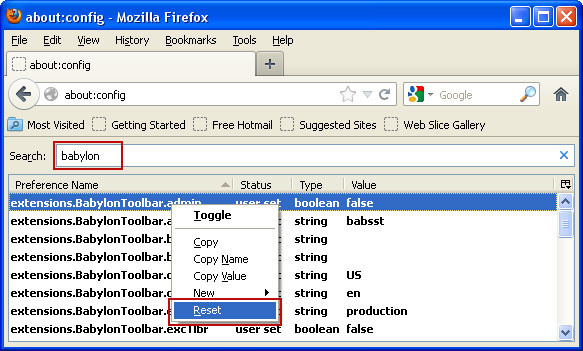


Now, you should see all the preferences that were changed by Babylon toolbar and search engine. Right-click on the preference and select Reset to restore default value. Reset all found preferences!

6. Go to ToolsOptions. Under the General tab reset the startup homepage. That's it.


Remove Babylon Toolbar and "Search the web (Babylon)" in Google Chrome:

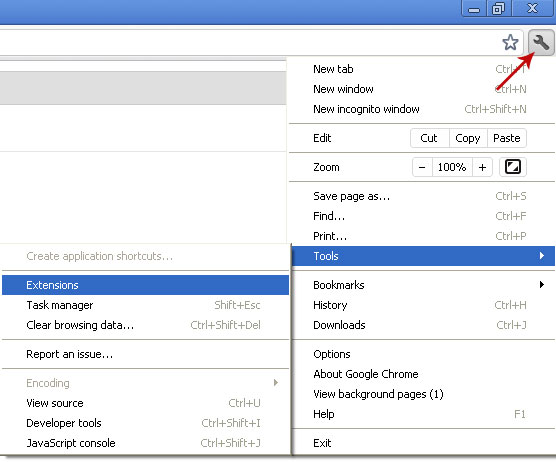
1. Click on Customize and control Google Chrome icon. Go to ToolsExtensions.


2. Select Babylon Chrome OCR and click Uninstall.
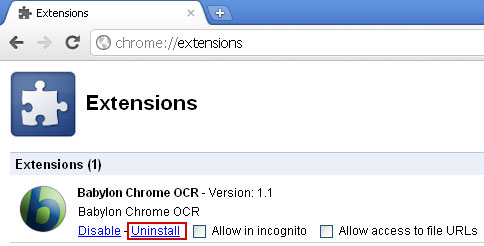


3. Click on Customize and control Google Chrome icon and select Options.


4. Choose Basic Options. Change Google Chrome homepage to google.com or any other and click the Manage search engines... button.
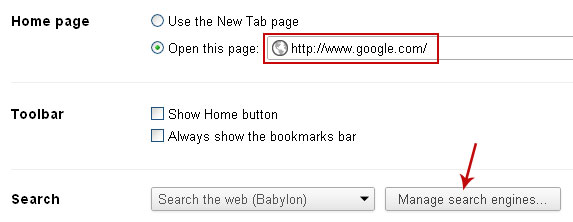


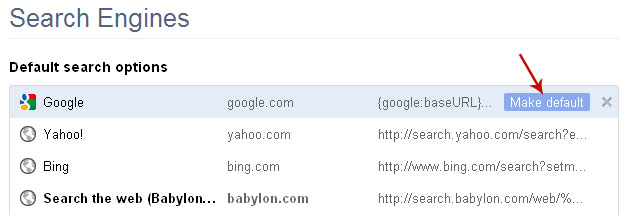
5. Select Google from the list and make it your default search engine.


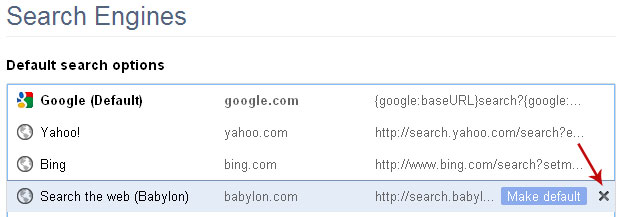
6. Select Search the web (Babylon) from the list remove it by clicking the "X" mark as shown in the image below. That's it.


Associated Babylon, Babylon Toolbar and "Search the web (Babylon)" files and registry values:

Files:
  • C:\Program Files\Babylon
  • C:\Program Files\Babylon\Babylon-Pro
  • C:\Program Files\Babylon\Babylon-Pro\Data
  • C:\Program Files\Babylon\Babylon-Pro\Media
  • C:\Program Files\Babylon\Babylon-Pro\Plugins
  • C:\Program Files\Babylon\Babylon-Pro\TC
  • C:\Program Files\Babylon\Babylon-Pro\Updates
  • C:\Program Files\Babylon\Babylon-Pro\Utils
  • C:\Program Files\Babylon\Babylon-Pro\Babylon.exe
  • C:\Program Files\Babylon\Babylon-Pro\BabyServices.dll
  • C:\Program Files\Babylon\Babylon-Pro\BContentServer.dll
  • C:\Program Files\Babylon\Babylon-Pro\BContentServerExt.dll
  • C:\Program Files\Babylon\Babylon-Pro\BException.dll
  • C:\Program Files\Babylon\Babylon-Pro\captlib.dll
  • C:\Program Files\BabylonToolbar\BabylonToolbar\1.4.35.10
  • C:\Program Files\BabylonToolbar\BabylonToolbar\1.4.35.10\bh
  • C:\Program Files\BabylonToolbar\BabylonToolbar\1.4.35.10\bh\BabylonToolbar.dll
  • C:\Program Files\BabylonToolbar\BabylonToolbar\1.4.35.10\BabylonToolbarApp.dll
  • C:\Program Files\BabylonToolbar\BabylonToolbar\1.4.35.10\BabylonToolbarEng.dll
  • C:\Program Files\BabylonToolbar\BabylonToolbar\1.4.35.10\BabylonToolbarsrv.exe
  • C:\Program Files\BabylonToolbar\BabylonToolbar\1.4.35.10\BabylonToolbarTlbr.dll
  • C:\Program Files\BabylonToolbar\BabylonToolbar\1.4.35.10\uninstall.exe
Registry values:
  • HKEY_CLASSES_ROOT\AppID\BabylonIEPI.DLL
  • HKEY_CLASSES_ROOT\AppID\BabylonTC.EXE
  • HKEY_CLASSES_ROOT\BabyDict
  • HKEY_CLASSES_ROOT\BabyDict\shell\open\command "C:\Program Files\Babylon\Babylon-Pro\Babylon.exe"
  • HKEY_CURRENT_USER\Software\Babylon\Babylon Client
  • HKEY_CURRENT_USER\Software\BabylonToolbar
  • HKEY_CURRENT_USER\Software\BabylonToolbar\BabylonToolbar
  • HKEY_CURRENT_USER\Software\Microsoft\Internet Explorer\MenuExt\Translate this web page with Babylon
  • HKEY_CURRENT_USER\Software\Microsoft\Internet Explorer\MenuExt\Translate with Babylon
  • HKEY_LOCAL_MACHINE\SOFTWARE\Babylon
  • HKEY_LOCAL_MACHINE\SOFTWARE\Babylon\Babylon Client
  • HKEY_LOCAL_MACHINE\SOFTWARE\BabylonToolbar
  • HKEY_LOCAL_MACHINE\SOFTWARE\BabylonToolbar\BabylonToolbar
  • HKEY_LOCAL_MACHINE\SOFTWARE\Google\Chrome\Extensions\[SET OF RANDOM CHARACTERS]
  • HKEY_LOCAL_MACHINE\SOFTWARE\Microsoft\Internet Explorer\Toolbar
  • HKEY_LOCAL_MACHINE\SOFTWARE\Microsoft\Windows\CurrentVersion\Run "Babylon Client"
  • HKEY_LOCAL_MACHINE\SOFTWARE\Microsoft\Windows\CurrentVersion\Uninstall\Babylon
  • HKEY_LOCAL_MACHINE\SOFTWARE\Microsoft\Windows\CurrentVersion\Uninstall\BabylonToolbar
Share this information with your friends:

Friday, 16 September 2011

Seeearch.com Browser Hijacker (Uninstall Guide)

Earlier this week, we received an email from our reader Anne, who lives up near Paris, and we thought others might be interested as well. Anne said that she had a hard time finding how to change home page in Internet Explorer because the home page box was grayed out. Her default home page was changed to seeearch.com.


Of course, she didn't know what exactly could have caused this and was struggling to find out what was the main culprit. After quite a bit of research, we found out that she installed a program called Mega Player from one of those free video streaming websites. We installed it too and confirmed that Mega Player changed the registry, there were settings disabling "HomePage" and "Start Page" registry keys.


There is no way to change your home page without editing Windows registry and we all know that not everyone is comfortable with firing up the Registry Editor and delving into its data. No wonder why seeearch.com is one of Alexa's Top 1000 ranking websites in France. In just the last month, the seeearch.com traffic has increased dramatically.


And here are some of the top search Queries for seeearch.com:
  • comment supprimer seeearch
  • comment enlever seeearch
  • desinstaller seeearch
  • supprimer seeearch
As you can see, there are a lot of unhappy people searching how to get rid of seeearch.com.

Mega Player changed the home page in Mozilla Firefox too. Google Chrome was not affected. You can't change the home page in Mozilla Firefox easily as well because there is a file user.js which restores the the home page back to seeearch.com once you restart your web browser, so you need to delete it manually.


To restore your default home page and remove seeearch.com web hijacker, please follow the instructions below. If you have any questions, please leave a comment below. Good luck and be safe online!


Remove seeearch.com in Internet Explorer:

1. Go to Start, type “registry” in the search box, right click the Registry Editor and choose Run as Administrator. If you are using Windows XP/2000, go to StartRun... Type "regedit" and hit enter.

2. In the Registry Editor, click the [+] button to expand the selection. Expand:

HKEY_CURRENT_USER\Software\Policies\Microsoft\Internet Explorer

Select Control Panel and look on the list to the right for an item named “HomePage”. Double click on it and set its value to “0” (zero).


Then select Main (below Control Panel) and look on the list to the right for an item named "Start Page". Right click on it and select Delete. Close the Registry Editor.


3. Open Internet Explorer. Go to ToolsInternet Options. Select General tab and click Use default button or enter your own website, e.g. google.com instead of seeearch.com. Click OK to save the changes.


Remove seeearch.com in Mozilla Firefox:

1. Go to Start, type “%APPDATA%” in the search box and hit enter. If you are using Windows XP/2000, go to Start → Run... Type "%APPDATA%" and hit enter.

2. Go to Mozilla\Firefox\Profiles\[RANDOM CHARACTERS].default folder. Delete file names user.js.


3. Open Mozilla Firefox. Go to ToolsOptions. Under the General tab reset the startup homepage or change it to google.com, etc. That's it.


Associated seeearch.com files and registry values:

Files:
  • %APPDATA%\Mozilla\Firefox\Profiles\[RANDOM CHARACTERS].default\user.js
Registry values:
  • HKEY_CURRENT_USER\Software\Policies\Microsoft\Internet Explorer\Control Panel "HomePage"
  • HKEY_CURRENT_USER\Software\Policies\Microsoft\Internet Explorer\Main "Start Page"
Share this information with your friends:

Thursday, 15 September 2011

Remove Classysearchserver.com (Uninstall Guide)

Classysearchserver.com (CC Search) is a search engine/browser hijacker that tends to hijack your browsers web connections and redirect any search results on Google to adware websites or blank web pages. The website itself is not compromised. Often, the redirects that you are experiencing are the result of malware infection. Cyber crooks have to monetize their botnets somehow. Hijacking search results and redirecting users to web pages full of ads is one of the methods that works very well so far. If you are redirected to classysearchserver.com or similar search engines, your computer is probably infected with a rootkit called ZeroAccess (aka MAX++). To remove malware from your computer and stop these annoying classysearchserver.com redirects, please follow the removal instructions below. Good luck and be safe online!


Classysearchserver.com removal instructions

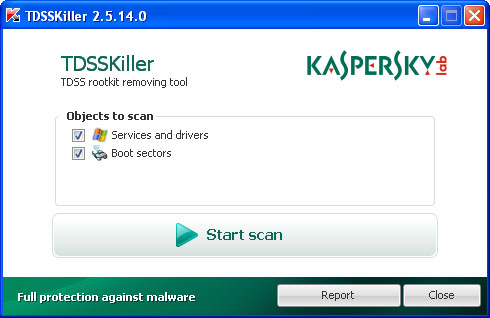
1. Download TDSSKiller and run it. Click Start scan.


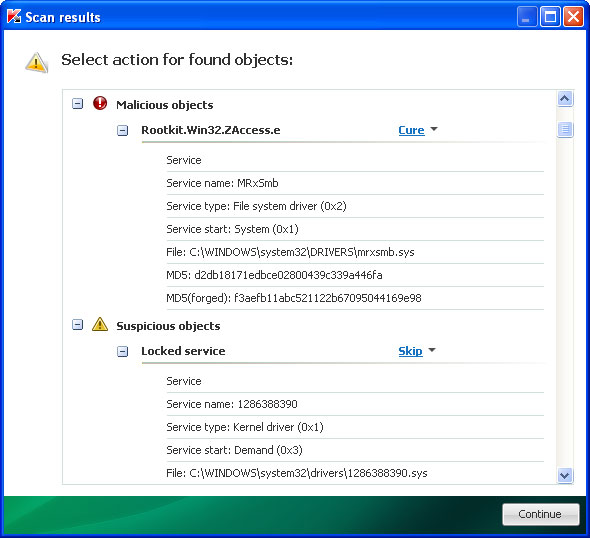
2. Click Continue to remove found infections.


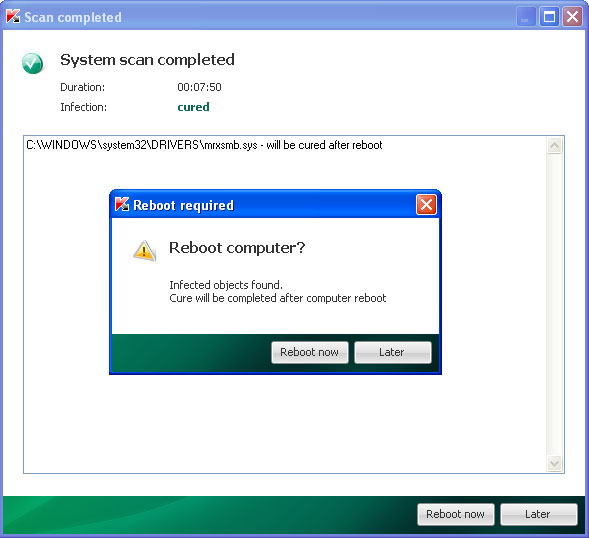
3. Reboot your computer to completely remove found malware.


4. Download and run ZeroAccess rootkit removal tool.
5. Download free anti-malware software from the list below and run a full system scan.
NOTE: With all of these tools, if running Windows 7 or Vista they MUST be run as administrator. Launch the program and follow the prompts. Don't forget to update the installed program before scanning.

6. If the problem persists, please read this web document and follow the steps carefully: http://deletemalware.blogspot.com/2010/02/remove-google-redirect-virus.html


Associated Classysearchserver.com files and registry values:

Files:
  • C:\Windows\system32\consrv.dll
  • C:\Windows\system32\DRIVERS\mrxsmb.sys
Registry values:
  • SubSystems: Windows = basesrv,1 winsrv:UserServerDllInitialization,3 consrv:ConServerDllInitialization,2 sxssrv,4
Share this information with your friends:

Remove Coolsearchserver.com (Uninstall Guide)

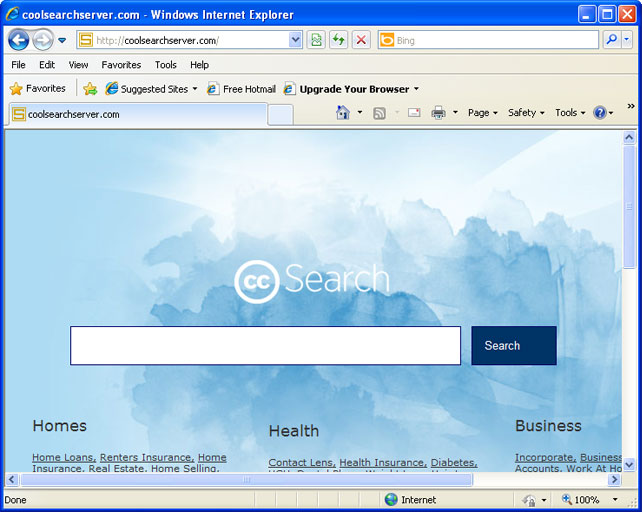
Google search redirects, including redirects to coolsearchserver.com, up to a hilarious pop-ups saying that requested website was not found are just a few of the signs that your computer is infected with malicious software. Search results hijacked by CC Search, occasional BSODs and registry modifications caused by ZeroAccess rootkit and additionally installed click fraud Trojans can seriously compromise your privacy. Coolsearchserver.com doesn't distribute malware. It's just a part of well organized business model generating millions of dollars in revenue each year. Every time you lookup stuff using Google search and click on a link coolsearchserver.com redirects you to websites full of sponsored links and ads. The frequency of these redirects may gradually get worse. To remove ZeroAccess rootkit and other malicious software from your computer and to stop these annoying web browser redirect, please follow the steps in the removal guide below. Good luck and be safe online!


Coolsearchserver.com removal instructions

1. Download TDSSKiller and run it. Click Start scan.


2. Click Continue to remove found infections.


3. Reboot your computer to completely remove found malware.


4. Download and run ZeroAccess rootkit removal tool.
5. Download free anti-malware software from the list below and run a full system scan.
NOTE: With all of these tools, if running Windows 7 or Vista they MUST be run as administrator. Launch the program and follow the prompts. Don't forget to update the installed program before scanning.

6. If the problem persists, please read this web document and follow the steps carefully: http://deletemalware.blogspot.com/2010/02/remove-google-redirect-virus.html


Associated Coolsearchserver.com files and registry values:

Files:
  • C:\Windows\system32\consrv.dll
  • C:\Windows\system32\DRIVERS\mrxsmb.sys
Registry values:
  • SubSystems: Windows = basesrv,1 winsrv:UserServerDllInitialization,3 consrv:ConServerDllInitialization,2 sxssrv,4
Share this information with your friends:

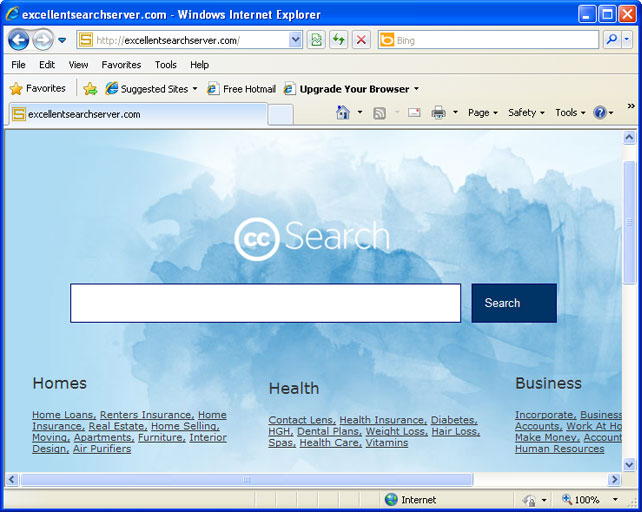
Remove Excellentsearchserver.com (Uninstall Guide)

Excellentsearchserver.com is a search engine/browser hijacker that returns sponsored search results and redirects users to websites they don't care to see increasing third-party website revenues. Sponsored search has become an integral part of the business model of most search engines, however, excellentsearchserver.com is usually one of the payloads of malicious software known as ZeroAccess (aka MAX++). The infamous rootkit performs various actions and has numerous modules that can spoof search results, install click fraud Trojans and download additional components into the infected machine. So, if your Google search results are suddenly being redirected to excellentsearchserver.com or similar search engines, your computer is infected with ZeroAccess rookit and probably some additional malware. To remove malicious software from your computer, please follow the removal instructions below. Good luck and be safe online!


Excellentsearchserver.com removal instructions

1. Download TDSSKiller and run it. Click Start scan.


2. Click Continue to remove found infections.


3. Reboot your computer to completely remove found malware.


4. Download and run ZeroAccess rootkit removal tool.
5. Download free anti-malware software from the list below and run a full system scan.
NOTE: With all of these tools, if running Windows 7 or Vista they MUST be run as administrator. Launch the program and follow the prompts. Don't forget to update the installed program before scanning.

6. If the problem persists, please read this web document and follow the steps carefully: http://deletemalware.blogspot.com/2010/02/remove-google-redirect-virus.html


Associated Excellentsearchserver.com files and registry values:

Files:
  • C:\Windows\system32\consrv.dll
  • C:\Windows\system32\DRIVERS\mrxsmb.sys
Registry values:
  • SubSystems: Windows = basesrv,1 winsrv:UserServerDllInitialization,3 consrv:ConServerDllInitialization,2 sxssrv,4
Share this information with your friends:

Wednesday, 14 September 2011

Windows заблокирован! Ransomware (Uninstall Guide)

Windows заблокирован!

Microsoft Security обнаружил нарушения использования сети интернет.
Причина: просмотр нелицензионного гей и детского порно.
For those of you unfamiliar with ransomware -- it's a kind of malware with a particularly nasty payload. Windows заблокирован! Trojan ransom blocks software and asks for a ransom in exchange for releasing control of your computer. It gives instructions on how to send 200 Hryvnia (UAH) via WebMoney to free the computer. Hryvnia is a national currency of Ukraine. This scheme is very popular in Russian too. Ransomware can be spread in several ways but usually cyber crooks use fake pornographic websites to distribute the "Windows заблокирован!" and similar malware. In this case, Trojan Ransom claims that you were watching illegal pornographic videos (as usual) and if you won't pay the ransom your files will be deleted. But that's not all, if you choose not to pay the fine they will notify the authorities and your case will be handled in a court. Of course, that's not true. Don't worry about that. If your computer is infected with the Windows заблокирован! ransomware, please follow the removal instructions below. Good luck and be safe online!


Windows заблокирован! malware removal instructions:

1. Reboot your computer is "Safe Mode with Command Prompt". As the computer is booting tap the "F8 key" continuously which should bring up the "Windows Advanced Options Menu" as shown below. Use your arrow keys to move to "Safe Mode with Command Prompt" and press Enter key. Login as the same user you were previously logged in with in the normal Windows mode. Read more detailed instructions here: http://www.computerhope.com/issues/chsafe.htm


2. When Windows loads, the Windows command prompt will show up as show in the image below. At the command prompt, type explorer, and press Enter. Windows Explorer opens. Do not close it.


3. Then open the Registry editor using the same Windows command prompt. Type regedit and press Enter. The Registry Editor opens.


4. Locate the following registry entry:

HKEY_LOCAL_MACHINE\SOFTWARE\Microsoft\Windows NT\CurrentVersion\Winlogon\

In the righthand pane select the registry key named Shell. Right click on this registry key and choose Modify.


Default value is Explorer.exe.


Modified value data points to Trojan Ransomware executable file.


Please copy the location of the executable file it points to into Notepad or otherwise note it and then change value data to Explorer.exe. Click OK to save your changes and exit the Registry editor.

5. Remove the malicous file. Use the file location you saved into Notepad or otherwise noted in step in previous step. In our case, "Windows заблокирован!" was run from the My Documents. There was a file called porn_video.exe.

Full path: C:\Documents and Settings\Michael\My Documents\porn_video.exe


Go back into "Normal Mode". To restart your computer, at the command prompt, type shutdown /r /t 0 and press Enter.


6. Download free anti-malware software from the list below and run a full system scan.
NOTE: in some cases the rogue program may block anti-malware software. Before saving the selected program onto your computer, you may have to rename the installer to iexplore.exe, explorer.exe or winlogon.exe. With all of these tools, if running Windows 7 or Vista they MUST be run as administrator. Launch the program and follow the prompts. Don't forget to update the installed program before scanning.

7. If the problem persists, please follow the general Trojan.Ransomware removal guide.


Associated Windows заблокирован! ransomware files and registry values:

Files:
  • [SET OF RANDOM CHARACTERS].exe
Registry values:
  • HKEY_LOCAL_MACHINE\SOFTWARE\Microsoft\Windows NT\CurrentVersion\Winlogon\ "Shell" = "[SET OF RANDOM CHARACTERS].exe"
Share this information with other people: