Thursday, 19 January 2012

Temp:winupd.exe (Uninstall Guide)

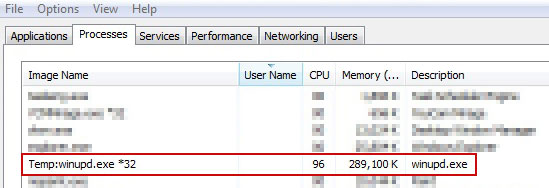
Temp:winupd.exe is a variant of a backdoor Trojan that enables a remote attacker to have access to or send commands to your computer. Typical backdoor Trojan horse allows cyber criminals to collect information, run and terminate processes, download additional files, etc. It may in some cases cause CPU usage to go to 100%. Temp:winupd.exe *32 points to a file in the %Temp% directory, at least at first glance. However, if you look in the %Temp% folder you won't find the file. Some people say it's a hidden file and you can't see it even if you make hidden files visible. That's not quite true.


C:\Documents and Settings\Michael\Local Settings\Temp:winupd.exe means a stream named "winupd.exe" attached to the directory "C:\Documents and Settings\Michael\Local Settings\Temp".

The NTFS file system provides applications the ability to create alternate data streams of information. You can view and delete streams manually. Boot to a PE environment and delete the %Temp% directory and then create a new one. Make sure to delete the registry entry associated with Temp:winupd.exe (see files and registrations keys listed below). To learn more, please read What is Windows PE?

However, it's a lot better idea to remove Temp:winupd.exe using anti-virus software. Besides, in some cases the Trojan makes a task that automatically re-adds it to Startup. It also damages certain programs shortcuts, usually notepad, Internet Explorer, CMD and others. To remove Temp:winupd.exe Trojan from your computer, please follow the removal instructions below. If you need extra help, please leave a comment below. Good luck and be safe online!


Quick Temp:winupd.exe removal instructions:

Download recommended anti-malware software (direct download) and run a full system scan to remove this Trojan horse from your computer.


Manual Temp:winupd.exe removal instructions:

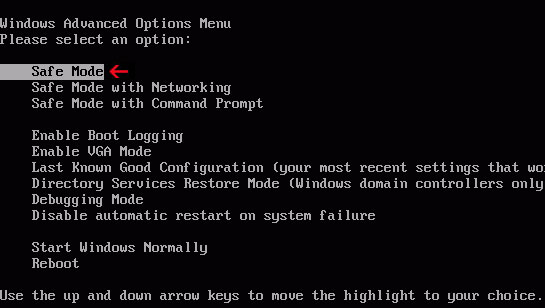
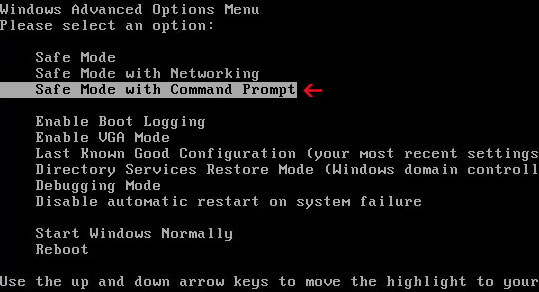
1. Reboot your computer is "Safe Mode". As the computer is booting tap the "F8 key" continuously which should bring up the "Windows Advanced Options Menu" as shown below. Use your arrow keys to move to "Safe Mode" and press Enter key. Login as the same user you were previously logged in with in the normal Windows mode.


2. Copy the entire "Application Data" or "AppData" folder and paste in on Desktop.
3. Delete Temp folder inside "Local Settings" "or "Local" folder.
4. Make a new Temp folder.
6. Paste back your Application Data folder.
7. Open up Windows Registry Editor and delete the following registry key:

HKEY_CURRENT_USER\Software\Microsoft\Windows\CurrentVersion\Run winupd = "%UserProfile%\LOCALS~1\Temp:winupd.exe"


Associated Temp:winupd.exe files and registry values:

Files:
  • %Temp%\winupd.exe
%Temp% is a variable that refers to the temporary folder in the short path form.
C:\Documents and Settings\[UserName]\Local Settings\Temp\ (Windows 2000/NT/XP)
C:\Users\[UserName]\AppData\Local\Temp\ (Windows 7)

Registry values:
  • HKEY_CURRENT_USER\Software\Microsoft\Windows\CurrentVersion\Run winupd = "%UserProfile%\LOCALS~1\Temp:winupd.exe"
Tell your friends:

Tuesday, 17 January 2012

Search.conduit.com (Uninstall Guide) - How To Remove Search Conduit

Search.conduit.com (Search Conduit) is a web search engine owned by Conduit Ltd. Some users consider it a very annoying bug. Why is that? Our readers passed a few discussions to us recently about it. There's been a lot of noise on tech support forums and blogs about conduit search and problems that occur on Windows computers when uninstalling search.conduit.com. Apparently, it does things like redirect user search queries and change their Internet home page. This search engine comes with web browser toolbars created using Conduit software. Some people don't even know where it has come from because they though they were installing only a toolbar.

search conduit home page snapshot

You can uninstall conduit toolbar very easily, which is done the same way you uninstall any program, via add/remove programs in the control panel. However, conduit search engine can't be uninstalled easily in Internet Explorer, Chrome and Mozilla Firefox. You need to change settings and remove search providers manually. What is more, it installs an application called Search Protect that forces users to use Conduit search. This brings use to what we consider the more interesting question. Why so many companies fail to create proper uninstallers? Such practice makes them look untrustworthy. It isn't malware, although it is frustrating. I found myself explaining the basics over and over again, so I decided to write a simple, step-by-step guide on how to remove search.conduit.com in Internet Explorer and Mozilla Firefox. Please follow the removal instructions below. Good luck and be safe online!

Added: Someone asked how I to remove Search.conduit.com from Google Chrome. At the time I wrote this removal guide, Conduit products were only targeting Internet Explorer and Mozilla Firefox. But now this company is going after Chrome users as well. There is nothing really surprising since Chrome market share increased has increased phenomenally during the last six months. Due to increased volume of emails I get from you guys regarding this issue, I had update this post and make the removal instructions more detailed and up to date. It seems that nothing really changed the way Search Conduit interacts with Internet Explorer and Mozilla Firefox. If comparing with the last years installers, they are now compatible with all major web browsers and modify more Firefox's preferences. The removal instructions below were updated according to the latest Conduit installers.
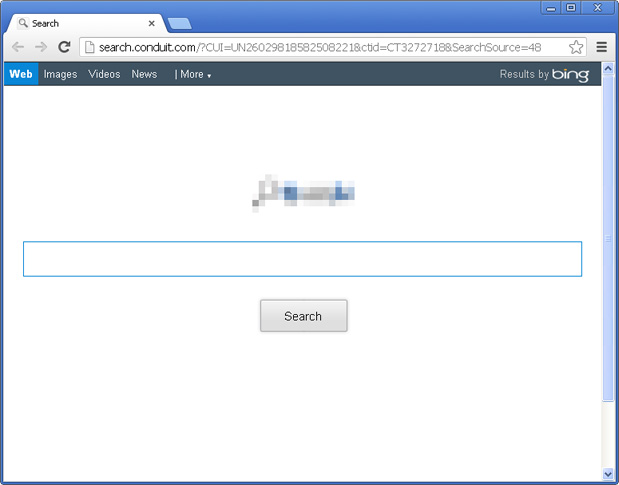
search conduit hijacked chrome

Not only search.conduit.com redirect became compatible with all major web browsers, the installer itself got new features and products, for example Coupon Buddy and Price Gong adware. Previously, it came mostly as a standalone application and everyone could remove it separately. Now it's usually a part of another application, so in order to completely remove Search Conduit, you have to remove the application it came with first and then restore default web browser settings manually or simply reset it. The main difference is that if you choose to reset it, then you will lose your bookmarks, browsing history and saved passwords. Of course, you can export them at any time.

Last, but not least, it seems clear that this application comes bundled with audio and video players, HD codecs and converters. Please read installation screens and EULA very carefully even if you downloaded an application from the official website.

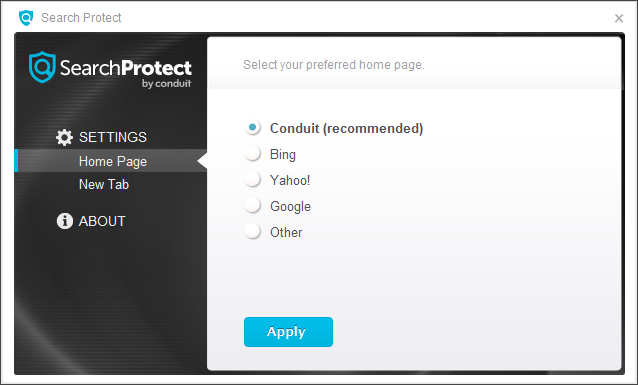
Update (October 25, 2013): It seems that they've updated the search protect application and now any attempts to change the browser settings will be vain; this browser hijacker will reset them after each browser restart. So, it's very important to remove search protect application. Otherwise, search conduit will return and you will have to reset browser settings once again.

search protect by conduit

Also, this browser hijacker uses Bing API to return search results. There's no reason to keep it, just use Bing directly if you want to.

Written by Michael Kaur, http://deletemalware.blogspot.com


Search.conduit.com removal instructions:

1. First of all, download recommended anti-malware software and run a full system scan. It will detect and remove this infection from your computer. You may then follow the manual removal instructions below to remove the leftover traces of this browser hijacker. Hopefully you won't have to do that.


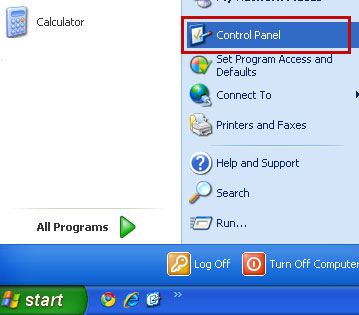
2. Go to the Start Menu. Select Control PanelAdd/Remove Programs.
If you are using Windows Vista or Windows 7, select Control PanelUninstall a Program.


If you are using Windows 8, simply drag your mouse pointer to the right edge of the screen, select Search from the list and search for "control panel".



Or you can right-click on a bottom left hot corner (formerly known as the Start button) and select Control panel from there.
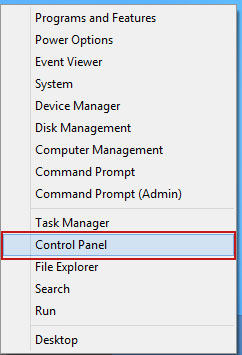


3. When the Add/Remove Programs or the Uninstall a Program screen is displayed, scroll through the list of currently installed programs and remove Search Protect by conduit, Yontoo, Conduit Toolbar and any other recently installed application. Look for Conduit associated applications and uninstall them. For example, if you recently installed video converter or music player or any other application and got the Search.conduit.com browser hijacker, then there's a good chance it came with one of those applications. Conduit won't be listed, so you have to remove associated applications.


Simply select the application and click Remove. If you are using Windows Vista, Windows 7 or Windows 8, click Uninstall up near the top of that window. When you're done, please close the Control Panel screen.


Remove Search.conduit.com from Google Chrome:

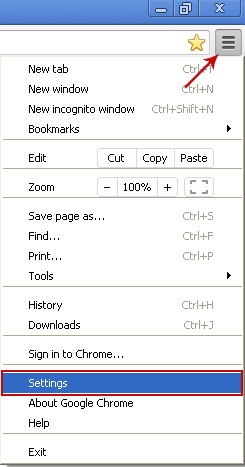
1. Click on Customize and control Google Chrome icon. Go to ToolsSettings.


2. Click Set pages under the On startup.
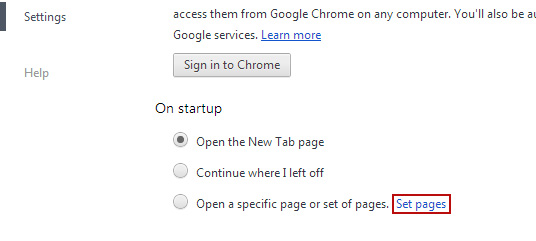

Remove Search.conduit.com by clicking the "X" mark as shown in the image below.


3. Click Show Home button under Appearance. Then click Change.


Select Use the New Tab page and click OK to save changes.


4. Click Manage search engines button under Search.


Select Google or any other search engine you like from the list and make it your default search engine provider.


Select Conduit Search from the list and remove it by clicking the "X" mark as shown in the image below.


Remove search.conduit.com from Mozilla Firefox:

1. Open up Mozilla Firefox. Type about:config in the Location Bar (address bar) and press Enter to display the list of preferences.


2. Now in the filter field, type in conduit and press Enter.


3. Now, you should see all the preferences that were changed by Conduit Search. Right-click on the preference and select Reset to restore default value. Reset all found preferences!


4. Go to ToolsOptions. Under the General tab reset the startup homepage. That's it.


Remove search.conduit.com from Internet Explorer:

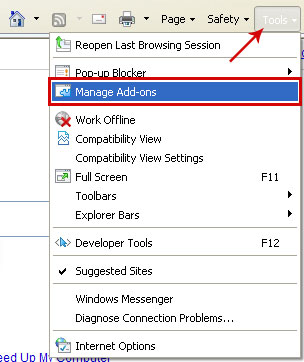
1. Open Internet Explorer. Go to ToolsManage Add-ons.


2. Select Search Providers. First of all, choose Bing search engine and make it your default search provider (set as default). Then select Web Search (name might be different in your case) and click Remove button to uninstall it (lower right corner of the window).


3. Go to ToolsInternet Options. Select General tab and click Use default button or enter your own website, e.g. google.com instead of search.conduit.com. Click OK to save the changes.


Tell your friends:

Monday, 16 January 2012

PUP.CNET.Adware.Bundle (Uninstall Guide)

PUP.CNET.Adware.Bundle stands for potentially unwanted program, CNET's own installer that wraps a limited number of Windows software downloads in a CBS Interactive/CNET bundle which attempts to download and install sponsored software, mostly toolbars (at least it's the Blekko toolbar at the moment). In other words, when you download a program from download.com you may get CNET's proprietary installer, not the the software's installer. The downloaded file name begins with cnet_ or cnet2_, here's an example: cnet2_freeocr_exe.


If you install recommended toolbar or any other utility, 3rd party advertisers may track what you do on the internet to target you with products. That's the main reason why CNET's installer is detected by some anti-virus products as adware, PUP.CNET.Adware.Bundle and even a Trojan, although there are others. First of all, it can be a violation of a program's distribution terms. Secondly, users are likely to blame the software authors if something goes wrong with the sponsored software. But it's clearly CNET's fault.

The actual installation is a 4 step process. The logical progression of CNET's wrapper software makes it very easy to accept sponsored software by default, especially for unwary users who don't take much notice of installer screens and tend to simply click Next, Next, Next. This is the third major problem with PUP.CNET.Adware.Bundle - all the special offers and extras are enabled by default, what is known as an 'Opt Out' system.


In our case, PUP.CNET.Adware.Bundle wanted us to install Blekko toolbar and change our default search engine to blekko.com.

Detection:
  • Adware.Downloader-207, ClamAV
  • Adware.Downware.130, DrWeb
  • Win32.Trojan, eSafe
  • Win32/InstallCore.D, NOD32
  • PUP.CNET.Adware.Bundle, Malwarebytes' Anti-Malware
Some people say it's a terrible idea while others are more tolerant of such practice. In terms of computer security, PUP.CNET.Adware.Bundle isn't a huge security threat. Although, CNET may attempt to install software detected as adware by some anti-virus products, it's actually nothing more than PUP. It's not spyware. After all, you can simply uninstall both CNET's installer and sponsored software from your computer. Besides, it's always a good idea to download software directly from the official website whenever possible. Or you can click the "Direct Download Link" instead of "Download Now" and you will get a 'pure' installer, without extras.


By the way, what do you think about this new installer method? Good luck and be safe online!


Scan your computer with recommended anti-malware and clean-up software:

Download recommended anti-malware and clean-up software and run a full system scan to make sure that your computer is not infected with malicious or potentially unwanted applications and that your files are not corrupted before proceeding with the uninstall process.

Tell your friends:

Saturday, 14 January 2012

Remove Internet Security Guard (Uninstall Guide)

Internet Security Guard is a rogue anti-virus program which works as a disguise. This malware almost makes you think it's legit because it looks like Microsoft Security Essentials, the genuine Microsoft security product. Besides, it has a very generic sounding name. But have you ever heard of it? Hell no. There's another variant of this malware that calls itself Home Security Solutions. For a more technical description read this post. This time I will just stick to the facts, so that if anyone else gets it they know what to do.


Internet Security Guard is distributed through spam e-mails, infected websites, and social networks. It seems that cyber criminals use the BlackHole exploit kit to spread the malware. Upon execution, Internet Security Guard modifies Windows registry and drops several files onto the infected computer. It then pretends to scan your computer for spyware, trojans, rootkits and other malicious software. It may falsely detect up to twenty viruses on your computer. What is more, this rogue antivirus program, blocks legitimate security software and system utilities. Last, but not least, it changes LAN settings by adding a proxy server which redirects http requests through servers controled by cyber criminals. As a results, anti-virus and tech support websites may be blocked. Windows Hosts file might be replaced as well.

Websites in some way associated with Internet Security Guard:
  • hxxp://www5.internet-security-guard.com
  • hxxp://save-secure.com
  • hxxp://securityearth.net


If your computer just got infected with Internet Security Guard, please ignore everything it says and do not follow instructions on screen. But most importantly, DO NOT purhcase it. If you though it was real and you gave your credit card details to scammers, contact your credit card company immediately and dispute the charges. To remove Internet Security Guard, please follow the steps in the removal guide below. If you have any questions, just leave a comment below. Have a good weekend!


Quick Internet Security Guard removal guide:

1. Open Internet Security Guard. Click the "Activate full protection" button. Enter one of these debugged registration keys to register this rogue application. Don't worry, this is completely legal.

K7LY-H4KA-SI9D-U2FD
U2FD-S2LA-H4KA-UEPB
K7LY-R5GU-SI9D-EVFB


Once this is done, you are free to install anti-malware software and remove the rogue anti-virus program from your computer properly.

2. Download recommended anti-malware software (Spyware Doctor) and run a full system scan to remove this virus from your computer.

3. To reset the Hosts file back to the default automatically, download and run Fix it and follow the steps in the Fix it wizard.


Alternate Internet Security Guard removal instructions:

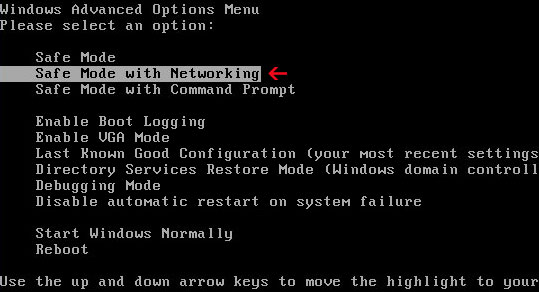
1. Reboot your computer is "Safe Mode with Networking". As the computer is booting tap the "F8 key" continuously which should bring up the "Windows Advanced Options Menu" as shown below. Use your arrow keys to move to "Safe Mode with Networking" and press Enter key. Read more detailed instructions here: http://www.computerhope.com/issues/chsafe.htm


NOTE: Login as the same user you were previously logged in with in the normal Windows mode.

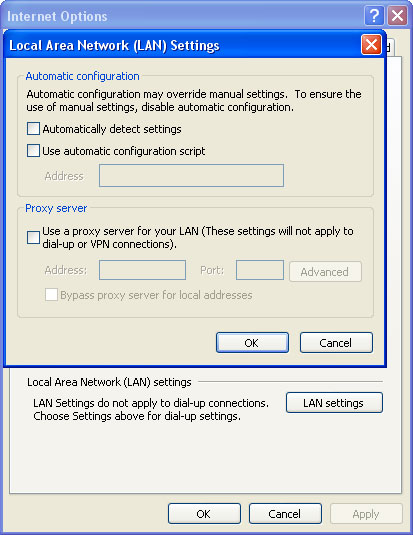
2. Launch Internet Explorer. In Internet Explorer go to: Tools->Internet Options->Connections tab. Click Lan Settings button and uncheck the checkbox labeled Use a proxy server for your LAN. Click OK. You may have to repeat steps 1-2 if you will have problems downloading malware removal programs.


3. Download recommended anti-malware software (Spyware Doctor) and run a full system scan to remove this virus from your computer.

4. To reset the Hosts file back to the default automatically, download and run Fix it and follow the steps in the Fix it wizard.


Associated Internet Security Guard files and registry values:

Files:
  • %AllUsersProfile%\Application Data\[SET OF RANDOM CHARACTERS]\
  • %AppData%\Internet Security Guard\
  • %AppData%\Microsoft\Internet Explorer\Quick Launch\Internet Security Guard.lnk
  • %UserProfile%\Desktop\Internet Security Guard
  • %UserProfile%\Start Menu\Internet Security Guard.lnk
  • %UserProfile%\Start Menu\Programs\Internet Security Guard.lnk
Registry values:
  • HKEY_CURRENT_USER\software\Microsoft\Windows\CurrentVersion\Run\Internet Security Guard = "%AllUsersProfile%\Application Data\58d584\HS126.exe" /s /d
  • HKEY_CURRENT_USER\software\Microsoft\Windows\CurrentVersion\RunOnce\HSS = "%Temp%\scandsk221d_5201.exe" /cs:1
  • HKEY_CURRENT_USER\software\3
  • HKEY_LOCAL_MACHINE\software\microsoft\Windows NT\CurrentVersion\Image File Execution Options\[RANDOM].exe\Debugger = svchost.exe
  • HKEY_CURRENT_USER\Software\Microsoft\Windows\CurrentVersion\Policies\Explorer\DisallowRun = 01000000
  • HKEY_CURRENT_USER\Software\Microsoft\Windows\CurrentVersion\Policies\Explorer\DisallowRun\[1...15]
Share this information with your friends:

Friday, 13 January 2012

Remove Guardia di Finanza Ransomware (Uninstall Guide)

We're seeing some more localized ransomware which renders a computer unusable and then demands payment to make it usable again. This time we're looking at the "Guardia di Finanza" virus which targets residents of Italy. It's not that often that you see a ransom Trojan localized into Italian language. This scam warning campaign was widely covered by local media assuring that the Guardia di Finanza, an Italian Police force directly under the authority of the Minister of economy and finance, has absolutely nothing to do with this scam, and that they never ask people for money.
Guardia di Finanza
Insieme per la Legalità
Attenzione!!!
E’ stata rilevata attività illegale, il sistema è stata bloccata per una violenza delle Leggi della Repubblica Italiana.


This malware is distributed through drive-by downloads and social engineering tricks. Once again the Blackhole Exploit Kit is involved. This commercial crimeware kit checks a computer for the presence of software vulnerabilities on the system, including CVE-2010-0186, CVE-2011-2110 and several others. These are already know vulnerabilities, so keeping your software (especially Java and Adobe) will significantly reduce chances of infection. Once installed, the virus locks your computer and displays a scam message (see image above). It then goes on to ask for a payment of €100 within 24 hours over Ukash or Paysafecard; otherwise your computer will be wiped clean. However, it's not capable of doing this stuff. The bad news is however that this malware may download and install spyware modules on your computer. We came up with at least several variants of Guardia di Finanza ransomware which upon execution requests malicious files from the Internet.

If your computer is infected with this virus, do not follow the instructions on screen. Please follow the steps in the removal guide below to remove Guardia di Finanza ransomware from your computer. Please note, we've analyzed a variant of this malware which replaces Explorer.exe file. If you got infected with other variant, our removal guide may not work for you. If you need extra help removing this malware, please leave a comment below. Good luck and be safe online!


Guardia di Finanza malware removal instructions:

1. Reboot your computer is "Safe Mode with Command Prompt". As the computer is booting tap the "F8 key" continuously which should bring up the "Windows Advanced Options Menu" as shown below. Use your arrow keys to move to "Safe Mode with Command Prompt" and press Enter key. Login as the same user you were previously logged in with in the normal Windows mode. Read more detailed instructions here: http://www.computerhope.com/issues/chsafe.htm


2.  When Windows loads, the Windows command prompt will show up as show in the image below. At the command prompt, type regedit and press Enter. The Registry Editor opens.


3. Locate the following registry entry:

HKEY_LOCAL_MACHINE\SOFTWARE\Microsoft\Windows NT\CurrentVersion\Winlogon\

In the righthand pane select the registry key named Shell. Right click on this registry key and choose Modify.


Default value is Explorer.exe.


Change value data to iexplore.exe. Click OK to save your changes and exit the Registry editor.


Go back into "Normal Mode". To restart your computer, at the command prompt, type shutdown /r /t 0 and press Enter.


4. When Windows loads, there will be no icons. Don't worry, we will fix this soon. First, press Ctrl+Alt+Del or Ctrl+Shift+Esc and fire up Task Manager. Click FileNew Task (Run...)


Type in iexplorer and click OK or press Enter.


5. Now, you need to download clean explore.exe file and over-write the infected one. Please make sure you download the file for your version of Windows:
Click on the link to download the file. Choose Save. Then browse to C:\Windows folder and select existing explorer.exe file. Click Save to over-write the malicious explorer.exe file.


6. Open up Task Manager once again. Click File → New Task (Run...) as you previously did. Type in regedit and click OK to open Registry Editor.


Locate the same registry entry outlined in step 3 of this removal guide.

HKEY_LOCAL_MACHINE\SOFTWARE\Microsoft\Windows NT\CurrentVersion\Winlogon\

In the righthand pane select the registry key named Shell. Right click on this registry key and choose Modify. Delete iexplore.exe and type in Explorer.exe as it was before. Click OK to save changes.


Close Registry Editor and restart your computer. That's it! I hope this helps! Don't forget to scan your computer with anti-malware software.

If your computer is still infected, please follow an alternate ransomware removal guide.

To learn more about ransomware, please read Remove Trojan.Ransomware (Uninstall Guide).
    Share this information with other people:

    Thursday, 12 January 2012

    Remove Strathclyde Police Ransomware (Uninstall Guide)

    Today we encountered ransomware that poses as a warning from the "Strathclyde Police" and asks to pay a fine for viewing illegal adult content. We believe this malware was created by the same group of cyber criminals who put some effort into distributing the Metropolitan Police ransomware. The back-end code is almost the same, except this time malware replaces explorer.exe instead of modifying Windows registry. And this time cyber crooks are targeting residents of Scotland. Upon execution, Strathclyde Police virus locks the computer and displays misleading warning claims you have been viewing adult content and asks you to pay a £100 fine via Ukash, Paysafecard or other legitimate online payment services.
    Attention!!!
    Under the laws of the United Kingdom and investigation of Metropolitan Police Service and Strathclyde Police Your computer is locked to prevent illegal activity in the network.

    Your IP-Address "[removed]". From this IP address it was visited sites containing banned scenes of violence against people......Unsolicited Bulk messages was send from your computer's IP address and it was recorded by SpamHaus this month. The computer has been blocked to prevent your illegal activities on the Internet.


    Ukash employees were already aware of such incidents and posted a short statement. They warned not to pay the 'ransom' by Ukash vouchers to remove virus and seek assistance from anti-virus companies and computer repair technicians. Ukash and Paysafecard are not in any way involved with this scam. We found out that Strathclyde Police ransom, as well as some other ransomware families were distributed using the Blackhole Exploit Kit. It seems to be the most popular crimiware kit nowadays.

    Anyway, if your computer is infected with the Strathclyde Police ransomware, please do not follow the instructions on screen. To remove the virus from your computer, please follow the removal instructions below. The removal guide has been created to help you to remove this particular variant of Strathclyde Police ransom Trojan. Keep in mind that this removal guide may not work if you got updated of different variant of this malware. Just give it a try. If you have any questions, please leave a comment below. Good luck and be safe online!


    Method 1: Strathclyde Police virus removal instructions using System Restore in Safe Mode with Command Prompt:

    1. Unplug your network cable and manually turn your computer off. Reboot your computer is "Safe Mode with Command Prompt". As the computer is booting tap the "F8 key" continuously which should bring up the "Windows Advanced Options Menu" as shown below. Use your arrow keys to move to "Safe Mode with Command Prompt" and press Enter key.


    2. Make sure you log in to an account with administrative privileges (login as admin).

    3. Once the Command Prompt appears you have few seconds to type in explorer and hit Enter. If you fail to do it within 2-3 seconds, the Strathclyde Police ransomware will take over and will not let you type anymore.

    4. If you managed to bring up Windows Explorer you can now browse into:
    • Win XP: C:\windows\system32\restore\rstrui.exe and press Enter
    • Win Vista/Seven: C:\windows\system32\rstrui.exe and press Enter
    5. Follow the steps to restore your computer into an earlier day.

    6. Download recommended anti-malware software (direct download) and run a full system scan to remove the remnants of Strathclyde Police virus.


    Method 2: Strathclyde Police malware removal instructions:

    1. Reboot your computer is "Safe Mode with Command Prompt". As the computer is booting tap the "F8 key" continuously which should bring up the "Windows Advanced Options Menu" as shown below. Use your arrow keys to move to "Safe Mode with Command Prompt" and press Enter key. Login as the same user you were previously logged in with in the normal Windows mode. Read more detailed instructions here: http://www.computerhope.com/issues/chsafe.htm


    2.  When Windows loads, the Windows command prompt will show up as show in the image below. At the command prompt, type regedit and press Enter. The Registry Editor opens.


    3. Locate the following registry entry:

    HKEY_LOCAL_MACHINE\SOFTWARE\Microsoft\Windows NT\CurrentVersion\Winlogon\

    In the righthand pane select the registry key named Shell. Right click on this registry key and choose Modify.


    Default value is Explorer.exe.


    Change value data to iexplore.exe. Click OK to save your changes and exit the Registry editor.


    Go back into "Normal Mode". To restart your computer, at the command prompt, type shutdown /r /t 0 and press Enter.


    4. When Windows loads, there will be no icons. Don't worry, we will fix this soon. First, press Ctrl+Alt+Del or Ctrl+Shift+Esc and fire up Task Manager. Click FileNew Task (Run...)


    Type in iexplorer and click OK or press Enter.


    5. Now, you need to download clean explore.exe file and over-write the infected one. Please make sure you download the file for your version of Windows:
    Click on the link to download the file. Choose Save. Then browse to C:\Windows folder and select existing explorer.exe file. Click Save to over-write the malicious explorer.exe file.


    6. Open up Task Manager once again. Click File → New Task (Run...) as you previously did. Type in regedit and click OK to open Registry Editor.


    Locate the same registry entry outlined in step 3 of this removal guide.

    HKEY_LOCAL_MACHINE\SOFTWARE\Microsoft\Windows NT\CurrentVersion\Winlogon\

    In the righthand pane select the registry key named Shell. Right click on this registry key and choose Modify. Delete iexplore.exe and type in Explorer.exe as it was before. Click OK to save changes.


    Close Registry Editor and restart your computer.

    7. Finally, download recommended anti-malware software (direct download) and run a full system scan. Remove found malware remnants and fix Windows errors. That's it! I hope this helps!

    If your computer is still infected, please follow an alternate ransomware removal guide.

    To learn more about ransomware, please read Remove Trojan.Ransomware (Uninstall Guide).
      Share this information with other people: