Monday, 23 July 2012

Remove International Police Association (I.P.A.) Virus (Uninstall Guide)

We ran across a new piece of ransomware that uses the branding of International Police Association (I.P.A.) to deceive you into paying a 'fine' to have your computer unlocked.

This infection is classified as a Trojan:Win32/LockScreen.CI. Ransomware applications from the LockScreen family have been targeting European internet users recently. However, the malicious code can be easily changed to target users in United States, Canada or any other country/region. Ransomware's characteristics change slightly depending on the IP address of the infected computer.

Currently, there are numerous reported infections in Austria, Belgium, Switzerland, Germany, Spain, France, Greece, Italy, Finland, Nederland, Poland, Portugal and Sweden. It's rather surprising that they decided to skip UK and U.S., at least for now. Usually, these countries are the prime targets.
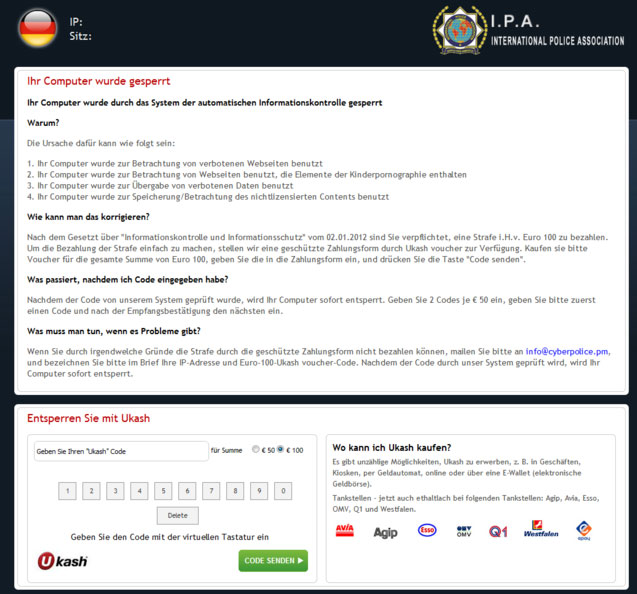


When the International Police Association (I.P.A.) virus has infected your computer, it simply prevents you from accessing The Desktop and displays a fake warning claiming that the system was locked by I.P.A because you were watching and/or distributing illegal content.

Usually, cyber criminals include some scary text about child pornography and copyrighted files. We have to admit that the fake warning is incredibly realistic. We've talked with some people about similar infections and they all admitted that they were scared to death when they saw these police warnings. Few of them even paid 'fines', usually $50 or $100.

Although, there are really nasty and sophisticated ransomware applications out there, International Police Association virus is not one of them, thankfully. It doesn't encrypt files and it doesn't make complex system modifications. The scheme is very simple: once the Trojan is executed, it determines your IP address, changes numerous system settings, creates a full screen window, loads fake warning text and then downloads all the necessary graphics from remote server. For example, if you live in Spain, this virus will load Spanish warning text and download Spain flag from a remote server. And that's it.

Most of the time, victims are urged to pay a 'fine' using a UKash voucher. Surprisingly, you can choose how much you are willing to pay; it's either 50 or 100 euros. That's kind of weird. However, this is a scam. Do not transfer any money or purchase vouchers. Please also note that UKash is a legitimate firm and is not involved in this International Police Association ransomware scam.

International Police Association (I.P.A.) virus warning in different countries:

Ihr Computer wurde gesperrt
Ihr Computer wurde durch das System der automatischen Informationskontrolle gesperrt



Votre ordinateur est bloqué
Votre ordinateur a été bloqué par le système de contrôle automatique informationnel



El ordenador suyo esta bloqueado
El ordenador suyo fue bloqueado por el sistema del control informativo automatizado



O υπολογιστής σας έχει μπλοκαριστεί



.
.
.

Il suo computer è stato bloccato
il suo computer è stato bloccato da sistema di controllo d'informazione automatico

Tietokoneenne lukkiutui

Uw computer is geblokkeerd
Uw computer is geblokkeerd door het systeem van een automatische informatiecontrole

Ten komputer został zablokowany
Ten komputer został zablokowany przez system automatycznej kontroli informacyjnej

O seu computador foi bloqueado
O seu computador foi bloqueado pelo sistema do controlo automatico de informação

Datorn har blockerats
Datorn har blockerats av ett system för avtomatisk information kontroll

If you have ever tried to get rid of ransomware you may have thought its darn near impossible. The good news is that International Police Association (I.P.A.) virus isn't very aggressive unless it comes bundled with other malware. Most of the time, this ransowmare allows victims to reboot their PCs in Safe Mode with Networking and download anti-malware software. Anti-malware software removes the virus and you can happily user your computer once again. But if you were 'lucky' enough to get modified version of this ransomware then it's definitely a nuisance. In such case, you will have to use Kaspersky Rescue CD or any other Live CD to remove International Police Association virus from your computer. Both removal methods are described in details below. So, fist of all, try to reboot your computer in Safe Mod and if it doesn't work then follow the alternate removal guide.

If you have any questions are need extra help removing this ransomware from your computer, please leave comments below. Good luck!

Source: http://deletemalware.blogspot.com


Quick 'International Police Association' Ransomware removal instructions (System Restore, may not work for all users):

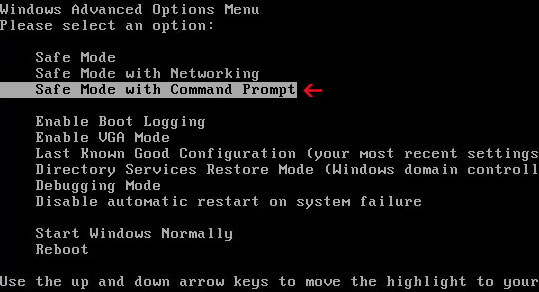
1. Reboot your computer in Safe Mode with Command Prompt. As the computer is booting tap the F8 key continuously which should bring up the "Windows Advanced Options Menu" as shown below. Use your arrow keys to move to Safe Mode with Command Promptand press Enter key.


2. Make sure you log in to an account with administrative privileges (login as admin).

3. Once the Command Prompt appears you have few seconds to type in explorer and hit Enter. If you fail to do it within 5 seconds, the 'International Police Association' ransomware will take over and will not let you type anymore.

4. If you managed to bring up Windows Explorer you can now browse into:
  • Win XP: C:\windows\system32\restore\rstrui.exe and press Enter
  • Win Vista/Seven: C:\windows\system32\rstrui.exe and press Enter
5. Follow the steps to restore your computer into an earlier day when it wasn't infected.

6. Download recommended anti-malware software (Spyware Doctor) and run a full system scan to remove the remnants of International Police Association (I.P.A.) virus and to protect your computer against these types of threats in the future.


International Police Association Ransomware removal using Kaspersky Rescue Disk:

1. Download the Kaspersky Rescue Disk iso image from the Kaspersky Lab server. (Direct download link)
Please note that this is a large downloaded, so please be patient while it downloads.

2. Record the Kaspersky Rescue Disk iso image to a CD/DVD. You can use any CD/DVD record software you like. If you don't have any, please download and install ImgBurn. Small download, great software. You won't regret it, we promise.

For demonstration purposes we will use ImgBurn.

So, open up ImgBurn and choose Write image file to disc.
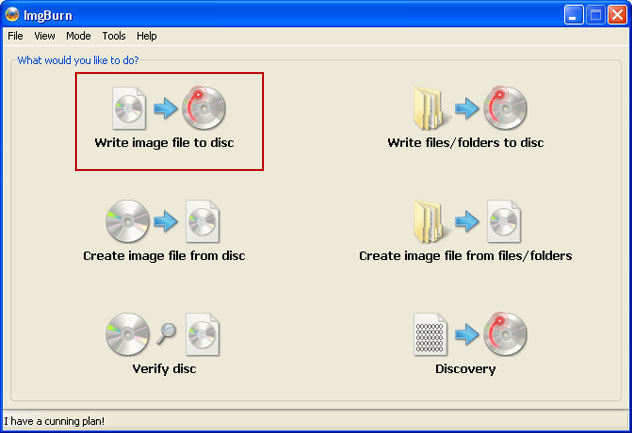


Click on the small Browse for file icon as show in the image. Browse into your download folder and select kav_rescue_10.iso as your source file.
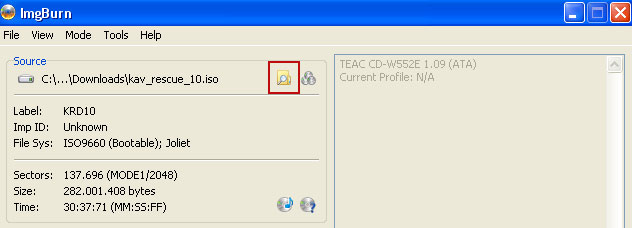


OK, so know we are ready to burn the .iso file. Simply click the Write image file to disc button below and after a few minutes you will have a bootable Kaspersky Rescue Disk 10.



3. Configure your computer to boot from CD/DVD. Use the Delete or F2, F11 keys, to load the BIOS menu. Normally, the information how to enter the BIOS menu is displayed on the screen at the start of the OS boot.



The keys F1, F8, F10, F12 might be used for some motherboards, as well as the following key combinations:
  • Ctrl+Esc
  • Ctrl+Ins
  • Ctrl+Alt
  • Ctrl+Alt+Esc
  • Ctrl+Alt+Enter
  • Ctrl+Alt+Del
  • Ctrl+Alt+Ins
  • Ctrl+Alt+S
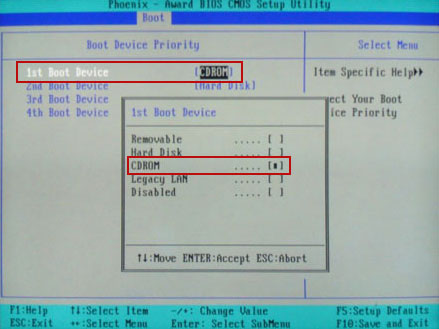
If you can enter Boot Menu directly then simply select your CD/DVD-ROM as your 1st boot device.

If you can't enter Boot Menu directly then simply use Delete key to enter BIOS menu. Select Boot from the main BIOS menu and then select Boot Device Priority.
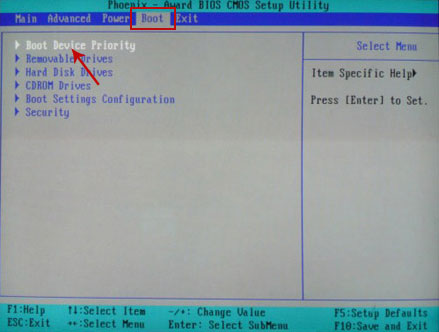


Set CD/DVD-ROM as your 1st Boot Device. Save changes and exist BIOS menu.


4. Let's boot your computer from Kaspersky Rescue Disk.

Restart your computer. After restart, a message will appear on the screen: Press any key to enter the menu. So, press Enter or any other key to load the Kaspersky Rescue Disk.



5. Select your language and press Enter to continue.
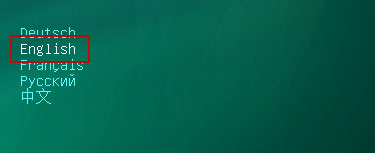


6. Press 1 to accept the End User License Agreement.



7. Select Kaspersky Rescue Disk. Graphic Mode as your startup method. Press Enter. Once the actions described above have been performed, the operating system starts.
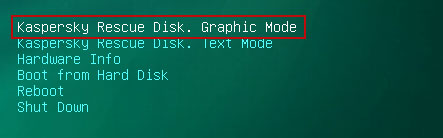


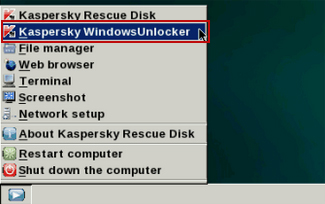
8. Click on the Start button located in the left bottom corner of the screen. Run Kaspersky WindowsUnlocker to remove Windows system and registry changes made by International Police Association (I.P.A.) Virus. It won't take very long.


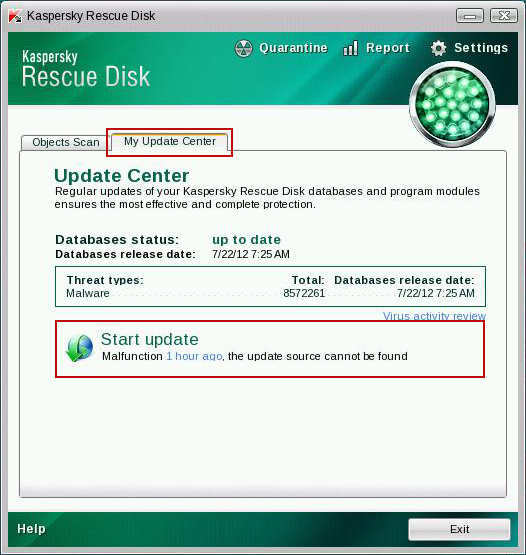
9. Click on the Start button once again and fire up the Kaspersky Rescue Disk utility. First, select My Update Center tab and press Start update to get the latest malware definitions. Don't worry if you can't download the updates. Just proceed to the next step.


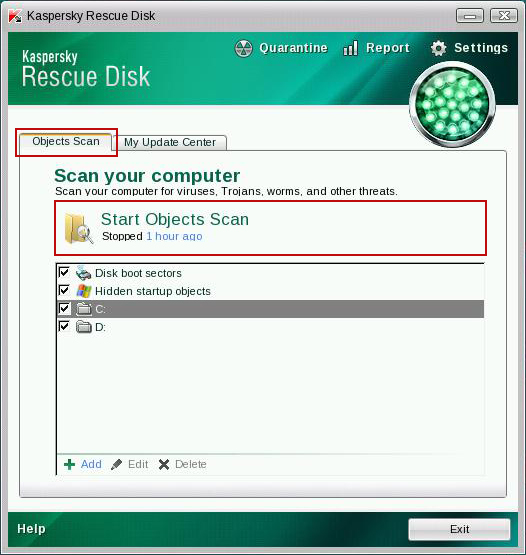
10. Select Object Scan tab. Place a check mark next to your local drive C:\. If you have two or more local drives make sure to check those as well. Then click Start Objects Scan to scan your computer for malicious software.


11. Quarantine (recommended) or delete every piece of malicious code detected during the system scan.
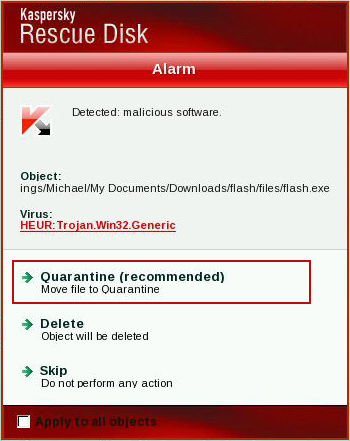


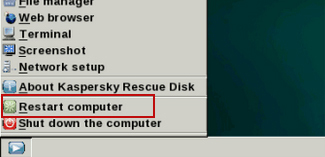
12. You can now close the Kaspersky Rescue Disk utility. Click on the Start button and select Restart computer.


13. Please restart your computer into the normal Windows mode. Download recommended anti-malware software (Spyware Doctor) and run a full system scan to remove the remnants of International Police Association (I.P.A.) virus and to protect your computer against these types of threats in the future.

For for information about ransomware threats and possible removal methods, please read the general ransomware removal guide.

Tell your friends:

Wednesday, 18 July 2012

Remove MyStart by IncrediBar Search and Toolbar (Uninstall Guide)

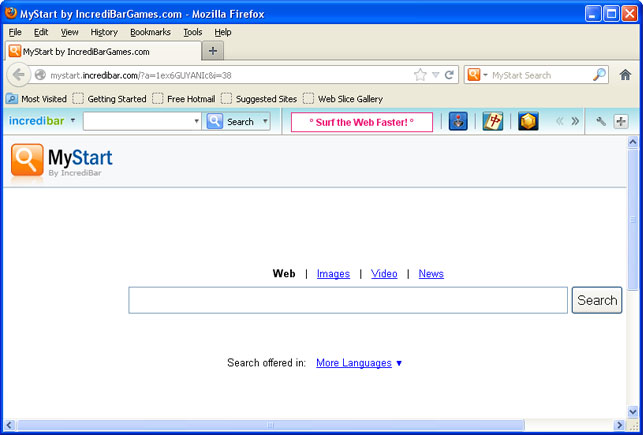
For a few weeks now, we have been receiving an increasing number of emails from our readers asking us how to remove MyStart by IncrediBar search engine and the MyStart IncrediBar toolbar. We read all of the mail you send to us. Unfortunately, we are unable to respond to everyone individually.

Instead, we took a closer look at this issue and wrote comprehensive step-by-step removal instructions that apply to all Incredibar toolbars on all major web browsers: Internet Explorer, Mozilla Firefox and Google Chrome. If you don't want to read detailed analysis about this software and came here only for mystart toolbar removal instructions, please scroll the page down a bit.


If you do a quick Google search for MyStart by IncrediBar you’ll find many forum threads and posts about this toolbar. Surprisingly, most people think that they apparently ended up with the Incredibar MyStart virus, Trojan horse or some sort of malicious software. That’s not quite true. It’s a potentially unwanted application or a browser hijacker at worse if you like but not a virus. However, incredibar certainly won't go away that easy. That's why it's classified as PUA.

On the other hand, our readers confirmed that this toolbar causes unexpected web browser crashes, takes over the browser, substitutes Incredibar for the home page and http://mystart.incredibar.com for the search engine. Pretty much everything leads to MyStart page. It also redirects search results to their own search engine which is powered by Google (at least that’s what they say) and even displays annoying ads/pop-ups.

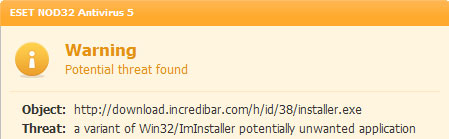
McAfee detects Incredibar installer as Heuristic.LooksLike.Win32.Suspicious.B. TrendMicro detects it as TROJ_ENCPK_0000009.TOMA and finally ESET also sees it as a threat Win32/ImInstaller potentially unwanted application.


Some behavior-based antivirus programs block My Start by IncrediBar too. So, even thought, it’s not a virus there’s definitely something wrong with this toolbar.

Incredibar toolbar is developed and published by Perion Network Ltd. They started in Tel Aviv about twelve years ago. Now they have an office in Redmond, WA. There are three version of this toolbar: essentials, music and games. We believe that he most popular is Incredibar Games. But Incredibar is not their only software product. They have other brands as well. First of all, the most popular product called Incredimail. It’s designed to enrich your emails with colorful graphics, animations, etc. If you choose to install Incredimail on your computer you may end up with MyStart by IncrediBar as well. Then there’s also a photo organization software product called PhotoJoy. Smilebox and even online safety and security software called Dr. CleanUp. We’ve never heard of it before.

MyStart by IncrediBar comes bundled with all their brand communication, photo sharing and safety products. What is more, this toolbar is distributed with the help of other freeware and shareware, codecs and HD video players. Most of the time, users can choose not to install this toolbar and we haven’t find any silent installers whatsoever. But we found a few reports indicating that this toolbar was distributed in rather misleading ways. In one particular case the user wasn't informed about the installation of this toolbar when he was installing a video converter. Image his surprise when MyStart by IncrediBar and the IncrediBar toolbar showed up on all web browsers.

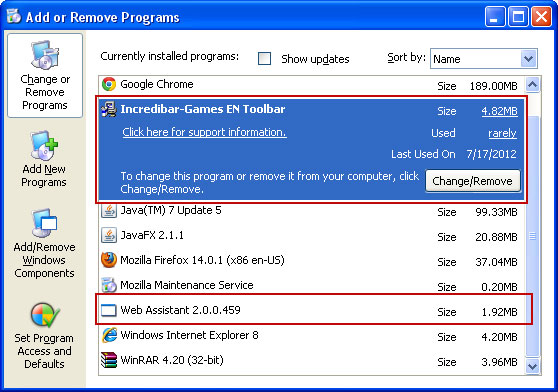
IncrediBar toolbar can be uninstalled just by going to Control Panel and selecting Add/Remove Programs. But for some reasons, the folks at Perion forgot to mention that there’s also an application called Web Assistant. It must be uninstalled as well (see the removal instructions below). So, removing IncrediBar toolbar is not a big deal. But it’s a completely different story when it comes to MyStart by IncrediBar search page.

To remove MyStart by IncrediBar in Internet Explorer you need to manually remove the MyStart search engine provider and restore your default home page. It’s relatively easy. The same can be said about Google Chrome. You just need to manually remove IncrediBar extension and restore your default home page. But it really messes up with Mozilla Firefox. It modifies keyword.URL, browser.newtab.url and some other web browser settings. It goes without saying that most Firefox users don’t even know such settings exist and almost certainly do not know how to restore them. For example, if you won’t restore the keyword.URL string data value, you will be redirected http://mystart.incredibar.com when searching directly from the URL address bar. That’s really annoying.

For step-by-step instructions on how to remove MyStart by IncrediBar search engine and toolbar from your computer, please read the directions below. Please note, MyStart by IncrediBar and Incredibar settings apply to Internet Explorer, Mozilla Firefox, Google Chrome and Opera. From what I've seen so far removing incredibar from chrome is probably the most challenging task. Not the toolbar itself but the changes it made to the browser. Uninstall mystart search from major web browser isn't that easy either. This is especially true for Mozilla Firefox. Too many changes are made and if you choose to reset your web browser to its default state, you will lose your bookmarks, save passwords and browsing history. If you have nothing to lose then yeah, save yourself time and reset it. But if you don't want to lose anything, then follow the removal instructions below. If you need further assistance with this issue, please leave a comment below. Good luck!

Source: http://deletemalware.blogspot.com


MyStart by IncrediBar toolbar removal instructions:

1. First of all, download recommended anti-malware software and run a full system scan. It will detect and remove this infection from your computer. You may then follow the manual removal instructions below to remove the leftover traces of this browser hijacker. Hopefully you won't have to do that.


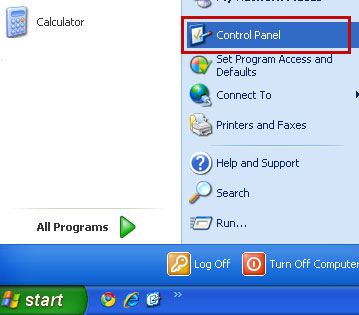
2. Go to the Start Menu. Select Control PanelAdd/Remove Programs.
If you are using Windows Vista or Windows 7, select Control PanelUninstall a Program.


3. Search for IncrediBar* toolbar and Web Assistant in the list. Select the program and click Remove button. Remove both components!

If you are using Windows Vista/7, click Uninstall up near the top of that window.


Alternate removal: run C:\Program Files\Incredibar*\uninstall.exe

* This is the name of the toolbar you downloaded (i.e. Incredibar Games, Incredibar Essentials or Incredibar Music).


Remove MyStart by IncrediBar in Internet Explorer:

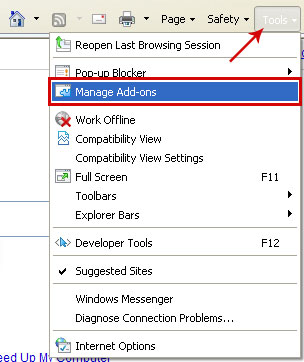
1. Open Internet Explorer. Go to ToolsManage Add-ons.


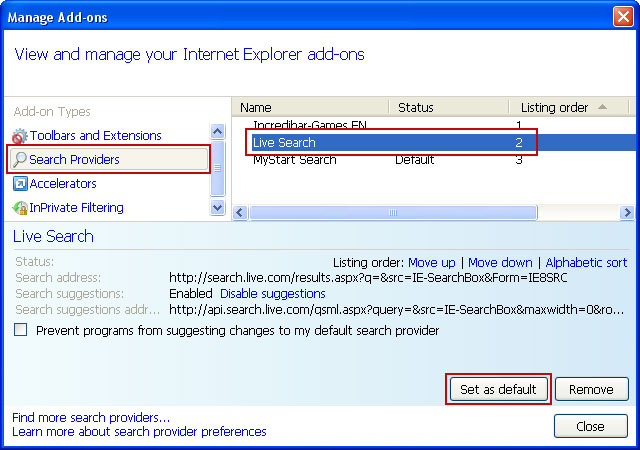
2. Select Search Providers. First of all, choose Bing or Live Search search engine and make it your default web search provider (Set as default).


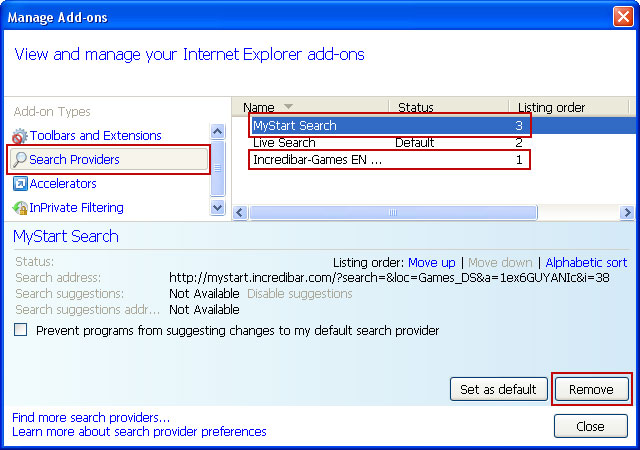
3. Remove MyStart Search and Incredibar Customized Web Search web search providers. Close the window.


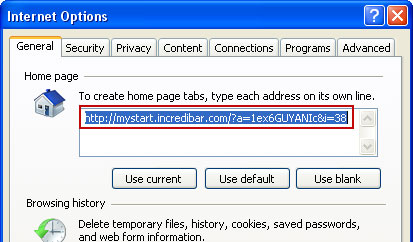
4. Go to ToolsInternet Options. Select General tab and click Use default button or enter your own website, e.g. google.com instead of http://mystart.incredibar.com. Click OK to save the changes. And that's about it for Internet Explorer.


Remove MyStart by IncrediBar in Mozilla Firefox:

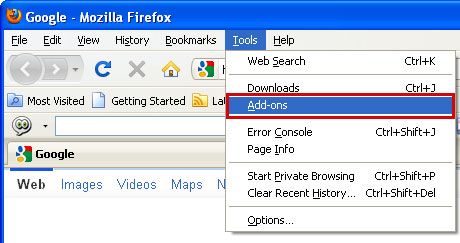
1. Open Mozilla Firefox. Go to ToolsAdd-ons.


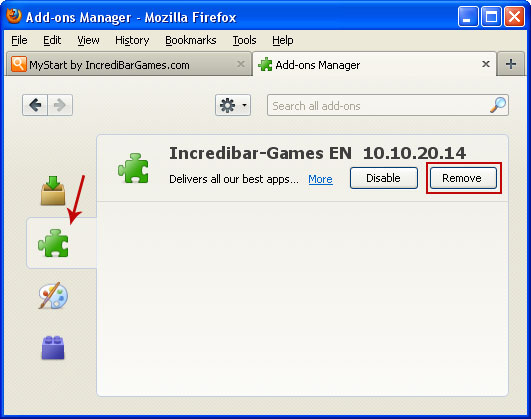
2. Select Extensions. Remove IncrediBar* toolbar. Close the window.


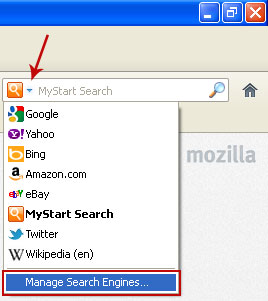
3. Click on the magnifying glass search icon as shown in the image below and select Manage Search Engines....


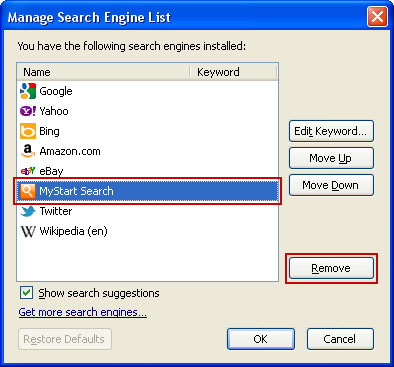
4. Choose MyStart Search from the list and click Remove to remove it. Click OK to save changes.


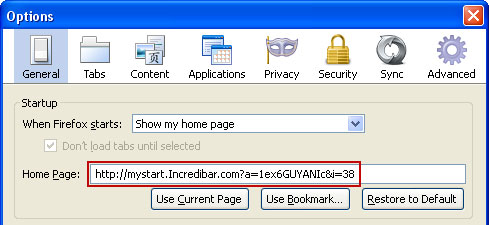
5. Go to ToolsOptions. Under the General tab reset the startup homepage or change it to google.com, etc.


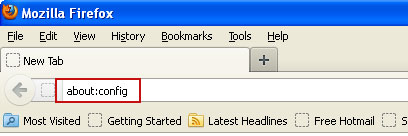
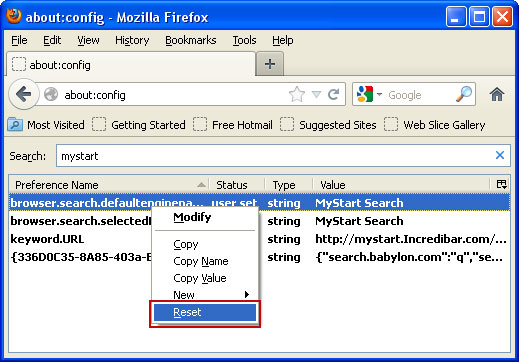
6. In the URL address bar, type about:config and hit Enter.


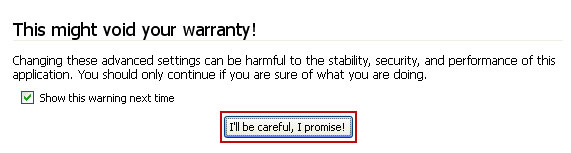
Click I'll be careful, I promise! to continue.


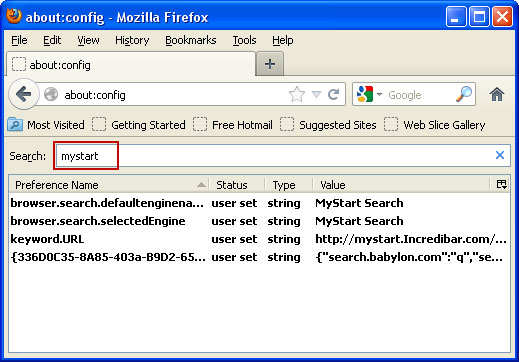
In the filter at the top, type: mystart


Now, you should see all the preferences that were changed by IncrediBar toolbar. Right-click on the preference and select Reset to restore default value. Reset all found preferences!


And that's it for Mozilla Firefox!


Remove MyStart by IncrediBar in Google Chrome:

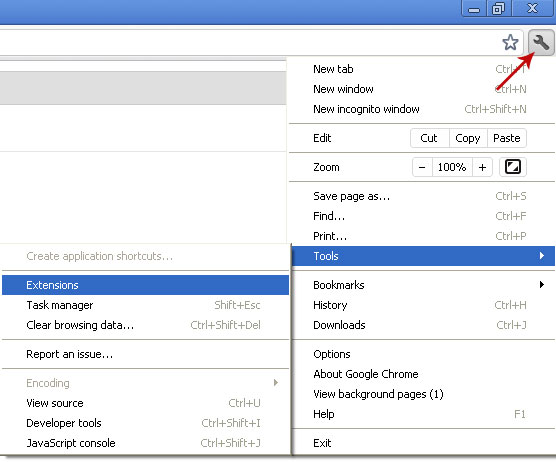
1. Click on Customize and control Google Chrome icon. Go to ToolsExtensions.


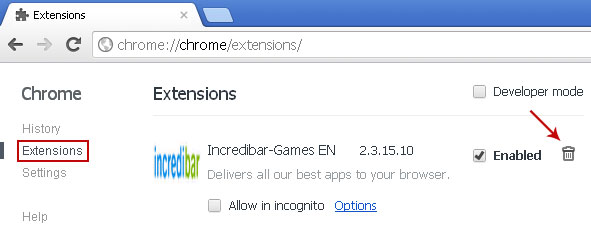
2. Select IncrediBar and click on the small recycle bin icon to remove the toolbar.


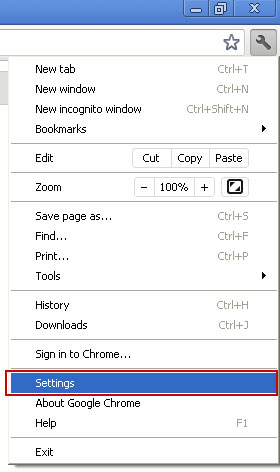
3. Click on Customize and control Google Chrome icon once again and now select Settings.


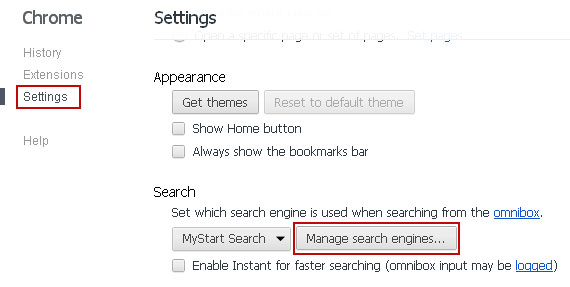
4. Click the Manage search engines... button.


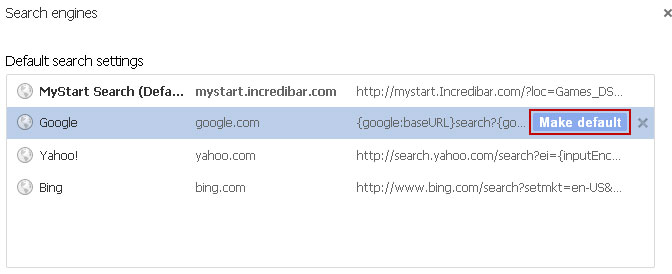
5. Select Google or any other search engine you like from the list and make it your default search engine.


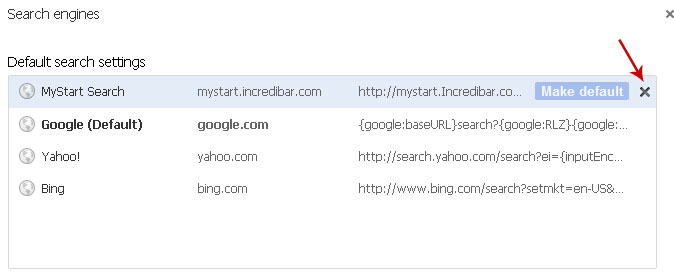
6. Select MyStart Search from the list and remove it by clicking the "X" mark as shown in the image below.


That's it!


Associated MyStart by IncrediBar files and registry values:

Files:
  • C:\Program Files\Incredibar-Games_EN\GottenAppsContextMenu.xml
  • C:\Program Files\Incredibar-Games_EN\Incredibar-Games_ENToolbarHelper.exe
  • C:\Program Files\Incredibar-Games_EN\ldrtbIncr.dll
  • C:\Program Files\Incredibar-Games_EN\OtherAppsContextMenu.xml
  • C:\Program Files\Incredibar-Games_EN\prxtbIncr.dll
  • C:\Program Files\Incredibar-Games_EN\SharedAppsContextMenu.xml
  • C:\Program Files\Incredibar-Games_EN\tbIncr.dll
  • C:\Program Files\Incredibar-Games_EN\toolbar.cfg
  • C:\Program Files\Incredibar-Games_EN\ToolbarContextMenu.xml
  • C:\Program Files\Incredibar-Games_EN\uninstall.exe
Registry values:
  • HKEY_CURRENT_USER\Software\Conduit\RevertSettings "http://mystart.Incredibar.com?a=1ex6GUYANIc&i=38"
  • HKEY_CURRENT_USER\Software\IM\38 "PPD"
  • HKEY_CURRENT_USER\Software\ImInstaller\Incredibar
  • HKEY_CURRENT_USER\Software\Incredibar
  • HKEY_CURRENT_USER\Software\Incredibar-Games_EN
  • HKEY_CURRENT_USER\Software\Microsoft\Internet Explorer\Main StartPage "http://mystart.Incredibar.com?a=1ex6GUYANIc&i=38"
  • HKEY_LOCAL_MACHINE\SOFTWARE\Conduit\Toolbars "Incredibar-Games EN Toolbar"
  • HKEY_LOCAL_MACHINE\SOFTWARE\Incredibar-Games_EN\toolbar
  • HKEY_LOCAL_MACHINE\SOFTWARE\Microsoft\Internet Explorer\Toolbar "Incredibar-Games EN Toolbar"
  • HKEY_LOCAL_MACHINE\SOFTWARE\Microsoft\Windows\CurrentVersion\Uninstall\Incredibar-Games EN Toolbar
Tell your friends:

Tuesday, 17 July 2012

Apple Computers ARE Susceptible After All

Some PC users might feel that Apple customers have been a bit "uppity" in regards to their OS, regarding security in particular. Much of this comes from Apple itself, which has openly bragged about how the Mac OS is immune to viruses. Recent developments have served to tarnish this reputation, and it seems Mac users would be wise to sit up and pay attention to a world they might have blissfully ignored before: cybercrime.

While Macs have admittedly seen far fewer widespread cases of malware infection compared with Microsoft boxes, this is probably a result of the fact that there has been a wide discrepancy in ownership percentages between the two platforms and, therefore, less incentive to devote the time and resources necessary to fully exploit the lesser-used Macs. As the ownership gap closes, however, and Macs comprise a larger percentage of the computer marketplace, they are naturally becoming more appealing to cybercriminal exploiters.

Here are some of the attacks that have been successfully launched against Macs.


Flashback

Flashback made the headlines recently as it has reportedly infected upwards of 600,000 computers, most of which were located the United States and Canada. The malware originally hit the wild as a fake update to the Adobe Flash plug-in (ironically, Apple founder Steve Jobs hated Flash). When users installed it, thinking they were simply upgrading their existing Adobe software, they were actually installing a Trojan with the potential to steal sensitive data off of the victim's Mac, such as passwords, bank account logins and more. Furthermore, the Trojan allowed hackers to take over their victims' computers for use in denial-of-service attacks and other schemes.

Flashback has since permutated into a Java-based exploit, which can be installed without the user's knowledge simply by visiting an infected webpage which will invoke the Java exploit.


SabPub

This recent malware works as a downloader, a software that connects to a "command and control" network from which it takes orders and initiates downloads from servers controlled by criminals. The effects are similar to Flashback, with data theft or control of the machine being the main goals.

As of this writing, the software appears to be in a beta or experimental phase, but as infections have been noted in China, which is notorious for having infected computers, expect it to spread and mutate into more damaging forms as time goes on.


Password changes

With the OS X Lion release, Apple left a password vulnerability wide open (since patched). Anyone with access to a machine was able to change the default password with a simple procedure using the Directory Services.

If a downloader exploit, as previously described, were to be installed, and one of the programs downloaded to the victim's Mac were a remote desktop interface, then a hacker could not only take control of the machine and steal everything on it, but could also lock the owner completely out of his or her own computer.


Scareware

Scareware, or programs which attempt to frighten users into downloading and installing software to protect against non-existent threats, have successfully infected Macs since at least 2008, with the release of MacSweeper. This rogue piece of scareware looked somewhat like the legitimate Mac Sweeper, but instead would "find" numerous problems which did not exist. It would then ask the mark to pay for the software in order to clean the "infection," which of course resulted in nothing but an emptier wallet for the victim.

Another, similar software was MacDefender, which was particularly troublesome as the developers would release new permutations as fast as soon as Apple could defend against previous versions through patches. It was also extremely difficult to remove, as it hid itself by working without a dock icon.


The future

The Mac platform has an ironic problem in that one of the reasons it has resisted viruses is the fact that most software is installed via its official App Store. That is also the reason why antivirus programs have made little inroads into the Mac user base. The Apple App Store forbids automatic, continuous updates by a software program, which is something that just about every antivirus program depends upon to keep its signature file updated.

To Apple's credit, they are addressing the vulnerabilities by releasing a program called Gatekeeper this summer which will allow users to better regulate where their software is installed from, making "drive-by" websites, which infect visitors with hidden scripts, less dangerous, and strengthening the OS's security profile overall. Regardless of the actions taken by Apple, Mac users should note that the climate has changed for them, and that they are now, more than ever, directly in the crosshairs of hackers. For them, it pays to follow the developments of this disturbing, evolving trend and do what is recommended by security experts to keep their systems protected.

About the author: When John Dayton isn’t buys covering LWG Expert Directory, he commits himself to the tech industry. Having written about tech for many years, John has developed a wealth of knowledge.

Tell your friends:
Friday, 13 July 2012

Remove "File Recovery" Malware (Uninstall Guide)

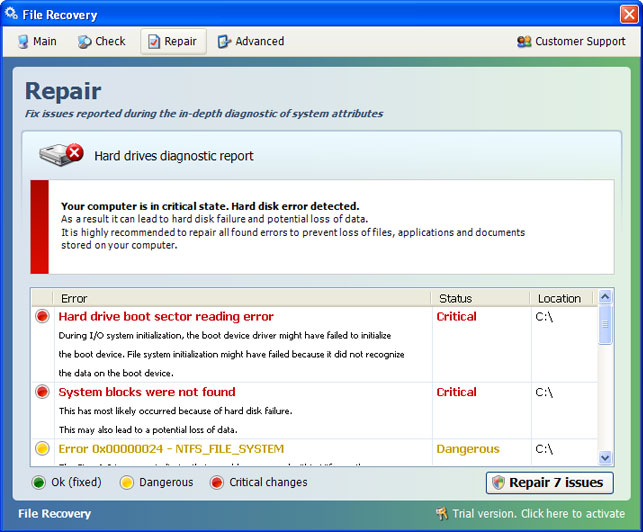
File Recovery is a rogue PC repair and optimization product, misleading at best and fraudulent at worst, that carries a dangerous payload. This fake system repair application pretends to scan a computer for stuff like invalid Windows registry keys, hard drive reading errors, junk files, critical system errors, RAM failures, and much more. Since it doesn’t actually scan a computer for any of these issues it’s not surprising at all that File Recovery scareware reports a bunch of non-existing system errors and threats on a targeted machine.

The worst part is that it hijacks a compromised computer, intentionally misrepresents the system status and asks user to pay for bogus PC repair software activation to remove non-existing hard drive errors and other risks from the computer. Unlike ransomware, it doesn’t freeze your computer screen (thanks for that). But it does perform actions that prevent user from accessing certain applications and Windows features. In rare cases, it can make computer unstable forcing unexpected reboots and blue screens of death.


If you pay for this rogue application you will lose your money and probably without a chance to get them back. But you can still contact your credit card company and dispute the charges. Who knows it might just work. After all, you don’t have anything to lose. At least you know it’s a scam. Besides, more than 4% of PC users that got infected with scareware think that File Recovery and similar applications are genuine Windows products designed to enhance system protection against viruses and system failures. Bit shocking isn't it.

Scareware infection symptoms are almost identical – fake scanners and misleading security alerts popping up at random intervals. Also, File Recovery is a very generic name and very competitive keyword at the same time. The last one was called Data Recovery. Cyber crooks choose very competitive keywords as their bogus software names making it hard to rank well in search results. It’s a wise move but users will probably search for File Recovery virus or malware or anything like that and we are pretty sure that Google will handle everything just fine.

Cyber crooks use various techniques like spam; drive-by downloads, and fake virus scanners to distribute rogue security applications. Even thought, most of the reports show that Fake AV applications seem to be on decline, they are still a significant threat. There are still many active scareware distribution channels and affiliate networks called ‘partnerka.’ The rules are different now. Two or more years ago, cyber crooks that were promoting scareware earned ~$25 per sale or sometimes even more. Now, they can earn $50 and more. 10k infected machines per day adds additional 10% revenue share. But yeah, in the last few months, there hasn't been much to talk about.

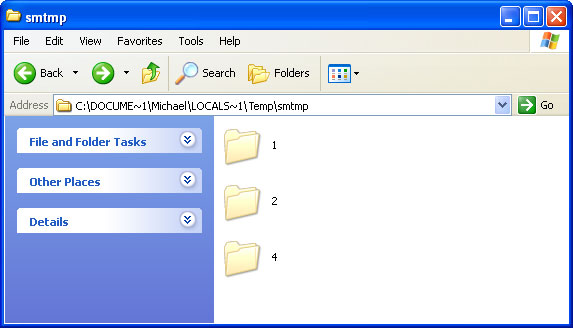
This rogue HDD repair program hides certain files, usually shortcuts and Desktop icons, and moves other files to Windows %Temp%\smtmp folder.


Do not delete any files from your Temp folder. We will show you how to restore hidden files in the removal guide below.

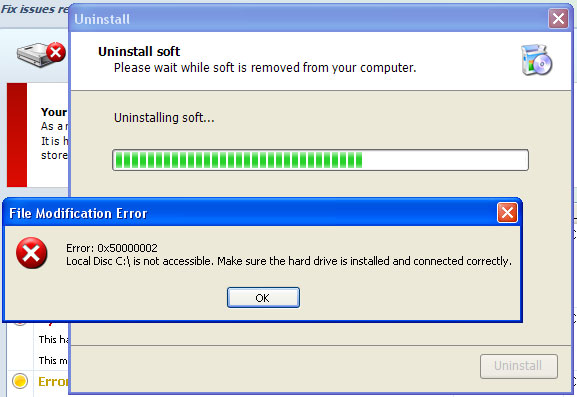
Certain fake security applications as well as fake PC repair utilities use very aggressive methods to scare users into believing that their computer are badly infected or damaged while others show up every ten minutes or so and remind you about security issues that need your attention. Recent scareware variants had working uninstallers, so levels of aggressive behavior are clearly different. Unfortunately, File Recovery malware uninstall doesn't work. You can find the uninstaller in your "All Programs" list. Clicking uninstall button calls a fake system error (see the image below). The rogue application claims that you cannot uninstall it because your local disk is not accessible. The funny thing is, you can uninstall whatever program you want but not this one. Coincidence? :) Of course not.


File Recovery removal is relatively easy unless it comes bundled with sophisticated malicious software, very often the ZeroAccess rootkit. When running, the rogue application blocks access to Web pages by showing a warning message in the browser and shuts download running antivirus software. But don’t worry there’s definitely a way to remove File Recovery virus. Scroll down a bit for step-by-step removal instructions. If you need help removing this malware from your PC, please let me know (leave a comment below). Good luck!

Source: http://deletemalware.blogspot.com


Quick File Recovery malware removal:

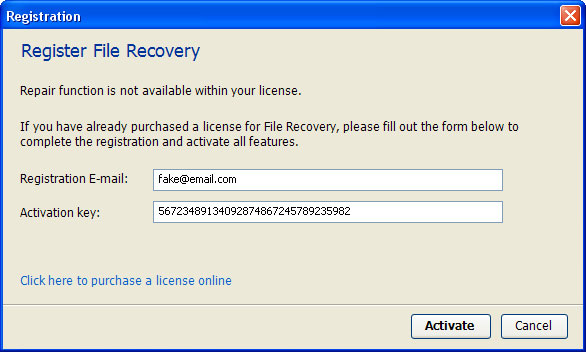
1. Use the activation key given below to register your copy of File Recovery malware. This will allow you to download and run recommended malware removal software and automatically restore hidden files and shortcuts. Don't worry, you're not doing anything illegal. Select "Trial version. Click to activate" (at the bottom of the fake scanner screen). Use fake email and the following activation key:

fake@mail.com
56723489134092874867245789235982


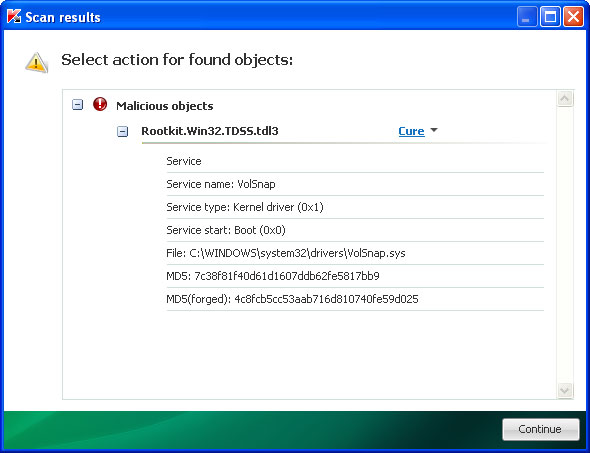
2. Download TDSSKiller and run a system scan. Remove found rootkits (if any). Reboot your computer if required.

3. Download recommended anti-malware software (direct download) and run a full system scan to remove this virus from your computer.


Alternate "File Recovery" removal instructions:

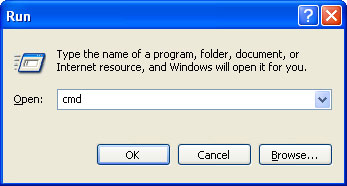
1. First of all, you need to unhide the files and folders. Select Run... from the Start Menu or just hit the key combination CTRL+R on your keyboard. In the Open: field, enter cmd and hit Enter or click OK.


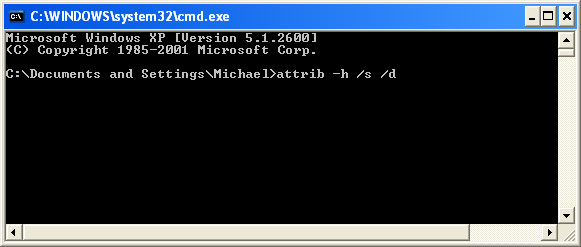
At the command prompt, enter attrib -h /s /d and hit Enter. Now, you should see all your files and folders. NOTE: you may have to repeat this step because the malware may hide your files again.


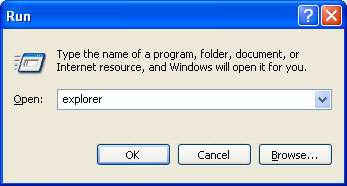
If you still can't see any of your files, Select Run... from the Start Menu or just hit the key combination CTRL+R on your keyboard. In the Open: field, enter explorer and hit Enter or click OK.


2. Open Internet Explorer. Select Run... from the Start Menu or just hit the key combination CTRL+R on your keyboard. In the Open: field, enter iexplore.exe and hit Enter or click OK.

Open Internet Explorer and download TDSSKiller. This malware usually (but not always) comes bundled with TDSS rootkit. Removing this rootkit from your computer is very important (if exists). Run TDSSKiller to remove the rootkit.


3. Finally, download recommended anti-malware software (direct download) to remove this virus from your computer.

NOTE: in some cases the rogue program may block anti-malware software. Before saving the selected program onto your computer, you may have to rename the installer to iexplore.exe or winlogon.exe With all of these tools, if running Windows 7 or Vista they MUST be run as administrator. Launch the program and follow the prompts. Don't forget to update the installed program before scanning.


Manual File Recovery removal instructions:

1. First of all, you need to unhide the files and folders. Select Run... from the Start Menu or just hit the key combination CTRL+R on your keyboard. In the Open: field, enter cmd and hit Enter or click OK.


At the command prompt, enter attrib -h /s /d and hit Enter. Now, you should see all your files and folders. NOTE: you may have to repeat this step because the malware may hide your files again.


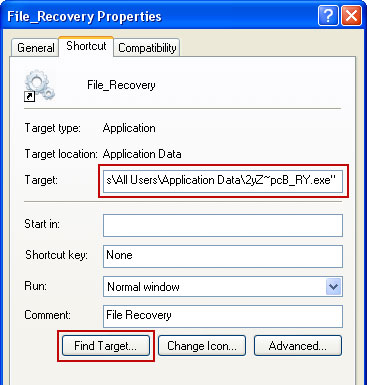
2. The rogue application will place an icon or your desktop. Right click on the icon, click Properties in the drop-down menu.


Then click the Shortcut tab.

The location of the malware is in the Target box.


On computers running Windows XP, malware hides in:
C:\Documents and Settings\All Users\Application Data\


On computers running Windows Vista/7, malware hides in:
C:\ProgramData\


NOTE: by default, Application Data folder is hidden. Malware files are hidden as well. To see hidden files and folders, please read Show Hidden Files and Folders in Windows.

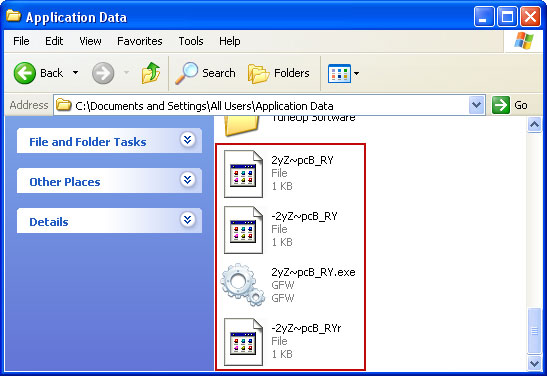
3. Click "Find Target..." button, it will take you to the folder where the malicious files are located. Or you can simply browse to those files manually.

Example Windows XP:
C:\Documents and Settings\All Users\Application Data\2yZ~pcB_RY.exe

Example Windows Vista/7:
C:\ProgramData\2yZ~pcB_RY.exe

Basically, there will be a couple of  files named with a series of numbers or letters.


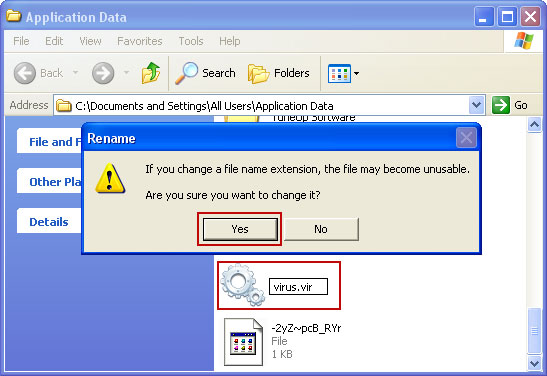
For example, rename 2yZ~pcB_RY.exe to virus.vir and click Yes to change it. Please note, your file name will probably be different. 


It should be: C:\Documents and Settings\All Users\Application Data\virus.vir

Instead of: C:\Documents and Settings\All Users\Application Data\2yZ~pcB_RY.exe

4. Restart your computer. The malware should be inactive after the restart.

5. Open Internet Explorer and download TDSSKiller.This malware usually (but not always) comes bundled with TDSS rootkit. Removing this rootkit from your computer is very important (if exists). Run TDSSKiller and remove the rootkit.


6. Download recommended anti-malware software (direct download) to remove this virus from your computer

NOTE: in some cases the rogue program may block anti-malware software. Before saving the selected program onto your computer, you may have to rename the installer to iexplore.exe or winlogon.exe With all of these tools, if running Windows 7 or Vista they MUST be run as administrator. Launch the program and follow the prompts. Don't forget to update the installed program before scanning.


Associated File Recovery files and registry values:

Files:

Windows XP:
  • %AllUsersProfile%\Application Data\[SET OF RANDOM CHARACTERS]
  • %AllUsersProfile%\Application Data\[SET OF RANDOM CHARACTERS].exe
  • %UsersProfile%\Desktop\File Recovery.lnk
  • %UsersProfile%\Start Menu\Programs\File Recovery\
  • %UsersProfile%\Start Menu\Programs\File Recovery\File Recovery.lnk
  • %UsersProfile%\Start Menu\Programs\File Recovery\Uninstall File Recovery.lnk
%AllUsersProfile% refers to: C:\Documents and Settings\All Users
%UserProfile% refers to: C:\Documents and Settings\[User Name]

Windows Vista/7:
  • %AllUsersProfile%\[SET OF RANDOM CHARACTERS]
  • %AllUsersProfile%\[SET OF RANDOM CHARACTERS].exe
  • %UsersProfile%\Desktop\File Recovery.lnk
  • %UsersProfile%\Start Menu\Programs\File Recovery\
  • %UsersProfile%\Start Menu\Programs\File Recovery\File Recovery.lnk
  • %UsersProfile%\Start Menu\Programs\File Recovery\Uninstall File Recovery.lnk
%AllUsersProfile% refers to: C:\ProgramData
%UserProfile% refers to: C:\Users\[User Name]

Registry values:
  • HKEY_CURRENT_USER\Software\Microsoft\Windows\CurrentVersion\Run "[SET OF RANDOM CHARACTERS].exe"
  • HKEY_CURRENT_USER\Software\Microsoft\Windows\CurrentVersion\Run "[SET OF RANDOM CHARACTERS]"
  • HKEY_CURRENT_USER\Software\Microsoft\Windows\CurrentVersion\Policies\Associations "LowRiskFileTypes" = '/{hq:/s`s:/ogn:/uyu:/dyd:/c`u:/bnl:/ble:/sdf:/lrh:/iul:/iulm:/fhg:/clq:/kqf:/`wh:/lqf:/lqdf:/lnw:/lq2:/l2t:/v`w:/rbs:'
  • HKEY_CURRENT_USER\Software\Microsoft\Windows\CurrentVersion\Policies\Attachments "SaveZoneInformation" = '1'
  • HKEY_CURRENT_USER\Software\Microsoft\Internet Explorer\Download "CheckExeSignatures" = 'no'
  • HKEY_CURRENT_USER\Software\Microsoft\Internet Explorer\Main "Use FormSuggest" = 'yes'
Tell your friends: