Saturday, 20 October 2012

"File Restore" Malware Removal

"File Restore" is a bogus disk cleaner and privacy protection tool. We've written about such fake repair tools before. However, only one was actively promoted, called File Recovery. It remains unclear whether this new malicious program will completely replace the previous one. It could be that cyber crooks will promote both programs at the same time hoping to generate more money. Well see.

File Restore malware GUI
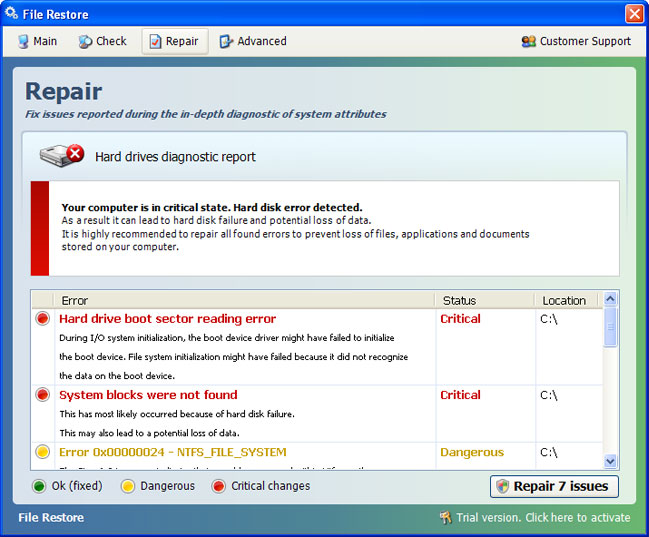

Suddenly appearing "Serious Disk Error" pop-ups and fake system notifications are the main symptoms of "File Restore" malware sales program infection. There are many variations of fake security alerts such as: "hard drive controller failure", "device initialization failed" and many more. Clicking on fake alerts opens up only the "File Restore" program which you obviously didn't install. The rogue repair tool has this amazingly fast auto-scan mode which detects and displays non-existent had drive reading errors, RAM failures and other supposedly critical system errors. After an auto-scan, "Repair 7 issues" opens up a convenient means to order a fix from this service or to "activate" the repair by purchasing the bogus program.

What is more, to motivate purchase, all icons and shortcuts have been wiped from the Start Menu, Desktop and from the list if most recently used programs. Now comes the important part, DO NOT delete files from your Temp folder or use any temp file cleaners. I know most of you guys use file cleaners to remove malware remnants and unnecessary files. But this time, DON'T! The rogue program moves certain fails to Windows Temp folder, specifically %Temp%\smtmp. Normally, you'll see something like this in your Temp folder. Note, that this folder is hidden.
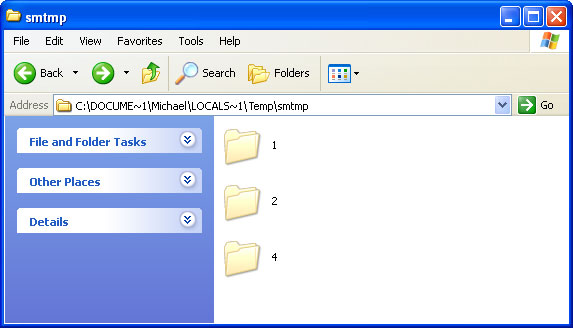


So, even though, it now appears as if all your files are gone they are actually still there. It's just you can't see them. Deleting "File Restore" malware files manually won't solve the problem, because they are just the tip of an iceberg. You need to restore your files first and only then remove core elements of this malware using recommended anti-malware software. To remove this malicious software and restore your files safely, please follow the removal instructions below. If you have any further questions please let us know - we will be happy to assist you. Good luck and be safe online!


Quick "File Restore" malware removal:

1. Use the activation key given below to register your copy of File Restore malware. This will allow you to download and run recommended malware removal software and automatically restore hidden files and shortcuts. Don't worry, you're not doing anything illegal and it won't make the situation worse. Select "Trial version. Click to activate" (at the bottom right hand corner of the fake scanner screen).
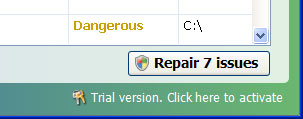


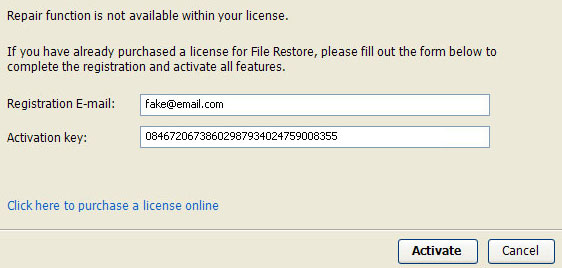
Use fake email and the following activation key:

Registration E-mail: fake@mail.com
Activation key: 08467206738602987934024759008355


2. Download TDSSKiller and run a system scan. Remove found rootkits (if any). Reboot your computer if required.

3. Download recommended anti-malware software (Spyware Doctor) and run a full system scan to remove this virus from your computer.


Alternate "File Restore" removal instructions:

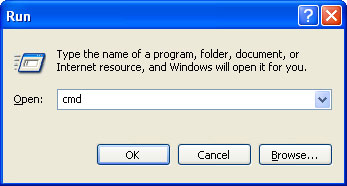
1. First of all, you need to unhide the files and folders. Select Run... from the Start Menu or just hit the key combination CTRL+R on your keyboard. In the Open: field, enter cmd and hit Enter or click OK.


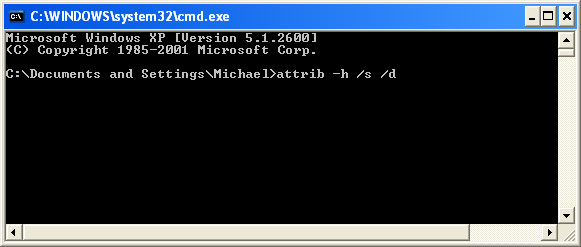
At the command prompt, enter attrib -h /s /d and hit Enter. Now, you should see all your files and folders. NOTE: you may have to repeat this step because the malware may hide your files again.


Open Internet Explorer. If the shortcut is hidden, pelase Select Run... from the Start Menu or just hit the key combination CTRL+R on your keyboard. In the Open: field, enter iexplore.exe and hit Enter or click OK.


2. Download and run this utility to restore missing icons and shortcuts.

3. Now, please download TDSSKiller and run a system scan. Remove found rootkits as shown in the image below. Reboot your computer if required.
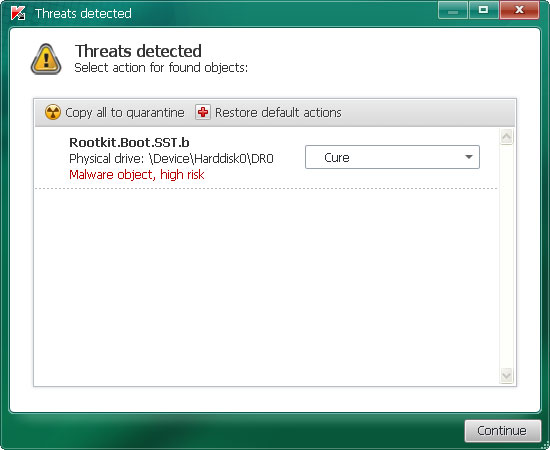


Please note that your computer might be rootkit free, not all version of "File Restore" comes bundled with rootkits. Don't worry if TDSSKiller didn't find a rootkit.

4. Finally, download recommended anti-malware software (Spyware Doctor) and run a full system scan to remove this malicious software from your computer.

NOTE: With all of these tools, if running Windows 7 or Vista they MUST be run as administrator. Launch the program and follow the prompts. Don't forget to update the installed program before scanning.

5. The malicious software should be gone now. If certain icons and shortcuts are still missing, please use restoresm.zip.


Associated "File Restore" files and registry values:

Files:

Windows XP:
  • %AllUsersProfile%\Application Data\[SET OF RANDOM CHARACTERS]
  • %AllUsersProfile%\Application Data\[SET OF RANDOM CHARACTERS].exe
  • %UsersProfile%\Desktop\File Restore.lnk
  • %UsersProfile%\Start Menu\Programs\File Restore\
  • %UsersProfile%\Start Menu\Programs\File Restore\File Restore.lnk
  • %UsersProfile%\Start Menu\Programs\File Restore\Uninstall File Restore.lnk
%AllUsersProfile% refers to: C:\Documents and Settings\All Users
%UserProfile% refers to: C:\Documents and Settings\[User Name]

Windows Vista/7:
  • %AllUsersProfile%\[SET OF RANDOM CHARACTERS]
  • %AllUsersProfile%\[SET OF RANDOM CHARACTERS].exe
  • %UsersProfile%\Desktop\File Restore.lnk
  • %UsersProfile%\Start Menu\Programs\File Restore\
  • %UsersProfile%\Start Menu\Programs\File Restore\File Restore.lnk
  • %UsersProfile%\Start Menu\Programs\File Restore\Uninstall File Restore.lnk
%AllUsersProfile% refers to: C:\ProgramData
%UserProfile% refers to: C:\Users\[User Name]

Registry values:
  • HKEY_CURRENT_USER\Software\Microsoft\Internet Explorer\Main "Use FormSuggest" = 'Yes'
  • HKEY_CURRENT_USER\Software\Microsoft\Internet Explorer\Main "Use FormSuggest" = "Yes"
  • HKEY_CURRENT_USER\Software\Microsoft\Windows\CurrentVersion\Internet Settings "CertificateRevocation" = '0'
  • HKEY_CURRENT_USER\Software\Microsoft\Windows\CurrentVersion\Internet Settings "WarnonBadCertRecving" = '0'
  • HKEY_CURRENT_USER\Software\Microsoft\Windows\CurrentVersion\Policies\ActiveDesktop "NoChangingWallPaper" = '1'
  • HKEY_CURRENT_USER\Software\Microsoft\Windows\CurrentVersion\Policies\Associations "LowRiskFileTypes" = '.zip;.rar;.nfo;.txt;.exe;.bat;.com;.cmd;.reg;.msi;.htm;.html;.gif;.bmp;.jpg;.avi;.mpg;.mpeg;.mov;.mp3;.m3u;.wav;.scr;'
  • HKEY_CURRENT_USER\Software\Microsoft\Windows\CurrentVersion\Policies\Attachments "SaveZoneInformation" = '1'
  • HKEY_CURRENT_USER\Software\Microsoft\Windows\CurrentVersion\Policies\Explorer "NoDesktop" = '1'
  • HKEY_CURRENT_USER\Software\Microsoft\Windows\CurrentVersion\Policies\System "DisableTaskMgr" = '1'
  • HKEY_CURRENT_USER\Software\Microsoft\Windows\CurrentVersion\Run "<random>.exe"
  • HKEY_CURRENT_USER\Software\Microsoft\Windows\CurrentVersion\Run "<random>"
  • HKEY_LOCAL_MACHINE\SOFTWARE\Microsoft\Windows\CurrentVersion\policies\system "DisableTaskMgr" = '1'
  • HKEY_CURRENT_USER\Software\Microsoft\Internet Explorer\Download "CheckExeSignatures" = 'no'
  • HKEY_CURRENT_USER\Software\Microsoft\Windows\CurrentVersion\Explorer\Advanced "Hidden" = '0'
  • HKEY_CURRENT_USER\Software\Microsoft\Windows\CurrentVersion\Explorer\Advanced "ShowSuperHidden" = '0'
Tell your friends:

Tuesday, 2 October 2012

Remove u-search.net (Uninstall Guide)

u-search.net is a tracking website that may log what your search for. It allows the authors of the website to know your interests, gather search terms, search volume and other information that could be valuable for ad networks, ad buyers, etc. Most people are not aware of u-search.net redirection because it loads very fast and then simply redirects to the corresponding Google page. It doesn't affect search results. Still, it's an invasion of privacy.

u-search.net comes bundled mostly with free software whether it would be a video converter or a file sharing application. For example, the latest version of Groovedown which is a file sharing application has included some modifications that change your web browser's default search engine to 'u-search.net'. It’s hardly malware but it definitely causes some privacy issues.


It doesn't install any Windows services or start-up entries. But it does modify certain Windows registry keys, SearchScopes for instance that specify Internet search providers. Furthermore, u-search.net creates and modifies certain configurations file for web browsers. It also changes your home page and makes it so that every time you open a new tab u-search.net shows up instead of Google or a blank page. That’s not the way it should be and it's definitely very annoying.

Fixes for Internet Explorer and Google Chrome are fairly simple. However, the fix for Mozilla Firefox is a bit trickier but still not too complicated. It's worth mentioning that uninstalling software that installed this browser hijacker rarely fixes redirection problems. You have to remove certain files and restore web browser's default settings manually. So, if your searches redirect through u-search.net, you should scan your computer with recommend anti-malware software and then follow the removal instructions below. If you have any further questions please let us know - we will be happy to assist you. Good luck and be safe online!

Source: http://deletemalware.blogspot.com


Scan your computer with recommended anti-malware and clean-up software:

First of all, download recommended anti-malware and clean-up software and run a full system scan to make sure that your computer is not infected with malicious or potentially unwanted applications and that your files are not corrupted before proceeding with the uninstall process.


Remove u-search.net in Internet Explorer:

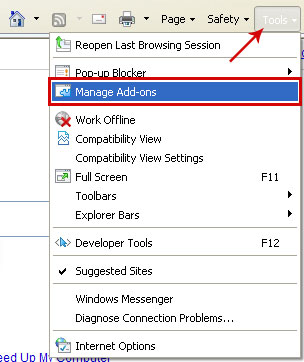
1. Open Internet Explorer. Go to ToolsManage Add-ons.


2. Select Search Providers. First of all, choose Bing or Live Search search engine and make it your default web search provider (Set as default).


3. Remove u-Search web search provider. Close the window.


4. Go to ToolsInternet Options. Select General tab and click Use default button or enter your own website, e.g. google.com instead of http://u-search.net. Click OK to save the changes. And that's about it for Internet Explorer.


Remove u-search.net in Mozilla Firefox:

1. Navigate to the following folder:

%APPDATA%\Mozilla\Firefox\Profiles\

Simply copy/paste this line into 'Run' (open by pressing Win+R) then press Enter or click OK


Or copy/paste it into an Explorer Address Bar then press Enter


2. There should only be one folder (xxxxxxxx.default). Open that folder.

3. Look for a file called user.js. Simply delete the file. If you have persistent settings, you can open it with a text editor and remove the lines related to u-Search only.

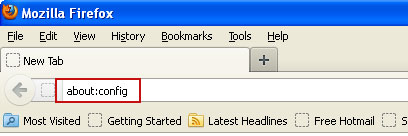
4. Open Mozilla Firefox. In the URL address bar, type about:config and hit Enter.


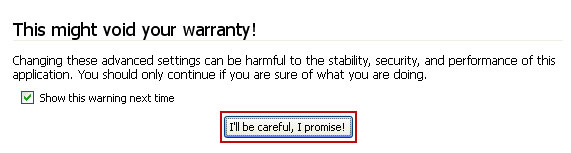
Click I'll be careful, I promise! to continue.


In the filter at the top, type: u-search


Now, you should see all the preferences that were changed by u-Search. Right-click on the preference and select Reset to restore default value. Reset all found preferences!


5. Go to Tools → Options. Under the General tab reset the startup homepage or change it to google.com, etc.


6. Click on the magnifying glass search icon as shown in the image below and select Manage Search Engines....


4. Choose u-Search from the list and click Remove to remove it. Click OK to save changes.


That's it for Mozilla Firefox!


Remove u-search.net in Google Chrome:

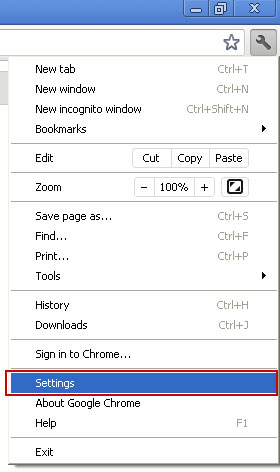
1. Click on Customize and control Google Chrome icon once again and now select Settings.


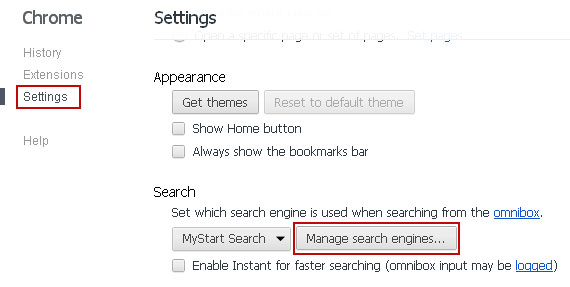
2. Under the heading Search, click Manage Search Engines


3. Mouse over  Google or any other search engine you like from the list and make it your default search engine.

4. Then mouse over u-Search, you will get a cross on the right hand side which will allow you to remove this search engine.

5. You may also want to check your homepage if you have one.

That's it!
    Tell your friends:

    Monday, 1 October 2012

    Remove XP Defender 2013 (Uninstall Guide)

    In order to remove XP Defender 2013 fake antivirus scanner we suggest you to run a full system scan with recommend anti-malware software. But there's one small problem: once installed, this virulent pieces of malware blocks legitimate anti-virus software, disables Task Manager and other system utilities and doesn't let you download other malware removal software. It simply blocks web browsers. When you run a web browser, the rogue antivirus program kills its process and launches malicious one instead. Fairly aggressive method used to protect itself from being removed. What is more, XP Defender 2013 stays active in Safe Mode and Safe Mode with Networking, so it’s not that easy to game this fake antivirus program. But don't worry, it's still possible and we will show you how.

    A screenshot of a fake virus-bearing 'security' utility, XP Defender 2013.


    While running, this 'nasty' ware displays explicit security warnings claiming that you have a computer infected with viruses, spyware, Trojans and other severe infections that may steal your personal information or even credit card details. As a matter of fact, XP Defender 2013 tries to trick the victim into giving up their credit card number and other personal information. Very important: don't run any advertised scans or follow any instructions displayed in the fake scanner or security pop-ups.


    Cyber crooks create software that impersonates typical Windows security notifications, for example Windows Security Center pop-up. We bet this window looks familiar to you, right? The only problem is that this window is completely fake and promotes rogue antivirus program. Unsuspecting user may fall victims to this scam and install malware. And you don't want that because cyber crooks have already stolen more than $97 Million dollars over this year using fake antivirus software.


    Here's another example of a fake security pop-up that actually looks like a real thing, you know, a system notification. This one claims that 'data loss, identity theft and system corruption are possible'. Bu there are many more of these fake alerts, and they show up randomly, just to scare you into thinking that your computer is infected.


    Not only XP Defender 2013 issues repeated warnings that your computer is being used to spread malware and attack other machines, then demands that you purchase the latest version to remove the 'virus' but also modifies Windows registry, so badly that you have to fix it first before you can actually run any anti-malware software.

    Here's a XP Defender 2013 'secure transaction processing' window where you can purchase the rogue program. Cyber crooks apparently accept Visa and Master Card. Best offer + Life time support would cost your about 100 bucks. They also added Positive SSL and Comodo Hacker Shield graphics to add some extra credibility but obviously none of those companies would actually issue valid certificates for scammers. We could say this is a great example of technical and social engineering attack.


    Ok, so now you know how this rogue antivirus works and how scammers steal money for unsuspecting users. Let's proceed to the most important part of this article: XP Defender 2013 removal instructions.

    Below, you will find three possible ways how to remove XP Defender 2013 malware from your computer. If you have any further questions please let us know - we will be happy to assist you. Good luck!


    Quick XP Defender 2013 removal:

    1. Use 3425-814615-3990 to register the rogue antivirus application in order to stop the fake security alerts.


    Just click the Registration button and then select Activate Now. Don't worry, this is completely legal. If the debugged serial keys do not work anymore, please follow the alternate removal instructions below.


    Once this is done, you are free to install recommended anti-malware software and run a full system scan to remove XP Defender 2013 from your computer properly.

    2. Download recommended anti-malware software (Spyware Doctor) and run a full system scan to remove this virus from your computer.


    Alternate XP Defender 2013 removal instructions:

    1. Open Windows Explorer. It could be any window, for example My Computer.


    2. In the Address bar type: http://goo.gl/AXIrU (this is a download link for FixNCR.reg) and click hit Enter or click Go to download the file.

    5. Save FixNCR.reg to your Desktop. Double-click on FixNCR.reg to run it. Click "Yes" for Registry Editor prompt window. Click OK.


    7. Download recommended anti-malware software (Spyware Doctor) and run a full system scan to remove this virus from your computer.

    NOTE: With all of these tools, if running Windows 7 or Vista they MUST be run as administrator. Launch the program and follow the prompts. Don't forget to update the installed program before scanning.


    Manual XP Defender 2013 removal instructions:

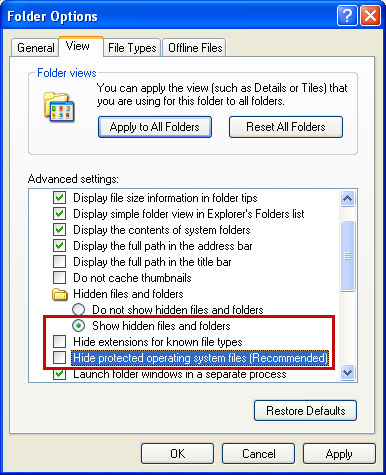
    Make sure that you can see hidden and operating system protected files in Windows. For more in formation, please read Show Hidden Files and Folders in Windows.

    Under the Hidden files and folders section, click Show hidden files and folders, and remove the checkmarks from the checkboxes labeled:
    • Hide extensions for know file types
    • Hide protected operating system files
    Click OK to save the changes.


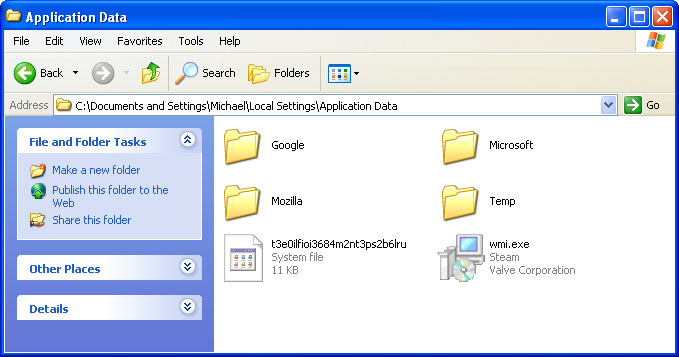
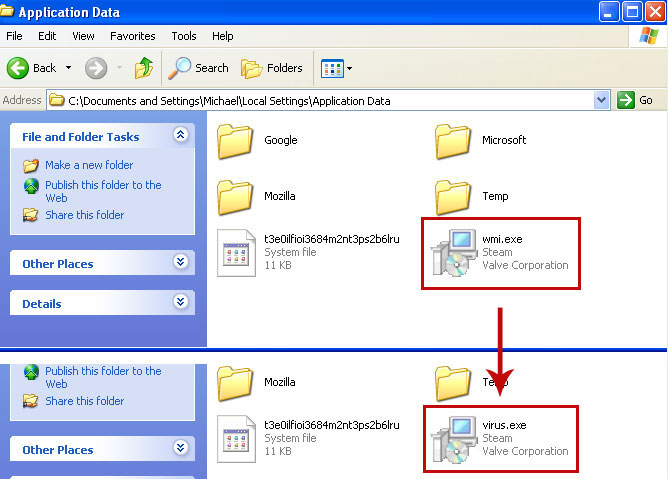
    1. Go into C:\Documents and Settings\[UserName]\Local Settings\Application Data\ folder.

    For example: C:\Documents and Settings\Michael\Local Settings\Application Data\


    2. Find hidden executable file in this folder. In our case it was called wmi.exe, but I'm sure that the file name will be different in your case. Rename wmi.exe to virus.exe and click Yes to confirm file rename. Then restart your computer.


    3. After a restart, copy all the text in bold below and paste to Notepad.

    Windows Registry Editor Version 5.00

    [HKEY_CLASSES_ROOT\.exe]
    @="exefile"
    "Content Type"="application/x-msdownload"

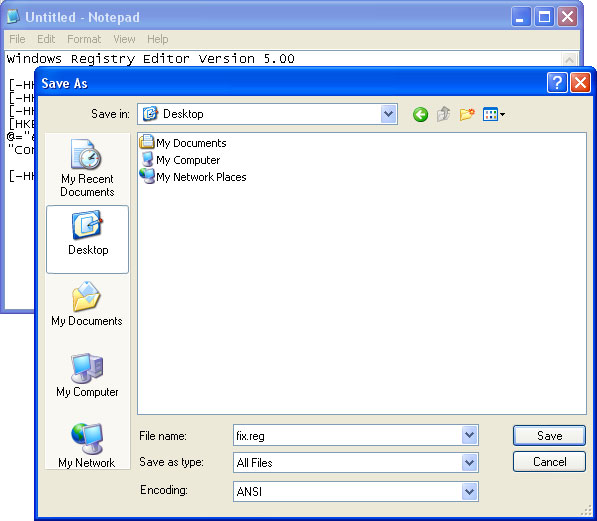
    4. Save file as fix.reg to your Desktop. NOTE: (Save as type: All files)


    5. Double-click on fix.reg file to run it. Click "Yes" for Registry Editor prompt window. Then click OK.

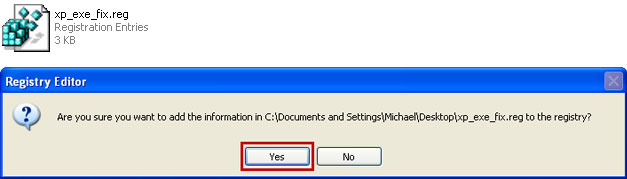
    6. Open Internet Explorer. Download xp_exe_fix.reg and save it to your Desktop. Double-click on xp_exe_fix.reg to run it. Click "Yes" for Registry Editor prompt window. Click OK.


    7. Download recommended anti-malware software (Spyware Doctor) and run a full system scan to remove this virus from your computer.

    NOTE: With all of these tools, if running Windows 7 or Vista they MUST be run as administrator. Launch the program and follow the prompts. Don't forget to update the installed program before scanning.

    Tell your friends:

    Sunday, 30 September 2012

    Remove click.get-amazing-results.com redirect virus (Uninstall Guide)

    So, you got the click.get-amazing-results.com browser hijacker and you can't remove it. This can be a sigh of malware or potentially unwanted browser helper object. In most cases, I have to assume that it’s some sort of malicious software, specifically a Trojan horse or a rootkit. The last time a got a computer infected with click.get-amazing-results redirect virus I found like 30 more malware including Trojan ad loader and rather sophisticated rootkit. It can't be a coincidence, right?


    There are many variations on browser hijacking but the main idea is very simple: you are being redirected to malicous or spammy websites after conducting a search. Sometimes, click.get-amazing-results.com redirects victims to unexpected websites, you know, it works like a tracking sites. However, sometimes, it simply displays paid and very irrelevant search results or even ads which have nothing to do with your search term. All in all, click.get-amazing-results.com is a pretty direct hijack. And it's annoying as hell.

    Trojan download which is responsible for get-amazing-results.com redirects usually modifies the way your system locates servers on the internet. In case of a DNS hijack a different IP address is returned. However, some malware rather than modifying your DNS settings takes a more direct route and injects malicious code into already running processes. Such malware very often infects web browser components and adds malicious browser extensions.

    Fixing click.get-amazing-results.com redirect should be fairly easy. Run an up-to-date anti-malware scan. Please note that the website itself isn't malicious. You probably found some other sites claiming that click.get-amazing-results.com is 'malicious' or 'dangerous'. It’s only being used to redirect victims or display paid search results. It's not about the website; it's about your computer being infected with a combination of Trojan horse and probably rootkit. To remove this browser hijacker and malware associated to it, please follow the removal instructions below. Good luck and be safe online!


    Click.get-amazing-results.com redirect virus removal instructions:

    1. Download recommended anti-malware software (Spyware Doctor) and run a full system scan to remove this virus from your computer.

    NOTE: in some cases malware may block anti-malware software. Before saving the selected program onto your computer, you may have to rename the installer to iexplore.exe or winlogon.exe. Don't forget to update the installed program before scanning.

    2. Check Windows HOSTS file.
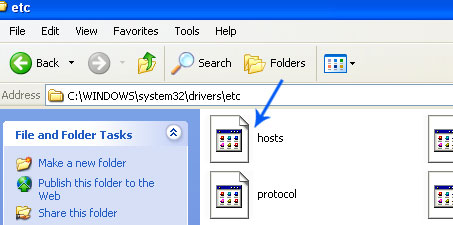
    Go to: C:\WINDOWS\system32\drivers\etc.
    Double-click "hosts" file to open it. Choose to open with Notepad.


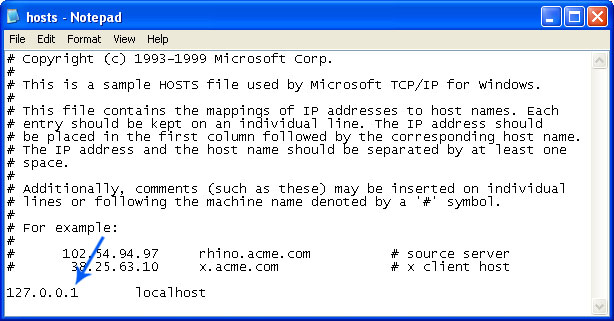
    The "hosts" file should look the same as in the image below. There should be only one line: 127.0.0.1 localhost in Windows XP and 127.0.0.1 localhost ::1 in Windows Vista/7. If there are more, then remove them and save changes. Read more about Windows Hosts file here: http://support.microsoft.com/kb/972034


    3. If the problem persists, please read this web document and follow the steps carefully: http://deletemalware.blogspot.com/2010/02/remove-google-redirect-virus.html

    Tell your friends:

    Remove click.gethotresults.com redirect virus (Uninstall Guide)

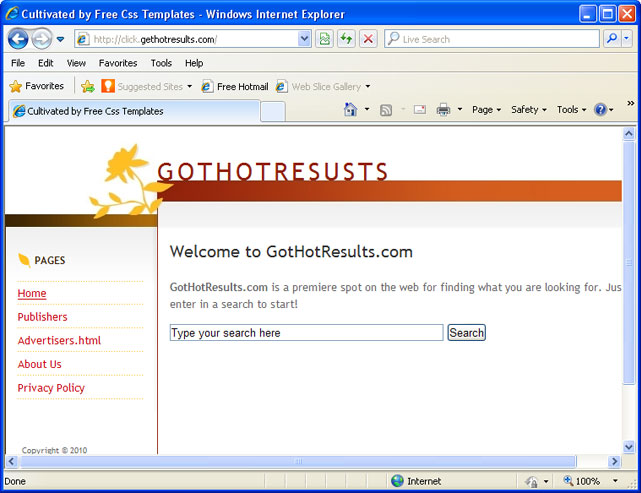
    Click.gethotresults.com is a very questionable web search engine tied to the Win32/TrojanDownloader.Adload.NIQ malware. This search engine returns either paid or rather irrelevant search results. Once way or another, I don’t recommend using it. Once your machine is infected with this Trojan horse you will quickly notice that when you click on a link, let’s say Google search result, you’re redirected to some place you don’t want to be. It’s mostly click.gethotresults.com but could be any other shady website. This is a classic case of a browser hijacking. While most users say they got infected with the Click.gethotresults redirect virus, that isn’t quite correct because virus is a piece of malicious code that can copy itself and automatically spread to other computers.


    In a word: malware. The word virus is now used by most if us as a common term for all malicious programs. Maybe for most people it’s easier to use a generic term virus to describe pretty much any kind of infection rather than learning all the nuances of a Trojan horse ore a computer worm. Anyway, it doesn’t really matter how you describe the problem and what terms you use as long as you are fully aware that your computer is infected. Click.gethotresults.com hijacked search is typical of malware. In short, you have malware on your machine. What I’m going suggest you to do is run a full system scan with recommended anti-malware software. Checking your LAN settings and web browser for potentially unwanted add-ons would be also a good idea. Sometimes, cyber crooks modify Windows hosts file to redirect victims to spammy or even malicious websites.

    So, to remove Click.gethotresults.com redirect virus from your computer, please follow the removal instructions below. If you have any further questions or concerns, please feel free to ask. Good luck and be safe online!


    Click.gethotresults.com redirect virus removal instructions:

    1. Download recommended anti-malware software (Spyware Doctor) and run a full system scan to remove this virus from your computer.

    NOTE: in some cases malware may block anti-malware software. Before saving the selected program onto your computer, you may have to rename the installer to iexplore.exe or winlogon.exe. Don't forget to update the installed program before scanning.

    2. Check Windows HOSTS file.
    Go to: C:\WINDOWS\system32\drivers\etc.
    Double-click "hosts" file to open it. Choose to open with Notepad.


    The "hosts" file should look the same as in the image below. There should be only one line: 127.0.0.1 localhost in Windows XP and 127.0.0.1 localhost ::1 in Windows Vista/7. If there are more, then remove them and save changes. Read more about Windows Hosts file here: http://support.microsoft.com/kb/972034


    3. If the problem persists, please read this web document and follow the steps carefully: http://deletemalware.blogspot.com/2010/02/remove-google-redirect-virus.html

    Tell your friends:

    Monday, 24 September 2012

    Remove System Progressive Protection (Uninstall Guide)

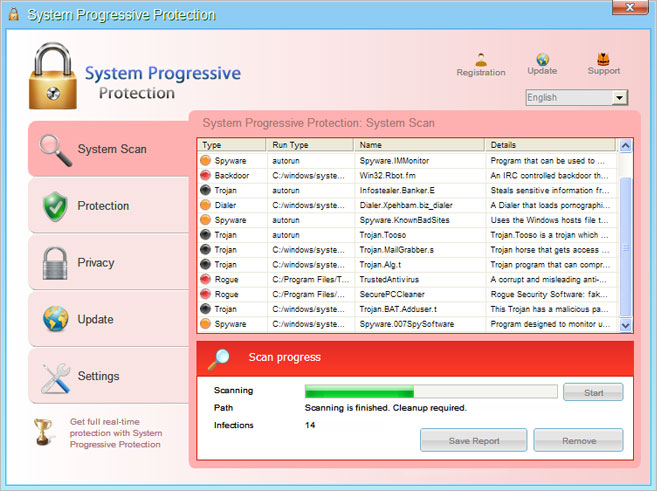
    System Progressive Protection is a fake antivirus program that claims to scan your computer for malware and displays fake security warnings "your PC is infected", "viruses and malware found", etc. Cyber crooks prey upon people's fears to steal either money or valuable information willing that someone will buy it. In other words, malware authors use unethical software distribution and marketing practices to deceive you into paying for completely worthless and malicious application masquerading as legitmate computer security software. Do not pay for it and do not enter your credit card details or any other sensitive information while your computer is infected. System Progressive Protection itself doesn't have any spyware modules but we all know that such fake antivirus program are rarely distributed without Trojans and rootkits.


    Fake antivirus software is still common today but it's not a major problem for most users. System Progressive Protection belongs to the Winwebsec malware family. It's not the most aggressive or widely spread scareware family but it has some really steady records and it still holds the top positions when it comes to infected un-patched machines.

    System Progressive Protection is very common fake security software. It can not replicate and it has to be installed manually most of the time either running the executable file or running some malicious code in your web browser. Once installed, the rogue antivirus program displays bogus messages announcing that your computer is infected with spyware, viruses and other malicious software. Most rogue antivirus programs use names that sound trustworthy. For me, System Progressive Protection isn't very trustworthy name or at least is doesn't sound familiar.


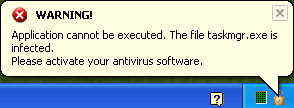
    When running, System Progressive Protection scareware displays bogus messages announcing that certain applications are infected, Task manager for example. Of course, it blocks legitimate security products so if your antivirus program didn't stop the rogue program then it probably won't work throwing some error message or something like that. The good news is however System Progressive Protection doesn't work in Safe Mode with Networking, so you can easily use recommend anti-malware software to remove System Progressive Protection from your computer.

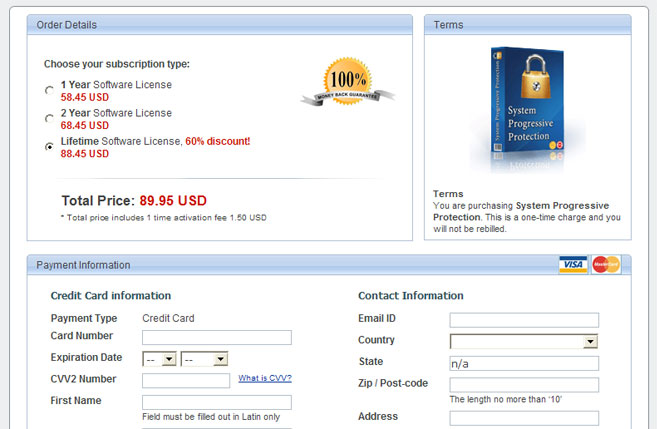
    Here's a screenshot of what the fake payment web page looks like:


    There's this nice product box. Also, a 100% money back guarantee logo and common Visa and Master card logos. As you can see, a total price for System Progressive Protection lifetime license is about 90 bucks. It's a very expensive antivirus product.

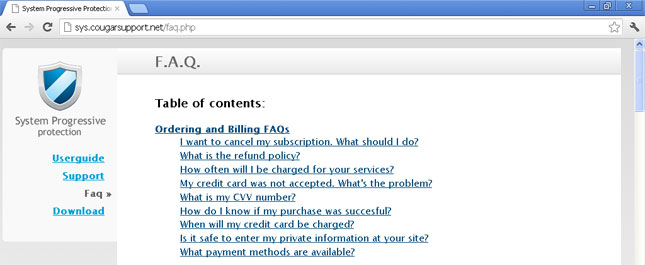
    System Progressive Protection has a support page as well (sys.cougarsupport.net). Too bad they do not follow their own guidelines, especially their refund policy.


    Another unique thing about Winwebsec malware family is that most rogue apps have working or partly working uninstallers. They are available via Add/Remove programs. However, when the computer is infected the user cannot uninstall it. So, there's a uninstaller but you can't use it to remove the rogue program until your pay for a full version. This is the way it works :)

    To remove System Progressive Protection from your computer, please follow the removal instructions below. There are three simple ways you can remove this virus. The first removal method is probably the easiest: using cracked registration key + anti-malware software. Scroll the page down to find the key. The second variant is also easy but it may take longer and unfortunately it may not work for all users due to additionally installed malware. And finally, you can remove the rogue program manually yourself without using any anti-malware software. But this isn't a good idea because there are many chances you will leave some malicious code on your computer and the rogue program will come back. So, even if you remove the rogue application manually, you will have to scan your computer with anti-malware software whatsoever.

    Source: http://deletemalware.blogspot.com


    Quick System Progressive Protection removal guide:

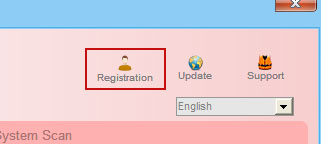
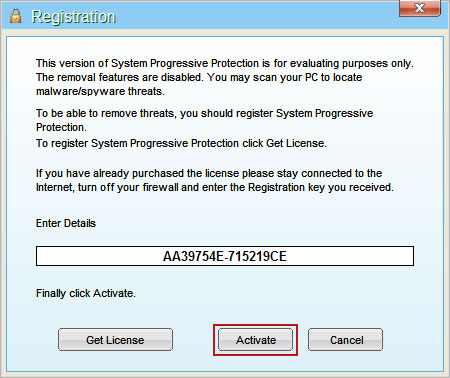
    1. Open System Progressive Protection scanner. Click the "Registration" button (top right corner).


    Enter the following debugged registration key and click "Activate" to register the rogue antivirus program. Don't worry, this is completely legal since it's not genuine software.

    AA39754E-715219CE


    Once this is done, you are free to install recommended anti-malware software and remove System Progressive Protection from your computer properly.

    2. Download recommended anti-malware software (direct download) and run a full system scan to remove this virus from your computer.

    NOTE: don't forget to update anti-malware software before scanning your computer.


    System Progressive Protection removal in Safe Mode with Networking:

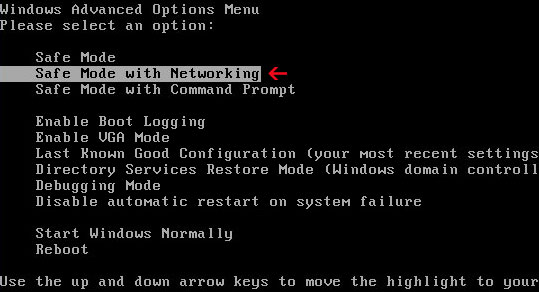
    1. Reboot your computer is "Safe Mode with Networking". As the computer is booting tap the "F8 key" continuously which should bring up the "Windows Advanced Options Menu" as shown below. Use your arrow keys to move to "Safe Mode with Networking" and press Enter key.


    NOTE: Login as the same user you were previously logged in with in the normal Windows mode.

    2. Download recommended anti-malware software (direct download) and run a full system scan to remove this virus from your computer.

    NOTE: don't forget to update anti-malware software before scanning your computer.


    System Progressive Protection manual removal:

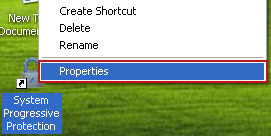
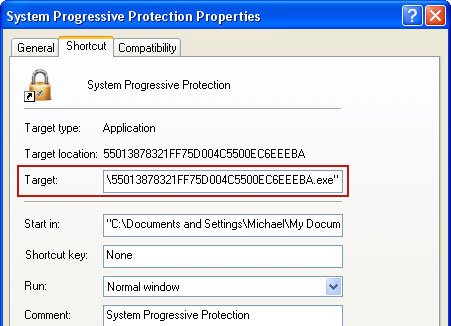
    1. First of all, go to your Desktop and right click the System Progressive Protection.lnk shortcut file and select Properties.


    2. Select Shortcut tab. Find the location of System Progressive Protection executable file (target location). It should be a randomly named file.


    3. Browser to the executable file. Rename it, for instance to virus.exe. Restart Windows.


    4. Download recommended anti-malware software (direct download) and run a full system scan to remove this virus from your computer.

    NOTE: don't forget to update anti-malware software before scanning your computer.


    Associated System Progressive Protection files and registry values:

    Files:

    Windows XP:
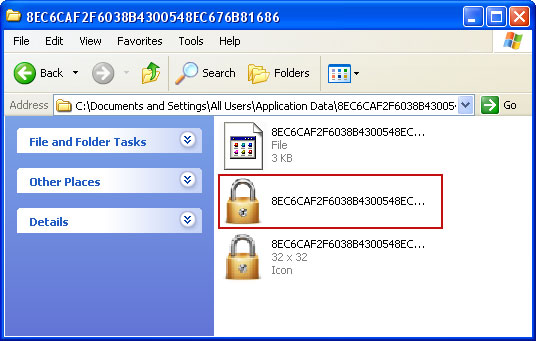
    • C:\Documents and Settings\All Users\Application Data\[SET OF RANDOM CHARACTERS]\
    • %UserProfile%\Desktop\System Progressive Protection.lnk
    • %UserProfile%\Start Menu\Programs\System Progressive Protection\
    • %UserProfile%\Start Menu\Programs\System Progressive Protection\System Progressive Protection.lnk
    Windows Vista/7:
    • C:\ProgramData\[SET OF RANDOM CHARACTERS]\
    • %UserProfile%\Desktop\System Progressive Protection.lnk
    • %UserProfile%\Start Menu\Programs\System Progressive Protection\
    • %UserProfile%\Start Menu\Programs\System Progressive Protection\System Progressive Protection.lnk
    Registry values:
    • HKEY_CURRENT_USER\Software\Microsoft\Windows\CurrentVersion\RunOnce "[SET OF RANDOM CHARACTERS]"
    • HKEY_CURRENT_USER\software\Microsoft\Windows\CurrentVersion\Uninstall\System Progressive Protection\
    Tell your friends: