Text Enhance is an intext advertising platform that allows publishers to monetize their content. At first glance, it's no different than any other advertising platform, except for one thing – publishers can use "plugins" to display intext ads. Broadly speaking, this term "plugin" is used to describe a web browser extension or an add-on. The idea is not necessarily bad and it might even work but it seems that the platform is already being abused a lot. Image how hard it would be to convince your visitors to voluntarily install such Firefox or Chrome extensions that highlight certain words on nearly every site you visit and turn them into tiny little ads. I think that's almost impossible. That's why cyber crooks use social engineering,
fake alerts and notifications to convince users into installing such web browser extensions. Besides, publishers can bundle Text Enhance extensions and add-ons with other software.
Text Enhance shows up as links in websites you view. This can be a very irritating situation because malicious web browser extensions use the same hyperlink style as the website you view. When you hover over Text Enhance link, it says "Powered by Text-Enhance" and then displays an advertisement that is not necessarily relevant to the topic you are reading on that particular website.
Here’s an example of a "work at home" advertisement displayed by Text Enhance on a very popular gaming forum.

Another example, "Win an iPad" ad showed up when I hovered over a word "your" in the middle of the text. The ad is completely irrelevant.

Dating ads are very popular as well. Hovering over "girlfriend" will probably display ads similar to this one.

What is more, very often these ads lead users to spammy and even dangerous websites. Who can guaranty you that cyber crooks are not using this platform to distribute Trojans, spyware and other malicious software? I guess no one. So, if you think that your computer might be or almost certainly is infected with Text Enhance virus, I highly recommend you to remove it. By the way, you can follow the opt-out procedure which is available on the official Text Enhance website to bock ads, but I'm afraid it might not work in case you got infected with this malware.
Text Enhance malware is distributed mostly through the use of warez and online video streaming websites. Usually, scammers display fake notifications that your Flash player is not updated or that you need to install a "special" plugin in order to watch requested video or download files.
Here's how the fake "Error: missing plugin" warning looks like (Mozilla Firefox).

The same warning message displayed in Google Chrome.

Both warnings are very misleading and unfortunately may trick users into installing malicious web browser extensions. I've said this many times before: install web browser extensions and add-ons only from the official stores or websites you trust.
Here's another very popular notification claiming that "Your system doesn't support this video file". Needless to say it's completely false because all you need to watch videos online is Flash player. Sometimes it's enough to use a modern web browser, HTML5 compatible to watch videos. Stay away from extra plugins and codecs!

Antivirus programs may detect and block misleading error warnings but they rarely detect potentially harmful web browser extensions. Most of the time, they do not pose direct threats to users but they are still potentially harmful, not to mention how annoying they are. I think antivirus companies should check browser extensions, add-ons and browser helper object more carefully.
If you are infected with Text Enhance, please follow the steps in the removal guide below. It will show you how to remove Text Enhance virus in Mozilla Firefox, Google Chrome, Internet Explorer and Apple Safari. I'm sure it will be listed as completely different program and web browser extensions. I made a list of programs and web browser extensions that are related to Text Enhance and may cause "Powered by Text-Enhance" ads to show up on your computer screen. I will update this list as often as I can. In case I missed something, please leave a comment below. One more thing, when you remove the culprit of Text Enhance ads, I recommend you to uninstall Flash player as well. Uninstall it completely and install the latest version. Text Enhance may interact with Flash Player to display ads. I noticed that when Flash Player is disabled Text Enhance ads do not show up. Last, but not least, if you have any questions or additional information about this virus, please leave a comment. Good luck and be safe online!
Source: http://deletemalware.blogspot.com
Text Enhance removal instructions:1. First of all, download recommended anti-malware software and run a full system scan. It will detect and remove this infection from your computer. You may then follow the manual removal instructions below to remove the leftover traces of this browser hijacker. Hopefully you won't have to do that.
2. Remove Text Enhance and/or related programs from your computer using the
Add/Remove Programs control panel (Windows XP) or
Uninstall a program control panel (Windows 7 and Windows 8).
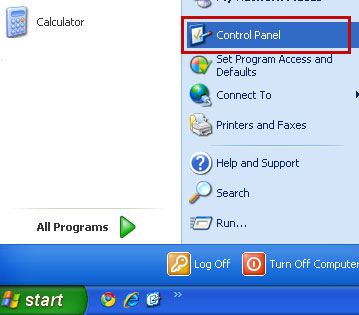
Go to the
Start Menu. Select
Control Panel →
Add/Remove Programs.
If you are using Windows Vista or Windows 7, select
Control Panel →
Uninstall a Program.
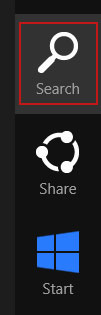
If you are using Windows 8, simply drag your mouse pointer to the right edge of the screen, select
Search from the list and search for "control panel".
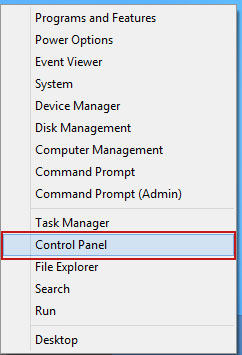
Or you can right-click on a bottom left hot corner (formerly known as the Start button) and select
Control panel from there.
3. When the
Add/Remove Programs or the
Uninstall a Program screen is displayed, scroll through the list of currently installed programs and remove the following entries (if exist):
- Bandicam
- BCool
- BeCool
- Better Links
- Bflix1.0
- Browser Enhancements 1.0
- Click 2 Save
- CodecC
- CodecM
- Crossrider
- Dealply
- Deals Plugin
- Downloadnsave
- Extension
- Facebook Dislike
- Facetheme
- Fantapper
- Fast save
- Freemind
- Game Play Labs
- I-livid
- I Want That
- I Want This
- Iminent
- Installed Class
| - With Java plug-ins
- Jlmp3
- Media Plugin
- Pando Media Enhancer
- Premiumplay Codec
- Privacy SafeGuard
- Protector by IB
- Rewardsarcade
- RewardsArcadeSuite
- Splashtop Inc
- Startnow Toolbar
- TheBflix
- TheBflix5.0
- TheBflix Class
- Toad
- Vid-Saver
- Video File Download
- Vuze
- Widgi
- wxDfast
- Yontoo
- YouTube Plus
- ZoomEx
- ZoomIt
|

Simply select each application and click
Remove. If you are using Windows Vista, Windows7 or Windows 8, click
Uninstall up near the top of that window. When you're done, please close the Control Panel screen.
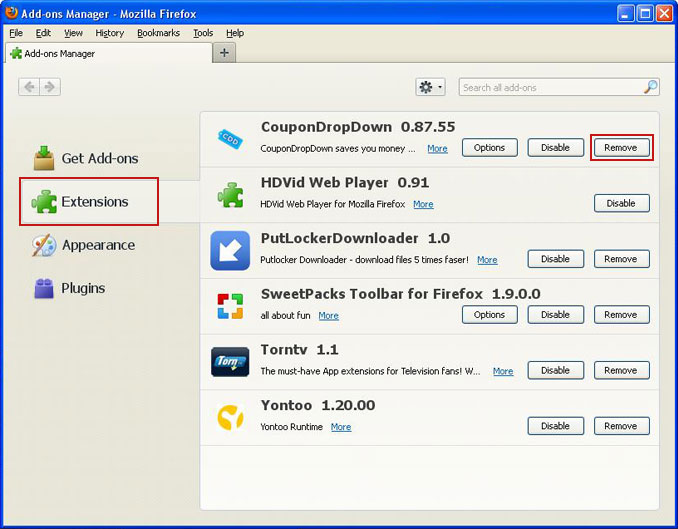
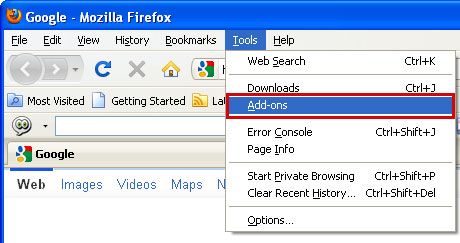
Remove Text Enhance in Mozilla Firefox:1. Open Mozilla Firefox. Go to
Tools →
Add-ons.
2. Select
Extensions. If any of the extensions listed below exist, click on the
Remove button next to each one. If you can't find the
Remove button, then simply click on the Disable button.
- Bandicam
- BCool
- BeCool
- Better Links
- Bflix1.0
- Browser Enhancements 1.0
- Click 2 Save
- CodecC
- CodecM
- Crossrider
- Dealply
- Deals Plugin
- Downloadnsave
- Extension
- Facebook Dislike
- Facetheme
- Fantapper
- Fast save
- Freemind
- Game Play Labs
- I-livid
- I Want That
- I Want This
- Iminent
- Installed Class
| - With Java plug-ins
- Jlmp3
- Media Plugin
- Pando Media Enhancer
- Premiumplay Codec
- Privacy SafeGuard
- Protector by IB
- Rewardsarcade
- RewardsArcadeSuite
- Splashtop Inc
- Startnow Toolbar
- TheBflix
- TheBflix5.0
- TheBflix Class
- Toad
- Vid-Saver
- Video File Download
- Vuze
- Widgi
- wxDfast
- Yontoo
- YouTube Plus
- ZoomEx
- ZoomIt
|

Once you have found and removed all of the above extensions that were installed on your computer, you can close Mozilla Firefox. Disabling a web browser extension might also help, however, it still exists on your PC. Some extensions might be blocked or only have an option to disable them. In such case, I recommend you to delete extensions manually.
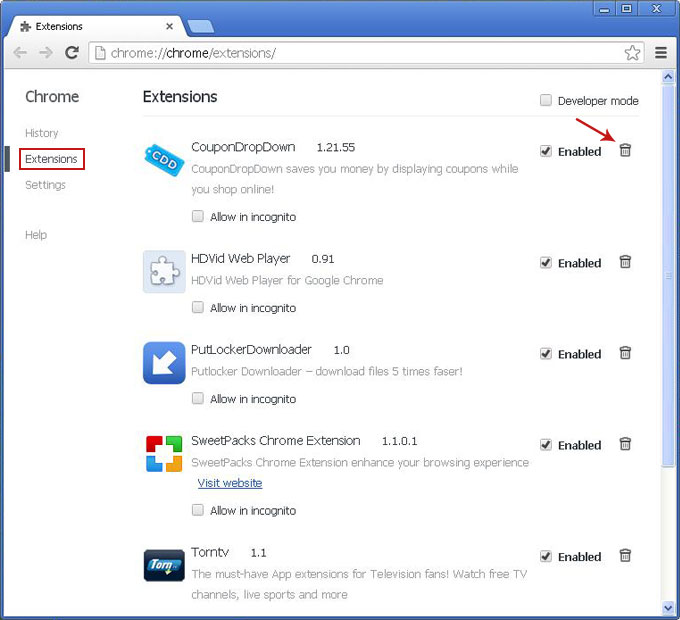
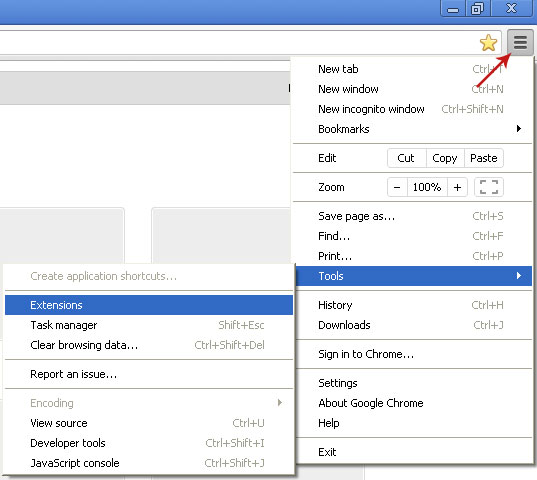
Remove CouponDropDown in Google Chrome:1. Click on
Chrome menu button. Go to
Tools →
Extensions.
2. Click on the
trashcan icon and remove the extensions listed below if they are present:
- Bandicam
- BCool
- BeCool
- Better Links
- Bflix1.0
- Browser Enhancements 1.0
- Click 2 Save
- CodecC
- CodecM
- Crossrider
- Dealply
- Deals Plugin
- Downloadnsave
- Extension
- Facebook Dislike
- Facetheme
- Fantapper
- Fast save
- Freemind
- Game Play Labs
- I-livid
- I Want That
- I Want This
- Iminent
- Installed Class
| - With Java plug-ins
- Jlmp3
- Media Plugin
- Pando Media Enhancer
- Premiumplay Codec
- Privacy SafeGuard
- Protector by IB
- Rewardsarcade
- RewardsArcadeSuite
- Splashtop Inc
- Startnow Toolbar
- TheBflix
- TheBflix5.0
- TheBflix Class
- Toad
- Vid-Saver
- Video File Download
- Vuze
- Widgi
- wxDfast
- Yontoo
- YouTube Plus
- ZoomEx
- ZoomIt
|

Once you have found and removed all of the above extensions that were installed on your computer, you can close Google Chrome. Please note, that some extensions might be locked (remove option is disabled). In such case, you have to remove those extensions manually. Enable
Developer Mode to find extension's name that go to Google Chrome extension folder and delete it. Google Chrome extension folder placed in the following directory:
Windows 7 → C:\Users\[UserName]\AppData\Local\Google\Chrome\User Data\Default\Extensions
Windows XP → C:\Documents and Settings\[UserName]\Local Settings\Application Data\Google\Chrome\User Data\Default\Extensions
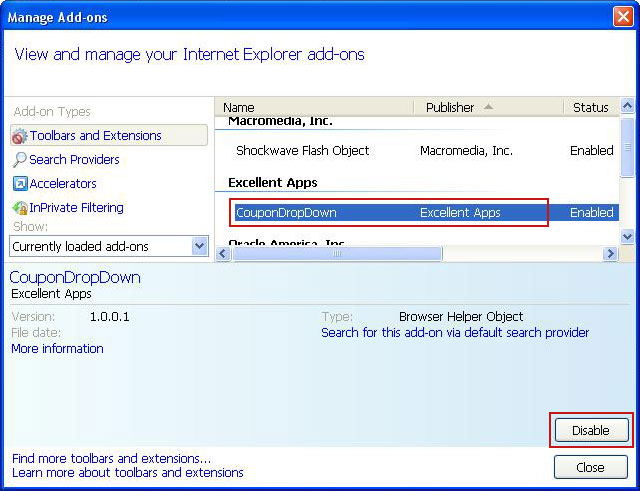
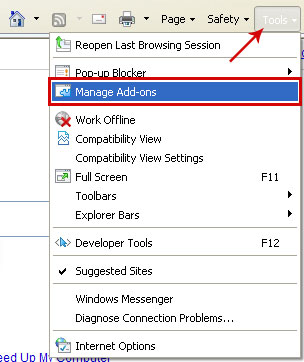
Remove Text Enhance in Internet Explorer:1. Open Internet Explorer. Go to
Tools →
Manage Add-ons. If you have the latest version, simply click on the
Settings button.
2. Select
Toolbars and Extensions. If any of the extensions listed below exist, select it and then click on the
Remove/Disable button to remove it from Internet Explorer.
- Bandicam
- BCool
- BeCool
- Better Links
- Bflix1.0
- Browser Enhancements 1.0
- Click 2 Save
- CodecC
- CodecM
- Crossrider
- Dealply
- Deals Plugin
- Downloadnsave
- Extension
- Facebook Dislike
- Facetheme
- Fantapper
- Fast save
- Freemind
- Game Play Labs
- I-livid
- I Want That
- I Want This
- Iminent
- Installed Class
| - With Java plug-ins
- Jlmp3
- Media Plugin
- Pando Media Enhancer
- Premiumplay Codec
- Privacy SafeGuard
- Protector by IB
- Rewardsarcade
- RewardsArcadeSuite
- Splashtop Inc
- Startnow Toolbar
- TheBflix
- TheBflix5.0
- TheBflix Class
- Toad
- Vid-Saver
- Video File Download
- Vuze
- Widgi
- wxDfast
- Yontoo
- YouTube Plus
- ZoomEx
- ZoomIt
|

Once you have removed/disabled all of the above extensions (if existed), you can close Internet Explorer.
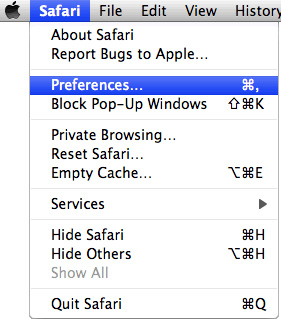
Remove Text Enhance in Apple Safari:1. Open Safari. Go to
Preferences.
2. Select the
Extensions tab. If any of the extensions listed below exist, select it and then click on the
Uninstall button to remove it from Apple Safari.
- Bandicam
- BCool
- BeCool
- Better Links
- Bflix1.0
- Browser Enhancements 1.0
- Click 2 Save
- CodecC
- CodecM
- Crossrider
- Dealply
- Deals Plugin
- Downloadnsave
- Extension
- Facebook Dislike
- Facetheme
- Fantapper
- Fast save
- Freemind
- Game Play Labs
- I-livid
- I Want That
- I Want This
- Iminent
- Installed Class
| - With Java plug-ins
- Jlmp3
- Media Plugin
- Pando Media Enhancer
- Premiumplay Codec
- Privacy SafeGuard
- Protector by IB
- Rewardsarcade
- RewardsArcadeSuite
- Splashtop Inc
- Startnow Toolbar
- TheBflix
- TheBflix5.0
- TheBflix Class
- Toad
- Vid-Saver
- Video File Download
- Vuze
- Widgi
- wxDfast
- Yontoo
- YouTube Plus
- ZoomEx
- ZoomIt
|
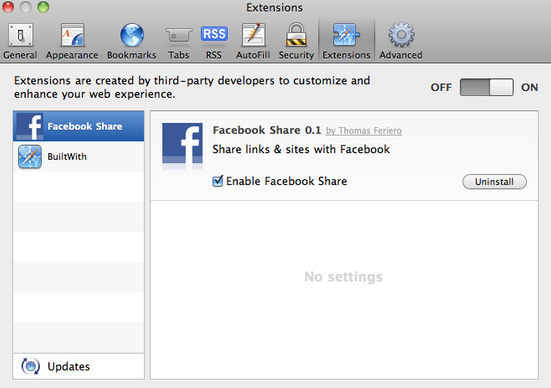
Once you have removed all of the above extensions (if existed), you can close Apple Safari.
Optional steps:1. Opt-out of text-enhance.com advertisements → http://text-enhance.com/optout.php
3. Uninstall Flash Player. Please follow this
uninstall guide.
3. Download and install the latest version of Flash Player. Download is available
here.
Tell your friends: