Wednesday, 20 March 2013

Remove Department of Justice virus

Imagine that one day you are surfing the net and suddenly an alarming warning pops up with an official seal of the U.S. Department of Justice. The pop-up informs you that you must pay $300 dollars or even more in order to get your computer unlocked because the presence of an illegal download or adult content has been detected on your computer. It may even claim that your actions have been recorded with your own webcam. Your IP address is there, as well as instructions on how to pay the fine. No matter how many times you turn the computer on and off again, or if you try logging on multiple times, you still get the same frozen screen. What do you do?

Well, hopefully, you will ignore the insidious warning and take it directly to a professional to get help, restore the system to a previous date, or run a real anti-malware program you've downloaded on a clean computer. If you see any of the fake warnings shown in the images below, your computer is definitely infected with the Department of Justice. To remove this virus from your computer, please follow the steps in the removal guide below.

There are a few different variants if this virus. The fake warnings are slightly different too. The latest variant does't display victim's IP and doesn't attempt to take a picture using victim's web cam.


However, other variants still display IPs and take pictures. They are still being distributed, so you may get infected with any of these.


Some of the warnings displayed by this virus are truly awful. Accessing your webcam to take a picture of you or your place or showing you a "file" of illegal adult materials that have been "found" on your computer. Many users become confused, scared, or are afraid that law enforcement will soon knock at their doors. This virus is becoming such a problem that at the end of last year the Internet Crime Complaint Center (IC3), a governmental agency that deals with cybercrime, released a scam warning about this very virus due to the number of complaints they were receiving about it, daily. The situation hasn't changed much. The virus is still active.

The United States Department of Justice virus will display the following warning:

Your computer has been blockedThe work of your computer has been suspended on the grounds of the violation of the law of the United States of America. 
Article 274 – Copyright
A fine or imprisonment for the term of up to 4 years.
Article 183 – Adult materialA fine or imprisonment for the term of up to 2 years
Article 104 - Promoting Terrorism
Article 297 – Neglect computer use, entailing serious consequences

Some European versions of ransomware virus demand as much as $3,800 in payment before the cyber criminals will "unlock" your computer. Not only that, but some users who have been infected report that even after paying the fine (through wire transfer, the purchase of a prepaid money card, or through an online service where customers cannot get their money refunded) that the virus still comes back to demand even more money if they do not have their systems properly cleaned, fixed or restored. That is partially where the virus name comes from: it often asks victims to purchase GreenDot MoneyPak prepaid cards at major retailers. Furthermore, one of the newer versions may actually encrypt your documents refusing to release them until the money has been paid. Such variants, however, are less common here, in the United States. But who knows, they might use the same tactics hare soon.

It sounds hard to believe that someone would actually fall for such a scam, but, surprisingly, some people actually pay the fine. Cyber criminals employing Department of Justice virus could easily make up to $54,000 in a single day. So, do not fall for this scam. There are plenty of things that you can do in order to protect yourself, your computer, and your documents from this sort of attack before it happens. First of all, do not visit any suspicious websites, be careful about file-sharing, download software and other stuff from websites your trust and know to be safe, and do not open email attachments or messages from people you do not know.

These tips seem to be fairly basic but even if you do all these things, there is no guarantee that your computer will not become infected. Many of those infected were not taking part of illegal download activities, peer-to-peer sharing, or were even on any suspicious sites, and they still were attacked by Department of Justice virus. They simply visited a legal but infected websites. Unfortunately, their antivirus programs didn't stop the virus. So, it's very important to use a reliable antivirus program and to make sure that it's updates.

Firstly, one of the easiest ways to defeat this virus yourself (without the help of expensive services or other programs) is to have a system restore point saved on your computer. Of course, you will have to use anti-malware programs one way or another, because system restore may only stop the virus for some time or remove it partly. With this, you can start up your system in safe mode with command prompt by pressing and holding the F8 key as your computer restarts, selecting the operating system to start in safe mode, and pressing enter. You want to make sure you have administrator privileges on your machine, log in using those credentials, and then type, "C:\windows\system32\rstrui.exe" in the command prompt screen. Just hit enter again, and follow the given instructions. In this way, you can roll back your machine to a previous state before you got infected with Department of Justice moneypak virus .

After your computer is restored, you should install recommended anti-malware software immediately and download all the updates available. Feel free to use any program you believe works, and that you trust. You will find a download link below. This ensures that the virus is gone and will stay that way. You can even find a few videos online that will guide you through this process but honestly, they are either incomplete or outdated. Scammers repack this virus often, so it's kinda difficult to keep up with them.

If this seems too difficult for you, or you're still unsure, you can always call a professional. Note, that won't be cheap. Also, if you do get help from a professional, or even do the roll back yourself, you want to be sure that the virus is completely erased from your system before using your machine again. Failure to not fully remove the virus may result in repeated frozen screens, or may allow cyber criminals to gain access to personal information such as emails, passwords, usernames, and more.

Last but not least, don't forget to file a complaint at the Internet Crime Complaint Center by visiting their website www.IC3.gov. When you report the cybercrime, you are helping to protect other users not only in the United States, but around the globe.

To remove Department of Justice virus from your computer, please follow the removal instructions below. Do you have any additional information or questions on this virus? Post your comment or question below. Good luck and be safe online!

Written by Michael Kaur, http://deletemalware.blogspot.com


Method 1: Department of Justice virus removal instructions using System Restore in Safe Mode with Command Prompt:

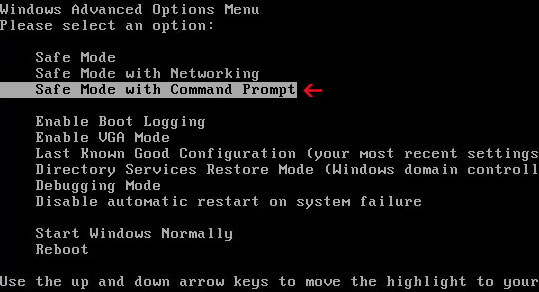
1. Unplug your network cable and manually turn your computer off. Reboot your computer is "Safe Mode with Command Prompt". As the computer is booting tap the "F8 key" continuously which should bring up the "Windows Advanced Options Menu" as shown below. Use your arrow keys to move to "Safe Mode with Command Prompt" and press Enter key.


2. Make sure you log in to an account with administrative privileges (login as admin).

3. Once the Command Prompt appears you have few seconds to type in explorer and hit Enter. If you fail to do it within 2-3 seconds, the virus will take over and will not let you type anymore.

4. If you managed to bring up Windows Explorer you can now browse into:
  • Win XP: C:\windows\system32\restore\rstrui.exe and press Enter
  • Win Vista/Seven: C:\windows\system32\rstrui.exe and press Enter
5. Follow the steps to restore your computer into an earlier day.

6. Download recommended anti-malware software (direct download) and run a full system scan to remove the remnants of Department of Justice virus.


Method 2: Department of Justice virus removal instructions using System Restore in Safe Mode:

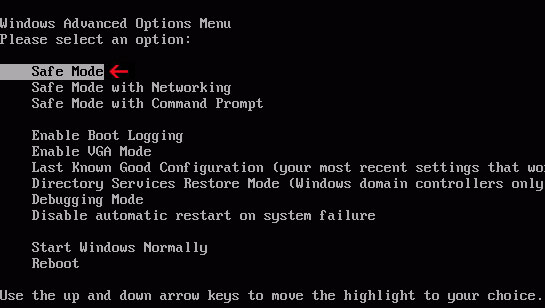
1. Power off and restart your computer. As the computer is booting tap the "F8 key" continuously which should bring up the "Windows Advanced Options Menu" as shown below. Use your arrow keys to move to "Safe Mode" and press Enter key.

NOTE: Login as the same user you were previously logged in with in the normal Windows mode.

2. Once in there, go to Start menu and search for "system restore". Or you can browse into the Windows Restore folder and run System Restore utility from there:
  • Win XP: C:\windows\system32\restore\rstrui.exe double-click or press Enter
  • Win Vista/7/8: C:\windows\system32\rstrui.exe double-click or press Enter
3. Select Restore to an earlier time or Restore system files... and continue until you get into the System Restore utility.

4. Select a restore point from well before the Department of Justice virus appeared, two weeks should be enough.

5. Restore it. Please note, it can take a long time, so be patient.

6. Once restored, restart your computer and hopefully this time you will be able to login (Start Windows normally).

7. At this point, download recommended anti-malware software (direct download) and run a full system scan to remove the Department of Justice virus.


Method 3: Department of Justice virus removal instructions using MSConfig in Safe Mode:

1. Power off and restart your computer. As the computer is booting tap the "F8 key" continuously which should bring up the "Windows Advanced Options Menu" as shown below. Use your arrow keys to move to "Safe Mode" and press Enter key.


NOTE: Login as the same user you were previously logged in with in the normal Windows mode.

2. Once in there, go to Start menu and search for "msconfig". Launch the application. If you're using Windows XP, go to Start then select Run.... Type in "msconfig" and click OK.

3. Select Startup tab. Expand Command column and look for a startup entry that launches randomly named file from %AppData% or %Temp% folders using rundll32.exe. See example below:

C:\Windows\System32\rundll32.exe C:\Users\username\appdata\local\temp\regepqzf.dll,H1N1

4. Disable the malicious entry and click OK to save changes.

5. Restart your computer. This time Start Windows normally. Hopefully, you won't be prompted with a fake Department of Justice.

6. Finally, download recommended anti-malware software (direct download) and run a full system scan to remove the virus.


Method 4: Department of Justice virus removal instructions in Safe Mode with Command Prompt (requires registry editing):

1. Reboot your computer is "Safe Mode with Command Prompt". As the computer is booting tap the "F8 key" continuously which should bring up the "Windows Advanced Options Menu" as shown below. Use your arrow keys to move to "Safe Mode with Command Prompt" and press Enter key. Login as the same user you were previously logged in with in the normal Windows mode.


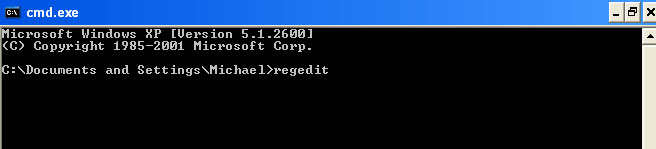
2. When Windows loads, the Windows command prompt will show up as show in the image below. At the command prompt, type explorer, and press Enter. Windows Explorer opens. Do not close it.



3. Then open the Registry editor using the same Windows command prompt. Type regedit and press Enter. The Registry Editor opens.


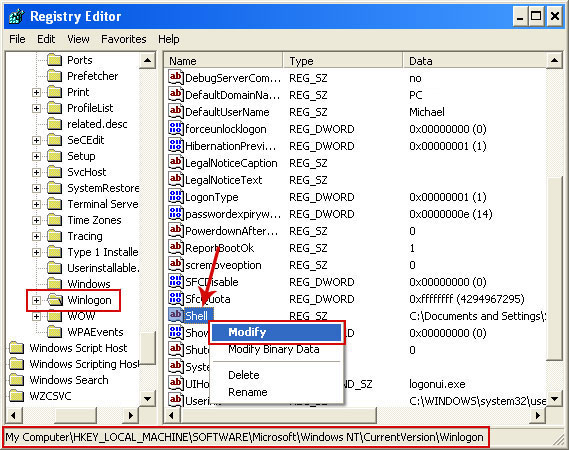
4. Locate the following registry entry:

HKEY_LOCAL_MACHINE\SOFTWARE\Microsoft\Windows NT\CurrentVersion\Winlogon\

In the righthand pane select the registry key named Shell. Right click on this registry key and choose Modify.


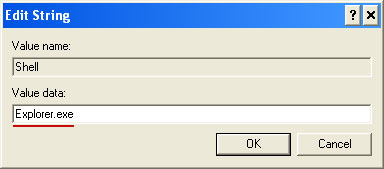
Default value is Explorer.exe.


Modified value data points to Trojan Ransomware executable file.
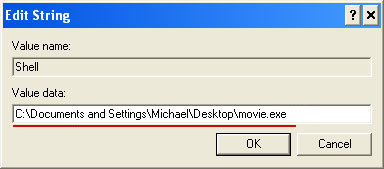


Please copy the location of the executable file it points to into Notepad or otherwise note it and then change value data to Explorer.exe. Click OK to save your changes and exit the Registry editor.

5. Remove the malicous file. Use the file location you saved into Notepad or otherwise noted in step in previous step. In our case, "Department of Justice was run from the Desktop. There was a file called movie.exe.

Full path: C:\Documents and Settings\Michael\Desktop\movie.exe
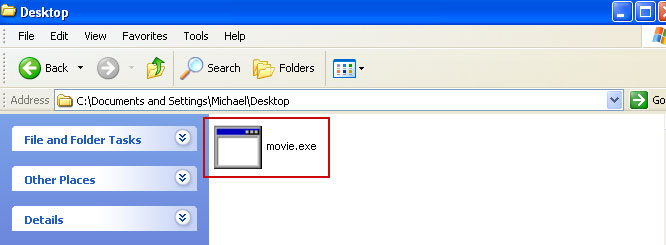


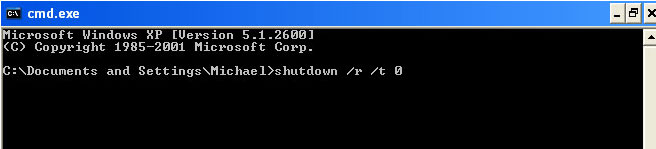
Go back into "Normal Mode". To restart your computer, at the command prompt, type shutdown /r /t 0 and press Enter.


6. Download recommended anti-malware software (direct download) and run a full system scan to remove the leftovers of this virus from your computer. That's it!


Method 5: Department of Justice virus removal using Kaspersky Rescue Disk:

1. Download the Kaspersky Rescue Disk iso image from the Kaspersky Lab server. (Direct download link)
Please note that this is a large downloaded, so please be patient while it downloads.

2. Record the Kaspersky Rescue Disk iso image to a CD/DVD. You can use any CD/DVD record software you like. If you don't have any, please download and install ImgBurn. Small download, great software. You won't regret it, we promise.

For demonstration purposes we will use ImgBurn.

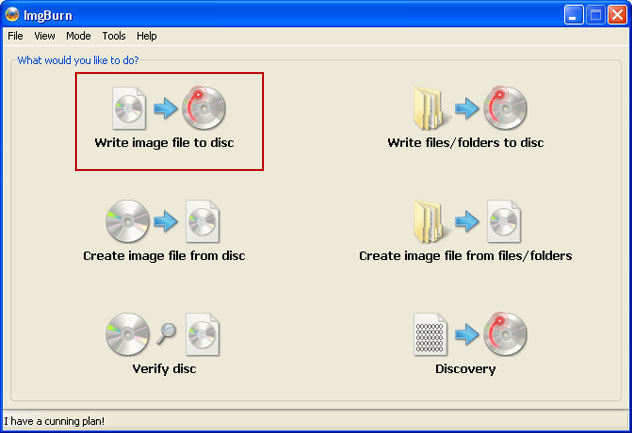
So, open up ImgBurn and choose Write image file to disc.


Click on the small Browse for file icon as show in the image. Browse into your download folder and select kav_rescue_10.iso as your source file.
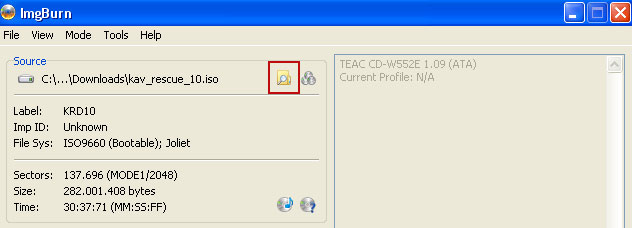


OK, so know we are ready to burn the .iso file. Simply click the Write image file to disc button below and after a few minutes you will have a bootable Kaspersky Rescue Disk 10.



3. Configure your computer to boot from CD/DVD. Use the Delete or F2, F11 keys, to load the BIOS menu. Normally, the information how to enter the BIOS menu is displayed on the screen at the start of the OS boot.



The keys F1, F8, F10, F12 might be used for some motherboards, as well as the following key combinations:
  • Ctrl+Esc
  • Ctrl+Ins
  • Ctrl+Alt
  • Ctrl+Alt+Esc
  • Ctrl+Alt+Enter
  • Ctrl+Alt+Del
  • Ctrl+Alt+Ins
  • Ctrl+Alt+S
If you can enter Boot Menu directly then simply select your CD/DVD-ROM as your 1st boot device.

If you can't enter Boot Menu directly then simply use Delete key to enter BIOS menu. Select Boot from the main BIOS menu and then select Boot Device Priority.
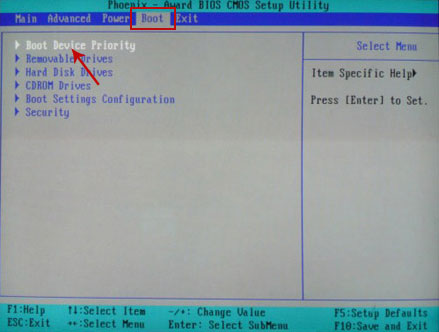


Set CD/DVD-ROM as your 1st Boot Device. Save changes and exist BIOS menu.
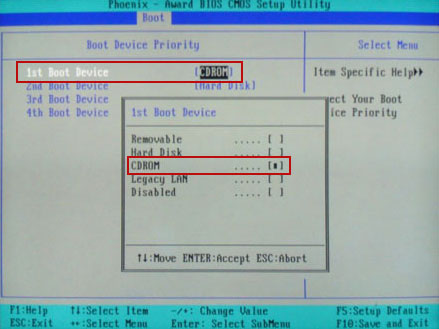


4. Let's boot your computer from Kaspersky Rescue Disk.

Restart your computer. After restart, a message will appear on the screen: Press any key to enter the menu. So, press Enter or any other key to load the Kaspersky Rescue Disk.



5. Select your language and press Enter to continue.
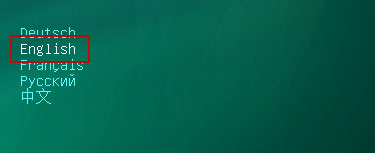


6. Press 1 to accept the End User License Agreement.



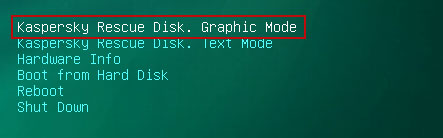
7. Select Kaspersky Rescue Disk. Graphic Mode as your startup method. Press Enter. Once the actions described above have been performed, the operating system starts.


8. Click on the Start button located in the left bottom corner of the screen. Run Kaspersky WindowsUnlocker to remove Windows system and registry changes made by Department of Justice Virus. It won't take very long.
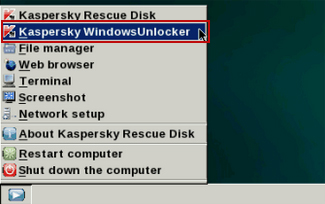


9. Click on the Start button once again and fire up the Kaspersky Rescue Disk utility. First, select My Update Center tab and press Start update to get the latest malware definitions. Don't worry if you can't download the updates. Just proceed to the next step.
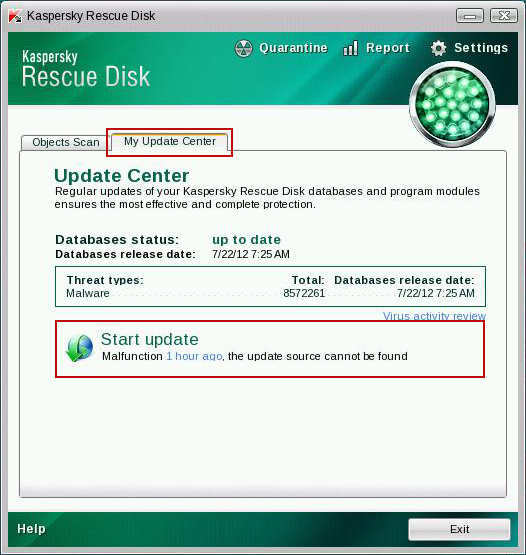


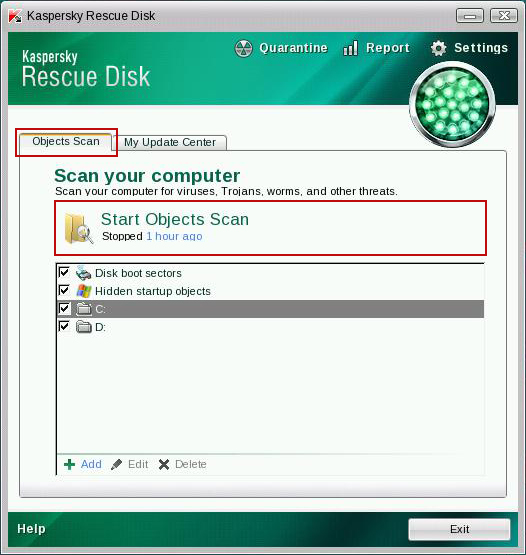
10. Select Object Scan tab. Place a check mark next to your local drive C:\. If you have two or more local drives make sure to check those as well. Then click Start Objects Scan to scan your computer for malicious software.


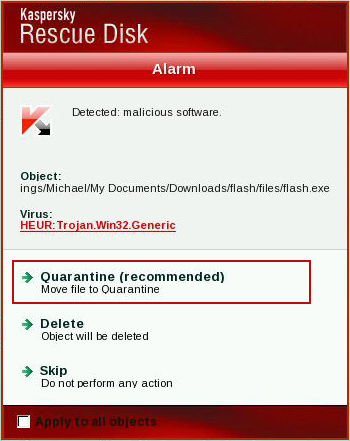
11. Quarantine (recommended) or delete every piece of malicious code detected during the system scan.


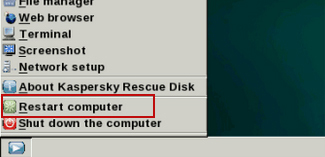
12. You can now close the Kaspersky Rescue Disk utility. Click on the Start button and select Restart computer.


13. Please restart your computer into the normal Windows mode. Download recommended anti-malware software (direct download) and run a full system scan to remove the remnants of Department of Justice virus and to protect your computer against these types of threats in the future.

Tuesday, 19 March 2013

How to Remove AVASoft Professional Antivirus – AVA Soft Antivirus Removal Instructions

AVASoft Professional Antivirus is rather annoying malware categorized as scareware or rogue software. New story but old news, such malware is still relatively popular among cyber crooks and apparently still profitable enough, otherwise they wouldn't bother coding it. Scareware monetization scheme remains the same: the rogue antivirus application reports non existent security threats and dangerous malware on the infected computer and then claims that have to pay at least $60 for fake malware removal and protection software. Keep in mind that cyber crooks ask $60 for the first 6 months, this isn't a one time payment. So, even though it's a completely bogus application, scammers think quite the opposite. So, as I said, scareware has been around the internet for quite some time now but this particular infections is fairly new and has already fooled many people into paying for its fake antivirus protection service.


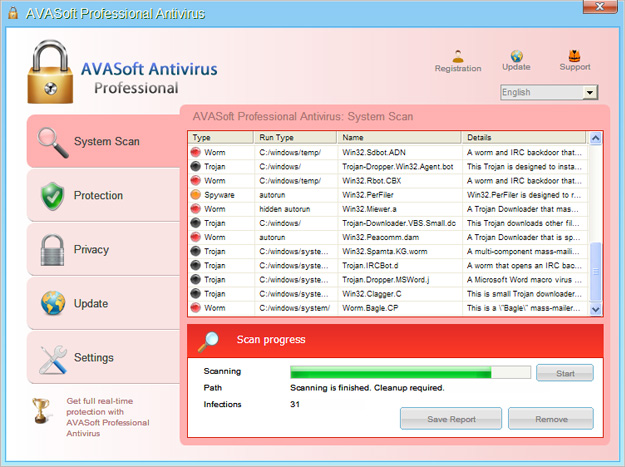
Here's an example of what he fake virus scanner looks like. The title says AVASoft Antivirus Professional, simply add L in front of it and you will get LAVASoft. Coincidence? I don't think so. Of course, it's not their product. Lavasoft is a well known and reputable software company and it's obviously not responsible for this scam.

Just a few quick facts about this malware before we proceed further into removing it: AVA Soft Professional Antivirus will pretend to scan your computer for malicious software and then will give you a message claiming that there are almost twenty or even ore infected files that obviously have to be removed; otherwise your files can be deleted and your private information may be stolen. The fake virus scanner design is kinda professional and may look like a real thing for less computer savvy users, maybe that's the reason why many people have mistaken it for an actual antivirus program.

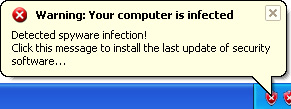
One of many fake security warnings you will see if your computer gets infected with AVASoft Professional Antivirus. This one, shown below, claims that your computer is infected with spyware.


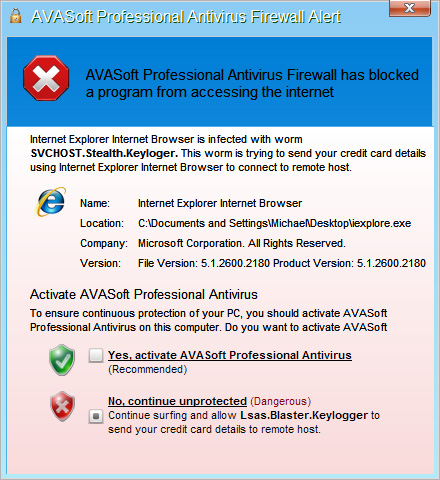
And here's another one, titled AVASoft Professional Antivirus Firewall Alert.


It claims that the rogue application, particularly its firewall module, has blocked Internet Explorer from accessing the Internet. The fake antivirus application indeed blocks web browsers and not just Internet Explorer. It simply displays another warning claiming that the website you are going to visit is infected and supposedly infected with a computer worm called SVCHOST.Stealth.Keyloger. This is not the first time cyber crooks mistype words in their fake security notifications.

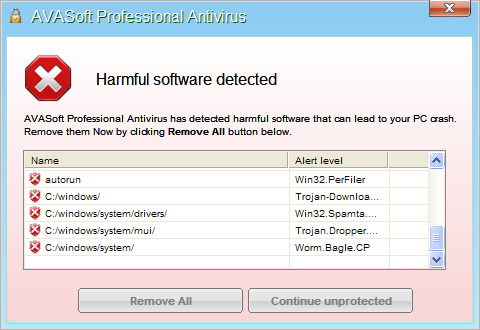
OK, and the last fake security warning I would like to show you says Harmful software detected.


It even mentions some fancy virus names, for instance Worm.Bagle.CP, Win32.PerFiler and many others. Some of them may be real and some fake. I've checked a few of them and they don't seem to exist. Simply close such warnings and do not follow the on screen instructions the rogue application will give you.

Of course, the AVASoft Professional Antivirus has nothing to do with genuine antivirus companies. All the warnings you will get on your computer screen are certainly fake. Unfortunately, many users believe it's the real thing and quickly offer up their credit card information and certain personally identifiable information. DO NOT pay for this completely useless application.

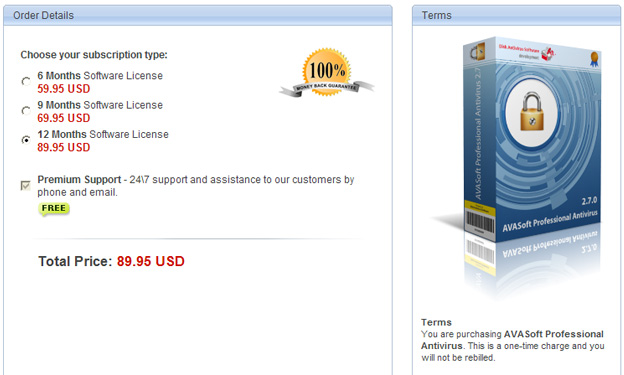
Here's a screenshot of what the fake payment page looks like.


On the right side of the payment page, scammers claim that this is a one-time payment and that you will not be 'rebiled'. However, on the left side of the same page, they ask you to choose subscription type: 6 months, 9 months or 12 months + free support by phone and email. Doesn't make sense, right?. Actually, I wouldn't be surprised if decided to implement semi-annually or annually billings via credit card. I believe this could easily increase their profit.

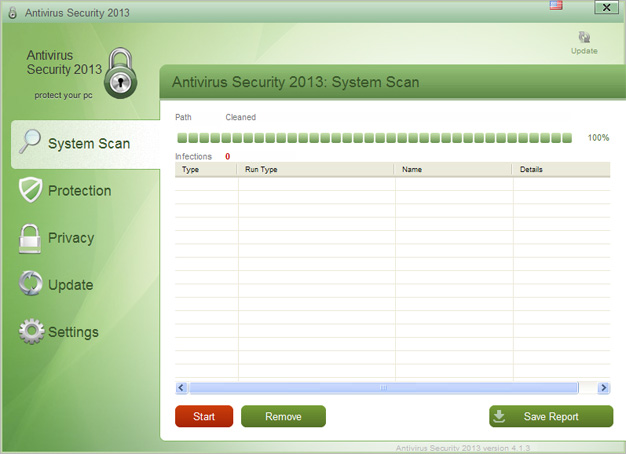
www.tech-ava-soft.org is the official site of this rogue security software. The most interesting part is that they actually present entirely different software on their site. It's called Antivirus Security 2013. This software is translated into a few different languages but most importantly, it doesn't produce false positives and fake security alerts. The product is genuine by the way, because they simply use ClamAV antivirus database instead of maintaining their own. I think they had to do this because otherwise they wouldn't be able to get bank account and payment processors for their software. And that means, they probably have their own support and try to keep the charge-back rates as low as possible to avoid possible restrictions. This is a good news for victims, because if scammers actually care, they will probably return certain amount of money just to stay off the radar.


The worst part about the AVASoft Professional Antivirus infection is that it is a "drive-by download" type of infection, which means nothing has to be downloaded to a computer manually. All you have to is is simply visit an infected website and the virus will automatically be installed on your computer. This makes it very difficult to detect and avoid, but there are some things you can do to help keep your computers free of malicious software.


How to remove AVASoft Professional Antivirus?

Well, first of all, it does not have a standard uninstaller like most programs do, so you will either have to remove it manually or hire a professional to help you to remove AVASoft Professional Antivirus from your computer. However, there are some things just about anyone can try that will often remove this malware, or at least allow you to retrieve full control of your machine. To remove this malware from your computer, please follow the removal instructions below.


If your computer is infected with AVASoft Antivirus the last thing you should do is pay for the "full" version. By paying you are only worsening the situation and exposing yourself to identity theft. Also, you are encouraging cyber crooks to do it again. The best advice is to report the scam to the police and then have it removed from your computer as soon as possible. A little foresight and common sense, though, can keep your computer and valuable files safe from cyber crooks and viruses.

Do you have any additional information or questions on the AVASoft Professional Antivirus? Post your comment or question below. Good luck and be safe online!

Written by Michael Kaur, http://deletemalware.blogspot.com


Method 1: AVASoft Professional Antivirus removal in Safe Mode with Networking:

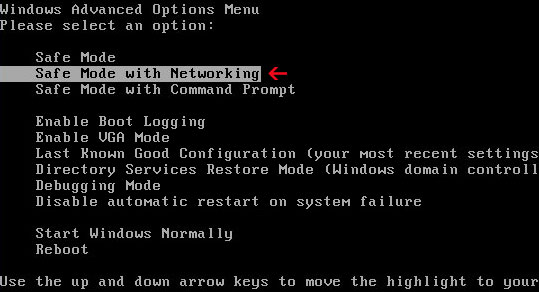
1. Reboot your computer is "Safe Mode with Networking". As the computer is booting tap the "F8 key" continuously which should bring up the "Windows Advanced Options Menu" as shown below. Use your arrow keys to move to "Safe Mode with Networking" and press Enter key.


NOTE: Login as the same user you were previously logged in with in the normal Windows mode.

2. Download recommended anti-malware software (direct download) and run a full system scan to remove this virus from your computer.


NOTE: if you can't run anti-malware software, rename the installer to iexplore.exe and try again.


Method 2: AVASoft Professional Antivirus removal guide using debugged registration key:

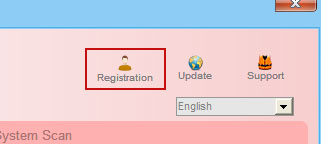
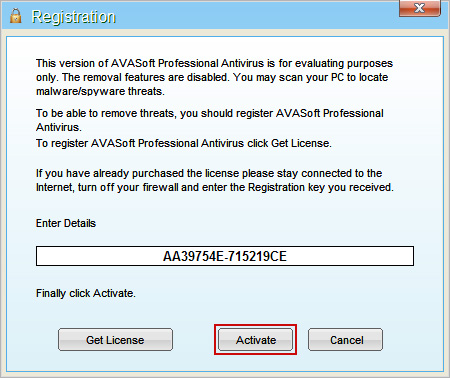
1. Open AVASoft Professional Antivirus scanner. Click the "Registration" button (top right corner).


Enter the following debugged registration key and click "Activate" to register the rogue antivirus program. Don't worry, this is completely legal since it's not genuine software.

AA39754E-715219CE


Once this is done, you are free to install recommended anti-malware software and remove AVASoft Professional Antivirus from your computer properly.

2. Download recommended anti-malware software (direct download) and run a full system scan to remove this virus from your computer.


NOTE: if you can't run anti-malware software, rename the installer to iexplore.exe and try again.


Method 3: AVASoft Professional Antivirus manual removal guide:

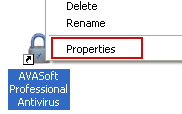
1. First of all, go to your Desktop and right click the AVASoft Professional Antivirus.lnk shortcut file and select Properties.


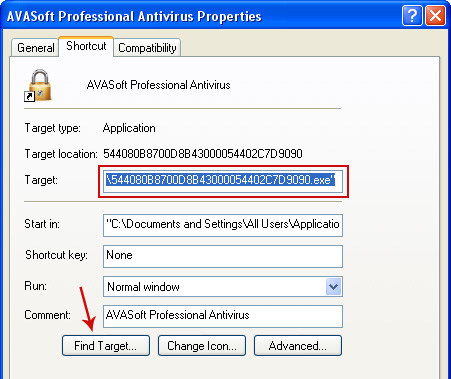
2. Select Shortcut tab. Find the location of AVASoft Professional Antivirus executable file (target location). It should be a randomly named file. Simply click the Find Target button.


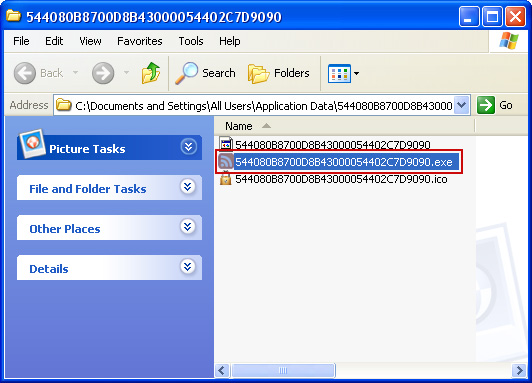
3. Browser to the executable file. Rename it, for instance to virus.exe. Restart Windows.


4. Download recommended anti-malware software (direct download) and run a full system scan to remove this virus from your computer.


NOTE: if you can't run anti-malware software, rename the installer to iexplore.exe and try again.


Associated AVASoft Professional Antivirus files and registry values:

Files:

Windows XP:
  • C:\Documents and Settings\All Users\Application Data\[SET OF RANDOM CHARACTERS]\
  • %UserProfile%\Desktop\AVASoft Professional Antivirus.lnk
  • %UserProfile%\Start Menu\Programs\AVASoft Professional Antivirus\
Windows Vista/7:
  • C:\ProgramData\[SET OF RANDOM CHARACTERS]\
  • %UserProfile%\Desktop\AVASoft Professional Antivirus.lnk
  • %UserProfile%\Start Menu\Programs\AVASoft Professional Antivirus\
Registry values:
  • HKEY_CURRENT_USER\Software\Microsoft\Windows\CurrentVersion\RunOnce "[SET OF RANDOM CHARACTERS]"
  • HKEY_CURRENT_USER\software\Microsoft\Windows\CurrentVersion\Uninstall\AVASoft Professional Antivirus\

Monday, 18 March 2013

Remove System message - Error Seek popup and related malware

System message - Error Seek is a fake warning that shows up when your computer is infected with the System Repair virus. It claims that "The drive cannot locate a specific area or track on the disk. The system cannot find the drive specified. Storage to process this request is not available." Typically, this fake error warning shows up right before the main scanners. It may be also covered with a bunch of other fake notifications, mostly about bad disk sectors, etc.


Please note that the same or very similar warnings way show up when your computer is infected with other fake system defragmenters, for instance System Fix or System File Restore. There are more than twenty of them, you may search this site for detailed write-ups and removal instructions. System message - Error Seek is just a part of more sophisticated malware infection. Very often, such applications are packed with rootkits and spyware modules. Manual removal is possible but not recommended. Just because you can stop the fake warnings doesn't mean your PC is perfect safe.

To remove this infections from your computer, please follow this removal guide. Very important: do not follow on screen instructions and do not attempt to fix reported system errors manually. You will only make the situation worse. Do not pay for the rogue application either. Scammers are really good at this and even though the payment page says you have all rights to get your money back if you are not satisfied, the truth is you won't get your money back. Simple as that. Unless you will contact your credit card company really fast and dispute the charges.

Sunday, 17 March 2013

Remove Chitka pop up ads, removal instructions

Chitka pop up ads are truly annoying, lots of people have this issue, but the worse part is that these frequent intrusive pop-ups are caused by malicious software. What is Chitka? Honestly, I'm not quite sure what it is. I mean I couldn't find anything, any clue about it. Google search suggested Chitika which is a perfectly legitimate online advertising network and obviously has nothing do to with this malware. It sounds almost the same, though. Actually, I think that those who run the malware campaign did this on purpose. They probably try to mislead users.

The primary reason behind the creation and use of this malware is that it enables one to generate profit by forcing hits to specific websites and advertisements. At the same time, it might be used as marketing and commercial strategy for publicity purposes. One way or another, infected users who are getting a bunch of Chitka pop ups and redirects are not happy at all. What is more, they can't remove the culprit of this infection. That’s why I wrote a step-by-step guide on how to remove Chitka pop up virus and other pop-ups from your computer. Please follow the removal instructions below.

Many people are clueless on how they become victims of this malware. They just keep getting popups on their web browsers, sometimes bottom right corner but very often both. Here’s a good example:


Chitka pop up ad appears in the lower right corner of the browser window. And at the same time, in the lower left corner there's another fake pop-up claiming that your Flash Player is outdated. It says: Please install Flash Player HD to continue. Obviously, it's a scam. I've said this many times before – download and install Flash layer from the official website only.

Here’s another example of Chitka pop up:


This time only one pop-up but highly targeted one, because the malware gathered enough information about victim's interests and displayed the most relevant advertisement. Sometimes, it takes only a few minutes and keywords to select relevant enough ads and sometimes scammers simply display ads according to your location.

This last one shows the Facebook style pop up. That’s why some users say they got infected with Chitka/Facebook pop up ads.


Furthermore, this malware redirects users to malicious websites or web pages full of ads when they click links on the page they are browsing. Usually, Chitka pop ups cannot be closed. It simply doesn't have the small "X" to close it.

Chitka ads and redirect issue is not necessary the same for all users. From what I've seen, these popups and redirects are caused by malicious browser helper object and modified Windows Hosts file. I got the malware for testing purposes from an adult site. However, I'm pretty sure it's promoted via infected websites and may even come bundled with freeware. The malware installed a web browser extension called Flash Player Update 11.0 and modified Windows Hosts will so that certain websites were redirected through servers controlled by scammers. It is worth mentioning that the malicious web browser extension was locked which makes the removal a little bit challenging, at least for less computer savvy users. Besides, the extension name itself may stop some people from removing it. It looks like a legitimate extension and most users know that web browser use Flash Player plugins to display interactive content and Flash documents.

But I also found another sample of this malware and it actually came packed with ZeroAccess rootkit. So far, I’ve seen to possible culprits of Chitka pop-ups – a rootkit and a malicious web browser extensions + Hosts file modification. Maybe there are even more combinations but I couldn’t find them at the time I was researching this malware.

Last but not least, this malware affects all major web browsers: Google Chrome, Mozilla Firefox and Internet Explorer. I’m not sure if it works on Macs and Safari. Cross platform malware became very popular, so I wouldn’t be very surprised. To get rid of this malware completely you should use the tools recommend below.

Do you have any additional information or questions on the Chitka pop up virus? Post your comment or question below. Good luck and be safe online!


Chitka pop up ads removal instructions:

1. Download recommended anti-malware software (direct download) and run a full system scan to remove this virus from your computer.


2. Reset Windows HOSTS file.

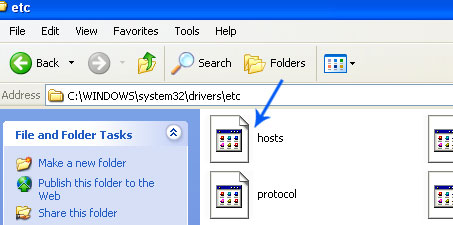
Go to: C:\WINDOWS\system32\drivers\etc.
Double-click "hosts" file to open it. Choose to open with Notepad or any other text editor.


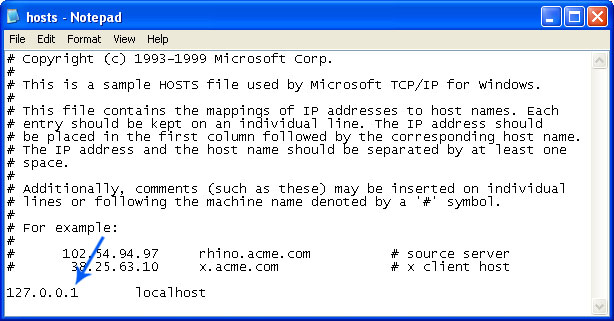
The Windows hosts file should look the same as in the image below (Windows XP). There should be only one line:

127.0.0.1 localhost (Windows XP)

127.0.0.1 localhost ::1 (Windows Vista/7/8).

If there are more lines, then remove them and save changes. Read more about Windows Hosts file here: http://support.microsoft.com/kb/972034


Alternate method: to reset the Hosts file back to the default automatically, download and run Microsoft Fix it tool and follow the steps in the Fix it wizard.

3. Remove malicious extensions from your web browser.

Google Chrome:
1. Click on Chrome menu button. Go to ToolsExtensions.
2. Click on the trashcan icon and remove the extensions that might be causing Chitka pop ups. Basically, remove all extensions that you didn't install. It's perfectly OK to remove all extensions since by default Google Chrome comes without any extensions.

Mozilla Firefox:
1. Go to ToolsAdd-ons.
2. Select Extensions. Remove all extensions that you didn't install. Please note, by default Firefox comes without any extensions.

Internet Explorer:
1. Go to ToolsManage Add-ons. If you have the latest version, simply click on the Settings button.
2. Select Toolbars and Extensions. Remove all add-ons that you didn't install or you believe may cause those annoying pop-ups to show up.

4. Download CCleaner and tidy up your computer, remove temp files, etc.

5. If the problem persists, please read this web document and follow the steps carefully: http://deletemalware.blogspot.com/2010/02/remove-google-redirect-virus.html