Wednesday, 26 June 2013

How To Get Rid of the "FBI Your computer has been locked" Virus

"FBI your computer has been locked" virus locks your computer and then has the nerve to ask you to pay for it to be unlocked. Surely no one in their right mind would pay for that, but what if the computer hackers trick you into thinking that not only is it your fault that your computer has been frozen but that you will be in trouble with your local – or even national – law enforcement agency thanks to ‘your’ suspicious online activity.

You see, the way these cyber criminals work is by preying on your vulnerability. Imagine the scenario; you’re at home, or possibly even worse in the office surrounded by your colleagues, when suddenly your computer freezes and on your screen appears a message purportedly from the FBI or other police or governmental agency, telling you that you are in serious trouble for violating the law and accessing, downloading or storing illegal content such as X rated pornography of a very distasteful nature or you’ve been visiting terrorist websites. This is police themed ransomware – also known as the ‘Police Trojan’ – a program that has infiltrated your computer’s operating system to display a rogue message claiming that it is from a law enforcement agency.
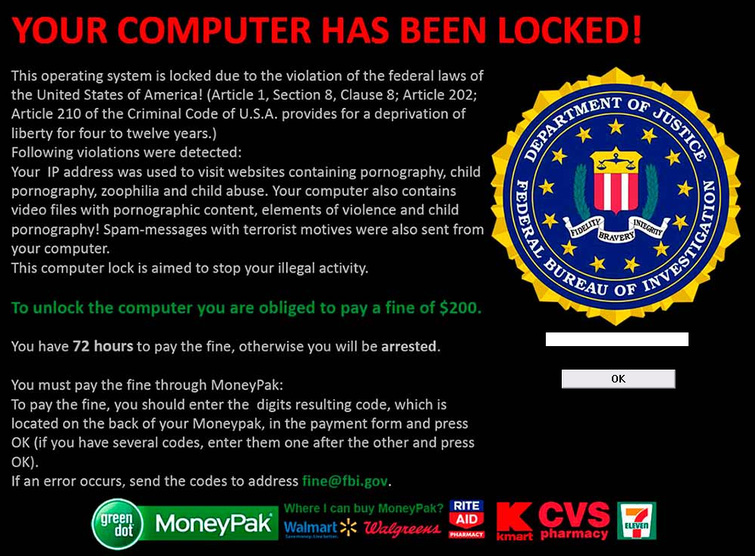

You will most likely be told that your IP address has been detected engaging in illegal activity and you will be asked to pay a fine, usually $300, using a prepaid card such as MoneyPak, Ukash or PaySafeCard. Malware creators prefer using these methods of payment (rather than PayPal for example) as transactions made via them are difficult to trace and cannot be reversed.

FBI your computer has been locked virus originated back in 2011 and initially targeted PC users in Western Europe, including the UK, France, Spain, Italy, Austria and Belgium, however these days its international boundaries know no limits and the USA and Canada have both seen a massive increase in crimes of this nature. Indeed cyber criminals can make hundreds of thousands of dollars each month with these scams.


Experts investigating cyber-crime have now also found that in addition to more countries being added to the list but that they now target people very specifically in an attempt to convince more people that their fake ‘police’ messages are real. One way of doing this is tailoring the payment methods to the country – for example the UKash card is not known in the States therefore a rogue police notice targeting an inhabitant of the US, for example the one that purports to be from the Computer Crime and Intellectual Property Section of the U.S. Department of Justice will only ask for payment of the fine via the PaySafeCard.

In the United States the victim will normally be asked to pay a not inconsiderable $300 fine via the MoneyPak or PaySafeCard and just to hammer the message home and make payment even easier the thoughtful hackers will include the logos of supermarkets and stores where you can purchase vouchers.


If you’re unlucky enough to be a victim of police themed "FBI your computer has been locked" virus you may well find yourself tempted to click on the ‘pay now’ button. After all, having your PC frozen and a message from the FBI telling you that you are a known visitor of hardcore and illegal adult content sites or a threat to national security is enough to send anyone into a panic. Even if you do suspect that the message may be a computer virus and the work of a hacker, you might be too worried or embarrassed about taking your computer to a store to get it checked out…just in case you did click on something pornographic, either by choice or by accident.

The best thing to do is to follow the removal instructions below to unlock your computer and get rid of the "FBI your computer has been locked" virus. Whatever you do don’t be tempted to pay the fine – as seen, this can be a lot of money and besides, there’s no guarantee that your computer will be returned to normal as many hackers simply take the money and leave you stranded; out of pocket and still with a locked computer.

And of course, as with all malware, having a first rate and up to date antivirus program installed on your computer is the first major step in protecting yourself against online crime. If you have any questions, please leave a comment below. Good luck and be safe online!

Written by Michael Kaur, http://deletemalware.blogspot.com


Method 1: System Restore in Safe Mode with Command Prompt:

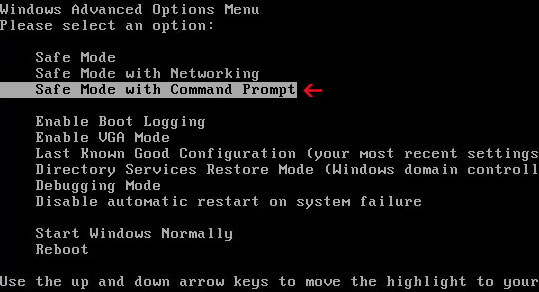
1. Unplug your network cable and manually turn your computer off. Reboot your computer is "Safe Mode with Command Prompt". As the computer is booting tap the "F8 key" continuously which should bring up the "Windows Advanced Options Menu" as shown below. Use your arrow keys to move to "Safe Mode with Command Prompt" and press Enter key.


2. Make sure you log in to an account with administrative privileges (login as admin).

3. Once the Command Prompt appears you have few seconds to type in explorer and hit Enter. If you fail to do it within 2-3 seconds, the FBI virus will take over and will not let you type anymore.

4. If you managed to bring up Windows Explorer you can now browse into:
  • Win XP: C:\windows\system32\restore\rstrui.exe and press Enter
  • Win Vista/Seven: C:\windows\system32\rstrui.exe and press Enter
5. Follow the steps to restore your computer into an earlier day.

6. Download recommended anti-malware software (direct download) and run a full system scan to remove the FBI virus.


Method 2: System Restore in Safe Mode:

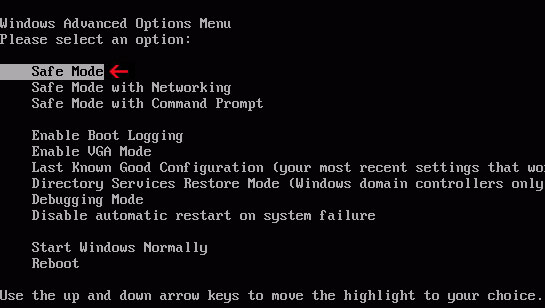
1. Power off and restart your computer. As the computer is booting tap the "F8 key" continuously which should bring up the "Windows Advanced Options Menu" as shown below. Use your arrow keys to move to "Safe Mode" and press Enter key.

NOTE: Login as the same user you were previously logged in with in the normal Windows mode.

2. Once in there, go to Start menu and search for "system restore". Or you can browse into the Windows Restore folder and run System Restore utility from there:
  • Win XP: C:\windows\system32\restore\rstrui.exe double-click or press Enter
  • Win Vista/7/8: C:\windows\system32\rstrui.exe double-click or press Enter
3. Select Restore to an earlier time or Restore system files... and continue until you get into the System Restore utility.

4. Select a restore point from well before the FBI virus appeared, two weeks should be enough.

5. Restore it. Please note, it can take a long time, so be patient.

6. Once restored, restart your computer and hopefully this time you will be able to login (Start Windows normally).

7. At this point, download recommended anti-malware software (direct download) and run a full system scan to remove the FBI virus.


Method 3: Using MSConfig in Safe Mode:

1. Power off and restart your computer. As the computer is booting tap the "F8 key" continuously which should bring up the "Windows Advanced Options Menu" as shown below. Use your arrow keys to move to "Safe Mode" and press Enter key.


NOTE: Login as the same user you were previously logged in with in the normal Windows mode.

2. Once in there, go to Start menu and search for "msconfig". Launch the application. If you're using Windows XP, go to Start then select Run.... Type in "msconfig" and click OK.

3. Select Startup tab. Expand Command column and look for a startup entry that launches randomly named file from %AppData% or %Temp% folders using rundll32.exe. See example below:

C:\Windows\System32\rundll32.exe C:\Users\username\appdata\local\temp\regepqzf.dll,H1N1

4. Disable the malicious entry and click OK to save changes.

5. Restart your computer. This time Start Windows normally. Hopefully, you won't be prompted with a fake FBI screen.

6. Finally, download recommended anti-malware software (direct download) and run a full system scan to remove the FBI virus.


Method 4: Manual removal, Safe Mode (requires registry editing) :

1. Unplug your network cable and manually turn your computer off. Reboot your computer in "Safe Mode". As the computer is booting tap the "F8 key" continuously which should bring up the "Windows Advanced Options Menu" as shown below. Use your arrow keys to move to "Safe Mode" and press Enter key.


NOTE: Login as the same user you were previously logged in with in the normal Windows mode.

2. When Windows loads, open up Windows Registry Editor.

To do so, please go to Start, type "registry" in the search box, right click the Registry Editor and choose Run as Administrator. If you are using Windows XP/2000, go to StartRun... Type "regedit" and hit enter.

3. In the Registry Editor, click the [+] button to expand the selection. Expand:

HKEY_CURRENT_USER\Software\Microsoft\Windows\CurrentVersion\Run
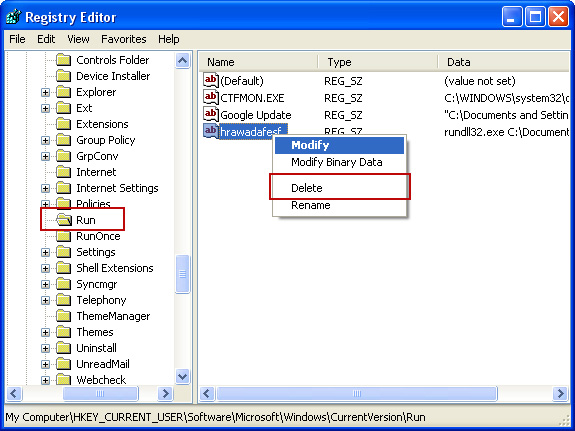


Look on the list to the right for an randomly named item. Write down the file location. Then right click the randomly named item and select Delete. Please note that in your case the file name might be different. Close Registry Editor.

In our case the malicious file (pg_0rt_0p.exe) was located in Application Data folder. So, we went there and simply deleted the file. We're running Windows XP.

File location: C:\Documents and Settings\Michael\Application Data\
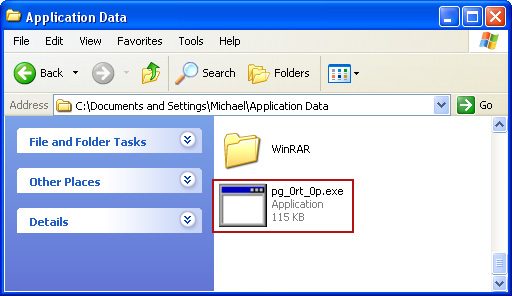


If you are using Windows Vista or Windows Seven, the file will be located in %AppData% folder.

File location: C:\Users\Michael\AppData\Romaming\

Finally, go into Windows Temp folder %Temp% and click Date Modified so the newest files are on top. You should see an exe file, possibly with the name  pg_0rt_0p.exe (in our case it was exactly the same), but it may be different in your case. Delete the malicious file.

One more thing, check your Programs Startup list for the following entry:

[UserPATH]\Programs\Startup\ctfmon.lnk - C:\Windows\system32\rundll32.exe pointing to [UserPATH] \Temp\wpbt0.dll,FQ10 (or FQ11)

In our case it was ctfmon.lnk pointing to malicious file which then loads the fake ransom warning. Please note that in your case the file name might be different, not necessarily ctfmon.lnk. Simply disable or remove (if possible) such entry and restart your computer.

4. Restart your computer into "Normal Mode" and scan the system with legitimate anti-malware software.

5. Download recommended anti-malware software (direct download) and run a full system scan to remove the FBI virus.

FBI MoneyPak Ransomware video:


To learn more about ransomware, please read Remove Trojan.Ransomware (Uninstall Guide).

Tell your friends:

PC Health Boost Review and Removal Instructions

A few days ago I was giving my laptop its regular once over and making sure that it was in optimal working order by getting rid of unwanted software; you know the type – adware and its annoying pop-up windows, useless toolbars and other assorted malware and all of a sudden I was shown a pop-up advert for something called PC Health Boost.

I have to admit, upon first glance I was quite impressed – it looks the part and it says it’s been developed by ‘a Microsoft Partner’. It also states that “We highly recommend this download" although to be fair it probably goes without saying that if you’re the developer of a download then of course you highly recommend it! However look a little closer and you’ll see that despite it looking like the real deal, PC Health Boost is not an actual Microsoft product, although you could be forgiven for thinking it is.


This put me on my guard and I have to admit that I am not a huge fan of registry cleaners anyway because they often actually damage your computer instead of cleaning it as they claim. Besides, it's not free, costs about $30. A small price to pay for having a clean computer you might think; well it’s not such a great deal when you consider that there are plenty of free programs out there that do a good as, if not better job than these sorts of registry cleaners.

As the software is a registry cleaner this means that once you’ve installed it it will then scan your PC for ‘problems’. And guess what – it will tell you that you have literally hundreds of issues which, naturally, the full program which you need to purchase, will be able to take care of.

I was intrigued however and decided to test it using an old PC that I don’t use anymore. I first ran two other reputable cleaning software programs before installing PC HealthBoost so I could be pretty sure that my computer was problem free. I then ran PC Health Boost which told me that my computer had a whopping total of 54 issues. Not that bad after all. I was hoping to find at least 100+ issues.

I looked a little closer at these ‘issues’ and worked out how they were unearthed.

PC Health Boost works by searching for run lists which are lists that you’ve recently opened in the different software programs installed on your PC. If you move a file in one of these programs, this counts as an ‘error’. Like most people I use a number of programs that create files and I move them on my computer to make it easier to find and use them. So really, this is not an error, it’s simply an out of date ‘to-do list’. It also adds so-called issues with programs such as Microsoft Visual Studio 8 and Microsoft SQL, which you or I don’t use but they work in conjunction with other programs. It’s not a good idea to mess around with these as you could cause issues which is exactly why I don’t like registry cleaners because they can do untold damage by fixing what they perceive as a problem – when no such thing exists.

To conclude, despite the use of the words ‘healt’ and ‘boost’ in the name, PC Health Boost is a simple registry cleaner; it doesn’t ‘boost’ anything and it won’t speed anything up – and it might delete files that you need and cause real issues. If you’re concerned about malware, bugs and issues on your PC you are far better off downloading a well-known cleaner from the internet.

You’ve installed PC Health Boost and are worried it might cause problems? Uninstall it by going to your Start menu, go to All Programs, locate the PC Health Boost icon and click Uninstall. After that you may want to run a regular cleaner to make sure there’s nothing nasty lurking on your PC’s registry, etc. Very often, it comes bundled with adware and other unwanted applications, for instance, Search Conduit, so there's a good chance you got some of these as well.

Written by Michael Kaur, http://deletemalware.blogspot.com


PC Health Boost removal instructions:

1. First of all, download recommended anti-malware software and run a full system scan. It will detect and remove related adware and spyware from your computer. You may then follow the manual removal instructions below to remove the leftover traces of PC Health Boost and related adware. Hopefully you won't have to do that.


2. Remove PC Health Boost application from your computer using the Add/Remove Programs control panel (Windows XP) or Uninstall a program control panel (Windows 7 and Windows 8).

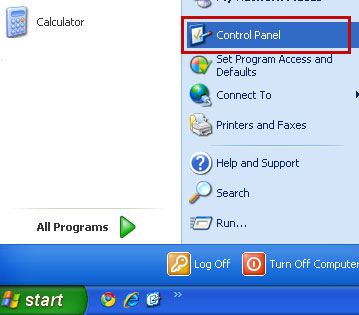
Go to the Start Menu. Select Control PanelAdd/Remove Programs.
If you are using Windows Vista or Windows 7, select Control PanelUninstall a Program.


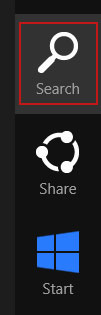
If you are using Windows 8, simply drag your mouse pointer to the right edge of the screen, select Search from the list and search for "control panel".


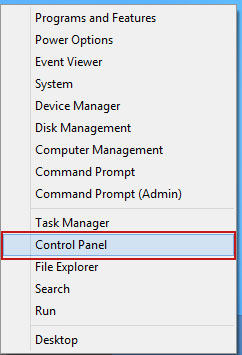
Or you can right-click on a bottom left hot corner (formerly known as the Start button) and select Control panel from there.


3. When the Add/Remove Programs or the Uninstall a Program screen is displayed, scroll through the list of currently installed programs and remove PC Health Boost.


If you are using Windows Vista, Windows 7 or Windows 8, click Uninstall up near the top of that window. When you're done, please close the Control Panel screen.

Friday, 21 June 2013

Remove OtShot, removal instructions

Every once in a while I get emails from my readers saying that their computers have acquired a bunch of malware, including OtShot. I wouldn't even have written about it since it's a photo editing application, not a virus or malware. However, it seems that sometimes this application comes bundled with adware and PUPs. Very often users have no idea where did it come from, so it's not surprising at all that most of them assume that OtShot is a virus. Besides, this application may cause problems, for example, it may display pop-ups saying "Unable to load skin" and "Would you like to import your contacts from Outlook" every tome you turn on your computer. What is more, users can't find OtShot using Control Panel to uninstall it because it's not listed there.

If you didn't install OtShot then there's a good chance that your computer is infected with adware. It is tempting to dismiss adware as just an annoyance and whilst it certainly is fair to say that adware is a lot of a lesser threat to your computer and your data than spyware or Trojan Horse viruses are, it is still irritating and it can have a knock on effect. If you have been infected with adware it will bombard you with an endless stream of pop up adverts and banners which will appear on your computer no matter what website you are visiting or what program you might be using at any given time. The authors and users of adware justify their infiltration of your computer by stating that by advertising via adware, it helps them to recoup their programming costs; which in turn then allows them to offer you the games, wallpapers, videos and music for free.

As noted, adware is not as dangerous as other forms of malware but it is still an invasion of your privacy and you have had something installed on your system without your knowledge. Not to mention those annoying OtShot popups. When adware starts to turn nasty is when it is also packaged with spyware, which is used so that the creators of the adverts can tailor make adverts that coordinate with your browsing habits, thus making it more likely that you’ll click on the pop ups and visit the websites of their choosing. Well, see the bright side, if it wasn't OtShot, you probably wouldn't even notice that your computer is infected. To remove OtShot from your computer, you will have to manually delete all the files related to it. Please follow the removal guide below. If you have any questions, please leave a comment below. Good luck and be safe online!

Written by Michael Kaur, http://deletemalware.blogspot.com


OtShot removal instructions:

1. First of all, download recommended anti-malware software and run a full system scan. It will detect and remove this related adware and spyware from your computer. You may then follow the manual removal instructions below to remove the leftover traces of this adware. Hopefully you won't have to do that.


2. Look for OtShot icon (with the heart), right-click it and hit Exit. If you can't find the icon then open Task Manger and end OtShot.exe process.


3. Find OtShot folder in Program Files or Program Files (x86) and delete it.


4. It may also create a startup entry. From the Start menu, type msconfig.exe in the Open edit box, and click OK. Click the Startup tab. Select the check box next to the OtShot program so there is NO check mark in the box. That's about it!

What is Macromedia.exe and how to remove it?

Macromedia.exe - CPU miner for Bitcoin


What is Macromedia.exe?


Macromedia.exe is a part of multi-threaded CPU miner for Bitcoin crypto-currency system. Very often this application is eating up 70% or even more of the CPU. It's not essential for Windows and may cause problems. If you knowingly installed this Bitcoin miner on your computer then there's probably nothing to worry about. Unless you downloaded a rogue Bitcoin miner from a shady website. Please note that genuine miner might be flagged as malware as well. Very often, scammers are using this application to earn quick bucks by monetizing botnets. They drop the main mining modules Macromedia.exe and shell.exe on infected computers and start mining. They usually set low mining speed, so that the Macromedia.exe*32 process only uses unused CPU cycles. Infected users quickly notice that their computers became very slow. This is a sign that your computer is infected and not only with RiskTool.Win32.BitCoinMiner or PUP.BitCoinMiner but also with Trojan downloaders and spyware. I recommend you to remove Macromedia.exe from your computer and run a full system scan with recommended anti-malware software.


File name: Macromedia.exe
Publisher: Bitcoin miner
File Location Windows XP: %APPDATA%\WindowsLogonS\Macromedia.exe
File Location Windows 7: %APPDATA%\Roaming\WindowsLogonS\Macromedia.exe
Startup file: HKEY_CURRENT_USER\SOFTWARE\Microsoft\Windows\CurrentVersion\Run 'Macromedia.exe'

Is it safe to use a VPN service to change IP? How to find the right one for you?

Chances are that you don’t use a VPN – a Virtual Private Network – and may not see the point in having one but the fact is that a VPN has a number of benefits and you really should consider using one, especially if you have any concerns about your privacy when you’re browsing the internet.

Selecting which VPN service is right for you can seem a little tricky at first as there are so many providers on the market - and they are all battling it out to get your business. If you’re not sure where to start looking for the right VPN for you, read on as we take a look at the things you need to know.

First of all, what is a VPN?


A VPN refers to a group of computers which are connected together via the internet. If you’re a business you can connect to a remote data center via your VPN and if you are a home user you can use it to connect to a network even if you’re not on the same local area network (usually abbreviated to LAN). A VPN is also hugely beneficial as it will secure and encrypt your data if you are using a public network – for example if you’re using a PC in your local library or your laptop in a coffee shop.

Connecting to a VPN is simple; you will either have a VPN client installed on your computer, which you launch when you want to connect, or you may need to log in to the provider’s website. Once you have launched or logged in your PC and the VPN’s server will verify each other and as soon as they recognize each other as being genuine your computer's internet connection and thus your data and communication will be securely encrypted so that no third party can access it.

A VPN is multi-functional too as not only will it allow you to safely connect to the internet but it will also allow you to watch television programs that are being aired abroad.

What can your VPN Do for You?


As we’ve seen a VPN can increase your security and ensure that your data isn’t been viewed by unscrupulous cyber criminals, and it enables you to access information when you’re not physically connected to a certain network, however there are different ways that you can use your VPN.

Whether you’re a student, an employee or you’re self-employed you may want to use a VPN so that you can always connect to a network no matter where you are. If you are security conscious and want to make sure that no one is accessing your data when you’re using public Wi-Fi a VPN is invaluable for protecting your privacy.

VPNs are also a must if you download a lot of torrents. Whether they are legal or illegal you don’t want to end up in trouble with the authorities or having to pay a fine just because you wanted to watch the latest episode of your favorite TV show.

Even if you’re not downloading torrents and you just want to watch a live sporting event or you want to view a program as it airs instead of waiting for it to be made available online (thus avoiding spoilers!) a VPN will allow you to do so. It will also let you listen to internet radio that may only be available in certain locations as well as giving you access to web based services or resources that are limited to a certain country or region.

Regardless of how important downloading torrents or watching television programs is to you, a VPN is a must when you’re working or browsing the internet on a public or unknown network. No matter whether you’re in an airport, a hotel or a cafĂ© or restaurant if you don’t know that network, how do you know who also has access to it – and potentially your data. Even just checking your Facebook or Twitter account on a public network can put you at risk.

Choosing the Right VPN Service that Takes Anonymity Seriously


It really depends what you want to use your VPN for. Some VPNs are best for light usage, others are better if you do a lot of downloading and want to protect yourself whilst doing so and others still are aimed at avoiding the regional restrictions that some companies put on their apps and services.

So what are the things you need to consider when choosing the right VPN for your needs?

Protocol: the first thing you’ll probably spot is that you keep coming up against confusing sounding abbreviations such as SSL/TLS (also called OpenVPN Support,) PPTP, IPSec and L2TP – to name but a few. These are all VPN types and they will all give you a secure network connection however the most widely used type of VPN is SSL. Each type has pros and cons, however if you’re a regular home user you don’t need to get too bogged down in the fine details.

Where are the servers and exits: these depend on what you’re using your VPN for as well as where your server is and the locations of the ‘exits’. Put simply, what this means is that if you’re looking for a VPN so you can watch live television and you’re living in Canada, you need to check and see that the VPN provider has servers in Canada too. If you want a VPN so that you have extra privacy when you’re downloading torrents it might be an idea to choose a provider who is not based in the same country as you. It is also wise to ensure that your VPN provider has servers in a number of locations.

Logging data: connecting to a VPN means that you are entrusting the provider with your data and whilst it is true that you are protecting that data from people outside your network your information could still be logged by the service provider or even other systems that are using the same VPN. If you are concerned about this read all the small print and make sure you understand what your VPN provider’s policies regarding logging are. If the company doesn’t actually keep logs it’s not such a big deal which country they are situated in.

Protection against malware and spyware: don’t make the mistake of thinking that just because you’re using a VPN you’re immune to attacks by malware and viruses. Continue to use HTTPS whenever you can and remain vigilant when downloading torrents, programs or software. If you are concerned however, do some research because some VPNs also come packaged with anti-malware and anti-spyware programs to give you extra peace of mind.

Mobile applications: whether you’re paying for your VPN or not it makes sense to get as much use from it as possible so make sure that you can use it across your range of devices, whether it’s your desktop PC or a smartphone. The majority of the biggest VPN providers have both desktop and mobile security which is far less hassle than having different VPNs for each of your phones, tablets or laptops.

The cost: there is a wide range of both free and paid-for VPNs out there so make sure you do your research, especially before buying a service. There are often quite substantial differences between the two types too:

Whilst a free VPN is perfectly adequate for light use or if you’re traveling and want heightened security, these services are more likely to record your online activity, so if privacy is the main reason for using a VPN, you might want to consider spending a little money instead. Free services also often have adware bundled in with them so you will likely start seeing those annoying little pop-up ads when you’re online too. They often also have a lower number of exit locations and are not as concerned with your privacy. A few good free VPN services are:
  • SecurityKiss
  • CyberGhost
  • ItsHidden
  • TunnelBear
A paid for VPN is usually a lot more dedicated to your privacy and is unlikely to bombard you with adverts. The thing to look at here, if it is of importance to you, is whether or not they log your activity, as this does depend on the provider. If you’re going to pay for your VPN opt for a company who is offering a free trial – many of them do – so you can see how well you get along with it before handing over any money.

Tuesday, 18 June 2013

What is wrtc.exe and how to remove it?

wrtc.exe - by Perion Network Ltd.


What is wrtc.exe?


wrtc.exe is a part of IncrediMail software, digitally signed by Perion Network Ltd. This application is detected as andware or potentally unwanted program by most antivirus products. It's not essential for Windows and may cause problems. For example, there might be multiple copies of wrtc.exe, even up to 20, each using up to 5% or more of processing capacity. Sometimes, you may see 100% cpu load because of this application. Needles to say, your computer will slow down at a noticeable rate. Furthermore, it may display pop-ups and ads while surfing the web. Some of them may be very annoying and intrusive or even inappropriate for kinds or not safe for work. wrtc.exe will also create a firewall exception which allows programs to access to the Internet through an outbound connections. In other words, this application may download and install additional adware or even spyware on your computer without your knowledge and permission. I recommend you to remove wrtc.exe from your computer.


File name: wrtc.exe
Publisher: Perion Network Ltd.
File Location Windows XP: C:\WINDOWS\system32\ARFC\wrtc.exe
File Location Windows 7: C:\WINDOWS\system32\ARFC\wrtc.exe
Startup file: SYSTEM\CurrentControlSet\Services 'IBUpdaterService' (Updater Service)

What is DTUpdate.exe and how to remove it?

DTUpdate.exe - DefaultTab Update Service by Search Results, LLC


What is DTUpdate.exe?


DTUpdate.exe is a part of DefaultTab application/web browser add-on, developed by company Search Results, LLC. It's not essential for Windows and may cause problems. Once installed, it modifies your default search provider and may even change your home page. The worst part, however, is that DTUpdate.exe comes bundled with adware and toolbars that may monitor your search queries and browsing habits in order to send you targeted advertisements. Occasionally, it may redirect you to its partners websites full of ads and shady offers. This application runs automatically each time Windows starts. It creates a Windows service called DefaultTab Update Service which checks for DefaultTab updates and automatically downloads and installs them if found. Please note that it may download additional adware onto your computer. This application has been discovered being bundled with the InstallIQ download manager which is flagged by adware by most antivirus programs. So, even tough, technically it's not a virus, I recommend you to remove DTUpdate.exe from your computer.


File name: DTUpdate.exe
Publisher: Search Results, LLC
File Location Windows XP: C:\Documents and Settings\[UserName]\Application Data\DefaultTab\DefaultTab\dtupdate.exe
File Location Windows 7: C:\Users\[UserName]\AppData\Roaming\DefaultTab\DefaultTab\dtupdate.exe
Startup file: SYSTEM\CurrentControlSet\Services 'DefaultTabUpdate'