Friday, 18 October 2013

Remove tika-search.com (Tika Search), Removal Guide

Tika-search.com (Tika Search) is another shady search engine from the creators of Babylon toolbar, Delta Search and Search-Gol. It is referenced as a browser hijacker that may display misleading advertisements and redirect users to fishy websites. It is largely being spread via freeware and software downloaders. To be honest, this browser hijacker is often presented as a useful add-on because users that choose to install also get Tika toolbar. However, toolbars and browser hijackers are often presented is such a vague way that it’s not always straight obvious what you will get. My advice would be to read and decline all the offers that seem shady especially when most antivirus scanners have proved ineffective at preventing tika-search.com and other browser hijacker/toolbars.


Once installed, this browser hijacker will change your home page and default search engine with its own. It will also change new tab or new URL settings so that each time you open a new tab you will get Tika Search instead of let’s say Google or blank page. This can be very annoying especially if it was installed without your knowledge or permissions. It might indeed happen because there are software downloaders/installers that use silent installers to install third-party offers. At the time of writing www.tika-search.com and Tika toolbar were both promoted via video codec downloaders and to be honest each application was presented rather professionally, so it may not be the best example but don’t be surprised when people say that they do not know where certain browser hijackers and toolbars came from. It may happen to you as well.

From all the possible nuisance and infections www.tika-search.com is probably the least dangerous. I can’t be compared with CryptoLocker or Sirefef rootkit and similar infections but since it usually comes bundled with adware and sometimes even spyware applications, you should still take actions and remove tika-search.com as well as related applications from your computer. Removal is pretty straightforward when you know where all the files are located and how to deal with them. For more information, please see the removal instructions below. Forecast: the reports of infection of this infection will likely rise exponentially in a few weeks or months because the creators of this browser hijacker know how to promote such products and I have to admit that they are really good at it. Prevention: the most important way to prevent this infection is to install new software very carefully and please pay attention when you download applications, make sure you are not downloading additional software onto your computer. Decline all the "offers" unless you think that they may be useful. Good luck and safe online!

Written by Michael Kaur, http://deletemalware.blogspot.com


Tika Search removal instructions:

1. First of all, download recommended anti-malware software and run a full system scan. It will detect and remove this infection from your computer. You may then follow the manual removal instructions below to remove the leftover traces of this browser hijacker. Hopefully you won't have to do that.


2. Remove Tika Search related programs from your computer using the Add/Remove Programs control panel (Windows XP) or Uninstall a program control panel (Windows 7 and Windows 8).

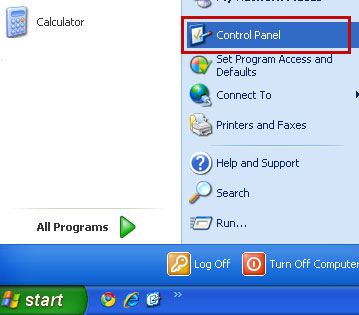
Go to the Start Menu. Select Control PanelAdd/Remove Programs.
If you are using Windows Vista or Windows 7, select Control PanelUninstall a Program.


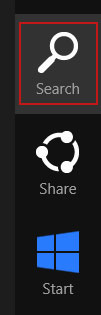
If you are using Windows 8, simply drag your mouse pointer to the right edge of the screen, select Search from the list and search for "control panel".


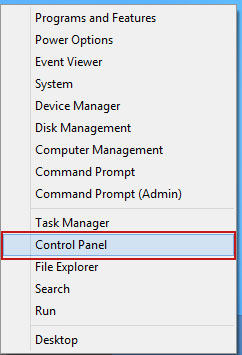
Or you can right-click on a bottom left hot corner (formerly known as the Start button) and select Control panel from there.


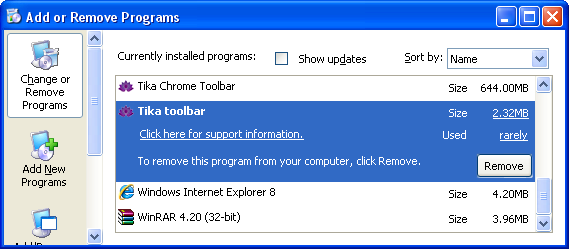
3. When the Add/Remove Programs or the Uninstall a Program screen is displayed, scroll through the list of currently installed programs and remove the following entries:
  • BitGuard
  • Tika Toolbar
  • Tika Chrome Toolbar


Simply select each application and click Remove. If you are using Windows Vista, Windows 7 or Windows 8, click Uninstall up near the top of that window. When you're done, please close the Control Panel screen.


Get rid of Tika Search on Google Chrome:

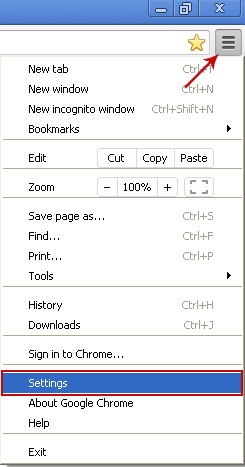
1. Click on Customize and control Google Chrome icon. Select Settings.


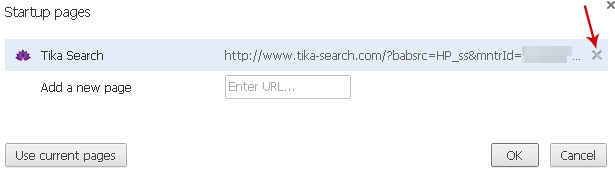
2. Click Set pages under the On startup.
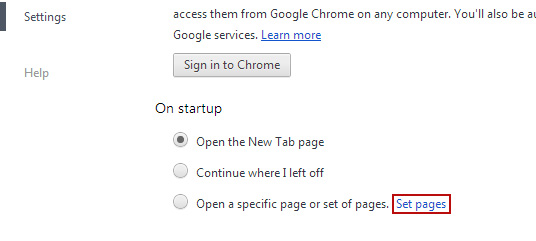

Remove www.tika-search.com by clicking the "X" mark as shown in the image below.


3. Click Show Home button under Appearance. Then click Change.
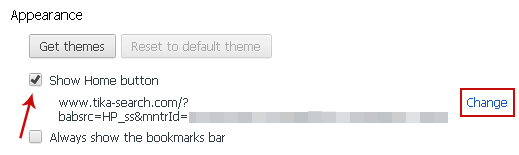


Select Use the New Tab page and click OK to save changes.


4. Click Manage search engines button under Search.

Select Google or any other search engine you like from the list and make it your default search engine provider.

Select Tika Search from the list and remove it by clicking the "X" mark as shown in the image below. That's it!


Get rid of Tika Search on Mozilla Firefox:

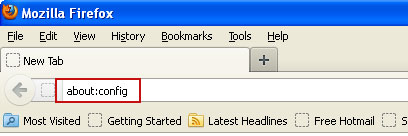
1. Open Firefox. In the URL address bar, type about:config and hit Enter.


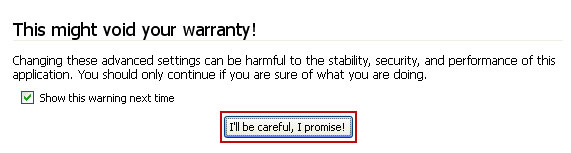
Click I'll be careful, I promise! to continue.


In the search filter at the top, type: tika-search
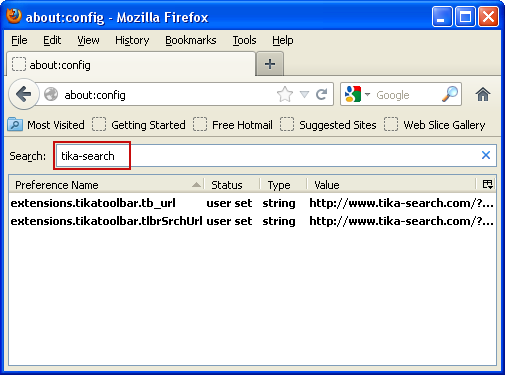


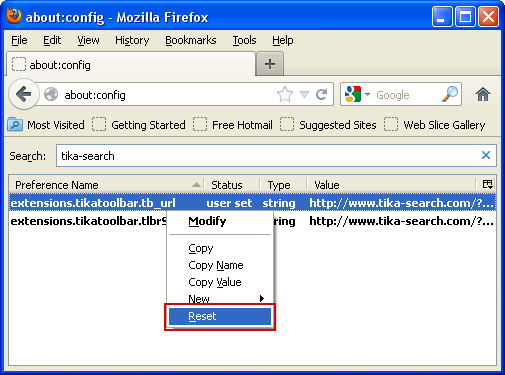
Now, you should see all the preferences that were changed by Tika Search. Right-click on the preference and select Reset to restore default value. Reset all found preferences!


Get rid of Tika Search on Internet Explorer:

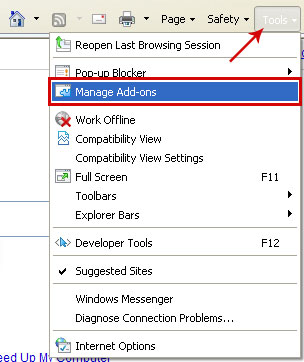
1. Open Internet Explorer. Go to ToolsManage Add-ons.


2. Select Search Providers. First of all, choose Live Search search engine and make it your default web search provider (Set as default).

3. Select Tika Search and click Remove to remove it. Close the window.

4. Go to ToolsInternet Options. Select General tab and click Use default button or enter your own website, e.g. google.com instead of http://www.tika-search.com. Click OK to save the changes.

Share this information:

Wednesday, 16 October 2013

Remove CryptoLocker virus and restore encrypted files

CryptoLocker is a ransomware trojan that encrypts your data and then asks you to pay a ransom in order to decrypt the files. The current ransom is $300 (300EUR in Europe) by MoneyPak or Bitcoins. It does not target Macs, at least for now. At first glance, it's just like any other file encrypting ransomware except that this variant is well coded and actually encrypts the files. It may encrypt files in other user's account and even in mapped drives. Other ransomware trojans not always managed to do the encryption right, some even displayed fake warnings but not this one. It really encrypts, the timer is real and you have only two options: to pay the ransom hoping that cyber crooks will start the decryption or restore your files from a backup (if you are lucky enough).

This threat gets in mostly via infected email attachments and drive-by downloads from infected web sites. It is also being pushed directly to infected computers that belong to certain botnets. As usual, cyber crooks will try all possible methods to infect as many computers as possible. Only because someone said that this malware is being spread via infected email attachments doesn't mean you won't get if after visiting an infected website, etc.

An email containing the Crypto Locker virus attachment with a subject "Annual Form - Authorization to Sue Privately Owned Vehicle on State Business" that supposedly came from Xerox. [Click to enlarge image]


Here's what the CryptoLocker notifications looks like. If you got it then it's already too late. Your files are encrypted. It might be slightly different in same cases but the message is the same - "Your personal files are encrypted". There's even an option to list all the encrypted files. CryptoLocker encrypts photos, videos, word/excel documents, Zip files, PDFs and more than 60 other file types. As I said, the timer is real, usually you have 3 days to pay the ransom.


Most antivirus programs have updated their AV engines and are now detecting this ransomware trojan but they cannot recover the encrypted files. For example, Avast detects it as Win32:Ransom-AQH [Trj]. AVG - Ransomer.CEL. Avira - TR/Fraud.Gen2. Detection ration is 38/48. See CryptoLocker analysis on VirusTotal for more details.


If your antivirus program found and removed CryptoLocker from your computer, you will see the following message. It's not a pop pup but a new desktop background.


Since the decryption is impossible without CryptoLocker, cyber crooks urge you to restore it from quarantine or download a new copy of this malware.

Normally, I don't recommend paying a ransom but this piece of malware is particularly nasty. The encryption is strong, there's no way you can brute force or guess the decryption key. Usually, public RSA 2048-bit keys are stored on infected computers but not private keys, they are stored on remotes servers controlled by cyber crooks. And you can't decrypt files without your private key. So, you have to make a decision. If the encrypted files are very important to you, worth more than $300 you could take the risk and pay the ransom. Paying the ransom does not guarantee the safe recovery of encrypted files. However, multiple users have reported that paying cyber crooks to decrypt the files actually does work. It may take a long time to decryp, up to 48 hours or even more. If you plan on paying the ransom, please be careful as you type the code because entering an incorrect payment code will decrease the amount of time you have available to decrypt your files. If everything goes smoothly, decryption will start:


If the payment information is incorrect or the Command and Control servers are down, you may get an error, similar to this one:


Personally, I think that paying the ransom is not a good idea at all because cyber crooks will almost certainly fund the creation of a new variant, probably even more sophisticated than the current one. On the other hand, I understand companies and users that have very important files and they can't afford to lose them. They simply do not have other options.

If the encrypted files are not very important or you don't have money to pay the ransom, you can remove this malware and restore your files (at least some of them) using Shadow Explorer. You could restore encrypted files one by one using System restore built-in features but with Shadow Explorer you can restore entire folders at once which is really great. Besides, this tool is free. To remove CryptoLocker and restore encrypted files, please follow the removal guide below. If there's anything you think I should add or correct, please let me know.

Written by Michael Kaur, http://deletemalware.blogspot.com


Step 1: Removing CryptoLocker and related malware:

Before restoring your files from shadow copies, make sure CryptoLocker is not running. You have to remove this malware permanently. Thankfully, there are a couple of anti-malware programs that will effectively detect and remove this malware from your computer.

1. First of all, download and install recommended anti-malware scanner. Run a full system scan and remove detected malware.


2. Then, download ESET Online Scanner and run a second scan to make sure there are no other malware running on your computer.

 That's it! Your computer should be clean now and you can safely restore your files. Proceed to Step 2.

--------------

If you can't use anti-malware programs, you will have to remove CryptoLocker manually.

1. Download Process Explorer. CryptoLocker spawns two processes of itself. It's very difficult to end those processes using Task Manager, so you will have to use Process Explorer instead.

2. Open Process Explorer. Find CryptoLocker's processes. This malware uses a randomly-generated name, yours will be different.


IMPORTANT! Please copy the location of the executable file it points to into Notepad or otherwise note it. Crypto Locker saves itself to the root of the %AppData% path.

Windows XP: C:\Documents and Settings\[Current User]\Application Data\

Windows Vista/7/8: C:\Users\[Current User]\AppData\Roaming\

3. Right click on the first process and select Kill Process Tree. This will terminate both at the same time.


4. Remove the malicous file. Use the file location you saved into Notepad or otherwise noted in step in previous step. The file is hidden, so make sure that you can see hidden and operating system protected files in Windows. For more in formation, please read Show Hidden Files and Folders in Windows.

In my case, it was C:\Documents and Settings\[Current User]\Application Data\Klonpmmpdidlznt.exe


5. Go to start, and type regedit into Start search; this will open the registry editing tool (Registry Editor).

6. From the top, click on Edit, and scroll to Find (Ctrl+F). Type in the file name you noted earlier, and click Find next.


7. This should bring a result Cryptolocker; right click on the entry, and delete it.

HKEY_CURRENT_USER\Software\Microsoft\Windows\CurrentVersion\Run 

In the righthand pane select the registry key named CryptoLocher. Right click on this registry key and choose Delete.


HKEY_CURRENT_USER\Software\Microsoft\Windows\CurrentVersion\RunOnce

In the righthand pane select the registry key named *CryptoLocher. Right click on this registry key and choose Delete.


8. Press F3 to carry on the search, deleting each time. Do this until it has finished searching the registry, and then close down the editor. That's it!


Step 2: Restoring files encrypted by CryptoLocker using Shadow Volume Copies:

1. Download and install Shadow Explorer. Note, this tool is available with Windows XP Service Pack 2, Windows Vista, Windows 7, and Windows 8.

2. Open Shadow Explorer. From the drop down list you can select from one of the available point-in-time Shadow Copies. Select drive and the latest date that you wish to restore from.


3. Righ-click any encrypted file or entire folder and Export it. You will then be prompted as to where you would like to restore the contents of the folder to.


Hopefully, this will help you to restore all encrypted files or at least some of them.

The list of files to decrypt is maintained in the registry in:

HKEY_CURRENT_USER\Software\CryptoLocker\Files

Thursday, 10 October 2013

Remove "Ads by LyricsSay" Virus (Removal Guide)

"Ads by LyricsSay" is a new bit of adware for Windows but it may work just fine on Mac too. This adware install a web browser extension (add-on) and begins to display ads on web sites that normally do not contain those ads, including popular sites like Youtube, Facebook or Ebay. The same malicious extension may display inline advertisements, you know when words get underlined and hovering over them shows popup ads, for example Monstermarketplace. It's difficult to say whether it is legit or not but unfortunately it's not detected by many anti-virus programs. However, it think it should be. No one likes adware, especially when annoying ads are injected without your knowledge or agreement. The LyricsSay extension for instance which is used to load those ads is useless. Even though, it claims to display lyrics for pretty much every song on Youtube the only thing I've seen so far is a bunch of ads. This particual adware that displays "Ads by LyricsSay" ads is closely related to dfs.pathdone.net browser hijacker. It may pop up whenever you open a new tab or click on a link. Each ad displayed by LyricsSay adware can be disabled by visiting pathdone.net, at least this is what adware creators say. However, I don't think you should simply disable adware and think that your computer is perfectly fine now. It would be a lot better if you uninstalled it and ran a full malware scan. As you may already know, such applications are very often bundled with toolbars, browser hijackers and even spyware. If you find yourself infected with "Ads by LyricsSay" virus, please follow the removal instructions below.


At one time or another we've all been targeted by these nuisances but the fifty million dollar question is, how do they get on to our computers in the first place - and how can we stop them? "Ads by LyricsSay" has a number of unwelcome traits. One being that it will normally download additional adware onto your computer and as most of us know, it can be intensely annoying thanks to its pop up advertising windows. If you've been infected you may well be wondering how the LyricsSay wormed its way onto your PC or laptop in the first place. Well I hate to break it to you but you might actually have installed it yourself. Ads by LyricsSay is usually bundled with freeware which means that anything you download without paying for can put you at risk. The big question is, how do you avoid doing this and how can you ensure you're not inadvertently exposing yourself to adware or something that can cause even more harm?

Anti-malware, anti-malware, anti-malware! We can't say it enough - using your PC without having anti-malware software installed is like playing Russian roulette! But that aside, you can also help yourself by being a little more wary about what you install on your computer. If you're thinking of downloading something from a website that is covered in spammy looking adverts and dodgy links then stop and ask yourself whether you could be downloading the software from somewhere more reputable. Also check the end user license agreement when you download something as PUPs come packaged with other programs. Most agreements make reference to ‘other applications’ so don’t just click ‘OK’ or ‘Continue’ but read the agreement and uncheck any boxes that were already opting you in for an (unwanted) added extra. Good luck and be safe online!

Written by Michael Kaur, http://deletemalware.blogspot.com


"Ads by LyricsSay" removal instructions:

1. First of all, download recommended anti-malware software and run a full system scan. It will detect and remove this infection from your computer. You may then follow the manual removal instructions below to remove the leftover traces of this malware. Hopefully you won't have to do that.


2. Remove LyricsSay and related programs from your computer using the Add/Remove Programs control panel (Windows XP) or Uninstall a program control panel (Windows 7 and Windows 8).

Go to the Start Menu. Select Control PanelAdd/Remove Programs.
If you are using Windows Vista or Windows 7, select Control PanelUninstall a Program.


If you are using Windows 8, simply drag your mouse pointer to the right edge of the screen, select Search from the list and search for "control panel".


Or you can right-click on a bottom left hot corner (formerly known as the Start button) and select Control panel from there.


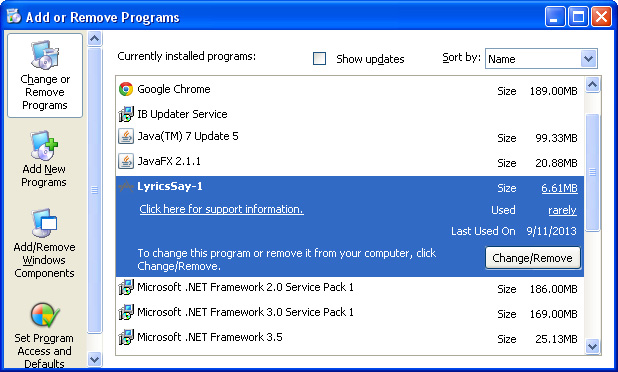
3. When the Add/Remove Programs or the Uninstall a Program screen is displayed, scroll through the list of currently installed programs and remove the following:
  • LyricsSay
  • LyricXeeker
  • DownloadTerms
  • HD-Plus
  • and any other recently installed application


Simply select each application and click Remove. If you are using Windows Vista, Windows 7 or Windows 8, click Uninstall up near the top of that window. When you're done, please close the Control Panel screen.


Remove "Ads by LyricsSay" on Google Chrome:

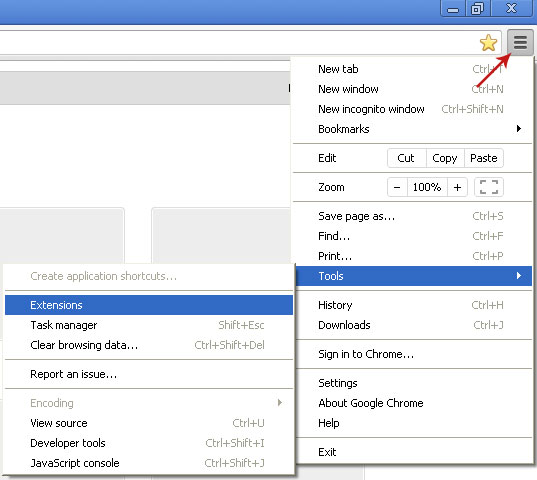
1. Click on Chrome menu button. Go to ToolsExtensions.


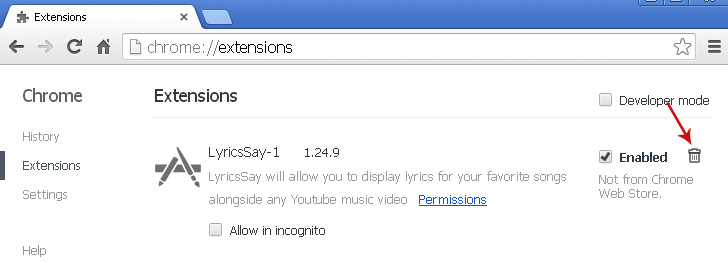
2. Click on the trashcan icon to remove LyricsSay, DownloadTerms, LyricXeeker, HD-Plus and other extensions that you do not recognize.


Remove "Ads by LyricsSay" on Mozilla Firefox:

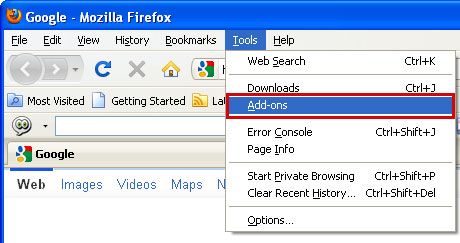
1. Open Mozilla Firefox. Go to ToolsAdd-ons.


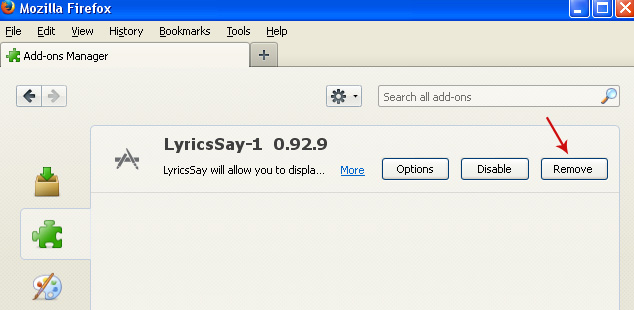
2. Select Extensions. Click Remove button to remove LyricsSay, DownloadTerms, LyricXeeker, HD-Plus and other extensions that you do not recognize.


Remove "Ads by LyricsSay" on Internet Explorer:

1. Open Internet Explorer. Go to ToolsManage Add-ons. If you have the latest version, simply click on the Settings button.


2. Select Toolbars and Extensions. Click Remove/Disable button to remove the browser add-ons listed above.

Wednesday, 2 October 2013

Remove jsstatis.net pop-up virus (Removal Guide)

Jsstatis.net is one of many sites used by fraudsters and adware creators to display pop up advertisements on infected computers. There are a few URLs involved in this scheme, usually ywi.jsstatis.net and jno.jsstatis.net, but could be also dss.drivefor.net or longfintuna.net. All these sites are classified as browser hijackers because they deliver ads caused by adware/PUP. Technically, jsstatis.net and all the sub domains are not malicious but they display "unsolicited" pop ups, for example telling you that "disk space is low" and to "click here to fix the problem". Such ads are not just misleading but also dangerous and may redirect you to malicious sites. Finally, you may end up installing more adware or even malware on your computer. And you do not want that. So, close jsstatis.net pop ups and scan your computer with anti-malware software. To stop/remove jsstatis.net pop ups, please follow the removal guide below.


Having your system taken over by the ywi.jsstatis.net virus is both maddening and potentially risky – and the fact is that it can happen to both you and me, regardless of how wary we are when browsing online. If you have a decent and up to date anti-malware program running on your PC or laptop you will have a much greater chance of stopping viruses and malware before they have a chance to do you harm. However it is good practice to know what you should keep an eye out for just in case something almost does slip through the net.

Whilst most of us have heard of viruses and malware we also need to be aware of adware and Potentially Unwanted Programs – usually shortened to PUPs. These unwanted applications are able to install themselves on your computer in a number of ways. Usually this is when you’re downloading freeware; perhaps a TV show, some music or software that helps you convert files, record songs, etc. The fact is though that sometimes we either need – or want – these things so what do we do if we don’t want to stop downloading but we do want to keep ourselves safe online?

But how did the jsstatis.net virus find you in the first place? As discussed earlier it probably happened when you downloaded music, a movie or a TV series, or when you installed free software such as a media player, fake flash player update or even legitimate recording application that was bundled with adware. Adware apps are often bundled with freeware or with the custom installer that you find on many download websites like CNET, Brothersoft or Softonic.

The next question is, how do you reduce the possibility of being infected by our friend, the jsstatis.net? There are three things to do: one, download an anti-malware program on your PC and run it on a regular basis. Two: don’t install software that you don’t trust and three: always read the end user license agreement properly when you install or download anything. Sure it can be long winded and not exactly interesting but this is where software programmers hide any mention of ‘additional software’ and will often check the box for you to declare that you do want the PUP. Sneaky behavior- don’t fall victim to it. To remove this browser hijacker and related adware from your computer, please follow the removal guide below. Please note that unninstall and reinstalling your web browser won't help. You need to remove the culprit of this infection first. If you have any questions or want to contribute another way to remove this annoying infection, leave a comment below. Good luck and be safe online!

Written by Michael Kaur, http://deletemalware.blogspot.com


jsstatis.net pop-up virus removal instructions:

1. First of all, download recommended anti-malware software and run a full system scan. It will detect and remove this infection from your computer. You may then follow the manual removal instructions below to remove the leftover traces of this malware. Hopefully you won't have to do that.


2. Remove jsstatis.net related programs from your computer using the Add/Remove Programs control panel (Windows XP) or Uninstall a program control panel (Windows 7 and Windows 8).

Go to the Start Menu. Select Control PanelAdd/Remove Programs.
If you are using Windows Vista or Windows 7, select Control PanelUninstall a Program.


If you are using Windows 8, simply drag your mouse pointer to the right edge of the screen, select Search from the list and search for "control panel".


Or you can right-click on a bottom left hot corner (formerly known as the Start button) and select Control panel from there.


3. When the Add/Remove Programs or the Uninstall a Program screen is displayed, scroll through the list of currently installed programs and remove the following:
  • LyricsSay
  • LyricXeeker
  • DownloadTerms
  • HD-Plus
  • and any other recently installed application


Simply select each application and click Remove. If you are using Windows Vista, Windows 7 or Windows 8, click Uninstall up near the top of that window. When you're done, please close the Control Panel screen.


Remove jsstatis.net pop-ups from Google Chrome:

1. Click on Chrome menu button. Go to ToolsExtensions.


2. Click on the trashcan icon to remove LyricsSay, DownloadTerms, LyricXeeker, HD-Plus and other extensions that you do not recognize.


Remove jsstatis.net pop-ups from Mozilla Firefox:

1. Open Mozilla Firefox. Go to ToolsAdd-ons.


2. Select Extensions. Click Remove button to remove LyricsSay, DownloadTerms, LyricXeeker, HD-Plus and other extensions that you do not recognize.


Remove jsstatis.net pop-ups from Internet Explorer:

1. Open Internet Explorer. Go to ToolsManage Add-ons. If you have the latest version, simply click on the Settings button.


2. Select Toolbars and Extensions. Click Remove/Disable button to remove the browser add-ons listed above.