Showing posts with label Rootkits. Show all posts

Thursday, 12 September 2013

Remove Win32:Evo-gen [Susp] virus (Removal Guide)

In this article we are going to take a look at Win32:Evo-gen [Susp]: what it is, how it gets on your computer and how to get rid of it. It's a generic detection which means it could be pretty much anything. However, from what I've learned so far most of the time it's either a false positive or a rather sophisticated rootkit infection. Sometimes web shield components can display the same warning, for example that Chrome browser is infected with this virus but actually it's the file that you are trying to download. This virus infects system drivers and dll files, so there's not way you can fix this problem manually. There are a number of different rootkits out there with some of them being more invasive than others. All possess a danger to your computer system though, Win32:Evo-gen [Susp] is not an exception.


So how do you get infected by the Win32:Evo-gen [Susp] virus? Such infections are sneaky and in the vast majority of occasions you will have no knowledge that you have become a victim – until you start experiencing all the nasty side effects. First of all, your anti-virus program will inform you that it had quarantined a potentially dangerous rootkit. However, sometimes antivirus programs fail to remove such sophisticated malware. Thankfully, there are anti-malware programs that can remove the remnants effectively.

Rootkits attack you via a downloaded application or program and if this occurs you should make a note of where you were, what you were doing and what you were downloading and avoid those sites in future. The problem is that these downloads can range from something genuinely useful such as a seemingly reputable software update to things that are perhaps a little more frivolous and unnecessary which can often be chock full of malicious software such as rootkits, browser hijackers, spyware, adware and more. If you must download things of this nature – or perhaps you don’t but your children do – then make sure you run your anti-malware software right after as well as checking what is in your list of Programs under your computer's Start button and deleting anything you don't trust or recognize.

All in all, it could be a false positive (good for you) but it could also be a rather sophisticated rootkit infection. If you got a notification from your anti-virus program about the Win32:Evo-gen [Susp] virus then you need to use anti-rootkit and anti-malware applications just to be sure that your antivirus didn't miss anything. Cyber crooks rarely distribute rootkits without Trojans and spyware. Rootkits are usually used to hide trojans and spyware from security products or reinstall deleted components if needed. If you have questions, please leave a comment below. Good luck and be safe online!

Written by Michael Kaur, http://deletemalware.blogspot.com


Win32:Evo-gen [Susp] virus removal instructions:

1. First of all, download recommended anti-malware software and run a full system scan. It will detect and remove this infection from your computer.


2. Download and run TDSSKiller. Press the button Start scan for the utility to start scanning.


3. Wait for the scan and disinfection process to be over. Then click Continue. Please reboot your computer after the disinfection is over.


Monday, 27 May 2013

File "contained a virus and was deleted" removal, Sirefef blocks downloads in IE9/IE10

"[filename].exe contained a virus and was deleted." message may occur when your computer is infected with the Sirefef (ZeroAccess) malware. So, every time you try to download antivirus software onto your computer, even from Microsoft's website, this malware announces the program has a virus and will not allow you to download it. It may block other programs as well, for example CCleaner. You may end up in a situation in which you can't download a thing. This new anti MSE/Windows Defender module affects Windows 7/8 users using Internet Explorer 9 and 10. Here's an example of the fake Sirefef message I got when trying to download SUPERAntispyware onto my computer:


Self-defense modules are nothing new for the Sirefef malware which generates revenue for the cyber criminals, mostly by mining for bitcoins and perpetrating click-fraud. The current malware dropper changes security permissions, removes or corrupts Windows Defender, disables Windows "Action Center" and then drops the payload of the Blackhole Exploit Kit (most of the time, but may be anything else). As far as I can tell the payload hasn't changed, so it seems that cyber criminals decided to improve self-defense modules and keep as many infected computer as possible. By the way, just a few days ago Microsoft announced that roughly 500,000 machines were cleaned of Sirefef. Maybe this is how cyber criminals try to fight back.

In order to fix "[filename].exe contained a virus and was deleted." infection and stop this fake message from showing up and blocking software downloads you need to remove the Sirefef malware from your computer. If you are using Microsoft Security Essentials or Windows Defender you will have to reinstall them. Since you can't use these programs to remove Sirefef you will have to download the programs listed below using Chrome, Firefox or any other web browser. If you can't then download the files requested in this guide on another computer and then transfer them to the infected computer. To remove this malware from your computer, please follow the removal guide below. If you have any questions, please leave a comment. Good luck and be safe online!

Written by Michael Kaur, http://deletemalware.blogspot.com


Sirefef malware removal instructions:

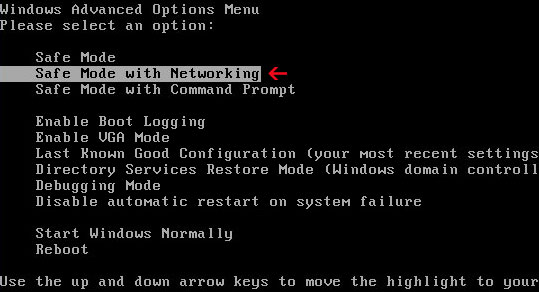
1. Please reboot your computer is "Safe Mode with Networking". As the computer is booting tap the "F8 key" continuously which should bring up the "Windows Advanced Options Menu" as shown below. Use your arrow keys to move to "Safe Mode with Networking" and press Enter key.


NOTE: Login as the same user you were previously logged in with in the normal Windows mode.

2. Download recommended anti-malware software (direct download) and run a full system scan to remove Sirefef malware from your computer.

3. Reboot your computer as normal. Download and run TDSSKiller. Press the button Start scan for the utility to start scanning.


4. Wait for the scan and disinfection process to be over. Then click Continue. Please reboot your computer after the disinfection is over.


5. Download the ESET ServicesRepair utility and save it to your Desktop. Double-click ServicesRepair.exe to run the ESET ServicesRepair utility. If you are using User Access Control, click Run when prompted and then click Yes when asked to allow changes.

6. If you are using Microsoft Security Essentials, you should reinstall it.

7. That's it! You should be able to download software without any problems and fake virus notifications. If you still have problems, please leave a comment below.

Friday, 5 April 2013

Remove Sirefef.gen!C and associated malware

Sirefef.gen!C is a generic detection of the Sirefef rootkit which can steal passwords and other sensitive information. Imagine if there was someone who was watching every move you made on your computer. Someone who knew exactly which websites you were looking at, knew the content of all your files and documents and who had access to your passwords, user names and log in information. Sounds like something out of George Orwell’s famous novel 1984 where Big Brother was the all seeing eye that knew everything about everybody doesn’t it? But in actual fact it can be a reality for anyone who is unfortunate enough to have been hacked by someone using this rootkit.

So what is a rootkit? If you haven’t heard of this term before, it is certainly something to know a little more about so that you can protect yourself from one of the most serious computer crimes currently around. The clue to what a rootkit is and does is in the name: in the simplest terms this is a set – or a kit – of processor utilities and tools that enables someone to monitor and maintain the files and activity on your PC at its most root core. Sirefef.gen!C is even more sophisticated. It has various modules that can load popup ads on your computer and redirect your browser to malicious or spammy websites.

And the worse thing about a rootkit is that it is almost completely undetectable. I mean without using anti-rookit and anti-malware software. Sounds scary but in actuality a rootkit cannot be described simply as malware (i.e. malicious software) as it can be used for rather more innocent purposes as well as for hacking. For example an employer, concerned parents or a law enforcement agency could use a rootkit to monitor its workforce, children or suspected criminals. The ethics of this may be debated but where rootkits really garner attention is when they are used in illegal or suspect activity.

But first things first, how does the Sirefef.gen!C end up on your computer? Well, it can be installed by a virus or a Trojan – a piece of malicious software which has been disguised as a normal application. In this case, it's named TrojanDropper:Win32/Sirefef.gen!C. As its name suggests, this dropper Trojan installs Win32/Sirefef.gen!C virus on the affected machine. You may have clicked on a link in an email from an unknown sender or opened an infected file or email attachment; any of these could have been designed to install a rootkit on your PC or laptop.

So what can a hacker who has installed this rootkit on your computer do? Well, they pretty much have access to anything and everything that you have saved and can see everything that you do. Once a rootkit is installed on your computer the hacker will have access to all of your information and can use this to spread throughout your network collecting different passwords and user names to create new personas for him or herself. This is called creating a DoS – a Denial of Services and means that they can then target and attack other computers remotely via yours, without the target knowing their identity.

The hacker will enter your computer system using ‘back door entry’ which basically means that it’s undetectable. They will also alter and change the log files and administrator tools to further avoid detection, making it very difficult to know that someone other than you, or other authorized users has been in your system.

So how do you know if you have been hacked and someone has installed a rootkit on your computer’s system? Unfortunately it is not that easy to tell however if you’ve spotted some unusual activity such as popups and Chrome redirects, ports that you didn’t open suddenly appearing or other bizarre behavior then you may well have been hacked.

And although it is also equally difficult to avoid being the victim of a rootkit, there are steps that you can take to try and do your best to prevent it from happening. Make sure you have reputable antivirus and security software installed on your PC or laptop and make sure that the version and patches are always up to date. Remember never to click on any link or open an attachment in an email from a sender that you do not know or trust.

Finally, if you do suspect that you have had Sirefef.gen!C rootkit installed on your computer, I recommend following the removal instructions below. While it's a rather sophisticated malware it can be removed in a few minutes if you know the right tools and how to use them. I'm afraid manual removal is almost impossible unless you are a computer genius. So, don't waste your time and if you want to remove Sirefef.gen!C virus completely, follow the step in the removal guide below. Yes, it’s a pain, but at least you know that you know that you are not being monitored by someone with malicious intentions. And one ore thing, if one or more of your accounts have been hacked, change your passwords immediatily. Please read my post about strong passwords.

Written by Michael Kaur, http://deletemalware.blogspot.com


Sirefef.gen!C virus removal instructions:

1. Download and run TDSSKiller. Press the button Start scan for the utility to start scanning.


2. Wait for the scan and disinfection process to be over. Then click Continue. Please reboot your computer after the disinfection is over.


3. Download recommended anti-malware software (direct download) and run a full system scan to remove the remnants of this virus from your computer.

Monday, 30 April 2012

Backdoor.Multi.Zaccess.gen Removal Instructions

Every once in awhile we receive emails from our readers asking for technical help or assistance in resolving computer problems caused by all sorts of malicious software, not just spyware or Trojans. Some issues require research and cannot be resolved easily. Usually we need to find a threat-specific removal utility or routine to completely remove found malware. Unfortunately, it may not work for the masses of our readers even if we believe that they have the same problem. That's why we usually respond via email. However, this time we decide to bring up this topic about quite widely used malware called Backdoor.Multi.Zaccess.gen. We thought we would explain further what it does and how to remove it from your computer.

Ok, so first let's find out what does Backdoor.Multi.Zaccess.gen actually mean? All security vendors have their malware naming standards. Well, honestly they are pretty much the same for all AV's and basically derive from the Computer Antivirus Research Organization malware naming scheme. Backdoor is a type of infection. In this case, it's a piece of malware that provides attackers with control of infected computer while attempting to remain undetected. Multi stands for cross platform. It means this malware is capable of infecting Windows and Linux or Windows and Mac OS. Zaccess is a family name. Sometimes, different security vendors use the same family names to identify closely related malware threats. But of course they can use completely different names for the same threat. For example, Microsoft identifies this threat as Sirefef whereas Kaspersky names it Zaccess (ZeroAccess). And finally, gen is an additional suffix and it basically means that malware was detected using a generic signature. Let's sum things up: Backdoor.Multi.Zaccess.gen is a proactive defense detection for suspicious behavior. We know it sounds complicated :)

How do you get infected with Backdoor.Multi.Zaccess.gen?

Cyber crooks use exploit packs to target un-patched machines. Many PC users still don't know how to update their software. Critical Windows updates are installed automatically, but that's not enough, you need to update Java, Flash and other popular software as well. Decent antivirus software is a must! In case you didn't know, you can get infected by malware just by visiting a website. You don't even need to download or install anything. Web browsers are very well-written and complex pieces of software but they still have flaws that can be utilized to run malicious software. Backdoor.Multi.Zaccess.gen infection can be also distributed through spam and using various social engineering tricks. Just like any other malicious software really.

Once installed, Backdoor.Multi.Zaccess.gen creates multiple instances of Internet Explorer (iexplore.exe). Duplicate entries can be easily seen in Task Manager. Please note that there are no visible Internet Explorer windows but the multiple instances of iexplore.exe are still running in the background.


We registered many successful attempts to establish connection with remove hosts. Internet Explorer was downloading advertisements from remote servers for some strange reasons. It might be an interesting malicious traffic monetization scheme. We will make a more thorough analysis later but it's certainly the only possible payload of this malware.


What is more, Backdoor.Multi.Zaccess.gen blocks legitimate anti-virus software and malware removal tools. It simply doesn't allow you to scan the system. Sometimes you can't even install antivirus software on the infected computer. Thankfully, there are threat-specific malware removal utilities designed to bypass malware self protection mechanisms and remove the core files from the system. Any solution for Backdoor.Multi.Zaccess.gen? Sure thing. To remove this malware infection from your computer, please follow the removal instructions below. If you have any questions, please leave a comment. Safe surfing folks!

http://deletemalware.blogspot.com


Backdoor.Multi.Zaccess.gen removal instructions:

1. Download and execute TDSSKiller. Press the button Start scan for the utility to start scanning.


2. Wait for the scan and disinfection process to be over. Then click Continue. Please reboot your computer after the disinfection is over.


3. Download recommended anti-malware software (direct download) and run a full system scan to remove the remnants of this virus from your computer.


Associated Backdoor.Multi.Zaccess.gen files and registry values:

Files:
  • C:\Documents and Settings\All Users\Application Data\0Hh3oQ7q.exe
  • C:\WINDOWS\TEMP\qllmdq\setup.exe

Tell your friends:

Wednesday, 3 March 2010

TDSS, Alureon, Tidserv, TDL3 removal instructions using TDSSKiller utility

TDSS also known as Alureon [Microsoft], Tidserv [Symantec] or TDL3, TDL4 is a family of malicious software that obscures the fact that a system has been compromised. Such malware effectively hide its presence in a system and may download and install additional malicious software onto your computer. That's why TDSS removal is essential. TDSS, Alureon rootkit is usually distributed through the use of misleading websites such as fake video sites of bogus online scanners. It may enter a system through software vulnerabilities too. The bad news is that, once active, TDSS or Tidserv won't be visible to Windows. I mean you won't find any files related to this infection. So obviously it can't be removed manually.

Usually, Backdoor.Tidserv, Alureon rootkit is able to conceal in the system any processes and files on a disk as well as registry keys described in its configuration. Most of the time it installs own hidden drivers and services as well into the system. For example: H8SRTd.sys or _VOIDd.sys. Such hidden services can be revealed using GMER utility.

You may suspect that your computer is infected with TDSS malware if you encounter at least one of the following symptoms:
  • Internet Explorer is hijacked
  • Google search result links redirects to totally unrelated or harmful sites that host malicious software or display misleading advertisements, pop-ups and etc.
  • You can't access security related websites. This is commonly used method by nearly all widely spread malware in order to protect itself from being removed.
  • You can't launch antivirus and antispyware programs. TDSS TDL3 rootkit blocks security software too for an obvious reason. Also note that it may block any other software not only security related.
  • Certain Windows system tools are disabled. Task Manager, Registry Editor and others.
If you are reading this article then your computer is probably infected with TDSS malware. It goes without saying that that you should remove this virus from your computer as soon as possible. Thankfully, there is a very useful tool called TDSSKiller from Kasperky Lab. It's free and it removes malware from Rootkit.Win32.TDSS malware family (including TDL1, TDL2, TDL3 and TDL4) quite successfully. For more information visit the official TDSSKiller utility page. We also wrote a short guide on how to setup and run TDSSKiller on Windows machines. Please follow the instructions below. If you have any questions don't hesitate and ask or leave a comment. Good luck and be safe!


TDSS, Alureon, Tidserv, TDL3, TDL4 removal instructions using TDSSKiller utility:

1. Download the file TDSSKiller.exe and execute it. If you can't launch it then rename it to explorer.exe or iexplore.exe. If that fails too, then you will have to change file extension from *.exe to *.com. For example: test123.com.

NOTE: some users make mistakes when changing file extensions. You have to make sure that extension for know file types are not hidden. Otherwise you will get something like test123.com.exe which is the same test123.exe file not test123.com and it won't work. Read how to make extensions of known file types visible below.

a) Double-click on the "My Computer" icon.
b) Select "Tools" from menu and click "Folder Options".
c) Select the "View" tab. Remove the checkmark from the checkbox labeled "Hide file extensions for known file types". Click OK button.


d) Now you can rename TDSSKiller.exe to random.com.

2. Double-click on it to launch TDSSKiller utility. If you receive Windows security warning, please click on the "Run" button to allow TDSSKiller to run.

3. Click the "Start scan" button and wait for the scan be over.


Click Continue.


Reboot your computer to remove the rootkit.


4. Finally, download recommended anti-malware software (direct download) and run a full system scan to remove this rootkit from your computer.


TDSS, Alureon, Tidserv, TDL3, TDL4 files and registry values:

Files:
  • C:\WINDOWS\system32\drivers\RDPCDD.sys
  • C:\WINDOWS\_VOID[random]\
  • C:\WINDOWS\_VOID[random]\_VOIDd.sys
  • C:\WINDOWS\system32\drivers\_VOID[random].sys
  • C:\WINDOWS\system32\drivers\UAC[random].sys
  • C:\WINDOWS\system32\UAC[random].dll
  • C:\WINDOWS\system32\uacinit.dll
  • C:\WINDOWS\system32\UAC[random].db
  • C:\WINDOWS\system32\UAC[random].dat
  • C:\WINDOWS\system32\uactmp.db
  • C:\WINDOWS\system32\_VOID[random].dll
  • C:\WINDOWS\system32\_VOID[random].dat
  • C:\WINDOWS\Temp\_VOID[random].tmp
  • C:\WINDOWS\Temp\UAC[random].tmp
  • %Temp%\UAC[random].tmp
  • %Temp%\_VOID[random].tmp
  • C:\Documents and Settings\All Users\Application Data\_VOIDmainqt.dll
Registry:
  • HKEY_LOCAL_MACHINE\SYSTEM\CurrentControlSet\Services\_VOIDd.sys
  • HKEY_LOCAL_MACHINE\SYSTEM\CurrentControlSet\Services\_VOID[random
  • HKEY_LOCAL_MACHINE\SYSTEM\CurrentControlSet\Services\UACd.sys

Please share this information with other people: