Wednesday, 3 March 2010

TDSS, Alureon, Tidserv, TDL3 removal instructions using TDSSKiller utility

TDSS also known as Alureon [Microsoft], Tidserv [Symantec] or TDL3, TDL4 is a family of malicious software that obscures the fact that a system has been compromised. Such malware effectively hide its presence in a system and may download and install additional malicious software onto your computer. That's why TDSS removal is essential. TDSS, Alureon rootkit is usually distributed through the use of misleading websites such as fake video sites of bogus online scanners. It may enter a system through software vulnerabilities too. The bad news is that, once active, TDSS or Tidserv won't be visible to Windows. I mean you won't find any files related to this infection. So obviously it can't be removed manually.

Usually, Backdoor.Tidserv, Alureon rootkit is able to conceal in the system any processes and files on a disk as well as registry keys described in its configuration. Most of the time it installs own hidden drivers and services as well into the system. For example: H8SRTd.sys or _VOIDd.sys. Such hidden services can be revealed using GMER utility.

You may suspect that your computer is infected with TDSS malware if you encounter at least one of the following symptoms:
  • Internet Explorer is hijacked
  • Google search result links redirects to totally unrelated or harmful sites that host malicious software or display misleading advertisements, pop-ups and etc.
  • You can't access security related websites. This is commonly used method by nearly all widely spread malware in order to protect itself from being removed.
  • You can't launch antivirus and antispyware programs. TDSS TDL3 rootkit blocks security software too for an obvious reason. Also note that it may block any other software not only security related.
  • Certain Windows system tools are disabled. Task Manager, Registry Editor and others.
If you are reading this article then your computer is probably infected with TDSS malware. It goes without saying that that you should remove this virus from your computer as soon as possible. Thankfully, there is a very useful tool called TDSSKiller from Kasperky Lab. It's free and it removes malware from Rootkit.Win32.TDSS malware family (including TDL1, TDL2, TDL3 and TDL4) quite successfully. For more information visit the official TDSSKiller utility page. We also wrote a short guide on how to setup and run TDSSKiller on Windows machines. Please follow the instructions below. If you have any questions don't hesitate and ask or leave a comment. Good luck and be safe!


TDSS, Alureon, Tidserv, TDL3, TDL4 removal instructions using TDSSKiller utility:

1. Download the file TDSSKiller.exe and execute it. If you can't launch it then rename it to explorer.exe or iexplore.exe. If that fails too, then you will have to change file extension from *.exe to *.com. For example: test123.com.

NOTE: some users make mistakes when changing file extensions. You have to make sure that extension for know file types are not hidden. Otherwise you will get something like test123.com.exe which is the same test123.exe file not test123.com and it won't work. Read how to make extensions of known file types visible below.

a) Double-click on the "My Computer" icon.
b) Select "Tools" from menu and click "Folder Options".
c) Select the "View" tab. Remove the checkmark from the checkbox labeled "Hide file extensions for known file types". Click OK button.


d) Now you can rename TDSSKiller.exe to random.com.

2. Double-click on it to launch TDSSKiller utility. If you receive Windows security warning, please click on the "Run" button to allow TDSSKiller to run.

3. Click the "Start scan" button and wait for the scan be over.


Click Continue.


Reboot your computer to remove the rootkit.


4. Finally, download recommended anti-malware software (direct download) and run a full system scan to remove this rootkit from your computer.


TDSS, Alureon, Tidserv, TDL3, TDL4 files and registry values:

Files:
  • C:\WINDOWS\system32\drivers\RDPCDD.sys
  • C:\WINDOWS\_VOID[random]\
  • C:\WINDOWS\_VOID[random]\_VOIDd.sys
  • C:\WINDOWS\system32\drivers\_VOID[random].sys
  • C:\WINDOWS\system32\drivers\UAC[random].sys
  • C:\WINDOWS\system32\UAC[random].dll
  • C:\WINDOWS\system32\uacinit.dll
  • C:\WINDOWS\system32\UAC[random].db
  • C:\WINDOWS\system32\UAC[random].dat
  • C:\WINDOWS\system32\uactmp.db
  • C:\WINDOWS\system32\_VOID[random].dll
  • C:\WINDOWS\system32\_VOID[random].dat
  • C:\WINDOWS\Temp\_VOID[random].tmp
  • C:\WINDOWS\Temp\UAC[random].tmp
  • %Temp%\UAC[random].tmp
  • %Temp%\_VOID[random].tmp
  • C:\Documents and Settings\All Users\Application Data\_VOIDmainqt.dll
Registry:
  • HKEY_LOCAL_MACHINE\SYSTEM\CurrentControlSet\Services\_VOIDd.sys
  • HKEY_LOCAL_MACHINE\SYSTEM\CurrentControlSet\Services\_VOID[random
  • HKEY_LOCAL_MACHINE\SYSTEM\CurrentControlSet\Services\UACd.sys

Please share this information with other people:

Tuesday, 2 March 2010

Old websites as part of a spammers SEO campaign

If you own an old website and you are not working on it anymore then you should realize that it may become part of a spammers SEO campaign. Or it may get infected with trojans such as Troj/IFrame. Usually, spammers add numerous keywords to infected pages and use them for SEO spam campaigns. Most of the time there are many (thousands) such infected sites that are used to put certain malicious sites on the first page of Google search results. Such infected websites then redirect people to various misleading sites, fake online scanners, bogus video sites and etc. Guys from Sophos Labs blogged an interesting post called Old websites don’t die they just get infected. Don't give a chance to spammers to use your website for spamming. If your websites was infected, then first of all you should change your FTP server password.

Virus Chin09.Win removal

If you see "System Alert: Virus Chin09.Win" notification on your screen then your computer is probably infected with Dr. Guard virus. This fake system tray notification claims that certain virus tries to damage your documents and bust file system. Virus Chin09.Win is a false threat. The authors of Dr. Guard scareware attempts to trick you into thinking that your computer is infected with malicious software, but the only real infection is Dr. Guard itself. You shouldn't worry much about this Virus Chin09.Win warning. Follow the Dr. Guard removal instructions in order to remove the rogue program form your computer and stop such fake notifications as Virus Chin09.Win. It goes without saying that this malware can download and install additional harmful files on your computer that's why we strongly recommend you to scan your PC with legitimate anti-malware software. SUPERAntispyware or Spyware Doctor would be a great choice. Good luck and be safe!


Share this information with other people:

Monday, 1 March 2010

Yourpcdefender.net and other misleading sites that promote Antivirus Live

Antivirus Live is rather widely spread fake anti-virus program. As always, there are a bunch of fake sites that promote such rogue programs. Below is a list of misleading websites that promote Antivirus Live and because of that they should be avoided. Also note that the authors of this fake program use different web templates. That’s quite surprising because usually they don’t bother too much and create only one or two different designs. In this case they use at least five. By the way, if you find that your computer is infected with Antivirus Live then you should read Antivirus Live removal instructions. Good luck and be safe!

  • well-soft.net
  • yourpcdefender.net
  • wingantispyware.com
  • newanivirus.com
  • win-safe.net

Well-soft.net


Yourpcdefender.net


Wingantispyware.com


Newanivirus.com


Win-safe.net


Share this information with other people:

Sunday, 28 February 2010

Remove Dr. Guard fake antivirus program (Free removal)

Dr. Guard is a fake antivirus program. It reports false system security threats to scare you into thinking that your computer is infected with various malicious software. It also displays fake warnings to make you think that your computer is under attack from a remote computer and that your personal information, passwords can be stolen. Furthermore, it will even create porn icons on your desktop. How rude! Finally, as a typical rogue program it will ask you to pay for a full version of the program to remove the infections and to ensure full system protection against new threats. Sounds great, but unfortunately this is nothing more but a scam. Please don't purchase it! Otherwise you will simply lose your money. Instead, follow the Dr. Guard removal instructions below and remove this virus from your computer ass soon as possible.


Dr Guard is a clone of Paladin Antivirus. This one is also a rogue security application. Both programs look the same (use the same graphical user interface). Most of the time, DrGuard is promoted and installed through the use of trojan viruses and other malicious software. However, please note that it can come bundled with other malware too, mostly with widely spread TDSS rootkit. The bad news is that if you got Dr. Guard with this rootkit then MalwareBytes' Anti-malware won't help you, because it can't remove that rootkit at the moment. On the other hand there is a free tool for TDSS removal from Kaspersky lab. More details on this can be found in the removal guide below.

Once running, Dr. Guard performs fake system scan and displays a list of infections that can't be removed unless you buy the program. The rogue program attempts to uninstall legitimate anti-virus software if it founds one on the compromised computer. It tries to uninstall MalwareBytes anti-malware, NOD32 Antivirus, AVG, Avast!, Avira and other better known security programs. This is kind of self-protection method. What is more, it may block security related websites too. And finally, Dr. Guard displays a bunch of fake security alerts and notification from Task Manager. It even impersonates Windows Security Center and suggests you to buy the rogue program. You should ignore them just like the false scan results. You can see some of the fake Dr Guard alerts in the images below.


There shouldn't be any doubts. Dr. Guard is absolutely needless and even dangerous program. Please remove from your computer upon detection. Full details on how to remove Dr. Guard from your computer for free cab be found below. Also note, if you already purchased this fake program then you should contact your credit card company as soon as possible and dispute the charges. If you have any questions don't hesitate and leave a comment. Good luck!


Dr. Guard removal instructions:

1. Download the file TDSSKiller.zip and extract it into a folder
2. Execute the file TDSSKiller.exe (NOTE: you may have to rename TDSSKiller.exe to explorer.com yourself or download already renamed explorer.com file in order to run it)
3. Follow the prompts and wait for the scan and disinfection process to be over. Close all programs and press “Y” key to restart your computer.
More detail TDSSKiller tutorial: http://support.kaspersky.com/viruses/solutions?qid=208280684
4. Download one of the following anti-malware software and run a full system scan:
5. New threats appear every day. In order to protect your PC from such (new) infections we strongly recommend you to use ESET Smart Security.

Dr. Guard associated files and registry values:

Files:
  • C:\Documents and Settings\[User]\Start Menu\Programs\Dr. Guard
  • C:\Program Files\Dr. Guard
  • C:\Program Files\Dr. Guard\drg.db
  • C:\Program Files\Dr. Guard\drgext.dll
  • C:\Program Files\Dr. Guard\drghook.dll
  • C:\Program Files\Dr. Guard\drguard.exe
  • C:\Program Files\Dr. Guard\splash.mp3
  • C:\Program Files\Dr. Guard\uninstall.exe
  • C:\Program Files\Dr. Guard\virus.mp3
  • %Temp%\asr64_ldm.exe
  • C:\WINDOWS\system32\spoolsv.exe
  • C:\WINDOWS\system32\drivers\_VOIDd.sys
Registry:
  • HKEY_CLASSES_ROOT\*\shellex\ContextMenuHandlers\SimpleShlExt
  • HKEY_CLASSES_ROOT\CLSID\{5E2121EE-0300-11D4-8D3B-444553540000}
  • HKEY_CLASSES_ROOT\Folder\shellex\ContextMenuHandlers\SimpleShlExt
  • HKEY_LOCAL_MACHINE\SOFTWARE\Dr. Guard
  • HKEY_LOCAL_MACHINE\SOFTWARE\Microsoft\Windows\CurrentVersion\Uninstall\Dr. Guard
  • HKEY_CURRENT_USER\Software\Microsoft\Windows\CurrentVersion\Policies\System "DisableTaskMgr"
  • HKEY_CURRENT_USER\Software\Microsoft\Windows\CurrentVersion\Run "Dr. Guard"
  • HKEY_CLASSES_ROOT\CLSID\{5E2121EE-0300-11D4-8D3B-444553540000}
  • HKEY_LOCAL_MACHINE\SOFTWARE\Microsoft\Windows\CurrentVersion\Shell Extensions\Approved "{5E2121EE-0300-11D4-8D3B-444553540000}"
  • HKEY_CURRENT_USER\Software\Microsoft\Windows\CurrentVersion\Policies\System "DisableTaskMgr" = "1"

Please share this information with other people:

Saturday, 27 February 2010

Remove Security Tool Firewall Alert pop-up (Free removal)

Security Tool Firewall Alert is a fake pop-up from the rogue antivirus program called SecurityTool. It's a typical scareware so there is nothing strange that once installed it will do everything to make you think that your computer is infected by malicious software or under attack by an Internet virus. "Security Tool Firewall Alert" is just a small piece of whole scam. If you see this fake warning as shown in the image below then there is not doubt - your computer is definitely infected with rogue software.

The fake warning below claims that Security Tool has blocked Mozilla Firefox from accessing the Internet. That's strange and funny at the same time. Apparently, the rogue program chooses programs to be displayed randomly. Unfortunately, you can't just simply remove the fake warning without removing the rogue program in the first place. Please follow Security Tool removal instructions and remove this infection from your PC as soon as possible.

Thursday, 25 February 2010

How to remove Antivirus 2010 (Uninstall guide)

Antivirus 2010 is a fake (rogue) anti-virus program. It reports false system security threats and displays misleading warnings to make you think that your computer is infected with malicious software. Usually Antivirus2010 claims that it has detected many harmful or infected system files related to trojan viruses and computer worms. The scan results are false so you may safely ignore them. Besides, this fake program reports the same infections on every compromised computer. If you are reading this then your PC is probably already infected and most likely you see the following threats in the scan report or misleading pop-ups:
  • Spyware.IMMonitor
  • Spyware.IEMonster.d
  • Win32.Rbot.fm
  • Trojan.Alg.t
  • Infostealer.Banker.E
  • Spyware.KnownBadSites
  • Trojan.Tooso
  • Trojan.Clicker.EC
  • Zlob.PornAdvertiser.ba
  • Trojan.MailGrabber.s
  • TrustedAntivirus
  • Trojan.BAT.Adduser.t
  • and etc.
Current Antivirus 2010 GUI:


Old Antivirus 2010 GUI:


The main goal of Antivirus 2010 is to trick you into purchasing the full version of the program. Of course, you shouldn't do that. This is nothing more but a scam because it prompts you to pay for a full version of the program to remove the threats which don't even exist in the first place. You should follow the removal guide below to remove this infection from your computer for free using legitimate anti-malware programs.

Once installed, Antivirus 2010 creates malicious startup entry so that the rogue program will start automatically every time you logon to Windows. The malicious startup entry launches wingamma.exe which then starts AV2010.exe. The rogue program impersonates Windows Security Center as shown in the image below and states that yous must purchase Anti-virus 2010 in order to protect yourself.


The rogue program also displays fake Blue Screen of Death screen to scare you and make you think that your computer has crashed because of SPYWARE.MONSTER.FX_WILD_0x0000000 infection. The funny thing is that you can actually close this fake screen just by pressing Alt-Tab or Control-Alt-Delete.


Antivirus 2010 hijacks the desktop background too:


Last, but not least, Antivirus 2010 hijacks Internet Explorer and displays fake warnings while surfing the web. One of the fake warnings reads: Internet Explorer Warning - visiting this web site may harm your computer! See how this fake warning looks in the image below.


As you can see, Antivirus 2010 is absolutely needless and even dangerous program. Don't be fooled and don't pay for it! If you already bought it then you should contact your credit card company and dispute the charges. Next, read the removal instructions below and uninstall Antivirus 2010 from your computer a soon as possible.


Antivirus 2010 removal instructions (in Safe Mode with Networking):

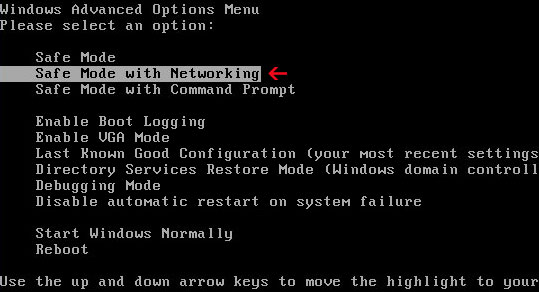
1. Reboot your computer is "Safe Mode with Networking". As the computer is booting tap the "F8 key" continuously which should bring up the "Windows Advanced Options Menu" as shown below. Use your arrow keys to move to "Safe Mode with Networking" and press Enter key. Read more detailed instructions here: http://www.computerhope.com/issues/chsafe.htm


NOTE: Login as the same user you were previously logged in with in the normal Windows mode.

2. Download free anti-malware software from the list below and run a full system scan.
NOTE: in some cases the rogue program may block anti-malware software. Before saving the selected program onto your computer, you may have to rename the installer to iexplore.exe or winlogon.exe With all of these tools, if running Windows 7 or Vista they MUST be run as administrator. Launch the program and follow the prompts. Don't forget to update the installed program before scanning.

3. New threats appear every day. In order to protect your PC from such (new) infections we strongly recommend you to use ESET Smart Security.


Alternate Antivirus 2010 removal instructions using Process Explorer (in Normal mode):

1. Download Process Explorer and end Antivirus 2010 process(es):
  • us?rinit.exe
  • wingamma.exe
2. Download free anti-malware software from the list below and run a full system scan.
NOTE: in some cases the rogue program may block anti-malware software. Before saving the selected program onto your computer, you may have to rename the installer to iexplore.exe or winlogon.exe With all of these tools, if running Windows 7 or Vista they MUST be run as administrator. Launch the program and follow the prompts. Don't forget to update the installed program before scanning.

3. New threats appear every day. In order to protect your PC from such (new) infections we strongly recommend you to use ESET Smart Security.


Antivirus 2010 associated files and registry values:

Current Antivirus 2010 Files:
  • C:\Documents and Settings\All Users\Application Data\.wtav
  • C:\WINDOWS\system32\mswmqnei.dll
  • C:\WINDOWS\system32\us?rinit.exe
  • C:\WINDOWS\system32\drivers\vbma22b4.sys
Old Antivirus 2010 Files:
  • C:\Program Files\AV2010
  • C:\Program Files\AV2010\AV2010.exe
  • C:\Program Files\AV2010\svchost.exe
  • C:\WINDOWS\system32\IEDefender.dll
  • C:\WINDOWS\system32\wingamma.exe
  • C:\Documents and Settings\All Users\Desktop\AV2010.lnk
  • C:\Documents and Settings\All Users\Start Menu\Programs\AV2010
  • C:\Documents and Settings\All Users\Start Menu\Programs\AV2010\AV2010.lnk
  • C:\Documents and Settings\All Users\Start Menu\Programs\AV2010\Uninstall.lnk
Current Antivirus 2010 registry values:
  • HKEY_CLASSES_ROOT\Interface\{35c95ec8-f789-9a3a-375c-bdb89a3684fd}
  • HKEY_LOCAL_MACHINE\SOFTWARE\Microsoft\Windows\CurrentVersion\Uninstall\{9CB00F85-D96F-1C82-F5A4-A31D57D6528D}
  • HKEY_LOCAL_MACHINE\SYSTEM\CurrentControlSet\Services\DFBCFDBA
  • HKEY_LOCAL_MACHINE\SYSTEM\CurrentControlSet\Services\userinit
Old Antivirus 2010 registry values:
  • HKEY_CURRENT_USER\Software\AV2010
  • HKEY_CLASSES_ROOT\AppID\{3C40236D-990B-443C-90E8-B1C07BCD4A68}
  • HKEY_CLASSES_ROOT\AppID\IEDefender.DLL
  • HKEY_CLASSES_ROOT\CLSID\{FC8A493F-D236-4653-9A03-2BF4FD94F643}
  • HKEY_CLASSES_ROOT\IEDefender.IEDefenderBHO
  • HKEY_CLASSES_ROOT\IEDefender.IEDefenderBHO.1
  • HKEY_CLASSES_ROOT\Interface\{7BC7565C-5062-43CE-8797-DC2C271140A9}
  • HKEY_CLASSES_ROOT\TypeLib\{705FD64B-2B7B-4856-9337-44CA1DA86849}
  • HKEY_LOCAL_MACHINE\SOFTWARE\Microsoft\Windows\CurrentVersion\Explorer\Browser Helper Objects\{FC8A493F-D236-4653-9A03-2BF4FD94F643}
  • HKEY_LOCAL_MACHINE\SYSTEM\ControlSet001\Control\Class\{4D36E972-E325-11CE-BFC1-08002bE10318}\0012
  • HKEY_LOCAL_MACHINE\SYSTEM\ControlSet001\Control\Class\{4D36E972-E325-11CE-BFC1-08002bE10318}\0013
  • HKEY_LOCAL_MACHINE\SYSTEM\ControlSet001\Control\Class\{4D36E972-E325-11CE-BFC1-08002bE10318}\0014
  • HKEY_LOCAL_MACHINE\SOFTWARE\Microsoft\Windows\CurrentVersion\Run "Windows Gamma Display"
Share this information with other people: