Wednesday, 18 July 2012

Remove MyStart by IncrediBar Search and Toolbar (Uninstall Guide)

For a few weeks now, we have been receiving an increasing number of emails from our readers asking us how to remove MyStart by IncrediBar search engine and the MyStart IncrediBar toolbar. We read all of the mail you send to us. Unfortunately, we are unable to respond to everyone individually.

Instead, we took a closer look at this issue and wrote comprehensive step-by-step removal instructions that apply to all Incredibar toolbars on all major web browsers: Internet Explorer, Mozilla Firefox and Google Chrome. If you don't want to read detailed analysis about this software and came here only for mystart toolbar removal instructions, please scroll the page down a bit.
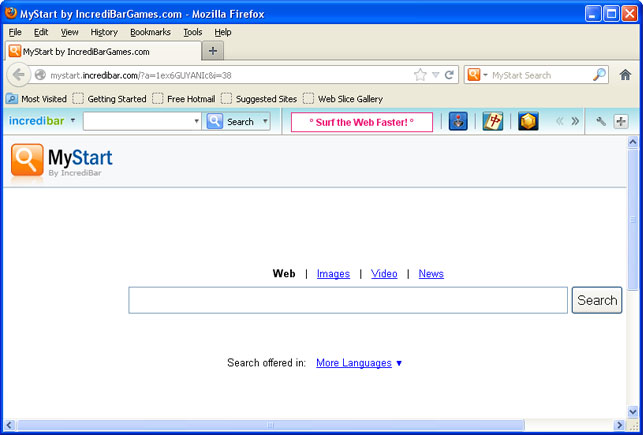


If you do a quick Google search for MyStart by IncrediBar you’ll find many forum threads and posts about this toolbar. Surprisingly, most people think that they apparently ended up with the Incredibar MyStart virus, Trojan horse or some sort of malicious software. That’s not quite true. It’s a potentially unwanted application or a browser hijacker at worse if you like but not a virus. However, incredibar certainly won't go away that easy. That's why it's classified as PUA.

On the other hand, our readers confirmed that this toolbar causes unexpected web browser crashes, takes over the browser, substitutes Incredibar for the home page and http://mystart.incredibar.com for the search engine. Pretty much everything leads to MyStart page. It also redirects search results to their own search engine which is powered by Google (at least that’s what they say) and even displays annoying ads/pop-ups.

McAfee detects Incredibar installer as Heuristic.LooksLike.Win32.Suspicious.B. TrendMicro detects it as TROJ_ENCPK_0000009.TOMA and finally ESET also sees it as a threat Win32/ImInstaller potentially unwanted application.
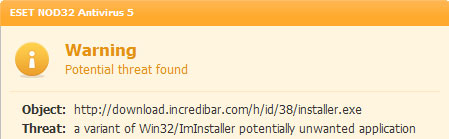


Some behavior-based antivirus programs block My Start by IncrediBar too. So, even thought, it’s not a virus there’s definitely something wrong with this toolbar.

Incredibar toolbar is developed and published by Perion Network Ltd. They started in Tel Aviv about twelve years ago. Now they have an office in Redmond, WA. There are three version of this toolbar: essentials, music and games. We believe that he most popular is Incredibar Games. But Incredibar is not their only software product. They have other brands as well. First of all, the most popular product called Incredimail. It’s designed to enrich your emails with colorful graphics, animations, etc. If you choose to install Incredimail on your computer you may end up with MyStart by IncrediBar as well. Then there’s also a photo organization software product called PhotoJoy. Smilebox and even online safety and security software called Dr. CleanUp. We’ve never heard of it before.

MyStart by IncrediBar comes bundled with all their brand communication, photo sharing and safety products. What is more, this toolbar is distributed with the help of other freeware and shareware, codecs and HD video players. Most of the time, users can choose not to install this toolbar and we haven’t find any silent installers whatsoever. But we found a few reports indicating that this toolbar was distributed in rather misleading ways. In one particular case the user wasn't informed about the installation of this toolbar when he was installing a video converter. Image his surprise when MyStart by IncrediBar and the IncrediBar toolbar showed up on all web browsers.

IncrediBar toolbar can be uninstalled just by going to Control Panel and selecting Add/Remove Programs. But for some reasons, the folks at Perion forgot to mention that there’s also an application called Web Assistant. It must be uninstalled as well (see the removal instructions below). So, removing IncrediBar toolbar is not a big deal. But it’s a completely different story when it comes to MyStart by IncrediBar search page.

To remove MyStart by IncrediBar in Internet Explorer you need to manually remove the MyStart search engine provider and restore your default home page. It’s relatively easy. The same can be said about Google Chrome. You just need to manually remove IncrediBar extension and restore your default home page. But it really messes up with Mozilla Firefox. It modifies keyword.URL, browser.newtab.url and some other web browser settings. It goes without saying that most Firefox users don’t even know such settings exist and almost certainly do not know how to restore them. For example, if you won’t restore the keyword.URL string data value, you will be redirected http://mystart.incredibar.com when searching directly from the URL address bar. That’s really annoying.

For step-by-step instructions on how to remove MyStart by IncrediBar search engine and toolbar from your computer, please read the directions below. Please note, MyStart by IncrediBar and Incredibar settings apply to Internet Explorer, Mozilla Firefox, Google Chrome and Opera. From what I've seen so far removing incredibar from chrome is probably the most challenging task. Not the toolbar itself but the changes it made to the browser. Uninstall mystart search from major web browser isn't that easy either. This is especially true for Mozilla Firefox. Too many changes are made and if you choose to reset your web browser to its default state, you will lose your bookmarks, save passwords and browsing history. If you have nothing to lose then yeah, save yourself time and reset it. But if you don't want to lose anything, then follow the removal instructions below. If you need further assistance with this issue, please leave a comment below. Good luck!

Source: http://deletemalware.blogspot.com


MyStart by IncrediBar toolbar removal instructions:

1. First of all, download recommended anti-malware software and run a full system scan. It will detect and remove this infection from your computer. You may then follow the manual removal instructions below to remove the leftover traces of this browser hijacker. Hopefully you won't have to do that.


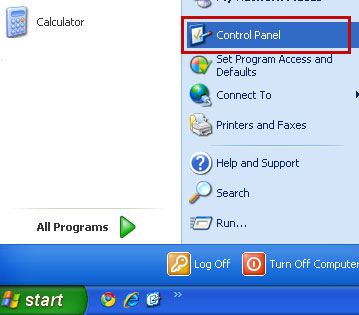
2. Go to the Start Menu. Select Control PanelAdd/Remove Programs.
If you are using Windows Vista or Windows 7, select Control PanelUninstall a Program.


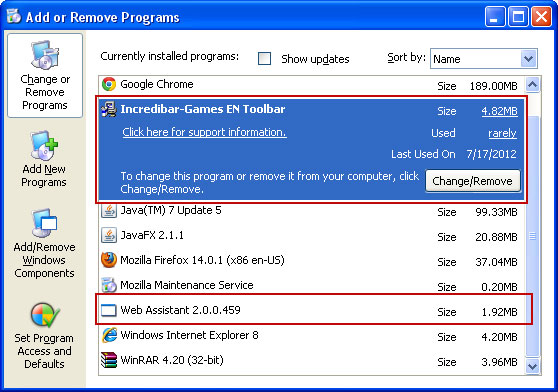
3. Search for IncrediBar* toolbar and Web Assistant in the list. Select the program and click Remove button. Remove both components!

If you are using Windows Vista/7, click Uninstall up near the top of that window.


Alternate removal: run C:\Program Files\Incredibar*\uninstall.exe

* This is the name of the toolbar you downloaded (i.e. Incredibar Games, Incredibar Essentials or Incredibar Music).


Remove MyStart by IncrediBar in Internet Explorer:

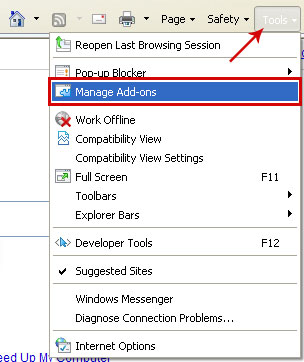
1. Open Internet Explorer. Go to ToolsManage Add-ons.


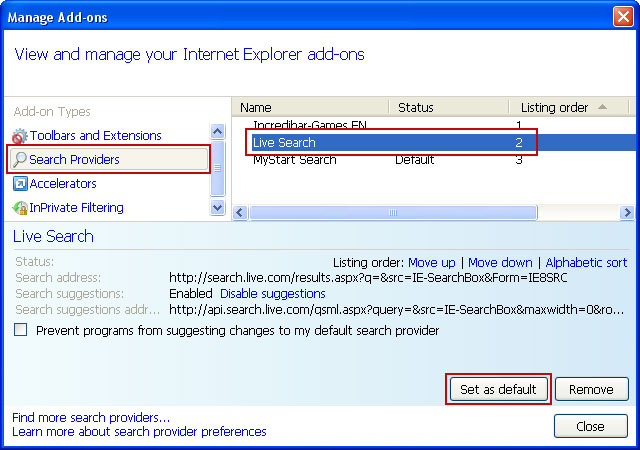
2. Select Search Providers. First of all, choose Bing or Live Search search engine and make it your default web search provider (Set as default).


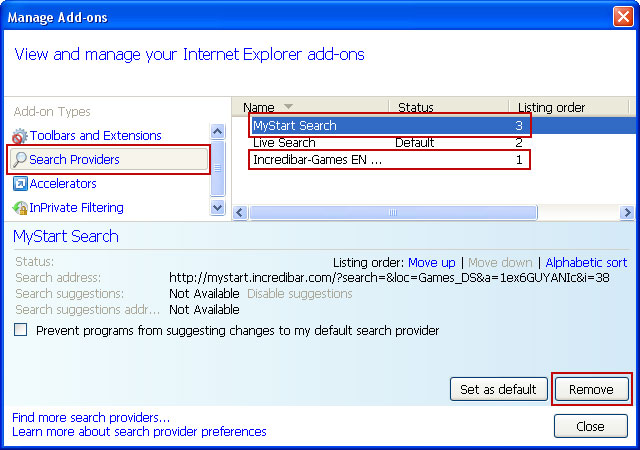
3. Remove MyStart Search and Incredibar Customized Web Search web search providers. Close the window.


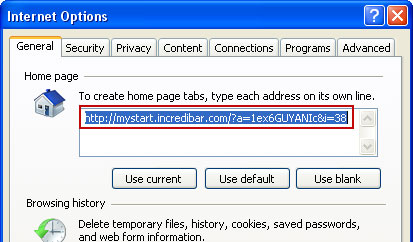
4. Go to ToolsInternet Options. Select General tab and click Use default button or enter your own website, e.g. google.com instead of http://mystart.incredibar.com. Click OK to save the changes. And that's about it for Internet Explorer.


Remove MyStart by IncrediBar in Mozilla Firefox:

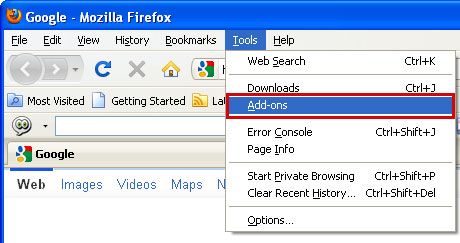
1. Open Mozilla Firefox. Go to ToolsAdd-ons.


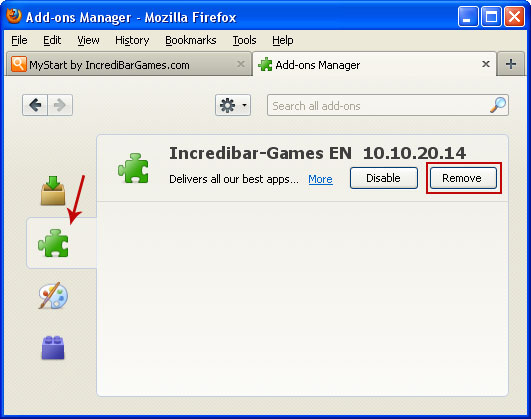
2. Select Extensions. Remove IncrediBar* toolbar. Close the window.


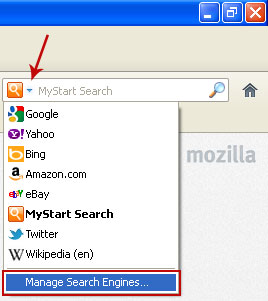
3. Click on the magnifying glass search icon as shown in the image below and select Manage Search Engines....


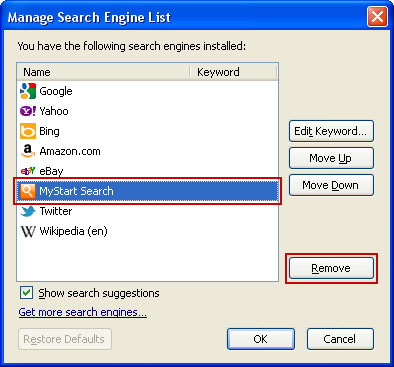
4. Choose MyStart Search from the list and click Remove to remove it. Click OK to save changes.


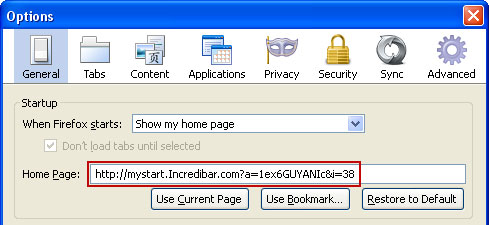
5. Go to ToolsOptions. Under the General tab reset the startup homepage or change it to google.com, etc.


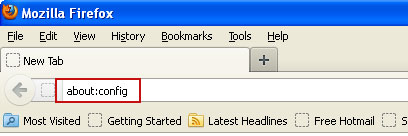
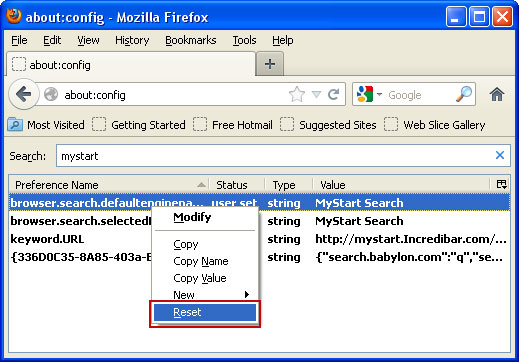
6. In the URL address bar, type about:config and hit Enter.


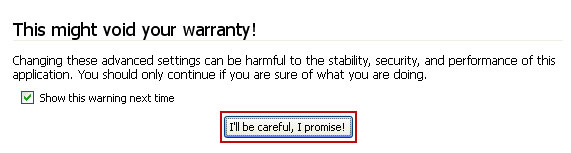
Click I'll be careful, I promise! to continue.


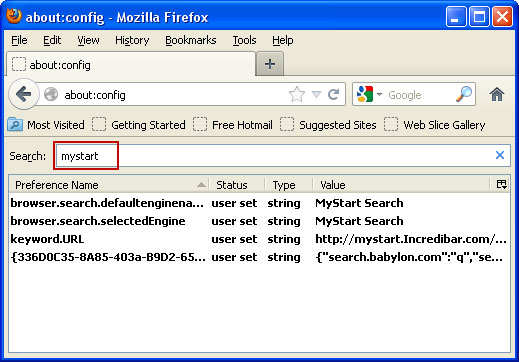
In the filter at the top, type: mystart


Now, you should see all the preferences that were changed by IncrediBar toolbar. Right-click on the preference and select Reset to restore default value. Reset all found preferences!


And that's it for Mozilla Firefox!


Remove MyStart by IncrediBar in Google Chrome:

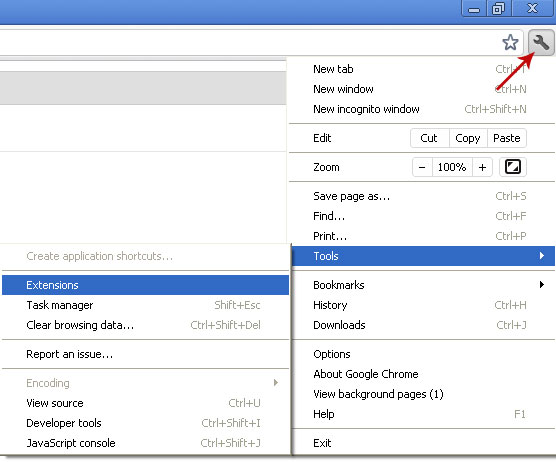
1. Click on Customize and control Google Chrome icon. Go to ToolsExtensions.


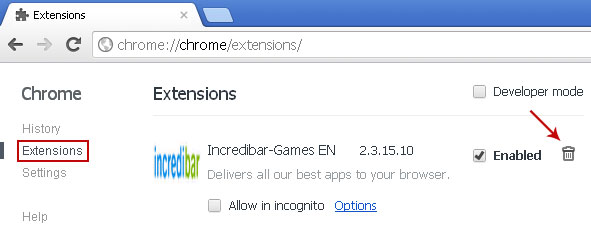
2. Select IncrediBar and click on the small recycle bin icon to remove the toolbar.


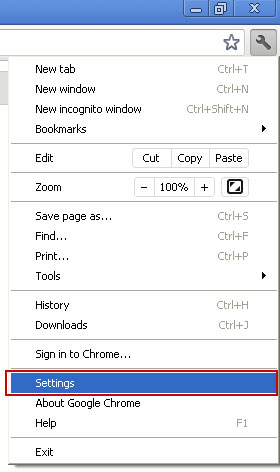
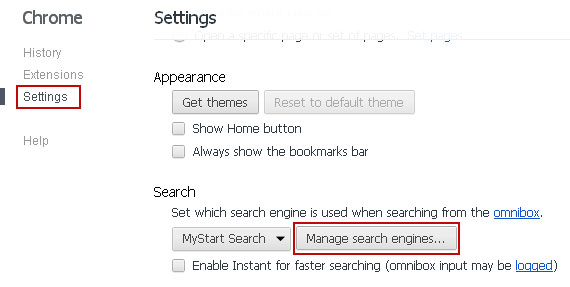
3. Click on Customize and control Google Chrome icon once again and now select Settings.


4. Click the Manage search engines... button.


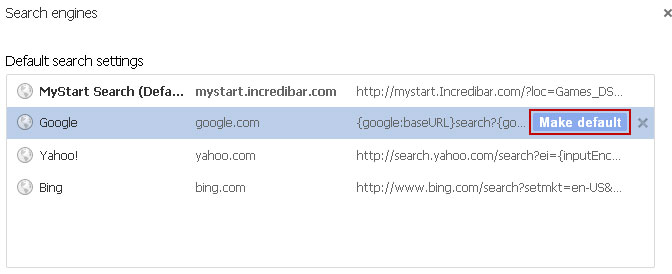
5. Select Google or any other search engine you like from the list and make it your default search engine.


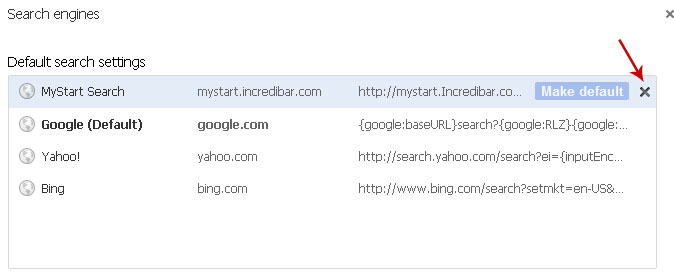
6. Select MyStart Search from the list and remove it by clicking the "X" mark as shown in the image below.


That's it!


Associated MyStart by IncrediBar files and registry values:

Files:
  • C:\Program Files\Incredibar-Games_EN\GottenAppsContextMenu.xml
  • C:\Program Files\Incredibar-Games_EN\Incredibar-Games_ENToolbarHelper.exe
  • C:\Program Files\Incredibar-Games_EN\ldrtbIncr.dll
  • C:\Program Files\Incredibar-Games_EN\OtherAppsContextMenu.xml
  • C:\Program Files\Incredibar-Games_EN\prxtbIncr.dll
  • C:\Program Files\Incredibar-Games_EN\SharedAppsContextMenu.xml
  • C:\Program Files\Incredibar-Games_EN\tbIncr.dll
  • C:\Program Files\Incredibar-Games_EN\toolbar.cfg
  • C:\Program Files\Incredibar-Games_EN\ToolbarContextMenu.xml
  • C:\Program Files\Incredibar-Games_EN\uninstall.exe
Registry values:
  • HKEY_CURRENT_USER\Software\Conduit\RevertSettings "http://mystart.Incredibar.com?a=1ex6GUYANIc&i=38"
  • HKEY_CURRENT_USER\Software\IM\38 "PPD"
  • HKEY_CURRENT_USER\Software\ImInstaller\Incredibar
  • HKEY_CURRENT_USER\Software\Incredibar
  • HKEY_CURRENT_USER\Software\Incredibar-Games_EN
  • HKEY_CURRENT_USER\Software\Microsoft\Internet Explorer\Main StartPage "http://mystart.Incredibar.com?a=1ex6GUYANIc&i=38"
  • HKEY_LOCAL_MACHINE\SOFTWARE\Conduit\Toolbars "Incredibar-Games EN Toolbar"
  • HKEY_LOCAL_MACHINE\SOFTWARE\Incredibar-Games_EN\toolbar
  • HKEY_LOCAL_MACHINE\SOFTWARE\Microsoft\Internet Explorer\Toolbar "Incredibar-Games EN Toolbar"
  • HKEY_LOCAL_MACHINE\SOFTWARE\Microsoft\Windows\CurrentVersion\Uninstall\Incredibar-Games EN Toolbar
Tell your friends:

Tuesday, 17 July 2012

Apple Computers ARE Susceptible After All

Some PC users might feel that Apple customers have been a bit "uppity" in regards to their OS, regarding security in particular. Much of this comes from Apple itself, which has openly bragged about how the Mac OS is immune to viruses. Recent developments have served to tarnish this reputation, and it seems Mac users would be wise to sit up and pay attention to a world they might have blissfully ignored before: cybercrime.

While Macs have admittedly seen far fewer widespread cases of malware infection compared with Microsoft boxes, this is probably a result of the fact that there has been a wide discrepancy in ownership percentages between the two platforms and, therefore, less incentive to devote the time and resources necessary to fully exploit the lesser-used Macs. As the ownership gap closes, however, and Macs comprise a larger percentage of the computer marketplace, they are naturally becoming more appealing to cybercriminal exploiters.

Here are some of the attacks that have been successfully launched against Macs.


Flashback

Flashback made the headlines recently as it has reportedly infected upwards of 600,000 computers, most of which were located the United States and Canada. The malware originally hit the wild as a fake update to the Adobe Flash plug-in (ironically, Apple founder Steve Jobs hated Flash). When users installed it, thinking they were simply upgrading their existing Adobe software, they were actually installing a Trojan with the potential to steal sensitive data off of the victim's Mac, such as passwords, bank account logins and more. Furthermore, the Trojan allowed hackers to take over their victims' computers for use in denial-of-service attacks and other schemes.

Flashback has since permutated into a Java-based exploit, which can be installed without the user's knowledge simply by visiting an infected webpage which will invoke the Java exploit.


SabPub

This recent malware works as a downloader, a software that connects to a "command and control" network from which it takes orders and initiates downloads from servers controlled by criminals. The effects are similar to Flashback, with data theft or control of the machine being the main goals.

As of this writing, the software appears to be in a beta or experimental phase, but as infections have been noted in China, which is notorious for having infected computers, expect it to spread and mutate into more damaging forms as time goes on.


Password changes

With the OS X Lion release, Apple left a password vulnerability wide open (since patched). Anyone with access to a machine was able to change the default password with a simple procedure using the Directory Services.

If a downloader exploit, as previously described, were to be installed, and one of the programs downloaded to the victim's Mac were a remote desktop interface, then a hacker could not only take control of the machine and steal everything on it, but could also lock the owner completely out of his or her own computer.


Scareware

Scareware, or programs which attempt to frighten users into downloading and installing software to protect against non-existent threats, have successfully infected Macs since at least 2008, with the release of MacSweeper. This rogue piece of scareware looked somewhat like the legitimate Mac Sweeper, but instead would "find" numerous problems which did not exist. It would then ask the mark to pay for the software in order to clean the "infection," which of course resulted in nothing but an emptier wallet for the victim.

Another, similar software was MacDefender, which was particularly troublesome as the developers would release new permutations as fast as soon as Apple could defend against previous versions through patches. It was also extremely difficult to remove, as it hid itself by working without a dock icon.


The future

The Mac platform has an ironic problem in that one of the reasons it has resisted viruses is the fact that most software is installed via its official App Store. That is also the reason why antivirus programs have made little inroads into the Mac user base. The Apple App Store forbids automatic, continuous updates by a software program, which is something that just about every antivirus program depends upon to keep its signature file updated.

To Apple's credit, they are addressing the vulnerabilities by releasing a program called Gatekeeper this summer which will allow users to better regulate where their software is installed from, making "drive-by" websites, which infect visitors with hidden scripts, less dangerous, and strengthening the OS's security profile overall. Regardless of the actions taken by Apple, Mac users should note that the climate has changed for them, and that they are now, more than ever, directly in the crosshairs of hackers. For them, it pays to follow the developments of this disturbing, evolving trend and do what is recommended by security experts to keep their systems protected.

About the author: When John Dayton isn’t buys covering LWG Expert Directory, he commits himself to the tech industry. Having written about tech for many years, John has developed a wealth of knowledge.

Tell your friends:

Friday, 13 July 2012

Remove "File Recovery" Malware (Uninstall Guide)

File Recovery is a rogue PC repair and optimization product, misleading at best and fraudulent at worst, that carries a dangerous payload. This fake system repair application pretends to scan a computer for stuff like invalid Windows registry keys, hard drive reading errors, junk files, critical system errors, RAM failures, and much more. Since it doesn’t actually scan a computer for any of these issues it’s not surprising at all that File Recovery scareware reports a bunch of non-existing system errors and threats on a targeted machine.

The worst part is that it hijacks a compromised computer, intentionally misrepresents the system status and asks user to pay for bogus PC repair software activation to remove non-existing hard drive errors and other risks from the computer. Unlike ransomware, it doesn’t freeze your computer screen (thanks for that). But it does perform actions that prevent user from accessing certain applications and Windows features. In rare cases, it can make computer unstable forcing unexpected reboots and blue screens of death.


If you pay for this rogue application you will lose your money and probably without a chance to get them back. But you can still contact your credit card company and dispute the charges. Who knows it might just work. After all, you don’t have anything to lose. At least you know it’s a scam. Besides, more than 4% of PC users that got infected with scareware think that File Recovery and similar applications are genuine Windows products designed to enhance system protection against viruses and system failures. Bit shocking isn't it.

Scareware infection symptoms are almost identical – fake scanners and misleading security alerts popping up at random intervals. Also, File Recovery is a very generic name and very competitive keyword at the same time. The last one was called Data Recovery. Cyber crooks choose very competitive keywords as their bogus software names making it hard to rank well in search results. It’s a wise move but users will probably search for File Recovery virus or malware or anything like that and we are pretty sure that Google will handle everything just fine.

Cyber crooks use various techniques like spam; drive-by downloads, and fake virus scanners to distribute rogue security applications. Even thought, most of the reports show that Fake AV applications seem to be on decline, they are still a significant threat. There are still many active scareware distribution channels and affiliate networks called ‘partnerka.’ The rules are different now. Two or more years ago, cyber crooks that were promoting scareware earned ~$25 per sale or sometimes even more. Now, they can earn $50 and more. 10k infected machines per day adds additional 10% revenue share. But yeah, in the last few months, there hasn't been much to talk about.

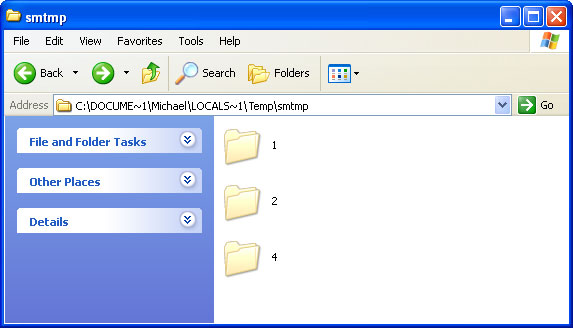
This rogue HDD repair program hides certain files, usually shortcuts and Desktop icons, and moves other files to Windows %Temp%\smtmp folder.


Do not delete any files from your Temp folder. We will show you how to restore hidden files in the removal guide below.

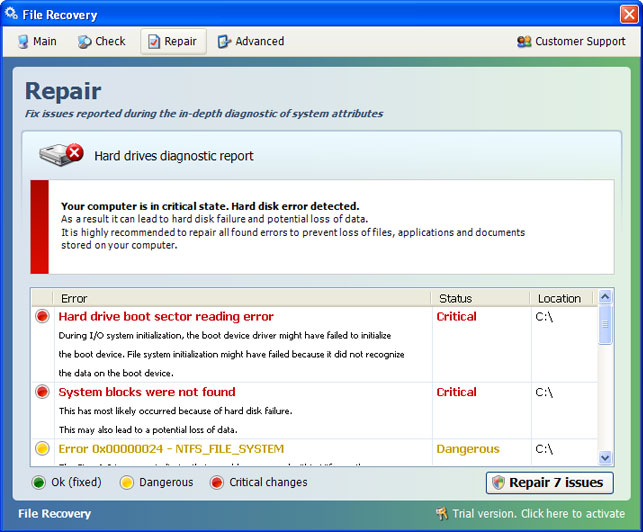
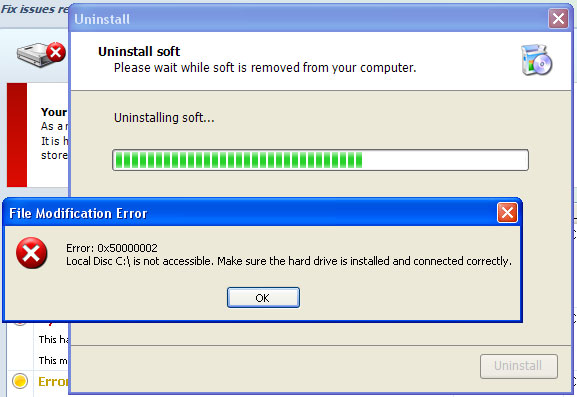
Certain fake security applications as well as fake PC repair utilities use very aggressive methods to scare users into believing that their computer are badly infected or damaged while others show up every ten minutes or so and remind you about security issues that need your attention. Recent scareware variants had working uninstallers, so levels of aggressive behavior are clearly different. Unfortunately, File Recovery malware uninstall doesn't work. You can find the uninstaller in your "All Programs" list. Clicking uninstall button calls a fake system error (see the image below). The rogue application claims that you cannot uninstall it because your local disk is not accessible. The funny thing is, you can uninstall whatever program you want but not this one. Coincidence? :) Of course not.


File Recovery removal is relatively easy unless it comes bundled with sophisticated malicious software, very often the ZeroAccess rootkit. When running, the rogue application blocks access to Web pages by showing a warning message in the browser and shuts download running antivirus software. But don’t worry there’s definitely a way to remove File Recovery virus. Scroll down a bit for step-by-step removal instructions. If you need help removing this malware from your PC, please let me know (leave a comment below). Good luck!

Source: http://deletemalware.blogspot.com


Quick File Recovery malware removal:

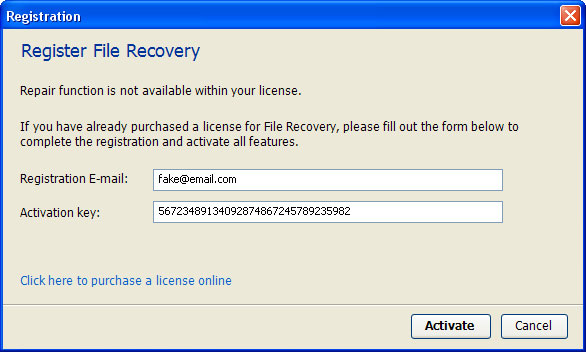
1. Use the activation key given below to register your copy of File Recovery malware. This will allow you to download and run recommended malware removal software and automatically restore hidden files and shortcuts. Don't worry, you're not doing anything illegal. Select "Trial version. Click to activate" (at the bottom of the fake scanner screen). Use fake email and the following activation key:

fake@mail.com
56723489134092874867245789235982


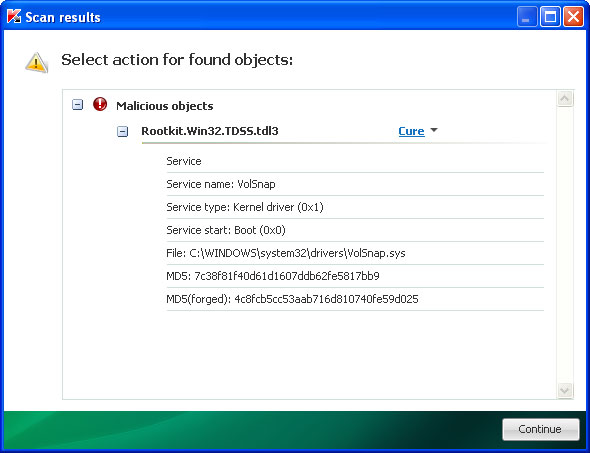
2. Download TDSSKiller and run a system scan. Remove found rootkits (if any). Reboot your computer if required.

3. Download recommended anti-malware software (direct download) and run a full system scan to remove this virus from your computer.


Alternate "File Recovery" removal instructions:

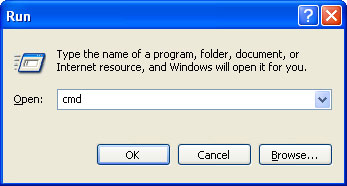
1. First of all, you need to unhide the files and folders. Select Run... from the Start Menu or just hit the key combination CTRL+R on your keyboard. In the Open: field, enter cmd and hit Enter or click OK.


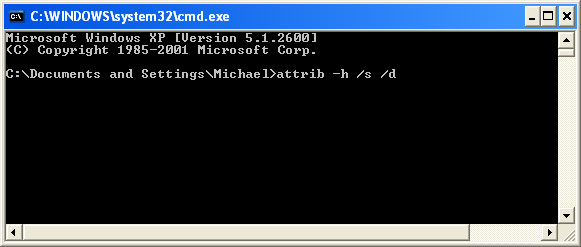
At the command prompt, enter attrib -h /s /d and hit Enter. Now, you should see all your files and folders. NOTE: you may have to repeat this step because the malware may hide your files again.


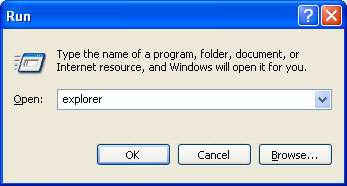
If you still can't see any of your files, Select Run... from the Start Menu or just hit the key combination CTRL+R on your keyboard. In the Open: field, enter explorer and hit Enter or click OK.


2. Open Internet Explorer. Select Run... from the Start Menu or just hit the key combination CTRL+R on your keyboard. In the Open: field, enter iexplore.exe and hit Enter or click OK.

Open Internet Explorer and download TDSSKiller. This malware usually (but not always) comes bundled with TDSS rootkit. Removing this rootkit from your computer is very important (if exists). Run TDSSKiller to remove the rootkit.


3. Finally, download recommended anti-malware software (direct download) to remove this virus from your computer.

NOTE: in some cases the rogue program may block anti-malware software. Before saving the selected program onto your computer, you may have to rename the installer to iexplore.exe or winlogon.exe With all of these tools, if running Windows 7 or Vista they MUST be run as administrator. Launch the program and follow the prompts. Don't forget to update the installed program before scanning.


Manual File Recovery removal instructions:

1. First of all, you need to unhide the files and folders. Select Run... from the Start Menu or just hit the key combination CTRL+R on your keyboard. In the Open: field, enter cmd and hit Enter or click OK.


At the command prompt, enter attrib -h /s /d and hit Enter. Now, you should see all your files and folders. NOTE: you may have to repeat this step because the malware may hide your files again.


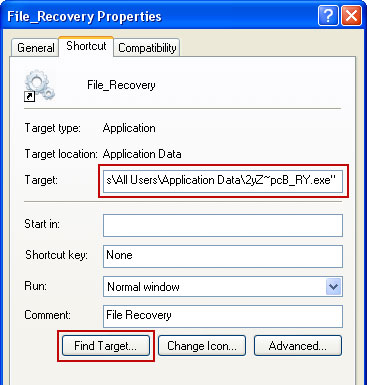
2. The rogue application will place an icon or your desktop. Right click on the icon, click Properties in the drop-down menu.


Then click the Shortcut tab.

The location of the malware is in the Target box.


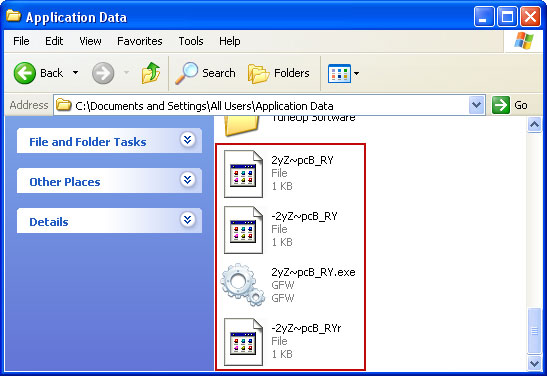
On computers running Windows XP, malware hides in:
C:\Documents and Settings\All Users\Application Data\


On computers running Windows Vista/7, malware hides in:
C:\ProgramData\


NOTE: by default, Application Data folder is hidden. Malware files are hidden as well. To see hidden files and folders, please read Show Hidden Files and Folders in Windows.

3. Click "Find Target..." button, it will take you to the folder where the malicious files are located. Or you can simply browse to those files manually.

Example Windows XP:
C:\Documents and Settings\All Users\Application Data\2yZ~pcB_RY.exe

Example Windows Vista/7:
C:\ProgramData\2yZ~pcB_RY.exe

Basically, there will be a couple of  files named with a series of numbers or letters.


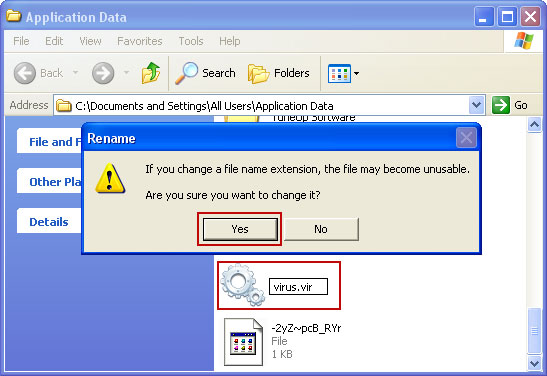
For example, rename 2yZ~pcB_RY.exe to virus.vir and click Yes to change it. Please note, your file name will probably be different. 


It should be: C:\Documents and Settings\All Users\Application Data\virus.vir

Instead of: C:\Documents and Settings\All Users\Application Data\2yZ~pcB_RY.exe

4. Restart your computer. The malware should be inactive after the restart.

5. Open Internet Explorer and download TDSSKiller.This malware usually (but not always) comes bundled with TDSS rootkit. Removing this rootkit from your computer is very important (if exists). Run TDSSKiller and remove the rootkit.


6. Download recommended anti-malware software (direct download) to remove this virus from your computer

NOTE: in some cases the rogue program may block anti-malware software. Before saving the selected program onto your computer, you may have to rename the installer to iexplore.exe or winlogon.exe With all of these tools, if running Windows 7 or Vista they MUST be run as administrator. Launch the program and follow the prompts. Don't forget to update the installed program before scanning.


Associated File Recovery files and registry values:

Files:

Windows XP:
  • %AllUsersProfile%\Application Data\[SET OF RANDOM CHARACTERS]
  • %AllUsersProfile%\Application Data\[SET OF RANDOM CHARACTERS].exe
  • %UsersProfile%\Desktop\File Recovery.lnk
  • %UsersProfile%\Start Menu\Programs\File Recovery\
  • %UsersProfile%\Start Menu\Programs\File Recovery\File Recovery.lnk
  • %UsersProfile%\Start Menu\Programs\File Recovery\Uninstall File Recovery.lnk
%AllUsersProfile% refers to: C:\Documents and Settings\All Users
%UserProfile% refers to: C:\Documents and Settings\[User Name]

Windows Vista/7:
  • %AllUsersProfile%\[SET OF RANDOM CHARACTERS]
  • %AllUsersProfile%\[SET OF RANDOM CHARACTERS].exe
  • %UsersProfile%\Desktop\File Recovery.lnk
  • %UsersProfile%\Start Menu\Programs\File Recovery\
  • %UsersProfile%\Start Menu\Programs\File Recovery\File Recovery.lnk
  • %UsersProfile%\Start Menu\Programs\File Recovery\Uninstall File Recovery.lnk
%AllUsersProfile% refers to: C:\ProgramData
%UserProfile% refers to: C:\Users\[User Name]

Registry values:
  • HKEY_CURRENT_USER\Software\Microsoft\Windows\CurrentVersion\Run "[SET OF RANDOM CHARACTERS].exe"
  • HKEY_CURRENT_USER\Software\Microsoft\Windows\CurrentVersion\Run "[SET OF RANDOM CHARACTERS]"
  • HKEY_CURRENT_USER\Software\Microsoft\Windows\CurrentVersion\Policies\Associations "LowRiskFileTypes" = '/{hq:/s`s:/ogn:/uyu:/dyd:/c`u:/bnl:/ble:/sdf:/lrh:/iul:/iulm:/fhg:/clq:/kqf:/`wh:/lqf:/lqdf:/lnw:/lq2:/l2t:/v`w:/rbs:'
  • HKEY_CURRENT_USER\Software\Microsoft\Windows\CurrentVersion\Policies\Attachments "SaveZoneInformation" = '1'
  • HKEY_CURRENT_USER\Software\Microsoft\Internet Explorer\Download "CheckExeSignatures" = 'no'
  • HKEY_CURRENT_USER\Software\Microsoft\Internet Explorer\Main "Use FormSuggest" = 'yes'
Tell your friends:

Tuesday, 3 July 2012

Effective Network Internet Control for Effective Security

The Internet has been a blessing to business, yet without effective network Internet control it can also be a curse. We can use the Internet to reach new clients, research new markets and communicate effectively over vast distances; but it also puts us at risk of infection from malware and viruses. These can compromise our data or even result in system downtime. Browsing, social media and file downloading are also a source of employee distraction and lost productivity.

So how can ensure that the Internet offers you far more blessings, while also being far less of a curse to your organization? By having network Internet control software you can keep your system safe, enforce reasonable use policies on browsing and maintain productivity at high levels. How? Read on to find out.

Proactive protection for your network

Employees love fast corporate Internet connections. They make browsing simple and are also great for downloading large files that would take far longer on their home networks. However, this can leave your organization to many risks, such as legal issues, licensing issues and of course, the risk of infection by malware and viruses.

Network Internet control software combats this by providing you with the ability to determine what file types can be downloaded. In addition, some software also integrates multiple antivirus engines that scan any allowed downloads to ensure your network stays safe.

Granular control of browsing

While most organizations do not mind employees engaging in a little Internet browsing, some users can abuse the privilege. Productivity is lost and time is wasted in social media sites and personal browsing. Worse, sites that offer streaming media, such as YouTube, can hog bandwidth and cause slowdowns for everyone else on the network.

This can be prevented by setting bandwidth thresholds for each user, and blocking heavy bandwidth sites. This can be done with granular controls, allowing you to give access to employees that may need access for their daily duties, while restricting access for those that don’t. In addition, effective network Internet control software also gives you the ability to employ soft-blocking, giving users a warning screen that the site they are about to access is in breach of company policy. In this way, users can police themselves.

Blocking social engineering

Phishing attacks and social engineering have become common attack vectors for hackers and others with malicious intent. These methods have the advantage of leaving the user unaware that their machine has become infected, allowing the hacker to have access to your system without raising an alarm.

Malicious websites that masquerade as legitimate ones; links that lead to sites which attempt to trick users into downloading software that appears harmless but which is actually malicious; and apparently genuine requests for information that allow a hacker to steal your confidential information such as usernames and passwords. These are all weapons in a hacker’s arsenal.

Network Internet control software can prevent these occurrences by accessing a database of known phishing websites and blocking access accordingly. Malware attacks are often the most powerful within the first eight hours of release, so having a constantly updated blacklist of infected websites is important for ensuring your protection. However, websites should be checked often and their blacklisting revised to prevent legitimate websites being permanently blocked as a result of temporary malware infection.

Access can also be restricted to specific groups of websites with some Internet monitoring software, allowing customizable whitelist and blacklist options. Reputation databases that categorize sites and which are auto-updated from your cache can also provide excellent protection from untrustworthy sites.

Having effective network control software offers multiple advantages to organizations. Lost productivity, downtime due to malware and virus infections, as well as theft of confidential data can all be costly in terms of resources. Using network control software for monitoring and security can help you to avoid costly mistakes, and thus offers excellent ROI on a minimal investment. So if you have dismissed this technology in the past, now may be the time to reconsider, before a saving on software becomes an expensive business mistake.

This guest post was provided by Christina Goggi on behalf of GFI Software Ltd. GFI is a leading software developer that provides a single source for network administrators to address their network security, content security and messaging needs. Read more on the importance of implementing network Internet control within your organization. All product and company names herein may be trademarks of their respective owners.

Sunday, 1 July 2012

Remove FBI MoneyPak Ransomware (Uninstall Guide)

Ransomware is on the rise again, no doubt about that. Cyber security experts’ predictions were correct. Apparently they know this stuff very well. Seriously, you have to respect them. They also said that ransonware will probably hit smart phones too. We haven’t seen any of these yet but it’s probably just a matter of time.

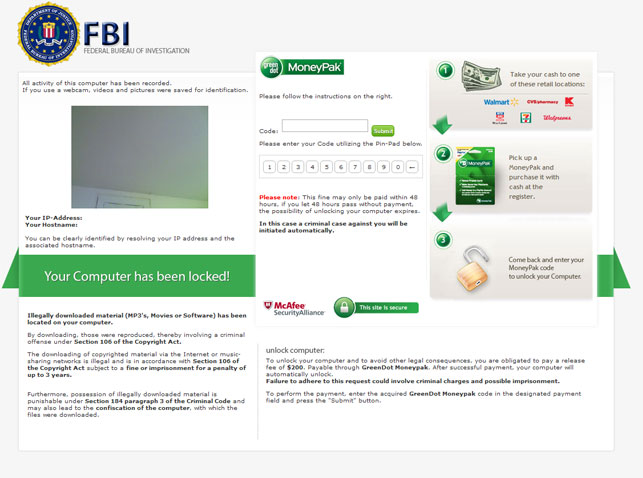
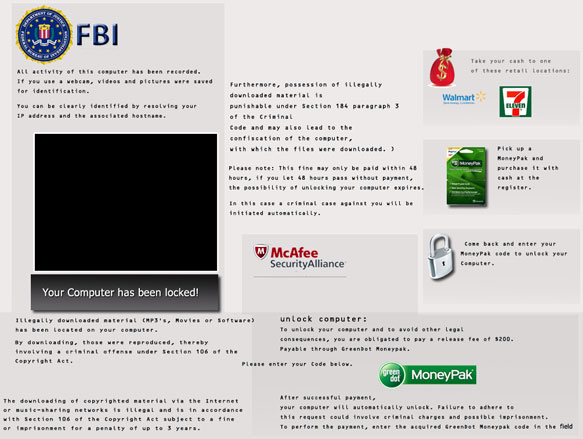
Anyway, today we’re looking at the FBI MoneyPak virus or Trojan if you like. Most people nowadays don’t really know you to properly describe malware. I don’t know what it is, so let’s just call it a virus. Education is the key guys, especially when it comes to PC security. So, let's make things sparkling clear. If your computer screen is filled with a FBI warning page that claims you have to pay the $100 fine, you’re infected with ransomware. It’s not a virus. It can’t delete your files or inject .doc files.


Most of the time, ransomware locks up user’s desktop, disables task manager and other system utilities to avoid the termination. However, FBI MoneyPak ransomware takes it to the entirely new level by adding a little video recording square in the top right corner of the fake FBI warning page. It supposed to be your built-in web camera. The funny thing is that this little square shows up even if your laptop doesn’t have a built-in camera.


We have to admit that FBI MoneyPak is a very convincing looking scam/fraud. It has the official FBI logo at the top and lists victim’s IP address, location, and the name of your ISP. The fake warning claims that your PC has been locked by FBI because you downloaded or distributed copyrighted material or viewed child pornography. Creepy, isn’t it? Now, if you don’t pay the fine you will go to jail. What is more, you have only 72 hours to buy MoneyPak cash top-up card from Walmart or Kmart.


Cyber crooks are truly imaginative guys, aren’t they? Most people start to panic when they see such fake FBI warnings. You can’t let anyone know this happened; otherwise you can get arrested or even worse – have a criminal record or listed as a registered sex offender. Let’s image this happens at work. Would you tell your colleagues about that? Probably not. And this scheme really works. Cyber crooks want you to act immediately on your first impulse. I know it cruel but it works. Most importantly, don’t panic. Take a deep breath and think about it for a second. If you had done ether of those the punishment would probably be drastically more dire than just a simple $100 fine, right? Just don’t fall into the scam.

FBI MoneyPak virus removal is relatively easy for anyone with above average computer skills. This ransomware doesn’t inject explorer.exe. It injects iexplorer.exe and downloads additional files from remote web servers. It makes numerous modifications to the system. The virus actively monitors Task Manager and loads newly created Desktop with the fake FBI warning. Please note, there is no restore operation, so the desktop will never be reverted back to previous state. That means, even if you pay the ransom, the fake FBI warning won’t go away.

FBI MoneyPak ransomware is distributed using the Blackhole exploit kit. Simple visiting an infected website is enough to trigger this exploit kit which will download a malicious DLL file onto your computer.

This ransomware downloads the fake warning from the internet so if you simply unplug your network cable and manually turn your computer off the virus won’t show up after the reboot (at least it shouldn’t). Another way to remove FBI MoneyPak virus is to reboot your computer in Safe Mode and remove malicious registry keys and files manually. One way or another, you MUST scan your computer with legitimate anti-malware software properly remove this ransomware and its remnants. By the way, Kaspersky or Dr.Web rescue CDs should work just fine in this case too.

To remove FBI MoneyPak ransomware from your computer, please follow the steps in the removal guide below. If you need extra help removing this malware, please leave a comment below. Good luck and be safe online!

http://deletemalware.blogspot.com

Guide Updates:

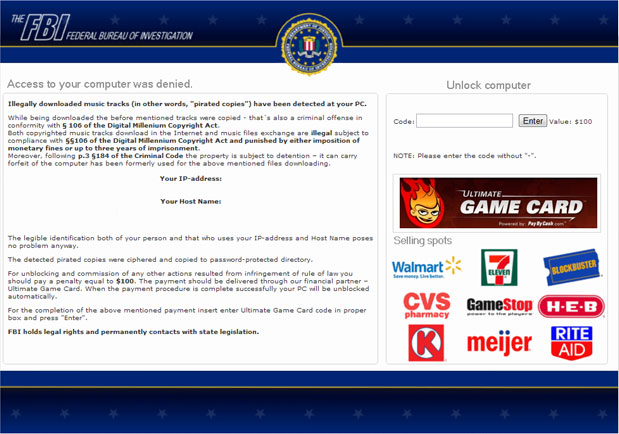
08/17/12 - Cyber crooks have changed payment methods.


Now, the payment should be delivered through Ultimate Game Card instead of GreenDot MonayPack. It still remains unclear if they made a permanent switch to this service or not. So, from now on it's the FBI Ultimate Game Card ransomware scam rather than MoneyPak. Ultimate Game Card service is powered by paybycash.com. It allows you to pay for thousands of online games without requiring personal information. This service is legitimate. Anyway, we think most people will find this odd because we can hardly image that FBI would actually choose Ultimate Game Card as their official finance partner.

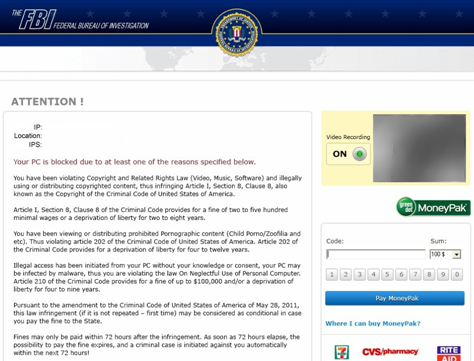
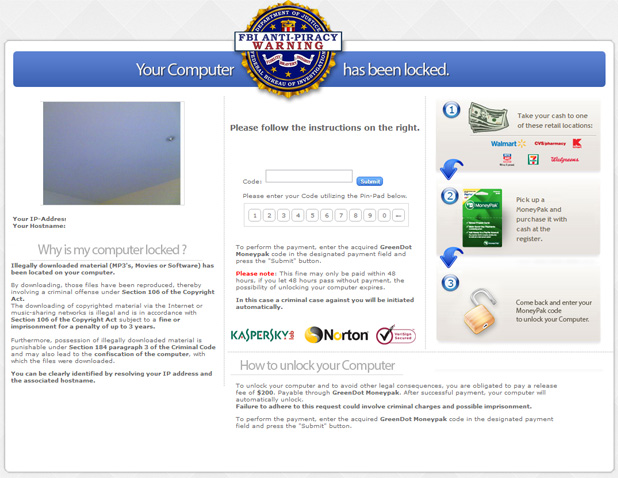
Another variant of the FBI ransomware, FBI Anti-Piracy Warning:


One more thing, FBI virus or FBI MoneyPak scam or whatever you want to call it, it's just a name and it doesn't represent the same malware all the time. There are at least four different malware groups that use fake FBI or Police virus warning messages and they all have the same goal: to trick you into buying a MoneyPak card. However, technically speaking they are not the same. They all operate in slightly different ways, so I'm afraid there's no easy one-click removal solution at the moment.

Known FBI MoneyPak virus/ransomware variants:

1. Stays inactive in Safe Mode
2. Stays inactive in Safe Mode with Command Prompt, but works perfectly fine in Safe Mode and Safe Mode with Networking.
3. Remains active in Safe Mode, Safe Mode with Networking and Command Prompt.

Below you will find a few useful suggestions how to disable and remove this virus from your computer. Choose removal instructions according to the variant of the virus you have on your machine.


Method 1: FBI MoneyPak ransomware removal instructions using System Restore in Safe Mode with Command Prompt:

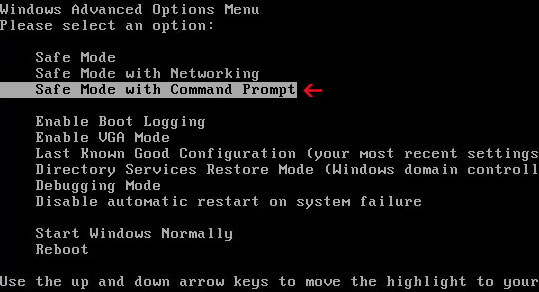
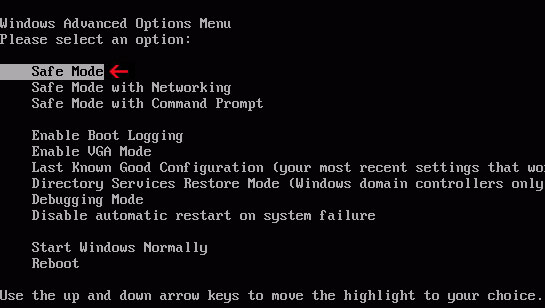
1. Unplug your network cable and manually turn your computer off. Reboot your computer is "Safe Mode with Command Prompt". As the computer is booting tap the "F8 key" continuously which should bring up the "Windows Advanced Options Menu" as shown below. Use your arrow keys to move to "Safe Mode with Command Prompt" and press Enter key.


2. Make sure you log in to an account with administrative privileges (login as admin).

3. Once the Command Prompt appears you have few seconds to type in explorer and hit Enter. If you fail to do it within 2-3 seconds, the FBI MoneyPak ransomware will take over and will not let you type anymore.

4. If you managed to bring up Windows Explorer you can now browse into:
  • Win XP: C:\windows\system32\restore\rstrui.exe and press Enter
  • Win Vista/Seven: C:\windows\system32\rstrui.exe and press Enter
5. Follow the steps to restore your computer into an earlier day.

6. Download recommended anti-malware software (direct download) and run a full system scan to remove the remnants of FBI MoneyPak virus.


Method 2: FBI MoneyPak ransomware removal instructions using System Restore in Safe Mode:

1. Power off and restart your computer. As the computer is booting tap the "F8 key" continuously which should bring up the "Windows Advanced Options Menu" as shown below. Use your arrow keys to move to "Safe Mode" and press Enter key.


NOTE: Login as the same user you were previously logged in with in the normal Windows mode.

2. Once in there, go to Start menu and search for "system restore". Or you can browse into the Windows Restore folder and run System Restore utility from there:
  • Win XP: C:\windows\system32\restore\rstrui.exe double-click or press Enter
  • Win Vista/7/8: C:\windows\system32\rstrui.exe double-click or press Enter
3. Select Restore to an earlier time or Restore system files... and continue until you get into the System Restore utility.

4. Select a restore point from well before the FBI virus appeared, two weeks should be enough.

5. Restore it. Please note, it can take a long time, so be patient.

6. Once restored, restart your computer and hopefully this time you will be able to login (Start Windows normally).

7. At this point, download recommended anti-malware software (direct download) and run a full system scan to remove the FBI MoneyPak virus.


Method 3: FBI MoneyPak ransomware removal instructions using MSConfig in Safe Mode:

1. Power off and restart your computer. As the computer is booting tap the "F8 key" continuously which should bring up the "Windows Advanced Options Menu" as shown below. Use your arrow keys to move to "Safe Mode" and press Enter key.


NOTE: Login as the same user you were previously logged in with in the normal Windows mode.

2. Once in there, go to Start menu and search for "msconfig". Launch the application. If you're using Windows XP, go to Start then select Run.... Type in "msconfig" and click OK.

3. Select Startup tab. Expand Command column and look for a startup entry that launches randomly named file from %AppData% or %Temp% folders using rundll32.exe. See example below:

C:\Windows\System32\rundll32.exe C:\Users\username\appdata\local\temp\regepqzf.dll,H1N1

4. Disable the malicious entry and click OK to save changes.

5. Restart your computer. This time Start Windows normally. Hopefully, you won't be prompted with a fake FBI screen.

6. Finally, download recommended anti-malware software (direct download) and run a full system scan to remove the FBI MoneyPak virus.


Method 4: Manual FBI MoneyPak ransomware removal instructions Safe Mode (requires registry editing) :

1. Unplug your network cable and manually turn your computer off. Reboot your computer in "Safe Mode". As the computer is booting tap the "F8 key" continuously which should bring up the "Windows Advanced Options Menu" as shown below. Use your arrow keys to move to "Safe Mode" and press Enter key.


NOTE: Login as the same user you were previously logged in with in the normal Windows mode.

2. When Windows loads, open up Windows Registry Editor.

To do so, please go to Start, type "registry" in the search box, right click the Registry Editor and choose Run as Administrator. If you are using Windows XP/2000, go to StartRun... Type "regedit" and hit enter.

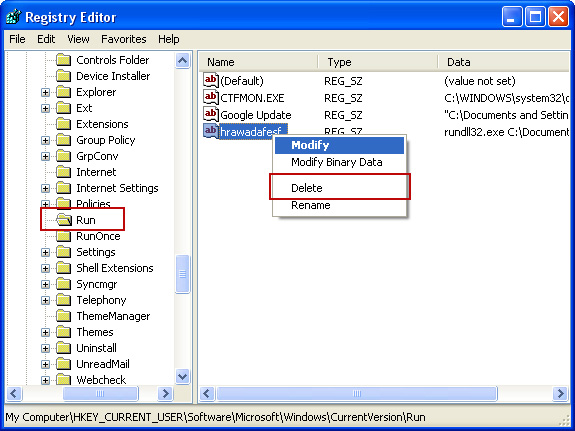
3. In the Registry Editor, click the [+] button to expand the selection. Expand:

HKEY_CURRENT_USER\Software\Microsoft\Windows\CurrentVersion\Run


Look on the list to the right for an randomly named item. Write down the file location. Then right click the randomly named item and select Delete. Please note that in your case the file name might be different. Close Registry Editor.

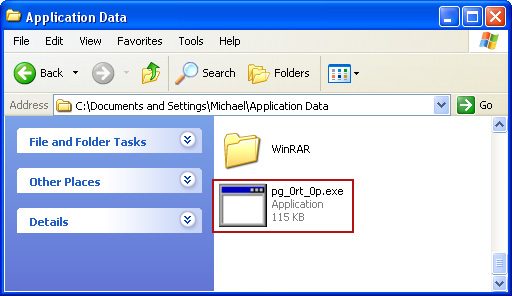
In our case the malicious file (pg_0rt_0p.exe) was located in Application Data folder. So, we went there and simply deleted the file. We're running Windows XP.

File location: C:\Documents and Settings\Michael\Application Data\


If you are using Windows Vista or Windows Seven, the file will be located in %AppData% folder.

File location: C:\Users\Michael\AppData\Romaming\

Finally, go into Windows Temp folder %Temp% and click Date Modified so the newest files are on top. You should see an exe file, possibly with the name  pg_0rt_0p.exe (in our case it was exactly the same), but it may be different in your case. Delete the malicious file.

One more thing, check your Programs Startup list for the following entry:

[UserPATH]\Programs\Startup\ctfmon.lnk - C:\Windows\system32\rundll32.exe pointing to [UserPATH] \Temp\wpbt0.dll,FQ10 (or FQ11)

In our case it was ctfmon.lnk pointing to malicious file which then loads the fake ransom warning. Please note that in your case the file name might be different, not necessarily ctfmon.lnk. Simply disable or remove (if possible) such entry and restart your computer.

4. Restart your computer into "Normal Mode" and scan the system with legitimate anti-malware software.

5. Download recommended anti-malware software (direct download) and run a full system scan to remove the remnants of FBI MoneyPak virus.

FBI MoneyPak Ransomware video:


To learn more about ransomware, please read Remove Trojan.Ransomware (Uninstall Guide).

Tell your friends:

Saturday, 2 June 2012

Live Security Platinum Removal Guide

Live Security Platinum is a fake antivirus program (scareware) that attempts to extort money from less computer savvy users. It's a very well documented malware family, unfortunately there's always a chance that a PC user that has never had any kind of malware infection on his machine will contract this scareware. Cyber crooks are always looking for such PC users because they are usually not aware of fake security alerts and most likely will fall victim to scam.

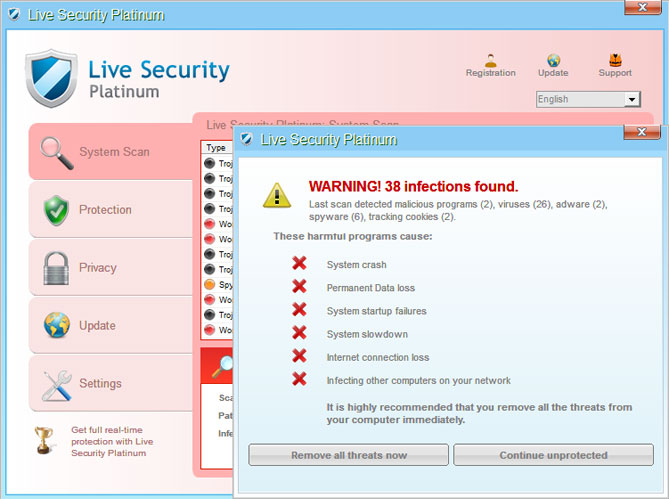
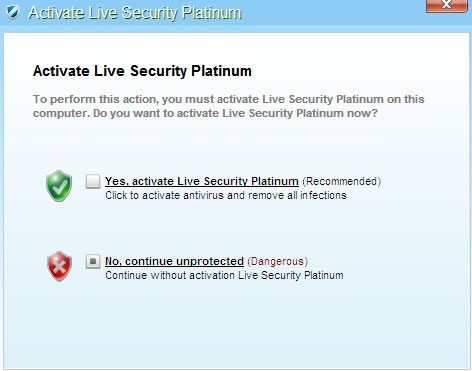
Below is a screenshot of the Live Security Platinum:


As far as I am aware, Live Security Platinum is being transmitted via fake online virus scanners and pop-up notifications claiming that you need to update your antivirus software. There was a huge decrease in scareware traffic in the past few months. Only a few scareware families were actively distributed and they were insignificant comparing to the number of successfully installed banking trojans and worms. It seems that cyber crooks decided to 'push' other malware, mostly Cridex worm and password stealing trojans Ursnif and Fareit. Besides, there's a new password stealing trojan called Tinba alias Suzy. It belongs to a completely new malware family. This indicates that password stealing trojans and similar malware is taking the lead. Anyway, rogue security programs are still in the game.

Once installed, Live Security Platinum pretends to scan your computer for malicious software. It throws hundreds of fake virus warnings to make you think that you are infected. This rogue security program belongs to the Rogue:Win32/Winwebsec malware family. The previous version of this malware was named Smart Fortress 2012. It re-associates certain file extensions with this software, making it impossible to run task manager, registry editor or even command prompt. The nasty bug may modify Windows host file and change Windows proxy settings. Besides, Live Security Platinum stays active in safe mode. To 'unlock' the allegedly infected computer the user is instructed to pay almost 90 bucks.

Fake security alerts:


When running, this rogue security program blocks legitimate antivirus software and pretty much any other utility that can be used to delete or at least disable this malware. Live Security Platinum hijack web browsers too. It displays a fake securuty warning claiming that the website you are about to visit is not safe and may contain malicious code.

Last, but not least, if you don't remove this malware from your computer or remove it partly, it may continue to operate on your computer and can be used to commit online banking and credit card fraud. What is more, the rogue program can be bundled with TDSS rootkit. It may redirect Google search results to infected or misleading websites.

Live Security Platinum runs from "All User\Application Data" data folder in Windows XP and C:\ProgramData folder in Windows 7. A randomly named folder can be located very easily, unless of course it's hidden. But this isn't a problem either. Here's a quick guide on how to see hidden files and folder in Windows. Simply rename the malicious folder or malicious executable inside the malcious folder and reboot your computer. The rogue security program won't run because it won't find the associated files. Please, note that you still need to scan your computer with anti-malware software to completely remove the rogue antivirus program from your computer.

Another option is to reboot your computer in Safe Mode with Networking, remove Live Security Platinum core components and then run recommend anti-malware software.

And the probably the most easiest way to remove the virus from your PC is to use the debugged registration key to register the rogue program. The rogue antivirus program will disable all restrictions and you will be able to download recommended anti-malware software and run a full system scan without any problems.

To remove this virus and associated malware from your computer, please follow the removal instructions below. If you need help removing this virus, please leave a comment below. Safe surfing folks!

Source: http://deletemalware.blogspot.com


Live Security Platinum removal in Safe Mode with Networking:

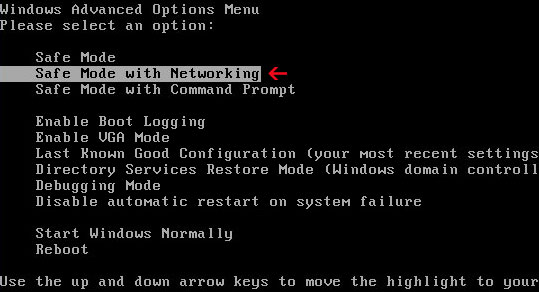
1. Reboot your computer is "Safe Mode with Networking". As the computer is booting tap the "F8 key" continuously which should bring up the "Windows Advanced Options Menu" as shown below. Use your arrow keys to move to "Safe Mode with Networking" and press Enter key.


NOTE: Login as the same user you were previously logged in with in the normal Windows mode.

2. Go to the Start Menu. Select Control Panel → Add/Remove Programs.
If you are using Windows Vista or Windows 7, select Control Panel → Uninstall a Program.


3. Search for Live Security Platinum in the list. Select the program and click Remove button.
If you are using Windows Vista/7, click Uninstall up near the top of that window.
When it asks you to reboot, please do so. After the computer reboots and you are back at your Windows Desktop (Normal Mode), please continue with the next step.

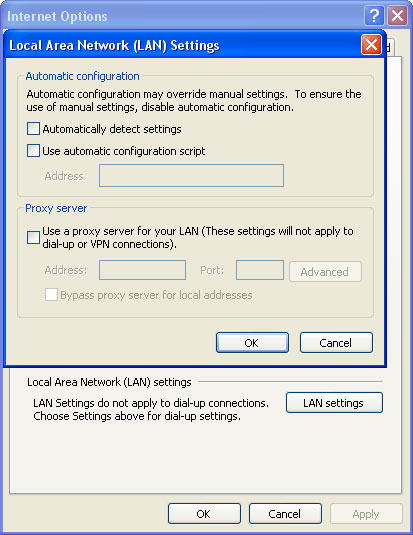
4. Launch Internet Explorer. In Internet Explorer go to: Tools->Internet Options->Connections tab.
Click Lan Settings button and uncheck the checkbox labeled Use a proxy server for your LAN. Click OK.


5. Download recommended anti-malware software (Spyware Doctor) and run a full system scan to remove this virus from your computer.

NOTE: don't forget to update anti-malware software before scanning your computer.


Quick Live Security Platinum removal guide:

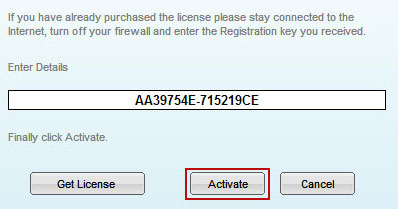
1. Open Live Security Platinum scanner. Click the "Registration" button (top right corner). Enter the following debugged registration key and click "Activate" to register the rogue antivirus program. Don't worry, this is completely legal since it's not genuine software.

AA39754E-715219CE


Once this is done, you are free to install recommended anti-malware software and remove Live Security Platinum from your computer properly.

2. Download recommended anti-malware software (Spyware Doctor) and run a full system scan to remove this virus from your computer.

NOTE: don't forget to update anti-malware software before scanning your computer.


Associated Live Security Platinum files and registry values:

Files:

Windows XP:
  • C:\Documents and Settings\All Users\Application Data\[SET OF RANDOM CHARACTERS]\
  • %UserProfile%\Desktop\Live Security Platinum.lnk
  • %UserProfile%\Start Menu\Programs\Live Security Platinum\
  • %UserProfile%\Start Menu\Programs\Live Security Platinum\Live Security Platinum.lnk
Windows Vista/7:
  • C:\ProgramData\[SET OF RANDOM CHARACTERS]\
  • %UserProfile%\Desktop\Live Security Platinum.lnk
  • %UserProfile%\Start Menu\Programs\Live Security Platinum\
  • %UserProfile%\Start Menu\Programs\Live Security Platinum\Live Security Platinum.lnk
Registry values:
  • HKEY_CURRENT_USER\Software\Microsoft\Windows\CurrentVersion\RunOnce "[SET OF RANDOM CHARACTERS]"
  • HKEY_CURRENT_USER\software\Microsoft\Windows\CurrentVersion\Uninstall\Live Security Platinum\
Tell your friends: