Friday, 25 January 2013

Remove Snap.do

A concerned reader asks: 'Snap.do has hijacked my web browser. Is it safe? How do I get rid of it?' Here's what you need to know about this so-called Snap.do hijacker malware.

Snap.do is a browser help object. Authors of this web browser plug-in say that they want to enhance your web browser and simplify the way you search the web, share favorite information, work or even play. Sounds good, right? It seems that they really care and want to help you. But hold your horses, Jack! :) Things are often not what they seem to be and that's particularly true for snap.do web browser hijacker. It comes with a cost and the main question is: are you willing to pay the price?


First of all, snap.do and some other Resoft products are considered to be potentially harmful or even malicious, not to mention how annoying they can be. For example, TrendMicro, an antivirus company, classifies snap.do toolbar as spyware and web browser hijacker and they have a good reason for that. According to Resoft privacy policy, their products, including snap.do collect the following information:
1. The Internet domain and IP address from which you access the Resoft Products;
2. Screen resolution of your monitor;
3. The date and time you access the Resoft Products;
4. The page you are visiting with the Resoft Products
5. If you linked to a Resoft website from another referring website, the address of that website.
By using the Resoft Products, you are consenting to have your personal data transferred to and processed both within and without the United States of America
Typically, snap.do installs itself as a web browser toolbar (BHO) but it may be installed with additional functionalities as well. This browser helper object can be downloaded from its official website and may also arrive bundled with other software, usually freeware. We haven't seen any questionable routines or drive-by downloads that might be related to malicious software and snap.do. What's interesting, though, installers downloaded from free video streaming sites and other shady or rogue websites are very aggressive and even if users made sure that the check boxes asking to install add-ons were disabled, snap.do virus was still installed on their computers.

Snap.do works on all major web browsers: Google Chrome, Mozilla Firefox and Internet Explorer. It doesn't work on Windows XP. Installer simply fails to initialize properly. So, XP users are safe. Once installed, Snap.do hijacker modified various web browsers' settings. It changes home page to http://feed.helperbar.com and adds additional search engine provider which redirects users to http://search.snap.do. Each time user opens a new tab the web browser goes to http://search.snap.do instead of blank page, Google or any other website of your choice.

Snap.do removal can be a really challenging task, especially when it comes bundled with other software. Even though, snap.do authors ensure that it can be uninstall from a computer very easily, using the program's own normal uninstallation process, but that's not quite true. It leaves so many modified web browser settings and Windows registry keys and you can't ignore them because they simply change the way you use your web browser. For example, even if you removed Snap.do via Control Panel, modified search engine settings remain untouched. As a result, searching directly from web browser address bar returns results from http://search.snap.do rather than Google. By the way, the plug-in modifies Windows registry and enables its automatic execution at every system start-up. What is more, snap.do infection may cause your web browser to stop working.

To remove snap.do from your computer, please follow the removal instructions below. It will show you how to remove this browser hijacker in Mozilla Firefox, Google Chrome and Internet Explorer. Make sure to uninstall snap.do via Control Panel first and only then proceed to the next steps, unless of course it's not listed there. Have you been hijacked by Snap.do? Post your comment or question below. Good luck and be save online!


Snap.do removal instructions:

1. First of all, download recommended anti-malware software and run a full system scan. It will detect and remove this infection from your computer. You may then follow the manual removal instructions below to remove the leftover traces of this browser hijacker. Hopefully you won't have to do that.


2. Go to the Start Menu. Select Control Panel → Uninstall a Program.


3. Search for Snap.do in the list. Select the program and click Uninstall button to uninstall it.


It will prompt you to close all web browsers before uninstalling Snap.do. Please click Yes to continue.

Then, it will ask you if you want to change your home page and default search provider to the old settings. Please click Yes.


Remove Snap.do in Google Chrome:

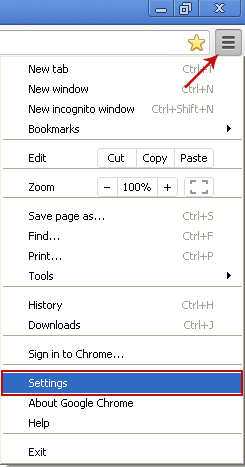
1. Click on Customize and control Google Chrome icon. Go to Tools → Settings.


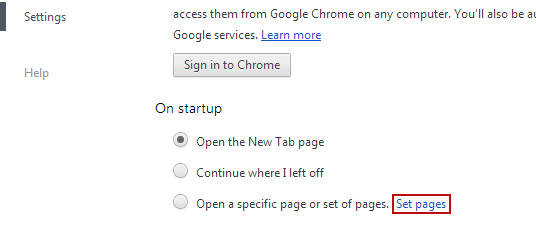
2. Click Set pages under the On startup.


Remove feed.snap.do by clicking the "X" mark as shown in the image below.


3. Click Show Home button under Appearance. Then click Change.


Enter http://www.google.com instead of feed.snap.do and click OK to save changes.


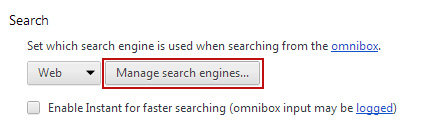
4. Click Manager search engines button under Search.


Select Google or any other search engine you like from the list and make it your default search engine provider.


Select Web (search.snap.do) from the list and remove it by clicking the "X" mark as shown in the image below.


That's it!


Remove Snap.do in Mozilla Firefox:

1. Open Mozilla Firefox. Go to Tools → Add-ons.


2. Select Extensions. Remove Snap.do extension. Close the window.


3. Click on the Snap.do search icon as shown in the image below and select Manage Search Engines....


4. Choose Web Search (Snap.do) from the list and click Remove to remove it. Click OK to save changes.


5. Go to Tools → Options. Under the General tab reset the startup homepage or change it to google.com, etc.


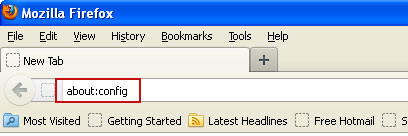
6. In the URL address bar, type about:config and hit Enter.


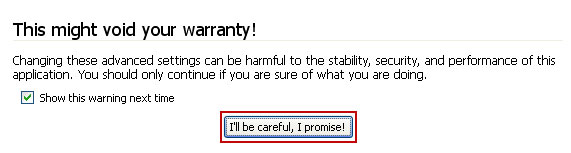
Click I'll be careful, I promise! to continue.


In the filter at the top, type: snap.do


Now, you should see all the preferences that were changed by Snap.do extension. Right-click on the preference and select Reset to restore default value. Reset all found preferences!


That's it!


Remove Snap.do in Internet Explorer:

1. Open Internet Explorer. Go to Tools → Manage Add-ons.


2. Select Search Providers. First of all, choose Bing or Live Search search engine and make it your default web search provider (Set as default).


3. Select Web Search (search.snap.do) and click Remove to remove it. Close the window.


4. Go to Tools → Internet Options. Select General tab and click Use default button or enter your own website, e.g. google.com instead of http://feed.snap.do. Click OK to save the changes. And that's about it for Internet Explorer.


If you did everything correctly, the Snap.do search hijacker should be completely uninstalled from your computer. However, if it still shows up, you will have to modify or remove certain Windows registry keys. They are listed below.

First, you have to open Windows Registry Editor. Simply search for regedit and run it as administrator.

Once there, navigate to, and delete the following Windows registry keys:
  • HKEY_CURRENT_USER\Software\Microsoft\Internet Explorer\Main → delete "Search Bar"
  • HKEY_CURRENT_USER\Software\Microsoft\Internet Explorer\Search → delete "Default_Search_URL"
  • HKEY_CURRENT_USER\Software\Microsoft\Internet Explorer\Search → delete "SearchAssistant"
  • HKEY_LOCAL_MACHINE\SOFTWARE\Wow6432Node\Microsoft\Internet Explorer\SearchUrl → delete "Default"
Then, navigate to, and modify the following Windows registry keys:

HKEY_CURRENT_USER\Software\Microsoft\Internet Explorer\Main

Right-click the "Search Page" key and select Modify. Change key value data to: http://go.microsoft.com/fwlink/?LinkId=54896

HKEY_LOCAL_MACHINE\SOFTWARE\Wow6432Node\Microsoft\Internet Explorer\SearchScopes\{006ee092-9658-4fd6-bd8e-a21a348e59f5}

Right-click the "URL" key and select Modify. Change key value data to:
http://www.bing.com/search?q={searchTerms}

Share this information:

How to Remove Security Defender (Uninstall Guide)

Security Defender is a rogue anti-spyware program that uses deceptive tactics to drive up sales from confused or inexperienced computer users. This fake security product pretends to find malicious software on your computer. It also pretends to protect your PC against misleading pop-ups and security threats caused by spyware, adware, Trojans and other viruses. What is more, Security Defender impersonates Windows Defender which is a perfectly legitimate anti-spyware product from Microsoft. I have to admit that this time scam artists made a quite legitimate looking rogue application which may actually mislead many computer users into paying for the fake removal of malware. Security Defender may be downloaded silently by Trojan horses or installed when the fake alert is clicked. Hopefully, you can use real anti-malware applications to remove Security Defender malware from your computer. To remove this fake security program and any related malware for free, please follow the steps in the removal guide below.

New GUI of Security Defender malware:


Old GUI which is probably not used anymore.


Due to the fact that Security Defender was made to scare you into thinking your computer has many critical security problems it displays numerous fake firewall alerts and notifications from the Windows taskbar.
Security Defender Firewall Alert
Harmful software detected
Security Defender has detected malicious software that may cause crash of your computer.
Security Defender
Viruses have been found in your system.
We highly recommend you to get license for


Security Defender may also hijack Internet Explorer and block other programs on your computer. If you somehow ended up with this rogue program, please follow the removal instructions below to remove Security Defender and related malware. If you need help removing this little bugger from your computer, please leave a comment. Good luck and be safe online!

Guide update:
01/25/13 - Updated removal instructions, new activation key, GUI.


Quick removal guide:

1. Open Security Defender. Click the "Activate" button and select Manual Activation. Enter one of these debugged registration key to register this rogue application. Don't worry, this is completely legal.

xOxZxLxWxIxTxFxQxCxNxYxKxVxHxSxE (new code)

D13F-3B7D-B3C5-BD84 (old code, may still work with some variants)

Once this is done, you are free to install anti-malware software and remove the rogue anti-virus program from your computer properly.

2. Download recommended anti-malware software and run a full system scan to remove this virus from your computer.


Security Defender removal instructions (Safe Mode):

Download recommended recommended anti-malware software (direct download) to remove this virus from your computer.

NOTE: in some cases the rogue program may block anti-malware software. Before saving the selected program onto your computer, you may have to rename the installer to iexplore.exe or winlogon.exe With all of these tools, if running Windows 7 or Vista they MUST be run as administrator. Launch the program and follow the prompts. Don't forget to update the installed program before scanning.

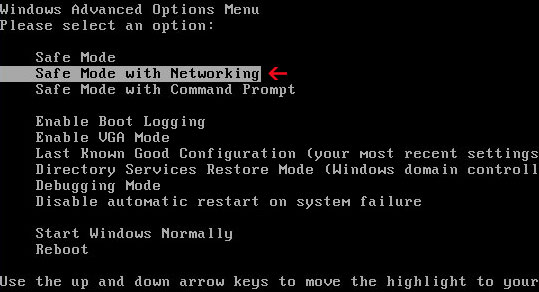
If you can't download it, please reboot your computer is "Safe Mode with Networking". As the computer is booting tap the "F8 key" continuously which should bring up the "Windows Advanced Options Menu" as shown below. Use your arrow keys to move to "Safe Mode with Networking" and press Enter key. Open Internet Explorer and download Spyware Doctor. Once finished, run setup. That's It!


NOTE: Login as the same user you were previously logged in with in the normal Windows mode.


Alternate Security Defender removal instructions:

1. Download iexplore.exe (NOTE: iexplore.exe file is renamed HijackThis tool from TrendMicro).
Launch the iexplore.exe and click "Do a system scan only" button.
If you can't open iexplore.exe file then download explorer.scr and run it.

2. Search for such entry in the scan results:
O4 - HKCU\..\Run: [pcdfsvc] C:\ProgramData\pcdfdata\[random_characters].exe /min

Select all similar entries and click once on the "Fix checked" button. Close HijackThis tool.
    3. Download recommended recommended anti-malware software to remove this virus from your computer.


    NOTE: in some cases the rogue program may block anti-malware software. Before saving the selected program onto your computer, you may have to rename the installer to iexplore.exe or winlogon.exe With all of these tools, if running Windows 7 or Vista they MUST be run as administrator. Launch the program and follow the prompts. Don't forget to update the installed program before scanning.


    Associated Security Defender files and registry values:

    Files:
    • C:\Documents and Settings\All Users\Application Data\[SET OF RANDOM CHARACTERS]_.mkv
    • C:\Documents and Settings\All Users\Application Data\[SET OF RANDOM CHARACTERS].avi
    • C:\Documents and Settings\All Users\Application Data\[SET OF RANDOM CHARACTERS].ico
    • C:\Documents and Settings\All Users\Start Menu\Programs\Startup\[SET OF RANDOM CHARACTERS].lnk
    • C:\Program Files\Security Defender
    • C:\Program Files\Security Defender\Security Defender.dll
    • %Temp%\[SET OF RANDOM CHARACTERS].dll
    %Temp% refers to:
    C:\Documents and Settings\[UserName]\Local Settings\Temp (in Windows 2000/XP)
    C:\Users\[UserName]\AppData\Local\Temp (in Windows Vista & Windows 7)

    Registry values:
    • HKEY_CURRENT_USER\Software\Microsoft\Windows\CurrentVersion\Run "[SET OF RANDOM CHARACTERS]"
    • HKEY_LOCAL_MACHINE\SOFTWARE\Microsoft\Windows\CurrentVersion\Run "[SET OF RANDOM CHARACTERS]"
    Share the knowledge:

    Thursday, 24 January 2013

    Livesearchnow redirect virus - removal guide

    Livesearchnow redirect has been a topic of conversation in technical support forums and security related websites recently. The problem isn't new but unfortunately it seems that more and more computers become plagued by this pesky redirect malware. So, I thought I would shed a little light on this topic as well.

    Here's the problem, when clicking on Google or other search results, users get redirected through http://click.livesearchnow.com to random landing pages, sponsored search results or simply web pages filled with ads. This happens regardless of a web browser or search engine. While it can be a very persistent infection, most of the time, redirects happen at random. Sometimes users get the right websites and sometimes they get the http://click.livesearchnow.com. Landing pages are rarely the same as well. Please note that the click.livesearchnow domain itself is not malicious. From a technical point of view, it's a tracking domain. It is used to identify and qualify traffic sent by an advertising network partners. It's a very common practice, tracking domains are used by all big internet players and there's nothing wrong about that.


    While most users use Google to find information on the internet, some of them blame Google, saying that they are infected with the Google redirect virus rather then livesearchnow virus. Of course, Google has nothing to do with those redirects and can’t be held responsible because it yields correct results.

    Livesearchnow redirect virus is not the same for everyone. If you get sent to click.livesearchnow.com and then to random web pages, then your computer may be infected with Pihar, ZeroAccess/Sirefef rootkit, Tracur, DNS changing malware or even potentially unwanted programs (PUPs). Any of these can be the culprit. That's why removal procedures are usually slightly different. For example, let's say your computer is infected with Pihar or ZeroAccess rootkits. These rootkits maliciously intercepts HTTP requests and redirects victims to spammy or malicious websites that are controlled by cyber crooks. Or if they do not have their own advertising platforms, cyber crooks tend to abuse existing ones, such as http://click.livesearchnow.com.

    Pretty much the same can be said about DNS changing malware, except that normally cyber criminals using DNS changer virus have to maintain their own ad networks in order to effectively monetize traffic. Typically, a few web servers would be enough to run a medium size ad network and fulfill their customers' needs. Needless to say, ad networks that are controlled either by malware authors themselves or cyber crooks who simply rent malware are very dangerous. They can serve malware without any problems only if they get paid for that. No ethics, no ad control.

    Potentially unwanted programs, including malicious web browser extensions are also used to redirect victims to http://click.livesearchnow.com. Actually, they become very popular lately, due to their low cost and detection rates. PUPs, malicious web browser extensions and browser helper objects can be very difficult to remove and they may even hide behind more obvious infections, such as Trojan horses and computer worms.

    Removing Livesearchnow redirect virus isn't that difficult; some people recommend letting a security expert to do it. However, I'm pretty sure guys that you will be able to remove it yourselves, using the right tools. If you your machine is infected with a rootkit, you will have to use anti-rookit utility because some anti-malware products can't handle certain rootkits, for example ZeroAccess. If it's the DNS changer, Spyware Doctor or any other popular malware removal tool will definitely remove it. You may have to restore certain system settings manually after the removal, though. And finally, if it's a malicious add-on, you will have to remove it yourself. Antivirus programs rarely detect and remove potentially harmful add-ons. So, to remove this virus from your computer, please follow the removal instructions below.

    Going forward, avoid warez software, unknown adult sites and other sketchy websites. Keep your anti-malware software up to date and fully active at all times. Do you have something to say about removing the Livesearchnow virus? Post your comment or question below. Good luck and be safe online!


    Livesearchnow redirect virus removal instructions:

    1. First of all, scan your computer for malicious software. Download recommended anti-malware software (direct download) and run a full system scan to remove this virus from your computer.


    2. Reset the Hosts file back to the default. To reset the Hosts file back to the default automatically, download Microsoft Fix it utility, run the file and then follow the steps in the Fix it wizard.

    3. Flush DNS cache.

    A. Go to Start->Run (or WinKey+R) and type in "cmd" without quotes.


    B. At the command prompt, please type "ipconfig /flushdns" without quotes and hit Enter.


    4. If the problem persists, please read this web document and follow the steps carefully: http://deletemalware.blogspot.com/2010/02/remove-google-redirect-virus.html

    Share this information with your friends:

    Friday, 18 January 2013

    Text Enhance Removal Guide

    Text Enhance is an intext advertising platform that allows publishers to monetize their content. At first glance, it's no different than any other advertising platform, except for one thing – publishers can use "plugins" to display intext ads. Broadly speaking, this term "plugin" is used to describe a web browser extension or an add-on. The idea is not necessarily bad and it might even work but it seems that the platform is already being abused a lot. Image how hard it would be to convince your visitors to voluntarily install such Firefox or Chrome extensions that highlight certain words on nearly every site you visit and turn them into tiny little ads. I think that's almost impossible. That's why cyber crooks use social engineering, fake alerts and notifications to convince users into installing such web browser extensions. Besides, publishers can bundle Text Enhance extensions and add-ons with other software.

    Text Enhance shows up as links in websites you view. This can be a very irritating situation because malicious web browser extensions use the same hyperlink style as the website you view. When you hover over Text Enhance link, it says "Powered by Text-Enhance" and then displays an advertisement that is not necessarily relevant to the topic you are reading on that particular website.

    Here’s an example of a "work at home" advertisement displayed by Text Enhance on a very popular gaming forum.


    Another example, "Win an iPad" ad showed up when I hovered over a word "your" in the middle of the text. The ad is completely irrelevant.


    Dating ads are very popular as well. Hovering over "girlfriend" will probably display ads similar to this one.


    What is more, very often these ads lead users to spammy and even dangerous websites. Who can guaranty you that cyber crooks are not using this platform to distribute Trojans, spyware and other malicious software? I guess no one. So, if you think that your computer might be or almost certainly is infected with Text Enhance virus, I highly recommend you to remove it. By the way, you can follow the opt-out procedure which is available on the official Text Enhance website to bock ads, but I'm afraid it might not work in case you got infected with this malware.

    Text Enhance malware is distributed mostly through the use of warez and online video streaming websites. Usually, scammers display fake notifications that your Flash player is not updated or that you need to install a "special" plugin in order to watch requested video or download files.

    Here's how the fake "Error: missing plugin" warning looks like (Mozilla Firefox).


    The same warning message displayed in Google Chrome.


    Both warnings are very misleading and unfortunately may trick users into installing malicious web browser extensions. I've said this many times before: install web browser extensions and add-ons only from the official stores or websites you trust.

    Here's another very popular notification claiming that "Your system doesn't support this video file". Needless to say it's completely false because all you need to watch videos online is Flash player. Sometimes it's enough to use a modern web browser, HTML5 compatible to watch videos. Stay away from extra plugins and codecs!


    Antivirus programs may detect and block misleading error warnings but they rarely detect potentially harmful web browser extensions. Most of the time, they do not pose direct threats to users but they are still potentially harmful, not to mention how annoying they are. I think antivirus companies should check browser extensions, add-ons and browser helper object more carefully.

    If you are infected with Text Enhance, please follow the steps in the removal guide below. It will show you how to remove Text Enhance virus in Mozilla Firefox, Google Chrome, Internet Explorer and Apple Safari.  I'm sure it will be listed as completely different program and web browser extensions. I made a list of programs and web browser extensions that are related to Text Enhance and may cause "Powered by Text-Enhance" ads to show up on your computer screen. I will update this list as often as I can. In case I missed something, please leave a comment below. One more thing, when you remove the culprit of Text Enhance ads, I recommend you to uninstall Flash player as well. Uninstall it completely and install the latest version. Text Enhance may interact with Flash Player to display ads. I noticed that when Flash Player is disabled Text Enhance ads do not show up. Last, but not least, if you have any questions or additional information about this virus, please leave a comment. Good luck and be safe online!

    Source: http://deletemalware.blogspot.com


    Text Enhance removal instructions:

    1. First of all, download recommended anti-malware software and run a full system scan. It will detect and remove this infection from your computer. You may then follow the manual removal instructions below to remove the leftover traces of this browser hijacker. Hopefully you won't have to do that.


    2. Remove Text Enhance and/or related programs from your computer using the Add/Remove Programs control panel (Windows XP) or Uninstall a program control panel (Windows 7 and Windows 8).

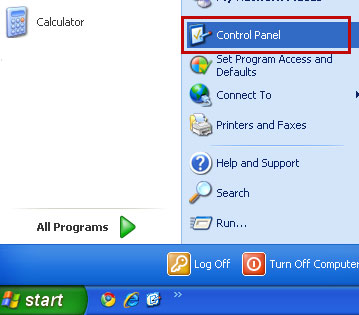
    Go to the Start Menu. Select Control Panel → Add/Remove Programs.
    If you are using Windows Vista or Windows 7, select Control Panel → Uninstall a Program.


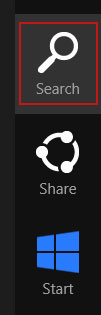
    If you are using Windows 8, simply drag your mouse pointer to the right edge of the screen, select Search from the list and search for "control panel".


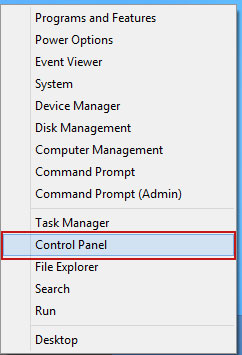
    Or you can right-click on a bottom left hot corner (formerly known as the Start button) and select Control panel from there.


    3. When the Add/Remove Programs or the Uninstall a Program screen is displayed, scroll through the list of currently installed programs and remove the following entries (if exist):
    • Bandicam
    • BCool
    • BeCool
    • Better Links
    • Bflix1.0
    • Browser Enhancements 1.0
    • Click 2 Save
    • CodecC
    • CodecM
    • Crossrider
    • Dealply
    • Deals Plugin
    • Downloadnsave
    • Extension
    • Facebook Dislike
    • Facetheme
    • Fantapper
    • Fast save
    • Freemind
    • Game Play Labs
    • I-livid
    • I Want That
    • I Want This
    • Iminent
    • Installed Class
    • With Java plug-ins
    • Jlmp3
    • Media Plugin
    • Pando Media Enhancer
    • Premiumplay Codec
    • Privacy SafeGuard
    • Protector by IB
    • Rewardsarcade
    • RewardsArcadeSuite
    • Splashtop Inc
    • Startnow Toolbar
    • TheBflix
    • TheBflix5.0
    • TheBflix Class
    • Toad
    • Vid-Saver
    • Video File Download
    • Vuze
    • Widgi
    • wxDfast
    • Yontoo
    • YouTube Plus
    • ZoomEx
    • ZoomIt


    Simply select each application and click Remove. If you are using Windows Vista, Windows7 or Windows 8, click Uninstall up near the top of that window. When you're done, please close the Control Panel screen.


    Remove Text Enhance in Mozilla Firefox:

    1. Open Mozilla Firefox. Go to Tools → Add-ons.
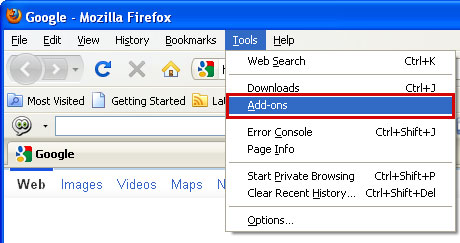


    2. Select Extensions. If any of the extensions listed below exist, click on the Remove button next to each one. If you can't find the Remove button, then simply click on the Disable button.
    • Bandicam
    • BCool
    • BeCool
    • Better Links
    • Bflix1.0
    • Browser Enhancements 1.0
    • Click 2 Save
    • CodecC
    • CodecM
    • Crossrider
    • Dealply
    • Deals Plugin
    • Downloadnsave
    • Extension
    • Facebook Dislike
    • Facetheme
    • Fantapper
    • Fast save
    • Freemind
    • Game Play Labs
    • I-livid
    • I Want That
    • I Want This
    • Iminent
    • Installed Class
    • With Java plug-ins
    • Jlmp3
    • Media Plugin
    • Pando Media Enhancer
    • Premiumplay Codec
    • Privacy SafeGuard
    • Protector by IB
    • Rewardsarcade
    • RewardsArcadeSuite
    • Splashtop Inc
    • Startnow Toolbar
    • TheBflix
    • TheBflix5.0
    • TheBflix Class
    • Toad
    • Vid-Saver
    • Video File Download
    • Vuze
    • Widgi
    • wxDfast
    • Yontoo
    • YouTube Plus
    • ZoomEx
    • ZoomIt


    Once you have found and removed all of the above extensions that were installed on your computer, you can close Mozilla Firefox. Disabling a web browser extension might also help, however, it still exists on your PC. Some extensions might be blocked or only have an option to disable them. In such case, I recommend you to delete extensions manually.


    Remove CouponDropDown in Google Chrome:

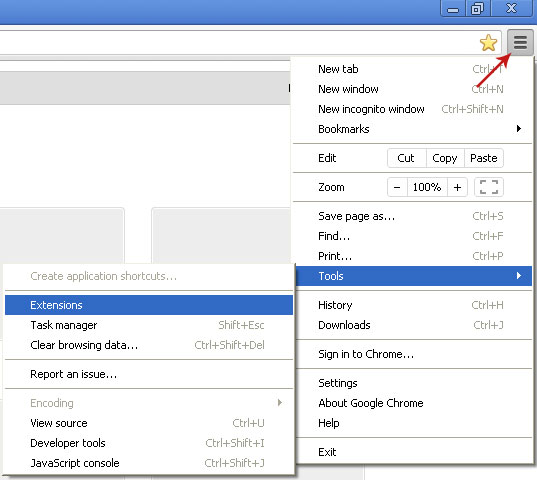
    1. Click on Chrome menu button. Go to Tools → Extensions.


    2. Click on the trashcan icon and remove the extensions listed below if they are present:
    • Bandicam
    • BCool
    • BeCool
    • Better Links
    • Bflix1.0
    • Browser Enhancements 1.0
    • Click 2 Save
    • CodecC
    • CodecM
    • Crossrider
    • Dealply
    • Deals Plugin
    • Downloadnsave
    • Extension
    • Facebook Dislike
    • Facetheme
    • Fantapper
    • Fast save
    • Freemind
    • Game Play Labs
    • I-livid
    • I Want That
    • I Want This
    • Iminent
    • Installed Class
    • With Java plug-ins
    • Jlmp3
    • Media Plugin
    • Pando Media Enhancer
    • Premiumplay Codec
    • Privacy SafeGuard
    • Protector by IB
    • Rewardsarcade
    • RewardsArcadeSuite
    • Splashtop Inc
    • Startnow Toolbar
    • TheBflix
    • TheBflix5.0
    • TheBflix Class
    • Toad
    • Vid-Saver
    • Video File Download
    • Vuze
    • Widgi
    • wxDfast
    • Yontoo
    • YouTube Plus
    • ZoomEx
    • ZoomIt


    Once you have found and removed all of the above extensions that were installed on your computer, you can close Google Chrome. Please note, that some extensions might be locked (remove option is disabled). In such case, you have to remove those extensions manually. Enable Developer Mode to find extension's name that go to Google Chrome extension folder and delete it. Google Chrome extension folder placed in the following directory:

    Windows 7 → C:\Users\[UserName]\AppData\Local\Google\Chrome\User Data\Default\Extensions

    Windows XP → C:\Documents and Settings\[UserName]\Local Settings\Application Data\Google\Chrome\User Data\Default\Extensions


    Remove Text Enhance in Internet Explorer:

    1. Open Internet Explorer. Go to Tools → Manage Add-ons. If you have the latest version, simply click on the Settings button.
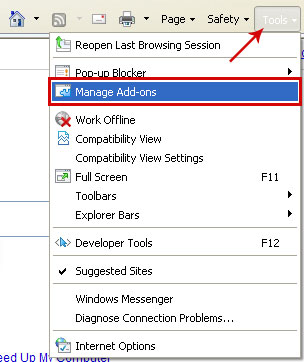


    2. Select Toolbars and Extensions. If any of the extensions listed below exist, select it and then click on the Remove/Disable button to remove it from Internet Explorer.
    • Bandicam
    • BCool
    • BeCool
    • Better Links
    • Bflix1.0
    • Browser Enhancements 1.0
    • Click 2 Save
    • CodecC
    • CodecM
    • Crossrider
    • Dealply
    • Deals Plugin
    • Downloadnsave
    • Extension
    • Facebook Dislike
    • Facetheme
    • Fantapper
    • Fast save
    • Freemind
    • Game Play Labs
    • I-livid
    • I Want That
    • I Want This
    • Iminent
    • Installed Class
    • With Java plug-ins
    • Jlmp3
    • Media Plugin
    • Pando Media Enhancer
    • Premiumplay Codec
    • Privacy SafeGuard
    • Protector by IB
    • Rewardsarcade
    • RewardsArcadeSuite
    • Splashtop Inc
    • Startnow Toolbar
    • TheBflix
    • TheBflix5.0
    • TheBflix Class
    • Toad
    • Vid-Saver
    • Video File Download
    • Vuze
    • Widgi
    • wxDfast
    • Yontoo
    • YouTube Plus
    • ZoomEx
    • ZoomIt


    Once you have removed/disabled all of the above extensions (if existed), you can close Internet Explorer.


    Remove Text Enhance in Apple Safari:

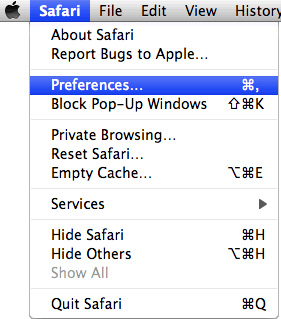
    1. Open Safari. Go to Preferences.


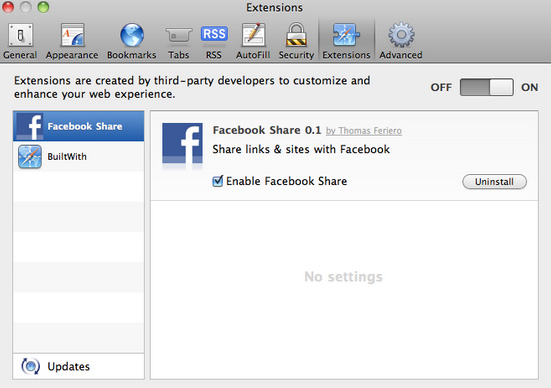
    2. Select the Extensions tab. If any of the extensions listed below exist, select it and then click on the Uninstall button to remove it from Apple Safari.
    • Bandicam
    • BCool
    • BeCool
    • Better Links
    • Bflix1.0
    • Browser Enhancements 1.0
    • Click 2 Save
    • CodecC
    • CodecM
    • Crossrider
    • Dealply
    • Deals Plugin
    • Downloadnsave
    • Extension
    • Facebook Dislike
    • Facetheme
    • Fantapper
    • Fast save
    • Freemind
    • Game Play Labs
    • I-livid
    • I Want That
    • I Want This
    • Iminent
    • Installed Class
    • With Java plug-ins
    • Jlmp3
    • Media Plugin
    • Pando Media Enhancer
    • Premiumplay Codec
    • Privacy SafeGuard
    • Protector by IB
    • Rewardsarcade
    • RewardsArcadeSuite
    • Splashtop Inc
    • Startnow Toolbar
    • TheBflix
    • TheBflix5.0
    • TheBflix Class
    • Toad
    • Vid-Saver
    • Video File Download
    • Vuze
    • Widgi
    • wxDfast
    • Yontoo
    • YouTube Plus
    • ZoomEx
    • ZoomIt


    Once you have removed all of the above extensions (if existed), you can close Apple Safari.


    Optional steps:

    1. Opt-out of text-enhance.com advertisements → http://text-enhance.com/optout.php

    3. Uninstall Flash Player. Please follow this uninstall guide.

    3. Download and install the latest version of Flash Player. Download is available here.

    Tell your friends:

    Thursday, 10 January 2013

    Remove CouponDropDown Pop-ups (Uninstall Guide)

    CouponDropDown is an ad supported application that will automatically display available coupons for the website you're browsing. It might be useful for some of you since this application offers valid (they were valid at the time I checked them) coupons and it's available on some well know online merchants. Even though it might be useful, it's still an ad supported application so it will definitely display ads on your computer as you browse the web. It might be pop-up windows in various forms, pop-unders, in-text advertisements an so on.

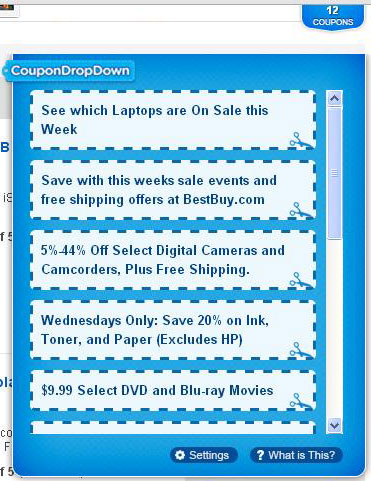
    That's how a typical CouponDropDown pop-up looks like:


    There are many forum threads and blog posts about this application or associated web browser extensions and most of them are negative. Most people take up the position that Coupon DropDown is almost certainly some kind of malware. Others say it's simply a virus. From what I've seen it's definitely not a virus, Trojan horse or spyware. It's adware and that's not a secret, you can find this information on their website. You can use command line malware scanner such as Virus Total or Jotti to scan CouponDropDown files and you will see that only three security products detect it as either adware or potentially unwanted application. Of course, these are just command line scanners without advanced features, behavioral analysis, etc. The actual detection ratio may be different.

    The real problem with CouponDropDown is that too many users tried to remove it and couldn't succeed. This is especially true if Coupon Drop Down came bundled with other applications. Users do not know where the ads are coming from because they inadvertently installed this application with some other software. I know for sure that some apps use very aggressive distribution methods and may indeed install web browser add-ons or certain parts of this application without users' knowledge. "Coupons" market is very competitive and it might be extremely difficult for new players to successfully enter it. I think that's the main reason why CouponDropDown adware comes bundled with suspicious or shady video players, downloaders and toolbars.

    No wonder why people are not happy with Ads by CouponDropDown offers from different products, highlighted words and pop-ups that are pushing the real content away from them. Besides, some ads are really random and they appear on pretty much every page you visit which is very annoying. What is more, CouponDropDown might not be even listed under web browser extensions. Or it might be listed as completely different program, for example Yontoo, StartNow toolbar, 1ClickDownloader, FBPhotoZoom, Incredibar, SweetIM and many others. Sometimes users have to remove four or even more extensions that are causing the problem to completely remove the CouponDropDown adware. But how to know which one is the culprit? The official uninstall guide available on their website is useless. It only works when you install CouponDropDown directly from their website.

    It’s up to you whether you want to keep it or not but if you wasn't planning to install in the first place then I highly recommend you to remove it. In order to remove CouponDropDown adware and associated files, please follow the removal instructions below. If you need any help removing this adware, please leave a comment below. Good luck and be safe online!

    Source: http://deletemalware.blogspot.com


    CouponDropDown removal instructions:

    1. First of all, download recommended anti-malware software and run a full system scan. It will detect and remove this infection from your computer. You may then follow the manual removal instructions below to remove the leftover traces of this browser hijacker. Hopefully you won't have to do that.


    2. Remove CouponDropDown and/or related programs from your computer using the Add/Remove Programs control panel (Windows XP) or Uninstall a program control panel (Windows 7 and Windows 8).

    Go to the Start Menu. Select Control Panel → Add/Remove Programs.
    If you are using Windows Vista or Windows 7, select Control Panel → Uninstall a Program.


    If you are using Windows 8, simply drag your mouse pointer to the right edge of the screen, select Search from the list and search for "control panel".


    Or you can right-click on a bottom left hot corner (formerly known as the Start button) and select Control panel from there.


    3. When the Add/Remove Programs or the Uninstall a Program screen is displayed, scroll through the list of currently installed programs and remove the following entries:
    • CouponDropDown
    • Yontoo
    • 1ClickDown
    • IB Updater
    • TornTV
    • 1ClickDownloader
    • FB Photo Zoom
    • SweetPacks Toolbar
    • GoPhoto.it
    • HDvid Codec
    • PutLockerDownload
    • Incredibar Toolbar
    • OneClickDownload
    • OneClickDownloader
    • Online HD TV StartNow
    Simply select each application and click Remove. If you are using Windows Vista, Windows7 or Windows 8, click Uninstall up near the top of that window. When you're done, please close the Control Panel screen.


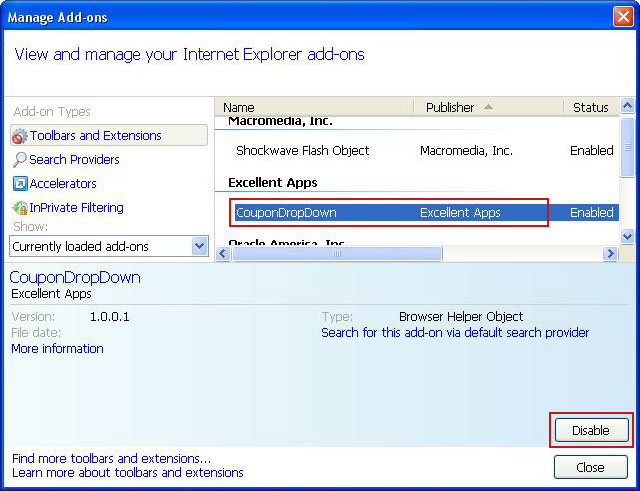
    Remove CouponDropDown in Internet Explorer:

    1. Open Internet Explorer. Go to Tools → Manage Add-ons. If you have the latest version, simply click on the Settings button.


    2. Select Toolbars and Extensions. If any of the extensions listed below exist, select it and then click on the Remove/Disable button that will then appear to remove it from Internet Explorer.
    • CouponDropDown
    • FBPhotoZoom
    • Yontoo
    • Yontoo API
    • GoPhoto.it
    • Online HD TV
    • HDvid Codec
    • TornTV
    • Incredibar Toolbar
    • TorrentHandler
    • Incredibar Helper Object
    • IB Updater
    • OneClickDownload
    • OneClickDownloader
    • PutLockerDownloader
    • Smartdownloader class
    • StartNow


    That's it! Once you have removed/disabled all of the above extensions (if existed), you can close Internet Explorer.


    Remove CouponDropDown in Mozilla Firefox:

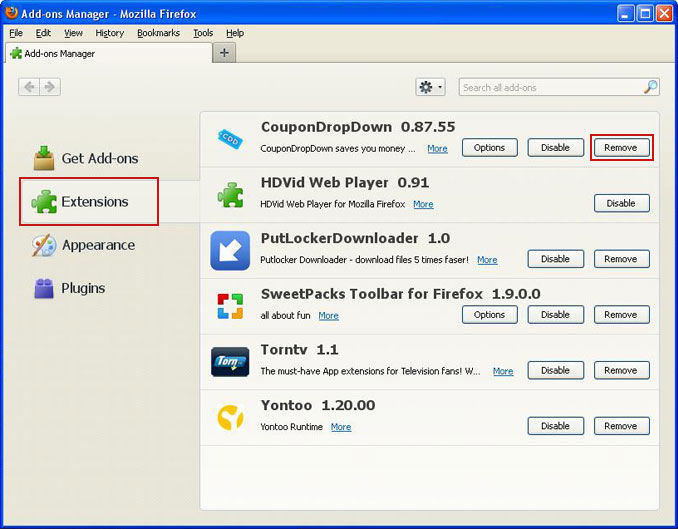
    1. Open Mozilla Firefox. Go to Tools → Add-ons.


    2. Select Extensions. If any of the extensions listed below exist, click on the Remove button next to each one. If you can't find the Remove button, then simply click on the Disable button.
    • CouponDropDown
    • IB Updater
    • HDvid Codec
    • GoPhoto.it
    • Yontoo
    • Incredibar
    • FBPhotoZoom
    • OneClickDownload
    • SweetPacks Toolbar
    • OneClickDownloader
    • TornTV
    • Online HD TV
    • PutLockerDownloader
    • StartNow Toolbar
    • TorrentHandler


    That's it! Once you have removed or disabled all of the above extensions, you can close Mozilla Firefox.


    Remove CouponDropDown in Google Chrome:

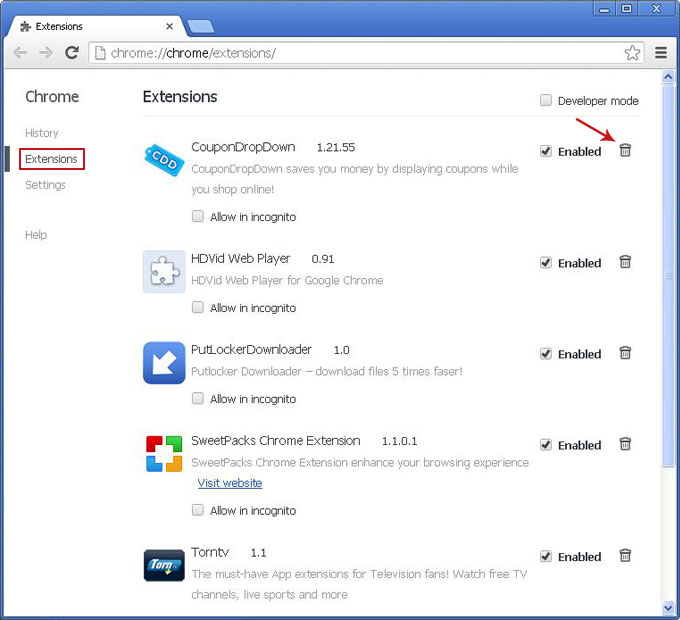
    1. Click on Chrome menu button. Go to Tools → Extensions.


    2. Click on the trashcan icon and remove the extensions listed below if they are present:
    • CouponDropDown
    • FBPhotoZoom
    • GoPhoto.it
    • HDvid Codec
    • IB Updater
    • OneClickDownload
    • OneClickDownloader
    • Online HD TV
    • PutLockerDownloader
    • StartNow
    • TornTV
    • TorrentHandler
    • Yontoo
    • ZoomIt


    That's it! Once you have removed all of the above extensions (if existed), you can close Google Chrome.


    Associated CouponDropDown adware files and registry values:

    Files:
    • C:\Program Files\CouponDropDown\
    • C:\Program Files\CouponDropDown\CouponDropDown.dll
    • C:\Program Files\CouponDropDown\CouponDropDown.exe
    • C:\Program Files\CouponDropDown\CouponDropDown.ico
    • C:\Program Files\CouponDropDown\CouponDropDown.ini
    • C:\Program Files\CouponDropDown\CouponDropDownGui.exe
    • C:\Program Files\CouponDropDown\CouponDropDownInstaller.log
    • C:\Program Files\CouponDropDown\Uninstall.exe
    • C:\Program Files\CouponDropDown\Chrome\
    • C:\Program Files\CouponDropDown\Chrome\CouponDropDown.crx
    Registry values:
    • HKCU\Software\AppDataLow\Software\CouponDropDown\
    • HKCU\Software\AppDataLow\Software\Crossrider
    • HKCU\Software\Cr_Installer
    • HKLM\SOFTWARE\Classes\CrossriderApp0004352.BHO
    • HKLM\SOFTWARE\Classes\CrossriderApp0004352.FBApi
    • HKLM\SOFTWARE\Classes\CrossriderApp0004352.Sandbox
    • HKLM\SOFTWARE\Classes\Interface\{55555555-5555-5555-5555-550055435552}
    • HKLM\SOFTWARE\Classes\Interface\{66666666-6666-6666-6666-660066436652}
    • HKLM\SOFTWARE\Classes\Interface\{77777777-7777-7777-7777-770077437752}
    • HKLM\SOFTWARE\Classes\TypeLib\{44444444-4444-4444-4444-440044434452}
    • HKLM\SOFTWARE\Wow6432Node\Microsoft\Internet Explorer\New
    • Windows\Allow\*.crossrider.com
    • HKLM\SOFTWARE\Wow6432Node\Microsoft\Windows\CurrentVersion\Ext\PreApproved\{11111111-1111-1111-1111-110011431152}
    • HKLM\SOFTWARE\Wow6432Node\Microsoft\Windows\CurrentVersion\Uninstall\CouponDropDown
    • HKLM\SOFTWARE\Wow6432Node\Microsoft\Windows\CurrentVersion\explorer\Browser Helper Objects\{11111111-1111-1111-1111-110011431152}
    Tell your friends: