Sunday, 1 July 2012

Remove FBI MoneyPak Ransomware (Uninstall Guide)

Ransomware is on the rise again, no doubt about that. Cyber security experts’ predictions were correct. Apparently they know this stuff very well. Seriously, you have to respect them. They also said that ransonware will probably hit smart phones too. We haven’t seen any of these yet but it’s probably just a matter of time.

Anyway, today we’re looking at the FBI MoneyPak virus or Trojan if you like. Most people nowadays don’t really know you to properly describe malware. I don’t know what it is, so let’s just call it a virus. Education is the key guys, especially when it comes to PC security. So, let's make things sparkling clear. If your computer screen is filled with a FBI warning page that claims you have to pay the $100 fine, you’re infected with ransomware. It’s not a virus. It can’t delete your files or inject .doc files.
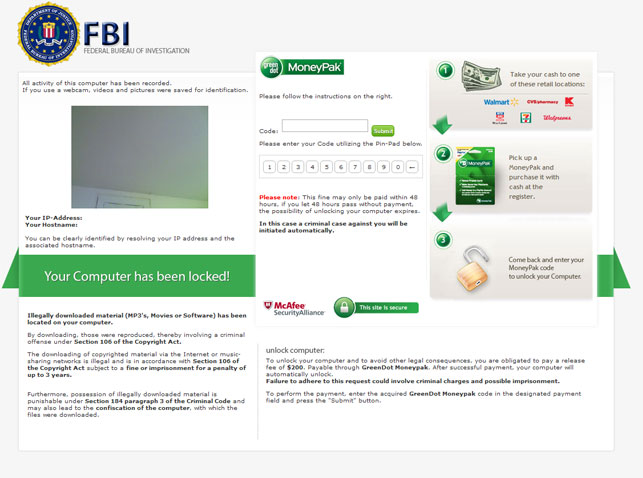


Most of the time, ransomware locks up user’s desktop, disables task manager and other system utilities to avoid the termination. However, FBI MoneyPak ransomware takes it to the entirely new level by adding a little video recording square in the top right corner of the fake FBI warning page. It supposed to be your built-in web camera. The funny thing is that this little square shows up even if your laptop doesn’t have a built-in camera.
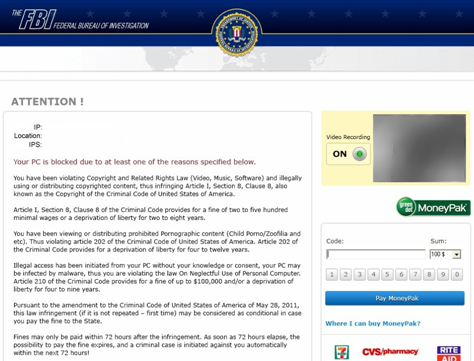


We have to admit that FBI MoneyPak is a very convincing looking scam/fraud. It has the official FBI logo at the top and lists victim’s IP address, location, and the name of your ISP. The fake warning claims that your PC has been locked by FBI because you downloaded or distributed copyrighted material or viewed child pornography. Creepy, isn’t it? Now, if you don’t pay the fine you will go to jail. What is more, you have only 72 hours to buy MoneyPak cash top-up card from Walmart or Kmart.
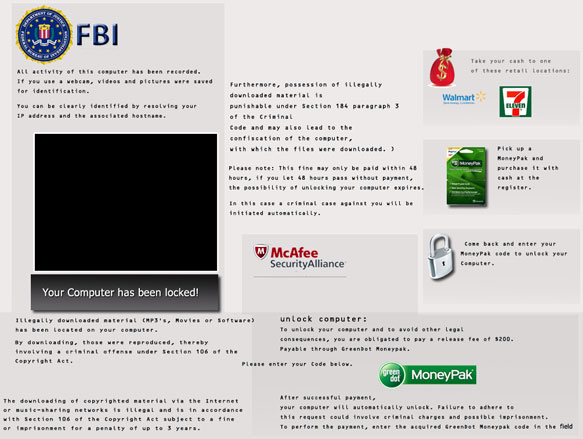


Cyber crooks are truly imaginative guys, aren’t they? Most people start to panic when they see such fake FBI warnings. You can’t let anyone know this happened; otherwise you can get arrested or even worse – have a criminal record or listed as a registered sex offender. Let’s image this happens at work. Would you tell your colleagues about that? Probably not. And this scheme really works. Cyber crooks want you to act immediately on your first impulse. I know it cruel but it works. Most importantly, don’t panic. Take a deep breath and think about it for a second. If you had done ether of those the punishment would probably be drastically more dire than just a simple $100 fine, right? Just don’t fall into the scam.

FBI MoneyPak virus removal is relatively easy for anyone with above average computer skills. This ransomware doesn’t inject explorer.exe. It injects iexplorer.exe and downloads additional files from remote web servers. It makes numerous modifications to the system. The virus actively monitors Task Manager and loads newly created Desktop with the fake FBI warning. Please note, there is no restore operation, so the desktop will never be reverted back to previous state. That means, even if you pay the ransom, the fake FBI warning won’t go away.

FBI MoneyPak ransomware is distributed using the Blackhole exploit kit. Simple visiting an infected website is enough to trigger this exploit kit which will download a malicious DLL file onto your computer.

This ransomware downloads the fake warning from the internet so if you simply unplug your network cable and manually turn your computer off the virus won’t show up after the reboot (at least it shouldn’t). Another way to remove FBI MoneyPak virus is to reboot your computer in Safe Mode and remove malicious registry keys and files manually. One way or another, you MUST scan your computer with legitimate anti-malware software properly remove this ransomware and its remnants. By the way, Kaspersky or Dr.Web rescue CDs should work just fine in this case too.

To remove FBI MoneyPak ransomware from your computer, please follow the steps in the removal guide below. If you need extra help removing this malware, please leave a comment below. Good luck and be safe online!

http://deletemalware.blogspot.com

Guide Updates:

08/17/12 - Cyber crooks have changed payment methods.
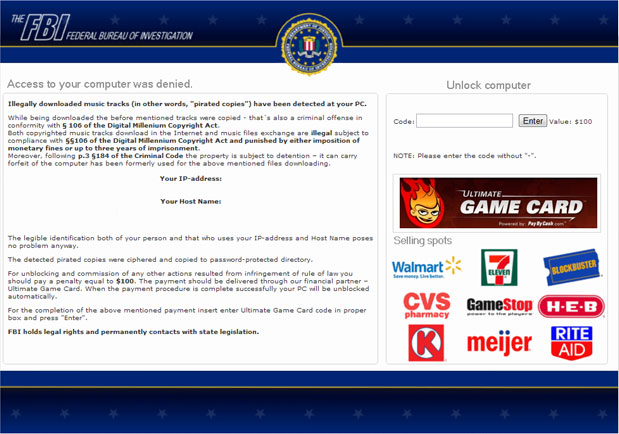


Now, the payment should be delivered through Ultimate Game Card instead of GreenDot MonayPack. It still remains unclear if they made a permanent switch to this service or not. So, from now on it's the FBI Ultimate Game Card ransomware scam rather than MoneyPak. Ultimate Game Card service is powered by paybycash.com. It allows you to pay for thousands of online games without requiring personal information. This service is legitimate. Anyway, we think most people will find this odd because we can hardly image that FBI would actually choose Ultimate Game Card as their official finance partner.

Another variant of the FBI ransomware, FBI Anti-Piracy Warning:
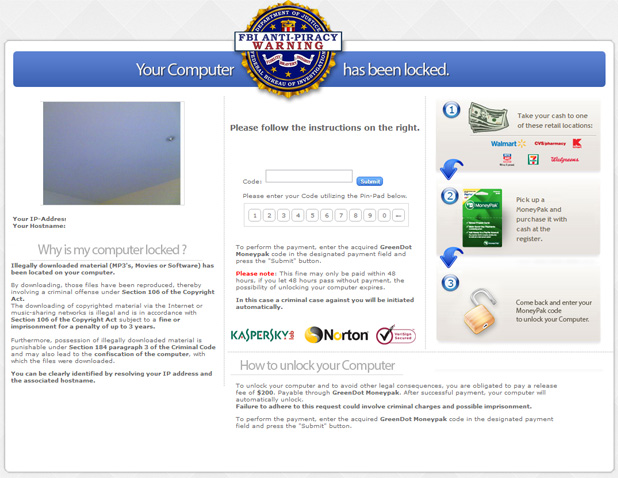


One more thing, FBI virus or FBI MoneyPak scam or whatever you want to call it, it's just a name and it doesn't represent the same malware all the time. There are at least four different malware groups that use fake FBI or Police virus warning messages and they all have the same goal: to trick you into buying a MoneyPak card. However, technically speaking they are not the same. They all operate in slightly different ways, so I'm afraid there's no easy one-click removal solution at the moment.

Known FBI MoneyPak virus/ransomware variants:

1. Stays inactive in Safe Mode
2. Stays inactive in Safe Mode with Command Prompt, but works perfectly fine in Safe Mode and Safe Mode with Networking.
3. Remains active in Safe Mode, Safe Mode with Networking and Command Prompt.

Below you will find a few useful suggestions how to disable and remove this virus from your computer. Choose removal instructions according to the variant of the virus you have on your machine.


Method 1: FBI MoneyPak ransomware removal instructions using System Restore in Safe Mode with Command Prompt:

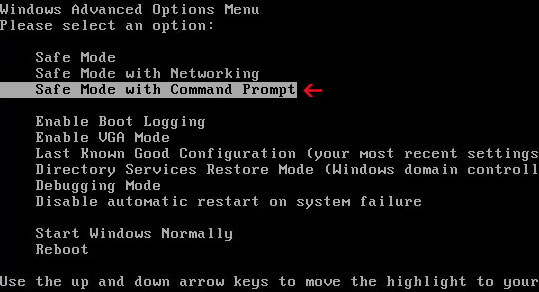
1. Unplug your network cable and manually turn your computer off. Reboot your computer is "Safe Mode with Command Prompt". As the computer is booting tap the "F8 key" continuously which should bring up the "Windows Advanced Options Menu" as shown below. Use your arrow keys to move to "Safe Mode with Command Prompt" and press Enter key.


2. Make sure you log in to an account with administrative privileges (login as admin).

3. Once the Command Prompt appears you have few seconds to type in explorer and hit Enter. If you fail to do it within 2-3 seconds, the FBI MoneyPak ransomware will take over and will not let you type anymore.

4. If you managed to bring up Windows Explorer you can now browse into:
  • Win XP: C:\windows\system32\restore\rstrui.exe and press Enter
  • Win Vista/Seven: C:\windows\system32\rstrui.exe and press Enter
5. Follow the steps to restore your computer into an earlier day.

6. Download recommended anti-malware software (direct download) and run a full system scan to remove the remnants of FBI MoneyPak virus.


Method 2: FBI MoneyPak ransomware removal instructions using System Restore in Safe Mode:

1. Power off and restart your computer. As the computer is booting tap the "F8 key" continuously which should bring up the "Windows Advanced Options Menu" as shown below. Use your arrow keys to move to "Safe Mode" and press Enter key.
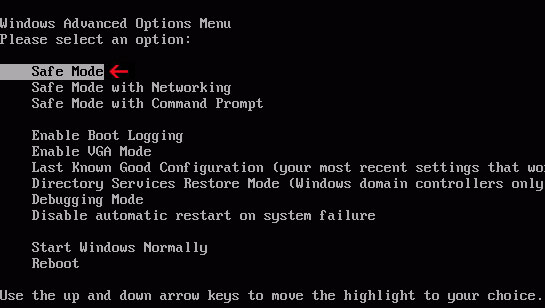

NOTE: Login as the same user you were previously logged in with in the normal Windows mode.

2. Once in there, go to Start menu and search for "system restore". Or you can browse into the Windows Restore folder and run System Restore utility from there:
  • Win XP: C:\windows\system32\restore\rstrui.exe double-click or press Enter
  • Win Vista/7/8: C:\windows\system32\rstrui.exe double-click or press Enter
3. Select Restore to an earlier time or Restore system files... and continue until you get into the System Restore utility.

4. Select a restore point from well before the FBI virus appeared, two weeks should be enough.

5. Restore it. Please note, it can take a long time, so be patient.

6. Once restored, restart your computer and hopefully this time you will be able to login (Start Windows normally).

7. At this point, download recommended anti-malware software (direct download) and run a full system scan to remove the FBI MoneyPak virus.


Method 3: FBI MoneyPak ransomware removal instructions using MSConfig in Safe Mode:

1. Power off and restart your computer. As the computer is booting tap the "F8 key" continuously which should bring up the "Windows Advanced Options Menu" as shown below. Use your arrow keys to move to "Safe Mode" and press Enter key.


NOTE: Login as the same user you were previously logged in with in the normal Windows mode.

2. Once in there, go to Start menu and search for "msconfig". Launch the application. If you're using Windows XP, go to Start then select Run.... Type in "msconfig" and click OK.

3. Select Startup tab. Expand Command column and look for a startup entry that launches randomly named file from %AppData% or %Temp% folders using rundll32.exe. See example below:

C:\Windows\System32\rundll32.exe C:\Users\username\appdata\local\temp\regepqzf.dll,H1N1

4. Disable the malicious entry and click OK to save changes.

5. Restart your computer. This time Start Windows normally. Hopefully, you won't be prompted with a fake FBI screen.

6. Finally, download recommended anti-malware software (direct download) and run a full system scan to remove the FBI MoneyPak virus.


Method 4: Manual FBI MoneyPak ransomware removal instructions Safe Mode (requires registry editing) :

1. Unplug your network cable and manually turn your computer off. Reboot your computer in "Safe Mode". As the computer is booting tap the "F8 key" continuously which should bring up the "Windows Advanced Options Menu" as shown below. Use your arrow keys to move to "Safe Mode" and press Enter key.


NOTE: Login as the same user you were previously logged in with in the normal Windows mode.

2. When Windows loads, open up Windows Registry Editor.

To do so, please go to Start, type "registry" in the search box, right click the Registry Editor and choose Run as Administrator. If you are using Windows XP/2000, go to Start → Run... Type "regedit" and hit enter.

3. In the Registry Editor, click the [+] button to expand the selection. Expand:

HKEY_CURRENT_USER\Software\Microsoft\Windows\CurrentVersion\Run
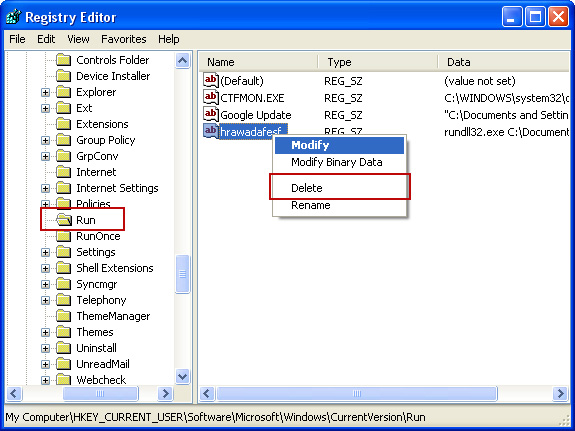


Look on the list to the right for an randomly named item. Write down the file location. Then right click the randomly named item and select Delete. Please note that in your case the file name might be different. Close Registry Editor.

In our case the malicious file (pg_0rt_0p.exe) was located in Application Data folder. So, we went there and simply deleted the file. We're running Windows XP.

File location: C:\Documents and Settings\Michael\Application Data\
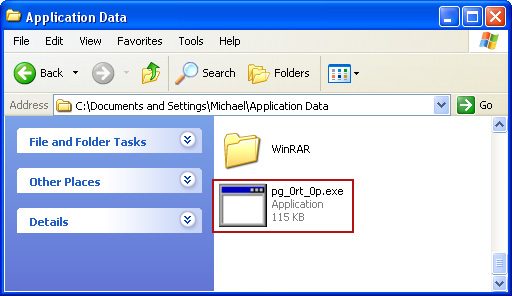


If you are using Windows Vista or Windows Seven, the file will be located in %AppData% folder.

File location: C:\Users\Michael\AppData\Romaming\

Finally, go into Windows Temp folder %Temp% and click Date Modified so the newest files are on top. You should see an exe file, possibly with the name  pg_0rt_0p.exe (in our case it was exactly the same), but it may be different in your case. Delete the malicious file.

One more thing, check your Programs Startup list for the following entry:

[UserPATH]\Programs\Startup\ctfmon.lnk - C:\Windows\system32\rundll32.exe pointing to [UserPATH] \Temp\wpbt0.dll,FQ10 (or FQ11)

In our case it was ctfmon.lnk pointing to malicious file which then loads the fake ransom warning. Please note that in your case the file name might be different, not necessarily ctfmon.lnk. Simply disable or remove (if possible) such entry and restart your computer.

4. Restart your computer into "Normal Mode" and scan the system with legitimate anti-malware software.

5. Download recommended anti-malware software (direct download) and run a full system scan to remove the remnants of FBI MoneyPak virus.

FBI MoneyPak Ransomware video:


To learn more about ransomware, please read Remove Trojan.Ransomware (Uninstall Guide).

Tell your friends:

Saturday, 2 June 2012

Live Security Platinum Removal Guide

Live Security Platinum is a fake antivirus program (scareware) that attempts to extort money from less computer savvy users. It's a very well documented malware family, unfortunately there's always a chance that a PC user that has never had any kind of malware infection on his machine will contract this scareware. Cyber crooks are always looking for such PC users because they are usually not aware of fake security alerts and most likely will fall victim to scam.

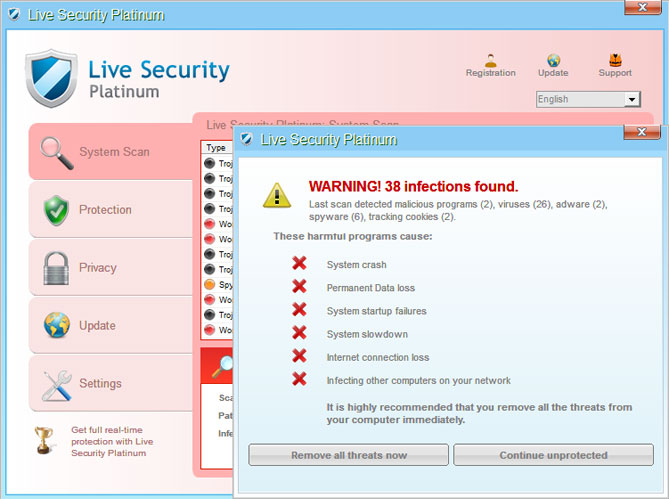
Below is a screenshot of the Live Security Platinum:


As far as I am aware, Live Security Platinum is being transmitted via fake online virus scanners and pop-up notifications claiming that you need to update your antivirus software. There was a huge decrease in scareware traffic in the past few months. Only a few scareware families were actively distributed and they were insignificant comparing to the number of successfully installed banking trojans and worms. It seems that cyber crooks decided to 'push' other malware, mostly Cridex worm and password stealing trojans Ursnif and Fareit. Besides, there's a new password stealing trojan called Tinba alias Suzy. It belongs to a completely new malware family. This indicates that password stealing trojans and similar malware is taking the lead. Anyway, rogue security programs are still in the game.

Once installed, Live Security Platinum pretends to scan your computer for malicious software. It throws hundreds of fake virus warnings to make you think that you are infected. This rogue security program belongs to the Rogue:Win32/Winwebsec malware family. The previous version of this malware was named Smart Fortress 2012. It re-associates certain file extensions with this software, making it impossible to run task manager, registry editor or even command prompt. The nasty bug may modify Windows host file and change Windows proxy settings. Besides, Live Security Platinum stays active in safe mode. To 'unlock' the allegedly infected computer the user is instructed to pay almost 90 bucks.

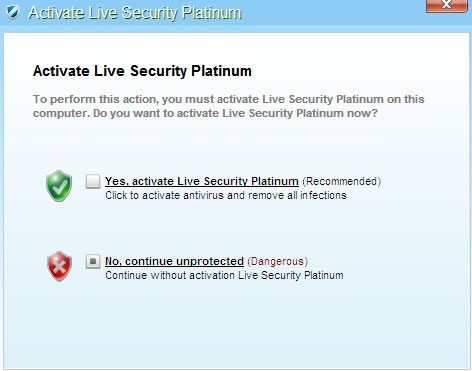
Fake security alerts:


When running, this rogue security program blocks legitimate antivirus software and pretty much any other utility that can be used to delete or at least disable this malware. Live Security Platinum hijack web browsers too. It displays a fake securuty warning claiming that the website you are about to visit is not safe and may contain malicious code.

Last, but not least, if you don't remove this malware from your computer or remove it partly, it may continue to operate on your computer and can be used to commit online banking and credit card fraud. What is more, the rogue program can be bundled with TDSS rootkit. It may redirect Google search results to infected or misleading websites.

Live Security Platinum runs from "All User\Application Data" data folder in Windows XP and C:\ProgramData folder in Windows 7. A randomly named folder can be located very easily, unless of course it's hidden. But this isn't a problem either. Here's a quick guide on how to see hidden files and folder in Windows. Simply rename the malicious folder or malicious executable inside the malcious folder and reboot your computer. The rogue security program won't run because it won't find the associated files. Please, note that you still need to scan your computer with anti-malware software to completely remove the rogue antivirus program from your computer.

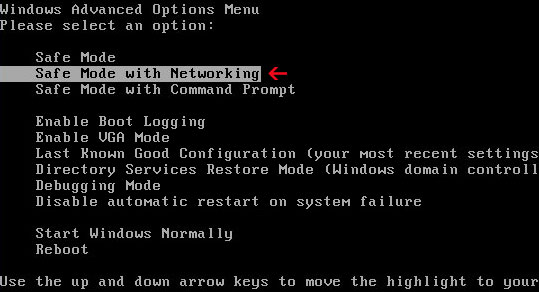
Another option is to reboot your computer in Safe Mode with Networking, remove Live Security Platinum core components and then run recommend anti-malware software.

And the probably the most easiest way to remove the virus from your PC is to use the debugged registration key to register the rogue program. The rogue antivirus program will disable all restrictions and you will be able to download recommended anti-malware software and run a full system scan without any problems.

To remove this virus and associated malware from your computer, please follow the removal instructions below. If you need help removing this virus, please leave a comment below. Safe surfing folks!

Source: http://deletemalware.blogspot.com


Live Security Platinum removal in Safe Mode with Networking:

1. Reboot your computer is "Safe Mode with Networking". As the computer is booting tap the "F8 key" continuously which should bring up the "Windows Advanced Options Menu" as shown below. Use your arrow keys to move to "Safe Mode with Networking" and press Enter key.


NOTE: Login as the same user you were previously logged in with in the normal Windows mode.

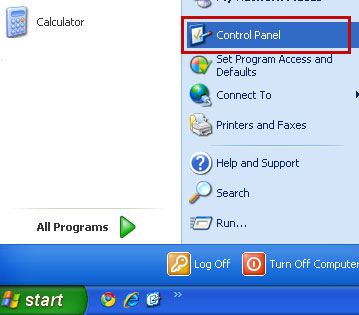
2. Go to the Start Menu. Select Control Panel → Add/Remove Programs.
If you are using Windows Vista or Windows 7, select Control Panel → Uninstall a Program.


3. Search for Live Security Platinum in the list. Select the program and click Remove button.
If you are using Windows Vista/7, click Uninstall up near the top of that window.

When it asks you to reboot, please do so. After the computer reboots and you are back at your Windows Desktop (Normal Mode), please continue with the next step.

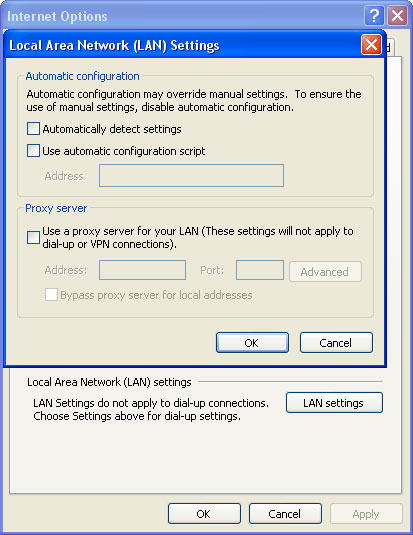
4. Launch Internet Explorer. In Internet Explorer go to: Tools->Internet Options->Connections tab.
Click Lan Settings button and uncheck the checkbox labeled Use a proxy server for your LAN. Click OK.


5. Download recommended anti-malware software (Spyware Doctor) and run a full system scan to remove this virus from your computer.

NOTE: don't forget to update anti-malware software before scanning your computer.


Quick Live Security Platinum removal guide:

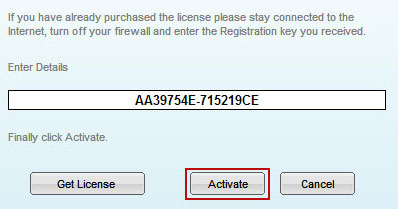
1. Open Live Security Platinum scanner. Click the "Registration" button (top right corner). Enter the following debugged registration key and click "Activate" to register the rogue antivirus program. Don't worry, this is completely legal since it's not genuine software.

AA39754E-715219CE


Once this is done, you are free to install recommended anti-malware software and remove Live Security Platinum from your computer properly.

2. Download recommended anti-malware software (Spyware Doctor) and run a full system scan to remove this virus from your computer.

NOTE: don't forget to update anti-malware software before scanning your computer.


Associated Live Security Platinum files and registry values:

Files:

Windows XP:
  • C:\Documents and Settings\All Users\Application Data\[SET OF RANDOM CHARACTERS]\
  • %UserProfile%\Desktop\Live Security Platinum.lnk
  • %UserProfile%\Start Menu\Programs\Live Security Platinum\
  • %UserProfile%\Start Menu\Programs\Live Security Platinum\Live Security Platinum.lnk
Windows Vista/7:
  • C:\ProgramData\[SET OF RANDOM CHARACTERS]\
  • %UserProfile%\Desktop\Live Security Platinum.lnk
  • %UserProfile%\Start Menu\Programs\Live Security Platinum\
  • %UserProfile%\Start Menu\Programs\Live Security Platinum\Live Security Platinum.lnk
Registry values:
  • HKEY_CURRENT_USER\Software\Microsoft\Windows\CurrentVersion\RunOnce "[SET OF RANDOM CHARACTERS]"
  • HKEY_CURRENT_USER\software\Microsoft\Windows\CurrentVersion\Uninstall\Live Security Platinum\
Tell your friends:

Monday, 14 May 2012

Remove "Recommended for You" Pop-ups and Malware (Uninstall Guide)

Over the last few weeks, some of our readers have alerted us to the fact that they got some kind of malicious software that redirected web browsers to different 3rd party websites and displayed intrusive advertisements in the lower right hand corner of their computer screens. No joke. However, it's a very common issue and sometimes it's rather difficult to tell whether it's caused by malware, browser helper object or just a useless web browser extension. Usually, web browser redirects are indeed caused by malware, mostly rootkits and Trojan horses, but that's not always the case. So, we decided to dig into the issue and trace the root of the problem.

Shortly after we ran a certain set of Trojans on our test machine, we found a sample (Trojan.Small.dac or Troj/RuinDl-Gen) that was responsible for the combination of the Recommended for You pop-ups and web browser redirects. The web browser redirects seem to happen at random or at least they didn't happen all the time. The Trojan horse displayed two different pop-up windows: an iPhone looking box with various advertisements and a smaller one with just random ads. It happened in Internet Explorer, Mozilla Firefox and Google Chrome. Can't blame the browser this time. It's probably a cross platform malware too. Besides, it happened on both 32-bit and 64-bit systems. Ads were not very intrusive, they didn't show up like every two or five minutes. Once you minimize the ad box, it doesn't appear until you restart your computer. That's right, you can't close the ad box, when you click the "X" it just minimizes into a smaller box that says "Recommended for You".

An-iPhone looking ad box:


A smaller one, but still very annoying:


Recommended for You box:


Now, that we know the root of this problem (malware) we can take the appropriate actions. Running a full virus scan with anti-malware software is essential step towards solving the Recommended for You malware problem. Once the Trojan horse is gone, you need to replace Windows Host file since it's partly responsible for web browser redirects and annoying pop-ups as well. Yes, the Trojan modifies Windows Hosts file making web browser inquiries a subject to redirect. To remove this malware from your computer, please follow the steps in the removal guide below. Should you need any further assistance, don't hesitate to contact us or just leave a comment below. Good luck and be safe online!

http://deletemalware.blogspot.com


Recommended for You malware removal instructions:

1. Download recommended anti-malware software (direct download) and run a full system scan to remove this malware from your computer.

3. To reset the Hosts file back to the default automatically, download and run Fix it and follow the steps in the Fix it wizard.

4. Remove files from Windows %Temp% folder.

Tell your friends:

Wednesday, 9 May 2012

Remove W32.Xpaj Virus (Uninstall Guide)

W32.Xpaj is a particularly sneaky polymorphic virus that infects .exe, .dll, and other legitimate Windows files on the compromised computer. This virus is not completely new. First samples of infected files were detected about four years ago. Back then W32.Xpaj was probably the most sophisticated file infector or at least it was well above the average. The behavior of this virus seems to be the same as the old one but functionality has changed dramatically in recent years. We found a new variant of this virus that does not infect legitimate Windows files anymore. It simply creates executable files containing W32.Xpaj or W32.Xpaj.B malcode and some fake data. Fake data and strings are meant to mimic legitimate Windows files. What is more, the recent variants of this virus have bootkit functionality.


By the way, bootkit-enhanced Trojan horses are very common nowadays as well. It's not a coincidence, it's a trend and we will probably see some more Trojans and viruses with enhanced functionally as it becomes very difficult to hide the presence of malware on infected computers. Another very important aspect of polymorphic viruses - the final behavior is not easily predicted. Malware authors can easily corrupt legitimate system files and crash the whole system. It's not surprising that they try to avoid such behavior.

The latest variants of W32.Xpaj virus can infect the Master Boot Record and run code in Kernel Mode. As for know, the virus seems to be limited to 32-bit executable modules only, however it may infect 64-bit systems as well (the code is already present but may be inactive for some reasons). The virus blocks legitimate antivirus software. We've tested Avast!, Avira Antivir and Hitman Pro and they all failed to remove this virus. As a matter of fact, all these popular security products can't even load properly when the computer is infected by this virus. So, they become pretty much useless. Even when you remove W32.Xpaj virus from the infected computer using additional malware removal software, you need to reinstall or manually restore infected files from backup copies.

Twenty-six files, processes and startup programs infected by W32.Xpaj:


What can be done with W32.Xpaj? Well, malware authors can steal information from the compromised computer, usually computer name, user name and cached passwords. Please note that the latest variants of this virus may accompany more sophisticated spyware modules. However, the most successful payload of this virus is related to advertising and ad-clicking scam and it's very likely that the purpose of Malware.Xpaj remains the same. Especially when the network communication hasn't changed much. The data is encrypted and the virus requests ads from remove server or redirects search results to spammy or sponsored websites. The virus monitors Internet traffic with the goal of intercepting any searches or clicks performed by a user. Ultimately, the user is redirected to websites full of advertisements, which results in the cyber crooks getting paid by the advertisers for obtaining the click. In other words, advertisers throw their money for invalid clicks. In such case, the return of investment is likely to be zero. What a pity.

As you may know, if the computer has one virus, it probably has more. In order to successfully clean the computer affected by W32.Xpaj, you need to remove the bootkit infection first and then run a full system scan with recommend anti-virus software. Last, but not least, W32.Xpaj may spreads through removable, mapped and network drives. If you were unlucky enough to get this virus, please disconnect other computer from the network. To remove this virus from your computer, please follow the removal steps in the removal guide below. If you need help removing this virus, please leave a comment below. Safe surfing folks!


W32.Xpaj removal instructions:

1. Download and run TDSSKiller. Press Start scan for the utility to start scanning.


2. When the scan is over, TDSSKiller displays detected malware. Press Continue to remove found malware.


3. A reboot might require after disinfection. Press Reboot computer to continue.


4. After rebooting, download recommended anti-malware software (direct download) and run a full system scan to remove the remnants of W32.Xpaj virus.

Tell your friends:

Saturday, 5 May 2012

Total Anti Malware Protection - How To Remove

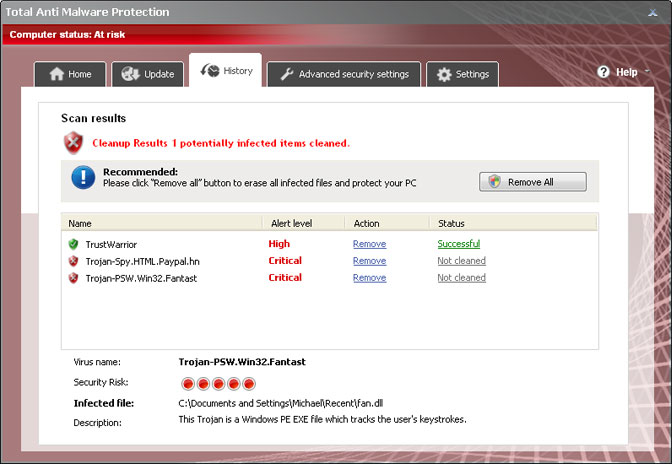
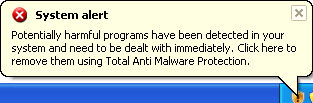
Today we came across another bugger from the Rogue.VirusDoctor family that comes up on the infected computer as Total Anti Malware Protection. It may look like a real thing but basically it's a fake security product that pretends to scan your computer for malicious software. It also displays a bunch of fake security alerts and pop-ups to make it look as realistic as it can be. It's probably directed by a few well-placed interest groups (cyber criminals). Once the rogue program is installed, it attempts to disable genuine anti-virus software. So, either it becomes unresponsive or returns some some strange error codes. Then, Total Anti Malware Protection disables Windows system utilities, including Task Manager and Windows Registry. You can't just simply fire up Task Manager and stop malicious processes. It's a part of self-defense mechanism and might be a tough one to crack especially if you are basically computer illiterate. But don't worry, just bear with me and I will show you how to fix things up.


To make things worse, Total AntiMalware Protection overwrites Windows Hosts file. It adds some additional code lines that will eventually cause web browser redirection to findgala.com and some other sites that seem to be among the less clean ones in terms of keeping out the malware links. Again, you can't just simply edit Hosts file and remove code lines that are not supposed to be there because the rogue program sets new file permissions that basically say "You are not allowed to change it". Thankfully, Microsoft has this great utility called "Fix it" that gets things done very easily, so you don't need to mess up with Windows permissions.

If your computer has been infected with Total Anti Malware Protection, please follow the steps the removal guide below. Whatever you do, DO NOT pay for it. Total Anti Malware Protection is a scam. Once you give you money to scammers you won't be able to get them back. No 30 day money back guarantee, sorry. Also, you should re-evaluate your protective measures: run non-admin, keep patches up-to-date, and don't run e-mailed executables. If you have any questions, please leave a comment below. Safe surfing folks!

Update (May 7, 2012): Scammers have slightly modified the GUI and changed the name of this rogue anti-spyware program. Now it's called Best Antivirus Software. Of course, there still might be some actively distributed variants of Total AntiMalware Protection and as a matter of fact we believe that they pushes different rogues simultaneously. Anyway, the removal guide outlined below works just fine for both variants of this rogue anti-spyware program.


Total Anti Malware Protection removal guide:

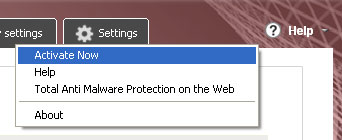
1. Click on Help and select Activate Now.


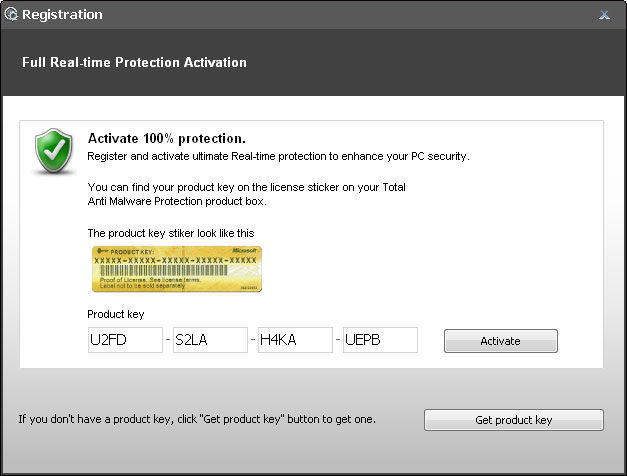
2. Enter one the following debugged registration keys and click Activate to register the rogue antivirus program. Don't worry, this is completely legal since it's not genuine software.

U2FD-S2LA-H4KA-UEPB
K7LY-H4KA-SI9D-U2FD
K7LY-R5GU-SI9D-EVFB


2. Download recommended anti-malware software (Spyware Doctor) and run a full system scan to remove this malware from your computer.

3. To reset the Hosts file back to the default automatically, download and run Fix it and follow the steps in the Fix it wizard.

Source: http://deletemalware.blogspot.com


Associated Total Anti Malware Protection files and registry values:

Files:
  • %AllUsersProfile%\Application Data\[SET OF RANDOM CHARACTERS]\[SET OF RANDOM CHARACTERS]
  • %AppData%\Total Anti Malware Protection\
  • %AppData%\Microsoft\Internet Explorer\Quick Launch\Total Anti Malware Protection.lnk
  • %UserProfile%\Desktop\Total Anti Malware Protection\
  • %UserProfile%\Start Menu\Total Anti Malware Protection\
  • %UserProfile%\Start Menu\Programs\Total Anti Malware Protection.lnk
Registry values:
  • HKEY_CURRENT_USER\software\Microsoft\Windows\CurrentVersion\Run\Total Anti Malware Protection = "%AllUsersProfile%\Application Data\a2r3fq\FPa1a_7294.exe" /s /d
  • HKEY_LOCAL_MACHINE\software\microsoft\Windows NT\CurrentVersion\Image File Execution Options\[RANDOM].exe\Debugger = svchost.exe
  • HKEY_CURRENT_USER\Software\Microsoft\Windows\CurrentVersion\Policies\Explorer\DisallowRun = 01000000
  • HKEY_CURRENT_USER\Software\Microsoft\Windows\CurrentVersion\Policies\Explorer\DisallowRun\[1...15]
Tell your friends:

Wednesday, 2 May 2012

Top 6 Best Practices for Network Vulnerability Management

We all know the importance of having a secure network and we also know that most of the time this is easier said than done. The difficulty in achieving this target stems from the wide variety of issues we need to monitor and fix. This is where a good vulnerability scanner can help. The right tool for the job is only half the job, one also needs to use the tool effectively and this applies to a vulnerability scanner as well. Here are six best practices that can help ensure maximum efficiency when it comes to network vulnerability management:
  1. Ensure a secure baseline: Most vulnerability scanners will notify the administrator when things change but this is only effective if you're sure that what you have now is properly configured and secure.
  2. Ensure good test environments: Fixing vulnerabilities involves changing your network and without proper testing the fixing process itself can cause the downtime you’re trying to avoid. Use your vulnerability scanner to map your network and determine what software and hardware your test environment should have. The closer your test environment is to the live network the better testing you can do.
  3. Ensure your vulnerability scanner is monitoring your network periodically: Most vulnerability scanners will allow you to configure them to automatically scan your network for issues on a schedule. This is a good idea as doing this manually involves risks such as skipping the process in favour of other urgent tasks.
  4. Prioritize your patch management: Patch management is a challenging process. The longer you take to complete it the higher the risk that someone might exploit an un-patched vulnerability. The ideal patch management scenario involves extensive testing but that will take time. For this reason you should prioritize – your servers take precedence over workstations. Furthermore, patches themselves need to also be prioritized based on their criticality. That way you can plan out your testing schedule to achieve the best testing and the fastest deployment possible.
  5. Be mindful of the hardware on your network: Generally when we think of network vulnerability management most people would not consider hardware and peripherals. An employee hooking up a wireless network card can be as insidious if not worse than any un-patched vulnerability. For this reason it is essential to ensure your vulnerability scanner is constantly monitoring the hardware that is added or removed to your network.
  6. Do proper Change management: Networks tend to change often, be it because new software is installed, configurations change or new machines connected to the network. These can all pose a security risk.
A good vulnerability scanner can be invaluable at notifying the administrator the moment such a change is detected enabling them to take prompt action. A good vulnerability scanner can reduce a lot of risk so long as it is used effectively. These six best practices will help you improve the security health of your systems and network.

This guest post was provided by Emmanuel Carabott on behalf of GFI Software Ltd. GFI is a leading software developer that provides a single source for network administrators to address their network security, content security and messaging need. Learn more on what to look out for when choosing a vulnerability scanner. All product and company names herein may be trademarks of their respective owners.

Tuesday, 1 May 2012

Remove Trojan.Tracur (Uninstall Guide)

One of our computers has been recently hit by a dreaded Trojan horse called Trojan.Tracur. That's not a huge surprise for us since most of the time we infect our computers intentionally just to find you what certain computer viruses do and how to effectively get rid of them. It's been almost a year since major security vendors discovered this Trojan horse. The distribution and risk levels were always low for this threat but Trojan.Tracur activity has rapidly increased in the past week.

This Trojan horse redirects network traffic to malicious or infected websites. That's the main payload of this infection. Depending on your experience, you may think it's not a serious computer security threat but not everything is what it looks like at first glance. Trojan.Tracur can secretly download and execute malicious modules and make your computer wide open to a whole range of different computer attacks. It can also steal information which can lead to identity theft or financial loss. Once installed, Win32 Trojan.Tracur copies itself to Windows system folder as already existing DLL file, for example: reagent32.exe, imageres32.exe, etc. Then, this Trojan horse attempts to connect to a server and download additional malicious files onto the infected computer (Trojan.TracurB). If the C&C servers are online, it downloads at least three additional files with different functionality/characteristics and waits for other commands from the Command and Control server. The malware author can perform the following actions on the compromised computer:
  • Download and execute malicious files
  • Control the web browser redirection parameters
  • Steal information
Furthermore, the Trojan horse Trojan.Tracur modifies Windows registry values and installs web browser plug-ins that are responsible for web browser redirects. So, basically the Trojan install itself as a web browser extension of Mozilla Firefox and Google Chrome. These are usually detected as Trojan.BHO. After conducting some research we found out that the Trojan horse redirects traffic when the user of the infected computer tries to visit a website with a URL that contains specific strings, e.g., Google, Yahoo, Bing and some other popular search engines.

Last, but not least, it create a Windows Service which starts up automatically when you turn on your computer. It loads the malicious executable file from the Windows %System% folder. The name of the malicious Windows Service may vary, but it's usually something like Print Spooler or anything else that may sound legitimate. As with many other issues in computer security, you hopefully know your situation better than anyone else, however you have to make sure monitor system changes. Why? Because search engine redirects and browser hijackers are very common problems nowadays and unfortunately they are not being taken seriously by PC technicians and users. Why to bother? You probably installed some sort of toolbar in your web browser that causes redirects and it can be easily uninstalled using the Add/Remove Programs control panel. Nothing serious. I hear this very often. If you have been getting redirects in your Google searches and notifications from antivirus software about Trojan.Tracur.Gen activity, then your PC is definitely compromised. And this time, it's not the TDSS/ZAccess rootkit that redirects search results to Happili. It's a Trojan horse + malicious browser helper objects.

Even though, you can remove this Trojan horse from your computer manually, we recommend you to scan the infected computer with up to date anti-malware software. Manual removal can be very complicated and time consuming task. You may miss some core Trojan.Tracur files and then infection will eventually reappear next time you turn on your PC. To remove the Trojan.Tracur infection from your computer, please follow the step in the removal guide below. If you have any questions, please leave a comment.

Mike, http://deletemalware.blogspot.com


Trojan.Tracur removal instructions:

1. Download and execute TDSSKiller. This utility will remove malicious .dlls and executable files that may have rootkit capabilities.

2. Then download recommended anti-malware software (direct download) and run a full system scan to remove Trojan.Tracur from your computer. Don't forget to update anti-malware software before scanning.


Associated Trojan.Tracur files and registry values:

Files:
  • C:\WINDOWS\System32\[NAME OF AN EXISTING DLL]32.exe
Registry values:
  • HKEY_LOCAL_MACHINE\SOFTWARE\Microsoft\Windows\CurrentVersion\Explorer\Browser Helper Objects\{989A5447-1A50-4D02-BA55-724A516C1370}
  • HKEY_LOCAL_MACHINE\SOFTWARE\Classes\CLSID\{989A5447-1A50-4D02-BA55-724A516C1370}
  • HKEY_CLASSES_ROOT\CLSID\{989A5447-1A50-4D02-BA55-724A516C1370}
  • HKEY_CLASSES_ROOT\.fsharproj
  • HKEY_LOCAL_MACHINE\SOFTWARE\Classes\.fsharproj
Tell your friends: