Wednesday, 12 June 2013

What is wscript.exe and how to remove it?

wscript.exe - Windows-based script host by Microsoft


What is wscript.exe?


wscript.exe is a Windows service that allows you to execute VBScript files. Normally, it is not dangerous, but if a malicious script is downloaded and executed it will appear as if wscript.exe is the culprit, when it is really a separate .vbs file. Antivirus programs usually detect C:\Windows\System32\wscript.exe as the culprit, however, it's not necessarily infected. It may be that your computer is infected with Worms and Trojans that attempt to execute malicious .vbs scripts. Most users, get these malware infections from SD cards, pen drives and of course infected websites. Malicious files may change Windows registry, establish connection to remove servers controlled by cyber crooks and download additional malware modules. Other issues: can't open Regedit, certain Windows options are missing, can't acces Contol Panel. Malware may also block anti-malware and Windows system utilities. You should not delete wscript.exe manually, many Windows services require it and our computer may not function properly if it cannot be found. But you should use recommend anti-malware software to remove wscript.exe related malware from your computer.


File name: wscript.exe
Publisher: Microsoft
File Location Windows XP: C:\Windows\System32\wscript.exe
File Location Windows 7: C:\Windows\System32\wscript.exe
Startup file: SYSTEM\CurrentControlSet\Services 'Windows-based script host'

How to remove Luhe.Sirefef.A Trojan virus (Uninstall Guide)

Luhe.Sirefef.A is a malicious Trojan horse from the Sirefef malware family. Just as the good people of Troy unwittingly let their enemies into their midst, this Trojan horse will similarly trick you into infecting your own computer and being the catalyst for the damage that will then occur. How this happens is that the person who wrote and coded the Trojan horse manipulates you by convincing you to either perform an action or offer personal information, either without you realising you’re doing it, or against your better judgement. The threat is currently spreading and is ranked 60 in the world for online threats, according to AVG. Which means that there are at least 100K infected computers. If you received a pop-up warning "Found Luhe.Sirefef.A" paired with other Trojans, for example, Trojan horse Generic32.CEMU, then your computer is definitely infected with this rather sophisticated malware. Sometimes, antivirus programs cannot properly remove this infection. Most of them will suggest you to remove Luhe.Sirefef.A manually, however, this can be really difficult task. First of all, because it's a deeply embedded virus. Secondly, you can be 100% that your computer is clean, even if you think that you removed all the malicious files. So, to remove this Trojan from your computer, please follow the removal guide below.


Cyber crooks distribute this Trojan in every possible way to reach as many PC users as possible. Usually, they use hacked websites. They may also send you an email with an infected attachment, which once clicked upon will run the Trojan horse and infect your PC or laptop. For example let’s say the email has a game attached to it – it looks great fun and you can’t wait to get playing. So what do you do? You run the .exe file in order to install the game on your computer but bingo – you’ve just installed the Luhe.Sirefef.A Trojan.

What the Trojan horse will then do is to start over-writing certain sections of your hard drive thus corrupting your files and data. Very often, this virus is detected in services.exe and other system files. The only small silver lining to this cloud is that Trojan horses are not actually viruses (although many people tend to think of them as such). A computer virus will replicate itself but a Trojan horse will not. The good thing about this is that Trojan horses only wreak their damage if they are given the opportunity to run and the majority of good anti-malware software will be able to detect and delete Trojan horse software before you have a chance to do anything with it.

So what is the moral of this story that started off with a Greek army and ended up with data corruption? The number one rule is the same that should be applied when protecting yourself from all forms of malicious software and viruses: make sure you have a well-known brand of anti-malware software installed on your computer to stop Luhe.Sirefef.A in its track. And make sure it’s the latest version too.

Furthermore, don’t open programs or download software unless you are 100% sure that they come from a reliable and trusted source – particularly if they have been sent to you in the form of an executable file attached to an email. And if you don’t know the sender; then definitely don’t touch it. Remember that this is exactly the way Trojan horses work – don’t make the same mistake as the people of Troy did by letting it through the ‘gates’ of your computer. If you antivirus was unable to disinfect Luhe.Sirefef.A, please follow the removal instructions below on how to eliminate this and any other threat from your computer. If you have any questions, please leave a comment below. Good luck and be safe online!

Written by Michael Kaur, http://deletemalware.blogspot.com


Luhe.Sirefef.A removal instructions:

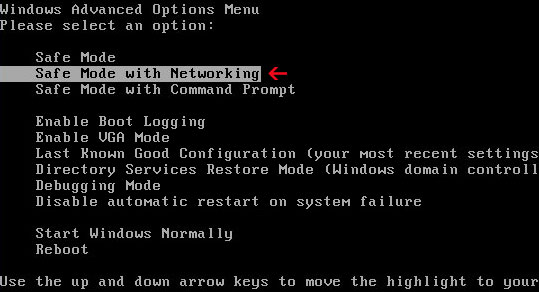
1. Please reboot your computer is "Safe Mode with Networking". As the computer is booting tap the "F8 key" continuously which should bring up the "Windows Advanced Options Menu" as shown below. Use your arrow keys to move to "Safe Mode with Networking" and press Enter key.


NOTE: Login as the same user you were previously logged in with in the normal Windows mode.

2. Download recommended anti-malware software (direct download) and run a full system scan to remove this Trojan from your computer.

3. Reboot your computer as normal. Download and run TDSSKiller. Press the button Start scan for the utility to start scanning.


4. Wait for the scan and disinfection process to be over. Then click Continue. Please reboot your computer after the disinfection is over.


Monday, 10 June 2013

What is minerd.exe and how to remove it?

minerd.exe - CPU miner for Bitcoin


What is minerd.exe?


minerd.exe is a part of multi-threaded CPU miner for Bitcoin crypto-currency system. Very often this application causes CPU usage to go to 90% or even more. Needles to say it's not essential for Windows and may cause problems. If you knowingly installed this Bitcoin miner on your computer then there's nothing to worry about. Even if you antivirus says it's a trojan horse it's probably a false positive. However, cyber crooks and fraudsters are using this software to earn some extra money as well by monetizing botnets. They drop the main mining modules on infected computers and start mining. They usually set low mining speed, so that the minerd.exe process only uses unused CPU cycles. But others don't. Infected users quickly notice that their computers became very slow. This is a sign that your computer is infected and not only with RiskTool.Win32.BitCoinMiner or PUP.BitCoinMiner but also with Trojan downloaders and spyware. I recommend you to remove minerd.exe from your computer.


File name: minerd.exe
Publisher: Litecoin
File Location Windows XP: %APPDATA%\pooler-cpuminer\minerd.exe
File Location Windows 7: %APPDATA%\pooler-cpuminer\minerd.exe
Startup file: HKEY_CURRENT_USER\SOFTWARE\Microsoft\Windows\CurrentVersion\Run 'minerd.exe'

What is wssetup.exe and how to remove it?

wssetup.exe by Perion Network LTD


What is wssetup.exe?


wssetup.exe is the software installation package by Perion Network Ltd. It may install SweetIM, MyStart by Incredibar, Incredimail and a few other applications. It may be bundled with third-party applications as well. This application is not essential for Windows and may cause problems. You may get a Windows message that asks if you want to allow the file WSSetup.exe by Perion Network LTD to install every time you power up or restart your computer. The file is usually loaded from the TEMP folder which means that one of Perion products is already installed on your computer and wants to install additional software or some other applications dropped the installation package on your computer. Since most of the time Perion products come bundled with adware (AdWare.Win32.Gator by Kaspersky) or spyware I recommend you to remove wssetup.exe from your computer.


File name: wssetup.exe
Publisher: Perion Network Ltd.
File Location Windows XP: C:\Documents and Settings\[UserName]\Local Settings\Temp\[random]\wssetup.exe
File Location Windows 7: C:\Users\[UserName]\AppData\Local\temp\[random]\wssetup.exe
Startup file: %TEMP%

Saturday, 8 June 2013

Alert: Fake Google Chrome Update

A fake Google Chrome update warning pop-up page has appeared in my browser today. The fake update looks similar to the following:


Please Update to the Latest Version of Chrome


URGENT!
Your version of Chrome 27 may be outdated and could be vulnerable to attacks.

This isn't the first time when scammers push websites offering PUPs and adware for instance WebCake, as updates to Google's Chrome browser. By the way they use pretty much the same fake Firefox update page to scare Firefox users and to lure them into installing adware. Please be aware this is NOT an actual update. It could be that you just accidentally visited a shady website and got this fake update warning but if it keeps popping up like five minutes or so, then your computer is probably infected with adware or potentially unwanted software. How do you know if your PC is infected?
  • Have annoying pop-up adverts suddenly started appearing and interrupting you whenever you’re online?
  • Are you seeing a strange tool bar on your internet browser that wasn’t there previously and that you did not download or install yourself?
  • Has your computer suddenly become sluggish and started running a lot more slowly than it usually does? Is it still running slowly even after you’ve deleted unnecessary files, downloads and programs and freed up hard disk drive space or taken other maintainance actions?
  • Are you having problems accessing your anti-virus or other security software?
  • Do your computer’s settings seem to have changed without you doing anything?
  • Are there strange websites or pages saved in your ‘Favorites’ folder or bookmarked websites list?
If you’ve answered yes to one or more of the above don’t worry, you’re not going mad – but you probably have had your browser hijacked by an unscrupulous attacker. If you have encountered this update and clicked on the links it provided, please scan your computer recommend anti-malware software.


If you have any questions, please leave a comment below. Good luck and be safe online!

Fixing ievbz.com redirection/hijacking problem

In this article we’re going to take a look at ievbz.com redirection problem and find out how you can tell if your browser has been hijacked, how it will affect your computer and what you can do to prevent yourself from becoming a victim.

If you are occasionally redirected to a site that has the suffix ievbz.com then your web browser has been hijacked. Browser hijacking is a type of internet fraud. It’s another unwelcome addition to the long list of cyber scams along with Trojan horses, spyware, malware, worms, fake anti-virus software and police themed ransomware. Browser hijacking is just as the name suggests – it means someone has taken over your internet browser without your permission or knowledge. Put simply it is cyber kidnapping. Unlike a regular virus, however, a hijacker will be able to access your browser through a program that you yourself have intentionally installed on your PC. In most cases you will be completely unaware that the program you’ve downloaded – be it a game, a software update or even an anti-virus program – has been bundled with a hijacking program and even some of the most reputable programs can come with a piece of hijacking software attached.


There are a number of ways to tell if you’ve fallen victim to a browser hijacker so stay vigilant and if you experience any of the following you might need to take further action to rid yourself of the hijacker. In this case, when clicking on links and instead of going to the right site, it will adding ievbz. For example, if you Google something and click on a link, you will be redirected to google.ievbz.com.

In some cases a browser hijacker will have taken control of your browser with the intention of directing you to websites that you may not particularly want to go to. These sites maybe as something as innocent as an online clothing store – or it could be a site containing explicit adult content of a very graphic nature. Whichever it is, basically the hijacker is manipulating you into visiting a site you probably would not have visited. As you can see, at the time I was investigating this malware it redirected me to fake surveys.

As mentioned above hijacking programs can be bundled with something you are downloading and installing but some are also attached to plug-ins that you’ve added to your browser – most commonly toolbars plus other freeware, for instance DownloadTerms which was the culprit of ievbz.com redirection problem.

As usual, prevention is better than cure and browser hijackers can be a pain to remove so take as many steps as possible to prevent it from happening in the first place. Most importantly make sure you have up to date, reputable anti-virus and anti-malware programs installed. Make sure they are enabled and run regularly. Anti-virus and anti-malware programs can differ and they cover different aspects of security so it makes sense to have more than just your standard anti-virus software installed. Block pop-ups from displaying. Whether you use Internet Explorer, Chrome or Firefox you’ll be able to change your PC settings. You will then be notified if a website wants you to enable pop-ups and you can choose to do so only if you trust the site. Check your add-ons and plug-ins and delete any that you’re not using or are not essential.

Written by Michael Kaur, http://deletemalware.blogspot.com


ievbz.com removal instructions:

1. First of all, download recommended anti-malware software and run a full system scan. It will detect and remove this infection from your computer. You may then follow the manual removal instructions below to remove the leftover traces of this infection. Hopefully you won't have to do that.


2. Remove ievbz.com related prograsm from your computer using the Add/Remove Programs control panel (Windows XP) or Uninstall a program control panel (Windows 7 and Windows 8).

Go to the Start Menu. Select Control Panel → Add/Remove Programs.
If you are using Windows Vista or Windows 7, select Control Panel → Uninstall a Program.
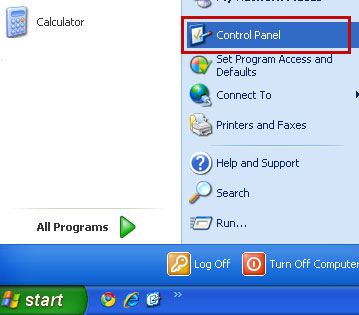


If you are using Windows 8, simply drag your mouse pointer to the right edge of the screen, select Search from the list and search for "control panel".



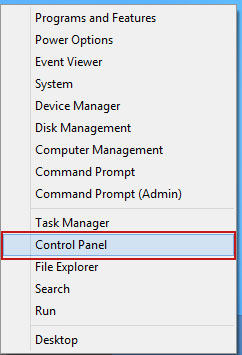
Or you can right-click on a bottom left hot corner (formerly known as the Start button) and select Control panel from there.


3. When the Add/Remove Programs or the Uninstall a Program screen is displayed, scroll through the list of currently installed programs and remove the following:
  • DefaultTab
  • DownloadTerms
  • LessTabs
  • TidyNetwork.com
  • WebCake
  • and any other recently installed application
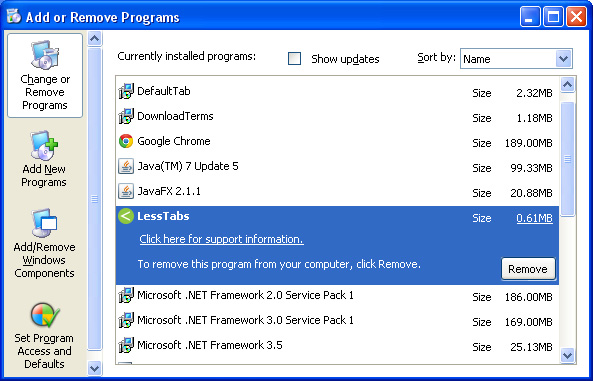

Simply select each application and click Remove. If you are using Windows Vista, Windows 7 or Windows 8, click Uninstall up near the top of that window. When you're done, please close the Control Panel screen.


Remove ievbz.com from Google Chrome:

1. Click on Chrome menu button. Go to Tools → Extensions.
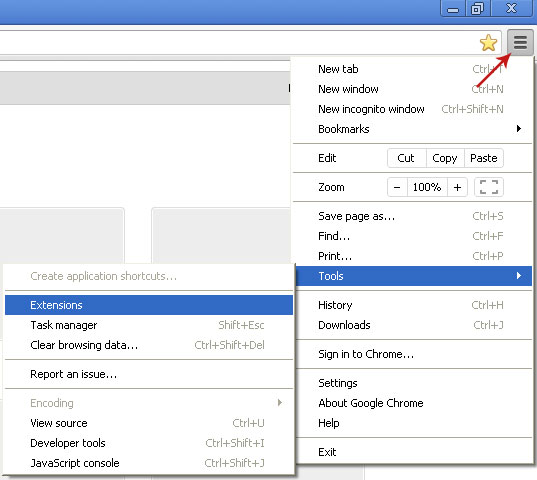


2. Click on the trashcan icon to remove the following extensions:


Remove ievbz.com from Mozilla Firefox:

1. Open Mozilla Firefox. Go to Tools → Add-ons.
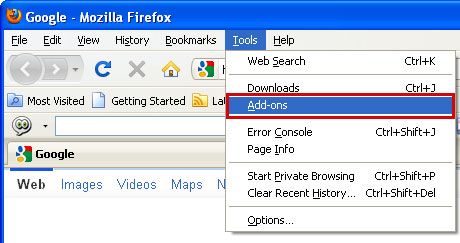


2. Select Extensions. Click Remove button to the following extensions. If you can't find the Remove button, then simply click on the Disable button.


Remove ievbz.com from Internet Explorer:

1. Open Internet Explorer. Go to Tools → Manage Add-ons. If you have the latest version, simply click on the Settings button.
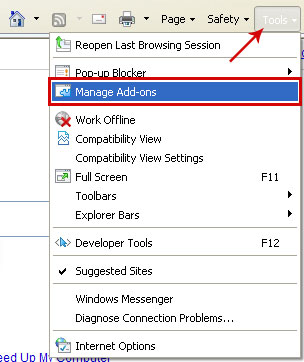


2. Select Toolbars and Extensions. Click Remove/Disable button to remove the browser add-ons listed above.

What is dmwu.exe and how to remove it?

dmwu.exe - IBUpdaterService by Perion Network Ltd.


What is Dmwu.exe?


dmwu.exe is a part of the Web Optimizer adware that may display advertisements on your computer. This applications may be also installed along with MyStart by Incredibar browser hijacker and other Perion products. It's not essential for Windows and may cause problems, for example you met get a Windows message that dmwu.exe has encountered a problem and similar error pop-ups. Since this application periodically checks for updates it creates a Windows service named IBUpdaterService (Updater Service). Needles to say it runs automatically every time you start your computer. Some users say it slows their machines and even causes system errors. Furthermore, it may download and install additional adware/spyware onto your computer without your knowledge. Some antivirus products detect this application as InstallBrain adware, others simply flag it as generic Trojan horse. I recommend you to remove dmwu.exe from your computer.


File name: dmwu.exe
Publisher: Perion Network Ltd.
File Location Windows XP: C:\WINDOWS\system32\dmwu.exe
File Location Windows 7: C:\WINDOWS\system32\dmwu.exe
Startup file: SYSTEM\CurrentControlSet\Services 'IBUpdaterService' (Updater Service)