Saturday, 14 May 2011

Remove Windows Tasks Optimizer (Uninstall Guide)

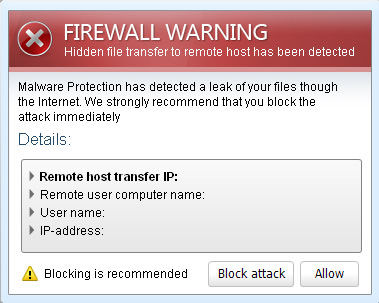
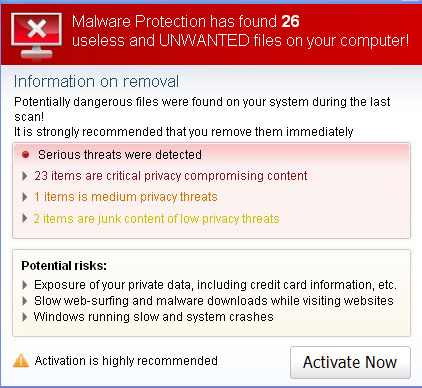
Windows Tasks Optimizer is fake security solution that reports predetermined infections and displays fake security alerts about nonexistent viruses to trick users into participating in fraudulent transactions. It pretends to scan your computer for malware and detects a large number of nonexistent threats. Although, Windows Tasks Optimizer may look like legitimate security software, it's actually a scam. If you suspect or confirm that your computer is infected with this fake AV, please follow the removal instructions below to remove Windows Tasks Optimizer and any related malware for free.


While Windows Tasks Optimizer is running, it displays fake security alerts. It blocks legitimate applications claiming that they are infected and can cause serious damage to the system. In order to remove the threats the user is promoted to pay for the "full version" of the rogue software to remove the viruses and protect PC against other security threats. If you have already bought Windows Tasks Optimizer, please contact your credit card company and dispute the charges. If you need help removing the rogue application from your computer, please leave a comment below. Good luck and be safe online!


Windows Tasks Optimizer removal instructions:

1. Rename the main executable of the rogue program:

In Windows XP:
C:\Documents and Settings\[UserName]\Application Data\Microsoft\[SET OF RANDOM CHARACTERS].exe

In Windows Vista/7:
C:\Users\[UserName]\AppData\Roaming\Microsoft\[SET OF RANDOM CHARACTERS].exe


Look for cccayn.exe or similar file and rename it to cccayn.vir.


Then restart your computer. This should disable the rogue program. After reboot, please continue with the rest of the removal process. NOTE: By default, Application Data folder is hidden. If you can find it, please read Show Hidden Files and Folders in Windows.

2. Download shell-fix.reg. Double-click to run it. Click "Yes" when it asks if you want to add the information to the registry. This file will fix the Windows Shell entry.
3. Download free anti-malware software from the list below and run a full system scan.
NOTE: in some cases the rogue program may block anti-malware software. Before saving the selected program onto your computer, you may have to rename the installer to iexplore.exe or winlogon.exe With all of these tools, if running Windows 7 or Vista they MUST be run as administrator. Launch the program and follow the prompts. Don't forget to update the installed program before scanning.

4. New threats appear every day. In order to protect your PC from such (new) infections we strongly recommend you to use ESET NOD32 Antivirus.


Alternate Windows Tasks Optimizer removal instructions (in Safe Mode with Networking):

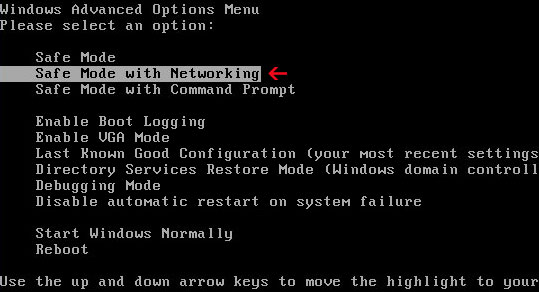
1. Reboot your computer is "Safe Mode with Networking". As the computer is booting tap the "F8 key" continuously which should bring up the "Windows Advanced Options Menu" as shown below. Use your arrow keys to move to "Safe Mode with Networking" and press Enter key. Read more detailed instructions here: http://www.computerhope.com/issues/chsafe.htm

NOTE: Login as the same user you were previously logged in with in the normal Windows mode.

2. Download free anti-malware software from the list below and run a full system scan.
NOTE: in some cases the rogue program may block anti-malware software. Before saving the selected program onto your computer, you may have to rename the installer to iexplore.exe or winlogon.exe With all of these tools, if running Windows 7 or Vista they MUST be run as administrator. Launch the program and follow the prompts. Don't forget to update the installed program before scanning.

3. New threats appear every day. In order to protect your PC from such (new) infections we strongly recommend you to use ESET NOD32 Antivirus.


Associated Windows Tasks Optimizer files and registry values:

Files:

In Windows XP:
  • C:\Documents and Settings\[UserName]\Application Data\Microsoft\[SET OF RANDOM CHARACTERS].exe
In Windows Vista/7:
  • C:\Users\[UserName]\AppData\Roaming\Microsoft\[SET OF RANDOM CHARACTERS].exe
Registry values:
  • HKEY_CURRENT_USER\Software\Microsoft\Windows NT\CurrentVersion\Winlogon "Shell" = '%UserProfile%\Application Data\Microsoft\[SET OF RANDOM CHARACTERS].exe'
  • HKEY_LOCAL_MACHINE\SOFTWARE\Microsoft\Windows NT\CurrentVersion\Image File Execution Options\egui.exe "Debugger" = 'svchost.exe'
  • HKEY_LOCAL_MACHINE\SOFTWARE\Microsoft\Windows NT\CurrentVersion\Image File Execution Options\ekrn.exe "Debugger" = 'svchost.exe'
  • HKEY_LOCAL_MACHINE\SOFTWARE\Microsoft\Windows NT\CurrentVersion\Image File Execution Options\msascui.exe "Debugger" = 'svchost.exe'
  • HKEY_LOCAL_MACHINE\SOFTWARE\Microsoft\Windows NT\CurrentVersion\Image File Execution Options\msmpeng.exe "Debugger" = 'svchost.exe'
  • HKEY_LOCAL_MACHINE\SOFTWARE\Microsoft\Windows NT\CurrentVersion\Image File Execution Options\msseces.exe "Debugger" = 'svchost.exe'
Share this information with other people:

Friday, 13 May 2011

Remove Windows XP Recovery (Uninstall Guide)

Windows XP Recovery is a fake computer repair and optimization program that reports nonexistent security threats, registry errors and some other problems to make you think that there are serious issues with your computer. The rogue application displays critical error warnings and pop ups saying that certain applications are either corrupted or infected with viruses, spyware, etc. Windows XP Recovery offers to clean your computer and fix those nonexistent system/registry errors, for a fee. We have written a lot about the fake disk defragmenters in the past couple of weeks, e.g., Windows Recovery/Windows Restore. Windows XP Recovery is pretty much the same scareware with a new slightly modified graphical user interface. By the way, it may hide your files, icons and folders to scare you into believing that they are gone. Don't worry, your files are safe, you just can't see them. Thankfully, we've got the removal instructions to help you to remove Windows XP Recovery and restore you files. Please follow the steps in the removal guide below.


Fake error warnings:
Task Manager has been disabled by your admininstrator.

Critical Error
Damaged hard drive clusters detected. Private data is at risk.


Windows XP Recovery removal instructions:

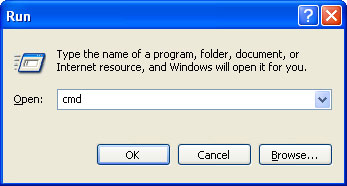
1. First of all, you need to unhide the files and folders. Select Run... from the Start Menu or just hit the key combination CTRL+R on your keyboard. In the Open: field, enter cmd and hit Enter or click OK.


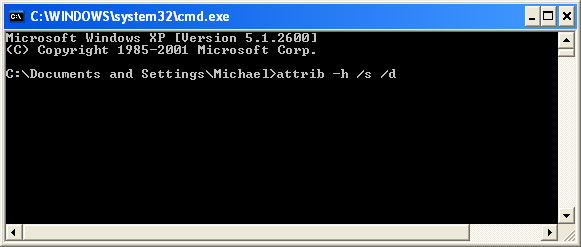
At the command prompt, enter attrib -h /s /d or Attrib -h \\*.* /D /S and hit Enter. Now, you should see all your files and folders. NOTE: you may have to repeat this step because the malware may hide your files again.


2. The rogue application places an icon or your desktop. Right click on the icon, click Properties in the drop-down menu, then click the Shortcut tab.


The location of the malware is in the Target box.


On computers running Windows XP, malware hides in:
C:\Documents and Settings\All Users\Application Data\

NOTE: by default, Application Data folder is hidden. Malware files are hidden as well. To see hidden files and folders, please read Show Hidden Files and Folders in Windows.

Under the Hidden files and folders section, click Show hidden files and folders, and remove the checkmark from the checkbox labeled:

- Hide extensions for known file types
- Hide protected operating system files

Click OK to save the changes. Now you will be able to see all files and folders in the Application Data directory.

On computers running Windows Vista/7, malware hides in:
C:\ProgramData\

3. Look for suspect ".exe" files in the given directories depending on the Windows version you have.

Example Windows XP:
C:\Documents and Settings\All Users\Application Data\18542698.exe

Example Windows Vista/7:
C:\ProgramData\18542698.exe

Basically, there will be a couple of ".exe" file named with a series of numbers or letters.


Rename those files to virus1.vir, virus2.vir etc. For example:


It should be: C:\Documents and Settings\All Users\Application Data\virus1.vir

Instead of: C:\Documents and Settings\All Users\Application Data\18542698.exe

4. Restart your computer. The malware should be inactive after the restart.

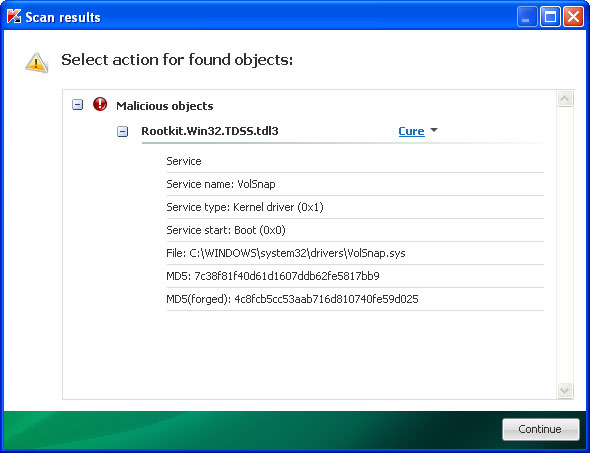
5. Open Internet Explorer and download TDSSKiller. This malware usually (but not always) comes bundled with TDSS rootkit. Removing this rootkit from your computer is very important (if exists). Run TDSSKiller and remove the rootkit.


6. Download free anti-malware software from the list below and run a full system scan.
NOTE: in some cases the rogue program may block anti-malware software. Before saving the selected program onto your computer, you may have to rename the installer to iexplore.exe or winlogon.exe With all of these tools, if running Windows 7 or Vista they MUST be run as administrator. Launch the program and follow the prompts. Don't forget to update the installed program before scanning.

7. New threats appear every day. In order to protect your PC from such (new) infections we strongly recommend you to use ESET Smart Security.


Associated Windows XP Recovery files and registry values:

Files:

Windows XP:
  • %AllUsersProfile%\Application Data\[SET OF RANDOM CHARACTERS]
  • %AllUsersProfile%\Application Data\~[SET OF RANDOM CHARACTERS]
  • %UsersProfile%\Local Settings\Application Data\[SET OF RANDOM CHARACTERS].lic
  • %AllUsersProfile%\Application Data\[SET OF RANDOM CHARACTERS].dll
  • %AllUsersProfile%\Application Data\[SET OF RANDOM CHARACTERS].exe
  • %UsersProfile%\Desktop\Windows XP Recovery.lnk
  • %UsersProfile%\Start Menu\Programs\Windows XP Recovery\
  • %UsersProfile%\Start Menu\Programs\Windows XP Recovery\WWindows XP Recovery.lnk
  • %UsersProfile%\Start Menu\Programs\Windows XP Recovery\Uninstall Windows XP Recovery.lnk
%AllUsersProfile% refers to: C:\Documents and Settings\All Users
%UserProfile% refers to: C:\Documents and Settings\[User Name]

Windows Vista/7:
  • %AllUsersProfile%\[SET OF RANDOM CHARACTERS]
  • %AllUsersProfile%\~[SET OF RANDOM CHARACTERS]
  • %AllUsersProfile%\[SET OF RANDOM CHARACTERS].lic
  • %AllUsersProfile%\[SET OF RANDOM CHARACTERS].dll
  • %AllUsersProfile%\[SET OF RANDOM CHARACTERS].exe
  • %UsersProfile%\Desktop\Windows XP Recovery.lnk
  • %UsersProfile%\Start Menu\Programs\Windows XP Recovery\
  • %UsersProfile%\Start Menu\Programs\Windows XP Recovery\Windows XP Recovery.lnk
  • %UsersProfile%\Start Menu\Programs\Windows XP Recovery\Uninstall Windows XP Recovery.lnk
%AllUsersProfile% refers to: C:\ProgramData
%UserProfile% refers to: C:\Users\[User Name]

Registry values:
  • HKEY_CURRENT_USER\Software\Microsoft\Windows\CurrentVersion\Run "[SET OF RANDOM CHARACTERS].exe"
  • HKEY_CURRENT_USER\Software\Microsoft\Windows\CurrentVersion\Run "[SET OF RANDOM CHARACTERS]"
  • HKEY_CURRENT_USER\Software\Microsoft\Windows\CurrentVersion\Policies\Associations "LowRiskFileTypes" = '/{hq:/s`s:/ogn:/uyu:/dyd:/c`u:/bnl:/ble:/sdf:/lrh:/iul:/iulm:/fhg:/clq:/kqf:/`wh:/lqf:/lqdf:/lnw:/lq2:/l2t:/v`w:/rbs:'
  • HKEY_CURRENT_USER\Software\Microsoft\Windows\CurrentVersion\Policies\Attachments "SaveZoneInformation" = '1'
  • HKEY_CURRENT_USER\Software\Microsoft\Internet Explorer\Download "CheckExeSignatures" = 'no'
  • HKEY_CURRENT_USER\Software\Microsoft\Internet Explorer\Main "Use FormSuggest" = 'yes'
Share this information with other people:

Remove Windows Attention Utility (Uninstall Guide)

Windows Attention Utility is a rogue security application that generates misleading warnings about nonexistent viruses and attempts to lure users into participating in fraudulent transactions. It pretends to scan your computer for malware and detects a large number of nonexistent threats. Although, Windows Attention Utility may look like legitimate security software, it's actually a scam. If you suspect or confirm that your computer is infected with this fake AV, please follow the removal instructions below to remove Windows Attention Utility and any related malware for free.


While Windows Attention Utility is running, it displays fake security alerts. It blocks legitimate applications claiming that they are infected and can cause serious damage to the system.


In order to remove the threats the user is promoted to pay for the "full version" of the rogue software to remove the viruses and protect PC against other security threats.


Do not follow on-screen instructions and remove Windows Attention Utility from your computer as soon as possible. By the way, it cannot delete your files, so don't worry. If you have already bought Windows Attention Utility, please contact your credit card company and dispute the charges. If you need help removing the rogue application from your computer, please leave a comment below. Good luck and be safe online!


Windows Attention Utility removal instructions:

1. Rename the main executable of the rogue program:

In Windows XP:
C:\Documents and Settings\[UserName]\Application Data\Microsoft\[SET OF RANDOM CHARACTERS].exe

In Windows Vista/7:
C:\Users\[UserName]\AppData\Roaming\Microsoft\[SET OF RANDOM CHARACTERS].exe


Look for cccayn.exe or similar file and rename it to cccayn.vir.


Then restart your computer. This should disable the rogue program. After reboot, please continue with the rest of the removal process. NOTE: By default, Application Data folder is hidden. If you can find it, please read Show Hidden Files and Folders in Windows.

2. Download shell-fix.reg. Double-click to run it. Click "Yes" when it asks if you want to add the information to the registry. This file will fix the Windows Shell entry.
3. Download free anti-malware software from the list below and run a full system scan.
NOTE: in some cases the rogue program may block anti-malware software. Before saving the selected program onto your computer, you may have to rename the installer to iexplore.exe or winlogon.exe With all of these tools, if running Windows 7 or Vista they MUST be run as administrator. Launch the program and follow the prompts. Don't forget to update the installed program before scanning.

4. New threats appear every day. In order to protect your PC from such (new) infections we strongly recommend you to use ESET NOD32 Antivirus.


Alternate Windows Attention Utility removal instructions (in Safe Mode with Networking):

1. Reboot your computer is "Safe Mode with Networking". As the computer is booting tap the "F8 key" continuously which should bring up the "Windows Advanced Options Menu" as shown below. Use your arrow keys to move to "Safe Mode with Networking" and press Enter key. Read more detailed instructions here: http://www.computerhope.com/issues/chsafe.htm


NOTE: Login as the same user you were previously logged in with in the normal Windows mode.

2. Download free anti-malware software from the list below and run a full system scan.
NOTE: in some cases the rogue program may block anti-malware software. Before saving the selected program onto your computer, you may have to rename the installer to iexplore.exe or winlogon.exe With all of these tools, if running Windows 7 or Vista they MUST be run as administrator. Launch the program and follow the prompts. Don't forget to update the installed program before scanning.

3. New threats appear every day. In order to protect your PC from such (new) infections we strongly recommend you to use ESET NOD32 Antivirus.


Associated Windows Attention Utility files and registry values:

Files:

In Windows XP:
  • C:\Documents and Settings\[UserName]\Application Data\Microsoft\[SET OF RANDOM CHARACTERS].exe
In Windows Vista/7:
  • C:\Users\[UserName]\AppData\Roaming\Microsoft\[SET OF RANDOM CHARACTERS].exe
Registry values:
  • HKEY_CURRENT_USER\Software\Microsoft\Windows NT\CurrentVersion\Winlogon "Shell" = '%UserProfile%\Application Data\Microsoft\[SET OF RANDOM CHARACTERS].exe'
  • HKEY_LOCAL_MACHINE\SOFTWARE\Microsoft\Windows NT\CurrentVersion\Image File Execution Options\egui.exe "Debugger" = 'svchost.exe'
  • HKEY_LOCAL_MACHINE\SOFTWARE\Microsoft\Windows NT\CurrentVersion\Image File Execution Options\ekrn.exe "Debugger" = 'svchost.exe'
  • HKEY_LOCAL_MACHINE\SOFTWARE\Microsoft\Windows NT\CurrentVersion\Image File Execution Options\msascui.exe "Debugger" = 'svchost.exe'
  • HKEY_LOCAL_MACHINE\SOFTWARE\Microsoft\Windows NT\CurrentVersion\Image File Execution Options\msmpeng.exe "Debugger" = 'svchost.exe'
  • HKEY_LOCAL_MACHINE\SOFTWARE\Microsoft\Windows NT\CurrentVersion\Image File Execution Options\msseces.exe "Debugger" = 'svchost.exe'
Share this information with other people:

Remove Mac Protector (Uninstall Guide)

Mac Protector is a rogue anti-virus application that might report a virus, even though your computer is actually clean. Previous versions: Mac Defender, Mac Security. It launches pop-up windows with falsified alerts about viruses, rootkits, spyware and other malicious software. After installation on a system, an attempt is made to force users to pay for removal of nonexistent viruses. Mac Protector may also slow your computer and prevent you from visiting. This fake antivirus actually does the opposite: periodically open instances of the web browser and point them adult/viagra websites. Do not purchase this pesky anti-virus program. Please follow the removal instructions below to remove Mac Protector and related malware.

Mac Protector "world's leading security application" splash screen:


Fake Mac Protector scanner:


Misleading Mac Protector security alert:


The user is then prompted to pay for a full license of the application in order to remove the threats.


Mac Protector and other rogue security software are distributed through the use of the fake Apple security center scanner. If you got an Apple security Center pop-up window saying that your computer is infected with a bunch of virus, please close it immediately. To remove Mac Protector, please follow the steps in the removal guide below. Good luck and be safe online!


Mac Protector removal instructions:

1. Open ApplicationsUtilitiesActivity Monitor and terminate processes linked to Mac Protector.

2. Delete Mac Protector from the Applications folder.

3. Check System PreferencesAccountsLogin Items for Mac Protector entry.

4. Run a Spotlight search for "Mac Protector" to check for any associated files and remomove them if exist.

5. Download ESET Cybersecurity for Mac (free trial, fully functional) or Sophos Anti-Virus for Mac (free) and run a full system scan.


Associated Mac Protector files:
  • /Application/MacDefender.app/
  • /Application/MacDefender.app/Contents
  • /Application/MacDefender.app/Contents/Info.plist
  • /Application/MacDefender.app/Contents/MacOS
  • /Application/MacDefender.app/Contents/MacOS/MacProtector
  • /Application/MacDefender.app/Contents/PkgInfo
  • /Application/MacDefender.app/Contents/Resources
Share the knowledge:

Tuesday, 10 May 2011

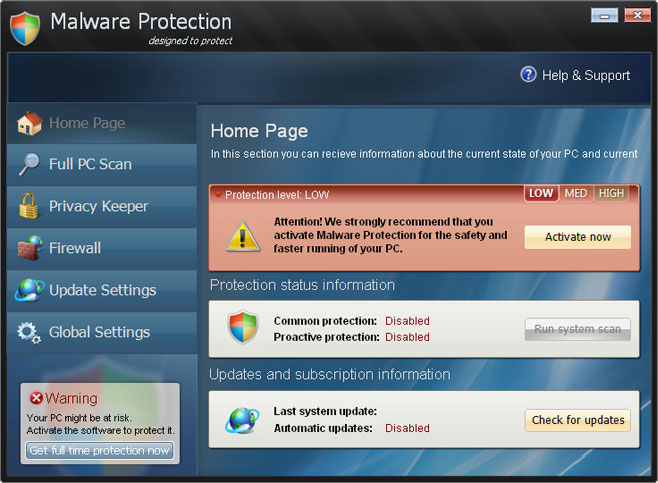
How to Remove "Malware Protection" (Uninstall Guide)

Malware Protection is a rogue anti-virus application that runs a fake system scan and then concludes that your computer has a malware infection or serious security/privacy issues. To fix the malware infection you must pay a fee, about $50. The rogue program copies user interface elements from real programs and it looks like a legitimate application. Plenty of people shell out $50 to register this fraud and that's a big problem because if you're transacting with these guys online you're offering them your credit card details. Cyber criminals can later user that information to their benefit. You should protect yourself with common sense and legitimate anti-virus software because such fake anti-virus applications as Malware Protection now represent about 20% of all malware in circulation. If you made a mistake and purchased it, please contact your credit card company and dispute the charges. And if you still have this fake AV on your computer, please follow the removal instructions below to remove Malware Protection and related malware for free.


Malware Protection 2011 is a re-branded version of Spyware Protection scareware. I'm pretty sure we'll see a whole new set of rogue applications like these two in the next few weeks. In a common scenario, Malware Protection is promoted via infected websites that redirect users to fake virus scanners claiming to sell antivirus software. Well, it's basically a pop-up message, alerting you that your computer is infected with viruses, Trojans or even spyware. Once installed, Malware Protection will pretend to scan your computer malicious software, virus and other security problems. As you can imagine, it will state that your computer is infected. It will block other programs on your computer and will close web browser if you try to download anti-malware or anti-virus software.


It claims that your web browser or any other problem really, was infected by some form of malware that may send your sensitive information to a remove computer or make your computer unusable, e.g., W32/Blaster.Worm.
iexplore.exe can not start
File iexplore.exe is infected by W32/Blaster.worm
Please activate Malware Protection to protect your computer.


This scam has been around for some time now, nothing new. After the fake scan, Malware Protection takes you to a web page where you can purchase it.

The good news is that Malware Protection "designed to protect" can be removed from your computer rather easily. You can reboot your computer in safe mode with networking and download anti-malware tool or you can delete Malware Protection files manually.

SL55J-T54YHJ61-YHG88 you can also use this code (and any email) to register the rogue program. This will stop the annoying security alerts. And the rogue program won't blog security related websites anymore. Then download recommended anti-malware software (Spyware Doctor) and run a full system scan to remove the rogue virus from your computer. If you have any further questions, please leave a comment. Good luck and be safe online!


Manual Malware Protection removal instructions:

1. Right click on the "Malware Protection" icon, click Properties in the drop-down menu, then click the Shortcut tab.

The location of the malware is in the Target box.

NOTE: by default, Application Data folder is hidden. Malware files are hidden as well. To see hidden files and folders, please read Show Hidden Files and Folders in Windows.

Under the Hidden files and folders section, click Show hidden files and folders, and remove the checkmark from the checkbox labeled:

- Hide extensions for known file types
- Hide protected operating system files

Click OK to save the changes. Now you will be able to see all files and folders in the Application Data/Program Data directory.

3. Rename malicious process.

File location, Windows XP:
C:\Documents and Settings\All Users\Application Data\defender.exe

File location, Windows Vista/7:
C:\ProgramData\defender.exe

Rename defender.exe to virus.exe or whatever you like.


4. Restart your computer. The malware should be inactive after the restart.

5. Open Internet Explorer and download TDSSKiller. This malware usually (but not always) comes bundled with TDSS rootkit. Removing this rootkit from your computer is very important (if exists). Run TDSSKiller and remove the rootkit.


6. And finally, download recommended anti-malware software (Spyware Doctor) and run a full system scan to remove the rogue virus from your computer.


Malware Protection removal instructions in Safe Mode with Networking:

1. Please reboot your computer is "Safe Mode with Networking". As the computer is booting tap the "F8 key" continuously which should bring up the "Windows Advanced Options Menu" as shown below. Use your arrow keys to move to "Safe Mode with Networking" and press Enter key.

Read more detailed instructions here: http://www.computerhope.com/issues/chsafe.htm


NOTE: Login as the same user you were previously logged in with in the normal Windows mode.

2. Open Internet Explorer and download TDSSKiller. Run the utility.

3. Then download recommended anti-malware software (Spyware Doctor) and run a full system scan to remove the rogue virus from your computer.


Malware Protection associated files and registry values:

Files:
  • C:\Documents and Settings\[UserName]\Application Data\defender.exe
Registry values:
  • HKEY_CURRENT_USER\Software\Microsoft\Windows\CurrentVersion\Run "Malware Protection"
Share this information with other people:

Saturday, 7 May 2011

Remove Windows Oversight Center (Uninstall Guide)

Windows Oversight Center is a fake anti-virus program that pretends to scan your computer for viruses and system/registry errors. It reports non-existent viruses and asks you to register the program in order to cleanup the computer. Windows Oversight Center periodically displays fake security alerts and may even point your web browser to websites that aren't necessarily the kind that you might want popping up on your computer screen. However, most of the time, the rogue program just shut downs the web browser. You can't download anything and you can't run anti-virus software as well because it blocks pretty much everything on the infected computer. It displays a fake warning claiming that the program was infected by a virus and was closed to prevent system errors and data leak. Although, it looks like an authentic Microsoft product, Windows Oversight Center is actually a scam. Thankfully, we've got the removal instructions to help you to remove Windows Oversight Center.


Windows Oversight Center is distributed through the use of JavaScript-based fake virus scanners in attempt to trick you into thinking that you have security problems on your PC. The malware attackers also use a lot of social engineering and the fake Microsoft Security Essentials Alert to install the rogue program.


Once installed, Windows Oversight Center displays the fake Safe Boot Screen and then loads up the fake virus scanner.


There are six main components, i.e., computer safety, network security, hard disk optimization, etc. The fake program also uses Windows logo and Microsoft genuine software notification. My guess is that the scammers are doing this as a further incentive for you to purchase Windows Oversight Center. DO NOT pay for this phony AV program. If you you purchase it, you will subjected to monetary theft, or in a worst-case example, ID Theft. There is no guarantee that your credit card details aren't going to be sold to other third parties. So, if you have already purchased, you should contact your credit card company immediately and dispute the charges. Then, get rid of Windows Oversight Center. Please follow the removal instructions below. If you have any further questions, please leave a comment. Good luck and be safe online!


Windows Oversight Center removal instructions:

1. Rename the main executable of the rogue program:

In Windows XP:
C:\Documents and Settings\[UserName]\Application Data\[SET OF RANDOM CHARACTERS].exe
C:\Documents and Settings\[UserName]\Application Data\Microsoft\[SET OF RANDOM CHARACTERS].exe

In Windows Vista/7:
C:\Users\[UserName]\AppData\Roaming\[SET OF RANDOM CHARACTERS].exe
C:\Users\[UserName]\AppData\Roaming\Microsoft\[SET OF RANDOM CHARACTERS].exe


Alternate location:


Look for xmrmuy or similar file and rename it to malware. Then restart your computer. This should disable the rogue program. After reboot, please continue with the rest of the removal process. NOTE: By default, Application Data folder is hidden. If you can find it, please read Show Hidden Files and Folders in Windows.

2. Download shell-fix.reg. Double-click to run it. Click "Yes" when it asks if you want to add the information to the registry. This file will fix the Windows Shell entry.
3. Download free anti-malware software from the list below and run a full system scan.
NOTE: in some cases the rogue program may block anti-malware software. Before saving the selected program onto your computer, you may have to rename the installer to iexplore.exe or winlogon.exe With all of these tools, if running Windows 7 or Vista they MUST be run as administrator. Launch the program and follow the prompts. Don't forget to update the installed program before scanning.

4. New threats appear every day. In order to protect your PC from such (new) infections we strongly recommend you to use ESET NOD32 Antivirus.


Alternate Windows Oversight Center removal instructions (in Safe Mode with Networking):

1. Reboot your computer is "Safe Mode with Networking". As the computer is booting tap the "F8 key" continuously which should bring up the "Windows Advanced Options Menu" as shown below. Use your arrow keys to move to "Safe Mode with Networking" and press Enter key. Read more detailed instructions here: http://www.computerhope.com/issues/chsafe.htm


NOTE: Login as the same user you were previously logged in with in the normal Windows mode.

2. Download free anti-malware software from the list below and run a full system scan.
NOTE: in some cases the rogue program may block anti-malware software. Before saving the selected program onto your computer, you may have to rename the installer to iexplore.exe or winlogon.exe With all of these tools, if running Windows 7 or Vista they MUST be run as administrator. Launch the program and follow the prompts. Don't forget to update the installed program before scanning.

3. New threats appear every day. In order to protect your PC from such (new) infections we strongly recommend you to use ESET NOD32 Antivirus.


Associated files and registry values:

Files:

In Windows XP:
  • C:\Documents and Settings\[UserName]\Application Data\[SET OF RANDOM CHARACTERS].exe
  • C:\Documents and Settings\[UserName]\Application Data\Microsoft\[SET OF RANDOM CHARACTERS].exe
In Windows Vista/7:
  • C:\Users\[UserName]\AppData\Roaming\[SET OF RANDOM CHARACTERS].exe
  • C:\Users\[UserName]\AppData\Roaming\Microsoft\[SET OF RANDOM CHARACTERS].exe
Registry values:
  • HKEY_CURRENT_USER\Software\Microsoft\Windows NT\CurrentVersion\Winlogon "Shell" = '%UserProfile%\Application Data\[SET OF RANDOM CHARACTERS].exe'
  • HKEY_CURRENT_USER\Software\Microsoft\Windows NT\CurrentVersion\Winlogon "Shell" = '%UserProfile%\Application Data\Microsoft\[SET OF RANDOM CHARACTERS].exe'
  • HKEY_LOCAL_MACHINE\SOFTWARE\Microsoft\Windows NT\CurrentVersion\Image File Execution Options\egui.exe "Debugger" = 'svchost.exe'
  • HKEY_LOCAL_MACHINE\SOFTWARE\Microsoft\Windows NT\CurrentVersion\Image File Execution Options\ekrn.exe "Debugger" = 'svchost.exe'
  • HKEY_LOCAL_MACHINE\SOFTWARE\Microsoft\Windows NT\CurrentVersion\Image File Execution Options\msascui.exe "Debugger" = 'svchost.exe'
  • HKEY_LOCAL_MACHINE\SOFTWARE\Microsoft\Windows NT\CurrentVersion\Image File Execution Options\msmpeng.exe "Debugger" = 'svchost.exe'
  • HKEY_LOCAL_MACHINE\SOFTWARE\Microsoft\Windows NT\CurrentVersion\Image File Execution Options\msseces.exe "Debugger" = 'svchost.exe'
Share this information with other people:

Remove Mac Security (Uninstall Guide)

Mac Security is a fake anti-virus program that reports non-existent threats and viruses to trick you into believing that you have security problems on your Mac. The previous version of this scarweware showed up about a week ago and it was called MACDefender. Nothing's really changed since then, except that now the rogue AV is being served in more sophisticated way, displaying fake online virus scanners that mimic Mac OS X Finder rather then a fake Windows environment.


The installer file is named MacSecurity.mpkg or anti-malware.zip. Once installed, Mac Security runs a fake system scan and then gives exaggerated reports of threats on your Mac. It said that I have 7 viruses. Mac Security flagged clean files and said that they are infected. Now, the most important part, Mac Security told me I would have to register the program in order to remove the threats which do not even exist. It also displays fake and very annoying pop ups about how your computer is infected. What is more, Mac Security periodically opens instances of Safari and points them to porn and Viagra websites. As you can see, MacSecurity is nothing more but a scam. Do not purchase this rogue AV software because there really is no guarantee that your credit card details aren't going to be sold to other third parties. To remove Mac Security from your computer, please follow the steps in the removal guide below. Also, if you don't have anti-virus software, you might consider installing one because I think that the malware attackers are not going to stop anytime soon. Good luck and be safe online!


Intego made a short video about the Mac Security malware:


Mac Security removal instructions:

1. Open ApplicationsUtilitiesActivity Monitor and terminate processes linked to Mac Security.

2. Delete Mac Security from the Applications folder.

3. Check System PreferencesAccountsLogin Items for Mac Security entry.

4. Run a Spotlight search for "Mac Security" to check for any associated files and remomove them if exist.

5. Download ESET Cybersecurity for Mac (free trial, fully functional) or Sophos Anti-Virus for Mac (free) and run a full system scan.


Associated Mac Security files:
  • /Application/MacDefender.app/
  • /Application/MacDefender.app/Contents
  • /Application/MacDefender.app/Contents/Info.plist
  • /Application/MacDefender.app/Contents/MacOS
  • /Application/MacDefender.app/Contents/MacOS/MacSecurity
  • /Application/MacDefender.app/Contents/PkgInfo
  • /Application/MacDefender.app/Contents/Resources
Share the knowledge: