Wednesday, 30 November 2011

Wmupdate.exe Process Information

wmupdate.exe has been identified as a threat. It is added by a Trojan detected as Troj/Agent-GGJ, however, other Trojans may use the same file name as well. The malicious file is usually located in %WinDir% and %Temp% folders. wmupdate.exe may download additional malicious code from the internet, including rogue programs and spyware. If your computer is infected with this Trojan, you should immediately run an anti-malware program. If you need help removing this Trojan from your computer, please leave a comment below.

This is a harmful program. To remove wmupdate.exe, please scan your computer with anti-malware software.
Security Rating: Dangerous


%WinDir% is a variable that refers to the Windows folder in the short path form.
  • C:\Windows
%Temp% is a variable that refers to the temporary folder in the short path form.
  • C:\Documents and Settings\[UserName]\Local Settings\Temp\ (Windows 2000/NT/XP)
  • C:\Users\[UserName]\AppData\Local\Temp\ (Windows 7)

Share this information with your friends:

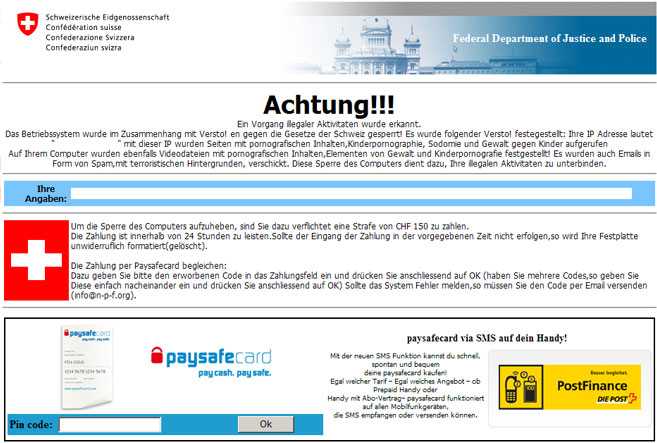
Achtung!!! Ein Vorgang illegaler Aktivitaten wurde erkannt. Schweizerische Eidgenossenschaft Ransomware (Uninstall Guide)

"Achtung!!! Ein Vorgang illegaler Aktivitaten wurde erkannt. Schweizerische Eidgenossenschaft" is a part of ransomware warning message that locks the affected user's computer screen and makes a demand for payment of 150 Swiss francs (about $160). Why? Well, it seems that your were watching or sharing illegal adult content and sending spam, in other words, you had been committing a crime. The Federal Department of Justice and Police has gather the evidence and will send the case in for prosecution if you won't pay the ransom. You have 24 hours to make payment through Paysafecard; otherwise they will wipe all the information on your computer. But then it doesn't make sense because the evidence will be deleted as well. This is confusing the hell out of me. However, the good news is that this "Ein Vorgang illegaler Aktivitaten wurde erkannt." message is complete false. So, you shouldn't worry too much about it, even if your computer is infected with this ransom Trojan. Of course, you still need to remove it. The only problem is that you can use your PC properly, so you will have to take some additional steps to disable the fake "Schweizerische Eidgenossenschaft, Achtung!!! Ein Vorgang illegaler Aktivitaten wurde erkannt." alert and remove the malicious file from your computer. Please follow the removal instructions below. Ransomware has turned into a serious problem for Windows users. If you need extra help removing this ransomware from your computer, please leave a comment below. Good luck and safe online!


http://deletemalware.blogspot.com


Achtung!!! Ein Vorgang illegaler Aktivitaten wurde erkannt ransomware removal instructions:

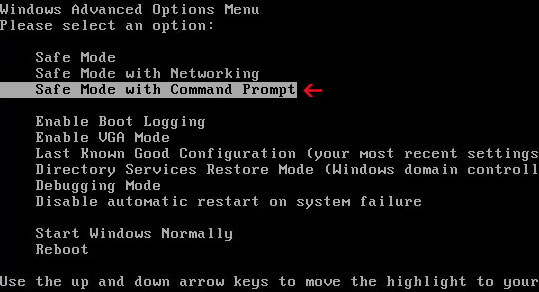
1. Reboot your computer is "Safe Mode with Command Prompt". As the computer is booting tap the "F8 key" continuously which should bring up the "Windows Advanced Options Menu" as shown below. Use your arrow keys to move to "Safe Mode with Command Prompt" and press Enter key. Login as the same user you were previously logged in with in the normal Windows mode. Read more detailed instructions here: http://www.computerhope.com/issues/chsafe.htm


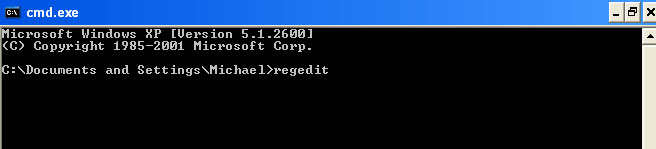
2. When Windows loads, the Windows command prompt will show up as show in the image below. At the command prompt, type explorer, and press Enter. Windows Explorer opens. Do not close it.


3. Then open the Registry editor using the same Windows command prompt. Type regedit and press Enter. The Registry Editor opens.


4. Locate the following registry entry:

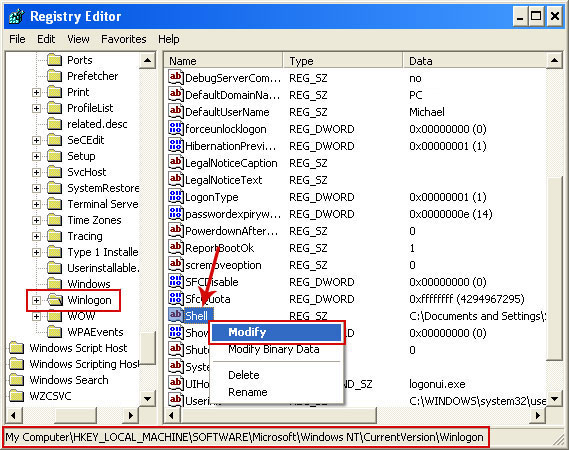
HKEY_LOCAL_MACHINE\SOFTWARE\Microsoft\Windows NT\CurrentVersion\Winlogon\

In the righthand pane select the registry key named Shell. Right click on this registry key and choose Modify.


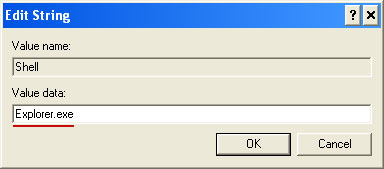
Default value should be Explorer.exe.


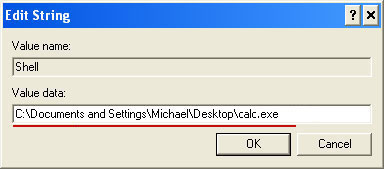
Modified value data points to Trojan Ransomware executable file (calc.exe in our case)


Please copy the location of the executable file it points to into Notepad or otherwise note it and then change value data to Explorer.exe. Click OK to save your changes and exit the Registry editor.

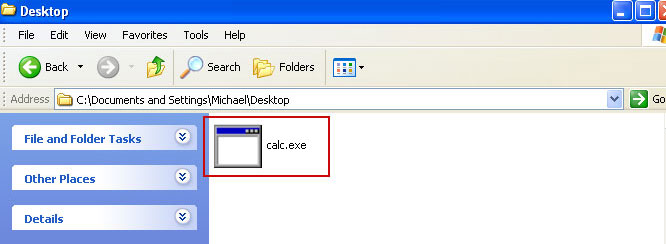
5. Remove the malicous file. Use the file location you saved into Notepad or otherwise noted in step in previous step. In our case, "Achtung!!! Ein Vorgang illegaler Aktivitaten wurde erkannt" was run from the Desktop. There was a file called calc.exe.

Full path: C:\Documents and Settings\Michael\Desktop\calc.exe


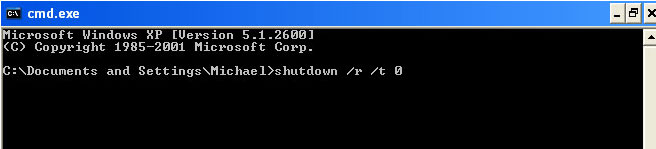
Go back into "Normal Mode". To restart your computer, at the command prompt, type shutdown /r /t 0 and press Enter.


6. Download recommend anti-malware software (direct download) and scan your computer for malicious software.

If this removal guide didn't help you, please follow the general Trojan.Ransomware removal guide.


Associated Achtung!!! Ein Vorgang illegaler Aktivitaten wurde erkannt files and registry values:

Files:
  • [SET OF RANDOM CHARACTERS].exe
Registry values:
  • HKEY_LOCAL_MACHINE\SOFTWARE\Microsoft\Windows NT\CurrentVersion\Winlogon\"Shell" = "[SET OF RANDOM CHARACTERS].exe"
Share this information with other people:

Saturday, 26 November 2011

Las operaciones sobre las actividades ilegales se detectaron en el ordenador Ransomware

"Las operaciones sobre las actividades ilegales se detectaron en el ordenador", this is the sentence the Spanish ransomware begins. It's a slightly modified variant of the previous Trojan called "La policía ESPAÑOLA". The behavior and false accusations of sending spam and watching/sharing illegal adult videos remain unchanged. The trojan hijacks your computer and demands ransom payment for further instructions on how to unlock the system. You need to exchange cash ($150) for a Ukash or Paysafecard voucher and email the pin code to info@stopkriminal.net. Hopefully, you will get the unlock code during the next 24 hours. If you refuse to pay the ransom, your IP address and personally identifiable information will be sent to Interpol. Scary isn't it? It would be, if it wasn't fake. It can't encrypt or delete your files. It can't steal personally identifiable information either. It's just a fake notification. If your computer is infected with this Las operaciones sobre las actividades ilegales se detectaron en el ordenador ransomware, please follow the removal instructions below. Good luck and be safe online!


http://deletemalware.blogspot.com


Las operaciones sobre las actividades ilegales se detectaron en el ordenador ransomware removal instructions:

1. Reboot your computer is "Safe Mode with Command Prompt". As the computer is booting tap the "F8 key" continuously which should bring up the "Windows Advanced Options Menu" as shown below. Use your arrow keys to move to "Safe Mode with Command Prompt" and press Enter key. Login as the same user you were previously logged in with in the normal Windows mode. Read more detailed instructions here: http://www.computerhope.com/issues/chsafe.htm


2. When Windows loads, the Windows command prompt will show up as show in the image below. At the command prompt, type explorer, and press Enter. Windows Explorer opens. Do not close it.


3. Then open the Registry editor using the same Windows command prompt. Type regedit and press Enter. The Registry Editor opens.


4. Locate the following registry entry:

HKEY_LOCAL_MACHINE\SOFTWARE\Microsoft\Windows NT\CurrentVersion\Winlogon\

In the righthand pane select the registry key named Shell. Right click on this registry key and choose Modify.


Default value is Explorer.exe.


Modified value data points to Trojan Ransomware executable file.


Please copy the location of the executable file it points to into Notepad or otherwise note it and then change value data to Explorer.exe. Click OK to save your changes and exit the Registry editor.

5. Remove the malicous file. Use the file location you saved into Notepad or otherwise noted in step in previous step. In our case, "Las operaciones sobre las actividades ilegales se detectaron en el ordenador" was run from the Desktop. There was a file called calc.exe.

Full path: C:\Documents and Settings\Michael\Desktop\calc.exe


Go back into "Normal Mode". To restart your computer, at the command prompt, type shutdown /r /t 0 and press Enter.


6. Download anti-malware software and scan your computer for malicious software.

If this removal guide didn't help you, please follow the general Trojan.Ransomware removal guide.


Associated Las operaciones sobre las actividades ilegales se detectaron en el ordenador malware files and registry values:

Files:
  • [SET OF RANDOM CHARACTERS].exe
Registry values:
  • HKEY_LOCAL_MACHINE\SOFTWARE\Microsoft\Windows NT\CurrentVersion\Winlogon\"Shell" = "[SET OF RANDOM CHARACTERS].exe"
Share this information with other people:

Wednesday, 23 November 2011

How to Remove Cloud AV 2012 (Uninstall Guide)

Cloud AV 2012 is a rogue antivirus program that claims to find malicious software on your computer. The rogue program disables certain Windows utilities and blocks genuine security products. It launches itself every time your PC is turned on and pretends to scan the system for malware. It is worth mentioning, however, that this fake AV reports exactly the same infections on different computers: Trojan.JBS.Ghost, Trojan-Downloader.JS.Remora, Net-Worm.Win32.Kido.ih and other stuff. Yeah, I know it's possible but not probably, right? So, basically, Cloud AV 2012 malware is playing on your fears to try to sell you completely BS security product. If you have fallen for the scam and have paid for the rogue program you should issue chargebacks through your credit card company. That's the only way to get your money back, besides, too many chargebacks will probably result in the merchant losing the ability to accept credit card payments. That's a good thing, isn't it? Then you need to remove Cloud AV 2012 and associated malware from your computer. To do so, please follow the removal instructions below.


Usually, such fake AVs as Cloud AV 2012 drive people nuts, especially because of never ending alerts and notifications about critical threats, etc.


However, they are not so dangerous after all and I think shouldn't be compared to more sophisticated malware, rootkits, worms or viruses. It's just well designed but useless application which reports non-existent infections. That's all. Then bad news is, however, that Cloud AV 2012 comes bundled with Trojans and sometimes even rootkits. There are usually a number of Trojans that can download additional malcode onto the infected computer and rootkits may hide/block legitimate antivirus programs. But that's not all, the rogue program modifies Windows Hosts file to redirect internet traffic to either infected or sponsored websites involved in click fraud schemes.


So there you go. I know it sounds like a lot of job, removing Cloud AV 2012 and associated malware is not that difficult after all. First, run rootkit removal utility. Then scan your computer with recommend anti-malware program. Finally, restore Windows Hosts file using Fix it utility. You may even use this debugged registration key 9992665263 to make your life and removal procedure a little bit easier. Just follow the steps in the removal guide below. If you need extra help removing it, please leave a comment below. Good luck and be safe online!

http://deletemalware.blogspot.com


Cloud AV 2012 removal instructions:

1. First of all, download and run ZeroAccess/Sirefef/MAX++ removal tool. (works on 32-bit systems only! If you have 64-bit system, proceed to the next step)

2. Then use TDSSKiller. If you can't run it (rogue av blocks it), rename tdsskiller to winlogon and run the utility again.

3. And finally, download recommended anti-malware software (Spyware Doctor) and run a full system scan to remove this virus from your computer.

If you can't download it, please reboot your computer is "Safe Mode with Networking". As the computer is booting tap the "F8 key" continuously which should bring up the "Windows Advanced Options Menu" as shown below. Use your arrow keys to move to "Safe Mode with Networking" and press Enter key. That's It!

Read more detailed instructions here: http://www.computerhope.com/issues/chsafe.htm
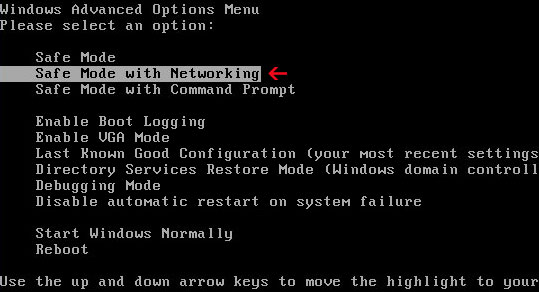

NOTE: Login as the same user you were previously logged in with in the normal Windows mode.

4. To reset the Hosts file back to the default automatically, download and run Fix it and follow the steps in the Fix it wizard.


Manual Cloud AV 2012 removal guide:

1. Right-click on Cloud AV 2012 icon and select Properties. Then select Shortcut tab.

The location of the malware is in the Target box.


2. In our case the malicious file was located in C:\Windows\System32 folder. Select the malicious file, rename it and change a file name extension.

Original file: Cloud AV 2012v121.exe


Renamed file: TcS22bF3nGaQWKf.vir (you may change only the file name and leave file extension .exe)


3. Restart your computer. After a reboot, download free anti-malware software from the list below and run a full system scan.

4. First, use TDSSKiller. Then download recommended anti-malware software (Spyware Doctor) and run a full system scan to remove this virus from your computer.

5. To reset the Hosts file back to the default automatically, download and run Fix it and follow the steps in the Fix it wizard.


Manual activation and Cloud AV 2012 removal:

1. Choose to remove threats and manually activate the rogue program. Enter one of the following codes to activate Cloud AV 2012.

9992665263
1148762586
1171249582
1186796371
1196121858

2. Download recommended anti-malware software (Spyware Doctor) and run a full system scan to remove this virus from your computer.


Associated Cloud AV 2012 files and registry values:

Files:
  • C:\WINDOWS\system32\Cloud AV 2012v121.exe
  • %AppData%\dwme.exe
  • %DesktopDir%\Cloud AV 2012.lnk
  • %Programs%\Cloud AV 2012\Cloud AV 2012.lnk
  • %Programs%\Cloud AV 2012
Registry values:
  • HKEY_LOCAL_MACHINE\SOFTWARE\Microsoft\Windows\CurrentVersion\Run "[SET OF RANDOM CHARACTERS]"
Share this information with your friends:

Tuesday, 22 November 2011

Remove Expandsearchanswers.com (Uninstall Guide)

Expandsearchanswers.com is a generic search website/browser hijacker that may redirect you to entirely irrelevant and very often just random websites that have unrelated stuff when you search something in Google and click one of the results. The website itself is not malicious. As far as we know expandsearchanswers.com has not hosted malicious software over the past three months either. It might be difficult to find the culprit, besides, if you keep your web browser open for a long time, you may get random music advertisements playing through the speakers. Although, there may be numerous reasons why your computer is acting funny, but one to look for is malware infection. Very often, cyber crooks use generic search engines in conjunction with malicious software to monetize their traffic. They can easily work out to a couple hundred extra dollars a day just by redirect traffic to sponsored websites.


The redirects happen in all major web browsers. They are usually caused either by rootkits or browser helper objects. You can remove the malicious add-on from your web browser manually. However, to remove the rootkit that appears to be responsible for click frauds and search redirects (expandsearchanswers.com) you need to use rootkit removal utility and anti-malware software. There are currently two major rootkits families in use: TDSS and ZeroAccess (Serifef). Both probably share a common origin. So, if you got this annoying expandsearchanswers.com redirect problem, your computer is probably infected by malicious software. You can remove malware from your computer by following the steps in the removal guide below. If you need extra help removing expandsearchanswers.com redirect virus and associated malware, please leave a comment below or email us. Good luck and be safe online!

http://deletemalware.blogspot.com


Expandsearchanswers.com web browser hijacker and associated malware removal instructions:

1. First of all, download and run TDSSKiller by Kaspersky.

2. Then download free anti-malware software from the list below and run a full system scan.
3. And finally, use CCleaner to remove temporarily and unnecessary files from your computer.

Share this information with your friends:
Remove "Files indexation process failed" Warning (Uninstall Guide)

"Files indexation process failed" is a legitimate looking warning that advertises rogue system defragmentation utilities. System Fix, System Restore and Data Recovery just to name few. It pops up upon start up followed by misleading cascade messages and empty start menu. If you've never been hit by a virus and fake system alerts then you might think it's a genuine notification because it looks like a real thing. Hidden files and shortcuts combined with this fake Files indexation process failed warning may trick many users into thinking that their hard drives are going to fail.
Files indexation process failed
Indexation process failure may cause:
File may became unreadable
Files and documents can be lost
Operation System may slow down dramatically


You don't have to be a computer pro to notice the poor English in this warning. Anyway, to fix this problem, please follow the System Fix removal guide. Files indexation process failed security alert is a part of malware infection, you need to remove malware to stop this fake alert. If you have any questions, please leave a comment below. Good luck!

Share this information with your friends:

Friday, 18 November 2011

POLITIE Ransomware, Onwettige activiteiten gedetecteerd!!!

POLITIE, Onwettige activiteiten gedetecteerd!!! is a typical ransomware attack when a piece of malicious code hijacks your desktop and displays fake warning from the Police of Netherlands. The attacker keeps your Desktop locked unless you agree to pay a ransom, in this case it's 100 Euro ($135). This is a great example of a pure psychological terror.The fake warning states that your computer was locked down because you were watching or distributing illegal or forbidden adult content. Here's the complete text of the fake POLITIE warning:
POLITIE
Let op!!!
Onwettige activiteiten gedetecteerd!!!
Uw operationele systeem is geblokkeerd wegens inbreuk op de de Nederlandse wetgeving! Volgende inbreuken zijn gedetecteerd: Uw IP adres is geregistreerd op de websites met clandestien en/of pornografische content, die pedofilie, zoöfilie en geweld tegen kinderen aanmoedigen! Op uw PC zijn er videobestanden met pornografische inhoud en elementen van geweld en kinderporno ontdekt!
Tevens worden illegale SPAM berichten van terroristische aard van uw PC automatisch overal heen verspreid.
Deze blokkering heeft in het oog de verspreiding van deze gegeven van uw PC op het internet tegen te gaan.


As, you can see, you need to pay cash at any retailers linked to Paysafecard and thus receive a secure PIN printed on a card. Once you have the PIN, you need to email it to info@politie-nederland.net and receive unlock code. Basically, paying customer is given a key eliminates the annoying warning. The problem is that unlocked can't be debugged because it's not hard-coded in the malicious code. Usually, such extortion scheme works very well. Of course, you shouldn't pay a dime and remove the POLITIE Onwettige activiteiten gedetecteerd from your computer as soon as possible. You just need to reboot your computer in Safe Mode and delete certain Windows registry value. To remove this ransomware from your computer, please follow the removal instructions below. And don't worry, police won't knock-knock at your front door. Good luck and be safe online!

Related ransomware:


POLITIE, Onwettige activiteiten gedetecteerd!!! ransomware removal instructions:

1. Reboot your computer is "Safe Mode". As the computer is booting tap the "F8 key" continuously which should bring up the "Windows Advanced Options Menu" as shown below. Use your arrow keys to move to "Safe Mode" and press Enter key. Login as the same user you were previously logged in with in the normal Windows mode. Read more detailed instructions here: http://www.computerhope.com/issues/chsafe.htm


NOTE: Login as the same user you were previously logged in with in the normal Windows mode.

2. When Windows loads, open up Windows Registry Editor.
To do so, please go to Start, type "registry" in the search box, right click the Registry Editor and choose Run as Administrator. If you are using Windows XP/2000, go to StartRun... Type "regedit" and hit enter.

3. In the Registry Editor, click the [+] button to expand the selection. Expand:

HKEY_CURRENT_USER\Software\Microsoft\Windows\CurrentVersion\Run


Look on the list to the right for an item named "vasja". Write down the file location. Then right click "vasja" and select Delete. Please note, that cyber crooks may change file names and registry values, so in your case it might be named different. But it will be located in exactly the same place.

4. Restart your computer into "Normal Mode". Delete the malicious file noted in the previous step.

5. Download anti-malware software and scan your computer for malicious software. There might be leftovers of this infection on your PC.


POLITIE Ransomware removal video:

Maxstar, who runs the pcwebplus.nl website, has created a video showing how to remove POLITIE, Onwettige activiteiten gedetecteerd!!! ransomware.


Write-up: http://www.pcwebplus.nl/phpbb/viewtopic.php?f=222&t=5525


Associated POLITIE, Onwettige activiteiten gedetecteerd!!! malware files and registry values:

Files:
  • [SET OF RANDOM CHARACTERS].exe
Registry values:
  • HKEY_CURRENT_USER\Software\Microsoft\Windows\CurrentVersion\Run = "vasja"
Share this information with other people: