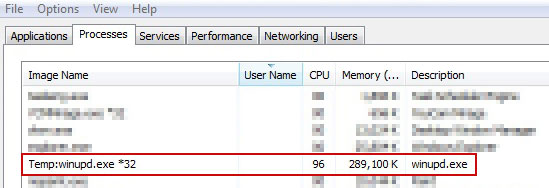
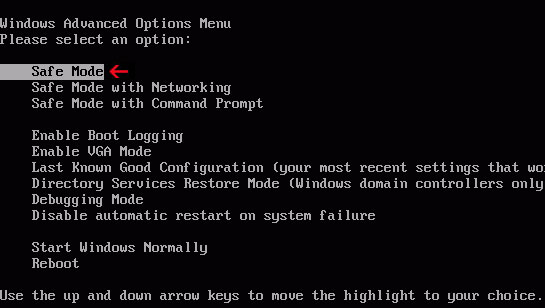
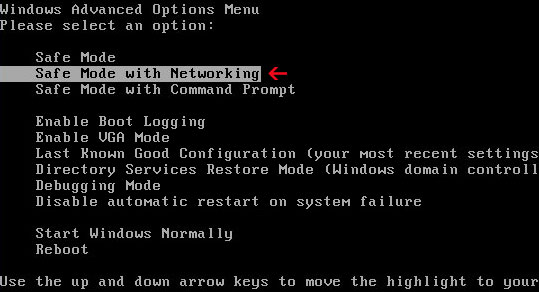
Search.conduit.com (Search Conduit) is a web search engine owned by Conduit Ltd. Some users consider it a very annoying bug. Why is that? Our readers passed a few discussions to us recently about it. There's been a lot of noise on tech support forums and blogs about conduit search and problems that occur on Windows computers when uninstalling search.conduit.com. Apparently, it does things like redirect user search queries and change their Internet home page. This search engine comes with web browser toolbars created using Conduit software. Some people don't even know where it has come from because they though they were installing only a toolbar.

You can uninstall conduit toolbar very easily, which is done the same way you uninstall any program, via add/remove programs in the control panel. However, conduit search engine can't be uninstalled easily in Internet Explorer, Chrome and Mozilla Firefox. You need to change settings and remove search providers manually. What is more, it installs an application called
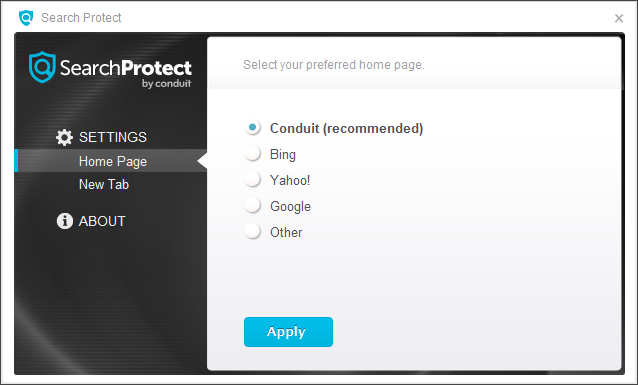
Search Protect that forces users to use Conduit search. This brings use to what we consider the more interesting question. Why so many companies fail to create proper uninstallers? Such practice makes them look untrustworthy. It isn't malware, although it is frustrating. I found myself explaining the basics over and over again, so I decided to write a simple, step-by-step guide on how to remove search.conduit.com in Internet Explorer and Mozilla Firefox. Please follow the removal instructions below. Good luck and be safe online!
Added: Someone asked how I to remove Search.conduit.com from Google Chrome. At the time I wrote this removal guide, Conduit products were only targeting Internet Explorer and Mozilla Firefox. But now this company is going after Chrome users as well. There is nothing really surprising since Chrome market share increased has increased phenomenally during the last six months. Due to increased volume of emails I get from you guys regarding this issue, I had update this post and make the removal instructions more detailed and up to date. It seems that nothing really changed the way Search Conduit interacts with Internet Explorer and Mozilla Firefox. If comparing with the last years installers, they are now compatible with all major web browsers and modify more Firefox's preferences. The removal instructions below were updated according to the latest Conduit installers.
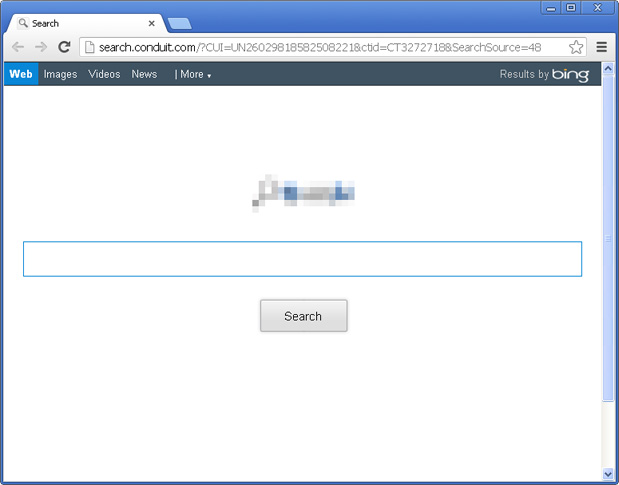
Not only search.conduit.com redirect became compatible with all major web browsers, the installer itself got new features and products, for example Coupon Buddy and Price Gong adware. Previously, it came mostly as a standalone application and everyone could remove it separately. Now it's usually a part of another application, so in order to completely remove Search Conduit, you have to remove the application it came with first and then restore default web browser settings manually or simply reset it. The main difference is that if you choose to reset it, then you will lose your bookmarks, browsing history and saved passwords. Of course, you can export them at any time.
Last, but not least, it seems clear that this application comes bundled with audio and video players, HD codecs and converters. Please read installation screens and EULA very carefully even if you downloaded an application from the official website.
Update (October 25, 2013): It seems that they've updated the search protect application and now any attempts to change the browser settings will be vain; this browser hijacker will reset them after each browser restart. So, it's very important to remove search protect application. Otherwise, search conduit will return and you will have to reset browser settings once again.
Also, this browser hijacker uses Bing API to return search results. There's no reason to keep it, just use Bing directly if you want to.
Written by
Michael Kaur, http://deletemalware.blogspot.com
Search.conduit.com removal instructions:1. First of all, download recommended anti-malware software and run a full system scan. It will detect and remove this infection from your computer. You may then follow the manual removal instructions below to remove the leftover traces of this browser hijacker. Hopefully you won't have to do that.
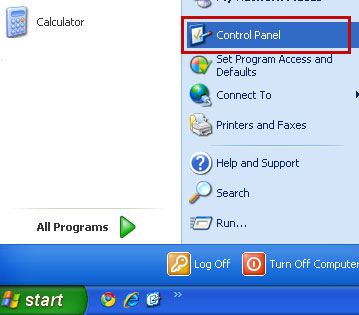
2. Go to the
Start Menu. Select
Control Panel →
Add/Remove Programs.
If you are using Windows Vista or Windows 7, select
Control Panel →
Uninstall a Program.
If you are using Windows 8, simply drag your mouse pointer to the right edge of the screen, select
Search from the list and search for "control panel".

Or you can right-click on a bottom left hot corner (formerly known as the Start button) and select
Control panel from there.
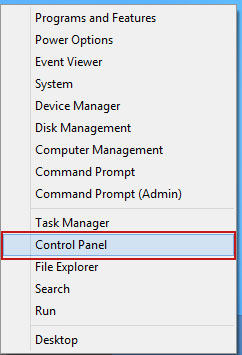
3. When the
Add/Remove Programs or the
Uninstall a Program screen is displayed, scroll through the list of currently installed programs and remove
Search Protect by conduit,
Yontoo,
Conduit Toolbar and any other recently installed application. Look for Conduit associated applications and uninstall them. For example, if you recently installed video converter or music player or any other application and got the Search.conduit.com browser hijacker, then there's a good chance it came with one of those applications. Conduit won't be listed, so you have to remove associated applications.

Simply select the application and click
Remove. If you are using Windows Vista, Windows 7 or Windows 8, click
Uninstall up near the top of that window. When you're done, please close the Control Panel screen.
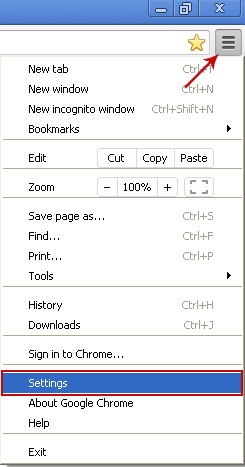
Remove Search.conduit.com from Google Chrome:1. Click on
Customize and control Google Chrome icon. Go to
Tools →
Settings.
2. Click
Set pages under the
On startup.
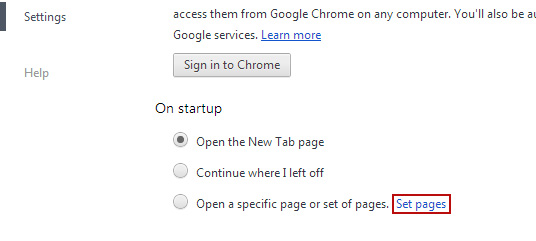
Remove
Search.conduit.com by clicking the "
X" mark as shown in the image below.

3. Click
Show Home button under
Appearance. Then click
Change.

Select
Use the New Tab page and click
OK to save changes.

4. Click
Manage search engines button under
Search.

Select
Google or any other search engine you like from the list and make it your default search engine provider.

Select
Conduit Search from the list and remove it by clicking the "
X" mark as shown in the image below.

Remove search.conduit.com from Mozilla Firefox:1. Open up Mozilla Firefox. Type
about:config in the Location Bar (address bar) and press Enter to display the list of preferences.

2. Now in the filter field, type in
conduit and press Enter.

3. Now, you should see all the preferences that were changed by Conduit Search. Right-click on the preference and select
Reset to restore default value.
Reset all found preferences!
4. Go to
Tools →
Options. Under the
General tab reset the startup homepage. That's it.

Remove search.conduit.com from Internet Explorer:1. Open Internet Explorer. Go to
Tools →
Manage Add-ons.
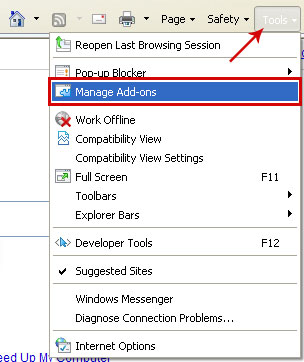
2. Select
Search Providers. First of all, choose
Bing search engine and make it your default search provider (set as default). Then select
Web Search (name might be different in your case) and click
Remove button to uninstall it (lower right corner of the window).

3. Go to
Tools →
Internet Options. Select
General tab and click
Use default button or enter your own website, e.g. google.com instead of
search.conduit.com. Click
OK to save the changes.
 Tell your friends: