Monday, 14 May 2012

Remove "Recommended for You" Pop-ups and Malware (Uninstall Guide)

Over the last few weeks, some of our readers have alerted us to the fact that they got some kind of malicious software that redirected web browsers to different 3rd party websites and displayed intrusive advertisements in the lower right hand corner of their computer screens. No joke. However, it's a very common issue and sometimes it's rather difficult to tell whether it's caused by malware, browser helper object or just a useless web browser extension. Usually, web browser redirects are indeed caused by malware, mostly rootkits and Trojan horses, but that's not always the case. So, we decided to dig into the issue and trace the root of the problem.

Shortly after we ran a certain set of Trojans on our test machine, we found a sample (Trojan.Small.dac or Troj/RuinDl-Gen) that was responsible for the combination of the Recommended for You pop-ups and web browser redirects. The web browser redirects seem to happen at random or at least they didn't happen all the time. The Trojan horse displayed two different pop-up windows: an iPhone looking box with various advertisements and a smaller one with just random ads. It happened in Internet Explorer, Mozilla Firefox and Google Chrome. Can't blame the browser this time. It's probably a cross platform malware too. Besides, it happened on both 32-bit and 64-bit systems. Ads were not very intrusive, they didn't show up like every two or five minutes. Once you minimize the ad box, it doesn't appear until you restart your computer. That's right, you can't close the ad box, when you click the "X" it just minimizes into a smaller box that says "Recommended for You".

An-iPhone looking ad box:


A smaller one, but still very annoying:


Recommended for You box:


Now, that we know the root of this problem (malware) we can take the appropriate actions. Running a full virus scan with anti-malware software is essential step towards solving the Recommended for You malware problem. Once the Trojan horse is gone, you need to replace Windows Host file since it's partly responsible for web browser redirects and annoying pop-ups as well. Yes, the Trojan modifies Windows Hosts file making web browser inquiries a subject to redirect. To remove this malware from your computer, please follow the steps in the removal guide below. Should you need any further assistance, don't hesitate to contact us or just leave a comment below. Good luck and be safe online!

http://deletemalware.blogspot.com


Recommended for You malware removal instructions:

1. Download recommended anti-malware software (direct download) and run a full system scan to remove this malware from your computer.

3. To reset the Hosts file back to the default automatically, download and run Fix it and follow the steps in the Fix it wizard.

4. Remove files from Windows %Temp% folder.

Tell your friends:

Wednesday, 9 May 2012

Remove W32.Xpaj Virus (Uninstall Guide)

W32.Xpaj is a particularly sneaky polymorphic virus that infects .exe, .dll, and other legitimate Windows files on the compromised computer. This virus is not completely new. First samples of infected files were detected about four years ago. Back then W32.Xpaj was probably the most sophisticated file infector or at least it was well above the average. The behavior of this virus seems to be the same as the old one but functionality has changed dramatically in recent years. We found a new variant of this virus that does not infect legitimate Windows files anymore. It simply creates executable files containing W32.Xpaj or W32.Xpaj.B malcode and some fake data. Fake data and strings are meant to mimic legitimate Windows files. What is more, the recent variants of this virus have bootkit functionality.


By the way, bootkit-enhanced Trojan horses are very common nowadays as well. It's not a coincidence, it's a trend and we will probably see some more Trojans and viruses with enhanced functionally as it becomes very difficult to hide the presence of malware on infected computers. Another very important aspect of polymorphic viruses - the final behavior is not easily predicted. Malware authors can easily corrupt legitimate system files and crash the whole system. It's not surprising that they try to avoid such behavior.

The latest variants of W32.Xpaj virus can infect the Master Boot Record and run code in Kernel Mode. As for know, the virus seems to be limited to 32-bit executable modules only, however it may infect 64-bit systems as well (the code is already present but may be inactive for some reasons). The virus blocks legitimate antivirus software. We've tested Avast!, Avira Antivir and Hitman Pro and they all failed to remove this virus. As a matter of fact, all these popular security products can't even load properly when the computer is infected by this virus. So, they become pretty much useless. Even when you remove W32.Xpaj virus from the infected computer using additional malware removal software, you need to reinstall or manually restore infected files from backup copies.

Twenty-six files, processes and startup programs infected by W32.Xpaj:


What can be done with W32.Xpaj? Well, malware authors can steal information from the compromised computer, usually computer name, user name and cached passwords. Please note that the latest variants of this virus may accompany more sophisticated spyware modules. However, the most successful payload of this virus is related to advertising and ad-clicking scam and it's very likely that the purpose of Malware.Xpaj remains the same. Especially when the network communication hasn't changed much. The data is encrypted and the virus requests ads from remove server or redirects search results to spammy or sponsored websites. The virus monitors Internet traffic with the goal of intercepting any searches or clicks performed by a user. Ultimately, the user is redirected to websites full of advertisements, which results in the cyber crooks getting paid by the advertisers for obtaining the click. In other words, advertisers throw their money for invalid clicks. In such case, the return of investment is likely to be zero. What a pity.

As you may know, if the computer has one virus, it probably has more. In order to successfully clean the computer affected by W32.Xpaj, you need to remove the bootkit infection first and then run a full system scan with recommend anti-virus software. Last, but not least, W32.Xpaj may spreads through removable, mapped and network drives. If you were unlucky enough to get this virus, please disconnect other computer from the network. To remove this virus from your computer, please follow the removal steps in the removal guide below. If you need help removing this virus, please leave a comment below. Safe surfing folks!


W32.Xpaj removal instructions:

1. Download and run TDSSKiller. Press Start scan for the utility to start scanning.


2. When the scan is over, TDSSKiller displays detected malware. Press Continue to remove found malware.


3. A reboot might require after disinfection. Press Reboot computer to continue.


4. After rebooting, download recommended anti-malware software (direct download) and run a full system scan to remove the remnants of W32.Xpaj virus.

Tell your friends:

Saturday, 5 May 2012

Total Anti Malware Protection - How To Remove

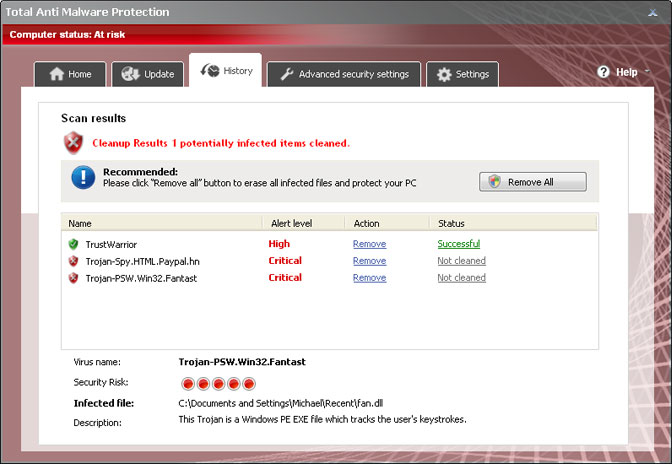
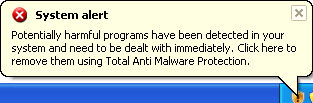
Today we came across another bugger from the Rogue.VirusDoctor family that comes up on the infected computer as Total Anti Malware Protection. It may look like a real thing but basically it's a fake security product that pretends to scan your computer for malicious software. It also displays a bunch of fake security alerts and pop-ups to make it look as realistic as it can be. It's probably directed by a few well-placed interest groups (cyber criminals). Once the rogue program is installed, it attempts to disable genuine anti-virus software. So, either it becomes unresponsive or returns some some strange error codes. Then, Total Anti Malware Protection disables Windows system utilities, including Task Manager and Windows Registry. You can't just simply fire up Task Manager and stop malicious processes. It's a part of self-defense mechanism and might be a tough one to crack especially if you are basically computer illiterate. But don't worry, just bear with me and I will show you how to fix things up.


To make things worse, Total AntiMalware Protection overwrites Windows Hosts file. It adds some additional code lines that will eventually cause web browser redirection to findgala.com and some other sites that seem to be among the less clean ones in terms of keeping out the malware links. Again, you can't just simply edit Hosts file and remove code lines that are not supposed to be there because the rogue program sets new file permissions that basically say "You are not allowed to change it". Thankfully, Microsoft has this great utility called "Fix it" that gets things done very easily, so you don't need to mess up with Windows permissions.

If your computer has been infected with Total Anti Malware Protection, please follow the steps the removal guide below. Whatever you do, DO NOT pay for it. Total Anti Malware Protection is a scam. Once you give you money to scammers you won't be able to get them back. No 30 day money back guarantee, sorry. Also, you should re-evaluate your protective measures: run non-admin, keep patches up-to-date, and don't run e-mailed executables. If you have any questions, please leave a comment below. Safe surfing folks!

Update (May 7, 2012): Scammers have slightly modified the GUI and changed the name of this rogue anti-spyware program. Now it's called Best Antivirus Software. Of course, there still might be some actively distributed variants of Total AntiMalware Protection and as a matter of fact we believe that they pushes different rogues simultaneously. Anyway, the removal guide outlined below works just fine for both variants of this rogue anti-spyware program.


Total Anti Malware Protection removal guide:

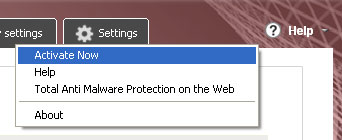
1. Click on Help and select Activate Now.


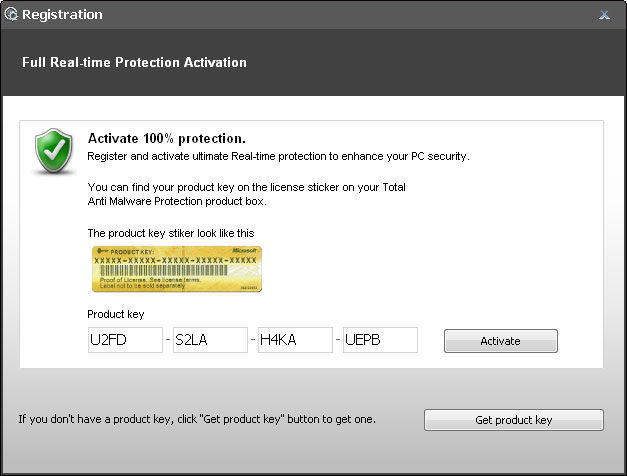
2. Enter one the following debugged registration keys and click Activate to register the rogue antivirus program. Don't worry, this is completely legal since it's not genuine software.

U2FD-S2LA-H4KA-UEPB
K7LY-H4KA-SI9D-U2FD
K7LY-R5GU-SI9D-EVFB


2. Download recommended anti-malware software (Spyware Doctor) and run a full system scan to remove this malware from your computer.

3. To reset the Hosts file back to the default automatically, download and run Fix it and follow the steps in the Fix it wizard.

Source: http://deletemalware.blogspot.com


Associated Total Anti Malware Protection files and registry values:

Files:
  • %AllUsersProfile%\Application Data\[SET OF RANDOM CHARACTERS]\[SET OF RANDOM CHARACTERS]
  • %AppData%\Total Anti Malware Protection\
  • %AppData%\Microsoft\Internet Explorer\Quick Launch\Total Anti Malware Protection.lnk
  • %UserProfile%\Desktop\Total Anti Malware Protection\
  • %UserProfile%\Start Menu\Total Anti Malware Protection\
  • %UserProfile%\Start Menu\Programs\Total Anti Malware Protection.lnk
Registry values:
  • HKEY_CURRENT_USER\software\Microsoft\Windows\CurrentVersion\Run\Total Anti Malware Protection = "%AllUsersProfile%\Application Data\a2r3fq\FPa1a_7294.exe" /s /d
  • HKEY_LOCAL_MACHINE\software\microsoft\Windows NT\CurrentVersion\Image File Execution Options\[RANDOM].exe\Debugger = svchost.exe
  • HKEY_CURRENT_USER\Software\Microsoft\Windows\CurrentVersion\Policies\Explorer\DisallowRun = 01000000
  • HKEY_CURRENT_USER\Software\Microsoft\Windows\CurrentVersion\Policies\Explorer\DisallowRun\[1...15]
Tell your friends:

Wednesday, 2 May 2012

Top 6 Best Practices for Network Vulnerability Management

We all know the importance of having a secure network and we also know that most of the time this is easier said than done. The difficulty in achieving this target stems from the wide variety of issues we need to monitor and fix. This is where a good vulnerability scanner can help. The right tool for the job is only half the job, one also needs to use the tool effectively and this applies to a vulnerability scanner as well. Here are six best practices that can help ensure maximum efficiency when it comes to network vulnerability management:
  1. Ensure a secure baseline: Most vulnerability scanners will notify the administrator when things change but this is only effective if you're sure that what you have now is properly configured and secure.
  2. Ensure good test environments: Fixing vulnerabilities involves changing your network and without proper testing the fixing process itself can cause the downtime you’re trying to avoid. Use your vulnerability scanner to map your network and determine what software and hardware your test environment should have. The closer your test environment is to the live network the better testing you can do.
  3. Ensure your vulnerability scanner is monitoring your network periodically: Most vulnerability scanners will allow you to configure them to automatically scan your network for issues on a schedule. This is a good idea as doing this manually involves risks such as skipping the process in favour of other urgent tasks.
  4. Prioritize your patch management: Patch management is a challenging process. The longer you take to complete it the higher the risk that someone might exploit an un-patched vulnerability. The ideal patch management scenario involves extensive testing but that will take time. For this reason you should prioritize – your servers take precedence over workstations. Furthermore, patches themselves need to also be prioritized based on their criticality. That way you can plan out your testing schedule to achieve the best testing and the fastest deployment possible.
  5. Be mindful of the hardware on your network: Generally when we think of network vulnerability management most people would not consider hardware and peripherals. An employee hooking up a wireless network card can be as insidious if not worse than any un-patched vulnerability. For this reason it is essential to ensure your vulnerability scanner is constantly monitoring the hardware that is added or removed to your network.
  6. Do proper Change management: Networks tend to change often, be it because new software is installed, configurations change or new machines connected to the network. These can all pose a security risk.
A good vulnerability scanner can be invaluable at notifying the administrator the moment such a change is detected enabling them to take prompt action. A good vulnerability scanner can reduce a lot of risk so long as it is used effectively. These six best practices will help you improve the security health of your systems and network.

This guest post was provided by Emmanuel Carabott on behalf of GFI Software Ltd. GFI is a leading software developer that provides a single source for network administrators to address their network security, content security and messaging need. Learn more on what to look out for when choosing a vulnerability scanner. All product and company names herein may be trademarks of their respective owners.

Tuesday, 1 May 2012

Remove Trojan.Tracur (Uninstall Guide)

One of our computers has been recently hit by a dreaded Trojan horse called Trojan.Tracur. That's not a huge surprise for us since most of the time we infect our computers intentionally just to find you what certain computer viruses do and how to effectively get rid of them. It's been almost a year since major security vendors discovered this Trojan horse. The distribution and risk levels were always low for this threat but Trojan.Tracur activity has rapidly increased in the past week.

This Trojan horse redirects network traffic to malicious or infected websites. That's the main payload of this infection. Depending on your experience, you may think it's not a serious computer security threat but not everything is what it looks like at first glance. Trojan.Tracur can secretly download and execute malicious modules and make your computer wide open to a whole range of different computer attacks. It can also steal information which can lead to identity theft or financial loss. Once installed, Win32 Trojan.Tracur copies itself to Windows system folder as already existing DLL file, for example: reagent32.exe, imageres32.exe, etc. Then, this Trojan horse attempts to connect to a server and download additional malicious files onto the infected computer (Trojan.TracurB). If the C&C servers are online, it downloads at least three additional files with different functionality/characteristics and waits for other commands from the Command and Control server. The malware author can perform the following actions on the compromised computer:
  • Download and execute malicious files
  • Control the web browser redirection parameters
  • Steal information
Furthermore, the Trojan horse Trojan.Tracur modifies Windows registry values and installs web browser plug-ins that are responsible for web browser redirects. So, basically the Trojan install itself as a web browser extension of Mozilla Firefox and Google Chrome. These are usually detected as Trojan.BHO. After conducting some research we found out that the Trojan horse redirects traffic when the user of the infected computer tries to visit a website with a URL that contains specific strings, e.g., Google, Yahoo, Bing and some other popular search engines.

Last, but not least, it create a Windows Service which starts up automatically when you turn on your computer. It loads the malicious executable file from the Windows %System% folder. The name of the malicious Windows Service may vary, but it's usually something like Print Spooler or anything else that may sound legitimate. As with many other issues in computer security, you hopefully know your situation better than anyone else, however you have to make sure monitor system changes. Why? Because search engine redirects and browser hijackers are very common problems nowadays and unfortunately they are not being taken seriously by PC technicians and users. Why to bother? You probably installed some sort of toolbar in your web browser that causes redirects and it can be easily uninstalled using the Add/Remove Programs control panel. Nothing serious. I hear this very often. If you have been getting redirects in your Google searches and notifications from antivirus software about Trojan.Tracur.Gen activity, then your PC is definitely compromised. And this time, it's not the TDSS/ZAccess rootkit that redirects search results to Happili. It's a Trojan horse + malicious browser helper objects.

Even though, you can remove this Trojan horse from your computer manually, we recommend you to scan the infected computer with up to date anti-malware software. Manual removal can be very complicated and time consuming task. You may miss some core Trojan.Tracur files and then infection will eventually reappear next time you turn on your PC. To remove the Trojan.Tracur infection from your computer, please follow the step in the removal guide below. If you have any questions, please leave a comment.

Mike, http://deletemalware.blogspot.com


Trojan.Tracur removal instructions:

1. Download and execute TDSSKiller. This utility will remove malicious .dlls and executable files that may have rootkit capabilities.

2. Then download recommended anti-malware software (direct download) and run a full system scan to remove Trojan.Tracur from your computer. Don't forget to update anti-malware software before scanning.


Associated Trojan.Tracur files and registry values:

Files:
  • C:\WINDOWS\System32\[NAME OF AN EXISTING DLL]32.exe
Registry values:
  • HKEY_LOCAL_MACHINE\SOFTWARE\Microsoft\Windows\CurrentVersion\Explorer\Browser Helper Objects\{989A5447-1A50-4D02-BA55-724A516C1370}
  • HKEY_LOCAL_MACHINE\SOFTWARE\Classes\CLSID\{989A5447-1A50-4D02-BA55-724A516C1370}
  • HKEY_CLASSES_ROOT\CLSID\{989A5447-1A50-4D02-BA55-724A516C1370}
  • HKEY_CLASSES_ROOT\.fsharproj
  • HKEY_LOCAL_MACHINE\SOFTWARE\Classes\.fsharproj
Tell your friends:

Monday, 30 April 2012

Backdoor.Multi.Zaccess.gen Removal Instructions

Every once in awhile we receive emails from our readers asking for technical help or assistance in resolving computer problems caused by all sorts of malicious software, not just spyware or Trojans. Some issues require research and cannot be resolved easily. Usually we need to find a threat-specific removal utility or routine to completely remove found malware. Unfortunately, it may not work for the masses of our readers even if we believe that they have the same problem. That's why we usually respond via email. However, this time we decide to bring up this topic about quite widely used malware called Backdoor.Multi.Zaccess.gen. We thought we would explain further what it does and how to remove it from your computer.

Ok, so first let's find out what does Backdoor.Multi.Zaccess.gen actually mean? All security vendors have their malware naming standards. Well, honestly they are pretty much the same for all AV's and basically derive from the Computer Antivirus Research Organization malware naming scheme. Backdoor is a type of infection. In this case, it's a piece of malware that provides attackers with control of infected computer while attempting to remain undetected. Multi stands for cross platform. It means this malware is capable of infecting Windows and Linux or Windows and Mac OS. Zaccess is a family name. Sometimes, different security vendors use the same family names to identify closely related malware threats. But of course they can use completely different names for the same threat. For example, Microsoft identifies this threat as Sirefef whereas Kaspersky names it Zaccess (ZeroAccess). And finally, gen is an additional suffix and it basically means that malware was detected using a generic signature. Let's sum things up: Backdoor.Multi.Zaccess.gen is a proactive defense detection for suspicious behavior. We know it sounds complicated :)

How do you get infected with Backdoor.Multi.Zaccess.gen?

Cyber crooks use exploit packs to target un-patched machines. Many PC users still don't know how to update their software. Critical Windows updates are installed automatically, but that's not enough, you need to update Java, Flash and other popular software as well. Decent antivirus software is a must! In case you didn't know, you can get infected by malware just by visiting a website. You don't even need to download or install anything. Web browsers are very well-written and complex pieces of software but they still have flaws that can be utilized to run malicious software. Backdoor.Multi.Zaccess.gen infection can be also distributed through spam and using various social engineering tricks. Just like any other malicious software really.

Once installed, Backdoor.Multi.Zaccess.gen creates multiple instances of Internet Explorer (iexplore.exe). Duplicate entries can be easily seen in Task Manager. Please note that there are no visible Internet Explorer windows but the multiple instances of iexplore.exe are still running in the background.


We registered many successful attempts to establish connection with remove hosts. Internet Explorer was downloading advertisements from remote servers for some strange reasons. It might be an interesting malicious traffic monetization scheme. We will make a more thorough analysis later but it's certainly the only possible payload of this malware.


What is more, Backdoor.Multi.Zaccess.gen blocks legitimate anti-virus software and malware removal tools. It simply doesn't allow you to scan the system. Sometimes you can't even install antivirus software on the infected computer. Thankfully, there are threat-specific malware removal utilities designed to bypass malware self protection mechanisms and remove the core files from the system. Any solution for Backdoor.Multi.Zaccess.gen? Sure thing. To remove this malware infection from your computer, please follow the removal instructions below. If you have any questions, please leave a comment. Safe surfing folks!

http://deletemalware.blogspot.com


Backdoor.Multi.Zaccess.gen removal instructions:

1. Download and execute TDSSKiller. Press the button Start scan for the utility to start scanning.


2. Wait for the scan and disinfection process to be over. Then click Continue. Please reboot your computer after the disinfection is over.


3. Download recommended anti-malware software (direct download) and run a full system scan to remove the remnants of this virus from your computer.


Associated Backdoor.Multi.Zaccess.gen files and registry values:

Files:
  • C:\Documents and Settings\All Users\Application Data\0Hh3oQ7q.exe
  • C:\WINDOWS\TEMP\qllmdq\setup.exe

Tell your friends:

Saturday, 28 April 2012

How to Remove Data Recovery (Uninstall Guide)

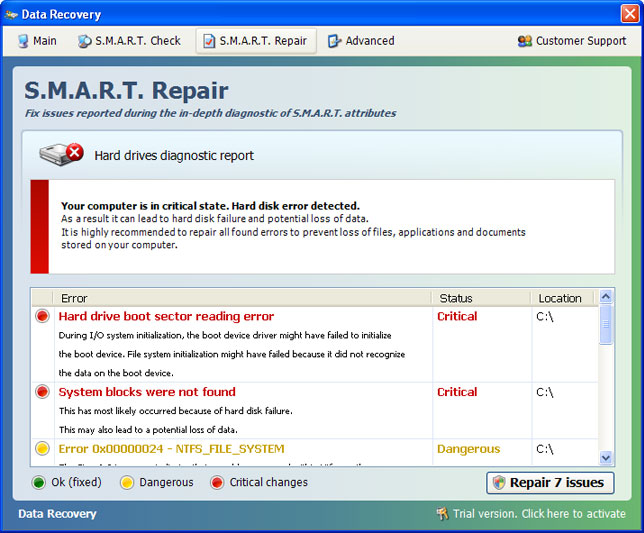
(Update: Saturday, April 28, 2012) Data Recovery is scareware masquerading as computer repair and optimization program. It pretends to scan your computer for hard drive, RAM and Windows registry errors and displays fake warnings. None of this is really surprising, or at least it shouldn't because it's a typical scareware. Cyber crooks behind Data Recovery just want to trick as many internet users as possible into paying for bogus computer repair program. This scareware is usually installed by the user when visiting infected/malicious websites or opening infected attachments. Malware authors use social engineering and drive-by downloads to distribute this malicious software too. Once installed, you may be requested to pay to fix supposedly detected critical hard drive errors and RAM failures. Just ignore those fake warnings and notifications about non-existent problems and uninstall Data Recovery from your computer. Of course, it's easier said than done, so to remove this malware from your computer, please follow the removal instructions below.

Data Recovery 2012 GUI:


Old GUI:
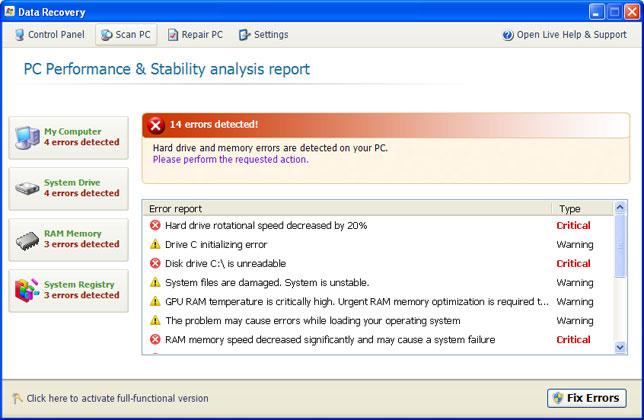

When running, Data Recovery will report the following problems on your computer:
  • Hard drive rotational speed decreased by 20%
  • Drive C initializing error
  • Disk drive C:\ is unreadable
  • System files are damaged. System is unstable
  • GPU RAM temperature is critically high
  • The problem may cause errors while loading your operating system
  • RAM memory speed decreased significantly and may cause a system failure
  • and many more...
It detects 14 errors on each infected computer. It doesn't matter whether is a brand new PC or and old laptop. All the errors and warnings are predetermined, so don't get spooked. Data Recovery is more annoying than dangerous, however, there's one this that shouldn't be overlooked. The rogue program hides certain files, usually shortcuts and Desktop icons, and moves other files to Windows %Temp%\smtmp folder.
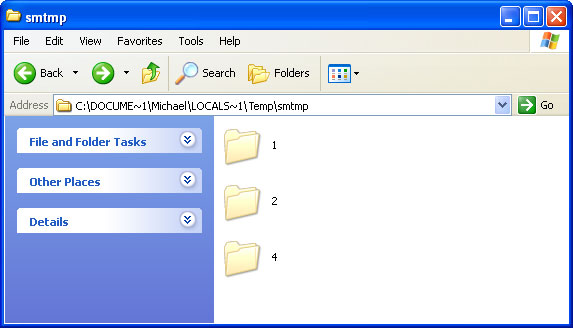


Do not delete any files from your Temp folder; otherwise you'll have to use Windows CD/DVD to restore your system. Thankfully, you can unhide your files rather easily. Just follow the removal instructions below. It is also worth mentioning that Data Recovery executable drops a rootkit from the TDSS family. If you don't remove the rookit the rogue application will be re-installed.

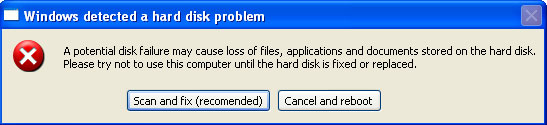
Fake Data Recovery warnings:
Windows detected a hard disk problem A potential disk failure may coss loss of files, applications and documents stored on the hard disk. Please try not to use this computer until the hard disk is fixed or replaced.
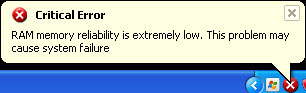
Critical Error RAM memory reliability is extremely low. This problem may cause system failure

Additionally, you can activate the rogue program by entering this registration code 15801587234612645205224631045976 08869246386344953972969146034087and any email as shown in the image below. Once this is done, you are free to install anti-malware software and remove the rogue anti-virus program from your computer properly.
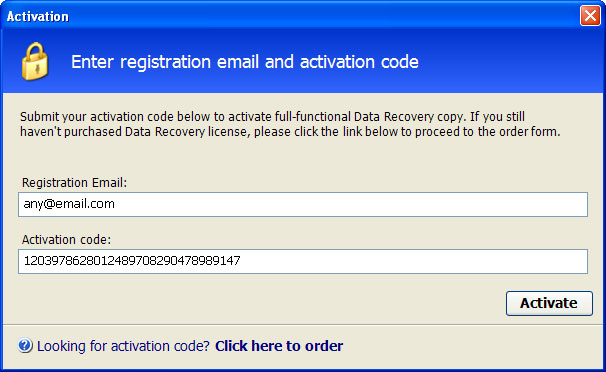


That's probably the most easiest way to remove Data Recovery malware: enter the code and then run a full system scan with recommended anti-malware software (direct download). You can also remove malicious files manually. One way or another, please follow the steps in the removal guide below. And of you have already purchased this bogus computer repair program, please contact your credit card company immediately and dispute the charges. Next time purchase software from reputable vendors only and keep it up to date. If you need help removing Data Recovery, please leave a comment below or email us. Good luck and be safe online!

Related malware:

Quick removal:

1. Use debugged registration key and fake email to register Data Recovery malware. This will allow you to download and run any malware removal tool you like and restore hidden files and shortcuts. Choose to activate "Data Recovery" manually and enter the following email and activation code:

mail@mail.com
08869246386344953972969146034087 (new code!)

mail@mail.com
1203978628012489708290478989147 (old code, may not work anymore)


2. Download TDSSKiller and run a system scan. Remove found rootkits as shown in the image below. Reboot your computer if required.

3. Download recommended anti-malware software (direct download) and run a full system scan to remove this virus from your computer.


Alternate Data Recovery removal instructions:

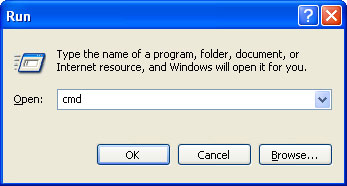
1. First of all, you need to unhide the files and folders. Select Run... from the Start Menu or just hit the key combination CTRL+R on your keyboard. In the Open: field, enter cmd and hit Enter or click OK.


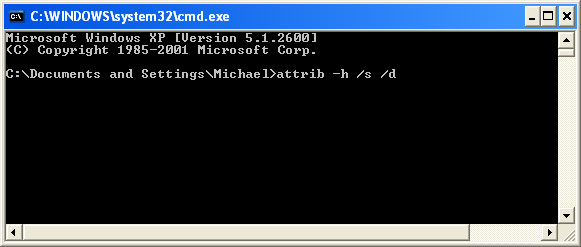
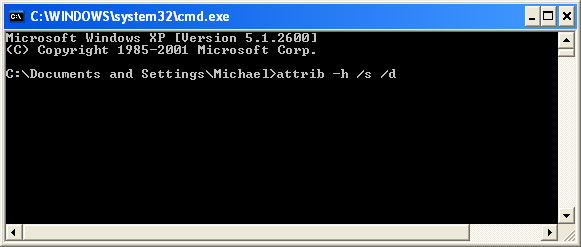
At the command prompt, enter attrib -h /s /d and hit Enter. Now, you should see all your files and folders. NOTE: you may have to repeat this step because the malware may hide your files again.


If you still can't see any of your files, Select Run... from the Start Menu or just hit the key combination CTRL+R on your keyboard. In the Open: field, enter explorer and hit Enter or click OK.
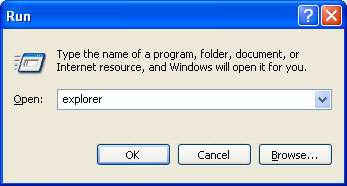


2. Open Internet Explorer. Select Run... from the Start Menu or just hit the key combination CTRL+R on your keyboard. In the Open: field, enter iexplore.exe and hit Enter or click OK.

Open Internet Explorer and download TDSSKiller or Backdoor.Tidserv Removal Tool. This malware usually (but not always) comes bundled with TDSS rootkit. Removing this rootkit from your computer is very important (if exists). Run TDSSKiller or Backdoor.Tidserv Removal Tool to remove the rootkit.
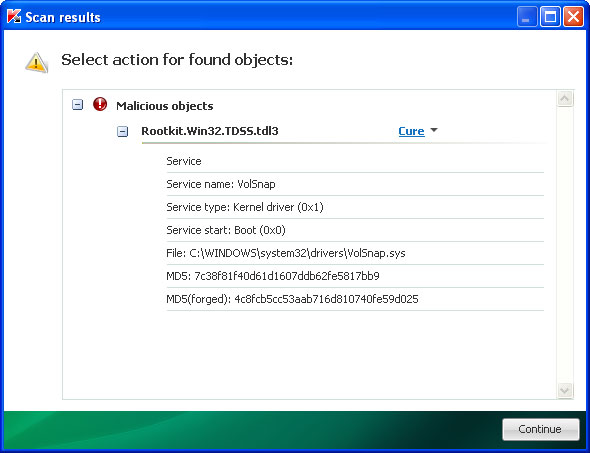


3. Finally, download recommended anti-malware software (direct download) to remove this virus from your computer.

NOTE: in some cases the rogue program may block anti-malware software. Before saving the selected program onto your computer, you may have to rename the installer to iexplore.exe or winlogon.exe With all of these tools, if running Windows 7 or Vista they MUST be run as administrator. Launch the program and follow the prompts. Don't forget to update the installed program before scanning.


Alertane Data Recovery removal instructions:

1. First of all, you need to unhide the files and folders. Select Run... from the Start Menu or just hit the key combination CTRL+R on your keyboard. In the Open: field, enter cmd and hit Enter or click OK.


At the command prompt, enter attrib -h /s /d and hit Enter. Now, you should see all your files and folders. NOTE: you may have to repeat this step because the malware may hide your files again.


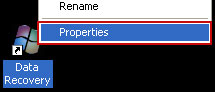
2. The rogue application places an icon or your desktop. Right click on the icon, click Properties in the drop-down menu, then click the Shortcut tab.


The location of the malware is in the Target box.


On computers running Windows XP, malware hides in:
C:\Documents and Settings\All Users\Application Data\

NOTE: by default, Application Data folder is hidden. Malware files are hidden as well. To see hidden files and folders, please read Show Hidden Files and Folders in Windows.

Under the Hidden files and folders section, click Show hidden files and folders, and remove the checkmark from the checkbox labeled:

- Hide extensions for known file types
- Hide protected operating system files

Click OK to save the changes. Now you will be able to see all files and folders in the Application Data directory.

On computers running Windows Vista/7, malware hides in:
C:\ProgramData\

3. Look for suspect ".exe" files in the given directories depending on the Windows version you have.

Example Windows XP:
C:\Documents and Settings\All Users\Application Data\6DSS92c31Apgjk.exe
C:\Documents and Settings\All Users\Application Data\ixgPHgbBMPf.exe

Example Windows Vista/7:
C:\ProgramData\6DSS92c31Apgjk.exe
C:\ProgramData\ixgPHgbBMPf.exe

Basically, there will be a couple of ".exe" file named with a series of numbers or letters.
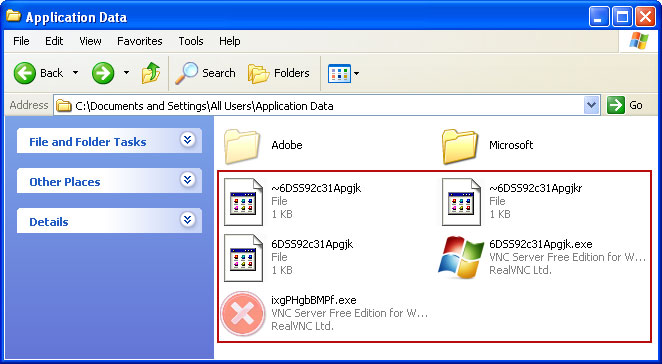


Rename those files to 6DSS92c31Apgjk.vir, ixgPHgbBMPf.vir etc. For example:
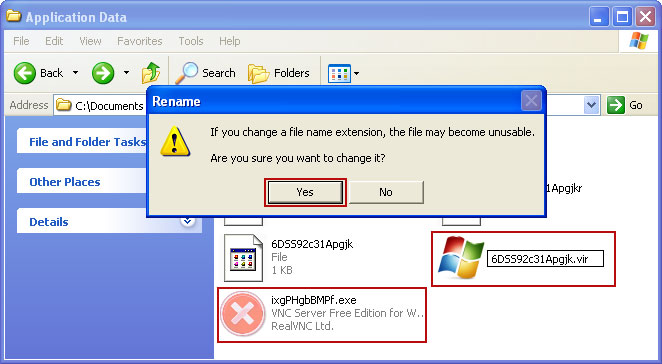


It should be: C:\Documents and Settings\All Users\Application Data\6DSS92c31Apgjk.vir

Instead of: C:\Documents and Settings\All Users\Application Data\6DSS92c31Apgjk.exe

4. Restart your computer. The malware should be inactive after the restart.

5. Open Internet Explorer and download TDSSKiller or Backdoor.Tidserv Removal Tool. This malware usually (but not always) comes bundled with TDSS rootkit. Removing this rootkit from your computer is very important (if exists). Run TDSSKiller and remove the rootkit.


6. Download recommended anti-malware software (direct download) to remove this virus from your computer

NOTE: in some cases the rogue program may block anti-malware software. Before saving the selected program onto your computer, you may have to rename the installer to iexplore.exe or winlogon.exe With all of these tools, if running Windows 7 or Vista they MUST be run as administrator. Launch the program and follow the prompts. Don't forget to update the installed program before scanning.


Associated Data Recovery files and registry values:

Files:

Windows XP:
  • %AllUsersProfile%\Application Data\[SET OF RANDOM CHARACTERS]
  • %AllUsersProfile%\Application Data\[SET OF RANDOM CHARACTERS].exe
  • %UsersProfile%\Desktop\Data Recovery.lnk
  • %UsersProfile%\Start Menu\Programs\Data Recovery\
  • %UsersProfile%\Start Menu\Programs\Data Recovery\Data Recovery.lnk
  • %UsersProfile%\Start Menu\Programs\Data Recovery\Uninstall Data Recovery.lnk
%AllUsersProfile% refers to: C:\Documents and Settings\All Users
%UserProfile% refers to: C:\Documents and Settings\[User Name]

Windows Vista/7:
  • %AllUsersProfile%\[SET OF RANDOM CHARACTERS]
  • %AllUsersProfile%\[SET OF RANDOM CHARACTERS].exe
  • %UsersProfile%\Desktop\Data Recovery.lnk
  • %UsersProfile%\Start Menu\Programs\Data Recovery\
  • %UsersProfile%\Start Menu\Programs\Data Recovery\Data Recovery.lnk
  • %UsersProfile%\Start Menu\Programs\Data Recovery\Uninstall Data Recovery.lnk
%AllUsersProfile% refers to: C:\ProgramData
%UserProfile% refers to: C:\Users\[User Name]

Registry values:
  • HKEY_CURRENT_USER\Software\Microsoft\Windows\CurrentVersion\Run "[SET OF RANDOM CHARACTERS].exe"
  • HKEY_CURRENT_USER\Software\Microsoft\Windows\CurrentVersion\Run "[SET OF RANDOM CHARACTERS]"
  • HKEY_CURRENT_USER\Software\Microsoft\Windows\CurrentVersion\Policies\Associations "LowRiskFileTypes" = '/{hq:/s`s:/ogn:/uyu:/dyd:/c`u:/bnl:/ble:/sdf:/lrh:/iul:/iulm:/fhg:/clq:/kqf:/`wh:/lqf:/lqdf:/lnw:/lq2:/l2t:/v`w:/rbs:'
  • HKEY_CURRENT_USER\Software\Microsoft\Windows\CurrentVersion\Policies\Attachments "SaveZoneInformation" = '1'
  • HKEY_CURRENT_USER\Software\Microsoft\Internet Explorer\Download "CheckExeSignatures" = 'no'
  • HKEY_CURRENT_USER\Software\Microsoft\Internet Explorer\Main "Use FormSuggest" = 'yes'
Share this information with other people: