RST Antivirus 2010 is a potentially unwanted anti-spyware application that may reports false or exaggerated system security threats on your computer. It has to be manually installed. The homepage of RST Antivirus 2010 is rtsantivirus2010 .com. It provides mostly false information about RSTAntivirus2010 such as "RTS Antivirus 2010 is a reputable Windows Vista certified application." I don't really think that's true. Besides, it's not even clear how this application should be called RST Antivirus 2010, RST Antivirus 2010 or RTS Antivirus 2010 Pro.
If you download it from its homepage, you will see that it's actually called RST Antivirus 2010 instead of RTS Antivirus 2010.
This potentially unwanted application will state that your security status is high and that you have a registered version of RST Antivirus 2010. Anyway, it's not reputable anti-spyware software. You shouldn't install it. If you find that RST Antivirus 2010 is already installed on your PC, please uninstall it as soon as possible. If you have any questions or additional information about this program, please don't hesitate and leave a comment. Good luck and be safe!
RST Antivirus 2010 removal instructions: Download one of the following anti-malware software and run a full system scan:
Data Protection is a fake anti-virus program that gives false exaggerated reports of threats on your computer and displays fake security warnings to make you think that your PC is infected with malware. This fake program is from the same family as Digital Protection and Your Protection scareware. It's not a real anti-virus program and it actually can't remove any infections from your computer, so you shouldn't trust it. Most importantly, don't buy it! It will prompt you top pay for a full version of the program to remove non-existent infections. DataProtection is nothing more but a scam. If you are reading this article then I guess your computer is already infected with this annoying program. Thankfully, we've got instructions to help you. Please follow the Data Protection removal instructions below.
This fake program is promoted and installed through the use of Trojans and other malware. Usually, Trojans come from fake online scanners or misleading online video websites as flash player updates or video codecs. Once installed, Data Protection will simulate system scan and report false system security threats. Moreover, it will attempt to uninstall legitimate anti-virus and anti-spyware programs from your computer. The rogue program will state that your current antivirus software is infected and that you should remove it. Of course, that's not true. Furthermore, it will display fake security alerts every few minutes. The text of some of these warnings are:
"Warning! Adware detected! Adware module detected on your PC! Zlob.Porn.Ad adware has been detected. This adware module advertises websites with explicit content. Be advised of such content being possibly illegal. Please click the button below to locate and remove this threat now."
"Warning! Virus threat detected! Virus activity detected! Trojan-Downloader.VBS adware has been detected. This adware module advertises websites with explicitly content. Be advised of such content being possibly illegal. Please click the button below to locate and remove this threat now."
"Danger! A security threat detected on your computer. TrojanASPX.JS.Win32. It strongly recommended to remove this threat right now. Click on the message to remove it."
Last, but not least, Data Protection will block legitimate anti-virus and anti-malware programs, hijack Internet Explorer and add some porn icons on your Desktop. Also note that this fake program may come bundled with TDSS rootkit. That's why we strongly recommend you to scan your computer with TDSSKiller utility from Kaspersky lab (it removes rootkits for free). Another thing, if you can't download or launch malware removal tools because Data Protection blocks them, then you will have to reboot your computer in Safe Mode with Networking (follow removal instructions below). Finally, if you have any questions or additional information about this virus, don't hesitate and leave a comment. By the way, if you have already purchased it, then you should contact your credit card company and dispute the charges. Good luck and be safe!
Data Protection removal instructions (in Safe Mode with Networking, Method 1):
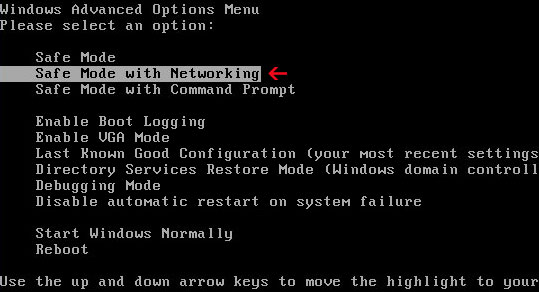
1. Reboot your computer is "Safe Mode with Networking". As the computer is booting tap the "F8 key" continuously which should bring up the "Windows Advanced Options Menu" as shown below. Use your arrow keys to move to "Safe Mode with Networking" and press Enter key. Read more detailed instructions here: http://www.computerhope.com/issues/chsafe.htm
NOTE:Login as the same user you were previously logged in with in the normal Windows mode.
2. Download SUPERAntispyware, MalwareBytes Anti-malware, Spybot - Search & Destroy or Spyware Doctor and run a full system scan.NOTE: before saving the selected program onto your computer, please rename the installer to winlogon.exe or iexplore.exe. Launch the program and follow the prompts. Don't forget to update the installed program before scanning. Then reboot your computer in "Normal Mode" and run a system scan again. That's it! 4. New threats appear every day. In order to protect your PC from such (new) infections we strongly recommend you to use ESET Smart Security.
Data Protection removal instructions: (Method 2)
1. Download the file TDSSKiller.zip and extract it into a folder 2. Execute the file TDSSKiller.exe (NOTE: you may have to rename TDSSKiller.exe to explorer.com yourself or download already renamed explorer.com file in order to run it) 3. Follow the prompts and wait for the scan and disinfection process to be over. Close all programs and press “Y” key to restart your computer. More detail TDSSKiller tutorial: http://support.kaspersky.com/viruses/solutions?qid=208280684 4. Download one of the following anti-malware software and run a full system scan:
A-fast.com is a misleading website that promotes the rogue antivirus program called A-fast Antivirus. It provides false information and hosts malware. Don't download anything from A-fast.com (91.188.59.112) as you may easily infected your computer with a rogue anti-virus program. You should add A-fast.com (91.188.59.112) to the list of harmful websites and block it. If your computer is already infected with A-fast Antivirus or you are being constantly redirected to A-fast.com, please follow the A-fast Antivirus removal instructions.
A-fast Antivirus is a fake anti-virus program. As a typical rogue security application, it displays fake security warnings and reports false system security threats to make you think that your computer is infected with malware. Then it prompts to pay for a full version of the program to remove the infections. The scan results are false, so you shouldn't remove any files or programs flagged by A-fast Antivirus. Please note that this rogue program detects legitimate programs as serious malware infections too. The bad news is that Afast Antivirus blocks legit anti-virus and anti-malware programs. It also disables Windows Task Manager and states that it's infected. Thankfully, we've got the instructions to help you. Please read the A-fast Antivirus removal instructions below.
A-fast Antivirus (thanks to rogueamp):
Once running, A-fast Antivirus will display numerous fake security warnings. Those warnings will state that your computer is infected with spyware or under attack from a remote computer. The rogue program will also state that it has detected critical vulnerabilities or keyloggers on your computer.
"System warning! Continue working in unprotected mode is very dangerous. Viruses can damage your confidential data and work on your computer. Click here to protect your computer."
"Your computer is infected! Windows detected spyware infection! It is recommended to use special antispyware tools to prevent dataloss. Windows will now download and install the most up-to-date antispyware for you."
Most of the time, A-fastAntivirus has to be manually installed, but it may also come bundled with other malware. The homepage of this fake program is a-fast .com (91.188.59.112), you should avoid it, because it hosts the rogue program. Otherwise, you may easily infect your computer.
The most important question is of course how to remove this fake program? The problem is that it will probably block legit anti-malware software. You will have to reboot your computer in Safe Mode with Networking and download malware removal tool (read the instructions below). If you can't reboot your computer is Safe Mode with networking, then you may enter one of the serials listed below.
B0B302F772
C197C46C46
B20C1467B7
041E4B235A
25CCCC7329
9926220EED
A58EC19D33
C15F2FF276
F61E370D62
DDAD6A7A2C
9F8122FE00
3754DD9DA6
3DC52EA100
EE73BBFFA6
7E61C9C7DF
EE34D2E8A7
AA61971AA1
9D2510E3E8
Thanks to Jaxryley and S!Ri.URZ Open A-fast Antivirus and click "Activate" button. A new window will pop-up. Enter one of those serials and click "Activate" button. If everything goes well, the rogue program will state that your computer is clean and won't block legit anti-malware programs. And remember, A-fast Antivirus is a scam. If you have already purchased it, then you should contact your credit card company and dispute the charges. If you have any questions or additional information, please leave a comment. Good luck and be safe!
A-fast Antivirus removal instructions:
1. Reboot your computer is "Safe Mode with Networking". As the computer is booting tap the "F8 key" continuously which should bring up the "Windows Advanced Options Menu" as shown below. Use your arrow keys to move to "Safe Mode with Networking" and press Enter key. Read more detailed instructions here: http://www.computerhope.com/issues/chsafe.htm
NOTE:Login as the same user you were previously logged in with in the normal Windows mode. 2. Download one of the following anti-malware applications:
An error message that starts with "svchost.exe has encountered a problem and needs to close" might actually be a fake warning from a rogue anti-malware program. Usually, fake antivirus programs or Trojans display such warnings in order to scare you into thinking that your computer is either infected with malware or has many serious security and privacy problems or other errors. So, how can you tell whether it's fake or not? The legitimate one has the "Don't Send" button whereas the fake provides "Fix it" button. That's the only difference.
The fake svchost.exe reads: "svchost.exe has encountered a problem and needs to close. We are sorry for the inconvenience. If you were in the middle of something, the information you were working on might be lost. Please tell Microsoft about this problem. We have created an error report that you can send to us. We will treat this report as confidential and anonymous."
If you click the "Fix it", you will be promoted to download or install fake anti-virus program or you will be redirected to a misleading website that promotes rogue programs. One way or another, you should download/install/purchase anything, especially from bogus websites.
If you find that your computer is infected with malware that displays this fake warning, then you should scan your computer with legitimate anti-malware software. You can choose a program from the following list:
All programs are free. We recommend you to use at least two programs listed above to completely remove malicious software from your computer. If you have any questions or additional information, please leave a comment. Good luck and be safe!
Av-force.com and av-force.net, these two domains should be added to the list of restricted and potentially harmful websites. Both websites promote the rogue anti-spyware program called Antispyware Soft. Both uses the same web template and provides false information. At the moment, av-force.com and av-force.net don't contain links to malware, but please note that the situation can change at any moment.
If you find that your computer is infected with Antispyware Soft or any other related malware that redirects you to av-force.com or av-force.net, please follow the Antispyware Soft removal instructions. If you have any additional information, you may leave a comment. Good luck and be safe!
AKM Antivirus 2010 Pro is a fake anti-virus program that reports false system security threats to make you think that your computer is infected with worms, adware, spyware and other viruses. This rogue program is a clone of Your PC Protector malware. Once installed, AKM Antivirus 2010 Pro displays a variety of infections on your computer and then prompts to pay for a full version of the program to remove those infections. The scan results are totally false. It's a typical scareware, so you shouldn't purchase it. Instead, you should uninstall it from your PC as soon as possible. If you are reading this article, then you are probably infected with this virus. Thankfully, this rogue program can be removed for free using legitimate anti-malware programs and utilities. Please follow the removal instructions below.
AKM Antivirus 2010 Pro video (thanks to rogueamp):
AKM Antivirus 2010 Pro is promoted through the use of Trojans and other malicious software that usually comes from fake online anti-malware scanners and bogus online video websites. When running, the rogue program blocks legit software and claims that your computer is infected or has many serious security privacy problems. AKMAntivirus2010Pro loads up every time you attempt to launch legitimate programs. Most of the time, this fake program wrongly states that a particular program is infected and can't be executed. The warning reads:
"Warning! Running of application is impossible. The file C:\Windows\System32\notepad.exe is infected. Please activate your antivirus program."
"AKM Antivirus 2010 Pro Alert Infiltration Alert Your computer is being attacked by an Internet Virus. It could be a password- stealing attack, a trojan-dropper or similar. Threat: HalfLemon"
Of course, it could be any other process of legitimate programs instead of notepad.exe as shown in the example above. Furthermore, AKM Antivirus 2010 Pro displays a fake list of executable files and states that they are infected.
The rogue program also display fake Windows Security Center pop-up that looks just like the legitimate one (see image below). Typically, the fake Security Center reports that your computer is not protected because virus protection wasn't found.
The main processes of AKM Antivirus 2010.exe Pro are AKM Antivirus 2010 Pro.exe and C:\Program Files\svchost.exe. Please note that you must end both processes. Otherwise, C:\Program Files\svchost.exe will start AKM Antivirus 2010 Pro.exe again. Also note that this fake program can come bundled with TDSS rootkit. You will have to scan your computer with a free utility from Kaspersky Lab. called TDSSKiller and remove the rootkit.
If the AKM Antivirus 2010 Pro is blocking legit programs, please enter the following serial to register (thanks to S!Ri): threedollarbillyall
As you can see, AKM Antivirus 2010 Pro is nothing more but a scam. If you have already purchase it, then you should call your credit card company and cancel the order. Then, please follow the removal instructions below to remove AKM Antivirus 2010 Pro from your computer using recommended legitimate anti-malware software. If you have any questions or additional information about rogue program, please don't hesitate and leave a comment. Good luck and be safe!
AKM Antivirus 2010 Pro removal instructions:
Method #1 1. Go to Start->Run or press WinKey+R. Type in "command" and press Enter key.
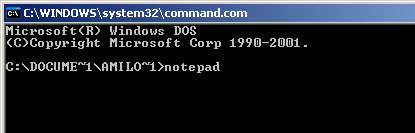
2. In the command prompt window type "notepad". Notepad will come up.
3. Copy all the text in blue color below and paste into Notepad.
Windows Registry Editor Version 5.00 [HKEY_CLASSES_ROOT\exefile\shell\open\command] @="\"%1\" %*"
4. Save file as fix.reg to your Desktop. NOTE: (Save as type: All files)
5. Double-click on fix.reg file to run it. Click "Yes" for Registry Editor prompt window. Then click OK. 6. Reboot your computer. 7. Download the file TDSSKiller.zip and extract it into a folder. Execute the file TDSSKiller.exe. Wait for the scan and disinfection process to be over. Close all programs and press "Y" key. 8. Download one of the following anti-malware applications:
9. Install the selected application, update it an run a system scan.
Method #2 1. Reboot your computer is "Safe Mode with Networking". As the computer is booting tap the "F8 key" continuously which should bring up the "Windows Advanced Options Menu" as shown below. Use your arrow keys to move to "Safe Mode with Networking" and press Enter key. Read more detailed instructions here: http://www.computerhope.com/issues/chsafe.htm
NOTE:Login as the same user you were previously logged in with in the normal Windows mode. 2. Download one of the following anti-malware applications: