Monday, 6 December 2010

How to remove Privacy Corrector (Uninstall Guide)

Privacy Corrector is a fake security program from the same family as PrivacyGuard 2010 and PCoptimizer 2010. This piece of malware pretends to scan your computer for viruses and system errors. After the fake scan, it reports that your computer is infected with viruses and has some serious registry and system errors. Then it will state that it has fixed some errors but there are more issues and you need to update Privacy Corrector in order to fix them. If you choose to update this fake program you will be prompted to pay for a full version of PrivacyCorrector malware. Do not buy it! This program is a scam. Please follow the removal instructions bellow to remove Privacy Corrector from your computer for free using legitimate and reputable anti-malware software.


Once installed, Privacy Corrector will immediately display a fake message saying that you need to run your computer in "Protected Mode" for some reason.
Protected Mode
Protected Mode has a number of features designed to enhance an operating system's control over application software, in order to increase security and system stability. These additions allow the operating system to function in a way that would be significantly more difficult or even impossible without proper hardware support.


If you attempt to run Task Manager or some other tools, Privacy Corrector will terminate them and state that they do not have digital certificates or something like that.


Furthermore, Privacy Corrector will display a bunch of fake security warning and notifications to further scare you into thinking that your computer is compromised.


The home page of Privacy Corrector is Privacycorrector.com.


Without a doubt, PrivacyCorrector is not safe to use and you shouldn't trust it. If you have purchased it then please contact your credit card company and dispute the charges. The removal instructions below will show you how to remove Privacy Corrector from your computer. If you have any questions or additional information about his malware, please leave a comment. Good luck and be safe online!


Privacy Corrector removal instructions:

1. When you start your computer you may see a fake screen titled "Processing Unprotected startup". Just wait till it finishes and click OK. PrivacyCorrector will appear on your computer screen. Click the X in the top right corner of the window to close the program. Once you close the Privacy Corrector program, your Windows desktop should appear.
2. Click StartRun (or WinKey+R).
3. Type in: cmd and click OK. Command prompt window will show up.
4. Type in: taskkill /f /im PrivacyCorrector.exe OR taskkill /f /im protect.exe and click Enter. This will stop Privacy Corrector.
5. Download shell-fix.reg. Double-click to run it. Click "Yes" when it asks if you want to add the information to the registry. This file will fix the Windows Shell entry.
6. Download free anti-malware software from the list below and run a full system scan.
NOTE: in some cases the rogue program may block anti-malware software. Before saving the selected program onto your computer, you may have to rename the installer to iexplore.exe or winlogon.exe With all of these tools, if running Windows 7 or Vista they MUST be run as administrator. Launch the program and follow the prompts. Don't forget to update the installed program before scanning.

7. New threats appear every day. In order to protect your PC from such (new) infections we strongly recommend you to use ESET Smart Security.


Alternate Privacy Corrector removal instructions (in Safe Mode with Networking):

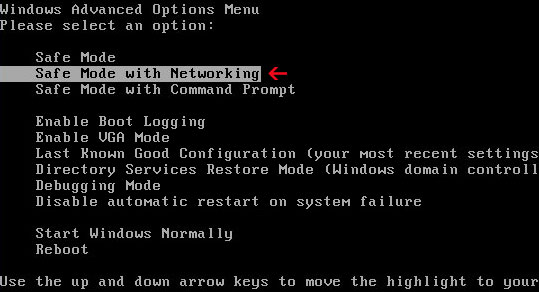
1. Reboot your computer is "Safe Mode with Networking". As the computer is booting tap the "F8 key" continuously which should bring up the "Windows Advanced Options Menu" as shown below. Use your arrow keys to move to "Safe Mode with Networking" and press Enter key. Read more detailed instructions here: http://www.computerhope.com/issues/chsafe.htm

NOTE: Login as the same user you were previously logged in with in the normal Windows mode.

2. Download free anti-malware software from the list below and run a full system scan.
NOTE: in some cases the rogue program may block anti-malware software. Before saving the selected program onto your computer, you may have to rename the installer to iexplore.exe or winlogon.exe With all of these tools, if running Windows 7 or Vista they MUST be run as administrator. Launch the program and follow the prompts. Don't forget to update the installed program before scanning.

3. New threats appear every day. In order to protect your PC from such (new) infections we strongly recommend you to use ESET Smart Security.


Privacy Corrector associated files and registry values:

Files:
  • %UserProfile%\Application Data\protect.exe
  • C:\Program Files\PC\Privacy Corrector
  • C:\Program Files\PC\Privacy Corrector\1.ico
  • C:\Program Files\PC\Privacy Corrector\Privacy Corrector.exe
  • C:\Documents and Settings\All Users\Start Menu\Programs\Privacy Corrector\
  • C:\WINDOWS\Tasks\At1.job

%UserProfile% refers to:
C:\Documents and Settings\ for Windows XP,
C:\Users\ for Windows Vista and Windows 7
Registry values:
  • HKEY_CURRENT_USER\Software\Microsoft\Windows NT\CurrentVersion\Winlogon "Shell" = "%UserProfile%\Application Data\protect.exe"
  • HKEY_CURRENT_USER\Software\PC
  • HKEY_CURRENT_USER\Software\PC\Privacy Corrector
  • HKEY_LOCAL_MACHINE\Software\Microsoft\Windows\CurrentVersion\Run Protect = PrivacyCorrector.exe
  • HKEY_LOCAL_MACHINE\Software\Microsoft\Windows\CurrentVersion\Uninstall\Protection
  • HKEY_LOCAL_MACHINE\Software\Microsoft\Windows\CurrentVersion\policies\system
  • EnableLUA = 0x00000000 ConsentPromptBehaviorAdmin = 0x00000000 ConsentPromptBehaviorUser = 0x00000000
Share this information with other people:

How to remove PCoptimizer 2010 (Uninstall Guide)

PCoptimizer 2010 is a rogue security and system optimization suite that deliberately reports fake registry errors and false system security threats to make you think that your computer has some serious problems. As a typical rogue program, it pretends to scan your computer for errors and malicious code. PCoptimizer 2010 detects viruses and system errors on new PCs and laptops. So, it goes without saying that this program is a scam. This rogue program also pretends to check system privacy, system utilities, media tools and Internet security. After the fake scan, it gives a total score of "system efficiency" which usually doesn't exceed 30-40%. In order to clean up and speed up your computer you need to install the latest PCoptimizer 2010 updates. But you have to pay for a full version of this program to enable the updates. Anyway, do not fall victim to this rogue program. If your computer is infected with this piece of malware then please follow the removal instructions below to remove PCoptimizer 2010 and related malware for free.


Once PCoptimizer 2010 is installed, it will display a fake warning saying that you should run your computer in "Protected Mode".
Protected Mode
Protected Mode has a number of features designed to enhance an operating system's control over application software, in order to increase security and system stability. These additions allow the operating system to function in a way that would be significantly more difficult or even impossible without proper hardware support.


PC Optimizer 2010 will randomly terminate programs and system tools too.


What is more, it will display numerous fake security warnings and pop-ups about key-loggers and software without a digital certificate. Just like the fake scan results, these warnings were made to scare you into purchasing the program. Please ignore them.


Attention
Potencially harmful software is detected.
To enable the security mode and remove harmful software it is
recommended to perform a cleanup.

Attention
Software without a digital certificate is detected. System files security is at risk.
It is strongly recommended to enable the security mode.
The home page of PCoptimizer 2010 is pcoptimizer2010.com.


PCoptimizer 2010 is from the same family as PrivacyGuard 2010.

As you can see, PCoptimizer 2010 is yet another rip-off rogue program. Do not purchase it. If you have already bought it then you should contact your credit card company and dispute the charges. Then please follow the removal instructions below to remove PCoptimizer 2010 from your computer for free using legitimate and safe anti-malware programs. If you have any questions or additional information about PC Optimizer 2010, please leave a comment. Good luck and be safe online!


PCoptimizer 2010 removal instructions:

1. Click StartRun (or WinKey+R).
2. Type in: cmd and click OK. Command prompt window will show up.
3. Type in: taskkill /f /im PCoptimizer2010.exe and click Enter. This will stop PCoptimizer 2010.
4. Download free anti-malware software from the list below and run a full system scan.
NOTE: in some cases the rogue program may block anti-malware software. Before saving the selected program onto your computer, you may have to rename the installer to iexplore.exe or winlogon.exe With all of these tools, if running Windows 7 or Vista they MUST be run as administrator. Launch the program and follow the prompts. Don't forget to update the installed program before scanning.

5. New threats appear every day. In order to protect your PC from such (new) infections we strongly recommend you to use ESET Smart Security.


Alternate PCoptimizer 2010 removal instructions (in Safe Mode with Networking):

1. Reboot your computer is "Safe Mode with Networking". As the computer is booting tap the "F8 key" continuously which should bring up the "Windows Advanced Options Menu" as shown below. Use your arrow keys to move to "Safe Mode with Networking" and press Enter key. Read more detailed instructions here: http://www.computerhope.com/issues/chsafe.htm


NOTE: Login as the same user you were previously logged in with in the normal Windows mode.

2. Download free anti-malware software from the list below and run a full system scan.
NOTE: in some cases the rogue program may block anti-malware software. Before saving the selected program onto your computer, you may have to rename the installer to iexplore.exe or winlogon.exe With all of these tools, if running Windows 7 or Vista they MUST be run as administrator. Launch the program and follow the prompts. Don't forget to update the installed program before scanning.

3. New threats appear every day. In order to protect your PC from such (new) infections we strongly recommend you to use ESET Smart Security.


PCoptimizer 2010 associated files and registry values:

Files:
  • C:\Program Files\PC\PCoptimizer 2010
  • C:\Program Files\PC\PCoptimizer 2010\1.ico
  • C:\Program Files\PC\PCoptimizer 2010\PCoptimizer 2010.exe
  • C:\Documents and Settings\All Users\Start Menu\Programs\PCoptimizer 2010\
  • C:\WINDOWS\Tasks\At1.job
Registry values:
  • HKEY_CURRENT_USER\Software\PC
  • HKEY_CURRENT_USER\Software\PC\PCoptimizer 2010
  • HKEY_LOCAL_MACHINE\Software\Microsoft\Windows\CurrentVersion\Run Protect = PCoptimizer2010.exe
  • HKEY_LOCAL_MACHINE\Software\Microsoft\Windows\CurrentVersion\Uninstall\Protection
  • HKEY_LOCAL_MACHINE\Software\Microsoft\Windows\CurrentVersion\policies\system
  • EnableLUA = 0x00000000 ConsentPromptBehaviorAdmin = 0x00000000 ConsentPromptBehaviorUser = 0x00000000
Share this information with other people:

Sunday, 5 December 2010

How to remove Hard Drive Diagnostic (Removal Guide)

Hard Drive Diagnostic is a piece of malware that deliberately reports numerous non-existent hard drive, Windows registry and system errors. It's from the same family as HDD Scan and Disk Doctor. So, it's basically the same malicious software with a new name. I'm pretty sure we'll see more rip-off rogues with the same graphical user interface and false computer problems. Hard Drive Diagnostic malware usually comes from fake online scanners and other bogus websites. However, the scammers can use the other ways of promoting this bogus and useless disk defragmenter, e.g. spam, infected Ads and software vulnerabilities. Once Hard Drive Diagnostic is installed, it will change your Desktop and hide some of your icons. Then it will display a fake error message and begin its fake system scan. After the fake scan, the rogue program will give you a list of supposedly detected system errors and will recommend you to run defragmentation.


  • Drive C initializing error
  • 32% of HDD space is unreadable
  • Read time of hard drive clusters less than 500 ms
  • Ram Temperature is 83 C. Optimization is required for normal operation.
  • Registry Error - Critical Error
  • GPU RAM temperature is critically high. Urgent RAM memory optimization is required to prevent system crash
It will supposedly fix some of the errors it detects but leave about five or six of them and will prompt you to pay for a full version of the rogue program to fix the rest of the problems. If you find that your computer is infected with this scareware, please follow the removal instructions below to remove Hard Drive Diagnostic from your computer.

While running, HardDrive Diagnostic will block some fo your programs and state that there is a hard drive disk error or something. The fake message reads:
Windows detected a hard drive problem.
A hard drive error occurred while starting the application.
Windows cannot find [program]. Make sure you typed the name correctly, and then try again. To search for a file, click the Start button, and then click Search.
Hard Drive Diagnostic will also displat fake alerts and notifications from Windows taskbar:
Critical Error!
Damaged hard drive clusters detected. Private data is at risk.
Critical Error
Hard Drive not found. Missing hard drive.
Critical Error
RAM memory usage is critically high. RAM memory failure.
Critical Error
Windows can't find hard disk space. Hard drive error
It goes without saying that you should remove Hard Drive Diagnostic malware from your computer as soon as possible. Do not fall victim to this fake program and do not bay it! It's a scam. If you have already purchased this bogus program then please contact your credit card company and dispute the charges. Then restart your computer in safe mode and do system restore. If that won't help then please follow step by step Hard Drive Diagnostic removal instructions below. If you have any questions or additional information about this malware, please leave a comment. Good luck and be safe online!


Hard Drive Diagnostic removal instructions:

1. Open Task Manager (Ctrl+Alt+Delete).
2. Click on the Processes tab.
3. Click to highlight [SET OF RANDOM NUMBERS].exe, e.g. 1254875695.exe, aVdfrGdkeF.exe and click End Task. If it asks you "Are you sure you want to terminate the process?" click yes. This will stop Hard Drive Diagnostic.
4. Click to highlight explorer.exe and end it too. Then click the File -> "New Task (Run...)" from the menu on the bottom right. Type in explorer.exe and click OK.
5. Open directory:
C:\Documents and Settings\[UserName]\Local Settings\Temp (in Windows 2000/XP)
C:\Users\[UserName]\AppData\Local\Temp (in Windows Vista & Windows 7)
Delete all files from this directory.
NOTE: Local Settings folder is hidden by default so you will have to change folder options to see hidden files.

6. Download free anti-malware software from the list below and run a full system scan.
NOTE: in some cases the rogue program may block anti-malware software. Before saving the selected program onto your computer, you may have to rename the installer to iexplore.exe or winlogon.exe With all of these tools, if running Windows 7 or Vista they MUST be run as administrator. Launch the program and follow the prompts. Don't forget to update the installed program before scanning.

7. Follow this removal guide: TDSS, Alureon, Tidserv, TDL3 removal instructions using TDSSKiller utility

8. New threats appear every day. In order to protect your PC from such (new) infections we strongly recommend you to use ESET Smart Security.


Hard Drive Diagnostic removal instructions (in Safe Mode with Networking):

1. Reboot your computer is "Safe Mode with Networking". As the computer is booting tap the "F8 key" continuously which should bring up the "Windows Advanced Options Menu" as shown below. Use your arrow keys to move to "Safe Mode with Networking" and press Enter key. Read more detailed instructions here: http://www.computerhope.com/issues/chsafe.htm


NOTE: Login as the same user you were previously logged in with in the normal Windows mode.

2. Download free anti-malware software from the list below and run a full system scan.
NOTE: in some cases the rogue program may block anti-malware software. Before saving the selected program onto your computer, you may have to rename the installer to iexplore.exe or winlogon.exe With all of these tools, if running Windows 7 or Vista they MUST be run as administrator. Launch the program and follow the prompts. Don't forget to update the installed program before scanning.

3. New threats appear every day. In order to protect your PC from such (new) infections we strongly recommend you to use ESET Smart Security.


Hard Drive Diagnostic associated files and registry values:

Files:
  • %Temp%\[SET OF RANDOM NUMBERS]
  • %Temp%\[SET OF RANDOM NUMBERS].exe
  • %Temp%\dfrg
  • %Temp%\dfrgr
  • %Temp%\[SET OF RANDOM CHARACTERS].dll
  • %UserProfile%\[SET OF RANDOM CHARACTERS].DAT
  • %UserProfile%\Desktop\Hard Drive Diagnostic.lnk
  • %UserProfile%\Start Menu\Programs\Hard Drive Diagnostic\
  • %UserProfile%\Start Menu\Programs\Hard Drive Diagnostic\Hard Drive Diagnostic.lnk
  • %UserProfile%\Start Menu\Programs\Hard Drive Diagnostic\Uninstall Hard Drive Diagnostic.lnk
%Temp% refers to:
C:\Documents and Settings\[UserName]\Local Settings\Temp (in Windows 2000/XP)
C:\Users\[UserName]\AppData\Local\Temp (in Windows Vista & Windows 7)

%UserProfile% refers to:
C:\Documents and Settings\[UserName]\ (in Windows 2000/XP)
C:\Users\[UserName]\ (in Windows Vista & Windows 7)

Registry values:
  • HKEY_CURRENT_USER\Software\Microsoft\Internet Explorer\Main\USE FORMSUGGEST = Yes
  • HKEY_CURRENT_USER\Software\Microsoft\Windows\Currentversion\Internet Settings\WARNONZONECROSSING = 0
  • HKEY_CURRENT_USER\Software\Microsoft\Windows\Currentversion\Internet Settings\Zones\3\1601 = 0
  • HKEY_CURRENT_USER\Software\Microsoft\Windows\CurrentVersion\Run\[SET OF RANDOM NUMBERS] = %TEMP%\[SET OF RANDOM NUMBERS].exe
Share this information with other people:

Saturday, 4 December 2010

How to remove Disk Doctor (Removal Guide)

Disk Doctor is a fake disk defragmenter that deliberately reports false hard drive and registry errors. This rogue program is from the same family as HDD Scan, Win Defragmenter and Win HDD. This post is just for a record actually because all these programs are basically the same malware with many different names. There is nothing much new to say about Disk Doctor as it's an exactly copy of previous rogues from this family. While Disk Doctor is running, it will display a bunch of fake error messages and alerts like every on or two minutes saying that there is something wrong with your computer. It will report 11 critical errors after the fake scan which is super fast actually and takes only a few minutes.
  • Drive C initializing error
  • 32% of HDD space is unreadable
  • Read time of hard drive clusters less than 500 ms
  • Ram Temperature is 83 C. Optimization is required for normal operation.
  • Registry Error - Critical Error
  • GPU RAM temperature is critically high. Urgent RAM memory optimization is required to prevent system crash


What is more, the rogue program will terminate nearly all programs on your computer saying that there was some sort of hard drive disk error or something like that.
Windows detected a hard drive problem.
A hard drive error occurred while starting the application.
Windows cannot find notepad. Make sure you typed the name correctly, and then try again. To search for a file, click the Start button, and then click Search.
It will probably make your Desktop background black and hide some of your icons. Disk Doctor messes up with Windows folders too. You may see all the files from Programs Files directory in My Documents folder or in any other folder. If you got hit with this piece of malware then you should follow the removal instructions below to remove Disk Doctor and any related malware from your computer for free using legitimate anti-malware software. Last, but not least, if you have already purchased it then please contact your credit card provider and dispute the charges. Otherwise, you won't get your money back and the scammers will have your credit card details. If you have any questions or additional information about Disk Doctor, please leave a comment. Good luck and be safe online!


Disk Doctor removal instructions:

1. Open Task Manager (Ctrl+Alt+Delete).
2. Click on the Processes tab.
3. Click to highlight [SET OF RANDOM NUMBERS].exe, e.g. 2154876521.exe and click End Task. If it asks you "Are you sure you want to terminate the process?" click yes. This will stop Disk Doctor.
4. Click to highlight explorer.exe and end it too. Then click the File -> "New Task (Run...)" from the menu on the bottom right. Type in explorer.exe and click OK.
5. Open directory:
C:\Documents and Settings\[UserName]\Local Settings\Temp (in Windows 2000/XP)
C:\Users\[UserName]\AppData\Local\Temp (in Windows Vista & Windows 7)
Delete all files from this directory.
NOTE: Local Settings folder is hidden by default so you will have to change folder options to see hidden files.

6. Download free anti-malware software from the list below and run a full system scan.
NOTE: in some cases the rogue program may block anti-malware software. Before saving the selected program onto your computer, you may have to rename the installer to iexplore.exe or winlogon.exe With all of these tools, if running Windows 7 or Vista they MUST be run as administrator. Launch the program and follow the prompts. Don't forget to update the installed program before scanning.

7. New threats appear every day. In order to protect your PC from such (new) infections we strongly recommend you to use ESET Smart Security.


Alternate Disk Doctor removal instructions (in Safe Mode with Networking):

1. Reboot your computer is "Safe Mode with Networking". As the computer is booting tap the "F8 key" continuously which should bring up the "Windows Advanced Options Menu" as shown below. Use your arrow keys to move to "Safe Mode with Networking" and press Enter key. Read more detailed instructions here: http://www.computerhope.com/issues/chsafe.htm


NOTE: Login as the same user you were previously logged in with in the normal Windows mode.

2. Download free anti-malware software from the list below and run a full system scan.
NOTE: in some cases the rogue program may block anti-malware software. Before saving the selected program onto your computer, you may have to rename the installer to iexplore.exe or winlogon.exe With all of these tools, if running Windows 7 or Vista they MUST be run as administrator. Launch the program and follow the prompts. Don't forget to update the installed program before scanning.

3. New threats appear every day. In order to protect your PC from such (new) infections we strongly recommend you to use ESET Smart Security.


Disk Doctor associated files and registry values:

Files:
  • %Temp%\[SET OF RANDOM NUMBERS]
  • %Temp%\[SET OF RANDOM NUMBERS].exe
  • %Temp%\dfrg
  • %Temp%\dfrgr
  • %Temp%\[SET OF RANDOM CHARACTERS].dll
  • %UserProfile%\[SET OF RANDOM CHARACTERS].DAT
  • %UserProfile%\Desktop\Disk Doctor.lnk
  • %UserProfile%\Start Menu\Programs\Disk Doctor\
  • %UserProfile%\Start Menu\Programs\Disk Doctor\Disk Doctor.lnk
  • %UserProfile%\Start Menu\Programs\Disk Doctor\Uninstall Disk Doctor.lnk
%Temp% refers to:
C:\Documents and Settings\[UserName]\Local Settings\Temp (in Windows 2000/XP)
C:\Users\[UserName]\AppData\Local\Temp (in Windows Vista & Windows 7)

%UserProfile% refers to:
C:\Documents and Settings\[UserName]\ (in Windows 2000/XP)
C:\Users\[UserName]\ (in Windows Vista & Windows 7)

Registry values:
  • HKEY_CURRENT_USER\Software\Microsoft\Internet Explorer\Main\USE FORMSUGGEST = Yes
  • HKEY_CURRENT_USER\Software\Microsoft\Windows\Currentversion\Internet Settings\WARNONZONECROSSING = 0
  • HKEY_CURRENT_USER\Software\Microsoft\Windows\Currentversion\Internet Settings\Zones\3\1601 = 0
  • HKEY_CURRENT_USER\Software\Microsoft\Windows\CurrentVersion\Run\[SET OF RANDOM NUMBERS] = %TEMP%\[SET OF RANDOM NUMBERS].exe
Share this information with other people:

How to remove HDD Scan (Removal Guide)

HDD Scan is a piece of malware that installs itself without user permission and pretends to be system defragmentation and optimization software. This rogue program is from the same family as Win Defragmenter, Win HDD, Check Disk and numerous other misleading applications. NOTE: there is a legitimate freeware utility for hard drive diagnostics called HDDScan (http://hddscan.com) from a Moscow-based company called R.LAB Data Recovery. It's not the same program, do not confuse it with the rogue program.
Once installed. HDD Scan will pretend to scan your computer for hard drive disk and registry errors. After the fake scan it will state "11 Errors detected! Defragmentation is reguired". Some examples of the fake errors and problems it detects:
  • Drive C initializing error
  • Bad sectors on hard drive or damaged file allocation table
  • Read time of hard drive clusters less than 500 ms
  • Hard drive doesn't respond to system commands
  • Registry Error - Critical Error


HDD Scan reports 11 problems on every infected computer either it's Windows XP or Windows Vista. This fake program was created to scare you into thinking that your computer has serious problems so that you will purchase the program. It's a typical rip-off rogue, do not purchase it! If your computer got infected with HDD Scan malware, please follow the removal instructions below to remove it either manually or with reputable and safe anti-malware applications.

While HDDScan is running, it will constantly display fake error messages and notifications from your Windows taskbar. Examples of some of the fake alerts you will encounter while the rogue program is running are:
Critical Error
Hard Drive not found. Missing hard drive.
Critical Error
RAM memory usage is critically high. RAM memory failure.
Critical Error
Windows can't find hard disk space. Hard drive error
Just like the false scan results these fake alerts were made to scare you into thinking that there is something wrong with your computer. But don't worry, HDD Scan is just a very annoying piece of malware, it's not so dangerous and it won't delete your files or steal sensitive information. Last, but not least, HDD Scan will block task manager, certain programs and system utilities on your computer. If you attempt to run a program it will block it and state that the program or hard drive is corrupted. The fake error message reads:
Windows detected a hard drive problem.
A hard drive error occurred while starting the application.
Windows cannot find [program name]. Make sure you typed the name correctly, and then try again. To search for a file, click the Start button, and then click Search.
However, if you attempt to run a program enough times it will eventually work. Probably the easiest way to remove this rogue program from your computer is to reboot the system in safe mode and do a system restore. Then download anti-malware software and remove the remains of this virus or related malware. Unfortunately, this method may not work in all cases, especially if the rogue program comes bundled with other malicious software. We had one computer with HDD Scan malware and a rootkit from TDSS family. For more information, please read TDSS, Alureon, Tidserv, TDL3 removal instructions using TDSSKiller utility. Step by step HDD Scan removal instructions are given below. Also, you should contact your credit card provider and dispute the charges if you have purchased this bogus and useless program. If you have any questions or additional information about HDD Scan malware, please leave a comment. Good luck and be safe online!


Quick removal:

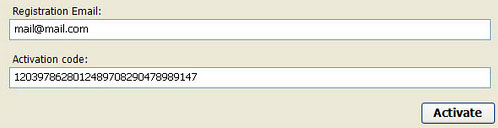
1. Use debugged registration key and fake email to register HDD Scan malware. This will allow you to download and run any malware removal tool you like and restore hidden files and shortcuts. Choose to activate "HDD Scan" manually and enter the following email and activation code:

mail@mail.com
15801587234612645205224631045976 (new code!)

mail@mail.com
1203978628012489708290478989147 (old code, may not work anymore)


2. Download TDSSKiller and run a system scan. Remove found rootkits as shown in the image below. Reboot your computer if required.

3. Download recommended anti-malware software (Spyware Doctor) and run a full system scan to remove this virus from your computer.


Alternate HDD Scan removal instructions:

1. Open Internet Explorer. If the shortcut is hidden, pelase Select Run... from the Start Menu or just hit the key combination CTRL+R on your keyboard. In the Open: field, enter iexplore.exe and hit Enter or click OK.


2. Download and run this utility to restore missing icons and shortcuts.

3. Now, please download TDSSKiller and run a system scan. Remove found rootkits as shown in the image below. Reboot your computer if required.


Please note that your computer might be rootkit free, not all version of HDD Scan comes bundled with rootkits. Don't worry if TDSSKiller didn't find a rootkit.

4. Finally, download recommended anti-malware software (Spyware Doctor) and run a full system scan to remove this virus from your computer.

5. HDD Scan virus should be gone. If certain icons and shortcuts are still missing, please use restoresm.zip.


HDD Scan associated files and registry values:

Files:
  • %Temp%\[SET OF RANDOM NUMBERS]
  • %Temp%\[SET OF RANDOM NUMBERS].exe
  • %Temp%\dfrg
  • %Temp%\dfrgr
  • %Temp%\[SET OF RANDOM CHARACTERS].dll
  • %UserProfile%\[SET OF RANDOM CHARACTERS].DAT
  • %UserProfile%\Desktop\HDD Scan.lnk
  • %UserProfile%\Start Menu\Programs\HDD Scan\
  • %UserProfile%\Start Menu\Programs\HDD Scan\HDD Scan.lnk
  • %UserProfile%\Start Menu\Programs\HDD Scan\Uninstall HDD Scan.lnk
%Temp% refers to:
C:\Documents and Settings\[UserName]\Local Settings\Temp (in Windows 2000/XP)
C:\Users\[UserName]\AppData\Local\Temp (in Windows Vista & Windows 7)

%UserProfile% refers to:
C:\Documents and Settings\[UserName]\ (in Windows 2000/XP)
C:\Users\[UserName]\ (in Windows Vista & Windows 7)

Registry values:
  • HKEY_CURRENT_USER\Software\Microsoft\Internet Explorer\Main\USE FORMSUGGEST = Yes
  • HKEY_CURRENT_USER\Software\Microsoft\Windows\Currentversion\Internet Settings\WARNONZONECROSSING = 0
  • HKEY_CURRENT_USER\Software\Microsoft\Windows\Currentversion\Internet Settings\Zones\3\1601 = 0
  • HKEY_CURRENT_USER\Software\Microsoft\Windows\CurrentVersion\Run\[SET OF RANDOM NUMBERS] = %TEMP%\[SET OF RANDOM NUMBERS].exe
Share this information with other people:

Thursday, 2 December 2010

How to remove Privacy Guard 2010 (Uninstall Guide)

Privacy Guard 2010 is a rogue security program that pretends to scan your computer for malicious code, system and registry errors. It also pretends to check system performance, privacy and Internet settings, so it's kind off a rogue security/optimization program. After the fake scan it will display your system efficiency score which is lower than 40% most of the time. Privacy Guard 2010 will report numerous system and registry errors and of course several viruses. It will also give separate scores for system security, privacy, system utilities, media tools, Internet security and system information. The scores are low as well. Finally, the rogue program will prompt you to pay for a full system clean-up. It will state that your computer will run faster and you will be fully protected against malware. Do not fall victim to this rogue program and uninstall it from your computer as soon as possible. Please follow the removal instructions below to remove Privacy Guard 2010 and related malware for free using legitimate anti-malware software.


Once installed, PrivacyGuard 2010 will display a fake message encouraging you to run the computer in protected mode. Actually, you don't have a choice. This message is:
Protected Mode
Protected Mode has a number of features designed to enhance an operating system's control over application software, in order to increase security and system stability. These additions allow the operating system to function in a way that would be significantly more difficult or even impossible without proper hardware support.


The rogue program will display bogus security alerts and notifications from Windows taskbar that your computer is infected or has some serious problems. The text of some of the fake alerts you may see include:
Critical vulnerability!
Application that seems to be a key-logger is detected. System information security is at risk.
It is recommended to enable the security mode and run total System scanning.

Attention
Software without a digital certificate is detected. System files security is at risk.
It is strongly recommended to enable the security mode.

Attention
Considerable System productivity decline is observed. Total System scanning is recommended to remove all the reasons of productivity decline.


Furthermore, Privacy Guard 2010 will identify legitimate programs as malicious and will block them saying that they do not have digital certificate and pose a potential security risk.


Privacy Guard 2010 will be configured to start automatically when you login to Windows. PrivacyGuard2010 modifies UAC (User account Control) settings in Windows Vista and Windows Seven to bypass the new UAC interface and the administrative task completes without further user interaction. The rogue program may hijack your web browser too.

The home page of Privacy Guard 2010 is privacyguard2010.com (do not visit).


Without a doubt, Privacy Guard 2010 is a scam. All the warnings issued by this program are fake. It's nothing more but a rip-off rogue. If you have already purchased this bogus program, please contact your credit card provider and dispute the charges. I think you should cancel your credit card too if you gave all details to scammers. Then please follow Privacy Guard 2010 removal instructions below. If you have any questions, please leave a comment. Good luck and be safe online!


Privacy Guard 2010 removal instructions:

1. Click StartRun (or WinKey+R).
2. Type in: cmd and click OK. Command prompt window will show up.
3. Type in: taskkill /f /im PrivacyGuard2010.exe and click Enter. This will stop Privacy Guard 2010.
4. Download free anti-malware software from the list below and run a full system scan.
NOTE: in some cases the rogue program may block anti-malware software. Before saving the selected program onto your computer, you may have to rename the installer to iexplore.exe or winlogon.exe With all of these tools, if running Windows 7 or Vista they MUST be run as administrator. Launch the program and follow the prompts. Don't forget to update the installed program before scanning.

5. New threats appear every day. In order to protect your PC from such (new) infections we strongly recommend you to use ESET Smart Security.


Alternate Privacy Guard 2010 removal instructions (in Safe Mode with Networking):

1. Reboot your computer is "Safe Mode with Networking". As the computer is booting tap the "F8 key" continuously which should bring up the "Windows Advanced Options Menu" as shown below. Use your arrow keys to move to "Safe Mode with Networking" and press Enter key. Read more detailed instructions here: http://www.computerhope.com/issues/chsafe.htm


NOTE: Login as the same user you were previously logged in with in the normal Windows mode.

2. Download free anti-malware software from the list below and run a full system scan.
NOTE: in some cases the rogue program may block anti-malware software. Before saving the selected program onto your computer, you may have to rename the installer to iexplore.exe or winlogon.exe With all of these tools, if running Windows 7 or Vista they MUST be run as administrator. Launch the program and follow the prompts. Don't forget to update the installed program before scanning.

3. New threats appear every day. In order to protect your PC from such (new) infections we strongly recommend you to use ESET Smart Security.


Privacy Guard 2010 associated files and registry values:

Files:
  • C:\Program Files\PC\PrivacyGuard 2010
  • C:\Program Files\PC\PrivacyGuard 2010\1.ico
  • C:\Program Files\PC\PrivacyGuard 2010\PrivacyGuard2010.exe
  • C:\Documents and Settings\All Users\Start Menu\Programs\PrivacyGuard 2010\
  • C:\WINDOWS\Tasks\At1.job
Registry values:
  • HKEY_CURRENT_USER\Software\PC
  • HKEY_CURRENT_USER\Software\PC\PrivacyGuard 2010
  • HKEY_LOCAL_MACHINE\Software\Microsoft\Windows\CurrentVersion\Run Protect = PrivacyGuard2010.exe
  • HKEY_LOCAL_MACHINE\Software\Microsoft\Windows\CurrentVersion\Uninstall\Protection
  • HKEY_LOCAL_MACHINE\Software\Microsoft\Windows\CurrentVersion\policies\system
  • EnableLUA = 0x00000000 ConsentPromptBehaviorAdmin = 0x00000000 ConsentPromptBehaviorUser = 0x00000000
Share this information with other people:

Wednesday, 1 December 2010

How to remove Win Defragmenter (Uninstall Guide)

Win Defragmenter is a rogue disk defragmentation and computer optimization program from the same family as Win Defrag, Win HDD and HDD Defragmenter. The rogue program displays fake warnings and pop-ups saying that you have 11 critical errors on your computer. It reports the same problems and issues on every infected computer. That's a first clear sign that Win Defragmenter is not legitimate program.


WinDefragmenter will prompt you to run its disk defragmenter in order to fix the supposedly found Windows registry, RAM and hard drive disk errors. Win Defragmenter will make your Desktop background black as you were in safe mode and pretend to fix the errors. Eventually it will pretend to fix some errors but then will state that there are several errors that it can not fix until you purchase the program. Please do not fall victim to this rogue program. You will simply lose your money and give your credit card details to scammers if you choose to purchase this useless program. Instead, please follow the removal instructions below to remove Win Defragmenter from your computer for free using legitimate anti-malware software.

Probably the most annoying aspect of this infection is that Win Defragmenter blocks nearly all programs on your computer. It will state that a hard drive error occurred while starting the application. The fake error message reads:
Windows detected a hard drive problem.
A hard drive error occurred while starting the application.
However, if you attempt to run a program enough times it will eventually work. As a typical scareware, it will display fake errors messages and notifications from Windows taskbar. Win Defragmenter may even state that your hard drive is missing. The text of some of the fake warnings you may see:
Critical Error
Hard Drive not found. Missing hard drive.
Critical Error
RAM memory usage is critically high. RAM memory failure.
Critical Error
Windows can't find hard disk space. Hard drive error
Probably the easiest way to remove Win Defragmenter is to do System Restore in SAFE MODE. Unfortunately, you may not have that choice. The rogue program files are located in %Temp% folder which refers to C:\Documents and Settings\[UserName]\Local Settings\Temp if you are using Windows XP and C:\Users\[UserName]\AppData\Local\Temp if you are using Windows Vista or Windows Seven. The process name of Win Defragmenter is [SET OF RANDOM NUMBERS].exe, e.g. 7237835.exe. So, basically you need to delete all files from %Temp% folder. Of course, you need to stop the process first using Task Manager. Please follow step by step Win Defragmenter removal instructions below.

Last, but not least, you should contact your credit card company and dispute the charges if you have purchased this rogue program. Also, if you have any questions or additional information about Win Defragmenter, please leave a comment. Good luck and be safe online!


Win Defragmenter removal instructions:

1. Open Task Manager (Ctrl+Alt+Delete).
2. Click on the Processes tab.
3. Click to highlight [SET OF RANDOM NUMBERS].exe, e.g. 7237835.exe and click End Task. If it asks you "Are you sure you want to terminate the process?" click yes. This will stop Win Defragmenter.
4. Click to highlight explorer.exe and end it too. Then click the File -> "New Task (Run...)" from the menu on the bottom right. Type in explorer.exe and click OK.
5. Open directory:
C:\Documents and Settings\[UserName]\Local Settings\Temp (in Windows 2000/XP)
C:\Users\[UserName]\AppData\Local\Temp (in Windows Vista & Windows 7)
Delete all files from this directory.
NOTE: Local Settings folder is hidden by default so you will have to change folder options to see hidden files.

6. Download free anti-malware software from the list below and run a full system scan.
NOTE: in some cases the rogue program may block anti-malware software. Before saving the selected program onto your computer, you may have to rename the installer to iexplore.exe or winlogon.exe With all of these tools, if running Windows 7 or Vista they MUST be run as administrator. Launch the program and follow the prompts. Don't forget to update the installed program before scanning.

7. New threats appear every day. In order to protect your PC from such (new) infections we strongly recommend you to use ESET Smart Security.


Alternate Win Defragmenter removal instructions (in Safe Mode with Networking):

1. Reboot your computer is "Safe Mode with Networking". As the computer is booting tap the "F8 key" continuously which should bring up the "Windows Advanced Options Menu" as shown below. Use your arrow keys to move to "Safe Mode with Networking" and press Enter key. Read more detailed instructions here: http://www.computerhope.com/issues/chsafe.htm


NOTE: Login as the same user you were previously logged in with in the normal Windows mode.

2. Download free anti-malware software from the list below and run a full system scan.
NOTE: in some cases the rogue program may block anti-malware software. Before saving the selected program onto your computer, you may have to rename the installer to iexplore.exe or winlogon.exe With all of these tools, if running Windows 7 or Vista they MUST be run as administrator. Launch the program and follow the prompts. Don't forget to update the installed program before scanning.

3. New threats appear every day. In order to protect your PC from such (new) infections we strongly recommend you to use ESET Smart Security.


Win Defragmenter associated files and registry values:

Files:
  • %Temp%\[SET OF RANDOM NUMBERS]
  • %Temp%\[SET OF RANDOM NUMBERS].exe
  • %Temp%\dfrg
  • %Temp%\dfrgr
  • %Temp%\[SET OF RANDOM CHARACTERS].dll
  • %UserProfile%\GDIPFONTCACHEV1.DAT
  • %UserProfile%\Desktop\Win Defragmenter.lnk
  • %UserProfile%\Start Menu\Programs\Win Defragmenter\
  • %UserProfile%\Start Menu\Programs\Win Defragmenter\Win Defragmenter.lnk
  • %UserProfile%\Start Menu\Programs\Win Defragmenter\Uninstall Win Defragmenter.lnk
%Temp% refers to:
C:\Documents and Settings\[UserName]\Local Settings\Temp (in Windows 2000/XP)
C:\Users\[UserName]\AppData\Local\Temp (in Windows Vista & Windows 7)

%UserProfile% refers to:
C:\Documents and Settings\[UserName]\ (in Windows 2000/XP)
C:\Users\[UserName]\ (in Windows Vista & Windows 7)

Registry values:
  • HKEY_CURRENT_USER\Software\Microsoft\Internet Explorer\Main\USE FORMSUGGEST = Yes
  • HKEY_CURRENT_USER\Software\Microsoft\Windows\Currentversion\Internet Settings\WARNONZONECROSSING = 0
  • HKEY_CURRENT_USER\Software\Microsoft\Windows\Currentversion\Internet Settings\Zones\3\1601 = 0
  • HKEY_CURRENT_USER\Software\Microsoft\Windows\CurrentVersion\Run\[SET OF RANDOM NUMBERS] = %TEMP%\[SET OF RANDOM NUMBERS].exe
Share this information with other people: