Desktop-antivirus.com is a misleading website that promotes the rogue anti-spyware application called Antivirus Live. The website is full of false information and fake software reviews. For example, all the information in that page is about Antivirus Live, but the provided screenshots are actually from other software called Antivirus PRO. By the way, this one was a rogue anti-spyware application too. There is also a pay page of Antivirus Live on Desktop-antivirus.com. Most importantly, don't purchase it. Don't download anything from this bogus website. Just simply avoid it. Good luck!
Antivirus Live is a fake anti-virus application, a clone of another scareware called Antivirus System PRO. This malicious software comes with Trojan viruses and displays fake security alerts or false scan results to make the user of the compromised computer think that his computer is infected with viruses. Antivirus Live then prompts the user to pay for a full version of the program to remove supposedly found infections. Don't purchase it and remove this malware from your computer immediately. Contact your bank/credit card company as soon as possible and dispute the charges if you have purchased it.
The biggest problem about Antivirus Live is that it protects itself quite effectively and blocks almost all programs. I'm not even talking about anti-virus software. The virus blocks anti-virus/spyware software in the first place. It also hijacks Internet Explorer and changes Proxy Settings so that the only working website is Antivirus Live home page and purchase page. The rogue program displays an error message when you try to removal tool. That warning reads:
"Application cannot be executed. The file [program].exe is infected. Do you want to activate your antivirus software now."
AntivirusLive will also impersonate Windows Security Center and will "push" you into paying for the bogus software. Rememeber, this is a scam. Let me show you how to remove Antivirus Live manually for free.
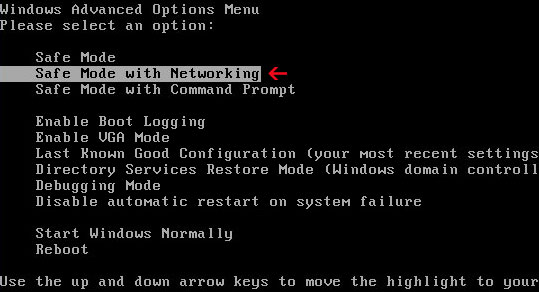
Removal instructions (Print out these instructions if you can because you may have to close this window) ----------------------------------------------------------------------------------------------------------- 1. Start your computer is "Safe Mode with Networking". To get into the Windows Safe mode, as the computer is booting press and hold your "F8 Key" which should bring up the "Windows Advanced Options Menu" as shown below. Use your arrow keys to move to "Safe Mode with Networking" and press your Enter key. Read more detailed instructions here: http://www.computerhope.com/issues/chsafe.htm
2. Delete Antivirus Live process: 1) Download HijackThis (NOTE: rename HijackThis.exe to explorer.exe before saving it to desktop). Launch the explorer.exe and click "Do a system scan only" button.
2) Search for similar entries in the scan results: O4 – HKCU\..\Run: [warsazlf] C:\Documents and Settings\user\Local Settings\Application Data\asoksd\saqpsysguard.exe The process name will be different in your case. But it has the same structure: [RANDOM]sysguard.exe
Select all similar entries and click once on the "Fix checked" button. Close HijackThis tool.
3. DownloadSUPERAntispywareorMalwareBytes Anti-malwareand run a system scan. -----------------------------------------------------------------------------------------------------------
Additional step: How to fix Internet Explorer proxy settings (for those you don't have any other browser and can't download removal tools). In Internet Explorer go to: Tools->Internet Options->Connections tab. Click Lan Settings button and uncheck the checkbox labeled Use a proxy server for your LAN. Click OK.
Other useful removal tips: - Start Windows in "Safe mode" - Search your PC for (sysgaurd.exe) and make sure you check on "Search hidden files and folders" from the "Advanced options" - Delete all files contain [RANDOM]sysguard.exe, for example: saqpsysguard.exe - Download and scan your PC with Malwarebytes Anti-malware
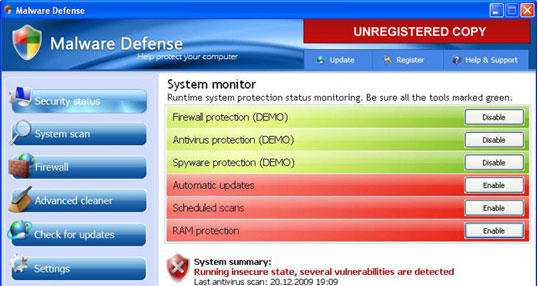
Malware Defense is a fake anti-malware application. Don't install it; otherwise it may cause serious problems to your computer. MalwareDefense removal guide is stated below in this page, but first let me tell you what this virus actually does. In short, it's a scareware that displays fake security alerts and false scan results to trick you into believing that your computer is in danger and has many security problems. The rogue application displays alerts stating that you have to pay for a full version of this program to remove found infections. However, don't purchase it. This is a scam. If you have undesignedly paid for this rogue software then you should contact your credit card company immediately and dispute the charges.
Malware Defense comes from misleading websites. Most of the time, it comes bundled with Trojans or other malicious software. If there is only MalwareDefense virus installed on your PC then removal its shoudn't be complicated. But if it was installed with the help of Trojans then this malware will likely disable conventional anti-virus and anti-spyware programs and prevents you from installing new ones. In some cases, Malware Defense disables Internet connection, so that the user of the compromised computer can't download anything or search for removal instructions. Now, how to remove Malware Defense?
First of all, if you use Internet Explorer then go to: Tools->Internet Options->Connections tab. Click Lan Settings button and uncheck the checkbox labeled Use a proxy server for your LAN. Click OK. If you have Firefox, Chrome or Opera then use on of these browsers instead of Internet Explorer.
Malware Defense removal methods:
Method #1 Restore Windows to a previous state, when your PC was not infected. In some cases this may actually work. Read more about how to restore Windows here: http://support.microsoft.com/kb/306084 Then run a full system scan with an anti-malware application.
Method #2 Boot your PC in "Safe Mode with Networking" and run an anti-virus/malware software from there.
Method #3 Download TDSSKiller tool from Kaspersky website. Unzip tdsskiller.zip file, launch it and follow the prompts. It will remve the Trojans that block anti-virus software.Then run a full system scan with an anti-malware application.
Method #4 1. Download Process Explorer from Microsoft website (rename procexp.exe to explorer.exe or for example firefox.exe before saving it) 2. Launch renamed Process Explorer. Select Security Tool process mdefense.exe and terminate it. 3. Download an anti-malware application and run a system scan. (NOTE: don't restart your PC at this point and don't forget to update an anti-malware application)
If all the removal methods stated above fail, then do this: Bootable Rescue Disk If your PC doesn't start up or you see just a black/blue screen and can't do anything, a bootable rescue disk may be your last chance before doing a clean installation of Windows. Read more here: How to create bootable Avira Antivir Rescue Disk
Manual removal instructions: C:\Program Files\Malware Defense (delete this directory and all files in it)
Security Tool is a widely spread fake anti-virus application that was first noticed on September 2009. We receive many e-mails from people asking "How do I remove Security Tool?" or "Help with removing Security Tool!". This virus is usually promoted via fake online scanners, fake video websites, using social engineering or other misleading methods. Once installed, it simulates a system scan and states that your computer is infected with malware. That's of course a big lie, because Security Tool is an infection itself and can't properly detect any other infections. Remove this bogus software from your PC as soon as possible. Please read removal instructions below. And remember, DO NOT buy this software. If you have already done that, contact your bank/credit card company immediately and dispute the charges.
The biggest problems about this malware are:
It blocks anti-malware and anti-virus software
Security Tool process name is randomly generated (different on each infected PC)
Disables Windows OS system tools: Task Manager, Registry Editor and etc.
Here are some of the fake Security Tool malware pop-ups:
Security Tool Warning Security Tool has detected harmful software in your system. We strongly recommended you to register Security Tool to remove these threats immediately.
Security Tool Warning Your PC is still infected with dangerous viruses. Active antivirus protection to prevent data loss and avoid the theft of your credit card details. Click here to activate protection.
Quick removal recommendations: first of all, try to boot your PC is Safe Mode with Networking and run a system scan with an anti-malware applicaton. If you can't do that, then you will have to end Security Tool process before doing enything else. Please follow Security Tool removal instructions below.
SecurityTool files:
C:\Documents and Settings\[User Name]\Local Settings\Application Data\[SET OF RANDOM NUMBERS].exe
For example:
C:\Documents and Settings\Steve\Local Settings\Application Data\24025916.exe (for Windows XP users)
C:\User\Steve\Local Settings\Application Data\24025916.exe (for Windows Vista & Windows 7 users)
Method #1 1. Download iexplore.exe (NOTE: iexplore.exe file is renamed HijackThis tool from TrendMicro). Launch the iexplore.exe and click "Do a system scan only" button. If you can't open iexplore.exe file then download explorer.scr and run it.
2. Look for similar line in the scan results: O4 – HKLM\..\Run: [24025916] C:\Documents and Settings\All Users\Application Data\24025916\24025916.exe
The process name will be different in your case [SET OF RANDOM NUMBERS].exe, located in: C:\Documents and Settings\[User Name]\Local Settings\Application Data\ for Windows XP C:\Users\[User Name]\AppData\Local\Application Data\ for Windows Vista & 7 Select all similar entries and click once on the "Fix checked" button. Close HijackThis tool.
OR you may download Process Explorer and end Antivirus Action process:
[SET OF RANDOM NUMBERS].exe, i.e. 24025916.exe
3. Download free anti-malware software from the list below and run a full system scan.
NOTE: in some cases the rogue program may block anti-malware software. Before saving the selected program onto your computer, you may have to rename the installer to iexplore.exe orwinlogon.exe With all of these tools, if running Windows 7 or Vista they MUST be run as administrator. Launch the program and follow the prompts. Don't forget to update the installed program before scanning.
4. New threats appear every day. In order to protect your PC from such (new) infections we strongly recommend you to use ESET Smart Security. ------------
Method #2 1. Reboot your computer is "Safe Mode with Networking". As the computer is booting tap the "F8 key" continuously which should bring up the "Windows Advanced Options Menu" as shown below. Use your arrow keys to move to "Safe Mode with Networking" and press Enter key. Read more detailed instructions here: http://www.computerhope.com/issues/chsafe.htm
NOTE:Login as the same user you were previously logged in with in the normal Windows mode.
2. Download free anti-malware software from the list below and run a full system scan.
NOTE: in some cases the rogue program may block anti-malware software. Before saving the selected program onto your computer, you may have to rename the installer to iexplore.exe orwinlogon.exe With all of these tools, if running Windows 7 or Vista they MUST be run as administrator. Launch the program and follow the prompts. Don't forget to update the installed program before scanning.
3. New threats appear every day. In order to protect your PC from such (new) infections we strongly recommend you to use ESET Smart Security.
Bootable Rescue Disk If your PC doesn't start up or you see just a black/blue screen and can't do anything, a bootable rescue disk may be your last chance before doing a clean installation of Windows. Read more here: How to create bootable Avira Antivir Rescue Disk
Useful suggestions from other people: "I got rid of it within a few hours by restarting my computer and while it was reloading i quickly jumped into the task manager and stopped the process by clicking on the number."
"Start up PC in safe mode, hit F8 when pc starts up, then do a system restore"
"Go to C:\Documents and Settings\All Users\Application Data Then click Tools at the top of the page, select Folder Options, go to View and scroll down and click Show Hidden files. Now look for a random 8 digit number. Rename the file and the 8 digit number to anything, then restart your computer and tehn go to that file and simply delete it."
Entiresafescripts.net is classified as a browser hijacker because it imitates a system scan and displays false scan results to scare users into thinking that their PC are infected with Trojans and other malware. It's a fake online scanner scanner.entiresafescripts.net/online-scanner/ that impersonates Windows OS "My Computer" view. This fake online scanner promotes the rogue anti-spyware program called Antispyware Shield Pro. Please don't visit this website and DO NOT download anything from it. If you have already installed the fake anti-spyware application from that website, please download SUPERAntispyware or MalwareBytes Anti-Malware and run a full system scan.
Zwunzi (also known as Adware.Zwunzi) is an adware application that pretends to be a Browser Search Plugin for Internet Explorer, Firefox and probably other well known browsers. It has to be manually installed. Once active, it creates a new service with an automatic start up type called Zwunzi Service. The biggest problem is that this virus hijacks a web browser and redirects users' searches to zwunzi.com.
How to remove Zwunzi virus manually? First of all, you havw to end its ptocesses: zwunzi128.exe and zwunzi.exe. Then remove the following directories with all files in those directories:
C:\Program Files\Zwunzi
C:\Documents and Settings\All Users\Application Data\Zwunzi
Then use Regedit and delete the following registry values: HKEY_LOCAL_MACHINE\SOFTWARE\Microsoft\Windows\CurrentVersion\Uninstall\Zwunzi\"DisplayName" = "Zwunzi 1.0 build 128" HKEY_LOCAL_MACHINE\SOFTWARE\Microsoft\Windows\CurrentVersion\Uninstall\Zwunzi\"UninstallString" = "%ProgramFiles%\Zwunzi\uninstall.exe" HKEY_LOCAL_MACHINE\SOFTWARE\Zwunzi\"Cid" = "466705c1534b4aee8c896579946b055f" HKEY_LOCAL_MACHINE\SOFTWARE\Zwunzi\"DllPath = "%ProgramFiles%\Zwunzi\zwunzi.dll" HKEY_LOCAL_MACHINE\SOFTWARE\Zwunzi\"Initial" = "1" HKEY_LOCAL_MACHINE\SOFTWARE\Zwunzi\"Partner" = "ZWUNZI128" HKEY_LOCAL_MACHINE\SOFTWARE\Zwunzi\"Primary" = "f403" HKEY_LOCAL_MACHINE\SOFTWARE\Zwunzi\"ShowBarSign" = "0" HKEY_LOCAL_MACHINE\SOFTWARE\Zwunzi\"ShowToolbarButton" = "0" HKEY_LOCAL_MACHINE\SOFTWARE\Zwunzi\"Src" = "zwunzi" HKEY_LOCAL_MACHINE\SOFTWARE\Zwunzi\"Version" = "1001c"
Trojan.FakeAlert is a Trojan virus from the Trojan.FakeAV family. Trojans from this family pretend to be legitimate anti-spyware/virus applications. In short, Trojan.FakeAV family has many variants but, but the most active is probably the Trojan.FakeAlert. Usually, this virus hijacks the desktop background and displays fake warnings about serious computer infections. It also may hijack Internet Explorer and change some settings of Windows OS.Trojan.FakeAlert is usually installed in conjunction with a rogue anti-spyware application. This trojan can be easily removed with almost any better known anti-virus or anti-spyware application. You may choose an anti-malware application listed on the left side of this page.
Trojan.FakeAlert imitations of the legitimate software (taken from ca.com):